

Screencast software: 6 programs for Windows, Mac, and Linux

From presentations and software demos to how-to videos, tutorials and webinars, the uses for screencasts are wide ranging. Screencasts have become a popular way to record what’s happening on your computer screen, in order to explain digital processes in a simple and entertaining way. There are numerous programs available for making screencasts, some of which even offer a free version. So which screencast software is right for you? Keep reading for a hand-picked selection of the best programs, as well as an explanation of what to look out for when making your choice.
What should you consider when choosing screencast software?
There are a number of factors that come into play when it comes to choosing screencast software. A lot depends on your personal preferences and what you need from the program.
- Operating system: Make sure that the screencast software is compatible with your operating system. Not all programs are available for all operating systems.
- Price: Free screencast software can sometimes provide you with all the features you need. One of the main reasons to invest in paid software is if you want to use your video for commercial purposes.
- Features: With free screencast software, you can make a recording of your screen, record audio content, and cut your video. Paid software offers a wider range of features for post-production and makes your screencast look more professional.
- Complexity: Programs with a wider range of features tend to also be more complex. If you don’t have any previous experience with screencasts and don’t have a specific need for more advanced post-production features, we recommend that you start with a more simple screencast app.
- Exporting: The file formats that are available for exporting are usually rather limited in free screencast software. Make sure that the app you’re considering offers the format that you need.
- Memory: Memory is another way that free screencast software often shows its limits. Check the maximum recording length and available storage space for your app before committing to it.
In some cases, you don’t even need to download a separate app to make a screencast. Mac screenscan be recorded using the pre-installed screenshot app or the QuickTime player. In Windows 10, you can make a screencast using the XBox Game Bar. However, you won’t be able to cut your video or do any post-production with these apps, so it will often be worth it to look into free alternatives.
Screencast software in comparison
Now that you know what to look for in a screencast software, let’s take a look at some of the most popular apps.
Screenrec: A free tool for all operating systems
The screencast software Screenrec is known for offering a simple and safe way to share screen recordings. The app saves your videos in the cloud after you’re done recording and generates a link that you can use to access the screencast. If your recording contains sensitive data, you can set a password. Screenrec also allows you to restrict access to certain IP addresses or geolocations.
You’re offline and want to make a screencast? That’s possible as well, since Screenrec automatically syncs your local drive with the cloud as soon as you’re connected to the Internet again. In the meantime, you can save your videos locally as an MP4.
Screencast provides you with 2 GB of cloud storage for free - that comes out to around 10 hours of video footage.
| Advantages | Disadvantages |
|---|---|
| ✓ Available for Windows, macOS and Linux | ✗ Upgrade not available |
| ✓ Completely free | |
| ✓ Simple and secure sharing with link | |
| ✓ No watermark | |
| ✓ Includes 2 GB of storage in the cloud |
Camtasia: Professional videos for beginners
Camtasia is a classic among screencasting apps. However, with a price tag of £194, it’s also the most expensive app on our list. Camtasia is known for its wide range of user-friendly features, making it a professional-level tool that’s also suited for beginners. In addition, there are also tutorials and instructions available to help you with the more complex features.
As a less expensive alternative, the software producer TechSmith offers a pared down alternative: With Snagit you can make professional screen recordings with layout templates for just £40.
The apps are available for Windows and Mac.
| Advantages | Disadvantages |
|---|---|
| ✓ Free test version for 30 days, with full range of features and watermark | ✗ Not available for Linux |
| ✓ Wide range of features | ✗ Relatively expensive |
| ✓ Professional | |
| ✓ User friendly |
ScreenFlow: An affordable alternative for Mac users
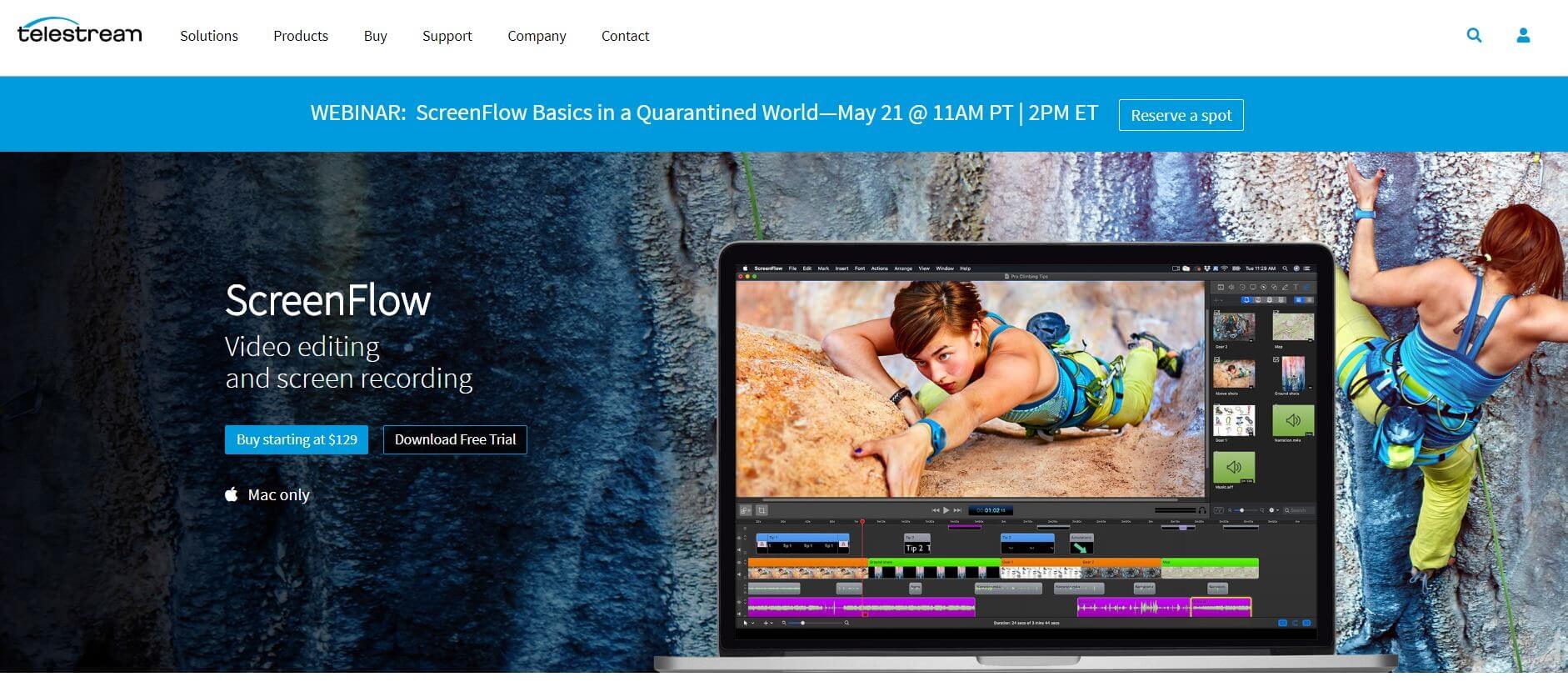
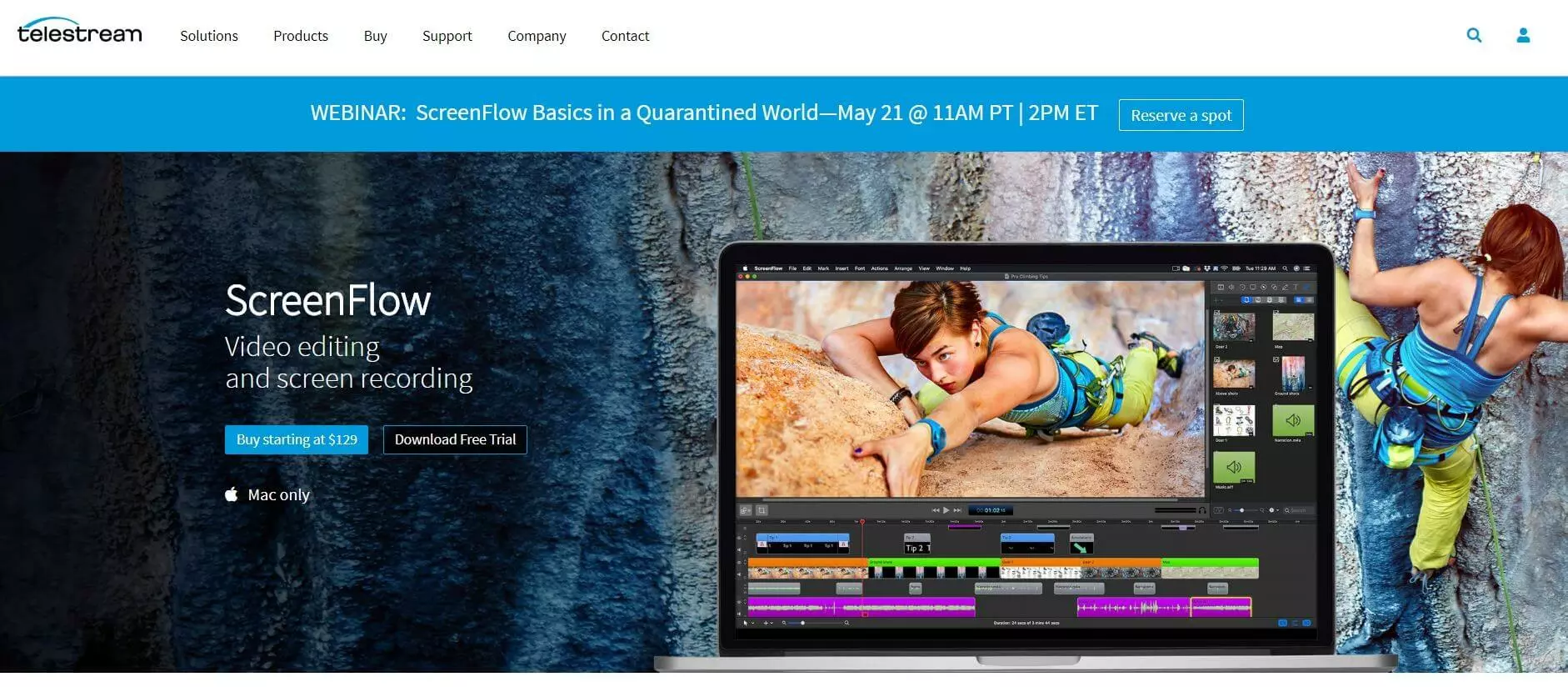
ScreenFlow presents Mac users with a more affordable alternative to Camtasia, at a price of £99. You can find out if the program suits your needs with a free test version, which allows you to explore the app’s full range of features. (However, all videos made in the test version will bear a watermark.)
After you’ve made your screen recording, you’ll have access to all of the features that typically come with video editing software - for example, inserting text, visualising mouse clicks and keyboard input, transitions, and animations. After you’ve upgraded to the paid version, you’ll also gain access to a library of over 500,000 media files that you can use in your videos.
| Advantages | Disadvantages |
|---|---|
| ✓ Unlimited free test version with full range of features and watermark. | ✗ Only available for MacOS |
| ✓ Full range of video editing features | ✗ Paid |
| ✓ Media library with 500,000 files |
FlashBack Express: Quick and easy
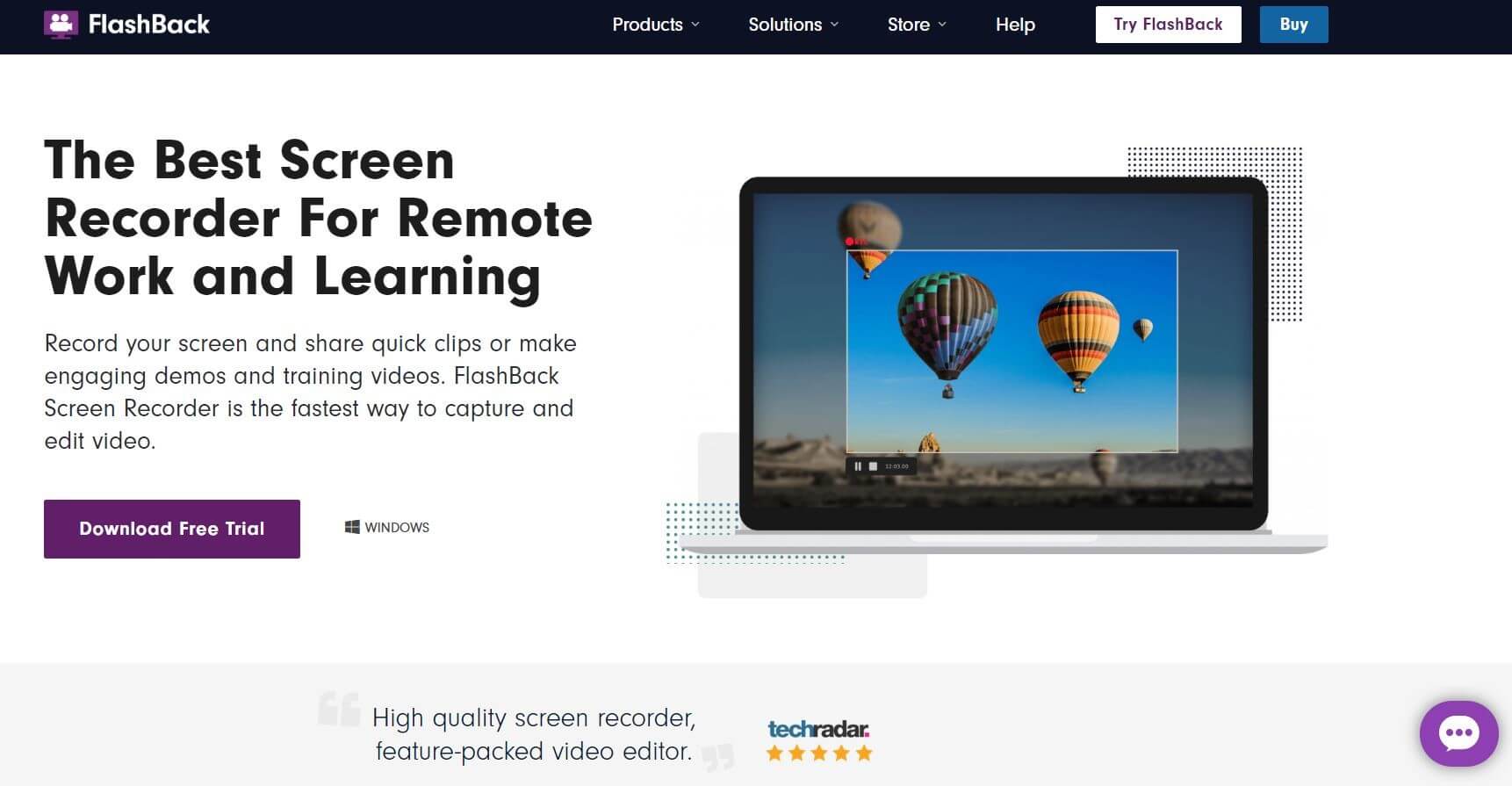
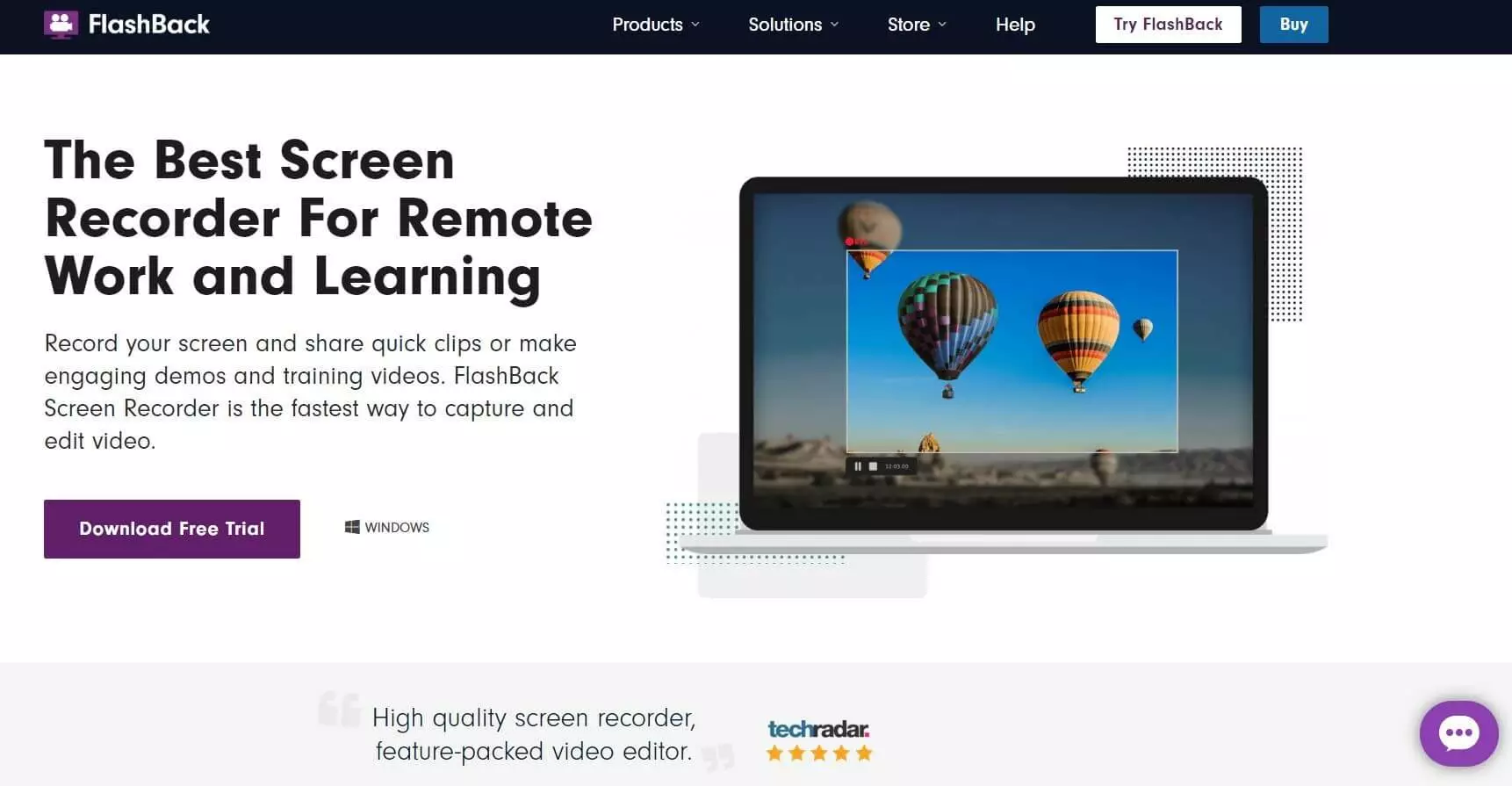
This screencast software is a good choice for anyone who wants to create a screen recording as quickly as possible and doesn’t need a wide range of options for editing. You can use FlashBack Express to record your screen, webcam, and audio content. Afterwards, you can cut the video material to make individual clips.
Even in the free version, there’s no limit on the length of your recordings. Export formats are limited to MP4, AVI, and MWV, which should be sufficient for the most common use cases. Further export formats are available in the pro version, which costs around £40. This version also offers more options for post-production, including inserting text, images, sounds, and video effects.
| Advantages | Disadvantages |
|---|---|
| ✓ Free version without recording time limits or watermark | ✗ Only available for Windows |
| ✓ Quick and easy to use | ✗ Limited export formats in free version |
| ✓ Upgrade possible |
OBS Studio: The open source software for pros
OBS Studio is open-source software that’s compatible with all operating systems. The app is mainly used for broadcasting live streams. Its use as a screencast software is mostly interesting for professionals and plugin developers. The video editing features are extensive and complex, ranging from transitions, colour correction, and chroma keying to a professional audio mixer.
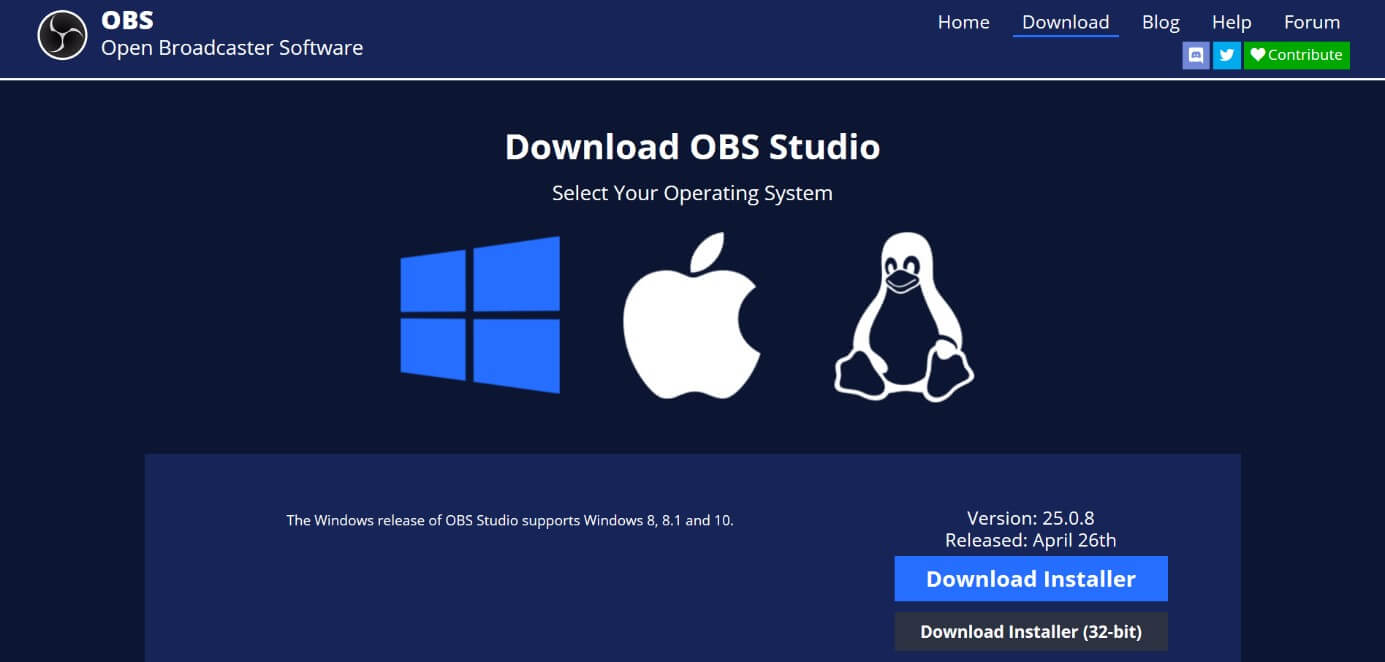
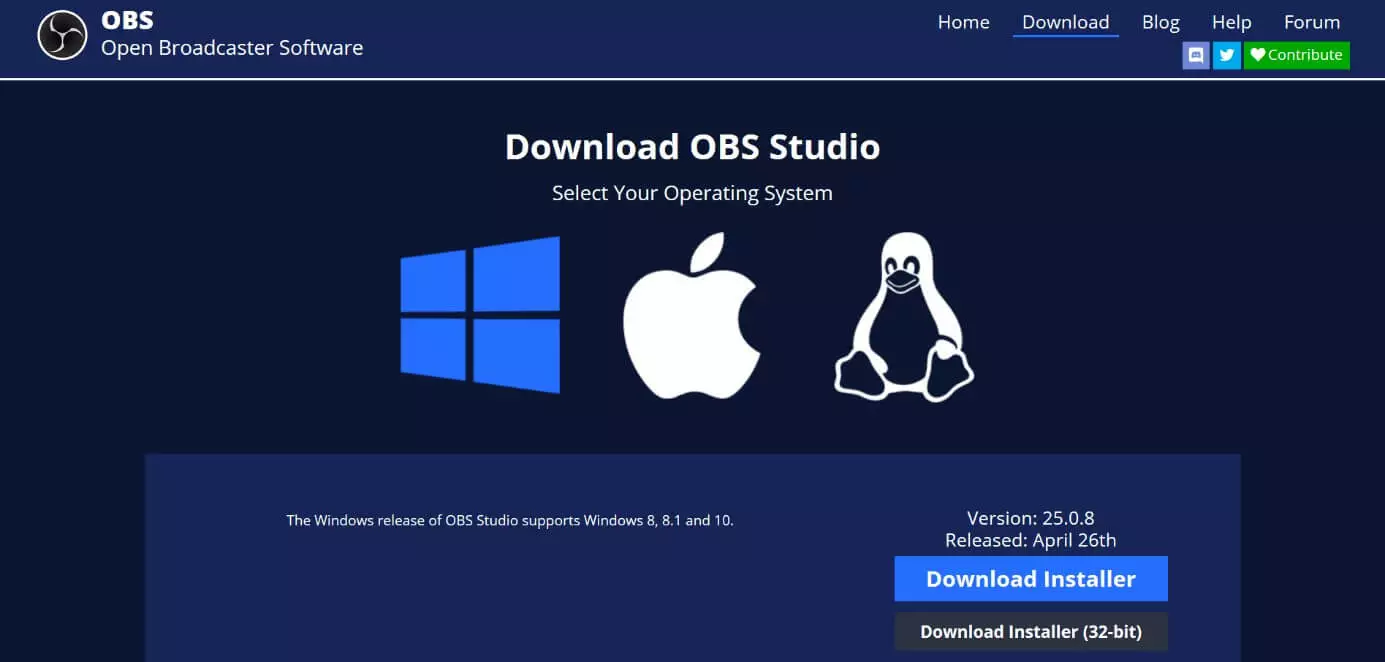
The extensive API makes it possible for plugin developers to adapt the software and integrate features.
| Advantages | Disadvantages |
|---|---|
| ✓ Open source | ✗ Very complex |
| ✓ Completely free | ✗ Not suitable for beginners |
| ✓ Available for all operating systems | |
| ✓ Extensive video editing features |
Screencastify: Chrome extension for screen recordings
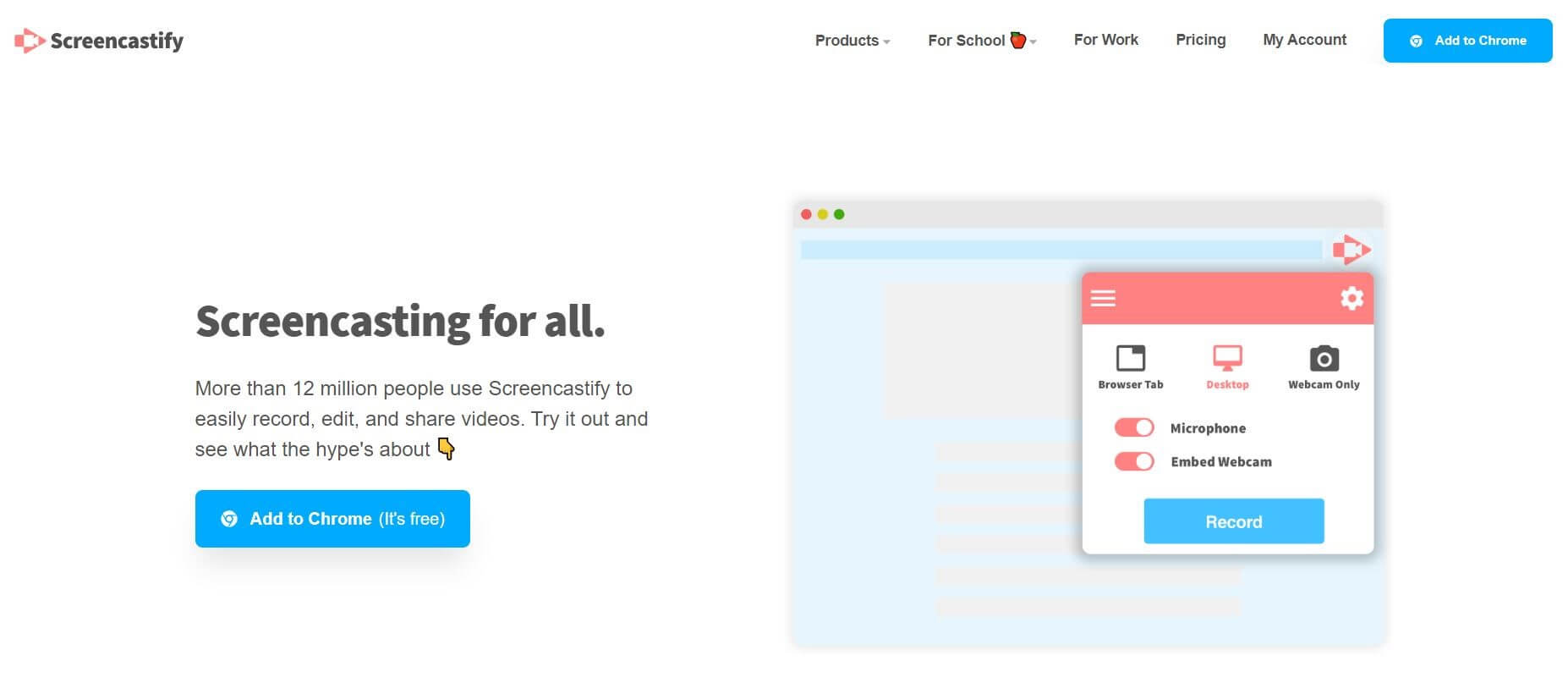
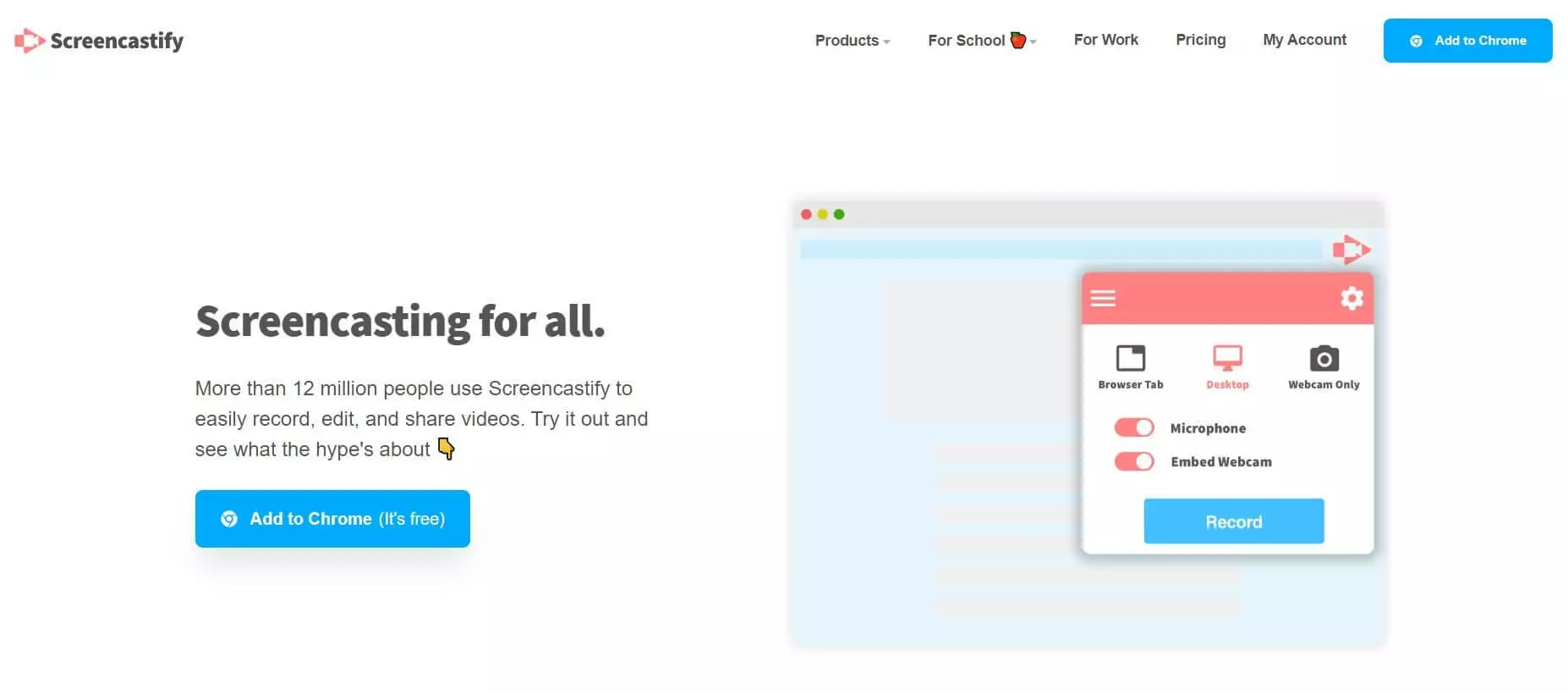
Screencastify is a free extension for the Chrome browser that’s perfect for quickly making screen recordings. The downside: Videos have a maximum length of five minutes, though the number of videos you can record is unlimited. With an upgrade to the paid version for roughly £40 a year, you’ll be able to record without any limits.
| Advantages | Disadvantages |
|---|---|
| ✓ Simple screen recordings | ✗ Recordings limited to 5 minutes in free version |
| ✓ Upgrade possible | ✗ Requires Chrome browser |
| ✓ Compatible with all operating systems |
- Store, share and edit data easily
- ISO-certified European data centres
- Highly secure and GDPR compliant
Side-by-side comparison of the 6 screencast softwares
Already lost track of all the options? This table sums up the most important features of the six screencast softwares we’ve covered.
| Windows | macOS | Linux | Limits of the free version | Paid version | Our tip | |
|---|---|---|---|---|---|---|
| Screenrec | X | X | X | 2 GB storage | Not available | The best free app |
| Camtasia | X | X | 30-day test version with watermark | Around £40 / £194 | Good for beginners | |
| ScreenFlow | X | Unlimited test version with watermark | £99 | Alternative to Camtasia for Mac users | ||
| FlashBack Express | X | Export formats limited to MP4, AVI, and MWV | £40 | Perfect for beginners | ||
| OBS Studio | X | X | X | No limits | Not available | Only for pros |
| Screencastify | X | X | X | Maximum five minute length per video | £40 per year | Perfect for spontaneous use |
The most important factor to take into consideration when choosing a screencast software is the compatibility with your operating system. Since all of the apps we discussed offer a free version, you can test them out and then decide for your personal favourite.