

What to do if spell check isn’t working in Word

Many users rely on their word processing software to automatically check spelling and grammar. Over the years, Microsoft’s Office applications have become better and better at detecting spelling and grammar errors. But what do you do if the feature stops working?
If spell check is not working in Word, incorrect language settings are usually the problem. There can be several reasons for this. When spell check isn’t working properly, almost every word is flagged as a spelling error or nothing is highlighted even though words are misspelled.
- Free website protection with SSL Wildcard included
- Free private registration for greater privacy
- Free Domain Connect for easy DNS setup
Word marks almost every word as misspelled
If Word underlines almost every word as incorrect, this is a clear indication that the programme is set to the wrong language. For example, if Word is set to French, it will highlight all but a few English words as incorrect. If that is why spell check is not working, you first have to set the right language for the text.
- Use the keyboard shortcut Ctrl + A to select the entire text and click the language displayed in the status bar at the bottom of the screen.


2. In the next dialog box, select the language you’re using in the text.
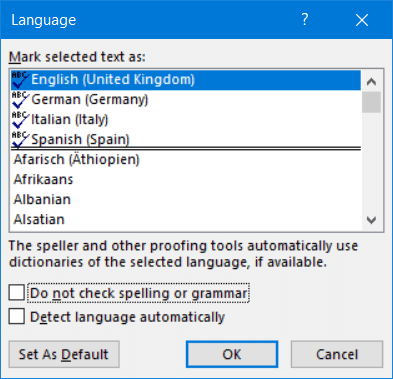
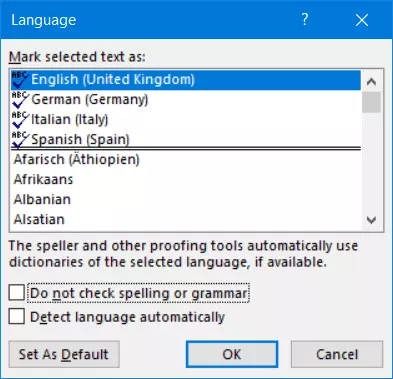
- Make sure that the “Do not check spelling or grammar” option is turned off. If this box is selected, spelling and grammar will not be checked.
- It’s best to leave the “Detect language automatically” option disabled because language recognition can easily cause errors if foreign words occasionally appear in the text.
- Choose “OK” to save your settings.
The following articles provide further useful tips and helpful advice for problems with Microsoft Word:
Incorrect highlighting reappears in new paragraphs
If you’re using a style, the spelling checker may incorrectly highlight words in new paragraphs, even though you already set English as the language for the entire text. This is because Word saves a separate language setting for each paragraph in the text. If you use a style that is incorrectly formatted because it uses a different language in certain formats, each new paragraph will be formatted in this different language. As a result, the spelling checker in Word will not work properly and display errors.
How to fix an incorrect style:
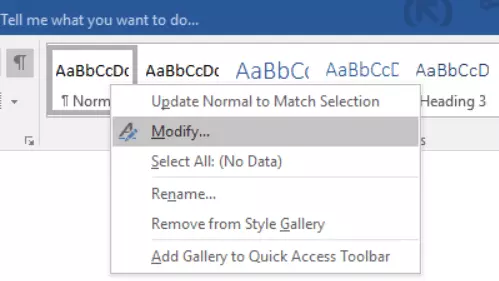
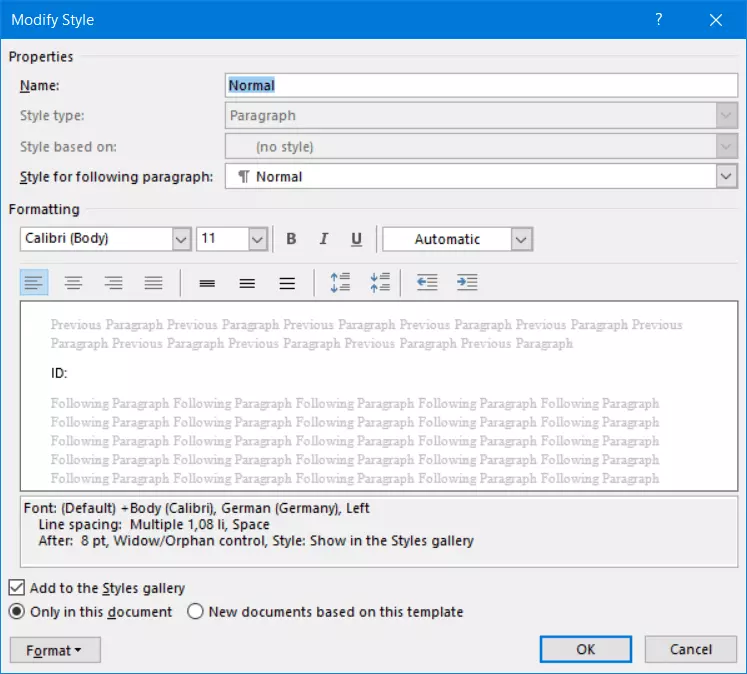
- On the “Home” ribbon, go to the “Styles” section and right-click the style you want to change. Select “Modify” in the context menu.
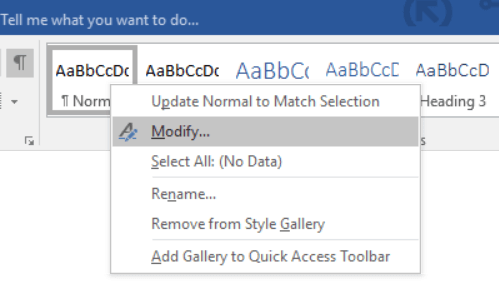
2. In the next dialog box, click the “Format” button at the bottom left. In the menu that appears, select “Language”.
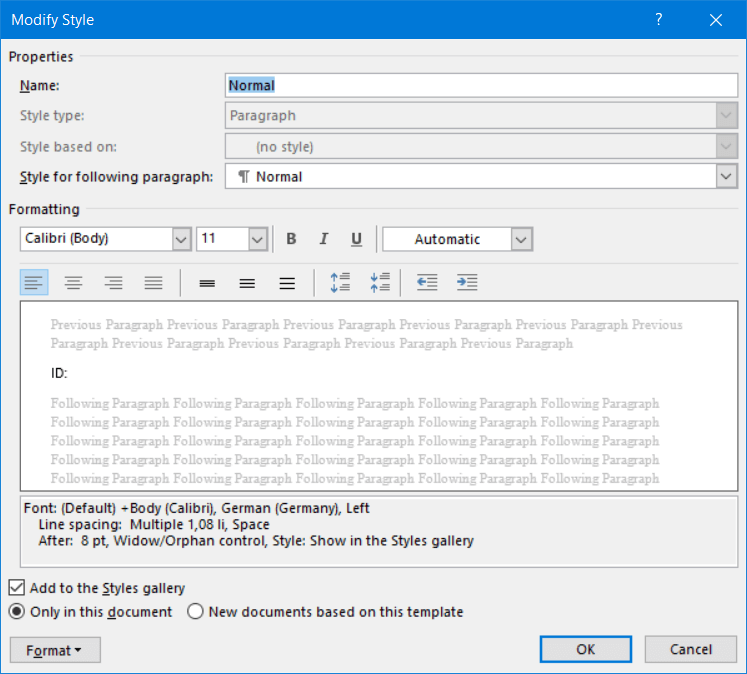
- You’ll now see a dialog box for selecting the language. Choose the desired language for this style and make sure that “Do not check spelling or grammar” is disabled.
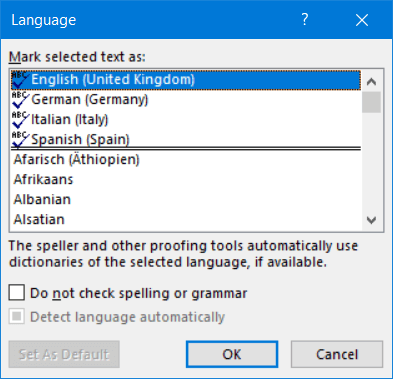
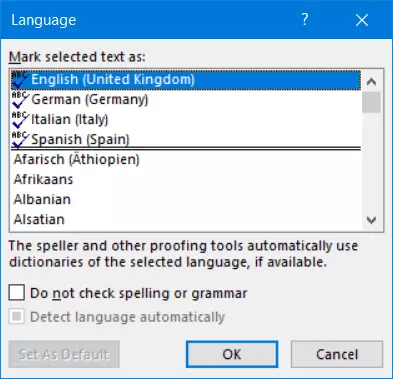
4. Choose “OK” to save your settings. If you now type a new paragraph with the modified style, Word will not mark errors incorrectly because the text is set to the correct language.
Word does not mark errors at all
If Word does not mark any misspelled words, including proper nouns or abbreviations that would normally be marked as spelling mistakes, it means the spelling checker is turned off. In this case, you can turn on spell check in Word.
How to turn on spell check in Word:
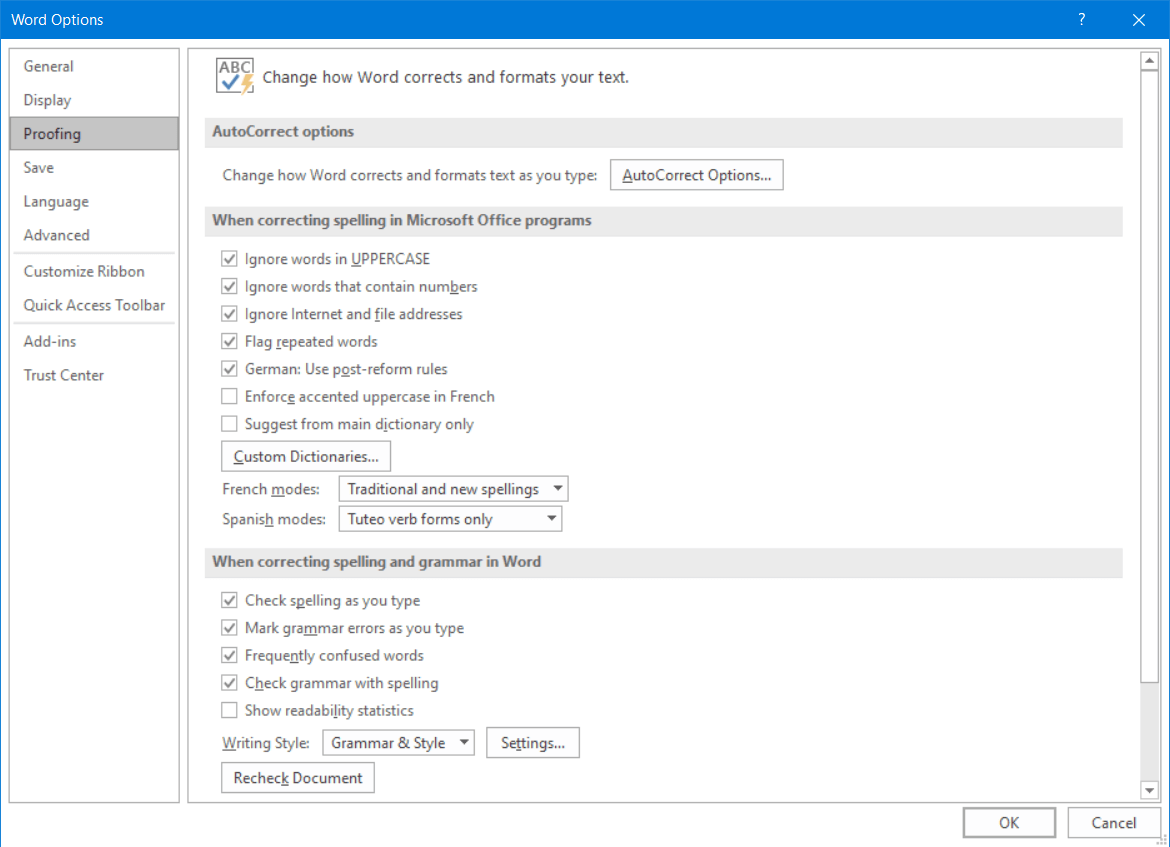
- Click “File” on the ribbon and select “Options”. In the next dialog box, open the “Proofing” section.
- Select the “Check spelling as you type” checkbox. Spelling mistakes will then be displayed with wavy red lines.
- Also check the box next to “Mark grammar errors as you type”. These errors will be highlighted with wavy blue lines.
Word reports too many spelling errors but does not mark them
Occasionally, you’ll get an error message saying that the text contains too many spelling errors to continue displaying them. This message is misleading because Word can detect almost any number of errors in a document.
Word allows you to format different passages of text in different languages. The automatic spelling checker in Word won’t work if the language changes too many times in the text, for example if styles were incorrectly formatted.
Here’s how to fix the problem:
- First, select the entire text by pressing Ctrl + A. Then click the language displayed in the status bar.
- In the next dialog box, select “English” or the language used in the text.
- Disable the options “Do not check spelling or grammar” and “Detect language automatically”.
- Save your changes by choosing “OK”.
- In most cases, spelling and grammar errors will now be displayed again. If this is not the case, the “Check spelling as you type” option was automatically disabled. In that case, simply check this box again.
Microsoft 365 (formerly known as “Microsoft Office 365”) is a server-based Office solution for personal users and small businesses that includes the popular Office applications Word, Excel, and PowerPoint. Thanks to cloud functions and mobile apps, you can work on your documents, spreadsheets, and presentations from anywhere.