

An Overview of the Best Paint Alternatives

Microsoft Paint is still one of the most widely used graphics programs in the world, and is an integral part of the Windows operating system. Its main advantage is how easy it is to use: quickly convert a picture into another format, cut down the size or simply draw hands-free on the screen and hey presto! However, the application has long since been overtaken by others, which is why it will not be included in the next major Windows 10 update. Instead, the much improved “Paint 3D” will be included. You can still find numerous free alternatives to Paint online, most of which have much more extensive features than the Microsoft program. Here, we provide a list of the best alternatives:
GIMP: Paint Alternatives with Extensive Image Processing Functions
The first version of the GNU Image Manipulation Program (GIMP for short) was released in 1998, quite a few years after the release of Microsoft Paint (1985). GIMP’s longer development period, however, gave it a decisive advantage: while Microsoft was resting on its laurels, GIMP was succeeding in surpassing it with a much larger spectrum of functions. Thanks to the plug-in system, the program can be expanded as required, which has led to a constant increase in the range of functions over the years. GIMP became one of the most popular open-source graphic programs worldwide in a short space of time, making it a perfect alternative to Paint.
Unlike Paint, GIMP is compatible with macOS and Linux as well as Windows.
While Paint just has basic functions (image cropping, changing the format, simple painting tools etc.), GIMP can optimise your images with an infinite number of tools and features on an unlimited number of layers.
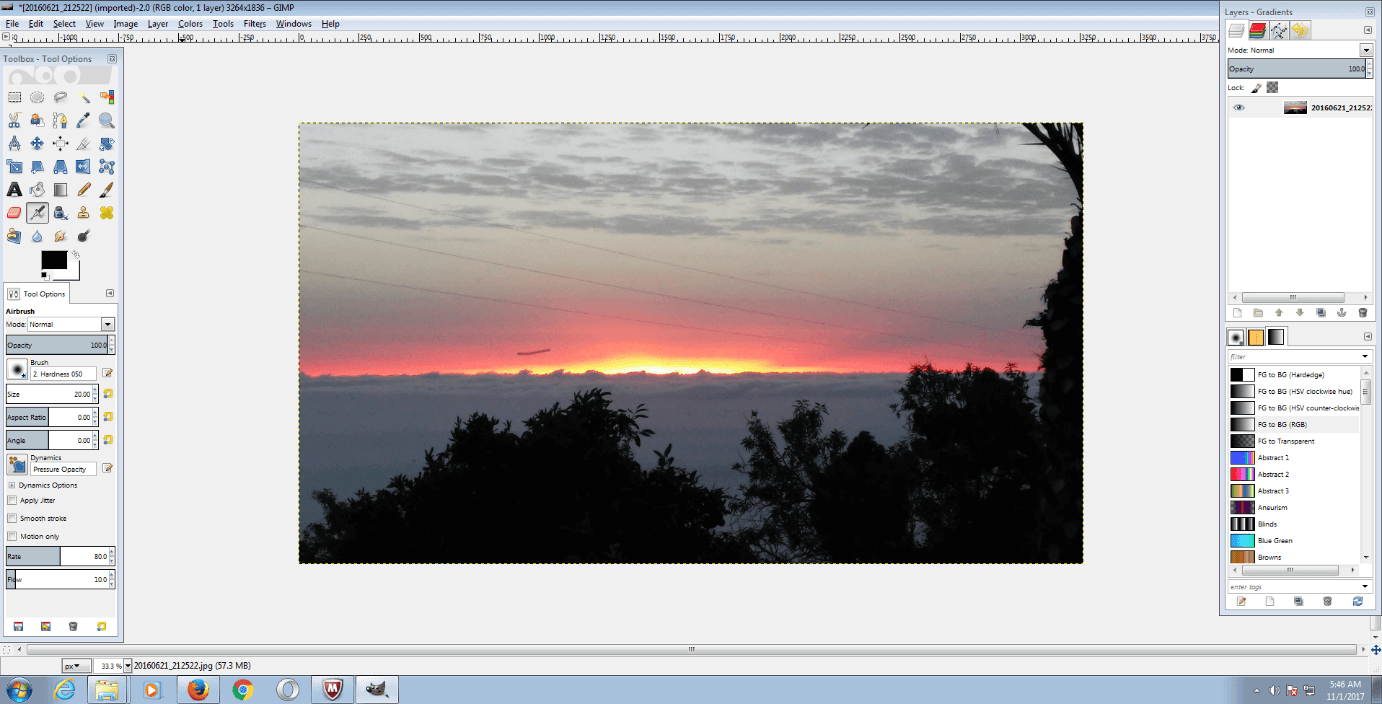
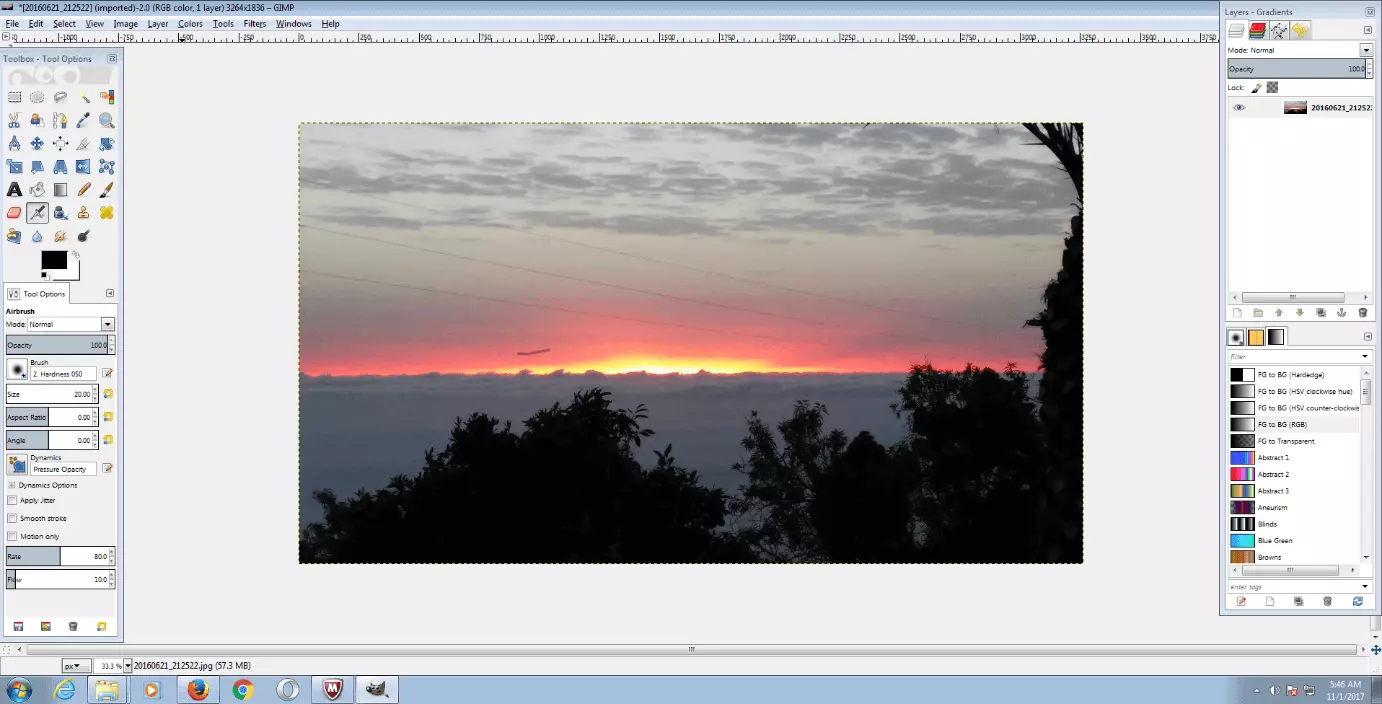
The menu bar provides you with all the functions you need for image processing. You can customise the interface according to your requirements and attach different toolbars. This will put all the tools you need within easy reach.
GIMP is easy to personalise: once you have created your ideal interface, it is all automatically saved. Any toolbars you create can be found directly on the user interface after each startup.
GIMP’s performance spectrum is enormous: in just a few clicks, color distribution, saturation, contrast or brightness can be corrected. There are also tools for trimming, scaling and rotating the images, as well as tools for manually editing individual elements. The following filters and effects are available (among others):
- Enhance (e.g., fixing red-eye)
- Smoothing (e.g., pixelating)
- Light and shadow effects (e.g., glitter, lens reflex)
- Artistic effects (e.g., canvas, oil painting)
- Decorative effects (e.g., coffee stains, round corners)
- Animations (e.g., overlap, waves)
Use the Undo function to quickly fix unsuccessful changes.
A further pro is the large selection of export formats they offer. With GIMP, you can choose from more than 30 different file formats: from typical image formats like .jpg, .gif or .bmp, to archive formats like .gz or .bz2, to web formats like .html or .xhtml – the software offers a lot of options. You can also create PDF documents using GIMP.
Disadvantage: although GIMP has an impressive range of painting tools and features, the program is actually quite complex to use. Compared to Paint, you will need much more design training and technical skills in order to achieve a decent end result.
When you are working with several image layers at the same time, the original image is not always there in the background, as is the case with professional, paid image processing programs. This means that each processing step is an integral part of the change process. If you want to correct an error, you can only do so using the “Undo” function. However, if the error you want to change was several steps back, you will lose all subsequent changes too.
A further disadvantage is that the software does not have an intermediate function, making it not particularly well equipped to deal with crashes. In order to avoid losing your work, you should save your image processing on a regular basis.
You can find the important aspects of a good image processing program in our guide.
| Advantages | Disadvantages |
|---|---|
| ✓ powerful alternative to Paint | ✗ complex operation |
| ✓ free | ✗ requires serious training |
| ✓ numerous plugins available | ✗ Original image is not saved in the background |
| ✓ easy to personalise | ✗ no caching function |
| ✓ Working on several levels is possible | |
| ✓ can create PDFs | |
| ✓ platform compatible (compatible with Windows, macOS, Linux |
Inkscape: Technical Drawing with a Vector Graphics Program
Inkscape is an open-source vector graphics program that lets you create professional illustrations, icons, logos, diagrams, maps or even web graphics. The program uses the XML-based W3C standard Scalable Vector Graphics (SVG) and is free open-source software. Inkscape is used by professional and hobby designers worldwide as a promising alternative to Paint.
Inkscape is compatible with Windows, MacOS, and Linux.
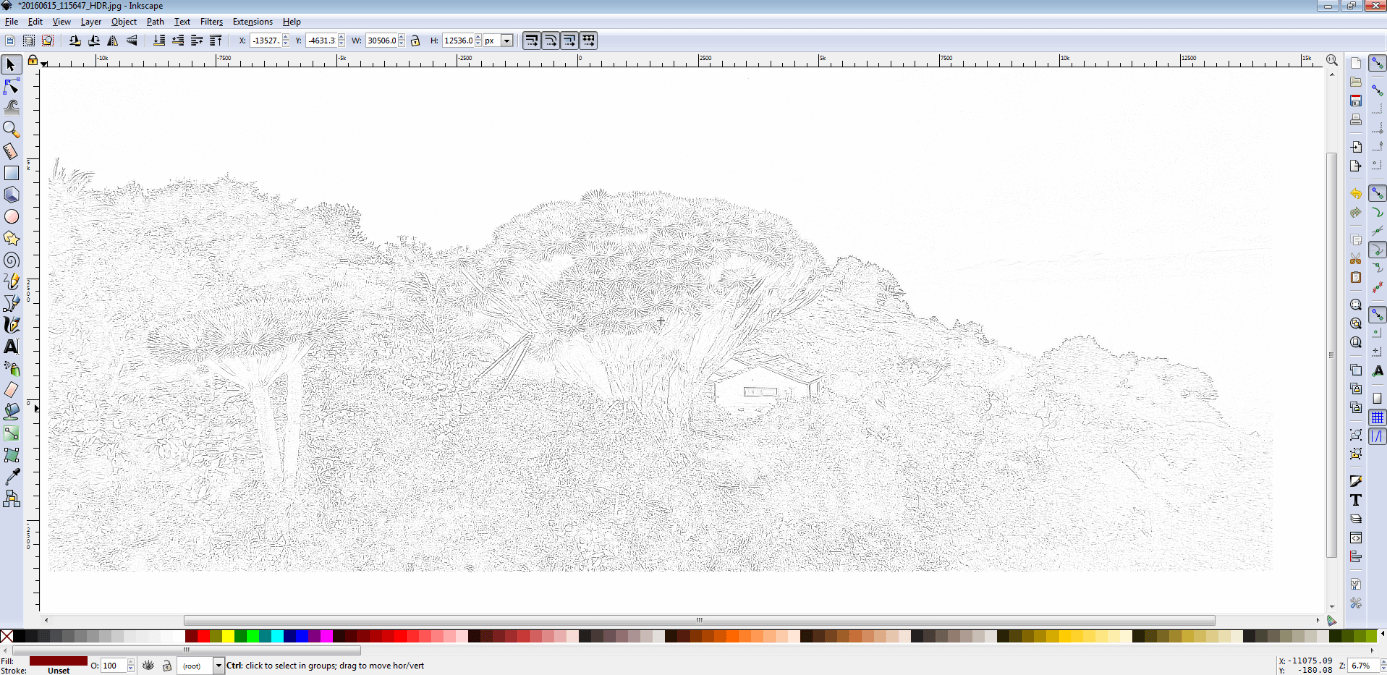
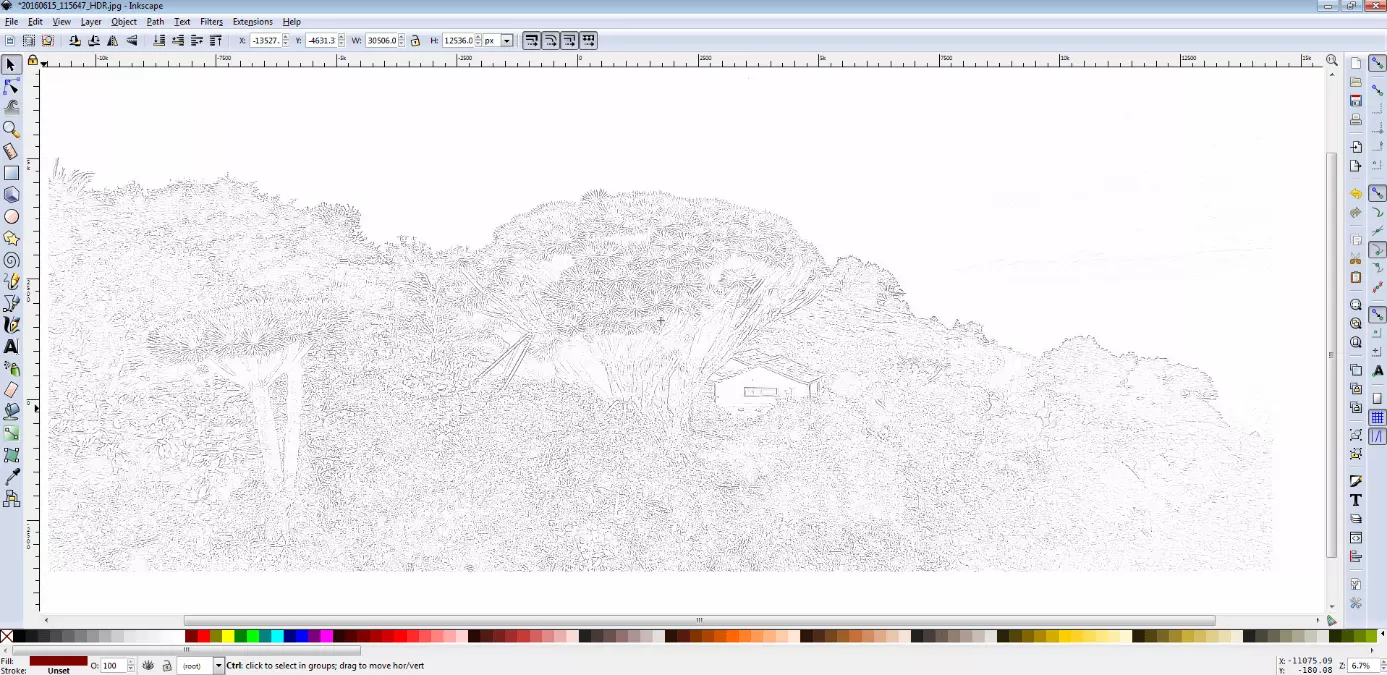
What makes Inkscape special is that it saves information on images as vectors, rather than color points. These are simple graphical elements such as lines, circles, polygons, or curves that produce two- or three-dimensional images. A great advantage over the conventional pixel grid is the loss-free scalability. Using Inkscape, you create images that can be enlarged or reduced as you wish – while retaining a high level of quality.
In our other article on the topic, you can find more information about the advantages and disadvantages of pixel and vector graphics.
Inkscape allows for a precise, technical character with so-called paths. Various molding tools are available for this purpose, such as rectangles, ellipses, polygons or spirals that you can manually change, move, scale, rotate or tilt. On this basis, you can design a wide range of vector graphics, combine them with other images or add animations. The painting tools, on the other hand, remain just as sparse as the ones on Paint. Only pencil, calligraphy or filler tools are available for freehand drawing.
One area of disagreement regarding the program is its operation. Some users consider Inkscape to be one of the most user-friendly graphics programs on the market. On the other hand, some say that its operation is too complicated compared to other vector-based graphics programs. However, many users criticism is due to the fact they are used to other programs like Illustrator, Sketch or CoreIDRAW, meaning that they had to adapt when they switched to Inkscape. On Inkscape’s Wikipedia page, there is a guide to the program for those have prior knowledge of Adobe Illustrator.
The overall impression that Inkscape leaves, is that it is a thorough, professional vector graphics software. Anyone who has ever worked with vector-based programs, or is at least familiar with image processing, in general, should work out how to use it fairly quickly, even if the navigation and some commands are different to other graphics programs. Beginners in the field, however, could be quickly overwhelmed with the diverse functions and the sequences of the individual design processes.
You can find a few video tutorials for different tools in Wordscape on the Inkscape homepage.
Inkscape supports all popular file formats (SVG, PNG, PDF, etc.), as well as royalty-free vector graphic program formats like Adobe Illustrator (AI), and CoreIDRAW (CDR). As a result of this, you can process other formats of graphic program files with the open source application, and vice versa for designs started with Inkscape.
Disadvantages: You need some prior knowledge of vectors in order to be able to work efficiently with Inkscape. Beginners who have just worked with pixel graphics will often have a difficult, time-intensive training period. The software is also aimed towards technical drawing and is less suitable for freehand tags.
| Advantages | Disadvantages |
|---|---|
| ✓ powerful alternative to Paint | ✗ Previous knowledge of vector graphics is required. |
| ✓ free | ✗ Beginners will require training |
| ✓ Vector graphics: loss-free scalability | ✗ Limited painting set |
| ✓ Work on several levels is possible | ✗ Only useful for technical drawing |
| ✓ numerous plugins are available | |
| ✓ structured user-interface | |
| ✓ can create PDF‘s | |
| ✓ Inserting animations is possible | |
| ✓ Video tutorials and assistance is available | |
| ✓ platform compatible (with Windows, macOS, Linux) |
MyPaint: taking Paint to another level
Do you want to design creative images on a real drawing block? MyPaint is a powerful, free paint program that gets the job done. The multi-platform graphics program has been written in the program languages C, C++, and Python and has been specially developed for print-sensitive graphic tablets. This makes MyPaint a realistic painting experience on the highest level, and is a popular alternative to Paint.
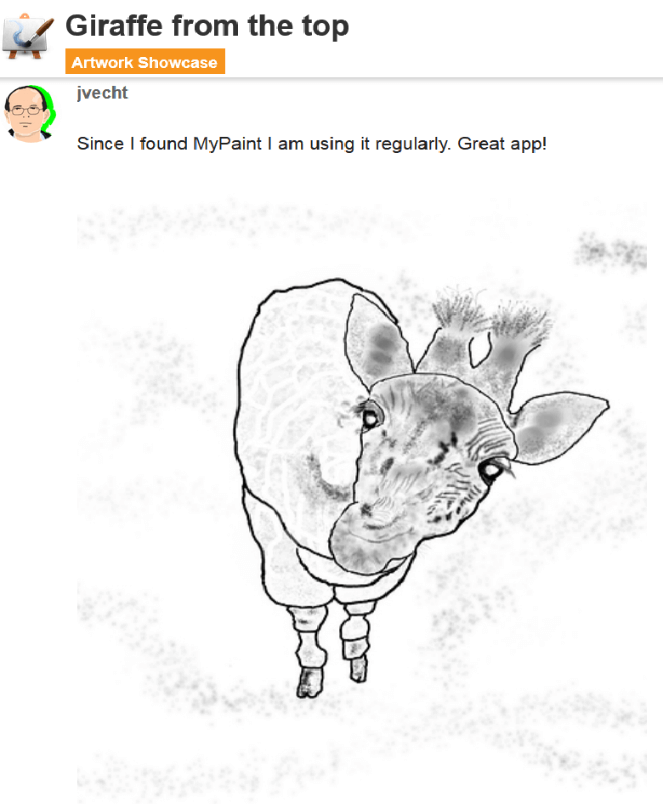
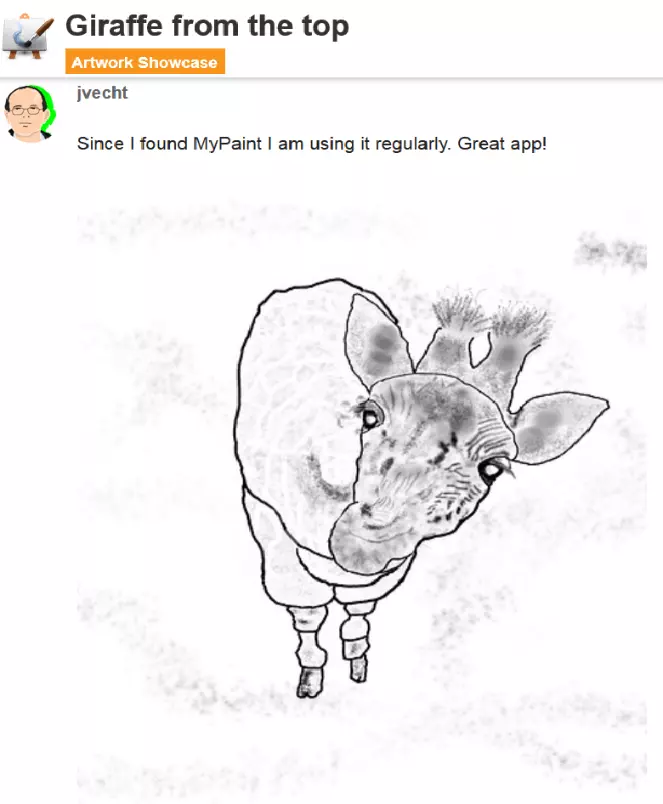
MyPaint has a wide range of functions that are almost unbeatable: the basic version already has over 400 different pen and brush types available. You can also download countless other features, filters, and effects, some of which are provided by the MyPaint community. Customise your painting set and arrange your individual toolbars easily on the user dashboard. This way, you will always have a good overview.
Get useful tips from the MyPaint community, where you’ll find great features, help with technical questions and inspiration for your own art.
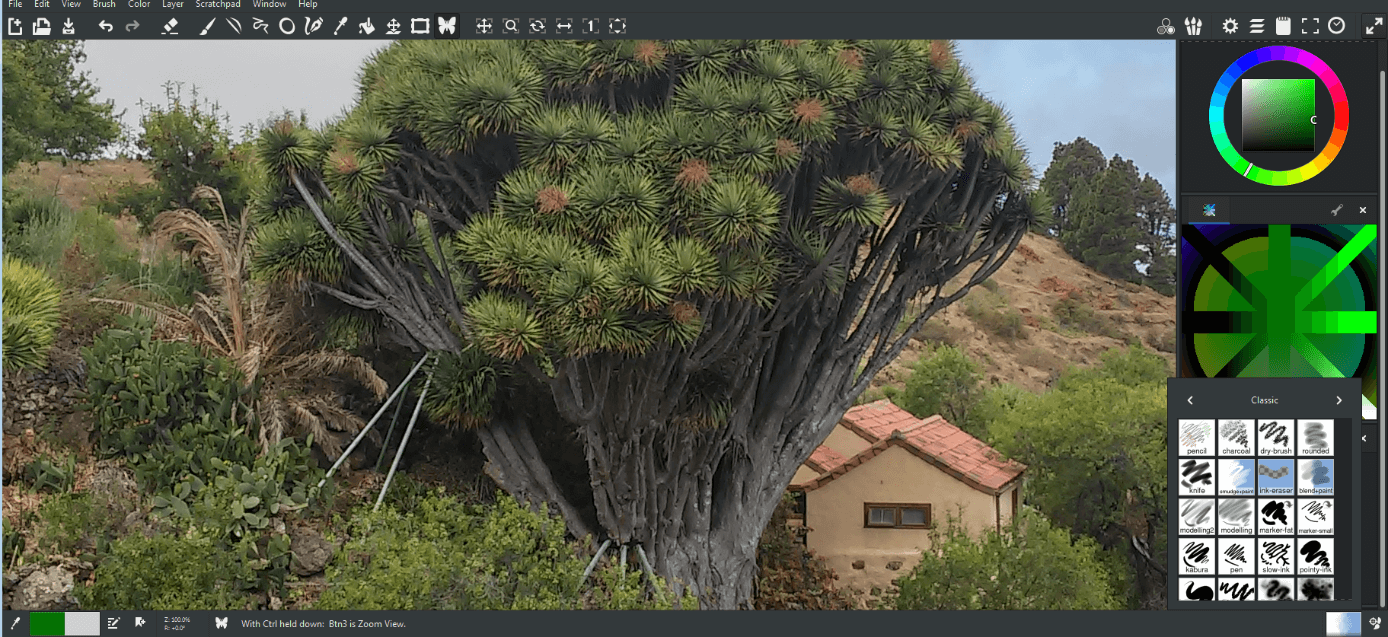
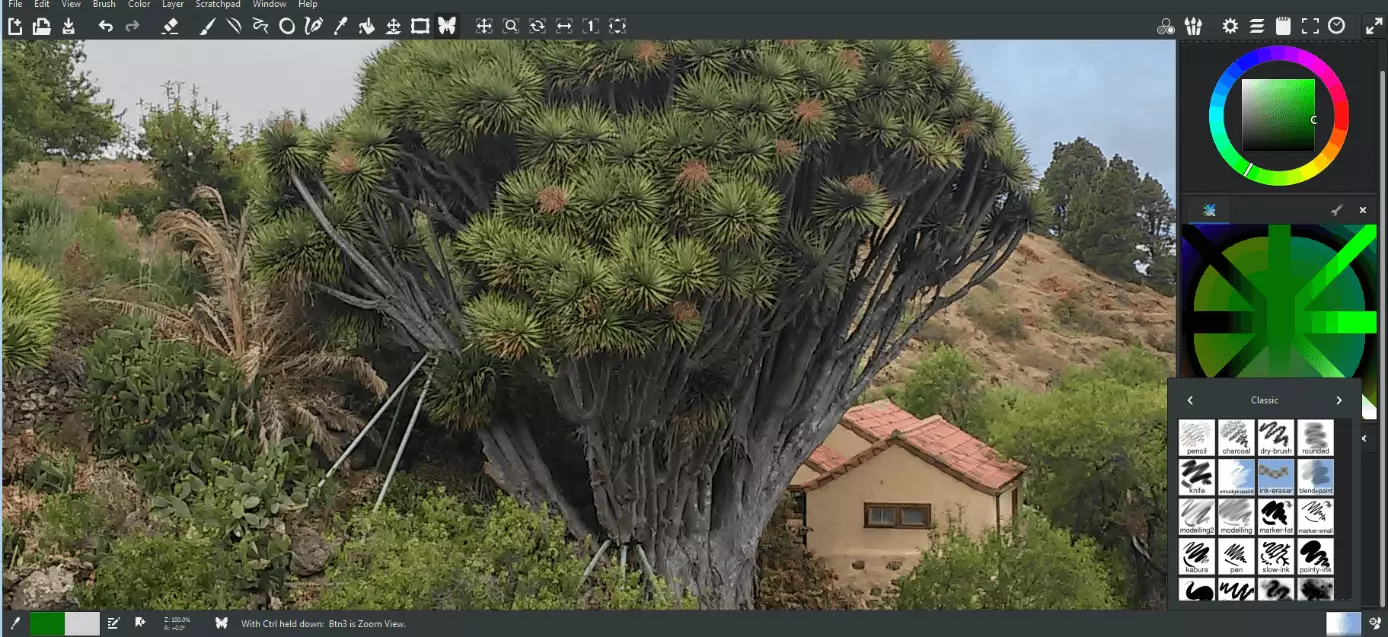
Just like their competitors, MyPaint allows you to work in layers which you can combine as you wish. In order to make as realistic a drawing as possible, you can also choose from different background colours, and you can find more templates in the MyPaint community.
MyPaint also scores well in terms of user-friendliness. Users can create their own paint set, making the software suitable for both beginners and advanced users. The toolbars can be placed anywhere on the program dashboard. The size of the dashboard is also adjustable.
Disadvantages: MyPaint is only available in the English language. Also, many users complain about difficulties using the mouse. It is easier to run using a graphics tablet.
Another drawback is that MyPaint only supports three file formats: the standard ORA file format, as well as the JPEG and PNG. You can also use a plugin to open ORA files in GIMP and then edit them further. File formats JPEG and PNG in MyPaint do not allow working with layers.
| Advantages | Disadvantages |
|---|---|
| ✓ powerful alternative to Paint | ✗ only available in English |
| ✓ free | ✗ Difficult to use with the mouse |
| ✓ user-friendly | ✗ limited number of file formats supported |
| ✓ wide range of functions | ✗ file formats JPEG and PNG do not support working on multiple levels |
| ✓ easy to personalise in detail | ✗ cannot save work in PDF format |
| ✓ wide range of plugins available | |
| ✓ working on multiple layers is possible | |
| ✓ large MyPaint community | |
| ✓ compatible on multiple platforms (Windows, macOS, Linux) | |
| ✓ supports graphic tablets |
Paint.NET: Microsoft’s in-house alternative
Paint.NET originally began as a student project and is now among the best paint alternatives in the freeware sector. The software first appeared on the market in 2004 and was initially released with the free MIT license. Now, however, the popular Paint alternative is part of the Microsoft .NET framework, which is automatically set up during installation. Since the framework runs exclusively with Windows, Paint.NET is not compatible with other operating systems like macOS and Linux.
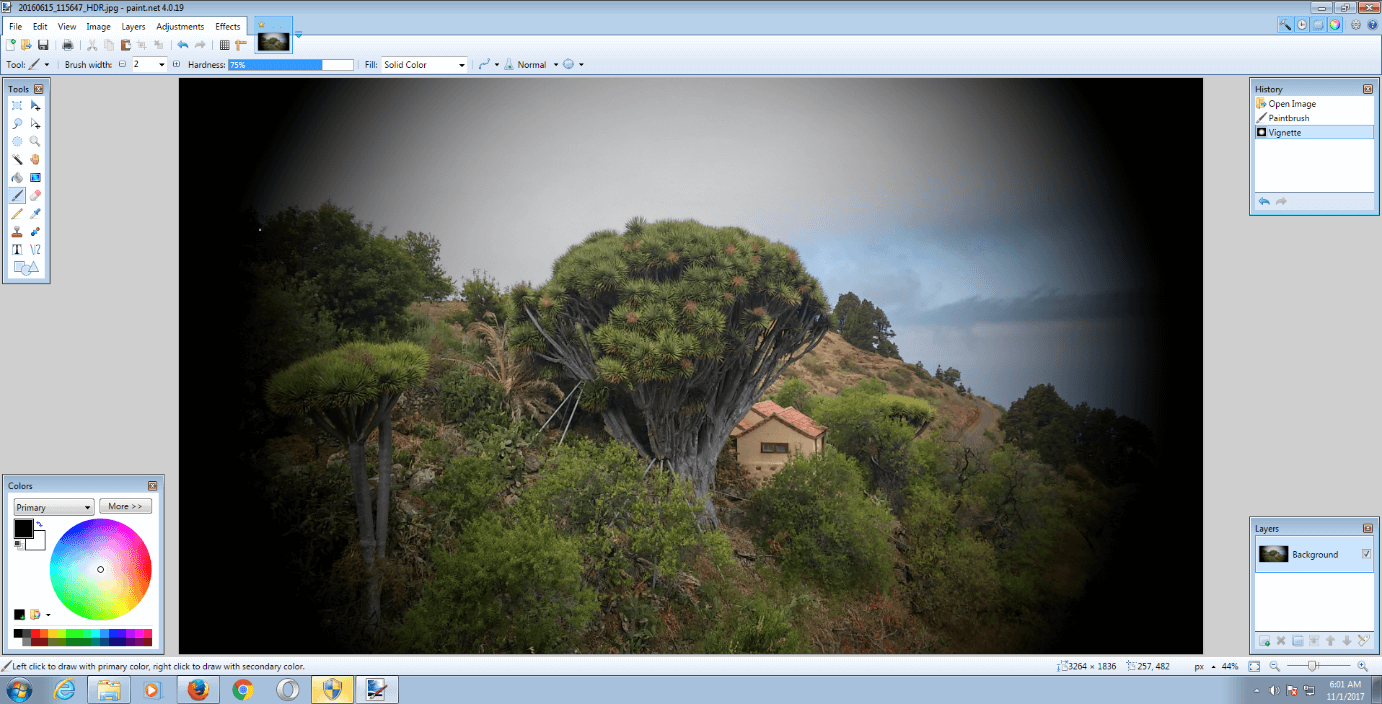
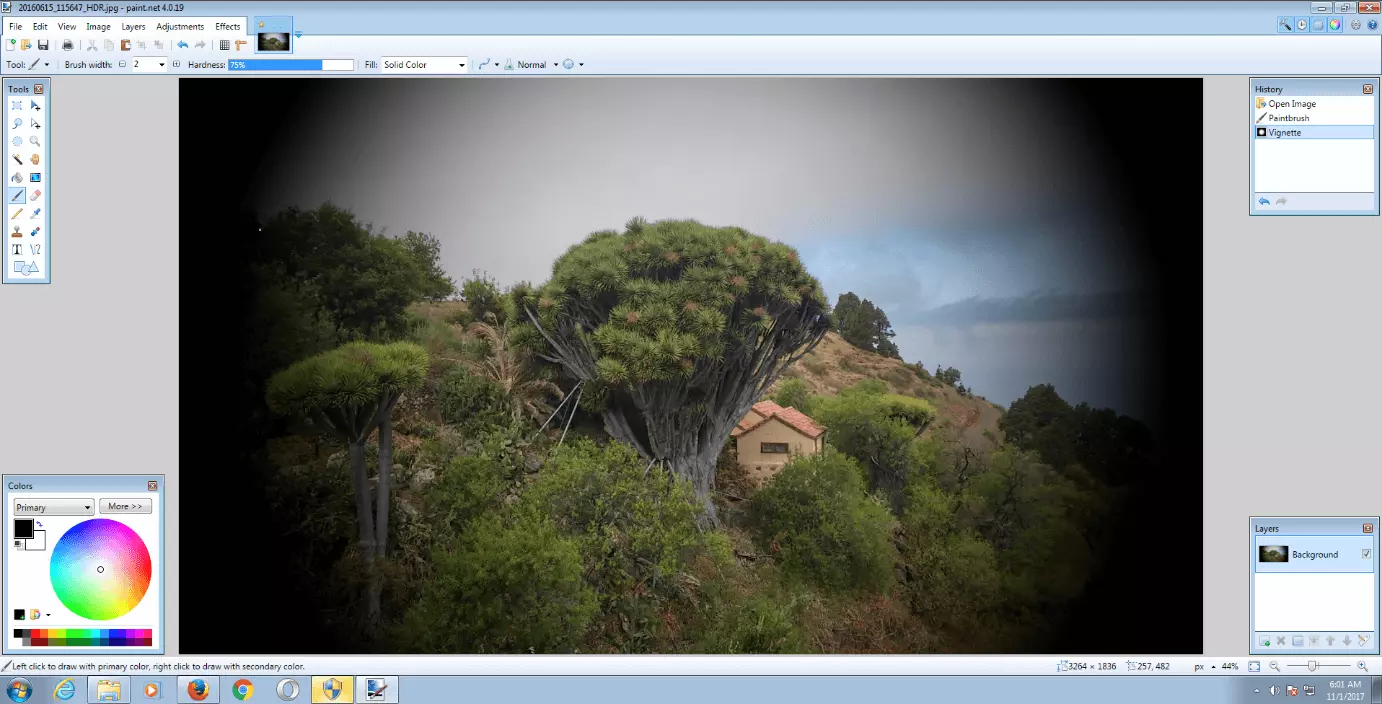
Once you get started with Paint.NET, you will quickly notice that it is very similar to GIMP in appearance. The menu bar, in particular, has clearly been inspired by the competition. However, Paint.NET is more clean-cut and easier to use. This is mainly thanks to the manageable selection of tools and effects available to the user in the basic installation. Microsoft’s Paint.NET does not really compete with GIMP’s wide range of functions but the basic package can be extended by numerous filters and effects.
Thanks to the active community, you can download a number of interesting plugins (like 3D or circular text formats) in the Paint.NET forum. Just browse the official plugin directory and create your own toolbox with numerous free features.
The Basic Package contains all the tools that are available in Paint:
- Painting tools, e.g. paint brushes in a variety of thicknesses and colors
- Rubbers
- Clone Stamps
- Geometric objects
Similar to Paint, you can crop, resize or even insert gridlines. In addition, Paint.NET provides a whole host of other optimisation tools and effects, including:
- Hue and contrast changes
- Red eye remover
- Softener and sharpener
- Black-and-white and sepia filters
- Spiral or arching effects
- Colour gradient generator, etc.
And that is by no means everything: like with GIMP, you can edit your images on multiple layers and create unlimited projects. However, the program – like its counterpart – is destructive, so you change the original image with every action. Of course, you can still undo unwanted changes using the “undo” function. Another plus is the history, where you can look back and see all the changes you have made. When you are finished editing, you can save your results in eight different formats: PDN, BMP, PNG, GID, JPEG, TIFF, TGA, and DDS.
Disadvantages: In addition to the previously-mentioned disadvantages – such as being exclusively compatible with Windows, or the small functional scope in the basic installation – it should be noted as a disadvantage that Paint.NET does not save edited files in PDF format.
| Advantages | Disadvantages |
|---|---|
| ✓ powerful alternative to Paint | ✗ only available for Windows |
| ✓ free | ✗ narrow range of functions in the basic package |
| ✓ easy to operate | ✗ the original image is not saved in the background level |
| ✓ suitable for beginners | ✗ no PDF format storage possible |
| ✓ numerous plugins are available | |
| ✓ easy to personalise | |
| ✓ work on multiple levels is possible | |
| ✓ History function |
Artweaver: Another class of painting program
Artweaver, developed by Boris Eyrich, is an extensive digital drawing program that allows you to design professional images. The wide selection of predefined brushes makes digital painting in this program a realistic experience. Artweaver is an appealing program for beginners as well as more advanced users. Whether you want to paint with oil brushes, wax pens, pastel or charcoal, you will be able to find the right tool for every project here. This makes the software a perfect alternative to Paint.
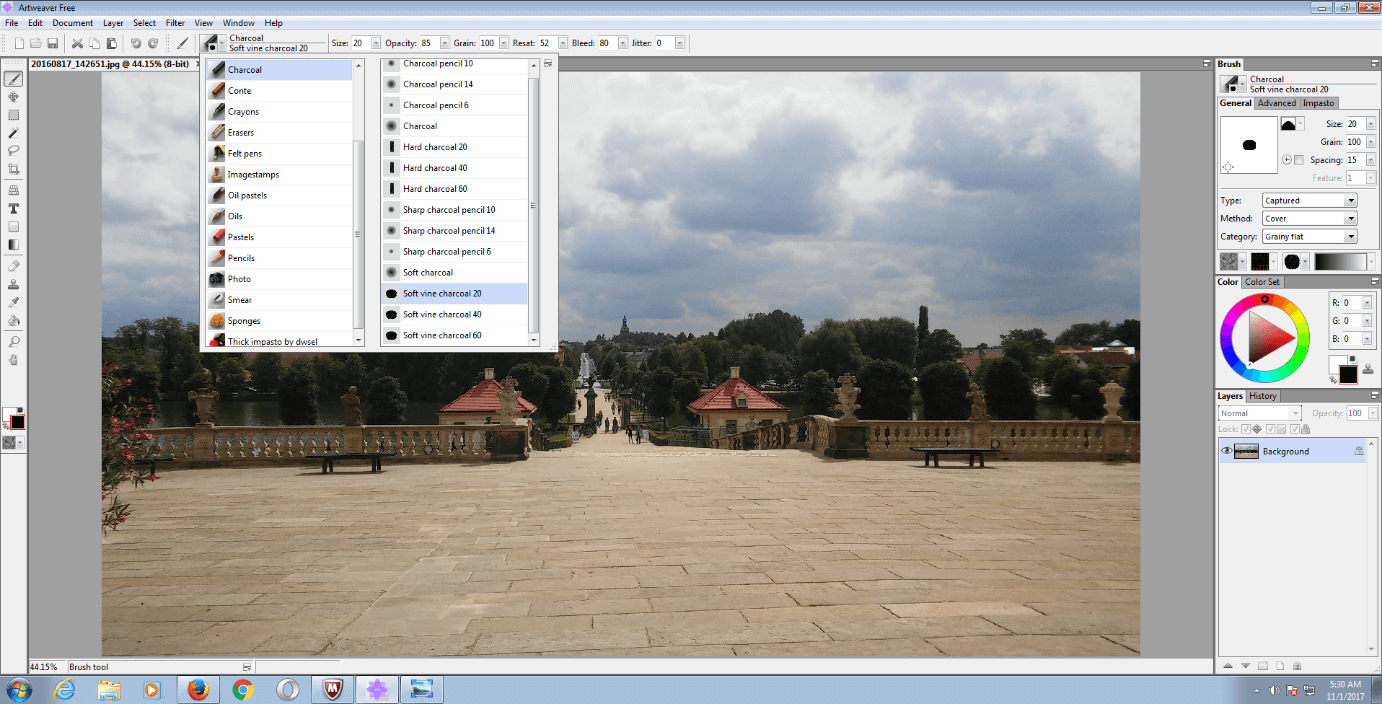
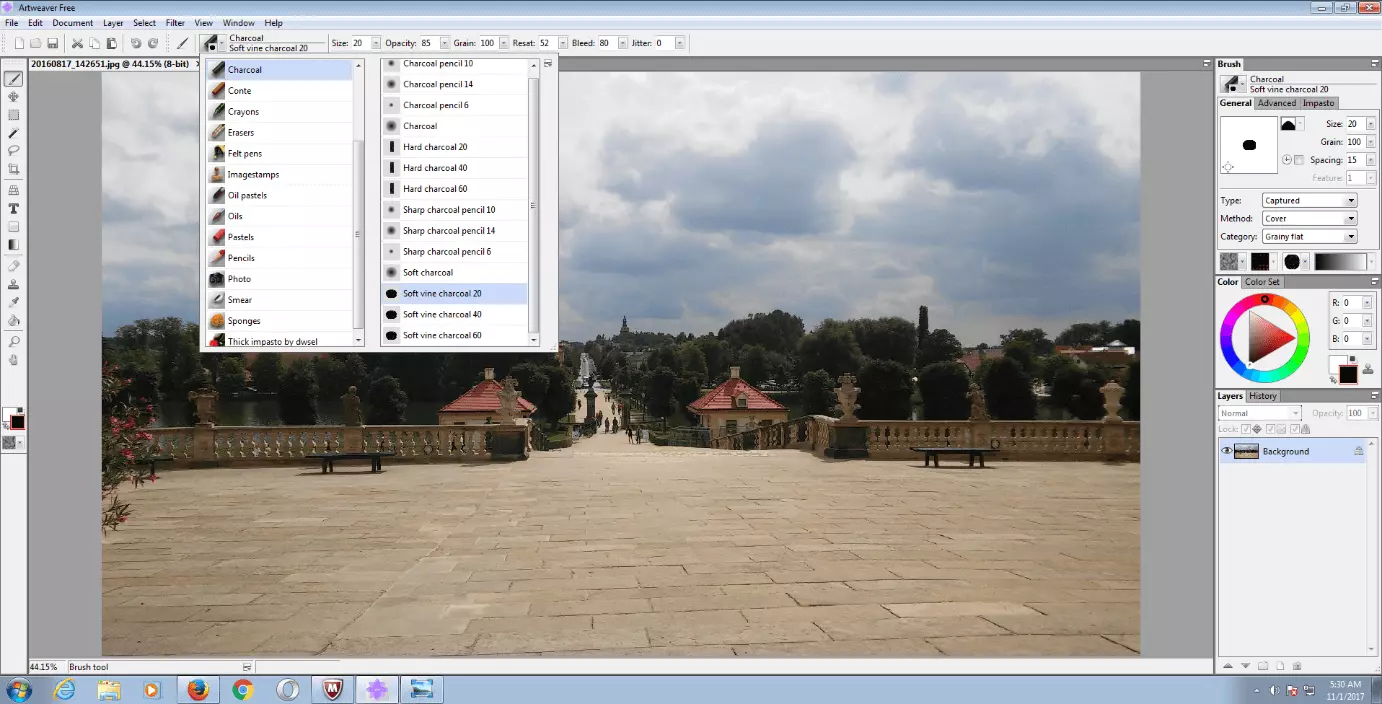
The program is available either as freeware or a paid version. For Artweaver Plus, you will need to reach a little deeper into your purse, however, you will get a remarkable selection of exclusive tools (e.g. mirror painting), a free rotating work surface and additional brush types (e.g. hairbrush) for your money. Popular features like the red-eye removal tool or picture stamp are only available in the premium version. In the stripped-down freeware version, you will have to make do with a color depth of 8 bits per color channel – as opposed to 16 bit in Artweaver Plus.
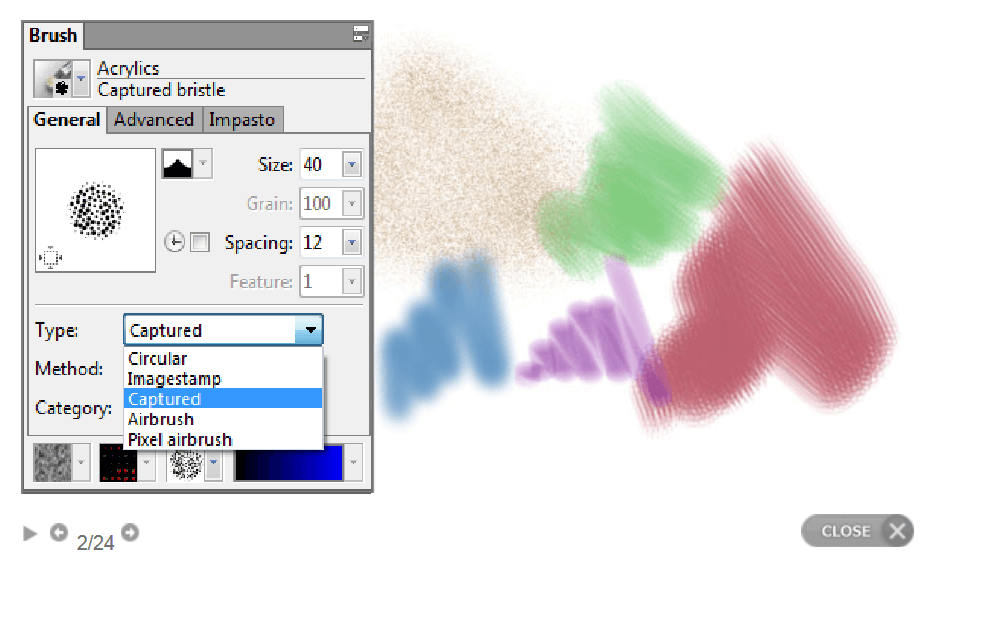
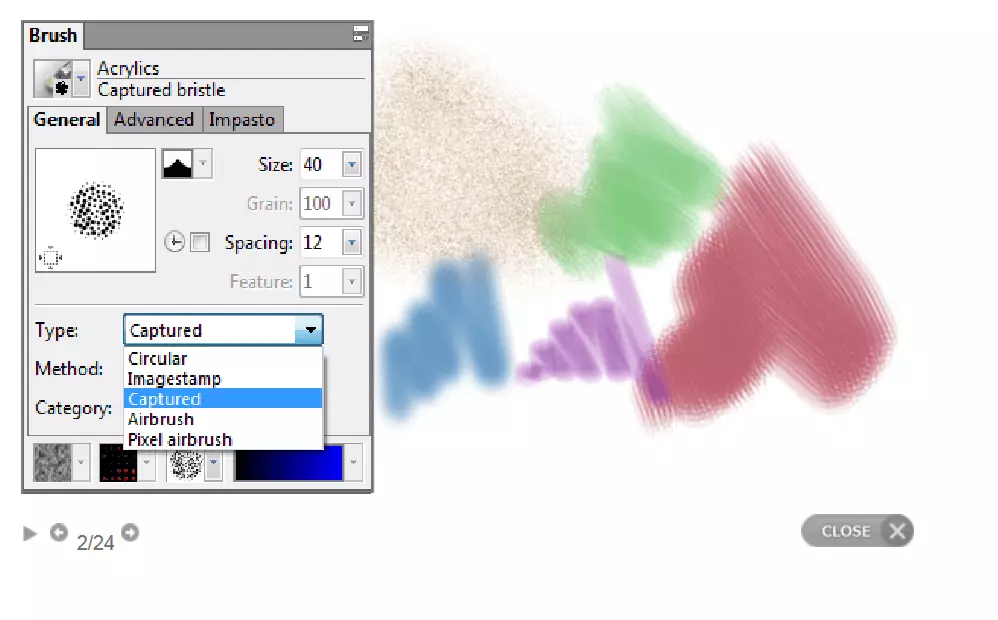
See the manufacturer’s page to learn how the freeware is different from the paid version of Artweaver Plus.
This program also allows you to work on different levels. Each level you create is kept in a history list where you can switch back and forth between individual steps. The operation appears complicated at first glance but should not take long to familiarise yourself with. This program is equally suitable for beginners as well as for advanced users. Thanks to the structured design, you can easily keep track of all painting tools, effects, and filters. You can save the results of your editing in nine different formats: AWD (Artweaver), BMP, GIF, JPEG, PCX, TGA, TIFF, PNG, and PSD.
Something unique to Artweaver is that you can save your own painting process as a procedure “event” and then open and play it whenever you like. This allows you to present your own drawing style to other artists, from a blank image to a finished work of art. This function is available in both the paid and the free version.
Disadvantage: If you are looking for a full painting kit that can be used to create professional images, look no further than the paid version: Artweaver Plus. The freeware, on the other hand, offers a limited number of brush types and features – however, both can still be considered great alternatives to Paint.
The ability to work in a team and work together with other artists to create images was discontinued on June 1st, 2017. Another disadvantage is the operating system: Artweaver – like Paint or Paint.NET- is only compatible with Windows. Furthermore, PDF documents cannot be created either in the free or paid versions.
| Advantages | Disadvantages |
|---|---|
| ✓ powerful alternative to Paint | ✗ only compatible with Windows |
| ✓ free version available | ✗ small range of functions in the freeware package |
| ✓ realistic paintbrush | ✗ it can only be personalised in the paid Artweaver Plus version |
| ✓ easy to learn how to use it | ✗ Ability to collaborate with others has ceased |
| ✓ work on multiple levels is possible | ✗ Not possible to store inPDF format |
| ✓ exclusive painting set in the paid version | |
| ✓ suitable for beginners and advanced users | |
| ✓ Event function available in both versions |
Alternatives to Paint: Features and Functions in comparison
| Features/Functions | Paint | GIMP | Inkscape | Paint.NET | MyPaint | Artweaver Freeware | Artweaver Plus |
|---|---|---|---|---|---|---|---|
| Type | Free Microsoft application | Free open-source application | Free open-source vector graphics program | Freeware | Free graphics program | Free | Paid |
| Operating System | Windows | Windows, macOS, Linux | Windows, macOS, Linux | Windows | Windows, macOS, Linux | Windows | Windows |
| Wide range of features | ✓ | ✓✓✓ | ✓✓ | ✓✓✓ (Additional features available to download) | ✓✓✓ | ✓✓ | ✓✓✓ |
| Work on multiple levels | - | ✓ | ✓ | ✓ | ✓ | ✓ | ✓ |
| Easy to use | ✓✓✓ | ✓ | ✓ | ✓✓✓ | ✓✓✓ | ✓✓ | ✓ |
| PDF creation | - | ✓ | ✓ | - | - | - | - |
| Supported file formats | PNG, JPEG, BMP, GIF | More than 30, including: PNG, GIF, JPEG, PDF | 8 different, including: PNG, GIF, JPEG, PDF | 8 different, including: PNG, GIF, JPEG | 3 (ORA, JPEG, PNG) | 9 different, including: PNG, GIF, JPEG | 9 different, including: PNG, GIF, JPEG |
| Suitable for | Beginners | Advanced | Advanced | Beginners and advanced | Beginners and advanced | Beginners and advanced | Beginners and advanced |