

Translate in Google Sheets: the formula for translating tables

With Google Translate, the search engine has long offered a basic yet practical translation program that can be applied to Google tables using a simple formula. Find out how you can use the Google Sheets Translate function to automatically translate individual words, phrases and even entire sentences in real time.
Before we get started, it’s important to note that you need a Google account and browser in order to use Google Translate in sheets and tables. The idea behind Google Docs products is for them to be used online, allowing access anywhere around the globe – including access by multiple users at the same time. If necessary, tables and documents can be downloaded and used as Google Docs offline.
- Familiar Google tools all in one place
- Using Gmail with your domain from IONOS
- Configure business Gmail for your domain
How the Google Translate formula works for your tables
The Google Sheets Translate formula comprises multiple elements:
- The source text: A word, phrase, complete sentence or even several sentences that are to be translated. This text can be entered directly in a Google Translate formula or selected from a cell.
- The source language: This indicates which language the source text is written in. The information is represented by a country code or using the “Auto” command for automatic language detection.
- The target language: A country code is used to define which language the source text should be translated into.
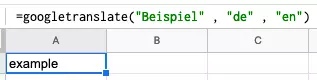
Let’s look at an example to translate the German word “Beispiel” into English (“example”). If you enter the text directly into the formula, it may appear as follows:
=googletranslate("Beispiel" , "de" , "en")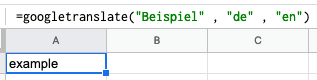
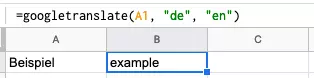
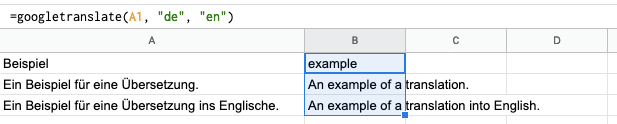
If you want to translate the content of a cell, you would need to specify the cell you want to translate. In our example, the formula would look like this:
=googletranslate(A1 , "de" , "en")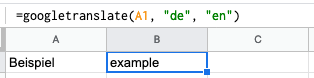
An advantage of using a cell reference is that the method of entry is less prone to errors, and errors that do occur can be resolved quickly. Moreover, the Google Sheets Translate formula can be easily extended to other cells. To do so, click on the bottom-right corner of the cell that contains the formula (B1), hold down the mouse button and drag the highlighted area over the cells you want to include for translation. In our example, these are cells B2 and B3.
Language codes for the Google Sheets translate function
The Google Translate formula doesn’t just translate German text to English, and vice versa. It can be used for all languages supported by the free Google Translate tool. To find out which languages are supported and the language codes you’ll need to enter, use the tool and set the source language to English – the option “Detect language” usually works well. Then select your target language for the translation, such as Italian.
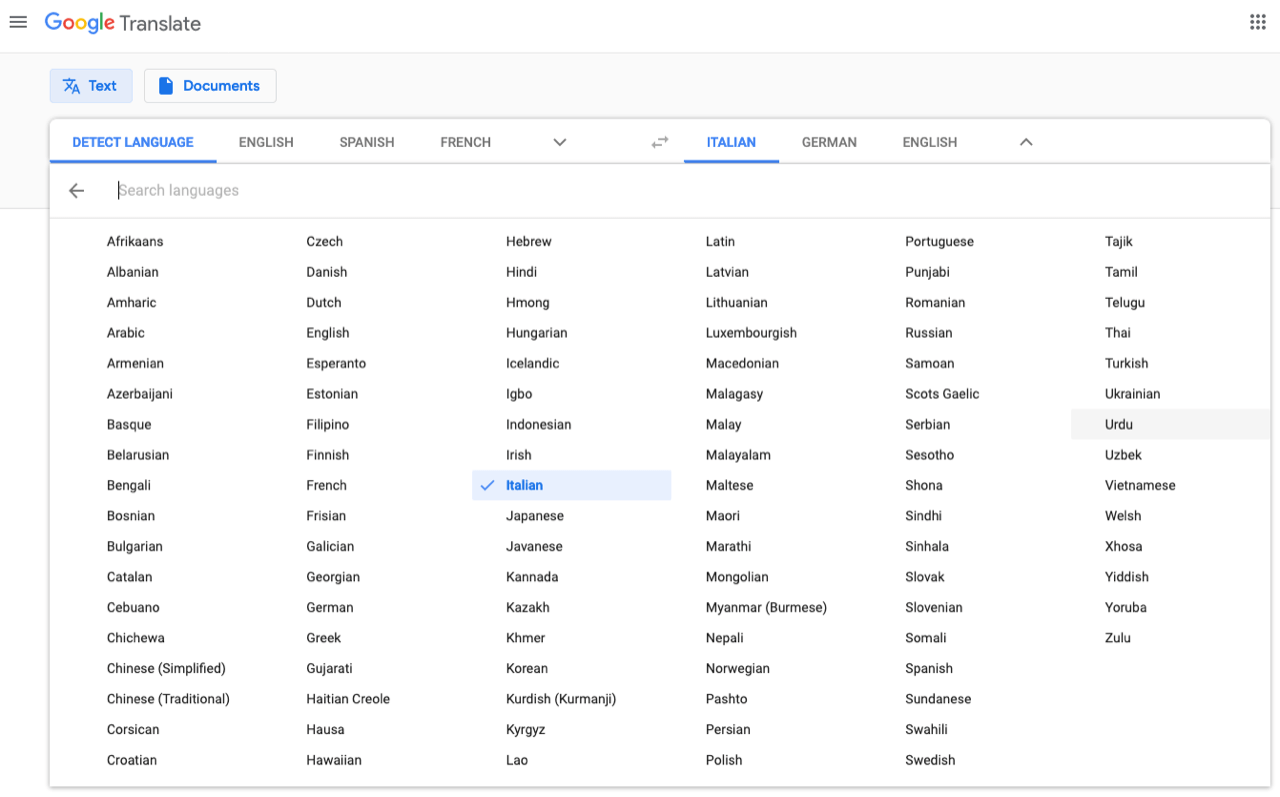
You can then the language code for the Google Translate formula in the URL.


To find the right URL, you can’t just go to the quick start via the search engine – i.e. the input screen for translations on a Google results page. Instead, you should always visit the URL “translate.google.com” to find the correct language code.
Alternative: translate entire documents with the Google Doc Translator
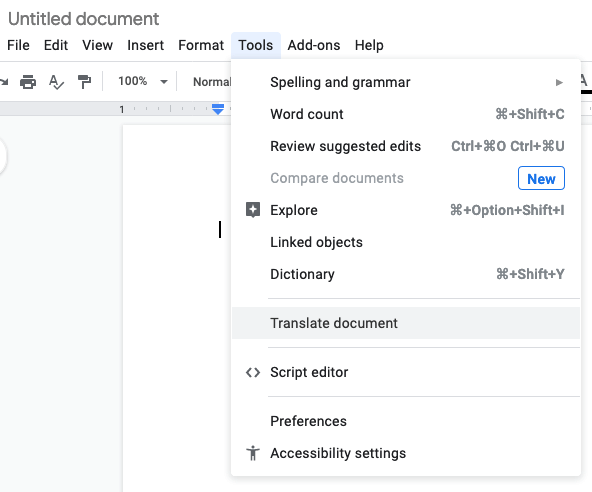
Besides tables, you can also create conventional text documents with Google. There’s no translation formula for a Google Doc, but rather a different function. In your document, click on the “Tools” tab and select “Translate document”.
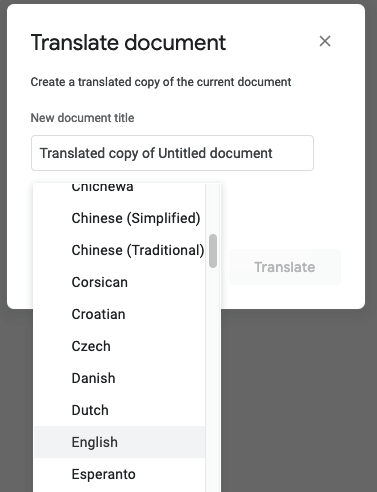
In the popup that appears, enter the title of the translation and the target language. The translated version will open.
One more tip: The translation quality of Google Translate has improved considerably over time. But depending on the selected language and the complexity of the text, the translation is not always exact. So it’s a good idea to consider Google Translate alternatives to find the best translation tool.