

Bing ads: tutorial for the Microsoft search engine

Even though Google is in the lead in the UK with a market share of 83%, you shouldn’t underestimate its competitor, Bing (currently in second place with 11% as of July 2017). If you want to reach as wide a target group as possible, it is advisable to advertise with the Microsoft search engine. Of course, Google AdWords comes first for search engine advertising (SEA), but advertising on Bing can also reel in potential customers for your company.
What are Bing ads?
Microsoft Bing ads is the advertising program from the search engine provider. A major advantage: the search engine is part of the Yahoo! Bing network. Therefore, advertisements from this Microsoft offer will also appear in Yahoo! search engine’s search hits.
Initially marketed under the name adCentre, Bing ads has been compared to its competitor, Google, in terms of its functionality rather than its reach. The system is based on pay-per-click (PPC) just like Google’s system. This means that advertisers only pay when users actually click on the advertisement, and not when the website displays an advertisement.
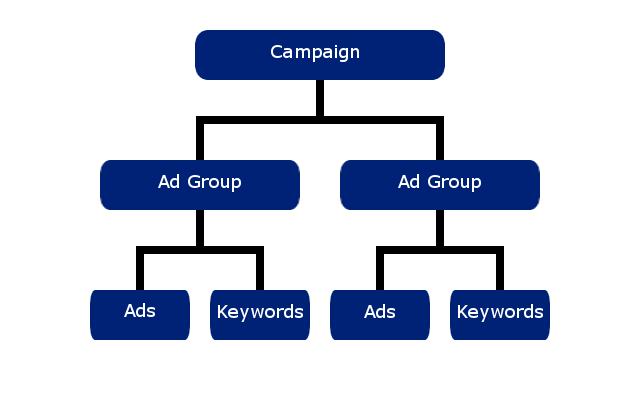
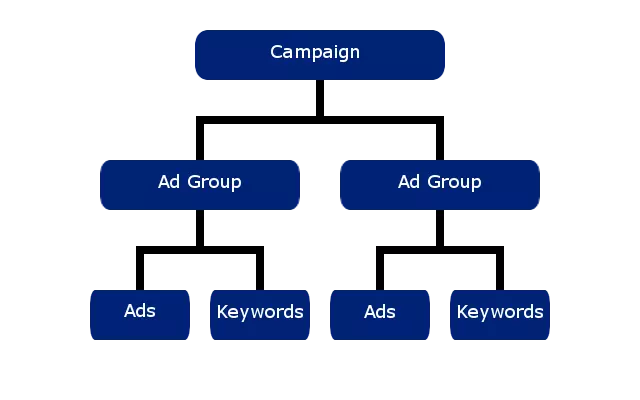
Bing ads can be divided into different groups: campaigns, ad groups, ads, and keywords. These have a hierarchical relationship with one another. The campaign is a collection of ad groups. These are practical containers for your ads and keywords.
- Campaign: When you start a campaign with Bing ads, you should first consider what the focus of the campaign should be. Is there a new product coming out? Do you want to push a special discount? Define your goal for the campaign and orientate your ads accordingly.
- Ad group: Ad groups are intended to manage ads. In the groups, keywords are defined and suitable adverts are created. This is how different variants of ads with the same keywords are created.
- Advertisement: Your advertisement uses the keywords that you created in the ad group. The ads within an ad group therefore all have the same focus and can be differentiated by the details.
- Keywords: With your ad groups or ads, you can offer advertising space for certain keywords in auctions. You determine which keywords are important for marketing within your campaign.
Registering with Bing ads
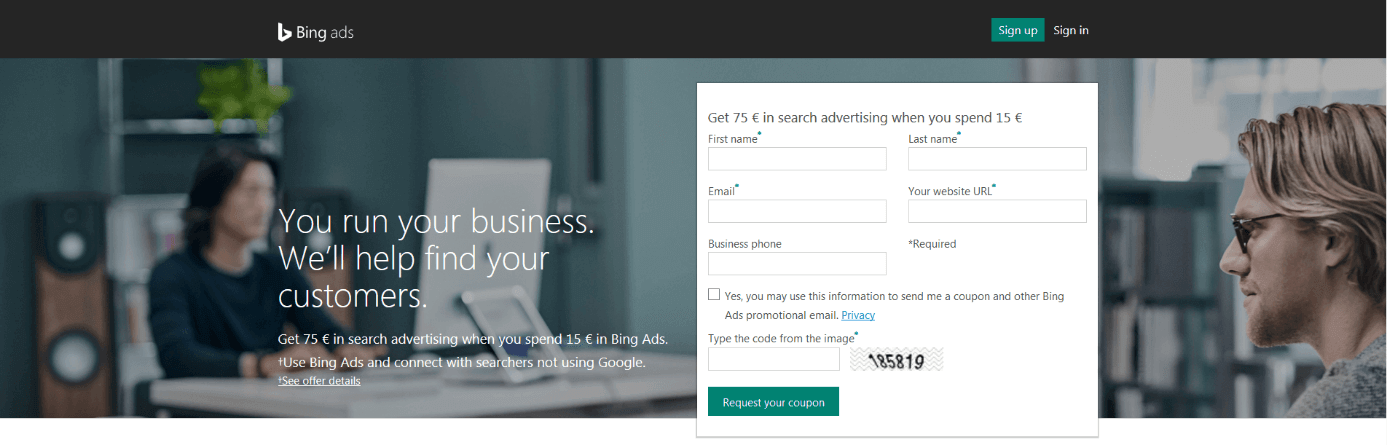
If you want to register with Bing ads, the registration form asks you for your: name, e-mail address, website URL, and business phone number. There’s also a captcha to make sure the form isn’t being filled out by a spambot.
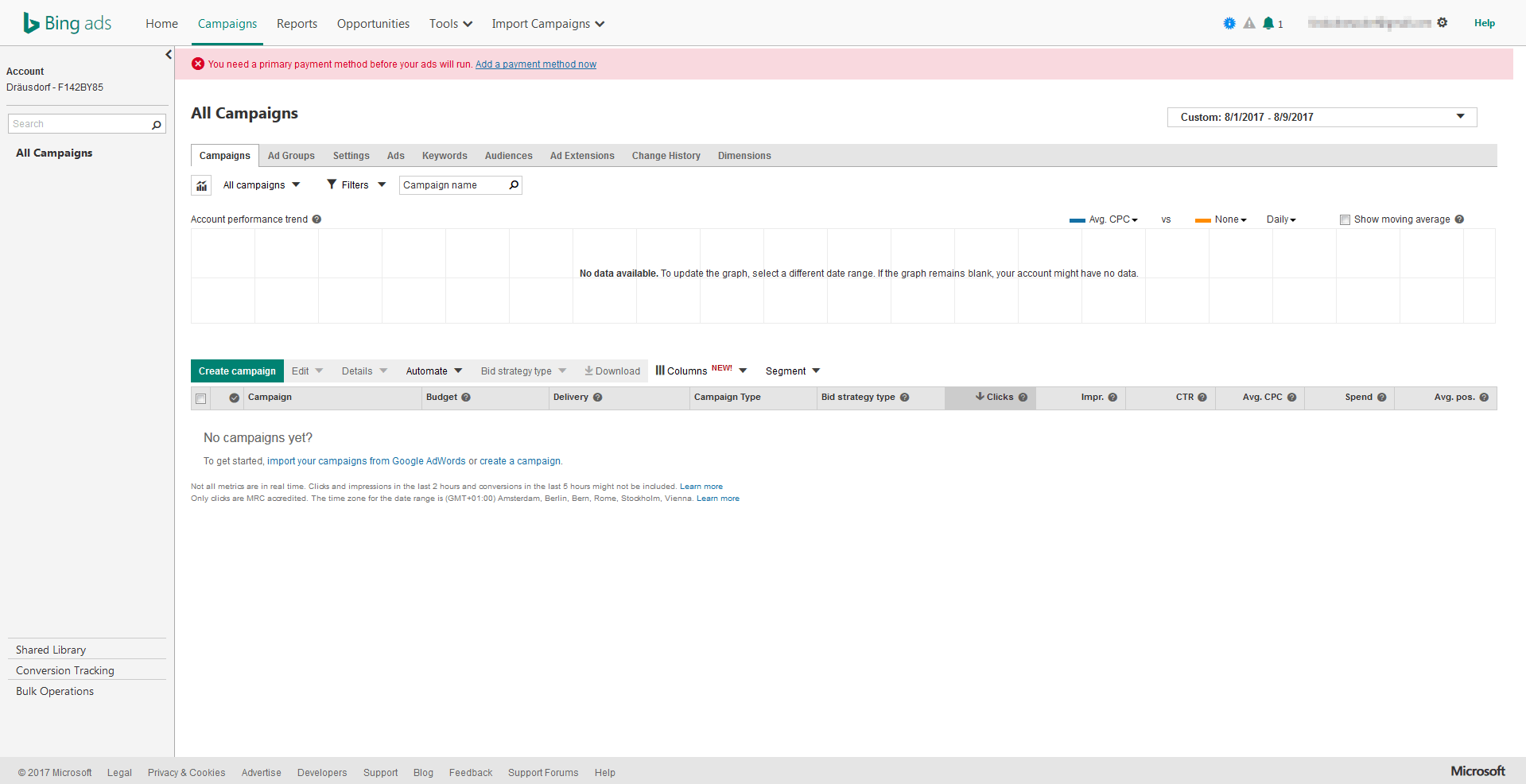
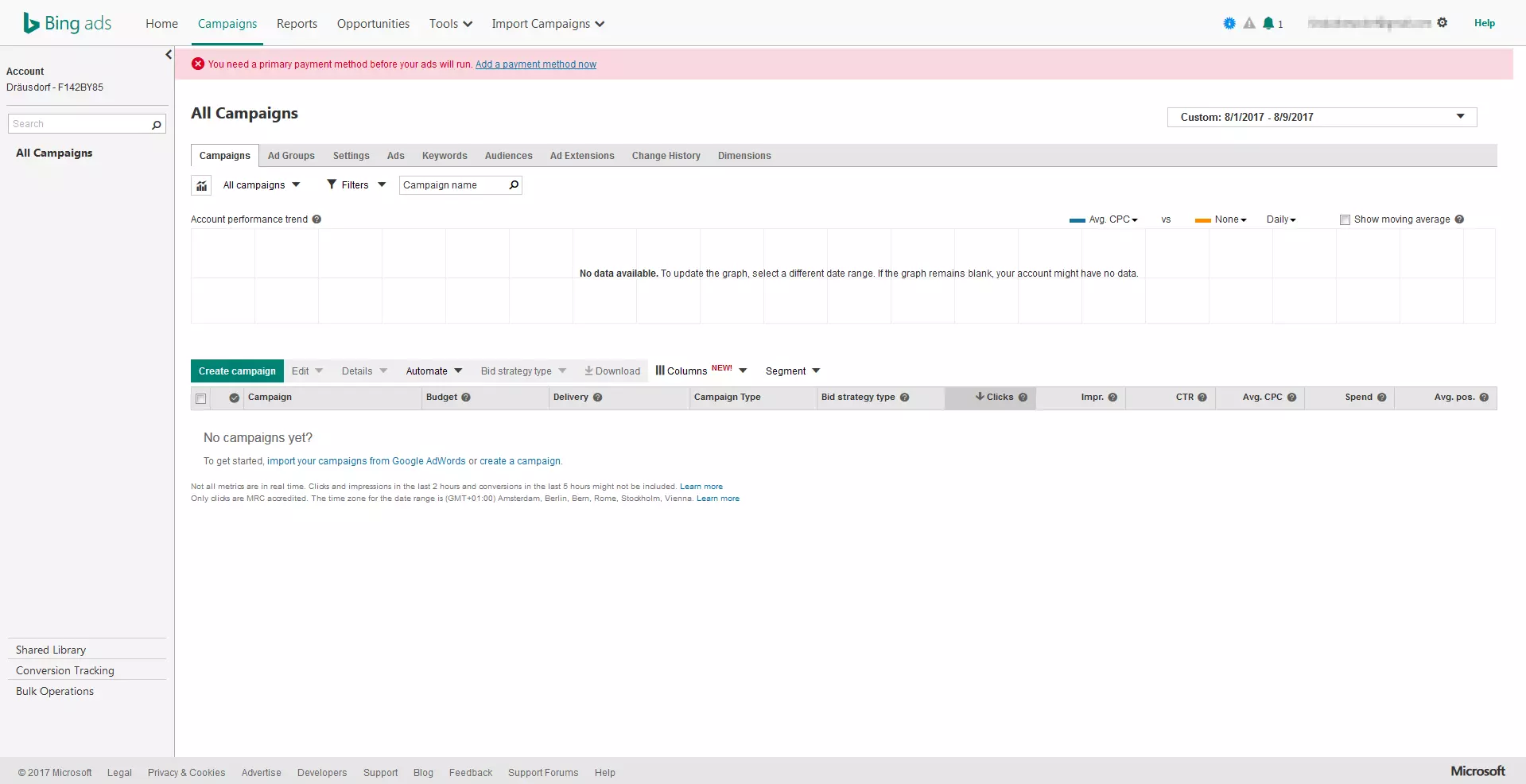
The next step is to start creating an advertising campaign. It’s also possible to import existing campaigns from Google AdWords or to skip this step and complete the registration. In the final step, 'Activate your campaign', Bing asks for payment information, but this step can also be skipped for the time being. Your registration is now complete.
Bing’s features: Advertising at a glance
Up until June 30th 2017, Bing ads still distinguished between so-called search campaigns and content campaigns. The latter group were adverts that didn’t show up in Bing’s search results, but were instead used as classic advertisements in other software offers from Microsoft. In the meantime, however, the provider discontinued this advertising format. Search campaigns consist of advertisements that appear in Bing’s search queries. The search engine presents the ads either above the organic search results or in a sidebar. Bing shows the positions 1 through 9; the first four are located directly underneath the search bar (mainline) and the rest are places in the sidebar.
Operators of online shops can also create shopping campaigns. The system displays your products directly in the search results – including a photo and the price. To do this, you must first set up Bing Webmaster tools and an account in the Merchant Centre. Then generate additional attention with eye-catching product ads.
Search engine marketing: Bing ads tutorial
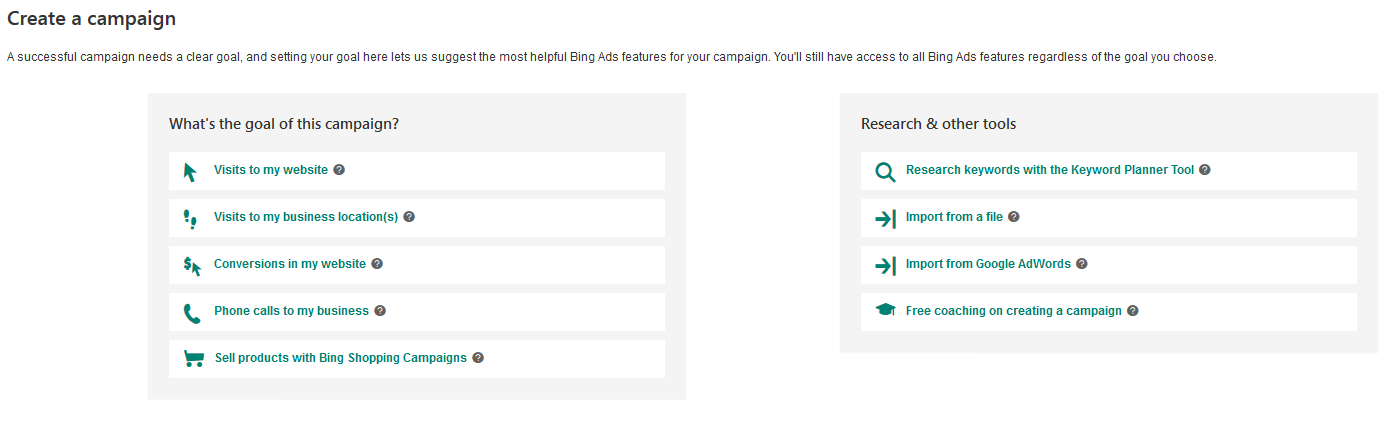
When you create a new campaign using Bing ads, the web service asks you what your goals are e.g. would you prefer to generate more traffic or more conversions? Depending on your choice, suitable features will be suggested to you. However, no matter which option you choose, you will still be able to use all of Bing ads’ features. Being asked about your goals should only serve as a guide.
Campaign
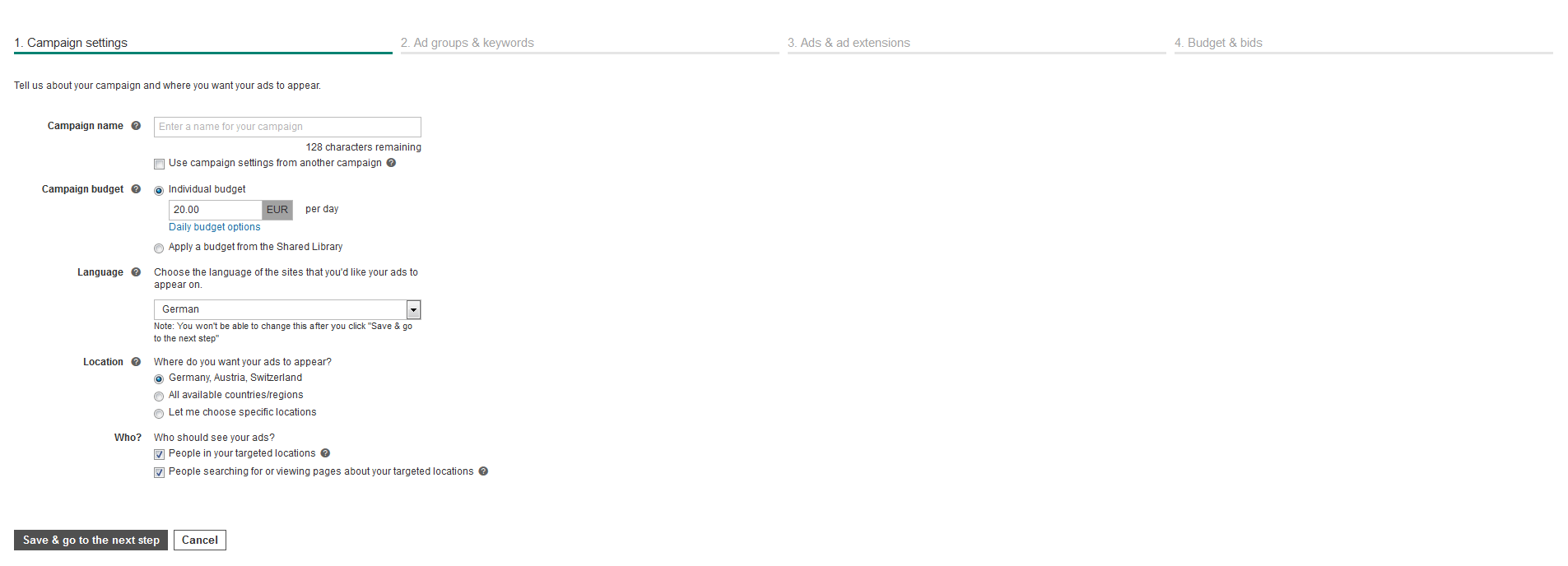
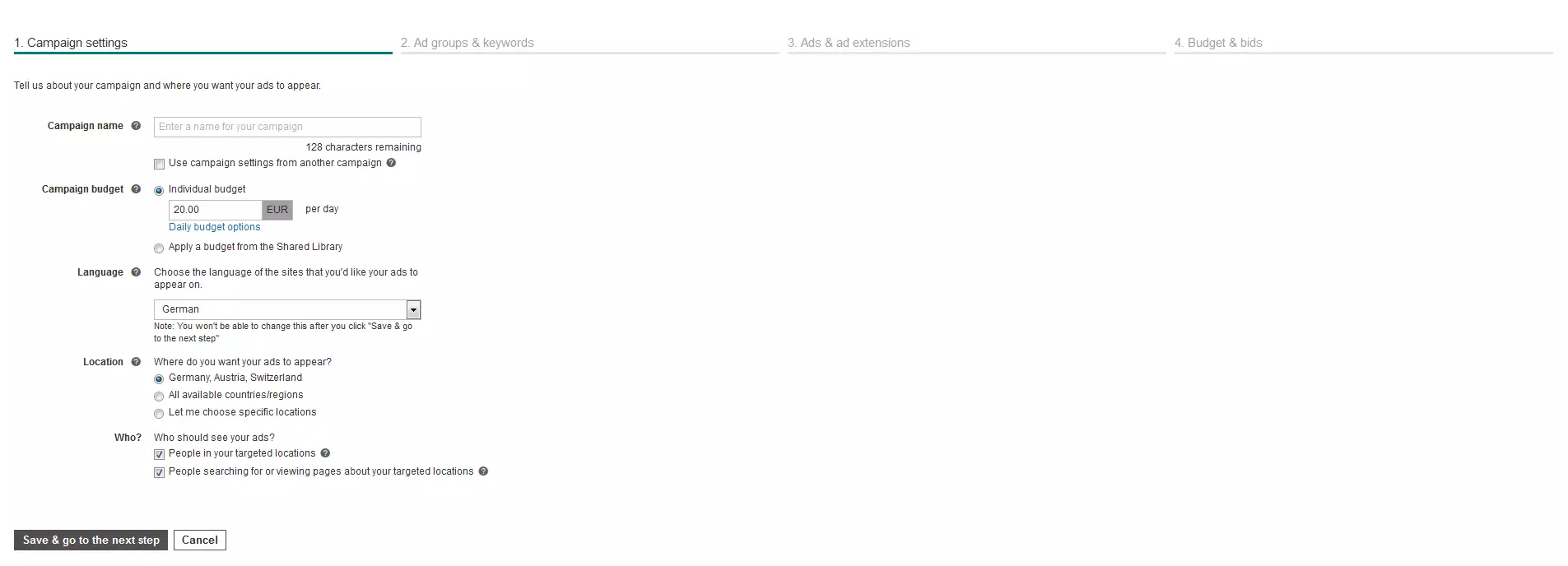
Firstly, enter a name for you campaign: choose a unique one so you will immediately be able to recognise which campaign it is, even from several campaigns you might have running parallel to each other in the future. Then determine how much your daily budget is for the Bing ads. You also have the choice of whether Bing should distribute this budget – and therefore your advertisements – evenly over the day or spend it as quickly as possible. The standard option (distributed over the day) is usually the ideal choice for most purposes. There’s also the option of a common budget where several campaigns can share a budget. This is only possible if you have already created additional campaigns.
In the next step, you are prompted to select your language and location. First, choose the language that you want the advertisements to be displayed in. This will already limit your target group: only English speaking users will see adverts in English. The same applies to the location. However, here you specify whether the ads target users who live in a selected location, or those who are specifically searching for it in the search engine. This differentiation helps to reduce scattering loss.
Ad groups & keywords
In the next step, you define ad groups and keywords: a campaign is made up of several ad groups. With the different groups, you can make sure that your ads are displayed when different search terms are entered: for this to work, however, you must assign different keywords to the different groups. It’s recommended to specify at least 20 keywords per ad group. These keywords are extremely important for your campaign’s success, since a user will only come across your campaign if they enter one of these keywords. This is why Bing ads helps you to find the right words: simply enter the URL of your website and the product you want to promote. The system analyses both the content of your site and the type of product or service advertised, and then proposes numerous keywords. To give you as much control as possible over when your ad should be displayed, Bing provides you with the helpful tool, Broad Match Modifier. This enables you to decide exactly how the user’s input corresponds with the keywords you have defined for the advertisement to be displayed:
- Keyword: If you enter a keyword without a modifier, a rough match will display the advertisement. This means that Bing also values the keywords even when they are integrated into other words.
- +Keyword: The plus sign indicates that variants (i.e. the plural form) of the word can also be used as triggers.
- “Keyword”: Write the keyword in quotation marks for the advert to be displayed only when the user types in an exact expression. Other words can be entered before and after the phrase.
- [Keyword]: By using square brackets, you specify that you want the keyword phrase to be matched exactly for the advertisement to be triggered. The user must enter the keyword into the search bar in the exact same way so that Bing can display the ad.
Keyword research is one of the fundamental pillars of online marketing and more complicated than you might think. When selecting the keywords, it is always important to know what the goals of your marketing campaign are. You can find out more about keyword research in our detailed article.
Advertisements
Once you have selected all the keywords you want and have created enough ad groups, you can proceed to the next step: creating your ads. An advertisement with Bing consists of a title, ad text, and a URL that you want to forward to. The title consists of two separate parts, each with 30 characters. Both title elements are separated with a hyphen. It makes sense to include one of your most important keywords in the title, which consists of 80 characters. Your text should be relevant for readers and inform them what your offer is about.
If you place an ad on Bing, you want users to not only notice it, but also to click on it. Write your texts in such a way that the reader wants to click to find out more. To do this, the text must comply with the user’s search intention and get their attention.
A special feature is the dynamic text that you insert into your titles and ad texts: this is a placeholder that Bing fills out depending on the user’s search query. There are two different types of placeholders available:
- {KeyWord}: if you use this placeholder, the system inserts the keyword that the user is looking for into the text. This signals how relevant your advertisement is to the user.
- {param1}/{param2}/{param3}: Bing allows you to enter up to three different user-defined texts. You assign these to keywords. For example, you can draw attention to different discounts for different products – depending on what the user is looking for.
You enter two different links to your website: the final URL and the so-called path. The first one is the URL that leads directly to the correct web page e.g. the product page. However, it is linked via the heading. The user, on the other hand, sees the path as part of the advertisement with the exact wording: it should therefore be more user-friendly than the real URL. To make it clearer to the user where they are, you should insert up to two subdirectories into the path. This way, you can make it clear to future visitors of your website which subcategory the URL leads them to.
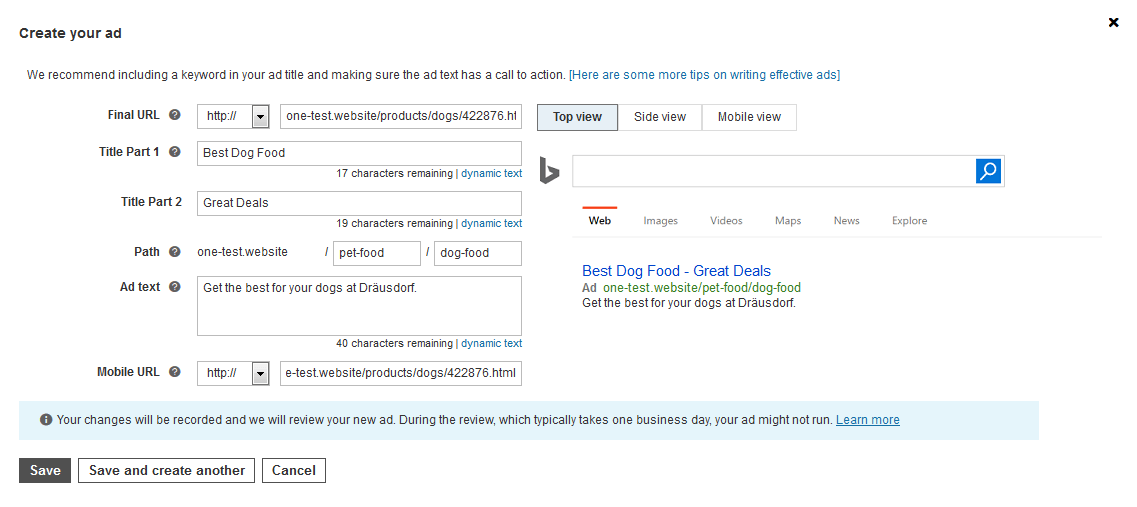
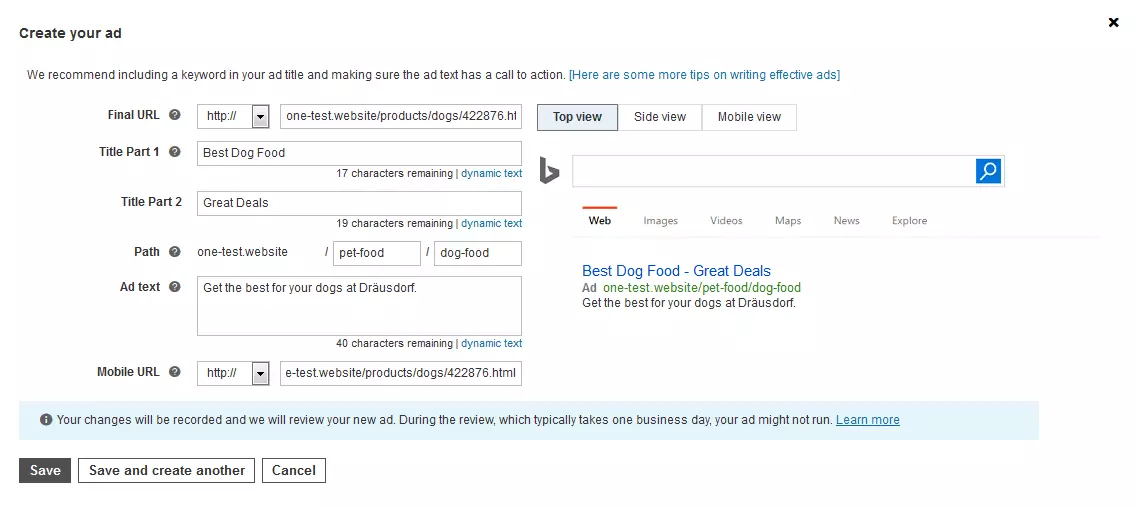
While you are designing your ad, the preliminary result can be checked in three different preview views: what does the ad look like directly below the search bar, in the sidebar, and in the mobile view? Once you have filled in all the fields and are satisfied with the results, you should save it and create the next ad. You can create 100 entries for each ad group.
Upgrading advertisements
With Bing, you have the option of upgrading your ads using extensions. The extensions should provide additional information for users and encourage them to click on them.
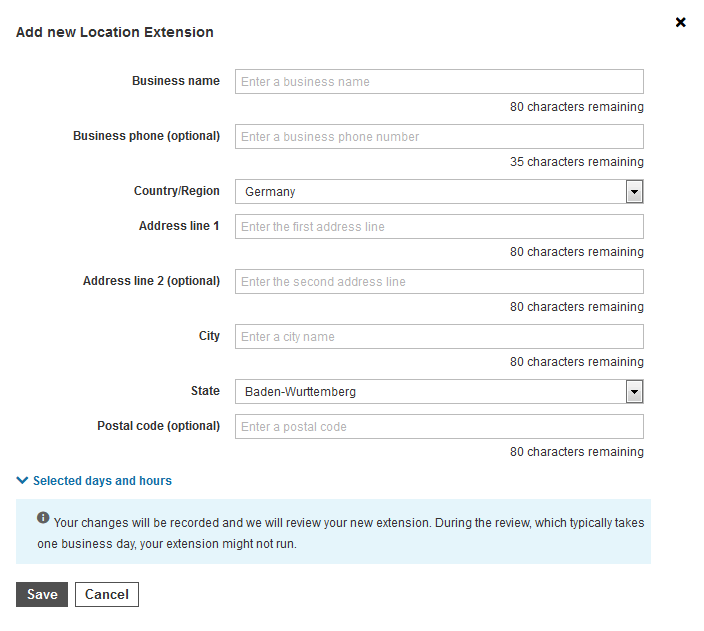
- Location extensions: Your ad will be extended to your shop or office location. If you have multiple locations, Bing will show users the closest location. However, if there is no business or office close to them, Bing simply won’t show an address. In addition, your telephone number will also appear in the advertisement: when users access the ad on their mobile device, they can call you just by clicking on the number provided in the ad.
- Rating extensions: Your ad comes across particularly well if the user can see positive ratings. This extension allows you to display reviews from review sites such as Yelp or TripAdvisor. You choose the feedback you want to display.
- Site linking extensions: With these extensions, you have the possibility of adding more links to your ad. By adding up to ten links under the ad text, you can recommend other products and services to the user. Add additional descriptions to each link so your ad will be bigger and more noticeable.
- Caller extensions: Bing ads inserts a telephone number into your ad via the location extension. However, if you would like to enter a number that is independent of your location, simply use the call extension. With this ad extension, you can also create a call-only ad for smartphones: Users who only see your advertising on the go will not be redirected to a website by clicking on the link, but will be able to call you directly.
- App extensions: If you provide an app in addition to your website, you have the possibility of using the ad to refer users to this app. Bing automatically detects which device and operating system users are accessing the display with, and can forward them to the right App Store or Play Store.
- Legend extensions: With this extension, you can insert additional text into your ad. This text is not clickable, but you can make your advertisement more interesting for users by adding this additional text.
- Snippet extensions: Structured Snippets work in a similar way. For a particular category (e.g. 'Goods'), you can enter at least three examples from your assortment or spectrum.
- Image extensions: Add a suitable image to your advert. This will make you more noticeable in the search results and give users a better impression of the advertised product.
You decide whether you want to set up extensions for entire campaigns or ad groups. However, it is not for certain that these will actually be shown. Just like the ads themselves, Bing only releases the ad extensions after they have been checked. To ensure that the system displays the extension, you should follow the appropriate guidelines. But even if you follow the guidelines correctly, it is still possible that Bing ads won’t display the extensions: in some cases, extensions only make sense under special circumstances (e.g. when users are using smartphones) or they are not visible because other extensions cancel it out. In general, extensions are free of charge and you only pay for them when visitors click on them – just like ads without extensions.
Budget
In the last step before you launch your campaign, you need to determine the budget. Although you already entered your budget in the first step, you now have another opportunity to adjust it. Next comes the bidding strategy: with Bing ads – just like with Google AdWords – you don’t just buy ads, you win them through auctions. Therefore, the cost of an ad depends heavily on the choice of keywords and their competition. Because several companies want to present their advertisements for each keyword. When a user enters a search term using Bing, several ads compete for the sponsored space in the search results. Within milliseconds, the bids are compared and the winner is determined.
It isn’t only the size of your bid that will determine whether your ad will win. The quality score also plays a role. This value indicates how high Bing estimates the quality of the advertisement.
As a Bing ads user, you can decide whether you want to set a certain bid yourself or let Bing customise it. If you choose the second option, Bing can increase your bid by up to 30% to increase the possibility of the bid being closed. However, you must first set up a trade tracking system so that Bing knows what goals you are pursuing and whether you will achieve them (you need to include a Universal Event Tracking (UET) tag on your website to enable Bing to track the conversions). You always set bids for an ad group and bid on clicks: you only pay for the ad when a user clicks on it, which is why it’s known as pay-per-click (PPC).
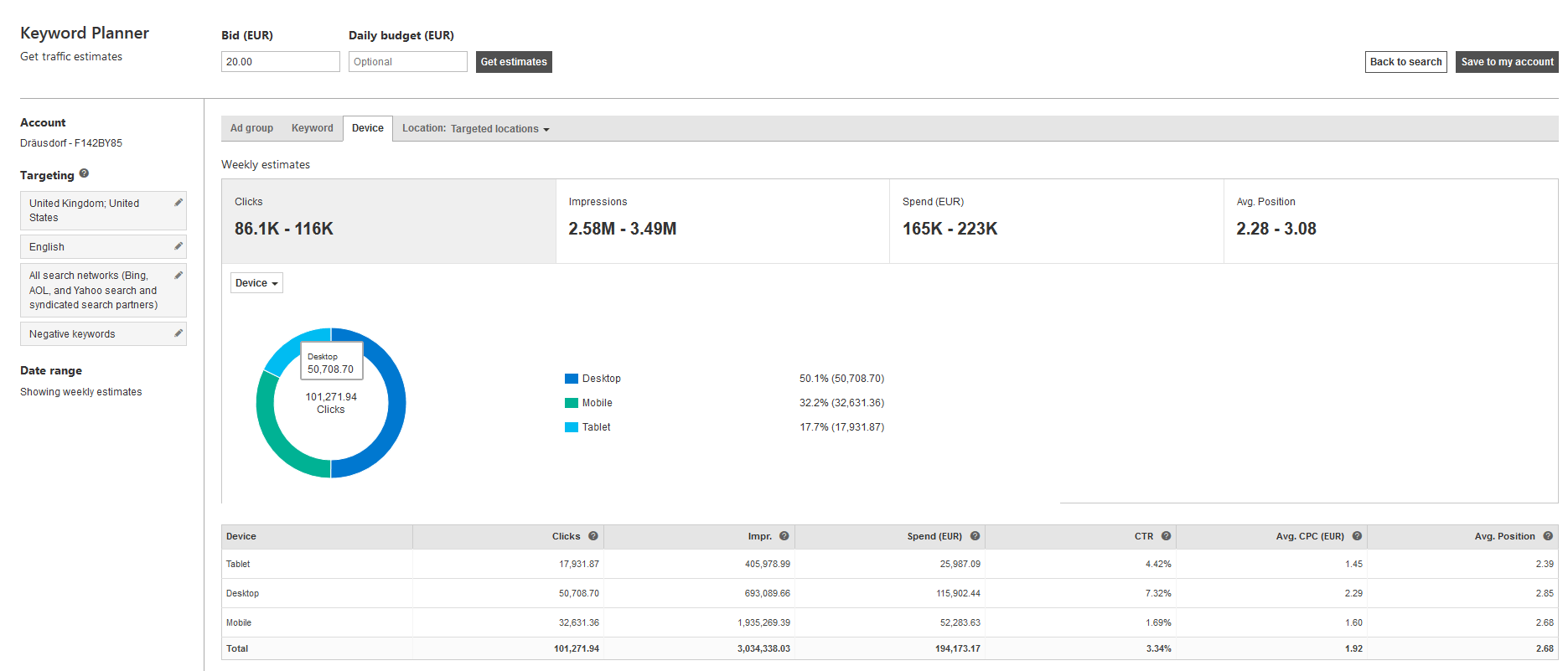
As you adjust the amount of your bid, Bing presents you with some estimated values related to your advert: How many clicks will you get with your bid? How many people are likely to see your ad? What are the monthly costs for this ad group looking at your previous settings? And finally: which position in the search results is your ad likely to be placed? Adjust the value until you are satisfied with the result (remember that these are only estimated results. Bing cannot predict who your competition will be in the auction).
The advanced target group settings enable you to adjust your budgeting even more precisely:
- Location: Increase or decrease your bid for the selected countries, depending on how important the local market is for you.
- Ad schedule: This setting allows you to plan when your ad should run. Here, you can set a daily time frame: Do people only search for your products and services during their working hours or after work? The schedule helps you to plan this.
- Device: If you want to address smartphone users in particular, or if your target group is more likely to be found sitting at a desktop computer, you can set the bidding according to the device (advertising for apps, for example, will be of particular interest to smartphone users, whereas high-quality gaming graphic cards are more suited to PC users).
- Ad distribution: The Bing network does not just include its own search engine. Would you prefer to use just Bing or also AOL and Yahoo, or other search partners (websites that have Bing integrated as their search engine)?
Click on 'Save' and your advert is ready to go online.
Tools in Bing ads
In addition to the web interface, Bing ads offers other tools to enable users to work as effectively as possible. These either help to organise and manage workflows or provide additional functions.
Display preview and diagnosis tool
You can use this ad analysis tool to preview Bing results. To do this, enter any keyword into the search, then set the market that you are currently interested in and let the search begin. Now check if and where an advert of yours appears when this keyword is searched for. You can also see what the ads look like in the search results.
Keyword Planner
The Keyword Planner works in the same way as the suggestions that Bing provides when creating a campaign. For example, you enter a product or your website’s address, and the Keyword Planner will suggest suitable keywords. You will then receive analyses of the selected keywords, which are particularly helpful when planning your budget. You can see exactly which results to expect from your bid. Customise the bid and create a new campaign directly.
Bing ads Editor
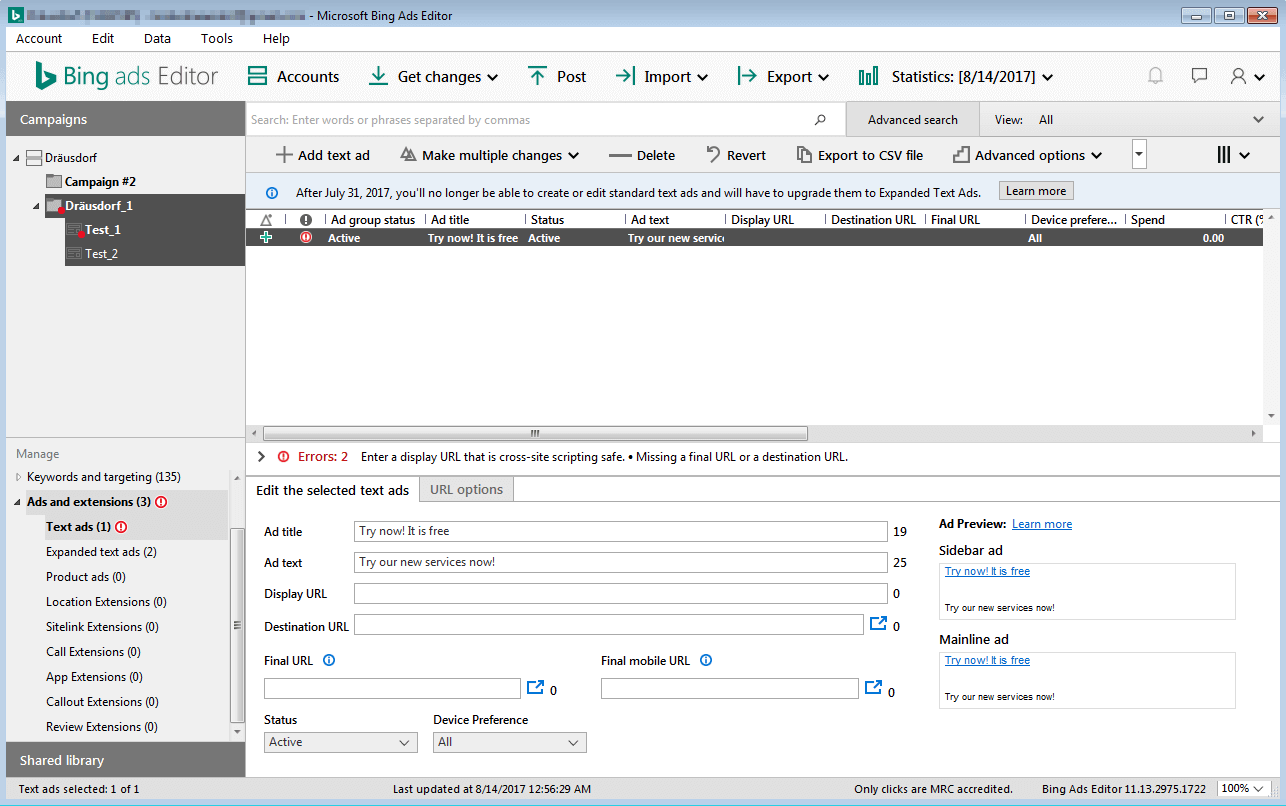
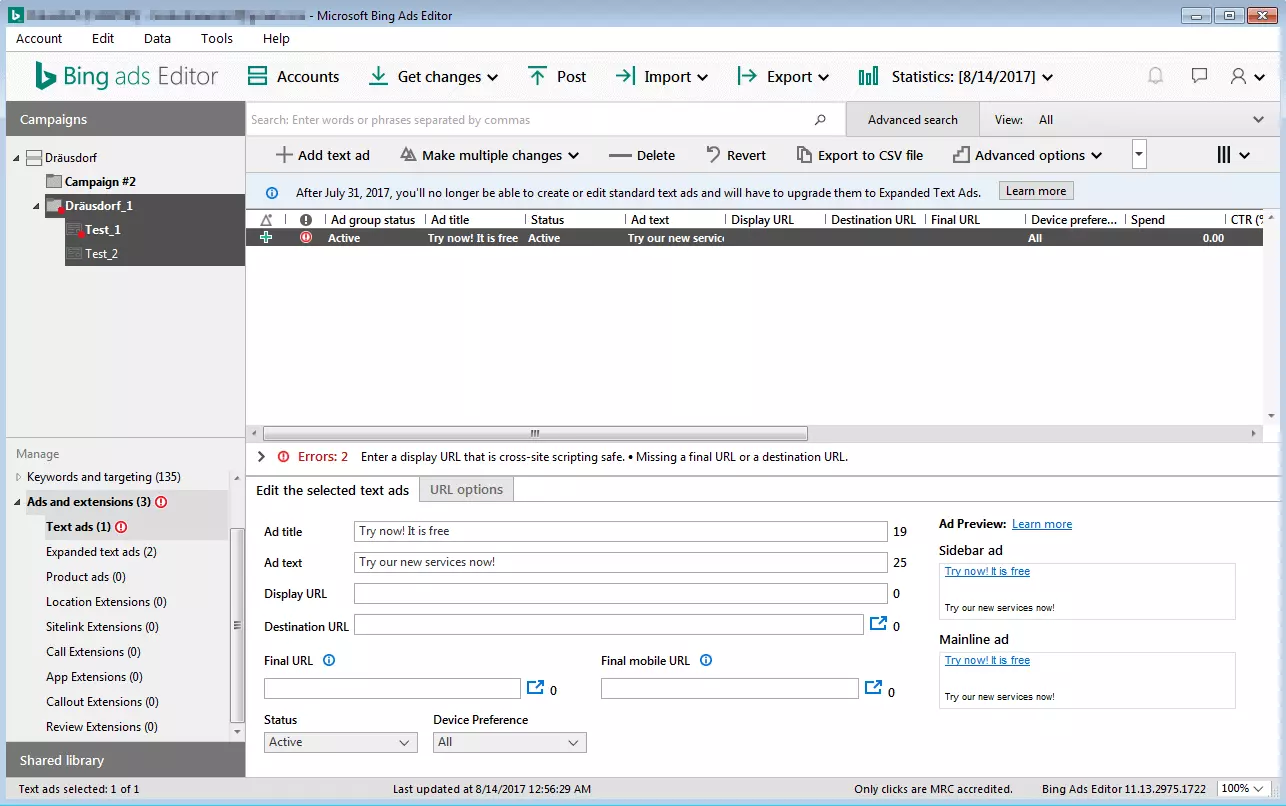
With the Bing ads Editor software, you can even plan and design offline campaigns and ads. Instead of using a browser, create your advertisement using the free editor. To do this, download the installation file (available for Mac and Windows) and connect to your existing Bing ads account. The software then loads your campaigns from the internet. The structure and functionality of the desktop app is hardly any different from the application in the browser. The editor makes it particularly easy to make multiple changes at once and manage different campaigns and ad groups. Since this is an offline application, you shouldn’t forget to put all your changes online.
Bing ads Intelligence
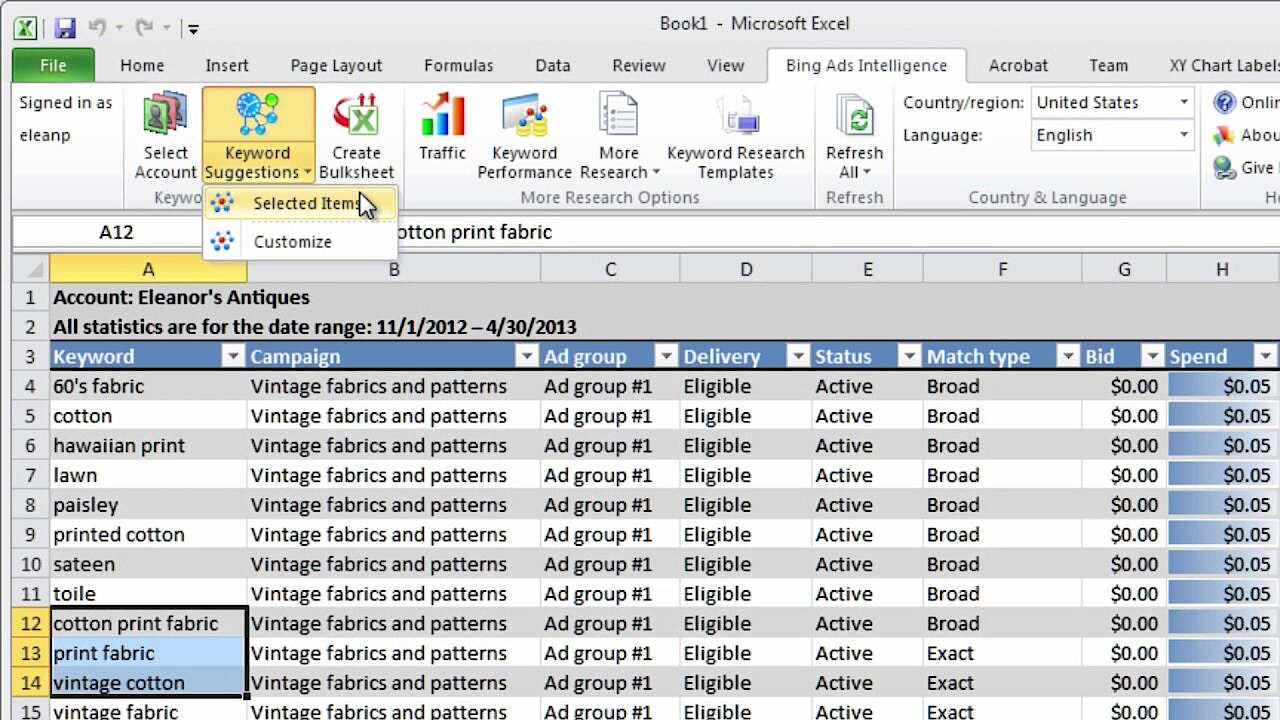
Bing ads Intelligence is an extension for Microsoft Excel, which helps you to manage keywords. The installation file is available free of charge. After executing it, you will receive a new tab in your Excel interface. This tool also connects the program to your account. If you enter keywords in the Excel sheet, you will receive suggestions for related terms. All keywords can be analysed from different points of view – directly within data processing. Spreadsheets allow you to manage large numbers of terms. Finally, select suitable keywords and export the data to use it for your campaigns.
 To display this video, third-party cookies are required. You can access and change your cookie settings here.
 Bing vs. Google Advertising
Bing has been trying for quite a while to push Google off the top search engine spot. However, Google doesn’t need to worry about its competition just yet. But Bing has some advantages for marketers and entrepreneurs:
Reach
The biggest advantage of Google is clearly its immense reach: its market share is 83% in the UK, but is a lot higher in other countries such as Germany with a 90% share. Microsoft’s offering is in second place. However, it is particularly interesting for advertisers to know that Bing ads don’t only offer ads in one search engine: thanks to the Yahoo! Bing Network, ads are also published on the third largest search engine. Bing has gained some momentum in recent years, not least because the search engine is one of the default settings of every Microsoft product.
Effort
Bing makes in particularly easy for users to implement campaigns from Google AdWords. Since you probably aren’t avoiding putting your ads on Google, combining both search engines will only require a little more effort (you just have to adjust a few settings). Anyone who has worked with Google AdWords up to now will quickly find their way around Bing: the operation and structures are similar for both providers.
Cost
With both advertising options, you determine your own budgets and bids. Therefore, it’s not possible to directly compare costs. As far as the auction system is concerned, Bing’s low market share could be seen as an advantage: while many companies bid on a keyword with Google, the competition with Bing is much smaller. Therefore, the successful bids on keywords at Bing should be much lower than with Google.
Functions
The functionality of the two providers is almost identical. However, the way advertisements are displayed has now changed: for a while now, Google has stopped placing classic ads in the sidebar. This is still possible with Bing and so the smaller competition offers more space for your marketing.