

Block YouTube ads: On Android and desktop

You can watch YouTube without any annoying ad breaks by installing an Adblocker. An Adblocker can be installed on your desktop and with an alternative YouTube app on Android. We’ll explain how to block YouTube ads.
- Free website protection with SSL Wildcard included
- Free private registration for greater privacy
- Free Domain Connect for easy DNS setup
Quick guide: Block YouTube ads with Adblocker
In the YouTube browser
- Add the selected adblocker (Adblock Plus in this case) to the browser.
- Click the Adblock icon in the browser menu bar.
- Subscribe to block lists to set advertising filters.
- For websites whose ads you do not want to block, add exceptions.
In the YouTube app
- Go to ‘Settings’ > ‘Apps & Notifications’ > ‘Special App Access’.
- Allow your default browser to install unknown apps.
- Download the app NewPipe as an APK file from Github or from F-Droid.
- Give NewPipe the necessary permissions.
Why is there so much advertising on YouTube?
Adverts will usually happen before a short trailer on YouTube or during an important tutorial video when you are trying to focus. Ad breaks are part of everyday life on YouTube. Many users have noticed that the number of ad breaks is increasing. The ad banners around videos are becoming increasingly annoying, and questionable considering third-party tracking. This begs the question: Why is there so much advertising on YouTube?
Two reasons play a role here: YouTube offers most of its content free of charge. Users can therefore watch unlimited YouTube videos for free. YouTube and YouTubers generate revenue through advertising on the site and in videos. At the same time, advertising ensures that users opt for the paid YouTube Premium version to enjoy YouTube ad-free.
How to block YouTube ads?
Ads on YouTube can be blocked using a special browser extension, an ad-free browser, or a YouTube Premium subscription.
Per adblocker in YouTube browser version
Adblockers are browser extensions that block advertisements. Adblockers won’t just remove YouTube ads, but also ads and advertising content on other websites. Popular adblockers include Adblock Plus (Chrome, Firefox, Android), SponsorBlock for YouTube (Google Chrome and Firefox), and Adblock for YouTube.
How to install an adblocker:
Step 1: Depending on the browser you use, download the chosen Adblock extension from the add-ons page of Edge, Chrome, Firefox, Safari, or directly from the provider’s site. In this example, we are using the free extension Adblock Plus for Edge. Usually, you add extensions to the browser via ‘Install’ or ‘Add’.


Step 2: Now you will see the Adblock Plus extension icon in the toolbar.


Step 3: Now you need to set the adblocker. By default, the extension comes without ad filters. To block ads, subscribe to block lists which include the most popular ads.
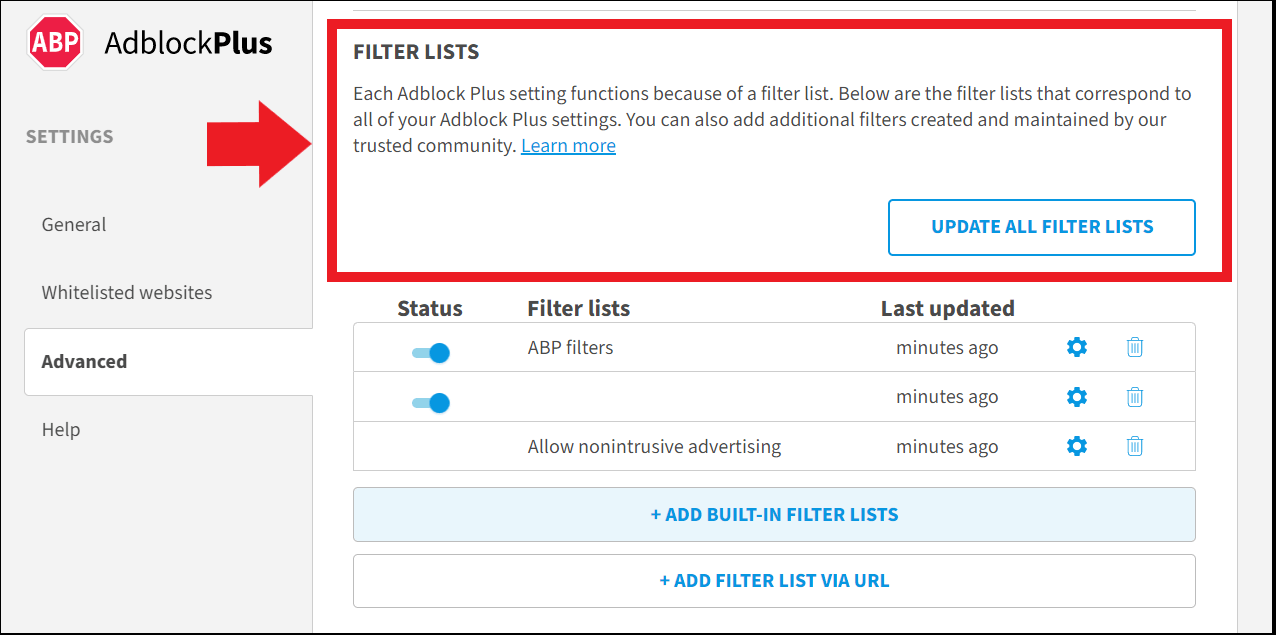
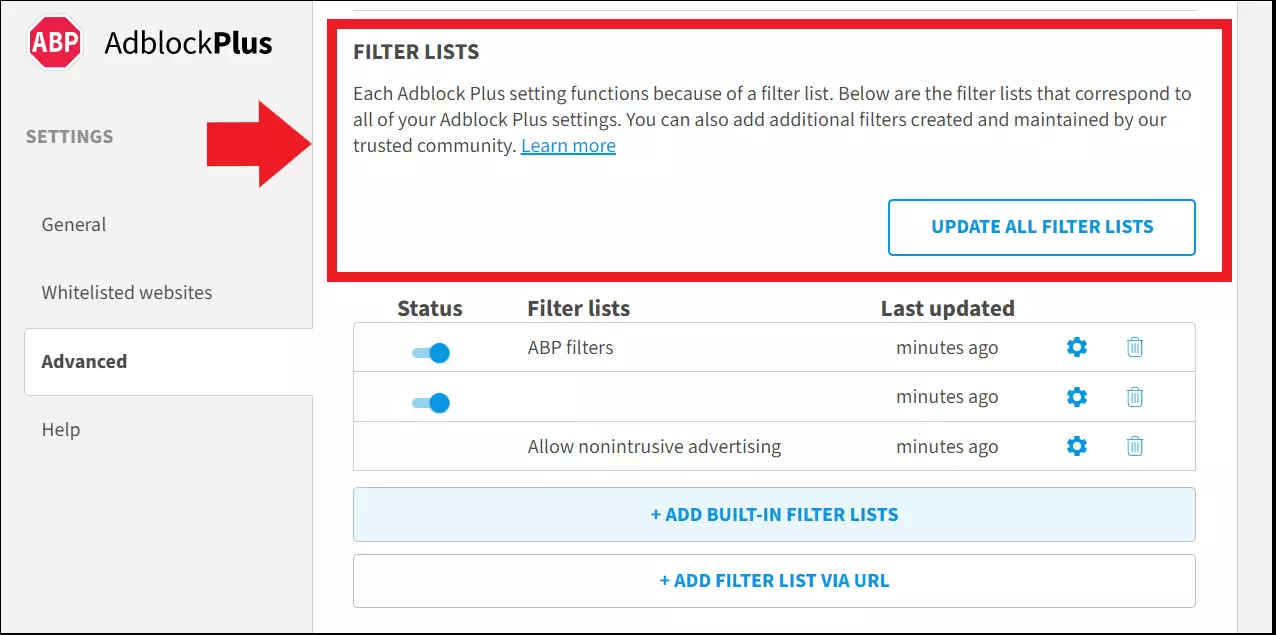
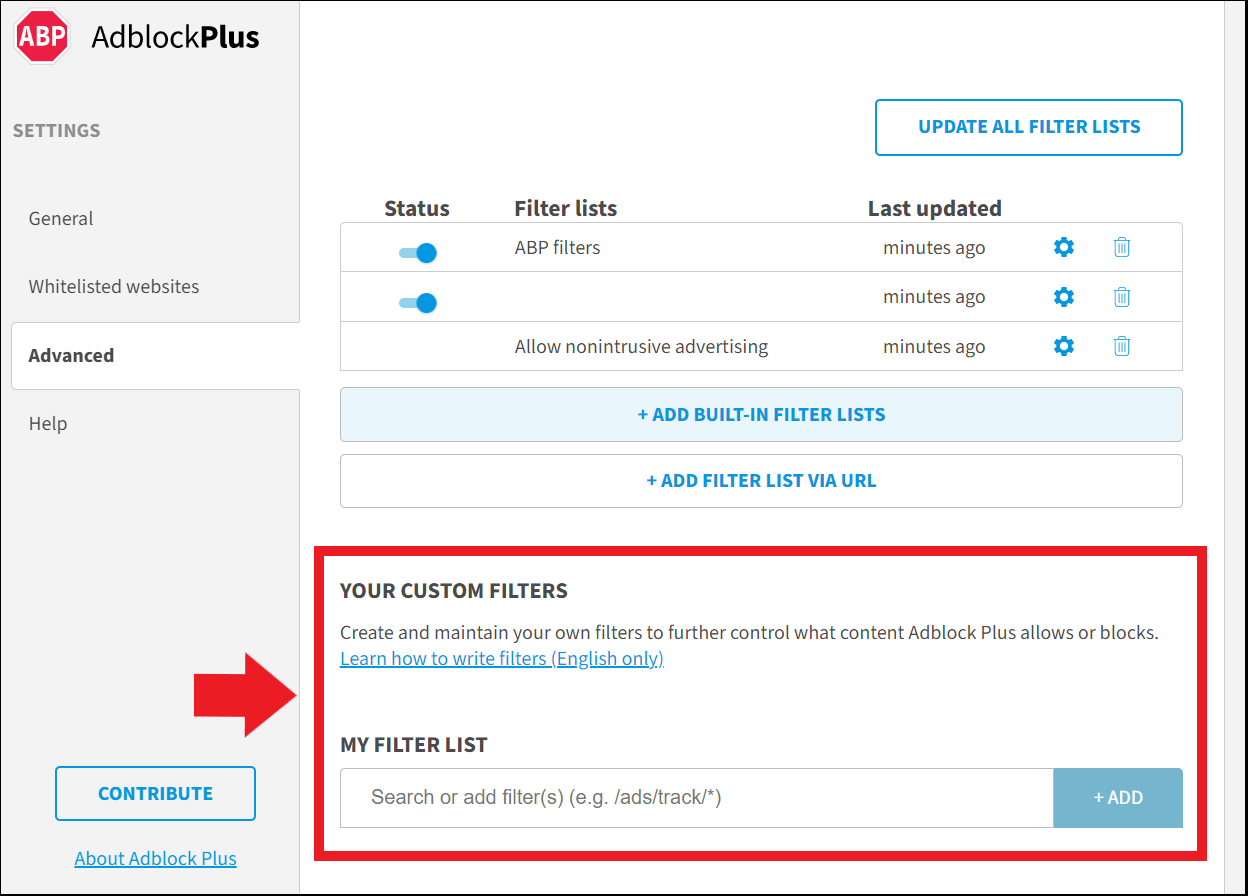
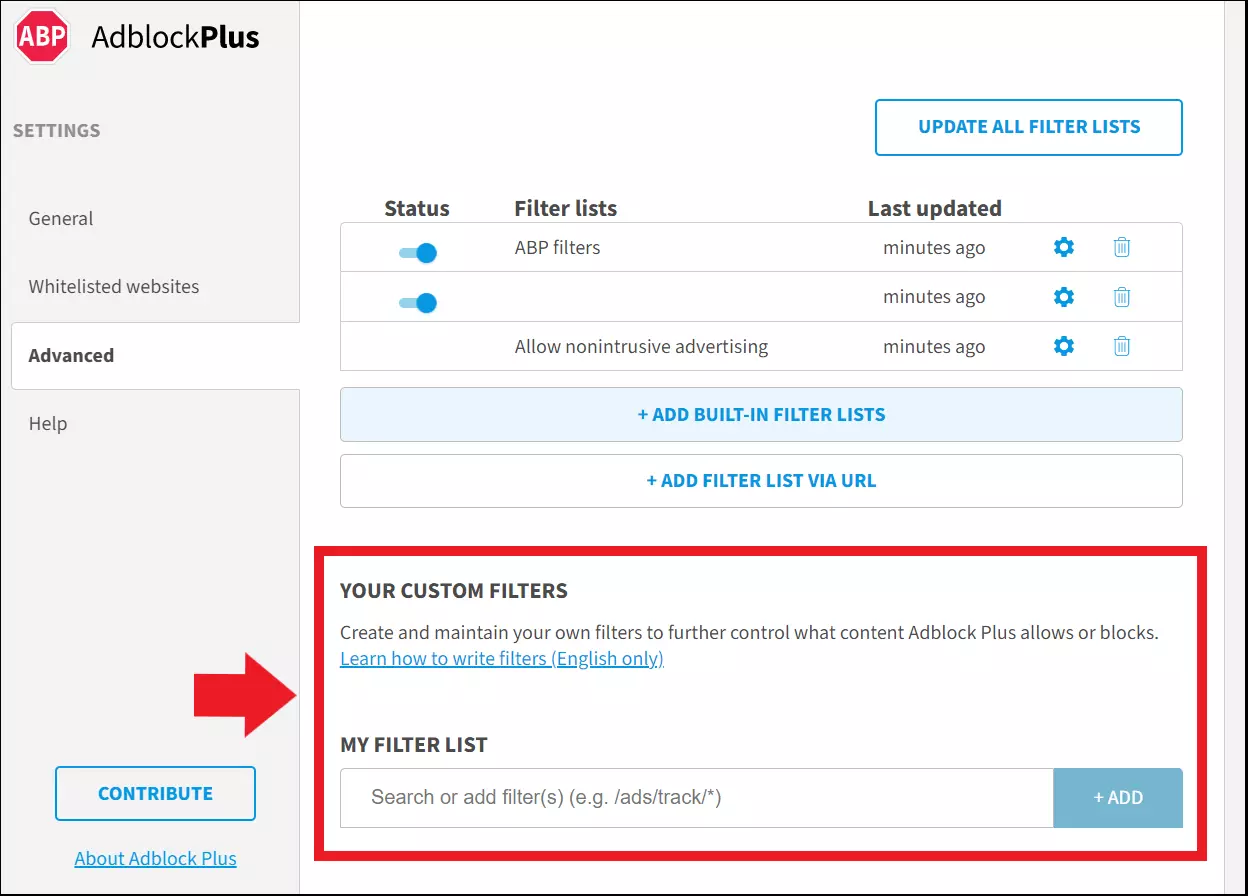
Step 4: You can also create custom filters by clicking the Adblock Plus icon and ‘Disable: on (name of website)’ when you visit a website which you want to exclude from adblocking. This way, you can choose if you want a particular website to continue receiving ad revenue.
YouTube ad-free on Android
Use Adblocker app
While there are plenty of ways to block ads on YouTube in the browser, it isn’t so easy with the YouTube app unfortunately. Adblockers like Adblock Plus can be installed as an app, but the blocking function will only work for the browser app. One option worth considering is the YouTube Premium subscription. Other options include alternative YouTube apps like NewPipe or YouTube Vanced, which offer YouTube videos without ads and tracking.
How to use NewPipe for YouTube without ads:
Step 1: First, you need to allow your browser app to install unknown apps in the Apps Settings of your Android device. This works via ‘Settings’ > ‘Apps & Notifications’ > ‘Special App Access’.
Step 2: Download the installation file for the NewPipe app. You can download the APK file from a portal like GitHub. However, it is better to download the NewPipe app from an official alternative app store like F-Droid. To do this, first install the F-Droid app and authorise the app to install unknown apps. Then download the NewPipe app and disable the permission to install unknown apps in the F-Droid app again for security reasons.
Step 3: Now install NewPipe and use the app to access YouTube videos and channels completely without ads and tracking.
Use ad-free Android browser
Instead of browser extensions, ad-free browsers from AdAway, Adblock Plus, or AdGuard are good options. The popular Brave browser is also a solution. You simply download the corresponding browser on your mobile device (or even PC) and surf online completely ad-free, even on YouTube. Since adblocking hurts YouTuber revenues, the Brave browser offers an alternative revenue stream for YouTubers in the form of donations, monthly budgets, and payouts based on video view time with Brave Tokens and Brave Payments.
Subscribe to YouTube Premium
If you would rather support YouTube, subscribe to YouTube Premium. With the Premium version, which costs £11.99 per month, you can get several additional features and officially block YouTube ads.
Should you block YouTube ads?
Since YouTubers finance themselves through advertising, blocking ads can be controversial to some. Skipping ads isn’t even counted as a ‘view’, so YouTubers therefore receive no revenue. If you block advertising, there is no chance to earn advertising revenue at all. You will often see advice on online news magazines to disable adblockers when visiting the site. It is advisable not to block all advertising with adblockers across the board, but it might be a good idea to disable adblocking when visiting YouTube channels or other websites which you want to support.