

Where is the Steam screenshots folder located?

When you’re on Steam, taking screenshots is easy, but finding them isn’t. After you have snapped an unforgettable setting or a triumphant victory, your screenshot is stored deep within the program’s folders. We’ll show you two different ways you can locate your screenshots and how to change the location of where they are saved.
How do you take a screenshot in Steam?
Stream is one of the most popular platforms for downloading and playing the latest video games. There are times when you may want to remember a particular scene from a game by taking a screenshot. Luckily Steam already offers this function, so you don’t need to rely on any additional screenshot tools.
To take a screenshot in Steam, simply press [F12]. Steam will display a small notification letting you know that the screenshot has been saved. Finding the screenshot later, however, isn’t quite as easy. We’ll show you two methods for finding Steam screenshots.
By using your own game server, you can configure your gaming sessions exactly how you want. It also makes it easier to play together with friends. With a game server from IONOS, you have complete admin freedom.
Option 1: open screenshots in the Steam app
The simplest way to open screenshots is to use the Steam app. You can also find the folder they’re saved in on your computer. To do this, follow these steps:
- Go to the menu in the top left and click View followed by Screenshots.
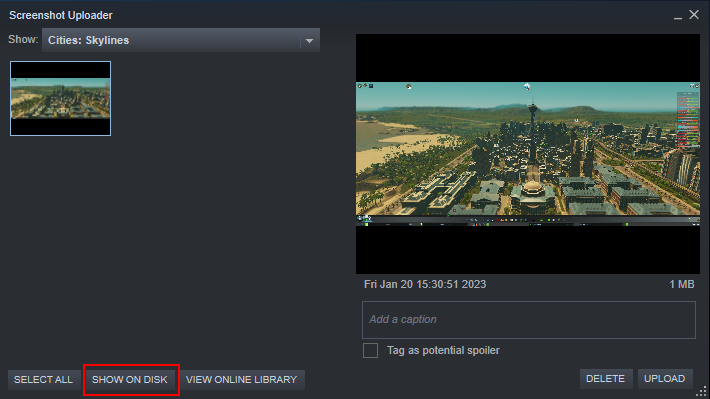
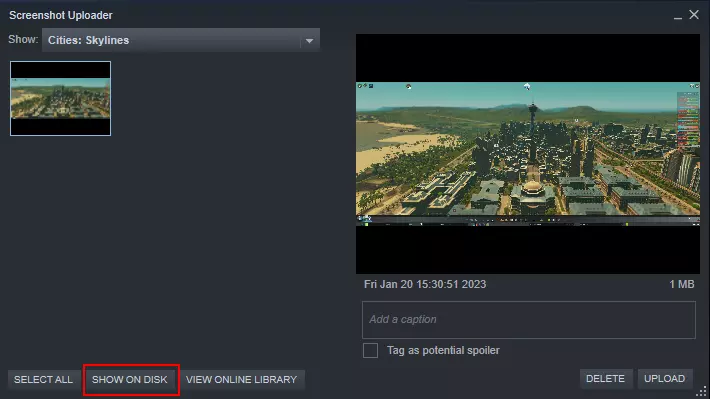
- A window called Screenshot uploader will appear.
- In the Screenshot loader, select the game where you took the screenshot from the Show option at the top.
- Then click on Show on disk. The location of all the screenshots belonging to this game will now be displayed.
Option 2: find your Steam screenshots folder on your computer
The second way to find your Steam screenshots folder is from where they are stored on your computer. If you have the standard Steam settings active, screenshots will be saved in a subfolder of your Steam program folder. This folder is easy to access.
To find the screenshots on a Windows PC, provided Steam is installed on a standard path, open File Explorer (previously Windows Explorer) and enter the following location:
C:\Program Files (x86)\Steam\userdataYou will then see a folder of all the Steam users on the computer. The folders will be named using a combination of characters. These are the unique Steam IDs of the users. Open the folder with your Steam ID followed by the folder ‘760’ and ‘remote’. This folder contains other subfolders for the different games in which you have taken screenshots. The different combinations of characters in this folder are different game IDs. Open the folder of the game you want and then the ‘screenshots’ folder.
If you are using Steam for macOS and have taken screenshots on a Mac, you can use a similar process to find the location where they are saved. The general Steam folder can be found under Users > (Your username) > Library > App support > Steam. Once you have located it, you can repeat the steps above to go from Steam ID to the Game ID and finally to the screenshots folder.
How to change the location of screenshots in Steam
If you want an easier way to regularly access your screenshots, you can change where they are saved on your computer using the Steam app. Here’s how:
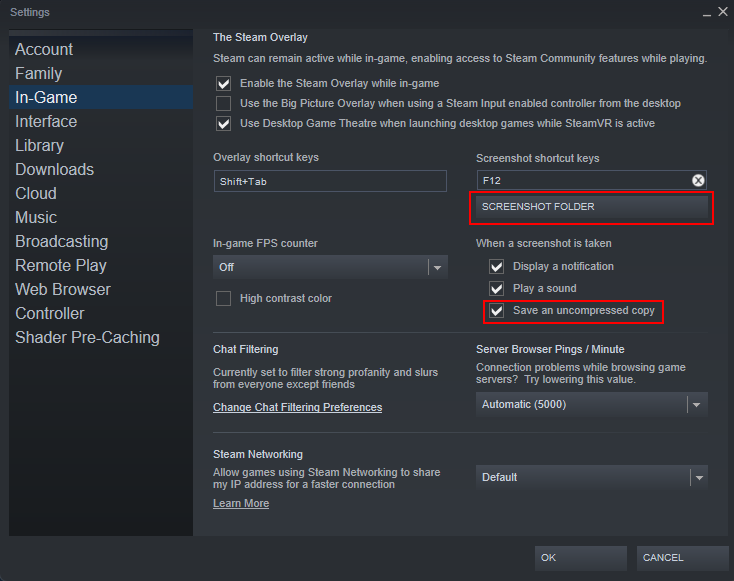
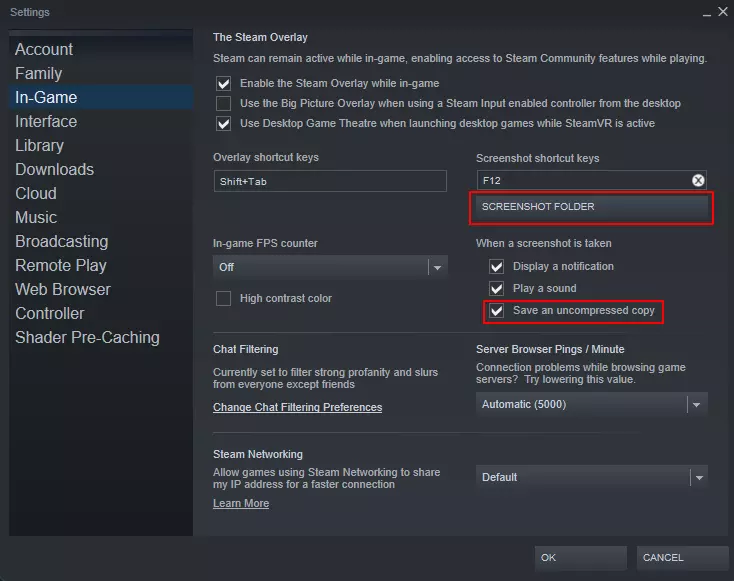
- Go to the menu at the top of your screen and click Steam followed by Settings.
- In the window that has just opened, click on In-Game.
- On the right, you will find settings for your screenshots. Click on Screenshot folder and choose a new folder to save your screenshots to.
- Tick the box next to Save an uncompressed copy and click OK.
Your screenshots will now be saved in the folder you have selected.
You can also choose your own keyboard shortcut for taking screenshots. The default shortcut is [F12]. To designate a different keyboard shortcut, enter the combination/key you would like to use in the Screenshot shortcut keys field.
Bought a game only to find out it’s not as good as you hoped it would be? With Steam refunds, you can get your money back. If you want to share your game library with others, Steam family sharing is a practical feature to check out. Read about these Steam features and more in our Digital Guide.