

A TikTok download guide: how a TikTok video downloader works

Whether it’s your own TikTok videos or videos from others, the TikTok app has a built-in feature for TikTok video download. For your own videos, you just need to enable ‘Save to device’ in the settings; for videos from others, it depends on whether they allow downloads. Besides, there are third-party apps that can be used to download TikTok videos without watermarks.
- Free WordPress with .co.uk
- Free website protection with one Wildcard SSL
- Free Domain Connect for easy DNS setup
Quick guide: TikTok download
TikTok app:
- Sign in to the TikTok app.
- In the settings, enable ‘Save to device’. New own videos are then automatically saved on the device during uploads.
- You can download your own posted videos via the three-point menu by activating ‘Save video’.
- For third-party videos, use ‘Save video’ if the account allows downloads.
- Alternatively, use the ‘Share’ button and send the video to yourself via email or as a Messenger message (file will be saved in library).
- As a second alternative, use third-party apps for TikTok download like ‘Snaptik’ or ‘Video Downloader for TikTok - No Watermark’.
PC:
- Download an app like BlueStacks (for Android emulation on PCs).
- Open the Google Play Store through BlueStacks and download TikTok.
- Open TikTok on the PC and record videos via screen capture.
- Alternatively, use the TikTok web version to download video by logging into the TikTok website.
- In the web app, the same app features are available except for camera access.
Is TikTok video download available for both app and PC?
It’s been impossible to overlook TikTok for a long time now, with around 689 million users (as of 2021). The social media and video sharing app’s colourful, quirky short videos inspire young people in particular, but also offer artists and influencers the opportunity to gain new fans. Since some videos are so stunning, funny or impressive that users want to download and save them, the question arises: is that even possible?
In fact, TikTok offers a video download feature. With this, new uploaded videos are automatically saved on the smartphone. Videos that have already been uploaded can be saved afterwards.
If you want to save videos from other users, it depends on whether they allow the download. If so, you will find the ‘Save video’ function in the menu of the video in question. If the function is not activated, you can forward the video via ‘Share video’ as a file via e-mail or to your messenger, e.g. WhatsApp. Alternatively, third-party apps are available for downloading online videos.
TikTok download via TikTok app: including watermark
Follow the steps below to download videos in the TikTok app. However, note that videos you download directly from the TikTok app are watermarked.
Step 1: First, sign in to your TikTok account in the app. Go to the ‘Settings’ and enable ‘Save to device’. All new videos you upload to TikTok after that will be automatically saved to your device.
Step 2: If you want to download videos you have already posted, tap on the video, go to the three-dot icon and select ‘Save video’.
Step 3: If you want to download other people’s videos, it depends on whether the TikTok account holders allow the download. To check if the download is allowed, press and hold the video and select ‘Save video’.
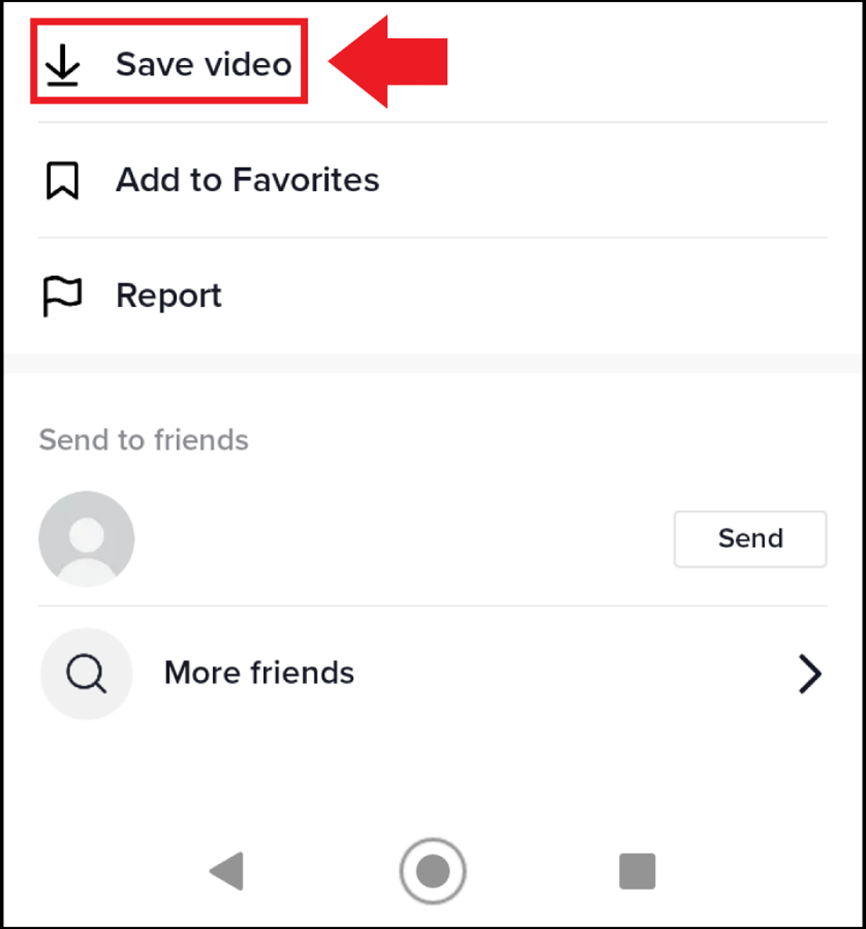
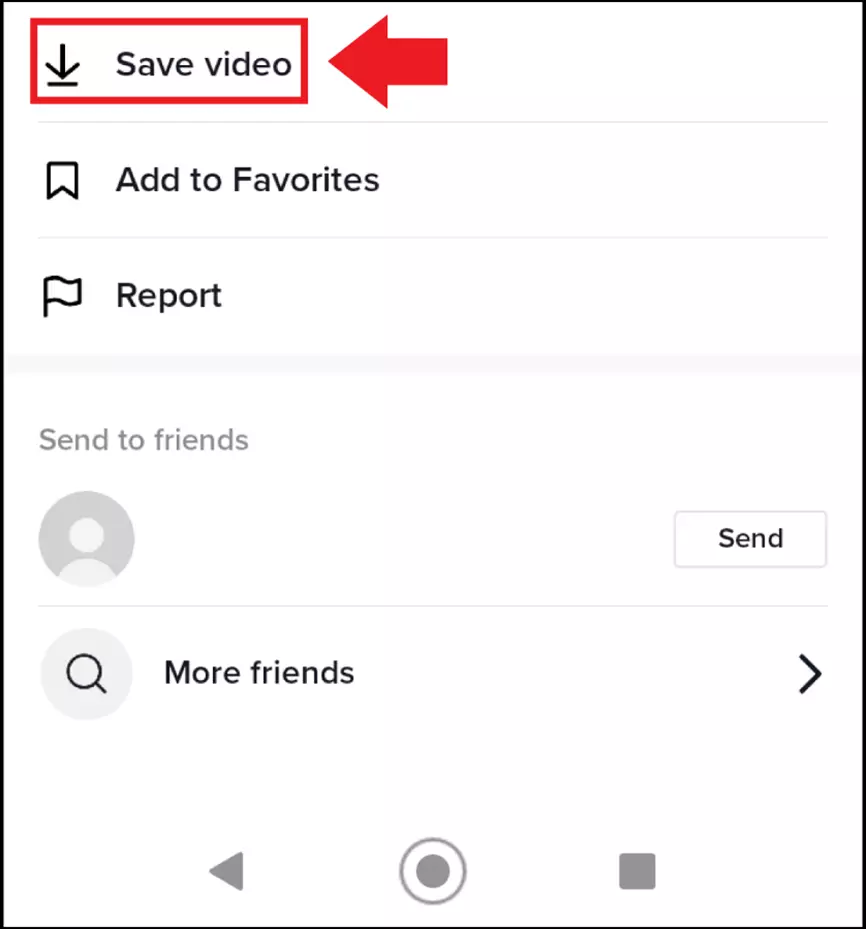
Step 4: Since probably many TikTokers have disabled the download function, you can circumnavigate this. On the video page, tap the ‘Share’ button. You can share the video and send it to your own email address or social media account, for example. If you share it via WhatsApp, for example, you will find it in your WhatsApp media library on your smartphone. In this case, videos will be watermarked.
TikTok video downloader: without watermark
If they want to download TikTok videos, even then when account holders do not allow the download, third-party apps such as ‘Snaptik’ or ‘Video Downloader for TikTok - No Watermark’ are available. With these, you use an additional download button added by the TikTok video downloader app. Alternatively, you can also copy video links into the app and save the video as a file.
Be aware that third-party apps may not work on every smartphone. In addition, keep in mind that professional TikTokers or artists deliberately do not allow downloads for copyright reasons. So make sure that you are allowed to download the video or that you only use it for private purposes and do not share it.
TikTok download via PC
There are also various options available for a TikTok download via the PC. Since there is currently no desktop version of TikTok, you will either have to use the app via an emulator app or use the web version of TikTok. Follow these steps to perform TikTok downloads on your PC.
TikTok via emulator app: to still use TikTok on the computer, download an Android emulator app like BlueStacks. Log in to the app to use and install Android apps on the PC via it. Using the emulator app, now download TikTok from Google Play Store and save or share watermarked videos as described above.
TikTok as a web version: Another way to use TikTok on the PC and save watermarked videos is to use the TikTok web version. To do this, open TikTok in your browser and log in. TikTok will now send a code to your phone number or email address, which you must enter in the browser. After that, the web version of TikTok will be available to you, including TikTok video download for videos that allow download.


Screen capture of TikTok videos: Whether in the emulator app, or the web version, an easy way to save TikTok videos is to capture a screenshot in Windows 11 or take a screenshot in Windows 10. Just play the video you want after the screen capture has started. Of course, you can also use mac screen record.
Is a TikTok video download legal?
When asked whether TikTok video downloads are legal from a copyright perspective, there is a clear answer: it depends. For example, until 2020, TikTok was still offering background music for which it had no user rights. In 2020, TikTok finally announced that it had signed multi-year copyright deals with international rights holders such as Universal Music Group, NMPA, and APRA AMCOS. Previously, then, TikTok users were operating in a grey area of copyright infringement, for which TikTok did not accept responsibility in its T&Cs. Due to the published deals, it can now at least be assumed that provided TikTok background music does not violate copyright.
What about downloads? In the UK, there are some exceptions to the Copyright, Designs and Patents Act 1988 such as the legal term https://www.gov.uk/guidance/exceptions-to-copyright#fair-dealing - external-link-window "Fair dealing">Fair dealing which helps to establish whether material is infringing on copyright. A private https://www.gov.uk/government/news/quashing-of-private-copying-exception - external-link-window "copying exception">copying exception was introduced in 2014 permitting copies of material for private use. So if you download TikTok videos you may only use them privately. Because copyright law varies internationally and a definition of private copying does not exist in the U.S., you should only use private TikTok downloads of others’ videos in the UK. Also, whether TikTok is considered a legal source can vary from country to country – see the efforts in the US to block TikTok.
Please note the legal disclaimer relating to this article.