

Xbox Cloud Gaming (xCloud): A portrait of Microsoft’s service

Similar to Google Stadia, Xbox Cloud Gaming is a video game streaming service. This means that by subscribing to xCloud, you as a user have the ability to stream and play video games over the Internet. You can read more about how exactly this works and how membership to Microsoft’s gaming service works here.
- KVM based dev servers for developers
- Scalable to enterprise cloud level
- Pay-as-you-go, per-minute billing
What is xCloud (Xbox Cloud Gaming)?
xCloud belongs to the guild of so-called cloud gaming services - a form of cloud computing. From a technical point of view, this means that the games are no longer run on the user’s own computer, but instead in the cloud on the operator’s server resources. To use the service, in addition to a membership with the cloud gaming provider, you need a stable Internet connection and a supported device for playing. Your inputs are then automatically sent to the servers in the data centre and synchronised.
If you want a more detailed answer to the question ‘How does cloud gaming work?’, we recommend the linked article.
Xbox Cloud Gaming: Requirements
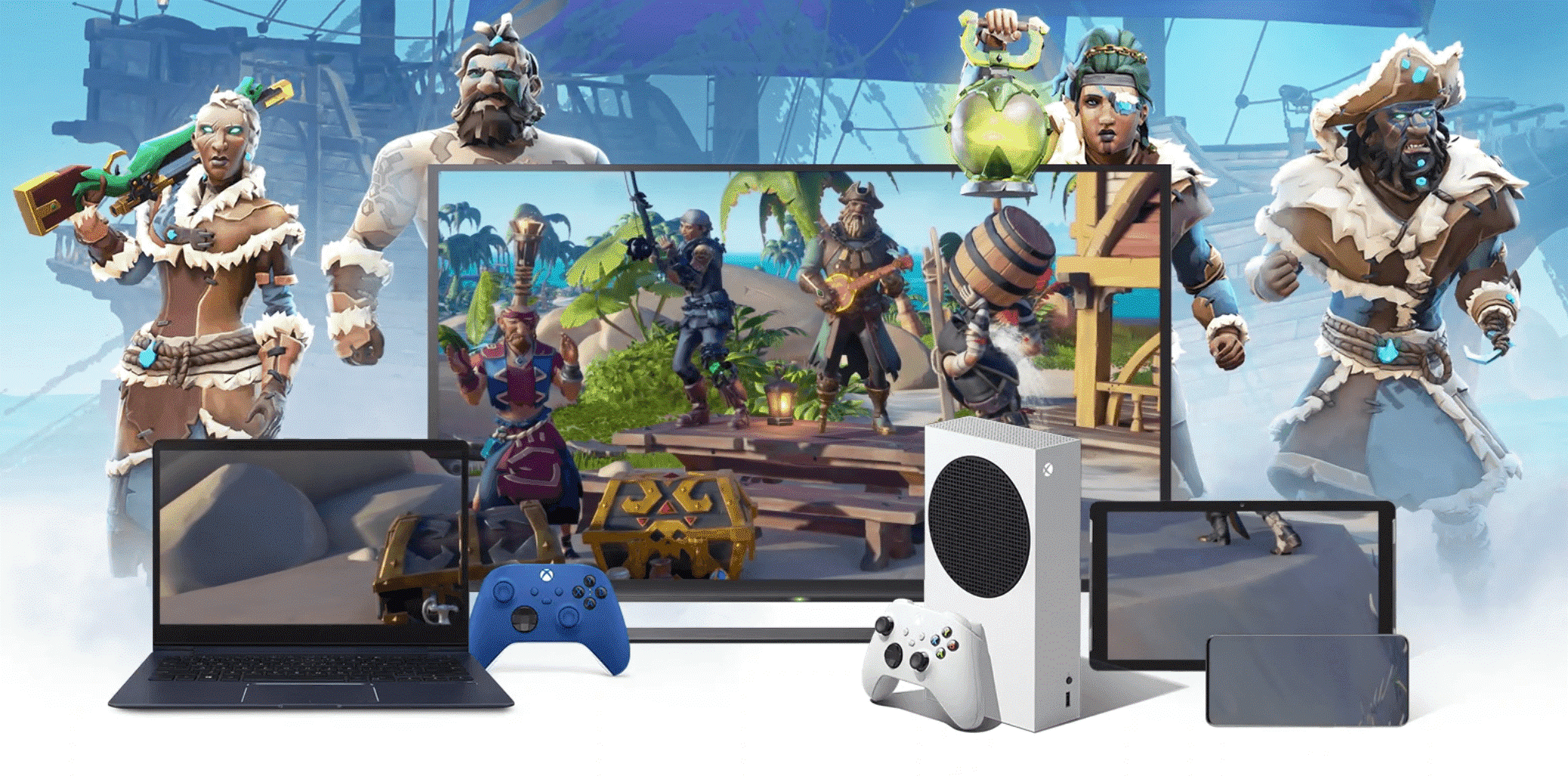
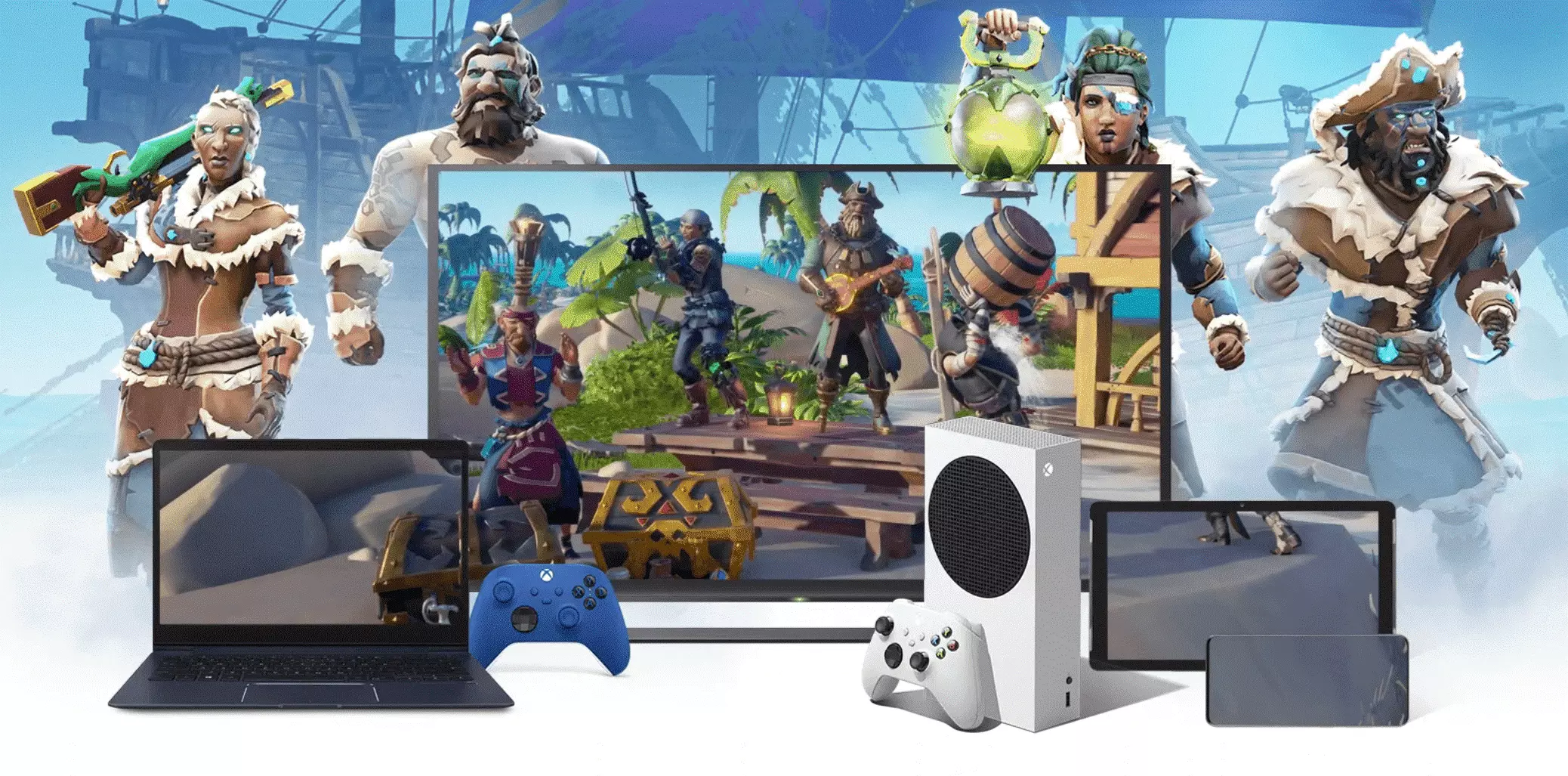
In order to play games via xCloud, you need an active subscription to Xbox Game Pass Ultimate. If you decide to do so, you will have to pay a fixed monthly price. You can choose to use Microsoft’s gaming stream on the PC or on mobile devices, whereby the following system versions are required:
- Windows computers require at least version 10 of the operating system.
- Android devices require at least version 6.0
- Apple users can use xCloud with iOS 14.4 or higher
Supported browsers include Microsoft Edge, Google Chrome, and Safari. However, Xbox Cloud Gaming is mainly used via the Xbox Game Pass app.
You perform inputs either with the official Xbox controller or with another compatible gamepad. However, you mainly control the xCloud service via the inputs on the display - especially on mobile devices.
The most important requirement for a service that streams video games over the Internet is a correspondingly powerful Internet connection. Android smartphones and tablets often only require a bandwidth of about 7 MBit/s in order to use xCloud. Apple devices require a bandwidth of 10 Mbps. For smooth operation on a desktop PC or laptop, a 20 MBit/s connection is recommended as a minimum.
Generally, Xbox Cloud Gaming is designed to be used on the go with access to mobile data. However, WiFi should be your connection of choice to conserve data volume and mobile phone bills.
Advantages and features of Xbox Cloud Gaming
A big advantage of xCloud is the cloud gaming aspect itself: Games no longer need to be installed and kept up to date individually. Also, you no longer need the most advanced and expensive hardware to run demanding titles because the games run entirely over the Internet and requires a minimal computational capacity. The majority of the computing load is on the operators’ external servers, which are also maintained on a regular basis.
The second big advantage of Xbox Cloud Gaming is the Game Pass. This includes an enormous game library, the contents of which are immediately available in the cloud. With one account, you have instant access to hundreds of hours of exciting gameplay and full-length, blockbuster-quality entertainment. All of this comes via instant access through your Internet connection and can also be used on the go. Use on multiple devices is part of the xCloud concept, as the save states of the individual titles are also stored in the cloud and can thus be accessed at any time via PC or mobile devices.
In Xbox Cloud Gaming, the data packets are transferred between server and client in a few milliseconds to ensure smooth gameplay. If the latencies are low and the Internet connection has enough bandwidth, nothing stands in the way of smooth visuals with 60 fps at a Full HD resolution of 1080p.
Another advantage of xCloud is the support of Xbox Remote Play: This makes it possible to play games from your console directly on your Windows PC, smartphone, or other device. In addition to the corresponding Xbox app, you need a supported web browser as well as a reliable Internet connection and a Bluetooth-enabled controller.
Problems and disadvantages of xCloud
If you live in a region where fast Internet is not available, game streaming is not really a viable option. A permanent downstream of multimedia content with simultaneous upload of controller inputs is only possible with a correspondingly powerful Internet connection. If this is not available, Xbox Cloud Gaming practically can’t be used. Adding to this is the fact that the offer can only be used as part of Game Pass Ultimate and is not available as a separate service.
Speaking of separately: A separate controller is also necessary. Either grab the official Xbox controller or find out in advance whether your favourite model is supported by xCloud. The combination of mouse and keyboard, which is popular among PC gamers, is generally not supported.
Although the list of compatible end devices is relatively long with computers, tablets, and smartphones, Xbox Cloud Gaming cannot be used on TVs. Those who like to enjoy cinematically staged blockbuster games on the big screen are left on the sidelines due to the lack of compatibility for TV sets.
The game library linked to Game Pass is large and titles are added monthly - however, many popular titles from Xbox and Xbox 360 are not playable via cloud gaming. It’s a similar story with private servers for multiplayer titles: Since the computing operations take place in the cloud, it is also not possible to create your own servers. So anyone who wants to set up their own Minecraft server, for example, will have to look for a corresponding alternative.
Other cloud gaming providers include the following:
- Google Stadia
- GeForce Now
- PlayStation Now
- Shadow