

Browser fingerprints: the basics and protection options

Browser fingerprints are not only characterised by their uniqueness but there’s also an 80% success rate when it comes to recognising web users - and this is without the use of cookies… For this reason, marketers and website owners are using browser-tracking more and more often in order to use the results for website optimisation or for designing targeted advertising.
What are browser fingerprints?
In order to access content from a server, you need a client software. This is how you can access an email client and retrieve messages from the mail server. Access to web servers is achieved with popular web browsers such as Mozilla Firefox, Safari, or Google Chrome. Using the HTTP protocol, these applications request data from websites and then display them in a user-friendly manner. Transferring the contents takes place via IP packets, which contain information on the client (in addition to the user data), and which can be used on the server side to determine the browser fingerprints.
There are basically two types of browser fingerprints:
- Passive fingerprinting: so-called passive fingerprinting is collecting browser information without using a special application. This information is often contained in the header data of the IP packet by default. It always reaches the web server. This can include the IP address, the port used, and the browser type. However, basic configurations such as the desired data types (HTML, XHTML, XML), character sets (e.g., UTF-8), or languages (usually the language of the browser or operating system) are also included. In some cases, the HTTP header also provides information about the operating system and the source page used.
- Active fingerprinting: with active fingerprinting, the browser specifically queries information that isn’t automatically provided when a web resource is accessed. This query can be done with JavaScript applications or plug-ins that extend the browser’s functionality (especially Adobe Flash and Microsoft Silverlight). Among other things, this enables extra information to be obtained from the browser as well as more information about the operating system as well as details about the user’s screen (width, height, resolution). Additional information includes the fonts installed or the time zone in which the user is located.
How are passive digital fingerprints traced?
As mentioned previously, the browser fingerprint is used to identify a user in order to be able to recognise them later on. By doing this, it is then possible to observe their surfing behavior in order to gain insights into the functionality and usability of a web project or to provide personalised content. Browser fingerprinting shouldn’t be obvious to the visitor. This isn’t a problem for the passive variant since the data is transmitted anyway and is saved on the server side.
The low use of IP and port numbers for browser fingerprints
However, this automatically transmitted information often lacks validity. Especially the IP address since saving it is problematic due to legal reasons. The TCP ports used can’t fulfill their role as crucial features of the digital fingerprint for two reasons: 1. Dynamic address allocation: if you connect to the internet, your access provider doesn’t receive a fixed and permanent IP address. It gets a new, dynamic IP from the pool of available addresses each time. A specific IP address can only be allocated to one device for a specific period of time. Only the user and his or her provider know when a device obtains a new internet address 2. Network Address Translation (NAT): what’s even more problematic is when NAT is used. The method connects several devices to the internet under a common, public IP address, which is shared by many users. It is used, for example, by routers that unite private households in a LAN, but also by providers that control technology, in particular, the mobile radio sector. Because of this, the mobile devices of two different users share the same IP address Both addressing techniques are the result of a lack of available IPv4 addresses. It remains to be seen as to whether the successor protocol IPv6 solves this problem in the coming years by using dynamic addresses and NAT in the future. The TCP ports that a client uses to communicate with the server are just as unsuitable as a device’s recognition feature. While the source port number is randomly generated for each request, network services are always provided with fixed default port numbers, which is why all clients use the same target port. For HTTP requests to a web server, this would be TCP port 80, for example.
HTTP header data provides the relevant information
The header of the HTTP protocol, which is used for transmitting web content, has no fixed size, unlike the TCP and IP header data. In addition to the ability to contain custom entries, several standardised fields are required, some of which are very important when creating the browser fingerprint. These are the following header data:
- 'Referer': when a user reaches site A from site B, the URL of site A is passed as a referrer to site B’s server. Certain users may reach the destination site from a particular source site, which is just as useful for creating fingerprints as the GET parameters contained in the URL.
- 'User agent': with every HTTP request, the respective client usually also provides a description of itself in the 'user agent' field. In addition to the name and version number, the HTTP header also provides space for a comment, in which many browsers list the underlying platform or the operating system.
- 'Accept': using the accept field, the browser tells the server which content types it can process and therefore which output formats it prefers. In addition to HTML, XHTML (Extensible Hypertext Markup Language) and XML (Extensible Markup Language) are required. If the field is missing, it means the client supports all content types.
- 'Accept-Charset': in addition to the output format, the client can also define the desired character set to be used by the server in its response. These are primarily UTF-8 and the ISO standard ISO/IEC 8859-1.
- 'Accept-Encoding': in order to optimise the web project’s loading time, it is normal to compress web content before sending it. The browser must then unpack the compressed data before it can display it. The 'accept-encoding' field tells the contacted server which compression format it supports. The list of possible procedures created by IANA includes gzip, deflate, exi, and br.
- 'Accept-Language': using the HTTP entry, 'accept-language', clients reveal which language version they prefer. If this is available for the website that’s being accessed, the web server will deliver it. The language depends on the language of the browser or the operating system being used. Some browsers also enable you to specify other languages in the settings.
How does browser fingerprinting work?
Active fingerprinting, just as the name implies, requires a web project operator to actively query information about the client. The requested properties and data are characteristics that aren’t provided in the header data of the client packets. Because applications have to be executed via the browser, the user can theoretically verify fingerprinting at any time by analysing the outgoing data packages or the HTML or JavaScript source code. In the majority of cases, however, the process will remain hidden to visitors just like with other comparable tracking methods.
Active browser fingerprinting with JavaScript elements
For a seamless and fast data exchange between client and server, it is common to implement active browser fingerprinting using AJAX (Asynchronous JavaScript and XML) elements. This technique enables visitors to interact with a website without having to reload it completely with every HTTP request. For this purpose, only the requested resources are loaded in the background, while the user can still see and use all other elements. The information, which can be obtained using the corresponding scripts, can be divided into two categories: browser information and screen information. Furthermore, the browser fingerprint can also be extended by means of JavaScript to include information on the time zone and the configured system colours.
Retrievable browser information
The properties retrieved via the user’s browser are similar to those obtained with passive fingerprinting. Tracking is carried out using the navigator object, which is a possible property for Window objects – in other words, the window that opens in the browser. Even though the navigator object does not have a common default, it is still supported by all popular browsers. It forwards the following information to the web server:
- navigator.appName: transmits the name of the browser e.g., 'Opera' or 'Netscape'
- navigator.appVersion: informs the server about the version of the browser and, in some cases, the operating system or even the type of the processor. For example, a possible entry could be '5.0 (Windows)'
- navigator.cookieEnabled: use the cookieEnabled property to check whether the browser supports cookies ('true') or whether the user has disabled them ('false')
- navigator.language: this property is used to find out the browser language. It is supported by all popular browsers (Internet Explorer version 11.0 onwards, Firefox version 1.0 onwards) and corresponds approximately to the HTTP entry 'accept language'. Examples of valid codes include 'en' and 'en-US'
- navigator.platform: specifies the platform being used. Possible values include Win32, MacIntel, Linux i686, iPhone, Android, and SunOS
- navigator.userAgent: with active browser fingerprinting, it’s also possible to see a detailed identifier of the browser. The userAgent property does not differ from the HTTP header information and provides values such as the name, version, and browser platform in the summary. The following example shows a possible extract: 'Mozilla/5.0 (Windows NT 6.1; WOW64; rv:53.0) Gecko/20100101 Firefox/53.0“
Trackable screen information
Information about the site visitor’s screen can also be accessed via a JavaScript browser window. In this case, the screen object is used as a sub object, which, like the navigator object, is not specified in a standard, but is supported by all popular browsers. Up to five display properties are passed on to the server with a corresponding script:
- screen.width: the value indicates the total width (in pixels) of the user’s screen
- screen.height: the property 'height' tells the server the total height (in pixels) of the user display
- screen.availWidth: specifies the actual available display width (in pixels) that is available to the user. For this purpose, the width of the interface features, such as the Windows Taskbar, is subtracted from the total value
- screen.availHeight: specifies the actual available display height (in pixels) that is available to the user. As with the available width, the dimensions of interface features are subtracted from the total value
- screen.colorDepth: the colorDepth property tells the web server the colour depth (bits per pixel) that is available to the user for displaying images. ColorDepth is equivalent to the pixelDepth property, which also returns the value of the colour depth, but is not supported by all browsers
Determining time zones and system colours
A user’s time zone can be determined using the JavaScript method: getTimezoneOffset(). Strictly speaking, this represents the time difference between UTC (Universal Coordinated Time) and the local time in minutes. The operating system settings are used as reference values. A simple JavaScript dialogue box, which implements the method and presents the difference, looks like this:
var d = new Date();
alert(d.getTimezoneOffset());
The operating system’s settings need to be accessed when tracking the system colours. However, in order for the necessary JavaScript function getComputedStyle() to record the optics (chosen by the user) for window frames, buttons, etc., it depends on the support of CSS (Cascading Style Sheets). The Stylesheet language makes it possible to create website elements that automatically take on the visitor’s system colour settings. This is the colour selection for these system elements in detail:
- Frame of active window (ActiveBorder)
- Titel text of the active window (ActiveCaption)
- Desktop background (Background)
- Text on buttons (ButtonText)
- Border of 3D elements (ThreeDHighlight)
The webserver then receives the corresponding colour values or names of the system colours and can incorporate them into creating the fingerprint.
It is also possible to use the CSS property font-family to specify multiple possible fonts for displaying a text block. You can you add a JavaScript method to check which of the defined fonts can be played by the browser, and then you will see if the respective fonts are installed on the user’s system or not.
Active browser fingerprinting: verifying the applied plugins
Internet browsers have been designed primarily for displaying simple HTML documents, including individual images. Over the course of time, however, the demands on client programs have increased due to web projects becoming more complex: interactive elements have also become established in addition to media formats, such as audio and video files. In order for the browsers to be able to play back different content, the developers had to extend the functionality of the applications. This was done using plugins, which are still used today for this same purpose. With JavaScript, the plugins installed can be used to determine the browser fingerprint.
Adobe Shockwave Flash
The world’s most widely used plugin is Adobe Shockwave Flash, which is needed to play Flash animations. In addition, Flash was the most commonly used video format on the World Wide Web. This means that the expansion – including the Flash Player - is compulsory. Even though HTML5 is now a serious and safer alternative for providing and playing video content, the plugin is still installed on various browsers. The exceptions are most standard browsers on mobile devices, which do not offer a corresponding extension. However, a scan after installing Adobe Flash (including the version number) is an important element in defining a browser’s digital fingerprint. A possible script, which uses a 'try…catch' command that can be used anywhere on the website looks like this:
try {
    var obj = new ActiveXObject(’ShockwaveFlash.ShockwaveFlash .6’);
    alert(new ActiveXObject(’ShockwaveFlash.ShockwaveFlash ’).
        GetVariable(’$version ’).replace (/\D+/g, ’.’).match
        (/^.?(.+) ,?$/)[1]);
    } catch(e) {
try {
    if(navigator.mimeTypes["application/x-shockwave -flash"].enabledPlugin) {
        alert(( navigator.plugins["Shockwave Flash 2.0"] ||
        navigator.plugins["Shockwave Flash"]).description.
        replace (/\D+/g, ".").match (/^.?(.+) ,?\$/)[1]);
        }
    } catch(e) {}
}
For the first step, the JavaScript application attempts to create a new ActiveX object (only works on Internet Explorer), which determines and then forwards the version number when successful. If it isn’t successful, the script accesses the mimetype object that is subordinate to the navigator object already listed. It is also able to determine all browser-supported file formats and playback plugins (navigator.plugins). In line with the script used here, there is a response when it encounters Shockwave Flash or Shockwave Flash 2.0.
Microsoft Silverlight
The Silverlight extension from Microsoft adds functions that are similar to those of Shockwave Flash. The plugin for supporting interactive elements is generally less common than Adobe Flash and is also no longer supported by many popular browsers. This can prove to be very valuable for browser fingerprinting because a browser that has this plugin installed, is clearly distinguished from many other browsers. In this context, however, a two-part script for the fingerprint test can be used, which in this case tries to instantiate an ActiveX object and inspects the navigator.plugins object if a failure should occur.
if (window.ActiveXObject) {
    try {
        var obj = new ActiveXObject(’AgControl.AgControl ’);
        var v = new Array(’ 5.1.50906.0 ’, ’5.1.50905.0 ’, ’5.1.50901.0 ’);
        var i = -1;
        var b = false;

        do {
            i++;
            b = obj.isVersionSupported(v[i]);
        } while (!b && i < v.length);
        if (b) {
            alert(v[i]);
        }
    } catch (e) {}
} else {
    var b = false;
    for (var i = 0; i < navigator.plugins.length; i++) {
        if (navigator.plugins[i].name.indexOf(’Silverlight ’) != -1)
        {
        alert(navigator.plugins[i].description);
        b = true;
        }
    }
}
As mentioned previously, the first part of the script attempts to use an ActiveX object to verify Microsoft Silverlight. For this purpose, the three current versions (as of May 2017) of the plugin are listed in the 'v' array. The collection is the basis for the 'isVersionSupported' function, which returns either the value 'true' or 'false', depending on whether the verified client supports it or not. If ActiveX elements are not supported, the script searches the navigator.plugins object.
Check all installed plugins and supported file formats
The two existing scripts are suitable for acquiring the two most important plugins and the only way for an Internet Explorer user to determine these extensions. However, for all browsers that support the navigator.plugins object, there is another way to not only add information about Shockwave Flash and Microsoft Silverlight to the browser fingerprint but also all installed browser plugins – with the 'try…catch' instruction:
var a = new Array();
try {
    for (var i = 0; i < navigator.plugins.length; i++) {
        a.push(navigator.plugins[i].name + ’: ’ + navigator.plugins[i].description
        + ’ (’ + navigator.plugins[i].filename +’)’);
    }
    alert (a.toString ());
} catch (e) {}
The navigator sub object 'plugins' is therefore scanned with this script for installed plugins including name ('name'), description ('description') and file name ('filename').
In the same way, all formats that are supported by the respective client can be analysed for browser fingerprinting. In this respect, there are differences, for example, on different devices, which is why the obtained values can contribute to specifying the fingerprint in many cases. Instead of the 'plugins' object, the script must access the already-mentioned object 'mimeTypes'.
var a = new Array();
try {
    for (var i = 0; i < navigator.mimeTypes.length; i++) {
        a.push(navigator.mimeTypes[i].type + ’: ’ + navigator.mimeTypes[i].description );
    }
    alert (a.toString ());
} catch (e) {}
Determine installed fonts using Flash applications
As previously mentioned, you can use CSS and JavaScript to check whether certain fonts are installed on the operating system of the client being scanned. The knowledge about the available fonts is interesting for a number of reasons, some of which go beyond merely determining the digital fingerprint. Amongst other things, a look at the fonts can provide the following insights:
- Determining the software through which the respective font(s) have been installed, such as Microsoft Office or Adobe Creative Cloud
- Determining the software with which a separate font (e.g., personal handwriting) was created
- Conclusions on the preferences and interests of the client user e.g. based on party fonts, logos, or topic-specific character sets
The short list shows that fonts like these are not only useful for specifying fingerprints but can also be useful for creating targeted advertising campaigns. Of course, the more known installed fonts, the more accurate the analysis results will be. While only single fonts can be determined with CSS, a Flash application (.swf) and the JavaScript function receiveFonts() make it possible to retrieve and list the complete font arsenal. The necessary code for the Flash object (ActionScript) is as follows:
var user_fonts = TextField.getFontList();
getRL(’javascript:receiveFonts ("’ + escape(user_fonts) + ’")’,’_self ’);
By adding this code into the body area, you can integrate into the HTML document.
<object id="flashFont" name="flashFont" type="application/x-shockwave -flash"
width="1" height="1" data="bfp.swf">
<param name="movie" value="bfp.swf" />
</object >
Login status for social networks via the HTML DOM element
Web services like social media platforms generally require the accessing user to have a specific user account and be logged in using it. Otherwise, a large portion of the resources available from the service won’t be available to them - a circumstance that can be used to create browser fingerprints. For this purpose, a service resource, which can only be accessed by logged-in users, must be known and integrated (as part of a DOM element) into the web project to be checked.
The type of element is of secondary importance because the crucial components, the onload() and onerror(), can be used in numerous HTML components such as <img />,<frame /> or <script />. There they are triggered when the linked resource is loaded or can’t be loaded, whereby the web server receives an appropriate notification. For example, an <img> element that verifies the login status on Twitter is generated using the following code line, but you should be aware that the URL can change at any time.
<img src="https://twitter.com/login?redirect_after_login =%2Fimages %2Fspinner.gif"
onload="alert(’Eingeloggt .’)"
onerror="alert(’Nicht eingeloggt .’)"
style="visibility:hidden" />Fingerprint test: how to check your browser’s fingerprint
The guide shows what extensive tracking possibilities well-designed browser fingerprinting offers – and thus how fast you can be recognised and traced as a user even without cookies. It isn’t immediately obvious how unique your browser’s fingerprint is. There are various web tools such as AmIUnique or Panopticklick, which enable you to test how the uniqueness of your browser fingerprint with just one click. For example, if you want to test your browser with AmIUnique, just type in the address, amiunique.org and click on 'View my browser fingerprint'. What follows is a quick check of your web browser, comparing it to over 370,000 other browsers (as of May 2017).
The service provider (INSA Rennes Engineering School) has revealed that it only collects anonymous data and saves a cookie in the browser that is valid for four months. This is so that any changes can be determined if you decide to repeat the test at a later date.
You will then receive the result as to whether your browser can be tracked or not. Additionally, the percentages will be revealed of how many tests have been carried out to date with:
- the same browser type
- the same browser version
- the same operating system
- the same browser language (primary language)
- and the same assigned time zone
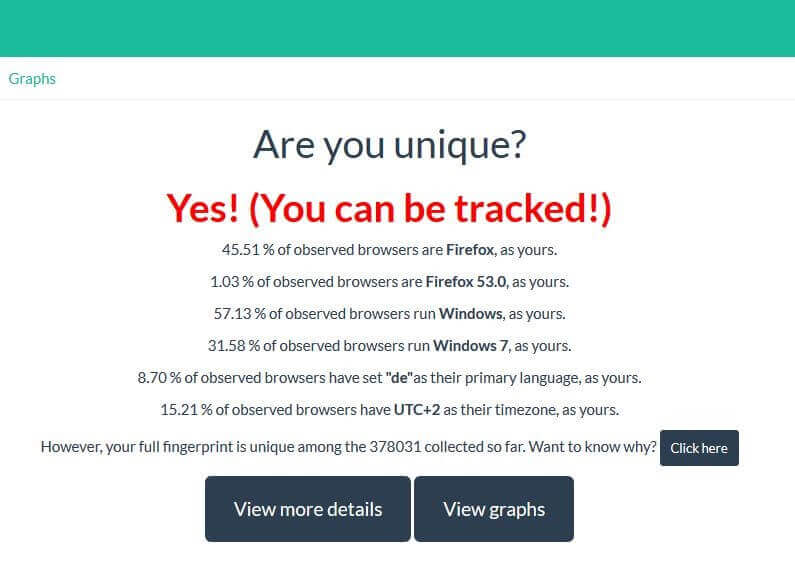
The values shown here are not the only data that the web tool checks and which can be incorporated into the browser fingerprint. By clicking on 'Click here' or 'View more details', you can get a detailed overview of all the information that has contributed to deciding how unique your site is. Among other things, you will also find the values explained in the guidebook, such as which content types are accepted, possible compression methods, screen resolution, or cookie acceptance.
How can browser fingerprinting be prevented?
It isn’t possible to completely prevent the digital fingerprint of your internet browser from being found out. In the case of passive fingerprinting, the web server operator receives the characteristics automatically transferred in the HTTP header. However, you can try to keep your client’s recognition value as low as possible so that the fingerprint is not unique and can’t be used for tracking. The simplest solution is to use a browser extension that automatically blocks active content such as the JavaScript, Flash, or Silverlight applications, which aren’t able to logically deliver information to the server. These plugins, which include NoScript for Firefox or ScriptBlock for Chrome, also provide optimal protection for the ever-increasing use of Canvas fingerprinting. This subtype of browser fingerprinting attempts to track the client through the use of canvas elements. The fact is that the rendering of texts in these elements varies greatly depending on the operating system, browser, graphics card, drivers, and fonts. However, if you activate plugins like these, you have to expect some web services or at least some individual content to stop working. While extensions, content, or sites can be added to filter lists to suspend script blocking, this isn’t very helpful if you aren’t sure whether the provider is trustworthy or not. It should also be pointed out that using a blocker like this, in and of itself, can be directly used for finding out your digital fingerprint. Apart from the script blocking solution, you basically only have one other option, which is to avoid individualising systems and browsers. Choose a commonly-used browser and access the default settings, if possible. The same also applies to the operating system being used. If you forgo the additional extensions for your client, there’s a high chance that you won’t create a unique fingerprint and will be harder to track. As a smartphone user, you are still safe, especially with older models – thanks to the fact that there are currently only a few individualisation options for browsers and systems for smartphones.