

chkdsk command– scanning drives and fixing errors

The chkdsk command line tool was included in earlier MS-DOS versions of Microsoft operating systems. From Windows NT 3.1 and higher, chkdsk runs as a 32-bit program that also supports NTFS format disks. From Windows XP and higher, the tool includes a disk scanning feature with a simple graphical interface that uses the disk service in the background but offers only two of the service's many options. In the following article, you’ll learn about the different chkdsk commands and parameters that are available and how to use the tool for your purposes.
- Free website protection with SSL Wildcard included
- Free private registration for greater privacy
- Free Domain Connect for easy DNS setup
You can run chkdsk as follows:
- Run chkdsk from the disk check utility in the File Explorer
- Run chkdsk with the full range of features from the command line (Command Prompt or PowerShell)
How to run chkdsk from the disk check utility
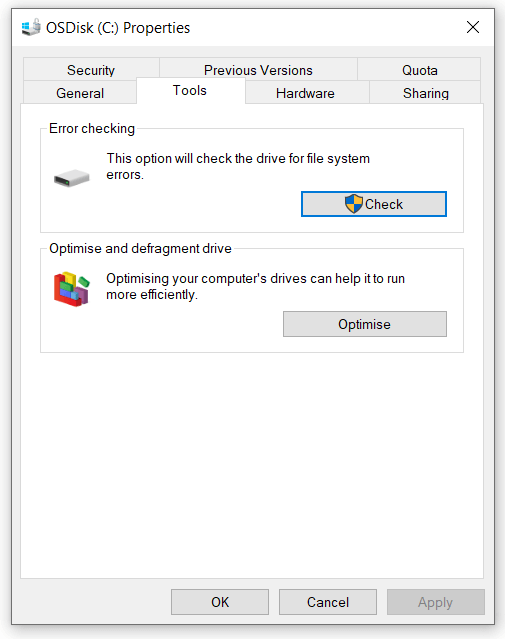
To run chkdsk from the File Explorer, right-click a drive and select Properties from the context menu. Then go to the Tools tab. In the “Error Checking” section, click the Check button:
After a short scan, Windows 10 automatically suggests necessary repairs (in Windows 7, the repair options had to be selected manually). You can choose from two options:
- Automatically fix file system errors – corresponds to chkdsk parameter /f.
- Scan for and attempt recovery of bad sectors – corresponds to chkdsk parameter /r.
If you choose one of the above repair options, the required time will increase significantly. In addition, you can’t use the drive while it is being checked. Therefore, you should first close all programs and File Explorer windows that are accessing or displaying data from this drive.
You also shouldn’t access the drive in read-only mode while the check is running, otherwise the time required for the check will be much longer. It’s best to close all programs and disable third-party antivirus software to prevent them from performing tasks in the background.
How to run chkdsk from the command line with the full range of features
If you run chkdsk from the command line, you have many more scanning options than if you use the File Explorer. In Windows 10, you can type in the chkdsk commands using either Command Prompt or the new PowerShell. You do not have the PowerShell option in older versions of the operating system such as Windows 7 or Windows 8. The following step-by-step guide shows you exactly how to control the tool via the command line.
- First, close all windows displaying the drive you want to check, and exit any programs that might be accessing the drive.
- Right-click the Windows logo in the taskbar to open the Start menu. Next, choose Command Prompt (Admin) or Windows PowerShell (Admin). Depending on your Windows version, only one of these options will appear in the menu.
- If you’re logged on as a user with restricted permissions, you have to enter the administrator password at this point.
- Enter chkdsk and the letter of the drive you want to check.
chkdsk will then run in read-only mode without any further parameters, meaning it won’t change anything on the hard drive.
You can use additional chkdsk parameters to enable special check phases or repair options. Use the following basic syntax when you enter the chkdsk commands:
chkdsk [drive[[path]file name]]] [/F] [/V] [/R] [/X] [/I] [/C] [/L[:size]] [/B] [/scan] [/spotfix]If you don’t select a drive, chkdsk will run on the currently selected drive. You can specify the drive using the drive letter, or for NTFS drives, you can specify the path of the directory that includes another disk.
On FAT32 drives, you can check individual directories or even specific files. On NTFS drives, you can only specify a directory if the directory appears with its own partition in the directory tree.
The most important chkdsk commands and parameters at a glance
The following table summarises the most important chkdsk parameters and commands and explains their meaning. It also specifies the file system and version of Windows for which the different commands are available.
| chkdsk command/parameter | Meaning | FAT32 / extFAT | NTFS | As of Windows version |
| Volume | Specifies the drive letter or volume (followed by a colon) or the mount point | x | x | |
| File name | Specifies the name of the files you want to check | x | ||
| /F | Fixes errors on the disk | x | x | |
| /V | Displays the full path and name of every file on the drive | x | ||
| /V | Displays any clean-up messages | x | ||
| /R | Finds damaged sectors and recovers readable information (implies /F if /scan is not specified) | x | x | |
| /L:size | Changes the log file size to the number of KBs you specify. If you do not specify the size, the current size is displayed | x | ||
| /X | Forces the volume to dismount. All open process on the volume are then invalidated. (Implies /F) | x | x | |
| /I | Runs a check of index entries (less vigorous) | x | ||
| /C | Cycles within the folder structure are not checked | x | ||
| /B | Rechecks all bad clusters on the volume (implies /R) | x | Windows 7 | |
| /scan | Runs an online check | x | Windows 10 | |
| /forceofflinefix | Bypasses online repair (must be used with /scan); errors found are queued for offline repair (i.e. chkdsk /spotfix) | x | Windows 10 | |
| /perf | Uses more system resources to speed up verification; can have a negative impact on the performance of other tasks running on the system (must be used with /scan) | x | Windows 10 | |
| /spotfix | Repairs the volume | x | Windows 10 | |
| /sdcleanup | Runs a memory clean-up for unneeded security descriptor data (implies /F) | x | Windows 10 | |
| /offlinescanandfix | Runs an offline check and fix on the volume | x | x | Windows 10 |
| /freeorphanedchains | Frees unneeded cluster chains instead of recovering their contents | x | Windows 10 | |
| /markclean | Marks the volume clean | x | Windows 10 |
If chkdsk runs with one of the repair options (/F or /R), the time required for the check usually increases significantly. Even in the default read-only mode, you should access the hard drive as little as possible while running chkdsk. You can abort chkdsk at any time using the keyboard shortcut Ctrl + C.
The /I and /C options reduce the time it takes to run chkdsk because they skip some checks.
Files are always open on the system drive, so chkdsk cannot run with the repair options on this drive. In this case, you can use AutoChk to check the system drive the next time you start your computer.