

How to find your Windows 8 product key

When you’re formatting your computer and need to reinstall Windows 8, you may need your Windows 8 product key at hand. The product key is a 25-character code used to activate your Windows licence. But what if you can’t remember where you wrote it down? No need to worry. You can still get your Windows 8 product key following the steps in this article.
Ask, create and research with the European alternative to ChatGPT. Robust security and unlimited chats give you peace of mind.
Situations in which you need to find your Windows 8 product key
A product key is used to identify the rightful owner of a piece of software. By having the serial number or licence number at hand, Microsoft can verify that you actually purchased the program. Although software can be copied, the product key remains unique and can only be used for a single matching version of the software. This holds true for Windows 8 and many other operating systems and software. If you purchase a physical version of your operating system, the licence product key is usually located on the back of the box. However, if you lose the product key, finding it may prove a challenge.
When you reinstall your operating system, you will most likely be prompted to enter your product key. Therefore, it is advisable to get it in advance. If you’re unable to find it, fortunately, there are ways to get your Windows 8 product key. You can use additional software or Windows tools.
As of the release of Windows 8, it is no longer absolutely necessary to be able to find your product key, especially if you bought your computer or laptop from an OEM (Original Equipment Manufacturer) with a preinstalled operating system. In this case, the product key is stored on the hardware and automatically unlocks your operating system as soon as you reinstall it.
Using a utility program to find your Windows 8 product key
There are many free programs which can be used to locate your Windows 8 serial number. The three applications described below are simple and basic tools for this purpose, and quickly deliver the desired results without having to deal with complicated settings.
LicenseCrawler
LicenseCrawler is free for private users. However, companies must purchase a licence. This small program scans the entire system and then lists the serial numbers for all applications. The tool allows you to find the product keys for other programs too. Its output is in the form of a simple text file which can be directly encrypted to protect sensitive information.
Magical Jelly Bean Keyfinder
The Magical Jelly Bean Keyfinder does not just have a great name, it also delivers great results. This key finder scans the operating system’s registry for your Windows 8 licence product key. It even works when Windows is no longer bootable. The Magical Jelly Bean Keyfinder can be used to find the product keys for over 300 other programs. If the free version is not sufficient, a paid alternative called Recover Keys is available which provides even more features.
SterJo Key Finder
This key finder published by Sterjo Software gets surprisingly fast results. The software will find the Windows 8 product key within a few seconds of the program being started up. This key finder can also display the licence product keys for other programs. Using this key finder, you can get your Windows product key even if the operating system can no longer be booted up.
Using cmd or PowerShell to find your Windows 8 product key
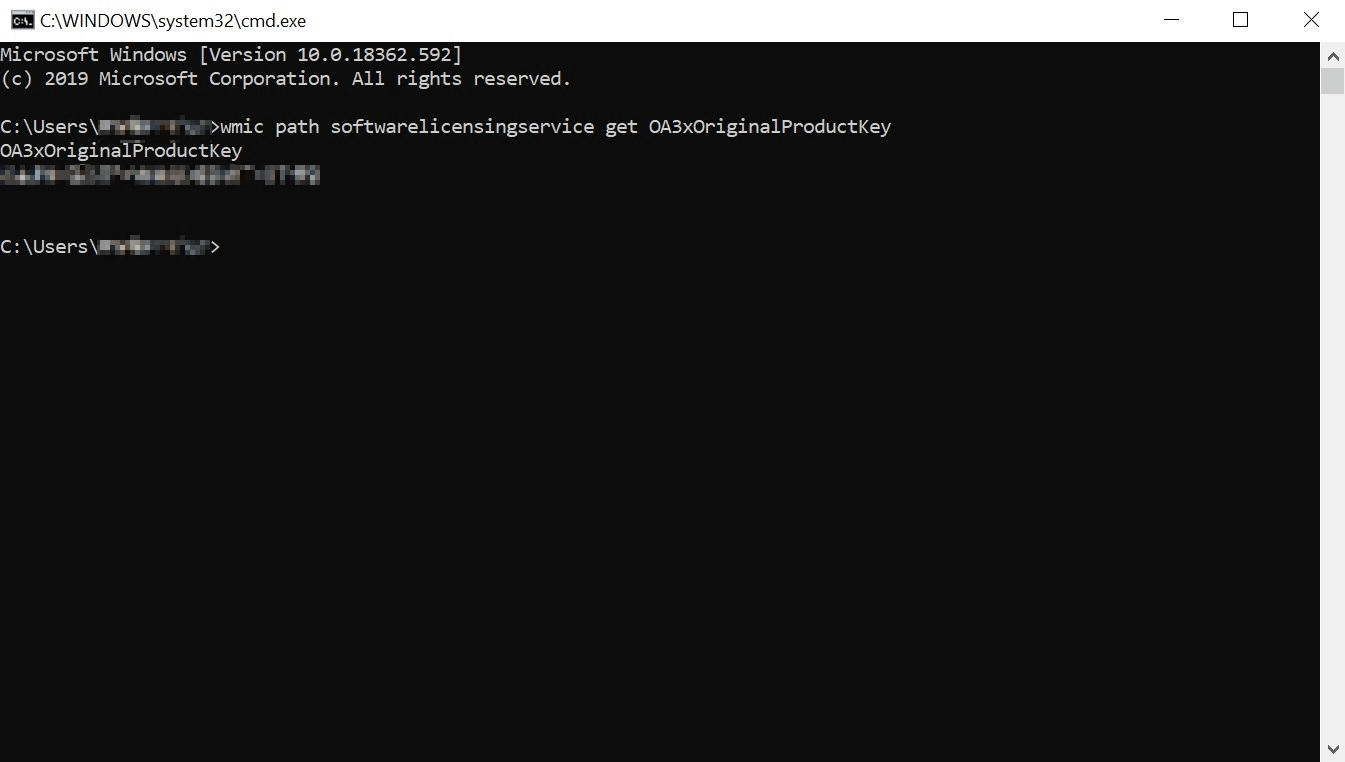
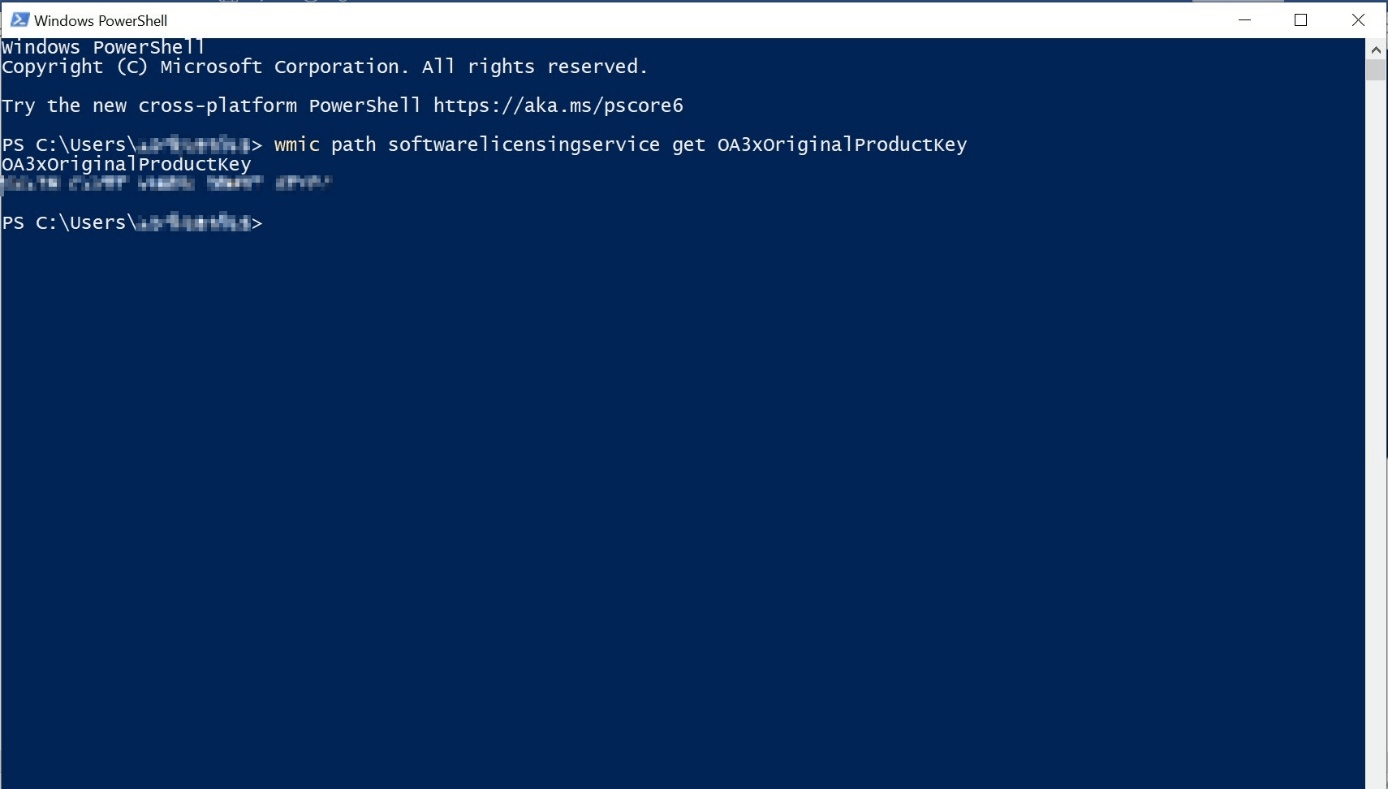
If you do not want to download additional software and can work without a graphical interface, you should use the tools that are provided with the operating system. You can use cmd.exe or PowerShell to find your Windows 8 licence product key. To do so, follow the steps below:
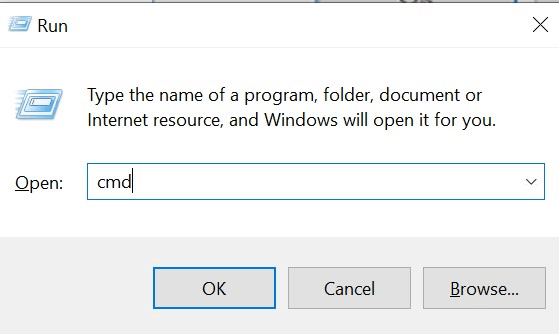
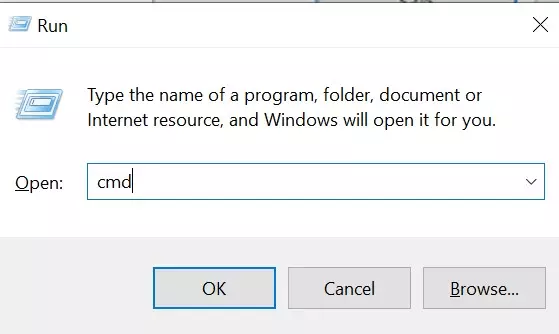
- Press the Windows key + R to open the Run dialogue box and enter the command “cmd” in the input field to open the command prompt window.
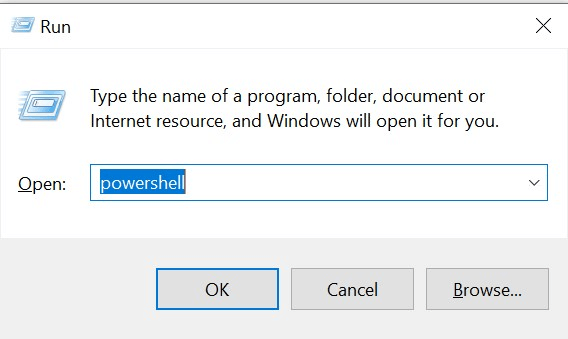
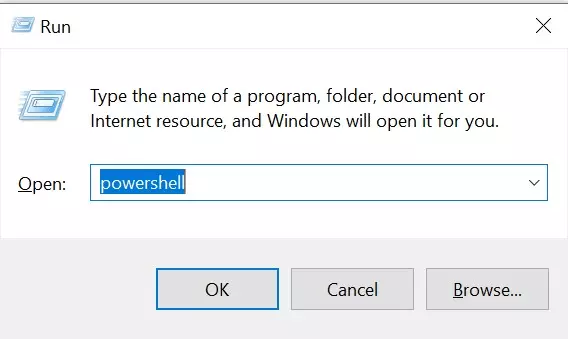
Alternatively, you can also use the Run dialogue box to open the Windows tool PowerShell.
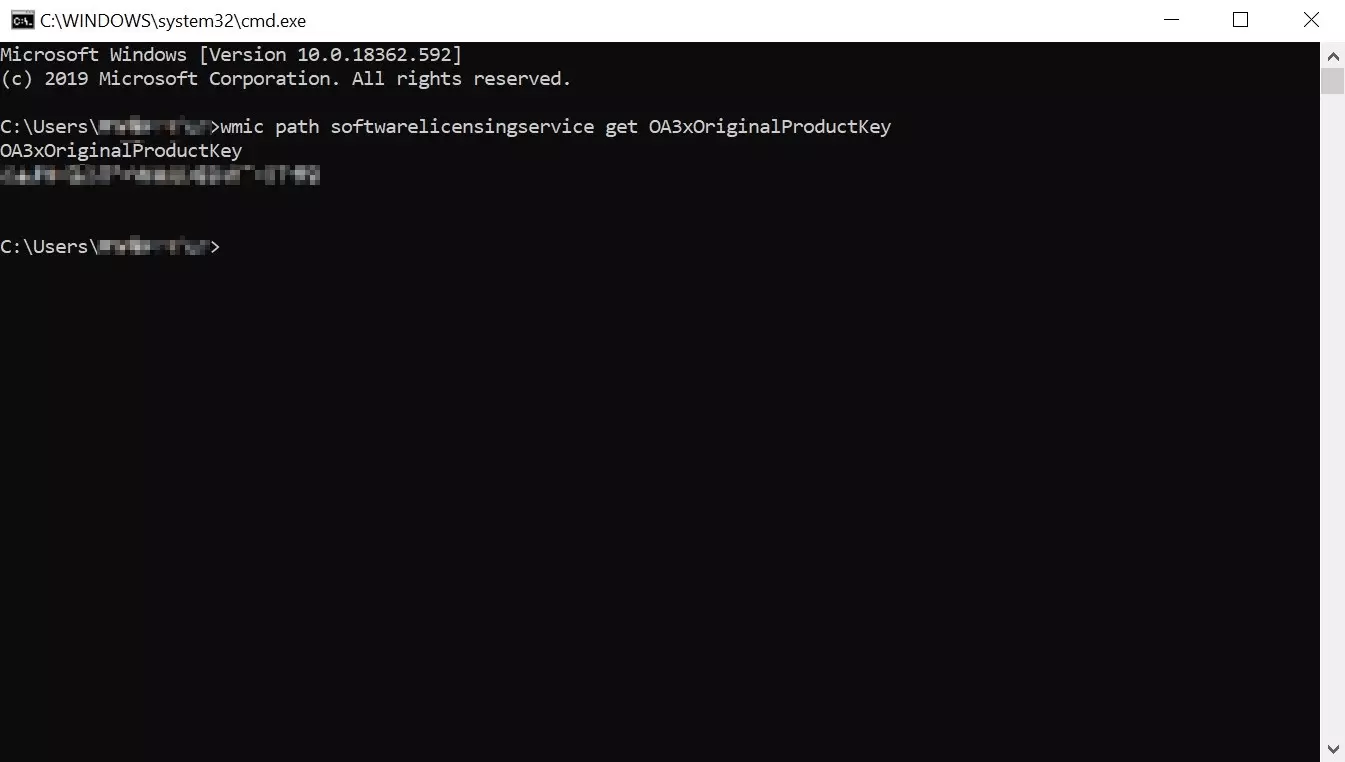
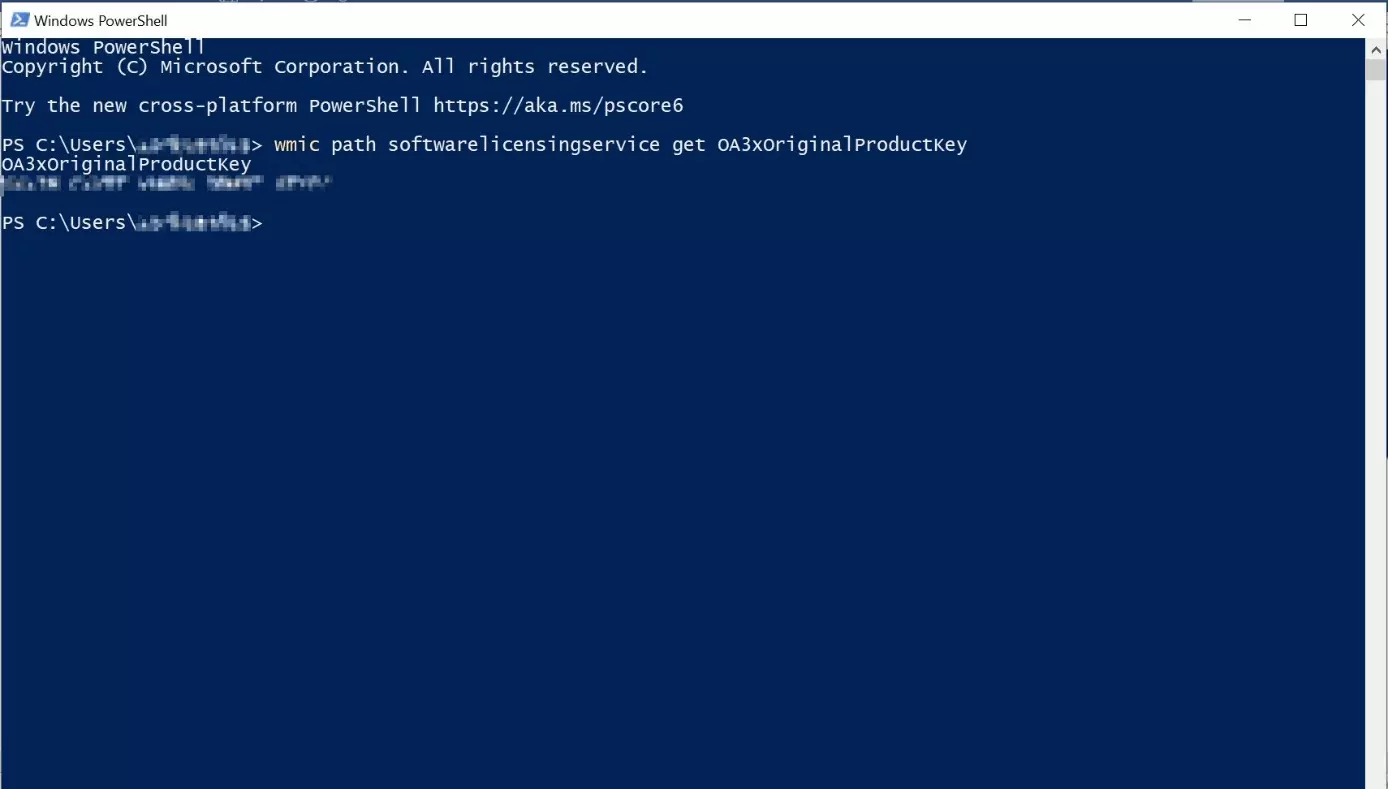
- Either in the command prompt window or in PowerShell, enter the following command: wmic path softwarelicensingservice get OA3xOriginalProductKey and confirm the command by hitting “Enter”. The program will give you the product key so that you can write it down or simply copy and paste it somewhere.
Are you using a different version of Microsoft’s operating system? Find out how to get your Windows 7 product key or your Windows 10 product key in these dedicated articles.
Reviewer

Christian Heldmaier
Christian Heldmaier is an experienced online marketing and SEO specialist from Karlsruhe. He has been working as an SEO Manager at IONOS since July 2020.