

0xc004f050 | How to fix the Windows activation error

For many users, upgrading to Windows 10 might be a somewhat unfamiliar process, but thanks to practical upgrade features, it’s very easy to do. Once you’ve installed your new version, you first have to activate it in order to use the full range of features. The same applies if you completely reinstall the current copy of your Windows operating system. Even if you have a valid licence key, problems like the 0xc004f050 error often occur during this activation process. We’ll explain what causes this error and how you can fix the problem on your own.
The most common causes of error code 0xc004f050
If error 0xc004f050 occurs when you attempt to activate Windows, it can have different causes. As a result, there are also different strategies for troubleshooting the problem. Here are the most common causes of the error:
- Incorrect product key
- Product key already in use
- Windows 10 activation servers busy
- Substantial hardware changes to your computer
Cause: Incorrect product key
First, check whether you’ve entered the product key correctly. It’s easy to make a typing mistake when you enter this long series of numbers and letters. Also, keep in mind that each product key is valid only for a certain Windows 10 edition (for example, Windows 10 Home or Windows 10 Professional).
Cause: Product key already in use
Each product key can be used only for one active Windows installation, otherwise the activation will be blocked and you’ll get a message like 0xc004f050. If you already used a Microsoft account in your previously installed version of Windows and saved the product key there, you can easily activate it online and use it for the new Windows installation. This will prevent the error from appearing in the first place.
If you have a local user account in your previous Windows installation, first deactivate the product key there in order to deactivate Windows. Only then can you activate the new Windows 10 installation with the same product key. To deactivate your old Windows installation, run the command line tool as an administrator and type in the following code:
slmgr /upkCause: Windows10 activation servers busy
Error code 0xc004f050 often appears when Windows activation servers are busy. If this is the case, it helps to wait and attempt activation again later.
Cause: Significant hardware changes
You’ll need to reactivate your Windows licence if you’ve made substantial changes to your hardware, especially if you’ve replaced your motherboard or your entire PC. In earlier versions of Windows, this was very time-consuming and usually involved phoning Microsoft Support. Sometimes you even had to purchase a new license.
In Windows 10, the licence is no longer automatically associated with your hardware. It can also be linked to your Microsoft account. In this case, you can immediately reactivate your PC after making hardware changes.
To find out whether your Windows licence is linked to your Microsoft account, go to Update & Security -> Activation.
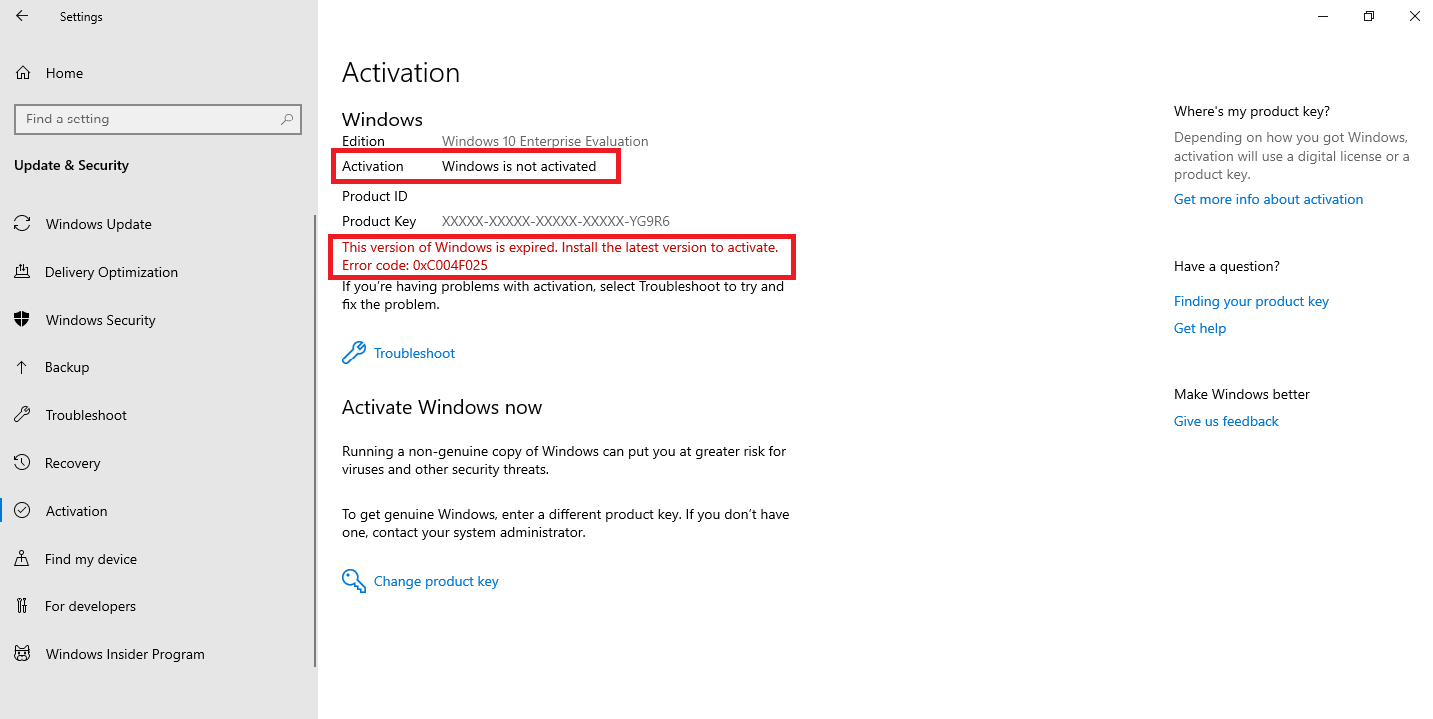
If you linked your license to your Microsoft account before making the hardware changes, proceed as follows to ensure a smooth reactivation process without errors such as 0xc004f050:
- Log on with your Microsoft account. Under “Update & Security” -> “Activation” in the Settings app, you’ll now see a “Troubleshoot” button because the copy of Windows is no longer activated.
- Click this button and choose the I changed hardware on this device recently option in the next window. A list of devices associated with your license is displayed.
- Select the current device and click This is the device I’m using now. The Windows licence is automatically transferred and reactivated.
If you use local user accounts, you still need to completely reactivate Windows after changing hardware on a device.
Activating Windows 10 by phone if problems persist
Like previous versions of Windows, Windows 10 can be activated by phone if online activation fails and causes the 0xc004f050 error. To do this, follow these step-by-step instructions:
- Right-click the Windows logo to open the Start menu and select Command Prompt or Windows PowerShell.
- Type slui 4 in the command line and press Enter to run the command.
- View the available phone numbers for your country (you can only call the free hotline from a landline).
- When prompted, type the installation ID shown on screen into the keypad of your phone.
- You’ll receive a confirmation ID by phone. Enter this ID on your Windows device to activate Windows 10.