

How to speed up a Mac

A slow Mac wastes time and makes working more difficult. But you don't have to get used to the dreaded coloured wheel spinning on its own axis. Because there are a few simple ways to make your Mac run faster, all without the help of an IT expert. Learn how to clean up your Mac, make your MacBook faster, and improve your user experience here.
- Free website protection with SSL Wildcard included
- Free private registration for greater privacy
- Free Domain Connect for easy DNS setup
Tip 1: Mac analysis with activity display
The Activity Monitor is the first step to finding out which programs are using the most resources and slowing down your Mac. To access the display, type the term ‘Activity Monitor’ in the Finder search box. You can also find it under ‘Utilities’ in your Applications folder.
The monitor displays the CPU, memory, power, disk, and network usage of your programs. If you want to make your Mac faster, pay special attention to the CPU usage. Click on ‘% CPU’ to list all processes from largest to smallest usage. Check the memory pressure graph under ‘Memory’ – if you see yellow or red bars, your memory is no longer sufficient.
In the activity display, you can speed up your Mac by terminating individual processes. This is only a temporary solution. Most likely, your Mac needs to be properly cleaned and permanently freed from unused programs.
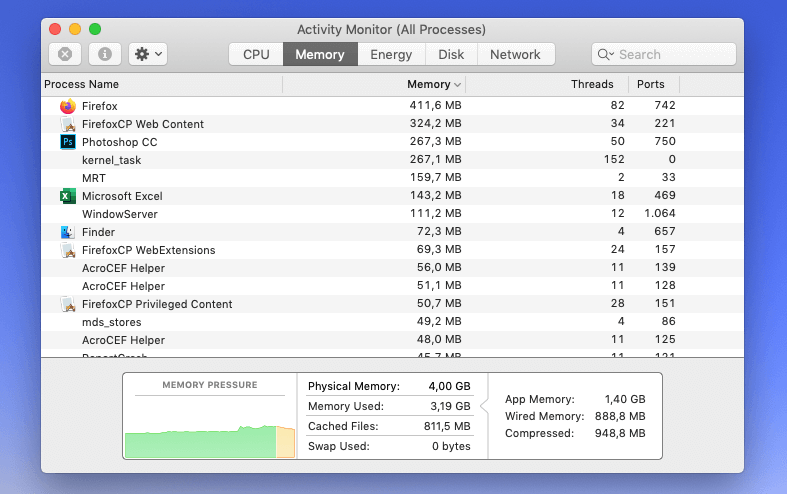
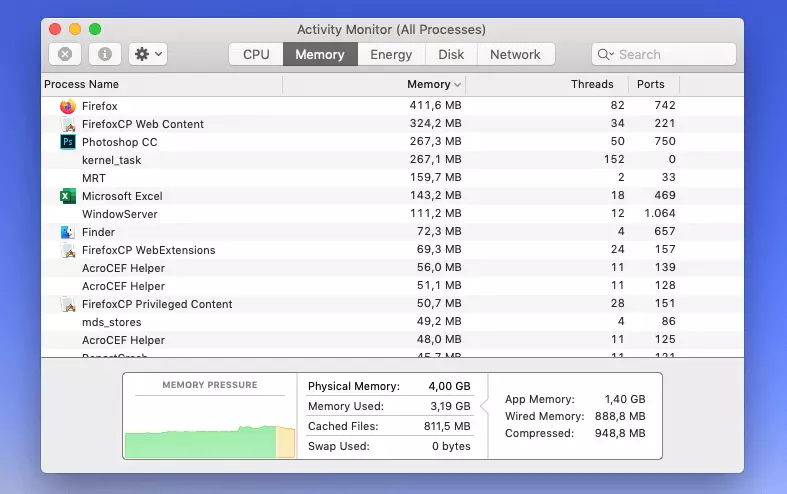
Every Mac has a mini-version of the Activity Monitor. The Mac Task Manager can be accessed with the key combination Cmd + Alt + Esc and allows you to terminate frozen programs immediately.
Tip 2: Clean up desktop
A desktop filled with folders and files can be a drain on your computer’s memory. Clean up your desktop by sorting your files into folders and storing them in ‘All My Files’ in the Finder rather than directly on the desktop.
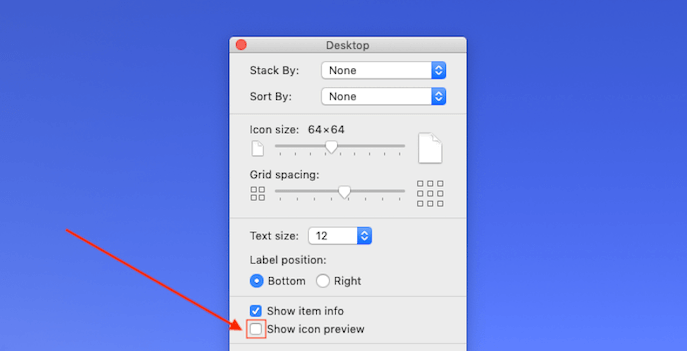
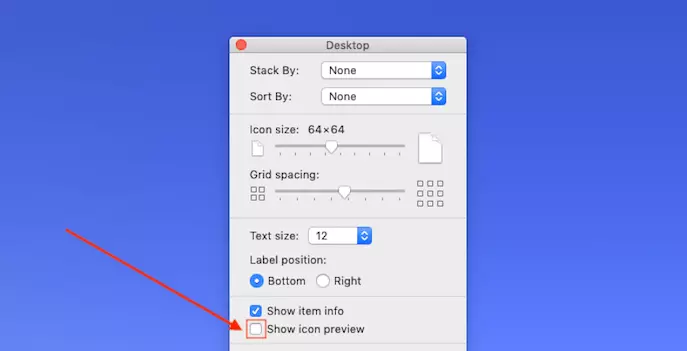
Disable icon previews of files that remain on the Desktop. To do this, right-click on your Mac to the desktop and select ‘Show display options’. Then remove the tick from ‘Show icon preview’.
Tip 3: Close background programs
When your Mac boots up, it often starts programs that you won't need. You can speed up your Mac by stopping automatic login of these services. By the way, you can also use this principle to make Windows 10 run faster.
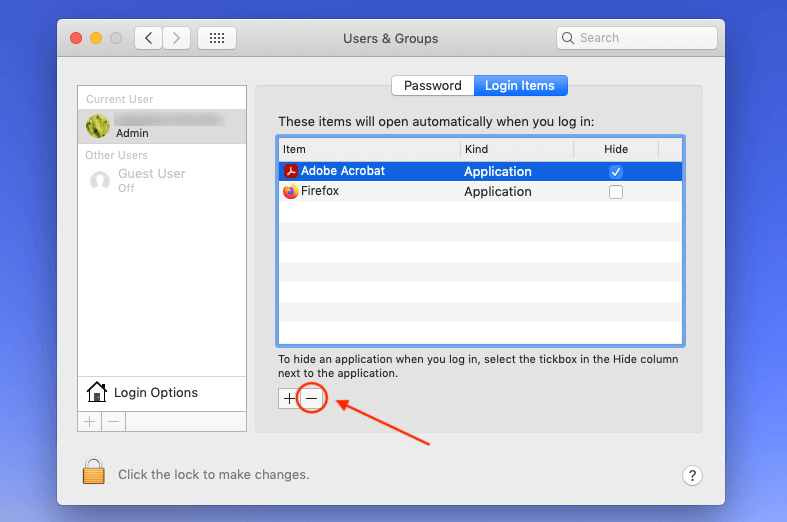
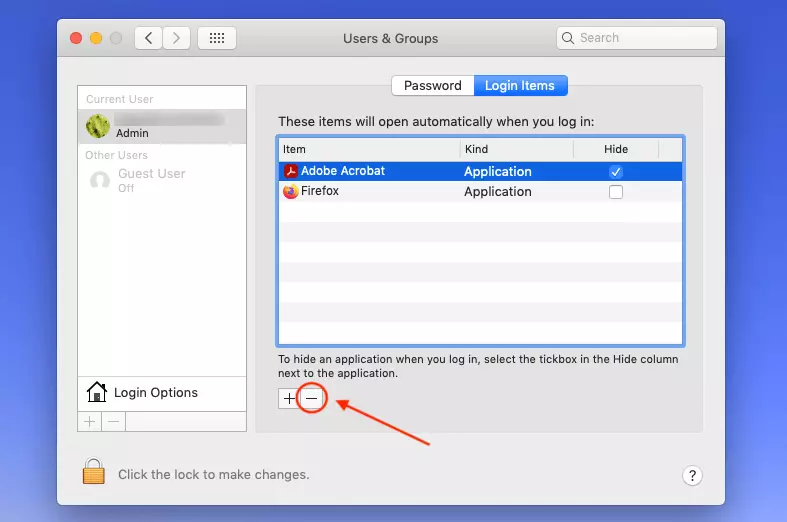
For Mac devices, click the Apple icon at the top left of your desktop and select ‘System Preferences’. Then click on ‘Users & Groups’ and select the ‘Login Items’ tab. Select the items you don't want your Mac to start automatically, and then click the minus icon.
Tip 4: Empty system cache
Many systems have a cache that can be emptied manually. You can also optimise your iMac or MacBook with this measure.
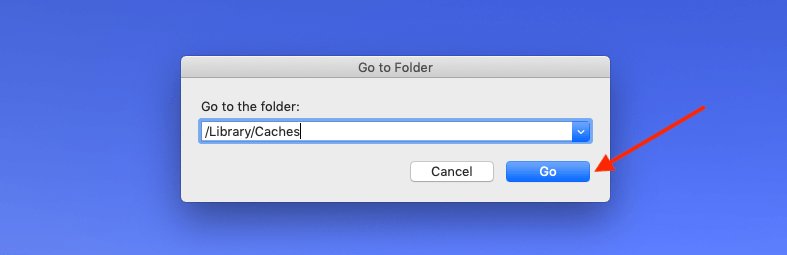
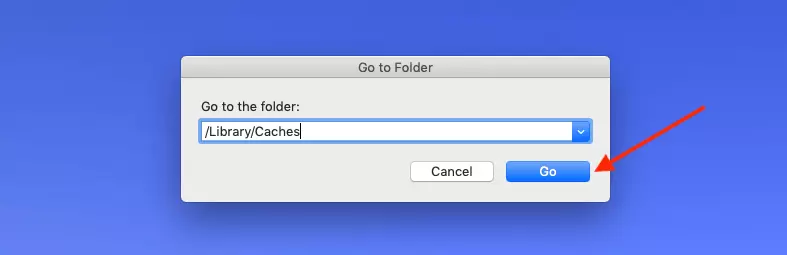
First, close all applications and press the key combination [Shift] + [Cmd] + [G]. Then type ‘/Library/Caches’ in the text editor to go to the cache folder. Click ‘Open’. Select the temporary files you want to delete and drag them to the trash. If you are sure that you do not want to recover any deleted files, empty the Recycle Bin.
Tip 5: Turn off and update Mac services
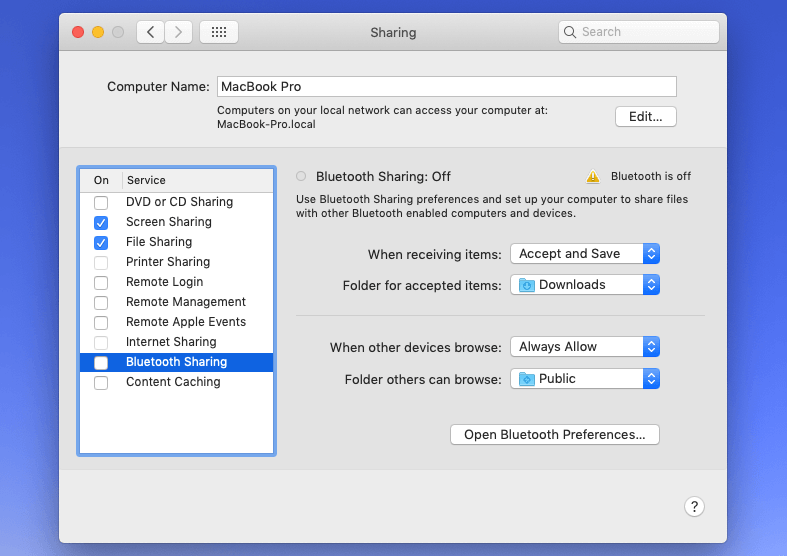
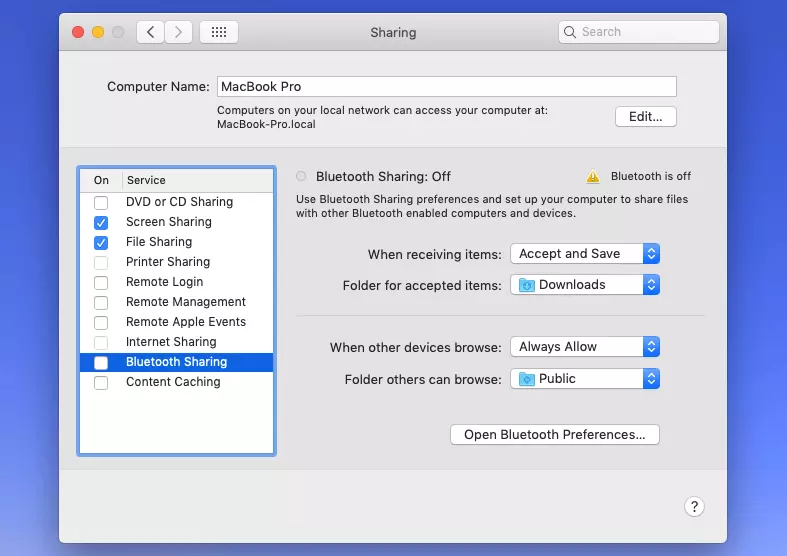
You can also make your Mac run faster by turning off unnecessary system features and services. Click on the Apple icon at the top left of your desktop, select the ‘System Preferences’ option and then go to ‘Sharing’. Disable certain services such as ‘Bluetooth Sharing’.
You can also check for Apple updates via ‘Software Updates’ in the system settings. With an up-to-date system, speed may be optimised.
Tip 6: Clean up hard drive
Most modern Macs are now equipped with SSD hard drives, which renders defragmentation unnecessary. If yours is one of the older HDDs, you might want to use the iDefrag tool. However, you can make your MacBook faster by clearing your hard disk. As a general rule of thumb, your operating system needs about ten percent of your total memory to store temporary data.
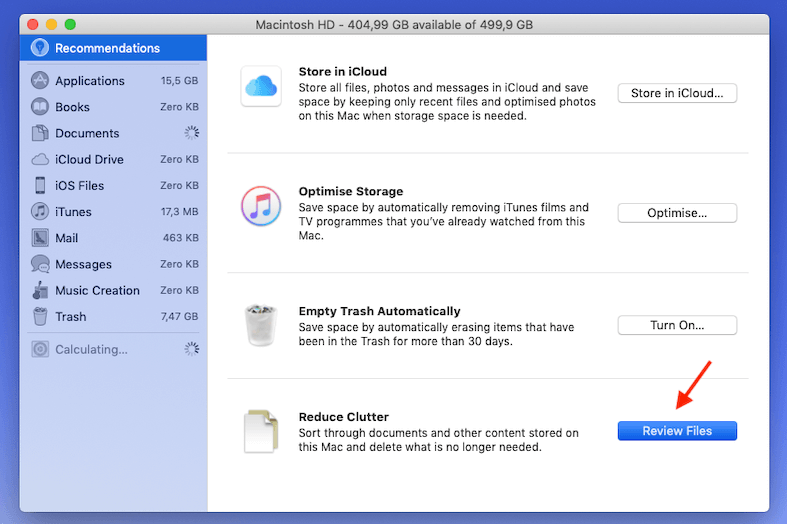
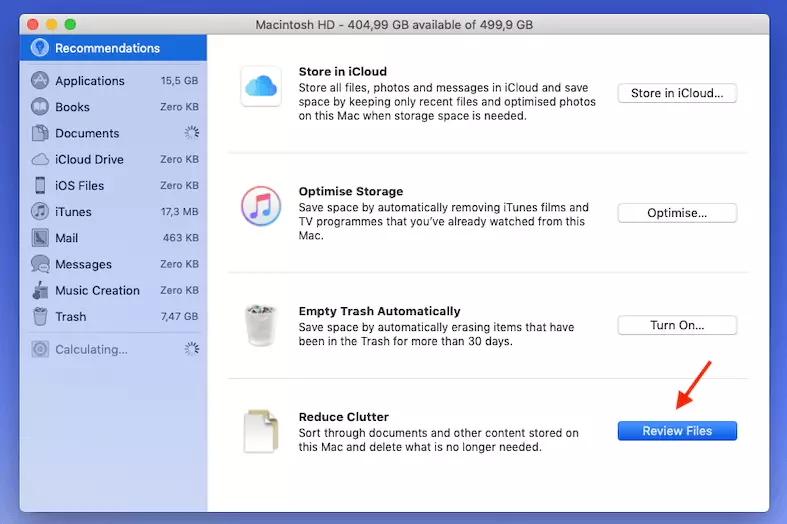
Click the Apple icon in the upper left corner of your desktop and go to ‘About this Mac’. Then select ‘Disks’ and ‘Manage ...’. A window will launch providing several options to manage your data. With ‘Review Files’ you can check files by size and delete or move them to an external hard drive.
Speed up your iMac or MacBook with the HiDrive cloud storage from IONOS. Free up your hard drive from large files and store your data centrally and securely in the cloud.
Tip 7: Reset operating system
If your Mac device is not just slow, but fails to boot up quickly, you can perform a start-up in safe mode to find out whether a faulty program is affecting your Mac. It may be worthwhile rebooting the operating system. Be sure to create a backup before to avoid data loss. After a factory reset, the operating system is reinstalled.
With automatic security backups from your smartphone, computer, and tablet, MyBackup by IONOS secures your important data. Just select a package, sit back, and relax.