

How to install Windows Server 2022

In Windows Server 2022, Microsoft introduced numerous practical innovations for remote functions, Azure hybrid integration, and server protection. Assuming you meet the hardware requirements, installing Windows Server 2022 is really straightforward.
What is Windows Server 2022?
Windows Server 2022 is the successor to Windows Server 2019. It includes new features for Microsoft’s server operating system. In addition to known Standard and Datacenter editions, there is a new Datacenter Azure Edition for Azure Hybrid Integration.
Windows Server 2022 offers a wide range of features for shared, cross-device use of applications and services with multiple users via dedicated servers. One of the most important functions of the operating system includes the use and management of data stores, networks and applications via administrative remote services.
The most important components of Windows Server 2022 are:
- Active Directory for automated management of user data, security functions, and resource distribution.
- Server Manager as a console for managing server roles and for provisioning and configuring local machines
- Remote access for remote access to linked local machines
- RSAT Tools as a free suite for installing, running and modifying tools and applications, as well as role management, upgrades and more
Requirements to install Windows Server 2022
To ensure the proper utilisation of Windows Server 2022, specific minimum requirements need to be considered. Microsoft emphasises that due to the diverse range of deployment options available, it’s challenging to provide a one-size-fits-all statement regarding hardware requirements. However, the following information is based on the official recommendations for Windows Server 2022, which generally apply to the Standard, Datacenter, and Azure editions.
Processor
- 1.4 GHz (64-bit) processor performance
- Compatibility with x64 instruction set
To check whether your current processor can support Windows Server, you can use the Windows Sysinternals tool Coreinfo.
RAM
For servers equipped with a graphical user interface, Microsoft recommends a minimum of 2 GB RAM. It’s also advisable to utilise RAM with ECC (Error Correcting Code) functionality. This has an additional chip that can detect and rectify errors in real-time, mitigating the risk of data loss or system crashes.
Hard disk space
Microsoft recommends 32 GB of free disk space as an absolute minimum.
Network and storage controller
To guarantee optimal transmission performance with Windows Server 2022, network cards should have at least the following features:
- Ethernet adapter with at least 1 GB per second throughput performance
- Memory adapter compliant with Express Architecture specification PCI
If persistent storage devices are used as hard disk drives on servers, they must not be PATA drives.
Other requirements
The following recommendations and requirements also apply:
- USB port for installing the system via USB stick
- DVD drive for installing the system via DVD
- TPM 2.0 is recommended, but not necessary
Use secure, fast hosting for your Windows Server Edition with flexibly scalable Web hosting from IONOS – including domain, SSL, DDoS protection, automatic backups and EU server locations.
How to install Windows Server 2022
If you’re installing Windows Server 2022 from a USB stick, proceed as follows:
Step 1: Create a backup of your system or important data on an external hard drive, in the cloud, or on another independent storage medium.
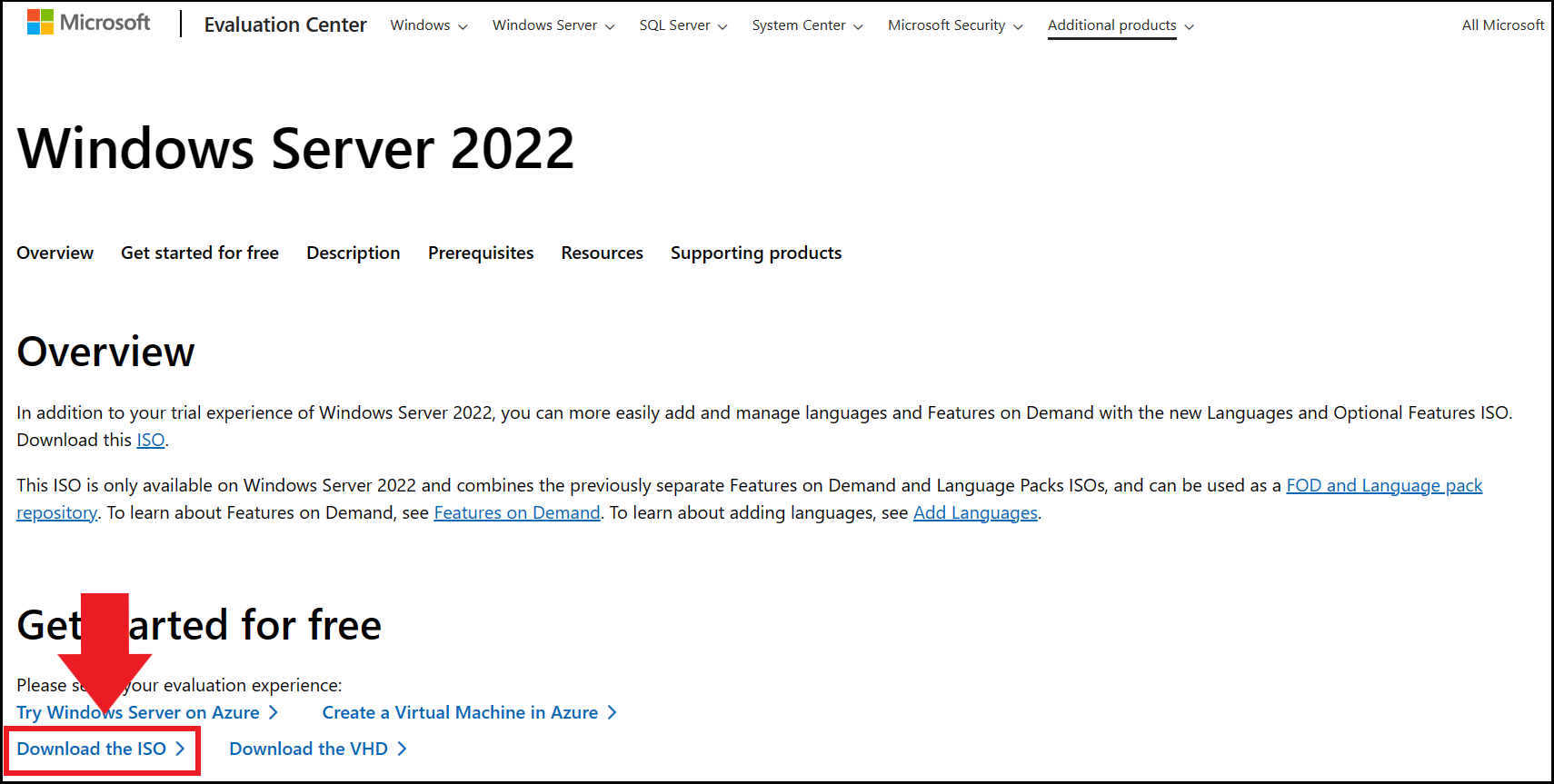
Step 2: Download the ISO file of Windows Server 2022 from the Microsoft Evaluation Center and transfer it to the connected USB stick.
Step 3: Reboot and press the BIOS key during the boot process (varies depending on the computer and system). Alternatively, as of Windows 8, you can use the Boot Options menu to launch the BIOS. You can find it via the system settings under ‘Recovery’ or in Windows 10 under ‘Update & Security’ and in Windows 11 in ‘System’.
Step 4: In the BIOS menu, set the boot order so that the system boots from the USB stick first. Save the changes before closing the BIOS menu.
Step 5: Your system will now boot from the USB and run the Windows Server 2022 ISO. Select your desired language and go to ‘Next’.
Step 6: Start the installation by clicking on ‘Install Now’. Then select the desired operating system or edition. Note, if you’re upgrading from Windows Server 2019 to 2022, the same edition is required if you don’t want to purchase a new license key.
Step 7: Accept the license agreement, click ‘Next’ and decide on an installation type. For a new installation, select ‘Custom: Install Windows Server Operating System Only (Advanced)’. For an upgrade, select ‘Upgrade: Install Windows Server Operating System and Keep Files, Settings, and Applications’.
Step 8: Specify the hard disk where you want to install Windows Server 2022 and confirm your selection with ‘Next’. Windows will start installing automatically. As soon as the installation process ends, press ’Restart now ‘ to restart your system and complete the installation. Once you restart, Windows Server 2022 will be available.