

MBR vs. GPT

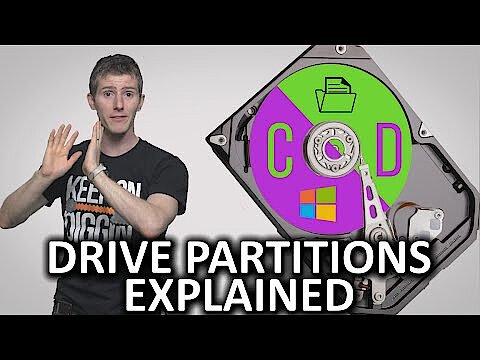
If you want to integrate a new hard drive into an existing system, or reinstall your operating system, the first step is to format the hard drive. This allows the storage medium to acquire, store and process data as required – among other things thanks to compatible file systems such as NTFS or FAT. A basic part of the formatting process is partitioning, i.e. dividing the available memory into several independent areas – the partitions (or “drives”).
If you are changing the partitions of a removable storage device that has already been set-up, it isn’t necessary to reformat the whole device. You only need to format the storage areas that you modify!
To split up a disk into multiple partitions, you have to use a special table known as a partition table. Choosing a suitable table basically comes down to one question: MBR or GPT? It doesn’t matter whether you’re using Linux, Windows or Mac. For all operating systems, these two tables are the only two solutions for partitioning. But what’s the difference between them? And which one is best – MBR or GPT?
MBR or GPT partitions: the advantages
Splitting up hard drive space on well-known operating systems like Windows is something of a tradition, but it is not actually necessary. Any storage medium can be used without dividing up the memory, providing that it has been formatted with a file system that is supported by the operating system in question. So why is partitioning so popular when it comes to hard drive management? The answer lies primarily in its advantages, which can be summarised as follows:
- The operating system and system-related services such as a boot loader can be stored in the fastest part of a hard drive (usually the outside of the disk), in order to ensure maximum read and write speeds.
- Data that is not modified very often can be put in a separate partition as an easy way of excluding it from regular defragmentation.
- In general, system and application programs can be easily separated using partitions, which makes it much easier to do system backups or individual data backups.
 To display this video, third-party cookies are required. You can access and change your cookie settings here.
 MBR vs GPT: a history
Along with the IBM Personal Computer XT and PC DOS 2.0, 1983 saw the introduction of the Master Boot Record (MBR). Since then, the system component has been used on the one hand as a boot manager to boot (and install) BIOS-based computer systems, and on the other hand as a partition table to efficiently split up the available memory. This second function is what helped MBR quickly become the standard for all kinds of storage devices, for example hard drives, USB sticks and memory cards. More recent systems now increasingly use MBR’s official successor, the GUID Partition Table (GPT). This new partition table standard is a component of the UEFI specification which was introduced in 2000 and has steadily been gaining popularity as an alternative to BIOS.
Although GPT is part of the UEFI standard, GUID partition tables can also be used for partitioning on BIOS machines. However, depending on the operating system, there are some limitations. For instance, Windows versions with BIOS cannot boot from a disk that has been partitioned using GPT.
GPT or MBR: why was a new partition standard created?
The MBR partition style shaped computer technology for many years, but it nonetheless has some significant limitations which meant it was only a matter of time before a successor came along.
For example, right from the beginning, one of the key weaknesses of the Master Boot Record was that the technology only supports four primary partitions. Anyone wanting to set up more than four areas has to use “extended partitions”, and although these can be split up into as many “logical partitions” as desired, the resulting memory structure is complex, and hardware faults can quickly lead to data loss.
Another even more obvious problem with the traditional partitioning concept is that MBR partitions can only be used on hard drives or storage devices up to 2 terabytes (2,000 gigabytes). It’s true that for many decades that was more than enough, but nowadays it is too small even for standard drives used by private users. Alongside the increased security, the greater storage capacity has also been a key factor in the development of GPT as a successor for MBR.
MBR vs GPT: a side-by-side comparison
When developing the GUID partition table, one of the aims was to address the abovementioned weaknesses of the Master Boot Record. The result was a partition standard that has clear advantages in terms of security and performance. The following table summarises the key differences between MBR and GPT:
| MBR (Master Boot Record) | GPT (GUID Partition Table) | |
|---|---|---|
| Specification | None | UEFI |
| Maximum number of primary partitions | 4 | Unlimited (dependent on operating system; Windows: 128) |
| Maximum partition size | 2 terabytes (2,000 gigabytes) | 18 exabytes (18 billion gigabytes) |
| Maximum hard drive size | 2 terabytes (2,000 gigabytes) | 18 exabytes (18 billion gigabytes) |
| Security | Data sector without checksum | Data sector with CRC32 checksum and backup GUID partition table |
| Partition name | Stored in the partition | Unique GUID ID plus a 36-character name |
| Multiboot support | Poor | Good (thanks to boot loader entries in separate partition) |
 To display this video, third-party cookies are required. You can access and change your cookie settings here.
 MBR vs GPT: which partition style is best?
If you want to set up partitions on a storage device, both MBR and GPT will usually still be offered as options. However, in principle GUID partition tables have become the standard solution for modern hardware because they support an unlimited number of partitions and have no restrictions as regards the size of the storage device or the partitions (or at least none that will become relevant in the near future). Moreover, for disks with more than 2 terabytes of memory, GPT is the only solution. The use of the old MBR partition style is therefore now only recommended for older hardware and older versions of Windows and other older (or newer) 32-bit operating systems.
Converting from MBR to GPT
If you are using disks partitioned using the Master Boot Record this isn’t a problem, but it is worth remembering that there is a higher risk of data loss in the event of a hardware fault. Considering this, providing your system offers the necessary support for GUID partition tables (i.e. a modern 64-bit system; for Microsoft this means Windows 7 or higher), we recommend that you convert your existing MBR partitions to GPT partitions. There are special tools for doing this, although many systems have a built-in conversion solution.
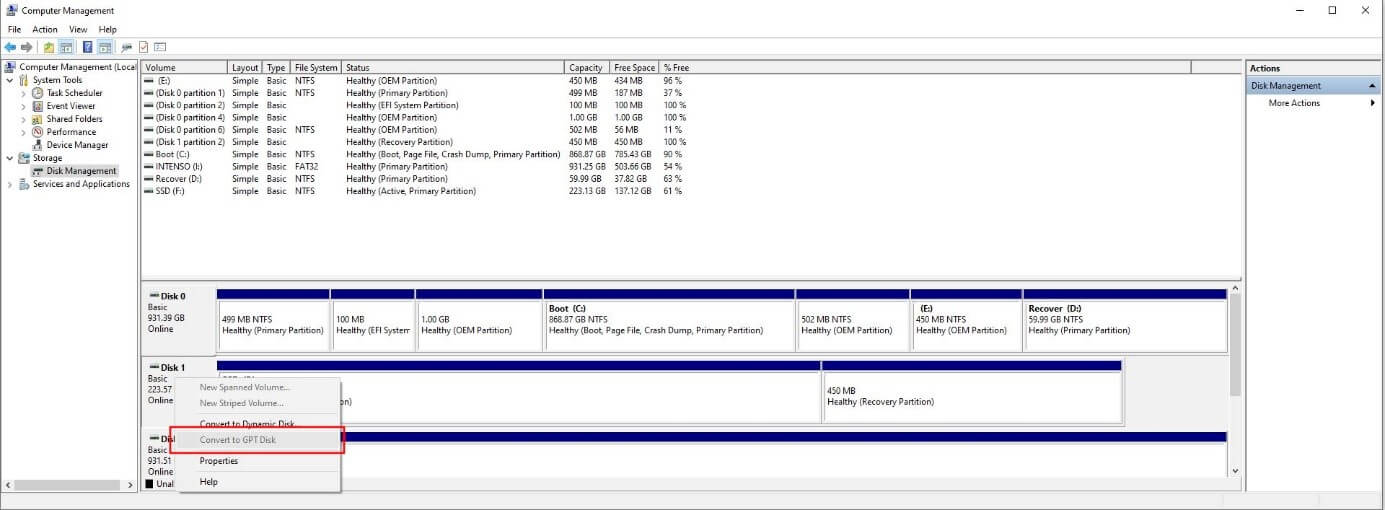
In Windows for example, you can convert partitions using the “Disk Management” tool. The steps are as follows:
- Open the control panel and click on “Administrative Tools”.
- Find the icon for the “Computer Management” service and double-click on it.
- In the menu pane on the left, select “Disk Management” (listed in the “Storage” section).
- Windows will now show you a list of the disks set up on your device, including any partitions that have been configured. Right-click on the relevant storage device and select “Convert to GPT disk”.
Users of Linux operating systems such as Ubuntu can convert partitions via the terminal, using the gdisk program.
 To display this video, third-party cookies are required. You can access and change your cookie settings here.