

How to set up an FTP Server using FileZilla

An FTP server lets you move files between devices over a network. It sits between the computer sending the files and the one receiving them. FTP servers are especially common in web development. In this article we explain what an FTP server is, what it’s used for and how to set one up with FileZilla.
Try out your VPS for 30 days. If you're not satisfied, we'll fully reimburse you.
What is FTP?
FTP stands for File Transfer Protocol. It has been around since 1985, which makes it one of the oldest internet protocols still in use. FTP is a network protocol for transferring data between computers on the same network. With FTP, a client can upload files to a server or download them from it.
A client is a computer or program that connects to a server and exchanges data with it. FileZilla is a widely used client that you can also use to set up an FTP server.
What are the benefits of an FTP server?
An FTP server lets you transfer files between a client and a server. You can connect to the same server from different computers and use it to move files back and forth between them. FTP servers are predominantly used in web development, where they make it much easier to upload large amounts of data. With an FTP server, you can keep all the files you need to update your website in one place and sync them between your computer and the server.
You can run FTP servers on a variety of operating systems. For instance, you can set up an Ubuntu FTP server, run a Debian FTP server, or install an FTP server on a Windows system.
If you need stronger security, use the SFTP protocol, which protects your data via an encrypted SSH connection.
How to set up your FTP server with FileZilla
FileZilla is one of the most popular ways to set up your own FTP server. It’s a *free, open-source program for Windows, macOS, and Linux. In the steps below, we use FileZilla as our example.


Step 1: Installing FileZilla
Begin by downloading the latest version of FileZilla. Allow FileZilla to make changes to your device, then follow the installation instructions on your screen. While it’s being installed, you will be asked which setup type you want to use. Choose the ‘Full’ option to install all FileZilla features and create desktop shortcuts. Then decide whether the service should run automatically at startup or only when you start it manually.
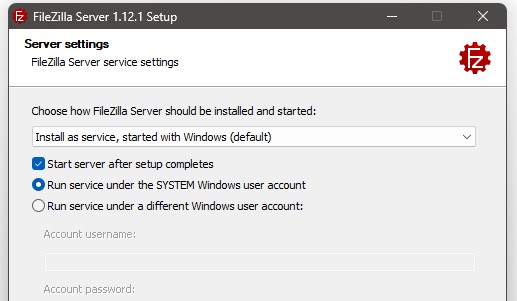
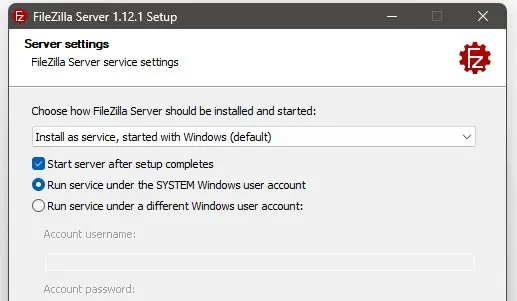
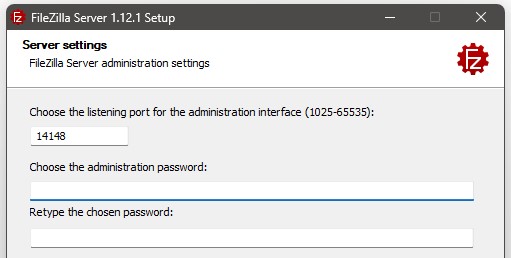
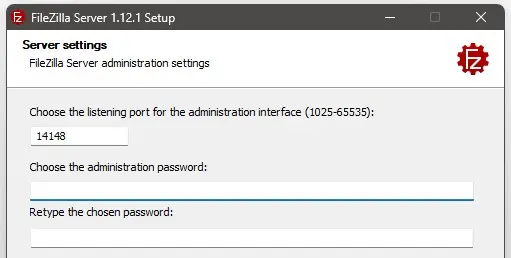
Make a note of the port number shown in the next step. You can also set an admin password here, which is recommended for security.
Step 2: Setting up the FileZilla server
First, start the FileZilla server. Your own computer, localhost, is already selected as the host and the port you chose during installation is usually filled in. If this is not the case, enter the port number manually. If you set an admin password, log in with it. Otherwise, you can connect and start configuring the FileZilla server right away.
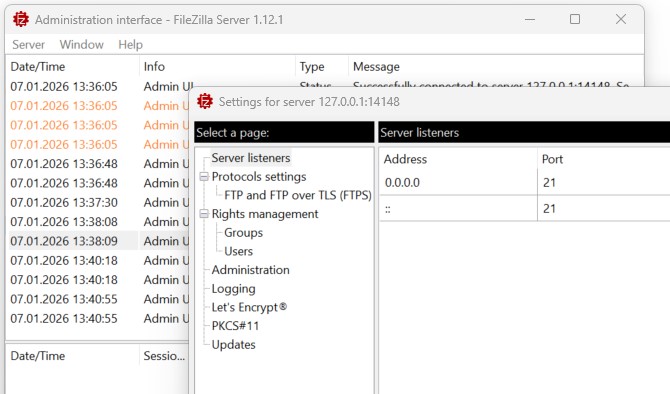
To configure the server, click Server in the menu bar, then Configure…. Alternatively, you can use the keyboard shortcut Ctrl + F. In the server settings, you can also change the port if needed. By default, port 21 is preselected and in most cases, you should keep this setting. Under Protocol settings > Timeouts, you can define how long the server waits before it terminates an idle connection.
Step 3: Define the server’s users
In the settings, go to Rights management > Users to manage your FTP server user accounts and assign passwords. Click Add, choose a username and set a password. Click ‘OK’ to confirm your changes.
Step 4: Access the FTP server using the FileZilla client
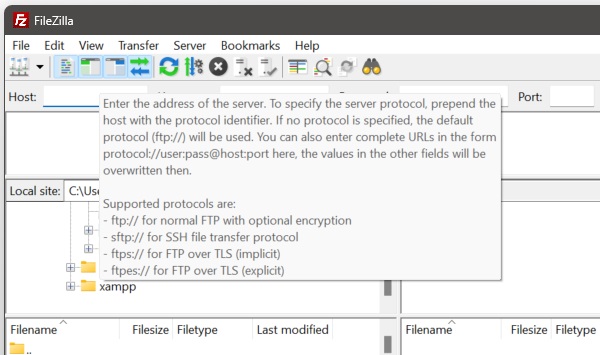
Start by installing the FileZilla client. It is available for all major operating systems and lets you connect to your FTP server. Open the client on the computer you want to use to access the server. In the input fields below the navigation bar, enter the server’s IP address. On Windows, you can find this address by running the ipconfig command in the Command Prompt. Then fill in the remaining fields with the username you just created and the matching password. If you haven’t changed the port, use port 21.
You don’t need a dedicated FTP client like FileZilla to connect to your FTP server. On many systems you can simply open a terminal or Command Prompt, run the ftp command and connect from there.
Step 5: Disable the firewall
If you can’t connect to the server, Windows Firewall may be blocking the connection. Open the Windows Defender Firewall settings and check the rules. There, you can add an exception for the FileZilla server or disable the Windows Firewall altogether.
Step 6: Transfer files between client and server
You can now transfer files between your computer and your FTP server. In the FileZilla client, the Local section lists all the files and folders on your computer. Upload these to the server with a single click. The Server section shows the files stored on your FTP server. You can download these to your computer just as easily.
What other FTP clients are available?
FileZilla is one of the most widely used FTP clients, but it’s not the only option. Other FTP clients you can use include:
- WinSCP: A free, secure FTP/SFTP client for Windows with a wide range of features and strong protocol support
- Cyberduck: Cross-platform freeware for Windows and macOS with support for FTP, SFTP, and cloud protocols, among others
- Transmit: A commercial FTP client for macOS with modern features and cloud connectivity
- Classic FTP: A simple, user-friendly client (especially for Windows)
- CuteFTP: A paid FTP client with additional tools and automation
The right client depends on your needs and preferences. Whichever option you choose, running your own FTP server makes large file transfers much easier.
Author

Vladimir Simovic
Vladimir Simović has been building web projects with WordPress since 2004. He was one of the first German-speaking WordPress bloggers and has published several specialised books as well as over 60 expert articles, and has managed well over a hundred WordPress projects.
Reviewers

Sven Ignor
Sven Ignor is a TYPO3 web developer with over 15 years of experience and specialises in bespoke solutions based on TYPO3. He is happy to share his knowledge and is committed to TYPO3 and the community

Christian Heldmaier
Christian Heldmaier is an experienced online marketing and SEO specialist from Karlsruhe. He has been working as an SEO Manager at IONOS since July 2020.