

How to make the taskbar transparent in Windows 11

A fully transparent taskbar in Windows 11 allows you to enjoy a complete overview of your desktop and also gives a sleeker look to your desktop. Windows 11 does not actually offer the option to make the taskbar completely transparent, but this is where the free tool TranslucentTB comes in.


Ask, create and research with the European alternative to ChatGPT. Robust security and unlimited chats give you peace of mind.
Like its predecessor, Windows 11 offers ‘Transparency effects’ in the ‘Personalisation’ settings. However, these settings only offer a milky transparent taskbar. Making the Windows 11 taskbar transparent requires a free tool such as TranslucentTB or making a change in the Windows registry.
How do I make the Windows 11 taskbar transparent?
If you had a transparent taskbar in Windows 10, you won’t want to be without it when you switch to Windows 11. Follow these methods to get complete transparency.
Windows 11 has many ways to configure your Windows in addition to transparency effects. You can also activate the eye-saving Windows 11 Dark Mode or change the font size in Windows 11.
Method 1: TranslucentTB
TranslucentTB is a free tool which offers the most optimal solution to making your Windows 11 taskbar transparent. The tool also offers a choice of three different transparency levels (opaque, slightly transparent or completely transparent) in the settings, as well as several colour settings.
Follow these steps to make the Windows 11 taskbar transparent:
Step 1: Click the Windows icon in the taskbar and select the Microsoft Store in the pre-installed or pinned icons.
Step 2: Search for TranslucentTB in the Microsoft Store. Click the ‘Download’ button to install the tool. You can also download the tool from another reputable store if you wish.
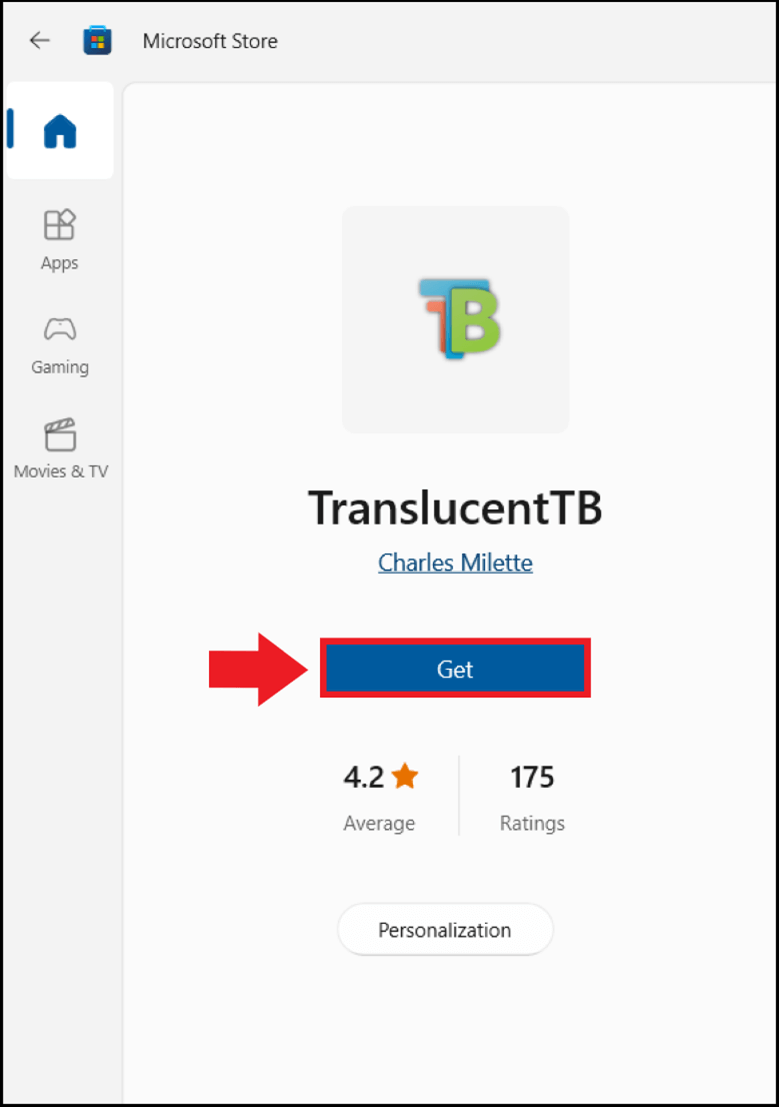
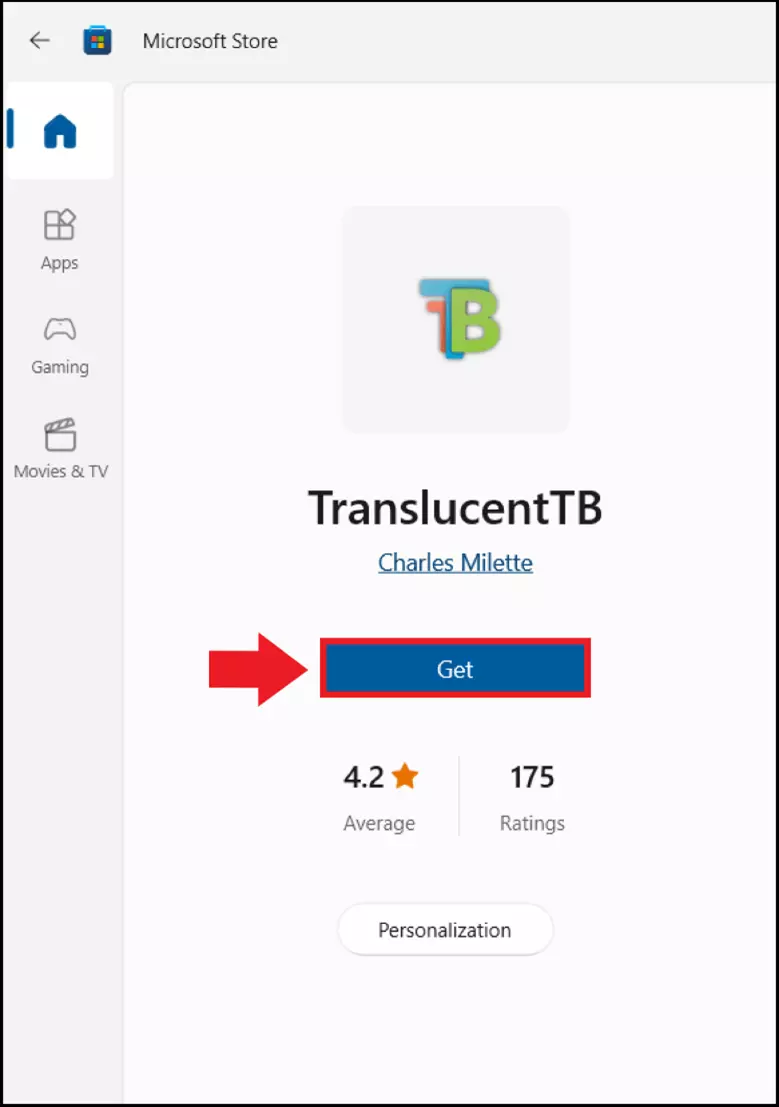
Step 3: Type ‘TranslucentTB’ into the Windows search bar and click the icon to open the app. You can also choose to pin it directly to the taskbar or Start menu at this point. If the tool has already been installed, go to ‘Show hidden icons’ (arrow icon) at the bottom righthand side of the taskbar.
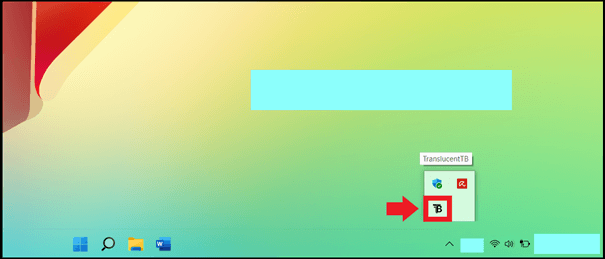
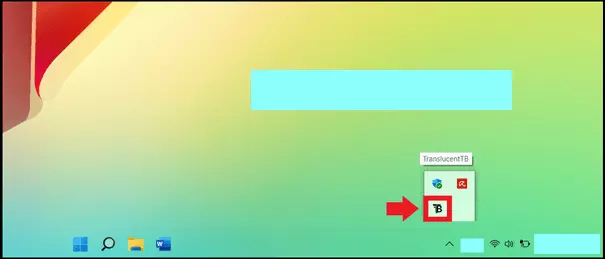
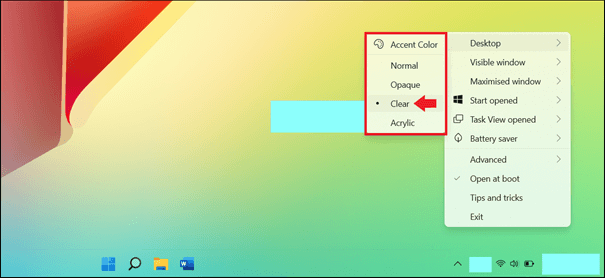
Step 4: You can choose between different configurations in the TranslucentTB menu. Choose ‘Clear’ to make the taskbar completely transparent. ‘Blur’ offers a slightly milky taskbar similar to the option in Windows Transparency effects.
Windows provides some useful features to make Windows 11 faster. For example, you can use Windows 11 autostart to disable auto start programs or start Windows 11 without a password to significantly reduce loading times.
Method 2: Windows Registry
If you don’t want to use a third-party tool, then changing a registry key in the Windows registry can also make the Windows 11 taskbar transparent. However, proceed with caution as an incorrect or poorly thought-out registry change comes with the risk of permanently damaging your Windows system. We only recommend this method for experienced Windows users.
Proceed as follows:
Step 1: Open the ‘Run’ menu with the Windows shortcut [Windows] + [R] and enter the CMD command ‘regedit’ to open the Windows registry editor.
Step 2: Enter the following path in the registry editor:
HKEY_LOCAL_MACHINE\SOFTWARE\Microsoft\Windows\CurrentVersion\Explorer\Advanced
Step 3: Firstly, save the registry entry in question by clicking on ‘File’ and ‘Export’. This creates a registry backup for the registry entry you want to change in the location you want.
Step 4: When you are in this folder, right click on an empty space in the right section. Go to ‘New’ and ‘DWORD (32-bit) value’.
Step 5: Now enter ‘UseOLEDTaskbarTransparency’ as the new string. Double click on the new string and set the value from 0 to 1. Accept the changes with “OK”.
Step 6: Restart the computer. The taskbar will now be transparent
If you have more questions about Windows 11, check out our guides on Windows 11 topics such as:
- Windows 11 safe mode
- Windows 11 virtual desktops
- Reset Windows 11
- Install Java on Windows 11
Reviewer

Christian Heldmaier
Christian Heldmaier is an experienced online marketing and SEO specialist from Karlsruhe. He has been working as an SEO Manager at IONOS since July 2020.