

Change font size in Windows 11: here’s how

To increase the text size in the Windows 11 display, use the slider in the ‘Accessibility’ menu from the Windows settings. This will scale the font size but also changes the size and appearance of associated menus and windows.
- Free website protection with SSL Wildcard included
- Free private registration for greater privacy
- Free Domain Connect for easy DNS setup
Quick guide: change font size in Windows 11
- Use the shortcut [Windows] + [i].
- Left-click on Accessibility.
- Navigate to Text Size.
- Adapt the font size using the slider next to 'Text Size'.
Changing the font size in Windows 11: what to look out for
It’s not just Windows users with impaired vision who complain about tired eyes and headaches. Out of the box, the Windows 11 display font beneath app icons, menus, and settings is rather small. This is problematic for older users or people with impaired vision. Similarly, those using computers regularly as part of their job may struggle to use a small font over time.
If you’ve previously changed the font size in Windows 10, you’ll be familiar with the slider to adjust text size which is the same in Windows 11. However, the menu in the Windows settings is now called ‘Accessibility’ (instead of ‘Ease of Access’). The option scales the text size but menus and windows are also affected by the scaling which may decrease the clarity of the display.
Windows 11 offers other practical operation aids such as the split-screen function, the screen magnifier, the ‘switch Windows 11 keyboard’ function and an option to adjust the contrast design for people who are light-sensitive or suffer from visual impairment.
How to change the font size in Windows 11
Follow our step-by-step guide if you want to adjust the text size in Windows 11. Not sure which Windows version you are using? Head to ‘Start’ > ‘Settings’ > ‘System’ > ‘About’ to view your latest Windows version.
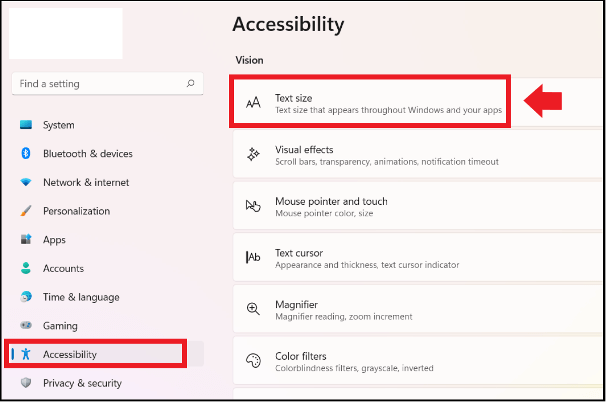
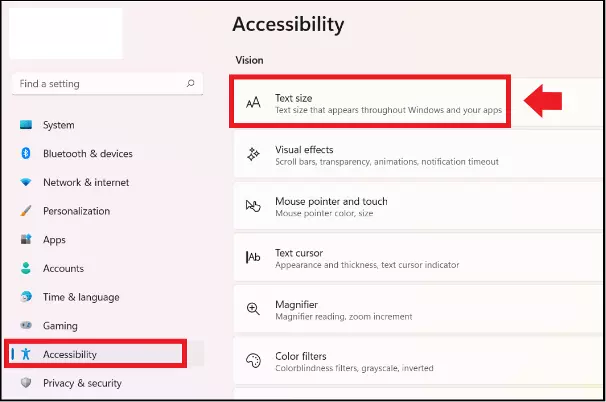
Step 1: Open Windows Settings using the key combination [Windows] + [i]. Click ‘Accessibility’ from the left and ‘Text size’.
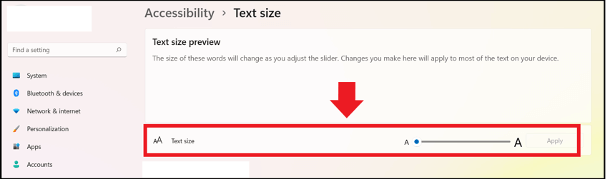
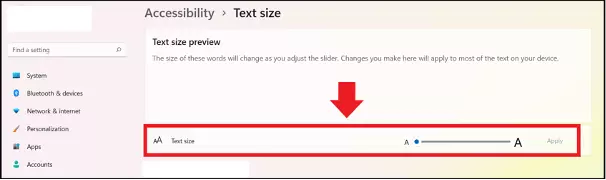
Step 2: The ‘Text size’ menu displays a preview of the desired text size and a slider with which you can adjust the font size. The default size is defined as 100 percent. The maximum text size can be scaled up to 225 percent. Once you’ve made your decision, apply the settings by clicking on ‘Apply’.
Step 3: To enlarge the whole Windows display of texts, apps, and menus, use the settings in ‘Scaling & Layout’. This can be found via the path ‘System’ > ‘Display’ > ‘Scaling & Layout’.
Remember to create regular Windows 11 backups to avoid data loss in case of errors when making changes to your Windows settings!
Screen magnifier as an alternative option
If you’d rather not modify system text size permanently, simply use the screen magnifier in Windows 11 to enlarge the current screen display and zoom in and out of menus or documents that may be difficult to read. The magnifier can be easily deactivated after use. The tool is available from the ‘Accessibility’ menu of the Windows settings. Or you can activate it by pressing [Windows] + [+]. To deactivate it, simply press [Windows] + [Esc].