

Enable and disable Windows 11 hibernate mode

To enable or disable hibernation in Windows 11, you need to display the corresponding menu item first. The corresponding settings can be found in the power options. In some cases, it may be necessary to create a hibernation file via the command prompt. Read on to explore the individual steps.
- Free website protection with SSL Wildcard included
- Free private registration for greater privacy
- Free Domain Connect for easy DNS setup
Enable Windows 11 hibernation mode (quick guide)
The Windows 11 hibernation mode makes it easy to boot-up your device quickly after turning it off. Unlike ‘Sleep’ mode, it does not actually continue to use computer power. To turn ‘Hibernate’ on or off, follow these steps (administrator privileges may be required):
- Access the Control Panel. You can either use the search function in the Start menu or enter the command ‘control’ in the ‘Run’ dialogue.
- Select the ‘Power options’.
- Click on ‘Choose what the power buttons do’ from the left-hand menu.
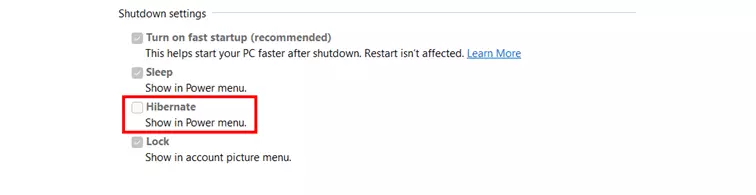
- Tick the ‘Hibernate’ from the Shut-down settings menu. If the settings menu is greayed out, click on ‘Change settings that are currently unavailable’ (requires administrator privileges).
- Launch the Start menu.
- Toggle the on/off switch and select ‘Hibernate’ to enable the mode.
Want to disable hibernation Windows 11? Simple follow steps 1 to 4 and remove the tick from ‘Hibernate’ in step 4.
Manage Windows 11 hibernate mode in the power options – here’s how
Just like Windows 10 hibernation mode, you launch Windows 11 hibernation via the corresponding ‘On/Off’ button. By default, Windows 11 hibernate mode is disabled which is why you may not see the option immediately. However, you can activate the energy-saving options quickly and easily by following our step-by-step instructions below.
Step 1: Call system settings
To access power options, launch the Control Panel. First call up the Start menu or access the search function to search for the ‘Control Panel’.
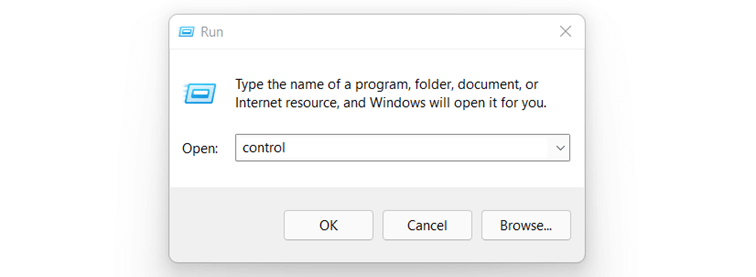
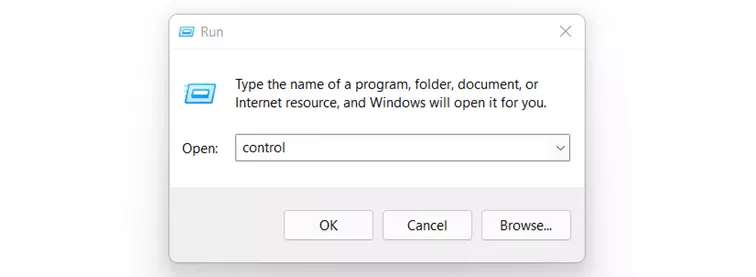
Alternatively, use the ‘Run’ function by using the key combination [Windows] + [R] and enter ‘control’.
Step 2: Launch Power Options
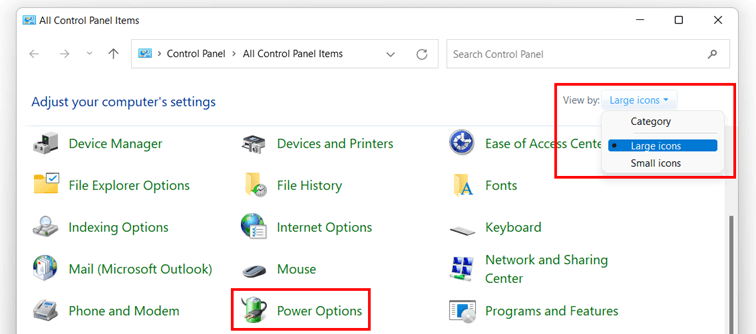
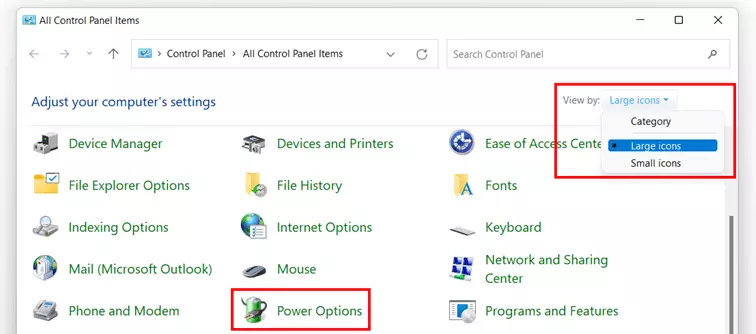
Select ‘Power Options’ from the Control Panel. If you cannot see a corresponding entry, you may have activated category view. In this case, select ‘Large icons’ or ‘Small icons’ via ‘View by’ to switch to the icon view.
Step 3: Enable Windows 11 hibernation mode
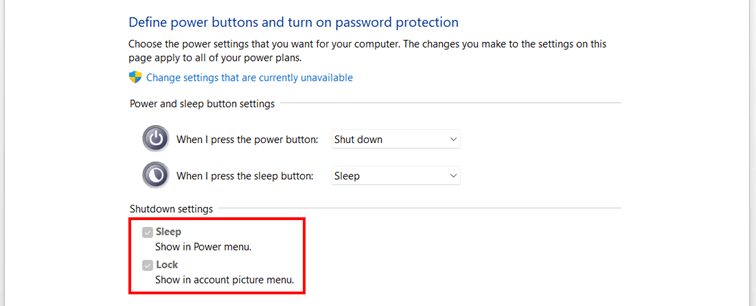
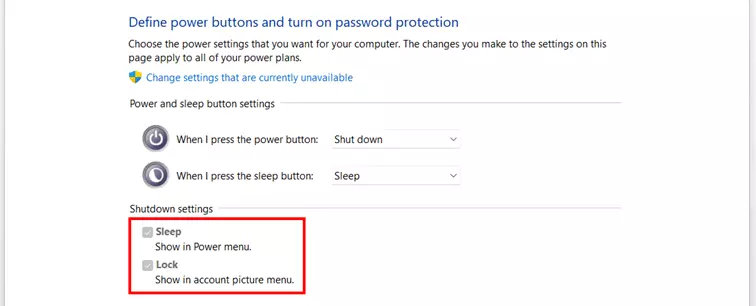
From the power options, click on ‘Choose what the power buttons do’ on the left. TiCheck ‘Hibernate’ to activate the standby button.
If the option is greyed out or cannot be selected, press the administrator function ‘Change settings that are currently unavailable’.
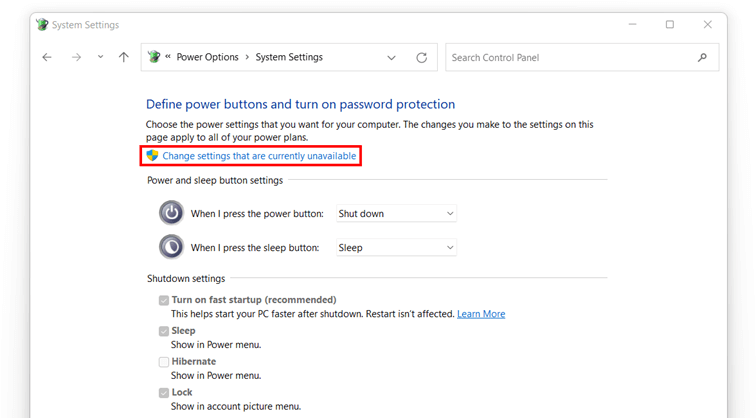
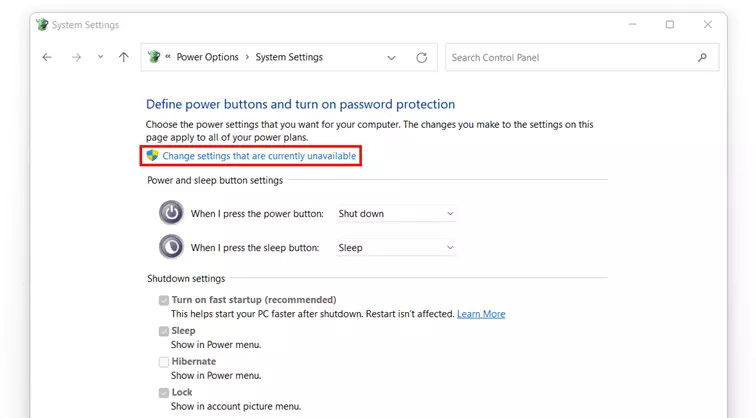
The option ‘Hibernate’ should now be selectable. Press ‘Save changes’.
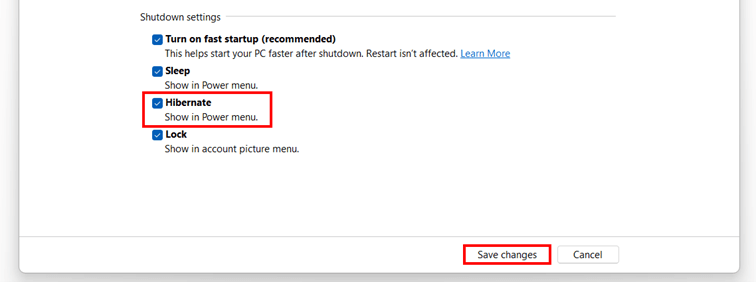
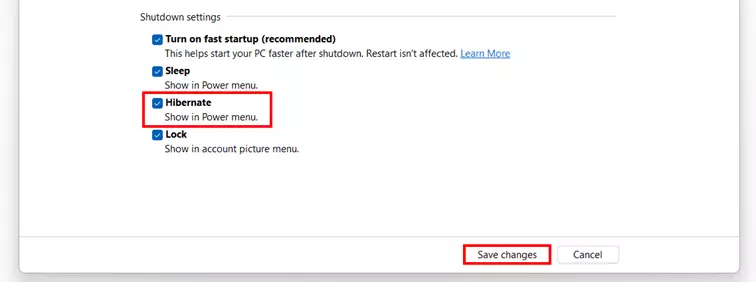
Step 4: Enable Hibernate
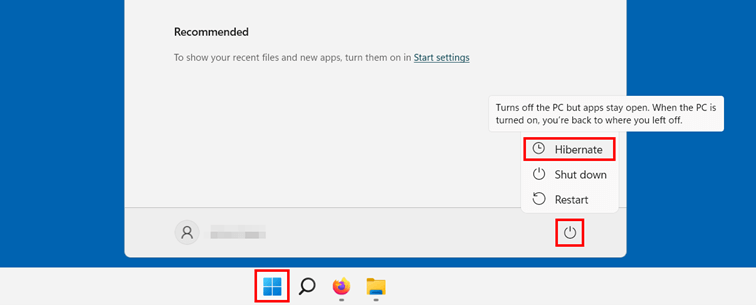
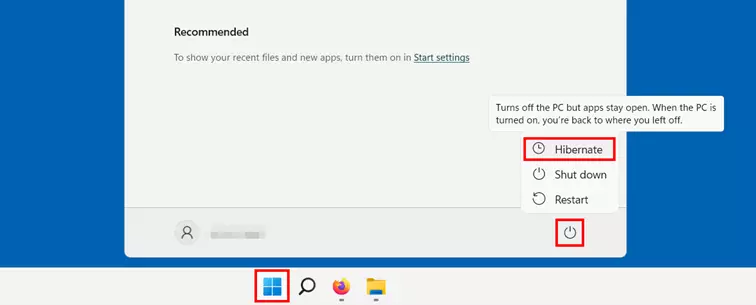
Once you’ve added the button to the power menu, you can put your device to sleep at any time. To do this, simply call up the Start menu and left-click the ‘On/Off’ button. You’ll now find ‘Hibernate’ in the pop-up menu, among other options.
System start-up typically wastes a lot of time when working with PCs or laptops. Learn more useful tips and tricks in the following article to speed up Windows 11!
How to create a hibernation file via the command prompt in Windows 11
If you cannot enable Windows 11 hibernation mode via the power options, you may be missing the hibernation file. In that case, the ‘Hibernate’ option wouldn’t even appear in the Power Options.
In this case you can regenerate the Windows 11 hibernation file using the Command Prompt, the command line tool of the system. Administrator privileges are a prerequisite. Read on to find out how to set it up.
Step 1: Start the Command Prompt as administrator
In Windows 11, you can execute the Command Prompt in different ways. To start-up in administrator mode, use the search function.
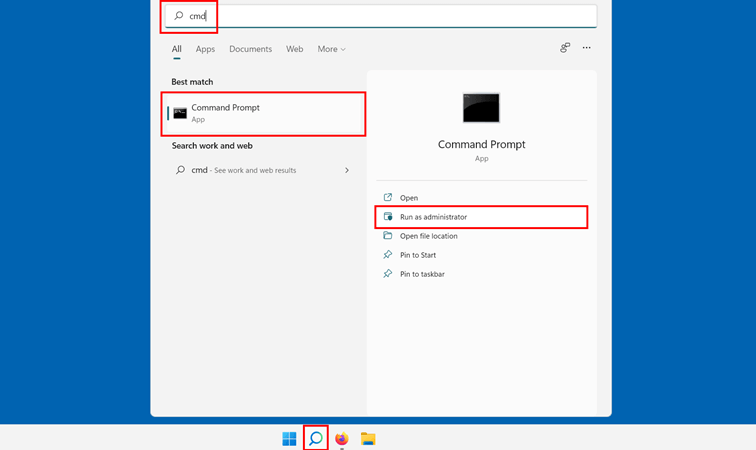
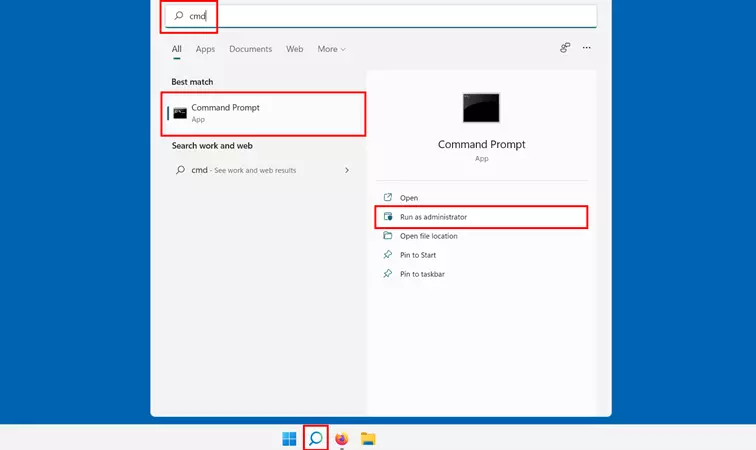
Click on the small magnifying glass icon in the taskbar and type ‘cmd’. The Command Prompt will be displayed as a search result – including the ‘Run as administrator’ button that you will need to select.
Step 2: Enable Windows 11 Hibernate mode
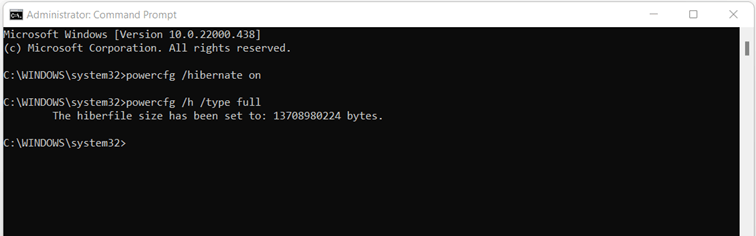
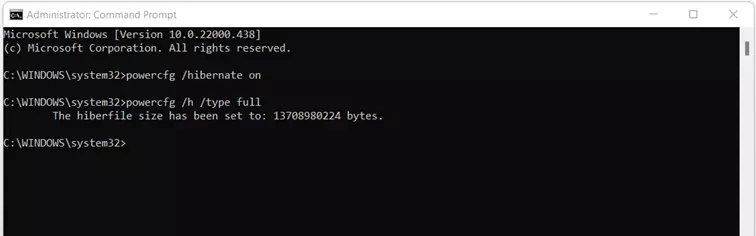
In the command line tool, switch on hibernation mode by executing the following command:
powercfg /hibernate onStep 3: Create hibernation file
Following activation in standby, you can now generate the hibernation file. The following command is required to this end:
powercfg /h /type fullAfter successfully creating the file, the prompt will present you with a message announcing the size of the file in bytes. Close the tool. As long as you followed the previous steps to enable Windows 11 hibernation mode, you should now find ‘Hibernate’ displayed in the Power Options.
The hibernation file of Windows operating systems is called hiberfil.sys. Read what the file is and how to delete or disable hiberfil.sys in our Digital Guide.
Windows 11: how to disable Hibernate
You can just as easily disable Windows 11 hibernation mode at any time or remove the button from the power options. To do this, simply call up the power options as explained above and remove the tick next to ‘Hibernate’.

Want to back up your files to prevent possible data loss? Windows 11 has its own backup function just for this purpose.