

What to do when Windows 11 won’t boot?

If your PC or laptop isn’t starting properly, the operating system (Windows) is a typical source of error. Whether it’s a faulty boot process, corrupted drivers, or update issues, here’s what you can do if Windows 11 won’t boot.
Is a software or hardware error at fault?
If (re)starting your PC or laptop isn’t working, your battery is charged, and the power source isn’t corrupted, you might not know what to do next. But there are indicators of what may be wrong. For example, a clacking sound from within the case or a scorched smell are strong indicators of hardware problems like a defective hard drive or clogged fans. Installing a new driver can also cause the error. Our guide on what to do if your PC or laptop won’t start can help you with more hardware errors.
Software problems, which are usually caused by updates, new program installations, or changes to the settings, can often only be cleared up with a deeper analysis. New BIOS settings can also turn the system upside down. In the BIOS – or more precisely, UEFI – a computer also starts the operating system, so that after a sensitive change, the entire operation can become paralysed.
Often, a faulty boot sequence or the well-known Windows blue screen are due to an operating system bug. For example, a sign that the boot process isn’t working properly is an audible startup sound, while the screen remains black.
Windows 11 won’t boot? Try recovery mode
With Windows 11, startup issues often happen after a system update. However, viruses, system errors, or faulty software can also stop the operating system from running smoothly.
The good news is that most errors can be easily fixed with Windows’ own troubleshooters. To do this, start Windows in the so-called Recovery Environment or Windows RE. This is a kind of safe mode where you’ll find several handy recovery features.
As a rule, Windows 11 automatically detects the problem and displays the recovery environment when it restarts. If this isn’t showing for you and the boot process freezes at a certain point, keep trying until you see the following screen:
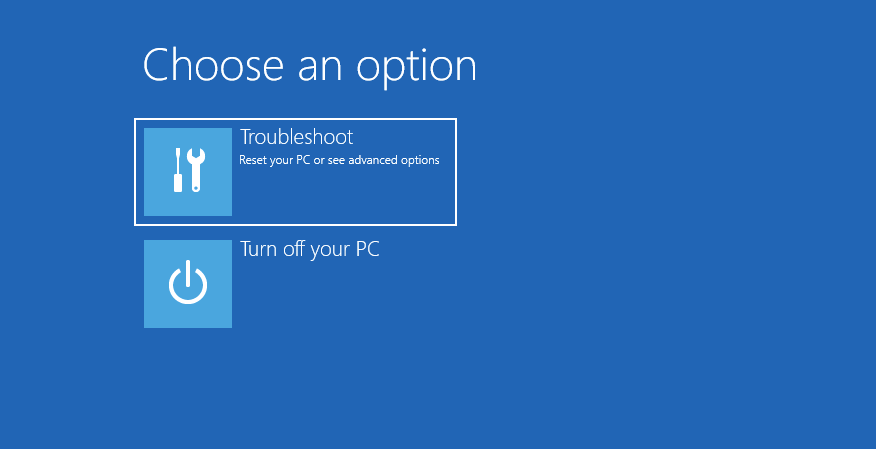
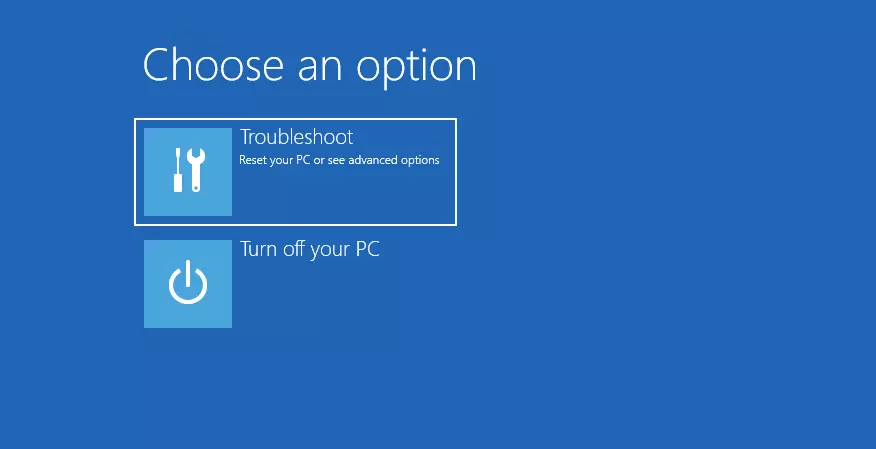
In the recovery environment, select ‘Troubleshoot’ > ‘Advanced options’ > ‘Start-up Repair’. This will kickstart an automatic error diagnosis and try to fix the startup problem.
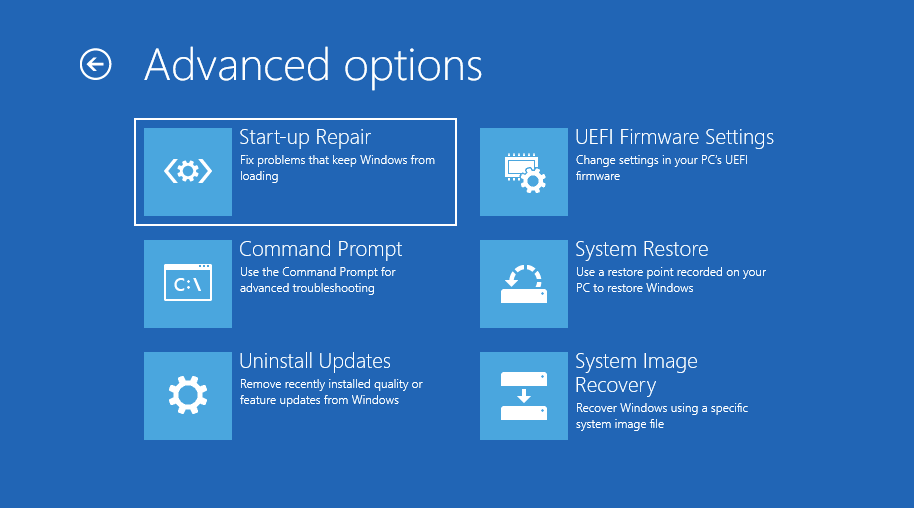

Another error you may experience is Windows getting stuck in a boot loop with a black screen. This can happen, for example, if the Start-up Repair feature doesn’t work.
To fix the problem, select ‘Troubleshoot’ > ‘Advanced options’ > ‘System Restore’. To do this, you need a so-called restore point meaning an earlier save that the operating system can fall back on (as a rule, the system automatically creates these at certain intervals). Your personal data won’t be affected by the recovery, but drivers, updates, and even apps installed after the restore point will be deleted. This fix lets Windows restore a normal work environment.
From the System Restore menu item, go to Next and choose the most recently created restore point in the next window. Click ‘Next’ again and confirm. Windows will now restore the old save by starting the recovery process.
Find out more about how to start Windows 11 in safe mode, in our article.
Manual troubleshooting in Windows 11
Sometimes Windows will start as usual but keep displaying errors during startup and while running. In this case, you can try manual troubleshooting. To do this, either go to ‘Settings’ or try the keyboard shortcut [Windows] + [i].
In the settings, click on ‘System’ and on ‘Recovery’. Then select ‘Advanced Start’ and confirm. The operating system will now restart.
Commands to help with startup problems
In addition to trying Windows 11’s settings, there some commands that automatically trigger certain boot routines in Windows. This can be useful if the PC doesn’t boot up properly and keeps loading the recovery environment.
To do this, first try the usual route via ‘Troubleshooting’ > ‘Advanced options’ and select the menu item ‘Command Prompt’. This will open a window where you can enter direct commands.
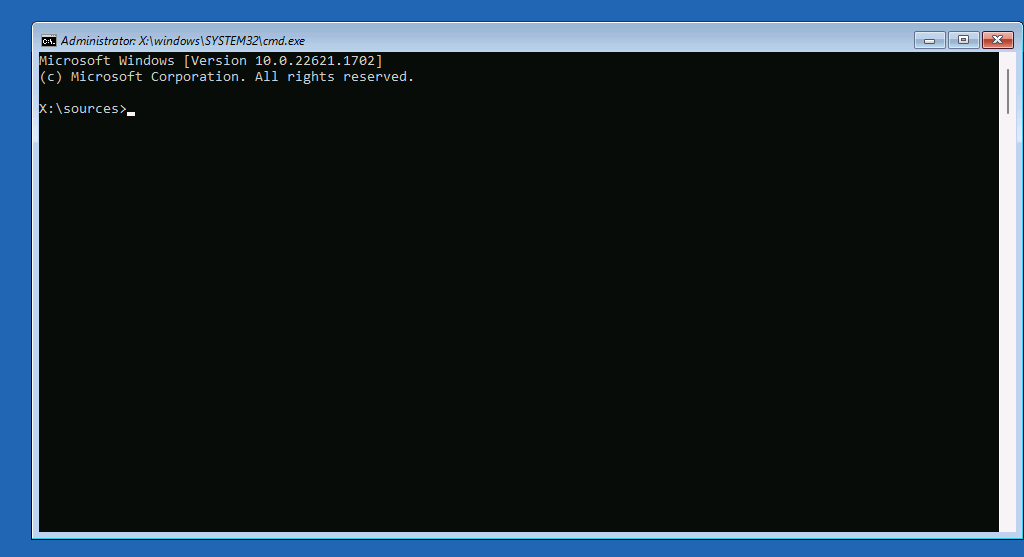
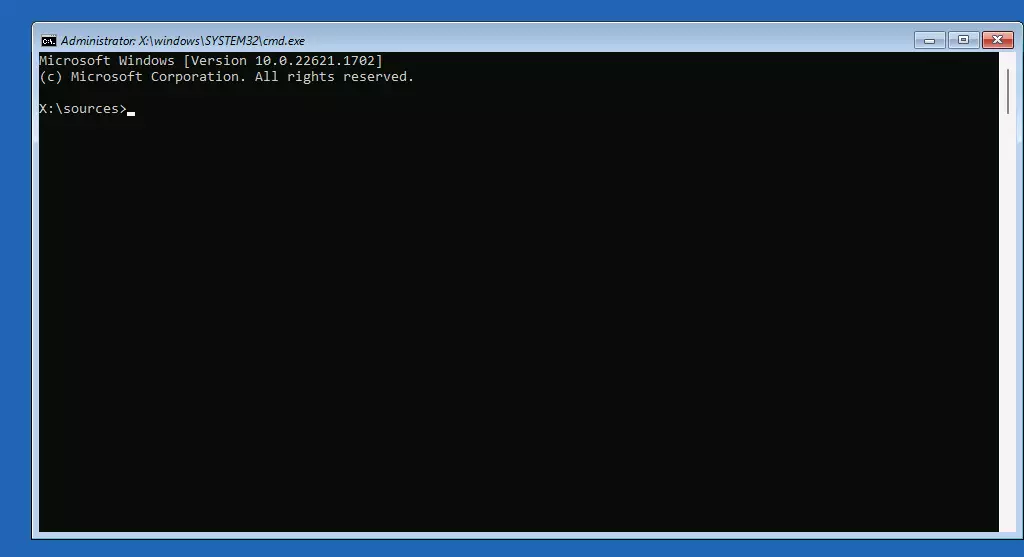
In this case, if the so-called Master Boot Record (MBR) is damaged, your PC won’t be able to start. The following commands trigger a repair operation to restore the MBR.
bootrec /fixmbr
bootrec /fixboot
bootrec /rebuildcbdOccasionally, Windows 11 won’t boot due to corrupted system files. Here it’s recommended to run the System File Checker to scan the system and fix the damage. To do this, open the CMD window, type in the command sfc /scannow, and press enter. This will repair and replace corrupted system files.
Uninstall updates
It’s common for Windows updates to cause problems at startup. But uninstalling the latest update is simple. The option to do this can be found under ‘Troubleshooting’ > ‘Advanced options’ > ‘Uninstall Updates’. You can choose to either uninstall the latest quality update or the latest feature update.


Final solution is to reset or reinstall Windows 11
If none of the methods described so far help and the problems continue at startup, in most cases the only thing that helps is to reset Windows or reinstall it entirely.
To try this option, return to the recovery environment. Here you’ll find the menu item ‘Reset this PC’ under ‘Troubleshooting’. Similar to the restore point, a reset will restore the PC to an earlier state.
If there’s no improvement in sight, you’ll unfortunately have to try reinstalling your system. That’s why it’s always advisable to cache files at regular intervals. External hard drives or cloud solutions are great for this, since otherwise you may lose all your data when you reinstall.
You can find detailed instructions in our article ‘How to reset Windows 11’.
Are you experiencing issues with other operating systems? These articles in our Digital Guide may help: