

How to fix the ‘Server error in '/' application’ error

There are various reasons for why you may encounter a ‘Server error in ‘/’ application’. Often the error message provides a bit more detail of what’s wrong. In most cases, the server-side error message is related to IIS (Internet Information Services) or ASP.NET.
Requirements
- Cloud Server running Windows Server 2012
- ASP.NET installed
- NEW: Flexible scaling with VM-cloning, load balancing, new storage options and more
- Unlimited traffic and >99.99% availability
- 24/7 expert support and your own personal consultant
Restart IIS
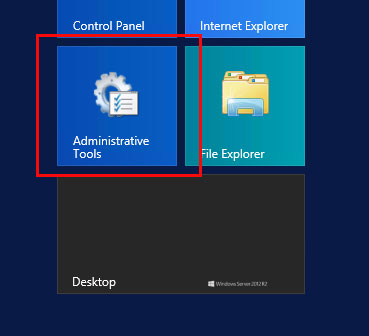
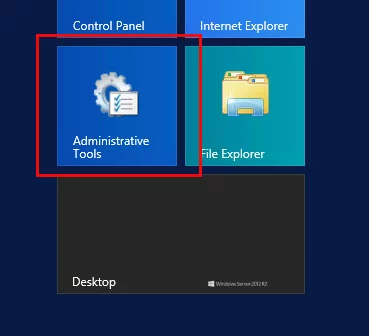
The ‘Server error in ‘/’ application’ can happen if IIS needs to be restarted. You can restart IIS from the IIS Manager. From your Remote Desktop connection, click the ‘Start’ button in the lower left-hand corner and select ‘Administrative Tools’.
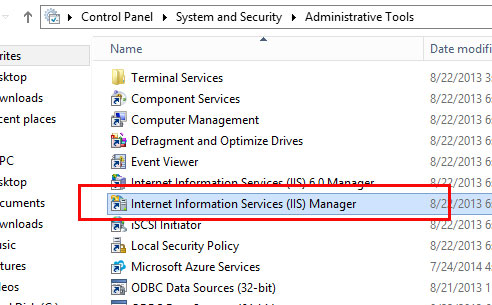
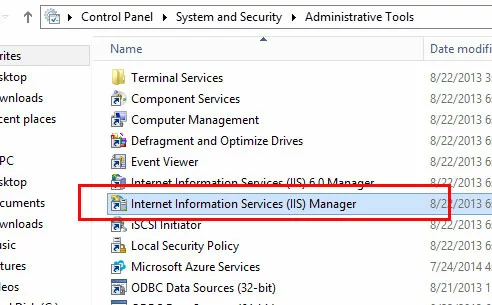
Click ‘Internet Information Services (IIS) Manager’ to launch the IIS manager.
Select the affected server from the left-hand panel.
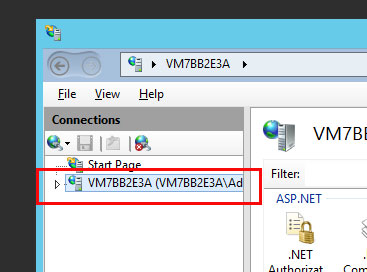
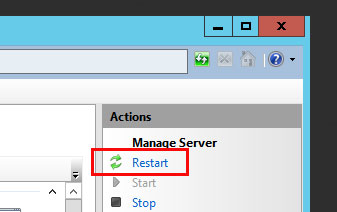
On the right of the IIS Manager, click ‘Restart’ to restart IIS.
Update the URL
Under some circumstances, a 404 error may be displayed as ‘Server error in ‘/’ application’. When this is the case, the error description in the browser will clarify that the error has occurred because the file is missing or has been renamed.
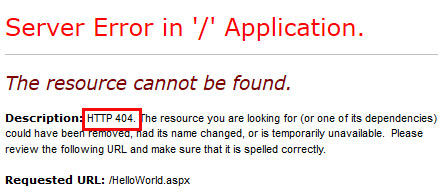
To fix this problem, correct the URL in the link that triggers this error.
- Automatic backup and easy recovery
- Intuitive scheduling and management
- AI-based threat protection
Add the MIME type
If you are accessing a file with a file extension that does not have permissions to be run on the server, you will see the ‘Server error in ‘/’ application’ along with the explanation that ‘This type of page is not served’.
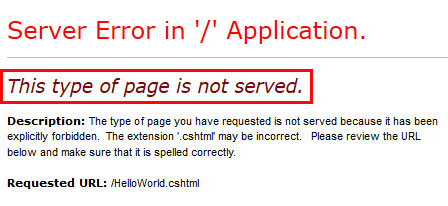
When exploring a solution to a ‘Server error in ‘/’ application’, first ensure that you are using the correct file name. The ‘Server error in ‘/’ application’ can occur if there is a typo in the file extension, for example a file or URL that references test.htl instead of test.html.
If the file name is correct, then you may need to add the MIME type to the server. MIME stands for Multipurpose Internet Mail Extensions. The MIME type is used to indicate what type of document it is. In the example, we are trying to run a file called HelloWorld.cshtml. The file extension .cshtml is not associated with any MIME type by default on Windows 2012.
You can add the MIME type in the IIS Manager. To open the IIS Manager, from your Remote Desktop connection, click the Start button in the lower left-hand corner and ‘Administrative Tools’.
Click ‘Internet Information Services (IIS) Manager’ to launch the IIS manager.
Click the server in the left-hand panel.
Now click ‘Sites’.
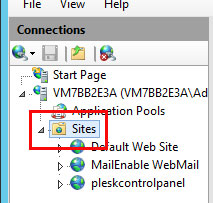
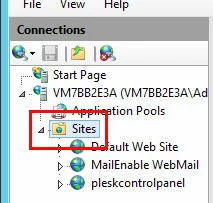
Then click on your domain. In the central panel, double-click ‘MIME Types’.
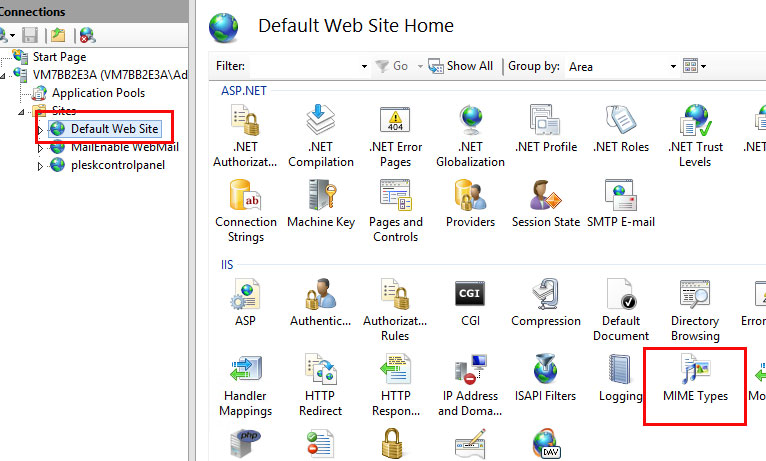
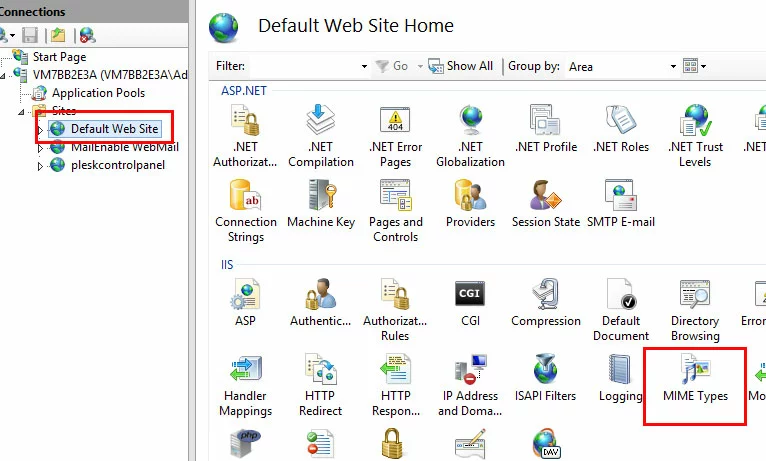
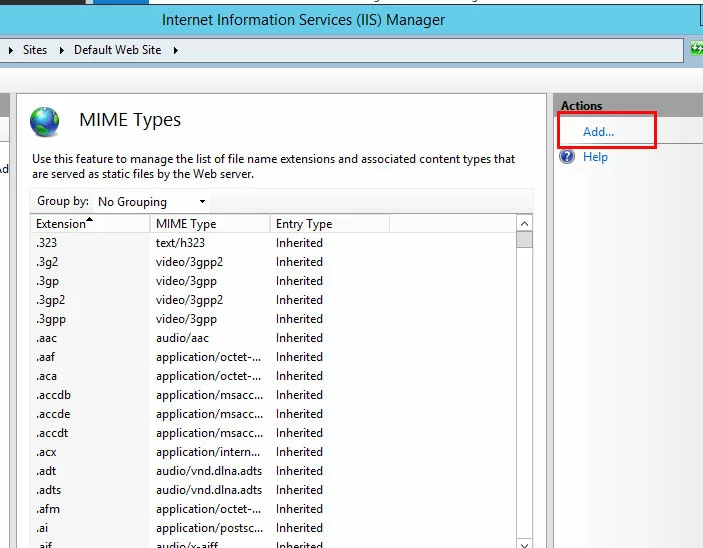
Under the ‘Actions’ column on the right, click ‘Add’.
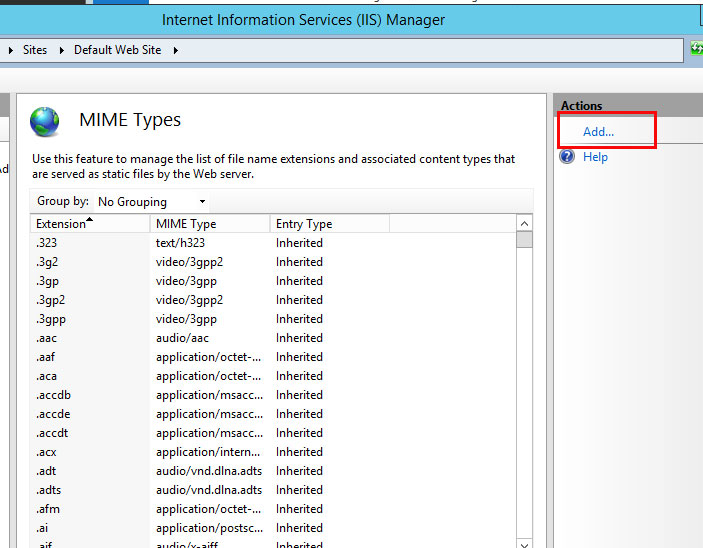
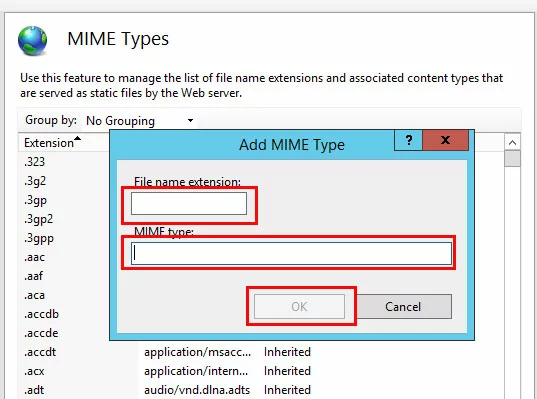
In the pop-up window which appears, fill in the ‘File name extension’ and ‘MIME Type’ fields, then click ‘OK’.
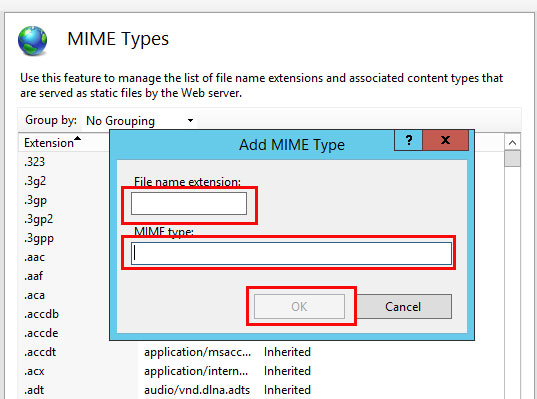
You may need to do an Internet search to find the correct MIME Type for your file extension.
Verify the .NET Version
Some programs, features, and file types will only run under certain versions of .NET.
You can also check your .NET version from the IIS Manager. To open the IIS Manager from your Remote Desktop connection, click the ‘Start’ button in the lower left-hand corner and then select ‘Administrative Tools’.
Click ‘Internet Information Services (IIS) Manager’ to launch the IIS manager.
Click to expand the server in the left-hand window panel.
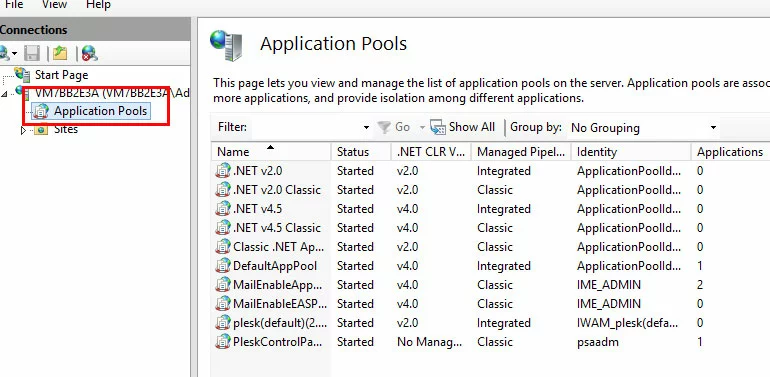
Click on ‘Application Pools’.
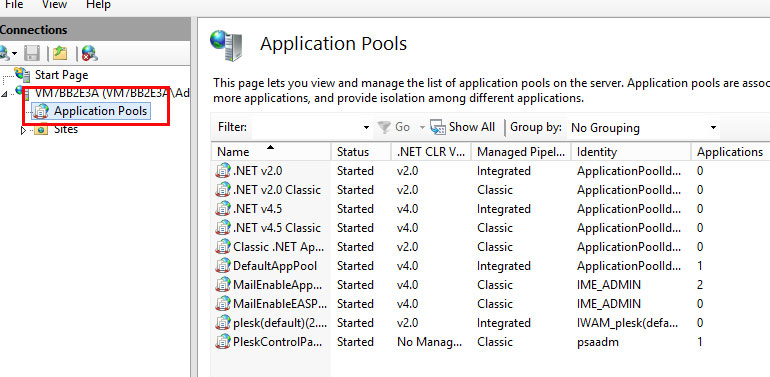
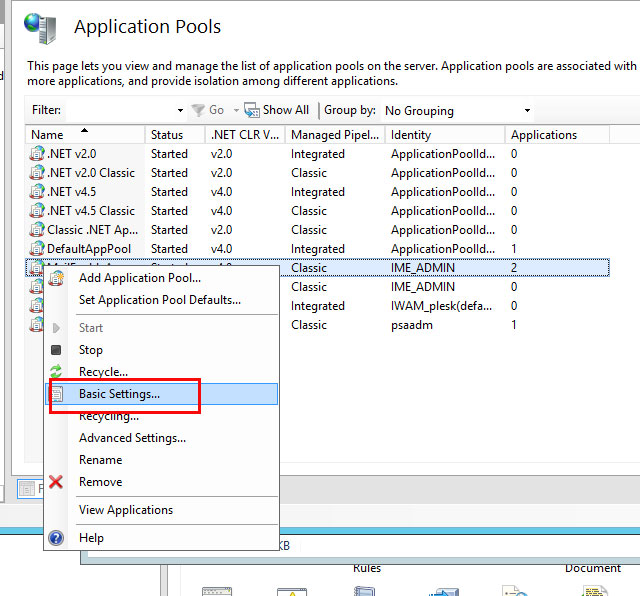
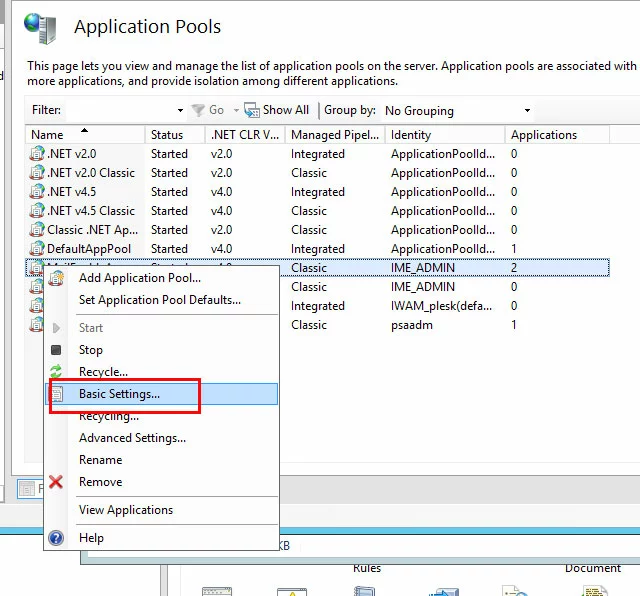
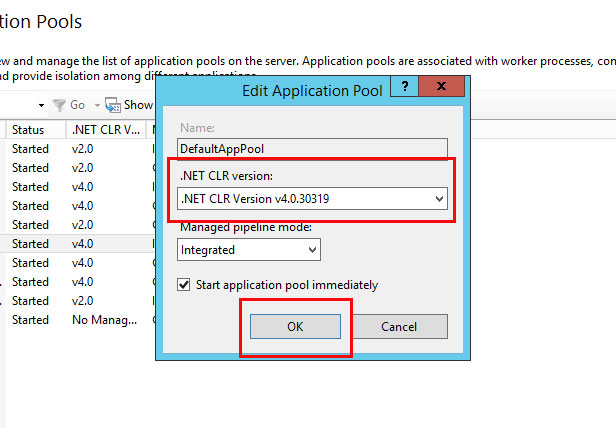
Right-click on the Domain Name and click on ‘Basic Settings’.
In the pop-up window which appears, select the .NET version from the drop-down menu, then click ‘OK’ to confirm your choice.
Reviewer

Christian Heldmaier
Christian Heldmaier is an experienced online marketing and SEO specialist from Karlsruhe. He has been working as an SEO Manager at IONOS since July 2020.