Installing and running Docker on a Linux server

You can install the popular container platform Docker on a Linux server at any time. It doesn’t matter whether you choose to do it when you set up the server or if the server is already running. As an alternative to the manual installation, many hosting providers offer their customers a simplified one-click installation option.
What are the requirements for installing Docker on Linux?
If you are a Linux user and want to install Docker, you don’t have to use the GUI application Docker Desktop. Unlike Windows and macOS users, who have to use the GUI to install Docker, Linux users have the option of installing Docker Engine. In contrast to the desktop app, Docker Engine consumes significantly fewer resources, with 1 to 2 GB of memory (RAM) being enough for it to run smoothly. Docker Engine is available for the following Linux distributions and architectures:
| x86_64/AMD64 | ARM64/AArch64 | ARM (32-bit) | s390x | |
|---|---|---|---|---|
| Ubuntu | ✓ | ✓ | ✓ | ✓ |
| Debian | ✓ | ✓ | ✓ | |
| CentOS | ✓ | ✓ | ||
| Fedora | ✓ | ✓ | ||
| Raspbian | ✓ | |||
| RHEL | ✓ | |||
| SLES | ✓ |
If you are considering using Docker Desktop instead, it’s important to keep in mind that it isn’t compatible with the same range of distributions and architectures as Docker Engine. The desktop application currently only supports x86_64/AMD64 architectures and Ubuntu, Debian and Fedora. Additionally, the official documentation states that the following requirements must also be met to install Docker Desktop:
- System must support KVM virtualisation
- Emulator QEMU (at least Version 5.2) needs to be installed
- systemd startup process
- Gnome, KDE or MATE desktop environment
- at least 4 GB memory (RAM)
How to find the right hosting solution for your Docker/Linux server
While it’s possible to install and run Docker on your own Linux server, it is much more convenient to have a provider host the server for you. By going with a hosting provider, you’ll benefit from powerful enterprise hardware and a first-class broadband connection. At IONOS, you can choose from three different server hosting models that each offer speeds of up to 400 Mbps:
- Cloud servers: with a cloud server from IONOS, you can host your Docker/Linux server on virtualised resources in the cloud. Performance can be scaled based on your computing needs, and the price is determined by usage, right down to the minute.
- vServer (VPS): vServers from IONOS also use virtualised hardware, however, unlike cloud servers, only one host system is used. Another difference between the two is that you pay a fixed monthly price with vServers.
- Dedicated servers: with dedicated servers from IONOS, your server runs on hardware that hasn’t been virtualised. You receive a clearly defined server setup and only pay for the resources you use. Prices for this server model are calculated to the minute.
Still unsure how often and how much you’ll use your server? With a cloud server from IONOS, you can scale performance at any time, allowing you to adjust CPU, memory and storage for your server. At the end of the month, you only pay for the resources you’ve used.
Use cases and suitable IONOS server packages
When it comes to hosting options, you have a lot to choose from, both in terms of providers and server packages. Whilst Docker Engine consumes fewer resources thanDocker Desktop, there are other factors you’ll need to consider when determining how much CPU, memory and storage you’ll need for your server. For example, you’ll also need to think about other activities you’ll be using the server for. Below we have summarised three different use cases with a server recommendation for each one.
| Use cases for a Docker/Linux server | Recommended IONOS server package |
|---|---|
| Server application development and testing; occasionally online | Cloud Server XL |
| Deployment server for one or more applications; permanently online | VPS Linux L |
| Server for deploying virtual environments | VPS Linux XL |
Planning to make extensive use of your hosting environment and looking for a long-term solution? With a dedicated server from IONOS, you’ll have access to unlimited traffic, cloud functionality and powerful enterprise hardware with state-of-the art processors.
How to manually install Docker on Linux
Once your Linux server is set up and you are ready to install Docker, you can use the following tutorial to help you. It covers the most important steps for carrying out a manual installation via the terminal.
The instructions below show how to install Docker Engine. You can find instructions on how to install Docker Desktop on Linux in the official Docker documentation.
Step 1: set up the Docker repository
If you are installing Docker Engine for the first time on your server, you’ll need to begin by setting up the Docker repository. You can then use this directory to install Docker on Linux and update the platform later on. The exact process for preparing the directory depends on the Linux distribution you are using.
Ubuntu, Debian und Raspbian
With Ubuntu, Debian and Raspbian, you can use the package manager apt. In order to update the manager and allow HTTPS connections for the repository, start with the following commands:
sudo apt-get update
sudo apt-get install ca-certificates curl gnupgAfterwards, add the official GPG key for Docker. In the URL of the second command, Debian users should replace ubuntu with debian. Likewise, Raspbian users should replace it with raspbian:
sudo install -m 0755 -d /etc/apt/keyrings
curl -fsSL https://download.docker.com/linux/ubuntu/gpg | sudo gpg --dearmor -o /etc/apt/keyrings/docker.gpg
sudo chmod a+r /etc/apt/keyrings/docker.gpgIn the following step, you are going to set up the repository. Just as in the code snippet above, if you are using Debian, you’ll need to replace ubuntu with debian, and if you are using Raspbian, with raspbian:
echo \
    "deb [arch="$(dpkg --print-architecture)" signed-by=/etc/apt/keyrings/docker.gpg] https://download.docker.com/linux/ubuntu \
    "$(. /etc/os-release && echo "$VERSION_CODENAME")" stable" | \
sudo tee /etc/apt/sources.list.d/docker.list > /dev/nullCentOS
With CentOS, you can set up the repository with the yum-config-manager tool. Use the following commands to install the manager and the repository:
sudo yum install -y yum-utils
sudo yum-config-manager --add-repo https://download.docker.com/linux/centos/docker-ce.repoFedora
To set up the repository on Fedora, you’ll need the dnf-plugins-core package. You can use this package to manage DNF repositories. Use the following two commands to install the package and set up the directory.
sudo dnf -y install dnf-plugins-core
sudo dnf config-manager --add-repo https://download.docker.com/linux/fedora/docker-ce.repoStep 2: install Docker Engine, containerd und Docker Compose
After you’ve finished preparing the repository, it’s time to install the container platform. In addition to Docker Engine, you’ll also need the container runtime containerd and the orchestration tool Docker Compose.
Ubuntu, Debian und Raspbian
Use the following command to update the apt package index:
sudo apt-get updateYou can install the three essential components that make up Docker by entering the following command:
sudo apt-get install docker-ce docker-ce-cli containerd.io docker-buildx-plugin docker-compose-pluginCentOS
CentOS users can install Docker on a Linux server using the following terminal command:
sudo yum install docker-ce docker-ce-cli containerd.io docker-buildx-plugin docker-compose-pluginYou may be asked to accept the GPG key. Make sure to check whether the fingerprint matches the following alphanumerical sequence: 060A 61C5 1B55 8A7F 742B 77AA C52F EB6B 621E 9F35. If it does, it’s okay to accept the key.
Fedora
In Fedora, you can install Docker with the following command:
sudo dnf install docker-ce docker-ce-cli containerd.io docker-buildx-plugin docker-compose-pluginIf you are asked to accept the GPG key, make sure that the fingerprint of the key matches the following sequence 060A 61C5 1B55 8A7F 742B 77AA C52F EB6B 621E 9F35.
Step 3: verify success of Docker installation on your Linux system
To check if Docker has successfully been installed on Linux, you can run the hello-world container. If it works, you’ll receive a message confirming the success of the installation.
Ubuntu, Debian und Raspbian
Run the following command:
sudo docker run hello-worldCentOS und Fedora
If you are using CentOS und Fedora, Docker will not automatically start when the installation is finished. You can start the container platform with the following command:
sudo systemctl start dockerTo check if the installation was successful, run the hello-world image:
sudo docker run hello-worldIn other articles in our Digital Guide, we take a closer look at installing Docker on various versions of different Linux distributions. Here are just a few:
How to install Docker on Linux systems using the 1-click app from IONOS
With IONOS, you can install Docker on Linux using an image. The installation process can be completed in just one click. It is, however, important to note that the app has been specifically designed for the Linux distribution AlmaLinux. This means that you’ll need to carry out a complete installation or reinstallation of the server you want to use.
Get a VPS from IONOS and get started with Docker on Linux today.
Step 1: sign into Cloud Panel and select your server
Go to the IONOS Customer Centre login page and sign in using your login credentials. Click on Server & Cloud and select the server that you want to host Docker on.
Step 2: set up your Docker/Linux server
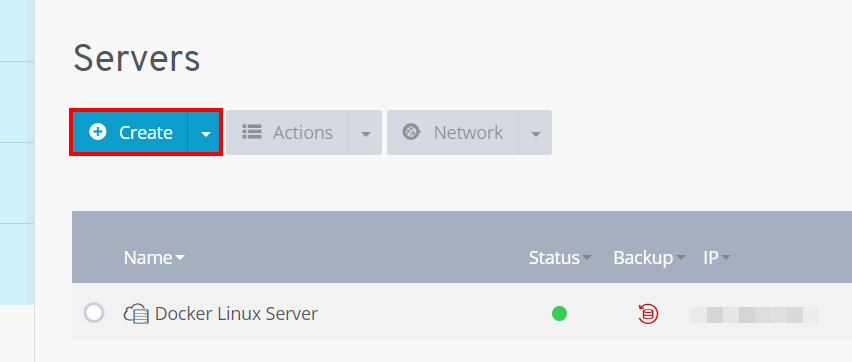
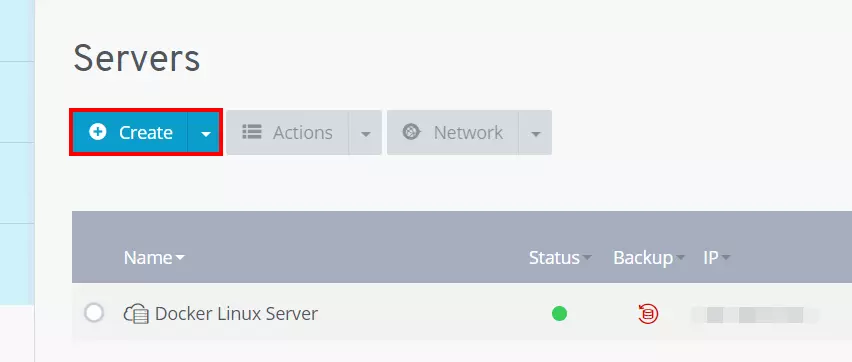
Once you’re on the server overview page of Cloud Panel, you can start setting up your server. Begin by clicking on Create and then select the server model you want to use.
Choose a name for your server and select a package:
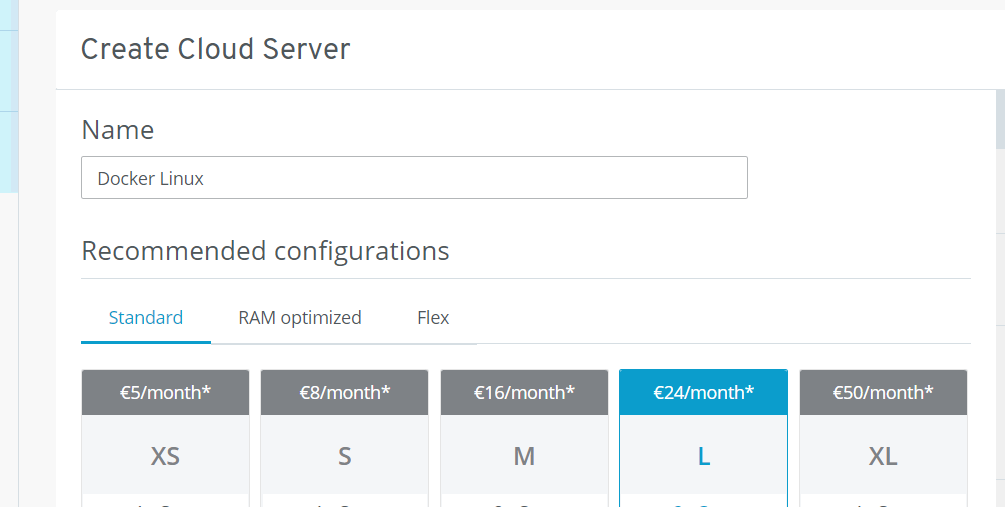
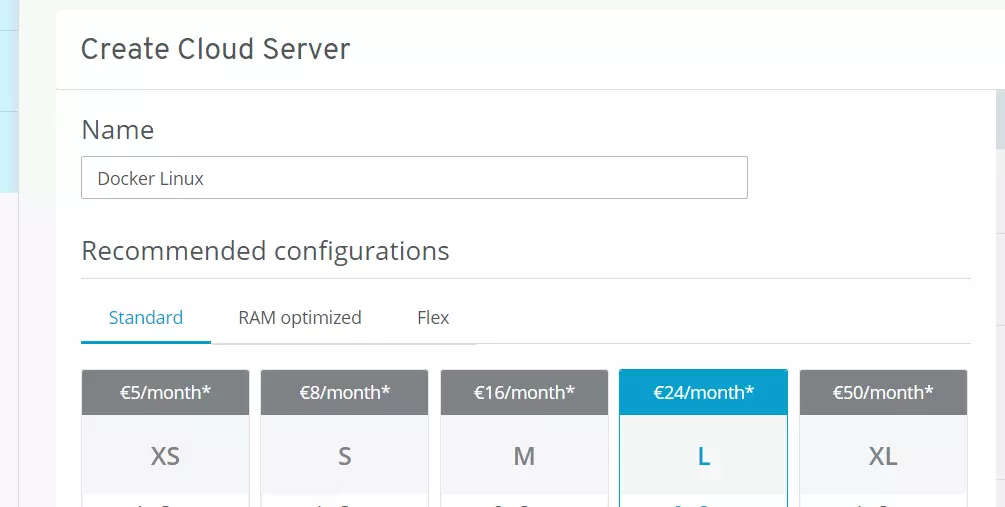
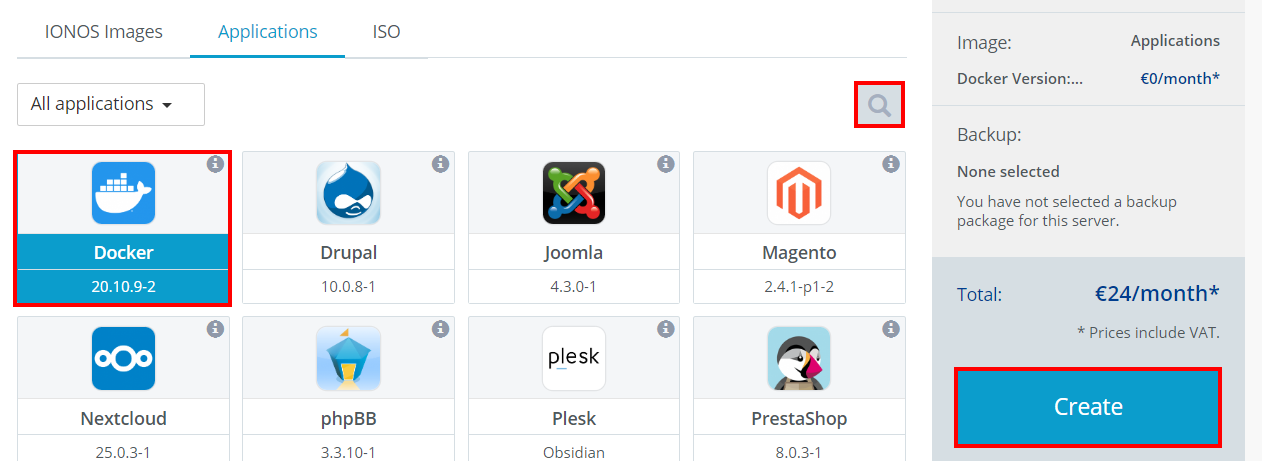
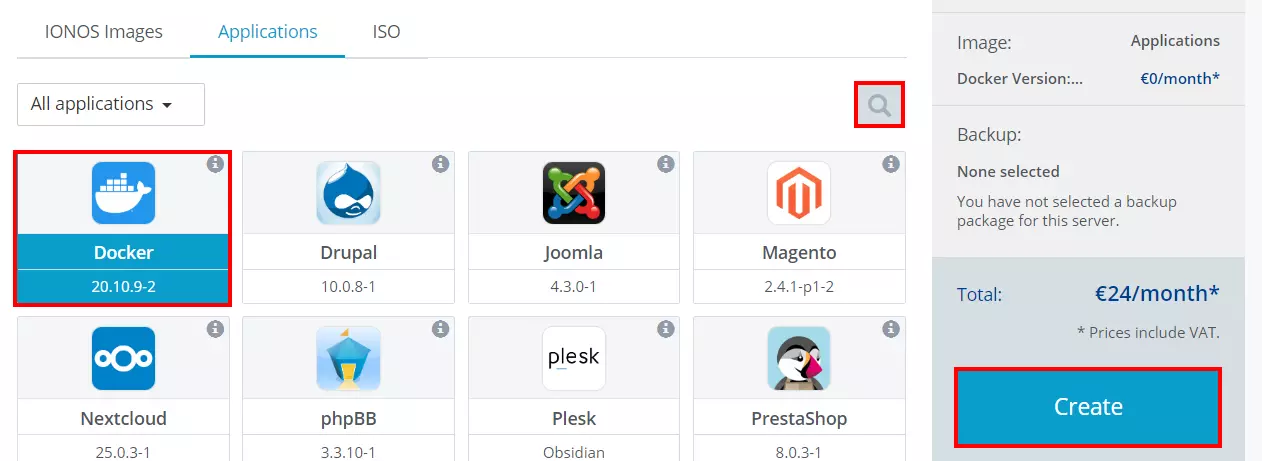
Scroll down to Images and click on Applications.
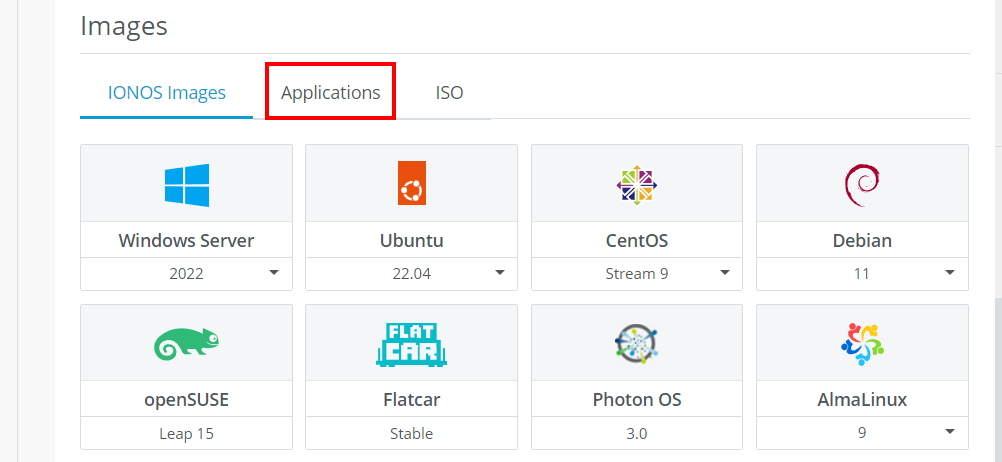
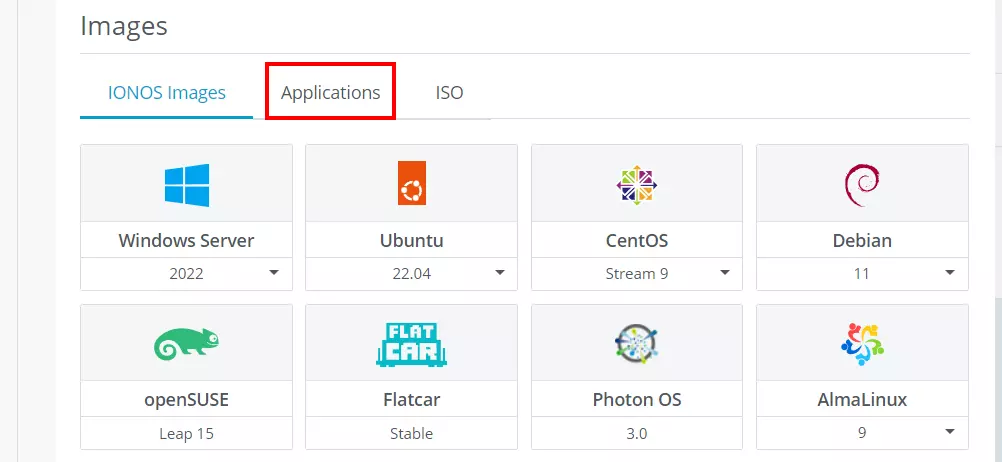
Use the search function to search for the Docker app. Docker should appear in the top left corner. Select the Docker app and then click on Create to set up your Docker/Linux server.