

UEFI (Unified Extensible Firmware Interface)

As the development of computer technology has progressed, it has become increasingly obvious that the traditional way of booting up the system with BIOS and Master Boot Record, introduced back in the 1980s during the era of the MS-DOS operating system, is no longer able to meet modern requirements. So, several companies including Microsoft and Intel started to develop a modern successor. It was around 2000 when the first specification for Extensible Firmware Interfaces (EFI) was developed. In the years that followed - after the Unified EFI Forum was founded in 2005 - the current UEFI standard gradually emerged.
What is UEFI?
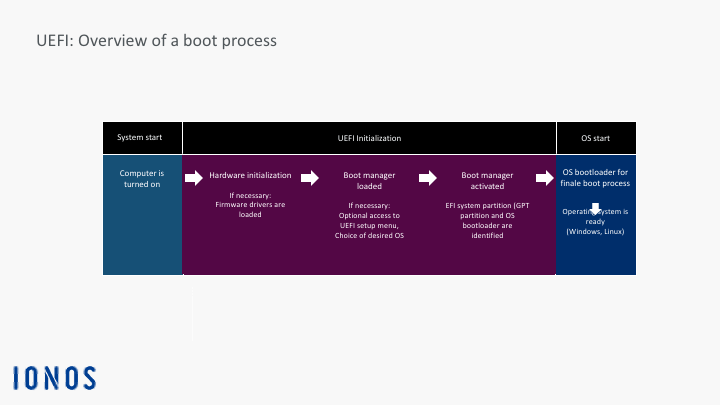
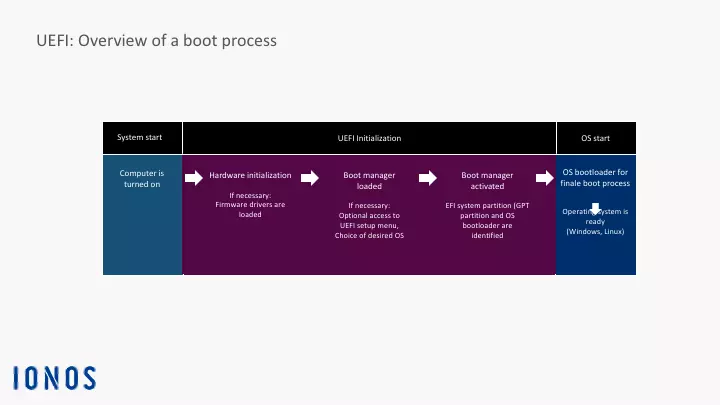
UEFI stands for Unified Extensible Firmware Interface. This special interface is a kind of miniature operating system which starts up immediately after booting the computer’s motherboard (also referred to as the mainboard) and its corresponding hardware components. It ensures that a special start-up program (referred to as a bootloader) can be loaded in the memory and then execute additional operational routines. Usually, this process ends with the login screen. The user then enters the required information (user name and password) at which point the computer can be used for specific tasks (e.g. word processing, etc.).
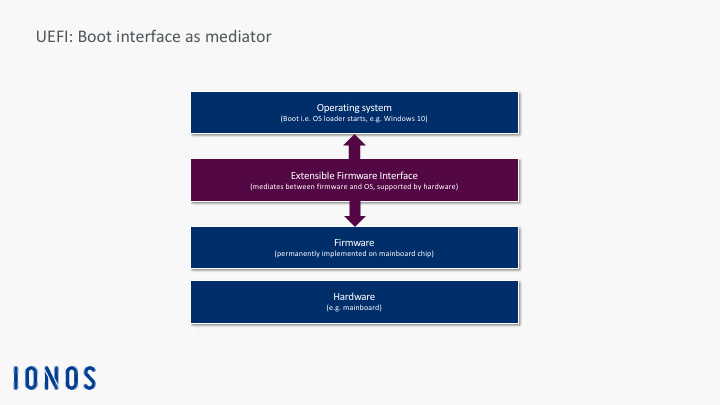
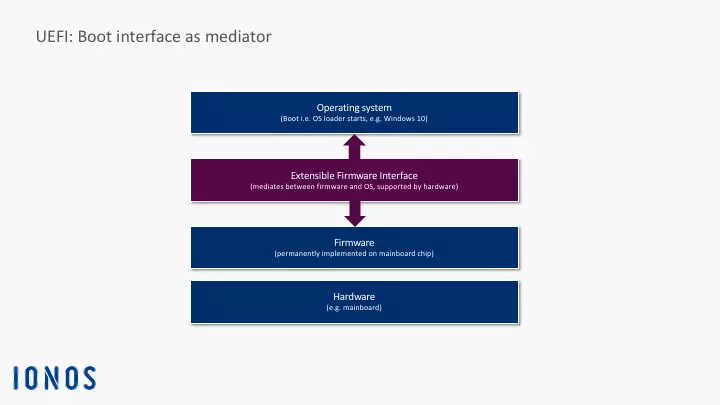
To be able to use the UEFI interface, the computer needs a special firmware on the motherboard. After booting up the computer, the program generates the UEFI interface as a special operational layer that communicates between the firmware and the operating system. For UEFI mode to be initialised before the operating system is started up, it permanently resides on a memory chip on the motherboard. As a permanent component of the motherboard firmware, the UEFI program is retained even if there is no power.
Nowadays, an NVRAM (non-volatile random-access memory) is used for specific boot-related settings (e.g. configuration data, BIOS parameters such as the boot sequence) which are stored after the computer is turned off. It uses very little power covered by an autonomous motherboard battery (a button cell battery). If the battery dies, perhaps due to the computer not being used for a while, this can lead to start-up problems.
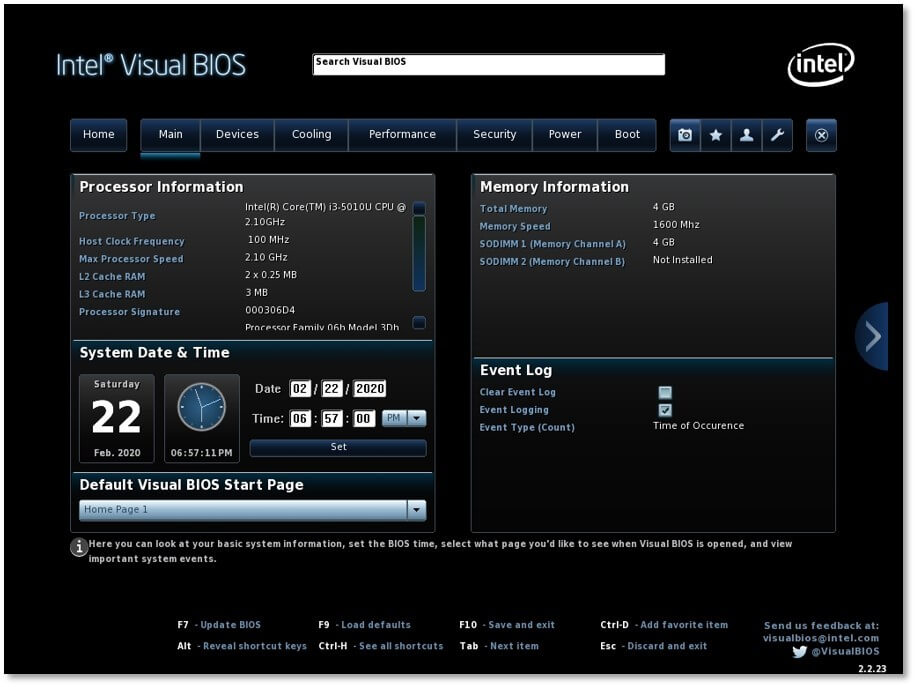
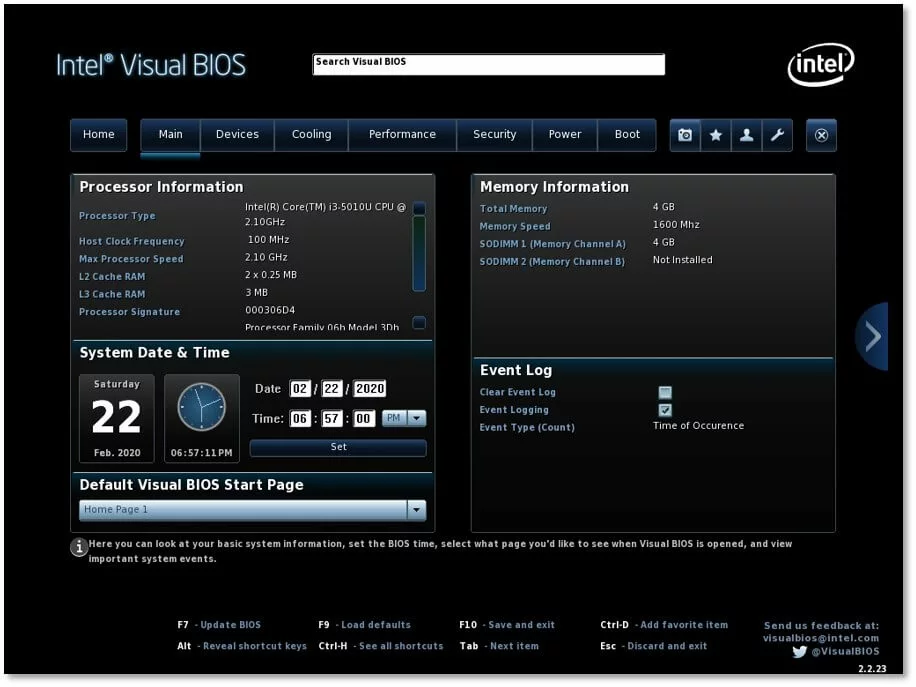
UEFI is often referred to as the direct successor to BIOS. However, the UEFI specification does not define how firmware should be programmed in its entirety. It only describes what the interface between the firmware and operating system should look like. The UEFI specification does not do away with the traditional Basic Input/Output System (BIOS) as the computer’s basic boot firmware. It is more of an extension or modernised modification that boots up current computers with an operational interface and also uses new mechanisms and functions. To be able to differentiate between these two types today, we usually refer to legacy BIOS (i.e. traditional BIOS) and UEFI BIOS or UEFI firmware.
Advantages of UEFI
In the Windows ecosystem, the UEFI mode has been the standard boot method since Windows 8. As of this version, Windows defined the GUID Partition Table as the standard for hard drive partitioning. The traditional legacy BIOS system boot technology tied to the Master Boot Record no longer works with this partitioning technique. The operational unit consisting of the Unified Extensible Firmware Interface and GPT partitioning paves the way for new functions and options while removing some of the limitations of the traditional boot process.
The following are some of the most important advantages and functions of UEFI technology:
- Designed as an industrial standard
- Easy to program (uses the programming language C)
- Its modular structure makes it flexible and allows it to be adapted to special hardware environments and requirement profiles (e.g. support modules for older operating systems can be integrated with the UEFI firmware)
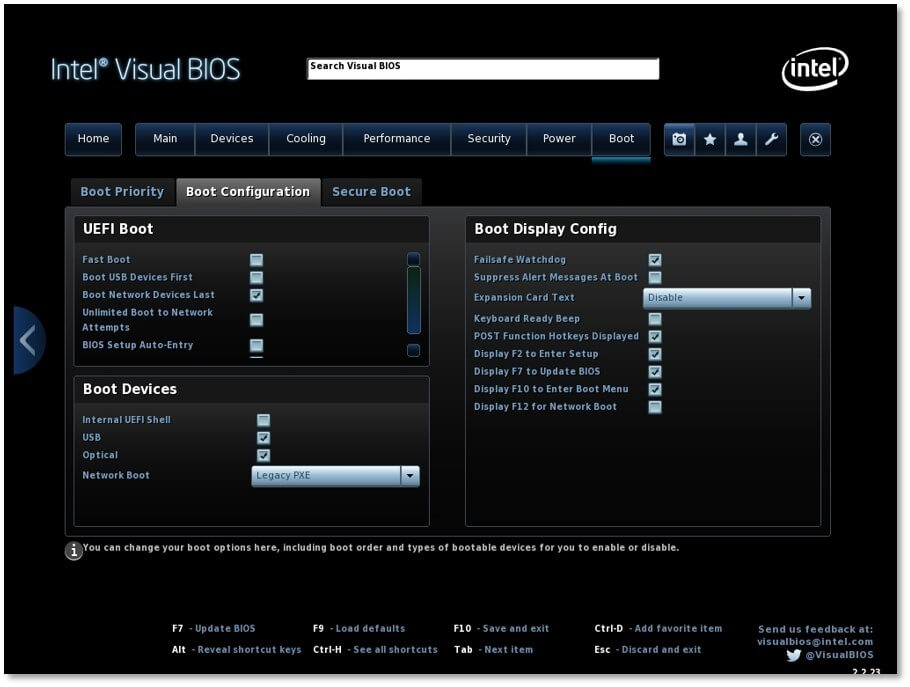
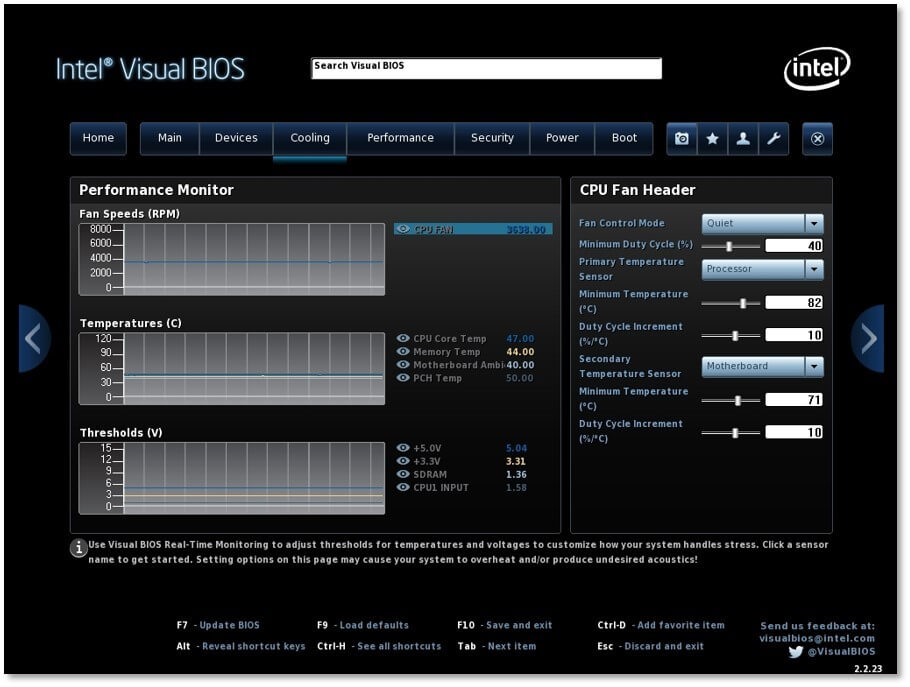
- UEFI can be extended with special functions and programs (e.g. digital rights management, games, web browsers, hardware monitoring, fan control)
- Improved usability via the use of a computer mouse and a graphical user interface (there were also some attempts with the traditional BIOS)
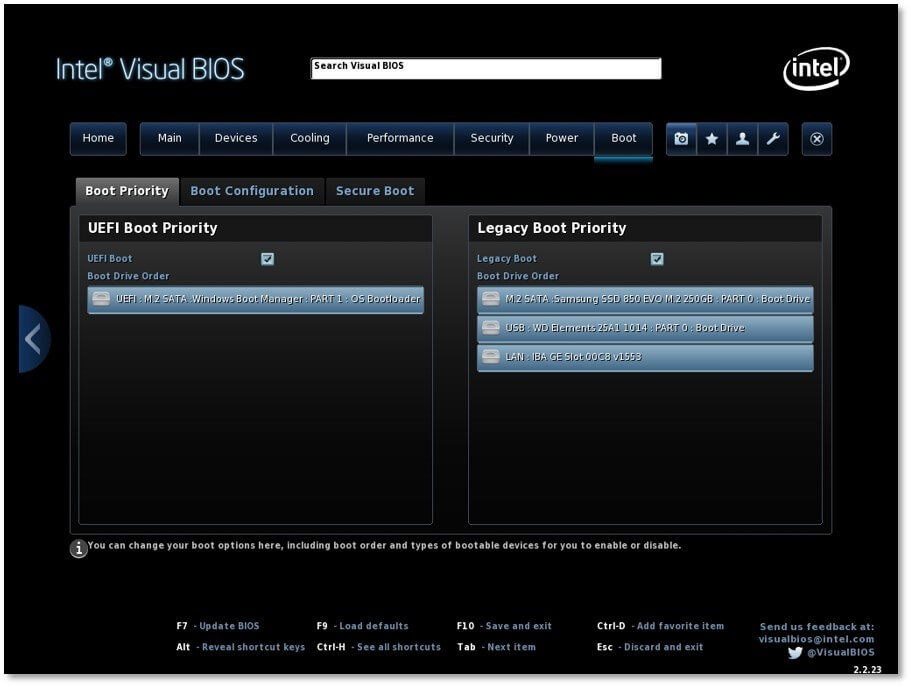
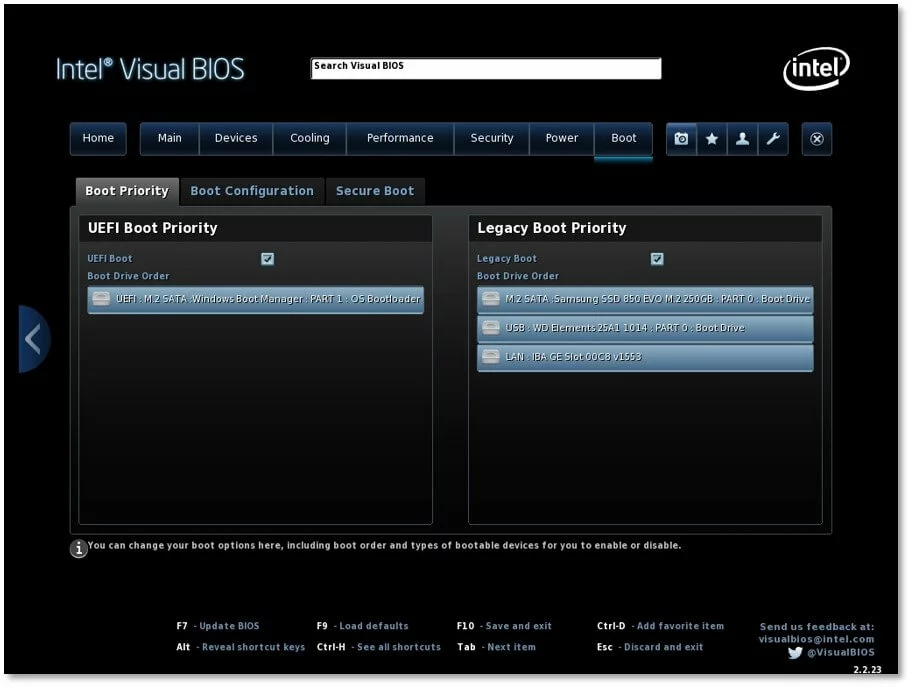
- Integrated boot manager which manages the various bootloaders for different operating systems
- Early integration of drivers is possible (which then no longer needs to be loaded by the operating system)
- A dedicated command line tool is available for performing diagnostics and troubleshooting (UEFI Shell)
- Network functionality even without an active operating system
- Network connection enables remote maintenance (remote upgrade of firmware components or the entire firmware) and booting via the network
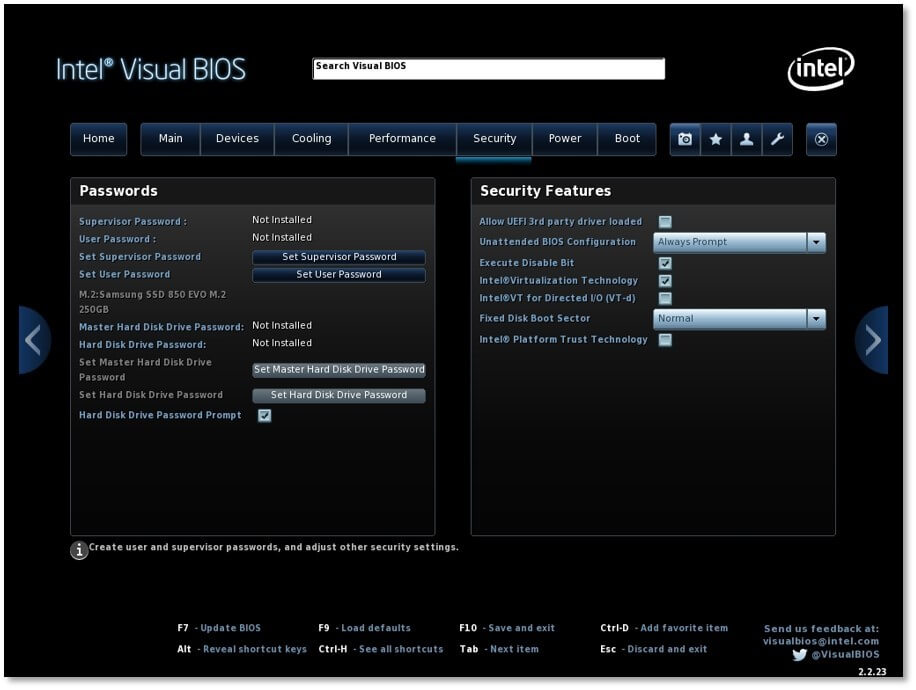
- Increased security through the Secure Boot feature
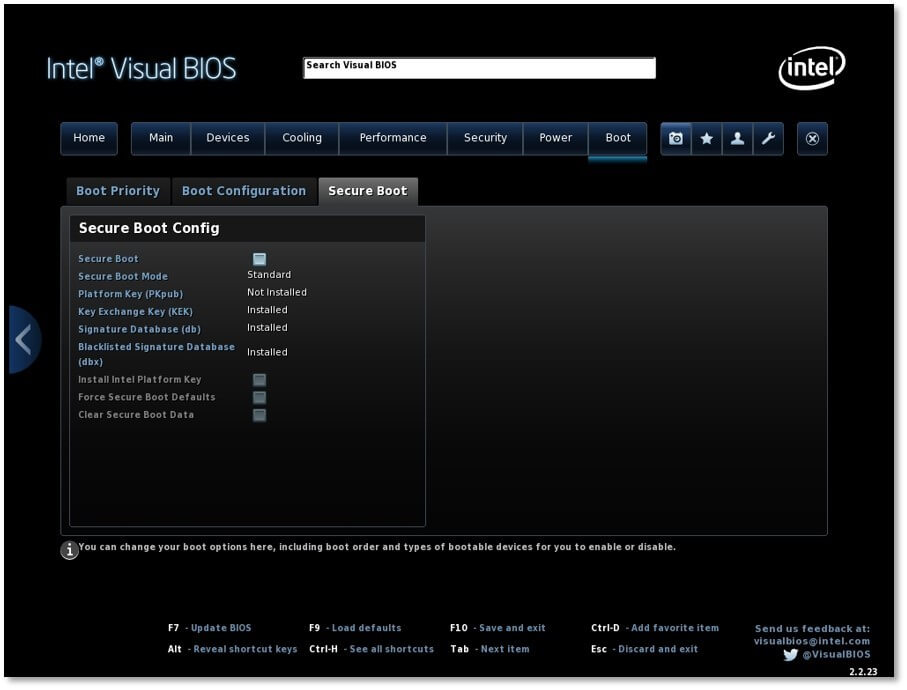
Secure Boot was introduced to increase security. Each software component (e.g. parts of the UEFI firmware, the bootloader, the operating system kernel, etc.) is verified before it is started up. Cryptographic digital signatures stored in the signature database of the UEFI firmware are used for verification. If something has been compromised by viruses, does not have a signature or has an invalid key, it will not pass this security check and the system will cancel the system boot.
In professional environments, Secure Boot often works in conjunction with a special hardware component. The Trusted Platform Module (TPM) is a specialised chip that provides computers and other devices with extensive security functions. It is highly likely that the combination of Secure Boot and the TPM chip will become standard for ensuring the security of all computers in the near future.
When directly compared to the traditional legacy BIOS system boot method, the operational unit consisting of UEFI and GPT partitioning offers the following advantages in particular:
- Multiboot systems are supported. This means that several operating systems with their own boot managers can be installed at the same time. During the boot process, you can select, on demand, an alternative operating system, such as opting to start up Linux instead of Windows.
- The GPT partitioning allows up to 128 primary GPT partitions in Windows (previously, it only supported four primary partitions)
- Boot devices can exceed the 2.2 TB hard drive capacity for the first time (the previous limit for legacy BIOS systems with Master Boot Record)
- Pre-boot applications are supported (e.g. accessing and using diagnostic tools, backup solutions)
- Boots faster than legacy BIOS systems
Disadvantages of UEFI
The Unified Extensible Firmware Interface also has some disadvantages. UEFI has limited compatibility because it only supports 64-bit systems. While these are increasingly becoming standard, 32-bit systems are still widely used, especially in the Windows ecosystem. This limited compatibility is due to how tightly integrated the boot technology is with the specific partitioning of the bootable system volume (boot device). This combination of UEFI and GPT partitioning is only compatible with 64-bit systems. Older computers with 32-bit operating systems using legacy BIOS cannot boot GPT-partitioned hard drives.
To increase UEFI’s compatibility, the Compatibility Support Module (CSM) is used. For example, this module is used to run 32-bit versions of Windows 7 or 8 on modern UEFI hardware. The CSM also makes it possible to have a mix of operating systems on a single computer. In a multiboot system, older operating systems that only work with the traditional legacy BIOS can be booted up in addition to the UEFI-compatible ones. However, a 32-bit operating system will then have to use an additional boot device, such as a second hard drive with Master Boot Record. When the computer is started up, the desired system can then be actively selected in the boot manager menu. Other firmware types handle this process automatically: First, the system looks for a more modern EFI bootloader. If one is not found, the CSM module is used directly during the boot process.
However, this compatibility with legacy BIOS is only a temporary solution. Intel is currently urging computer manufacturers to stop implementing CSM. It needs to be gradually phased out to reduce the size of the UEFI BIOS code and lower the costs of hardware testing. Furthermore, computers that boot in legacy mode using the CSM module cannot use the UEFI-specific feature Secure Boot and its security mechanisms to protect against viruses and unauthorised tampering.
Another disadvantage of UEFI is the following security risk. Due to the direct connection during the boot phase, malware can infect a computer before the operating system’s security mechanisms have had a chance to intervene. This is by no means a theoretical threat. In 2014, the first security hole in the interface was discovered, and by 2018 experts had identified the first UEFI virus in the wild with LoJax (i.e. outside of pure laboratory experiments).
This video provides an excellent introduction on how to get started right away with the various UEFI BIOS options and modules (e.g. CSM, Secure Boot):
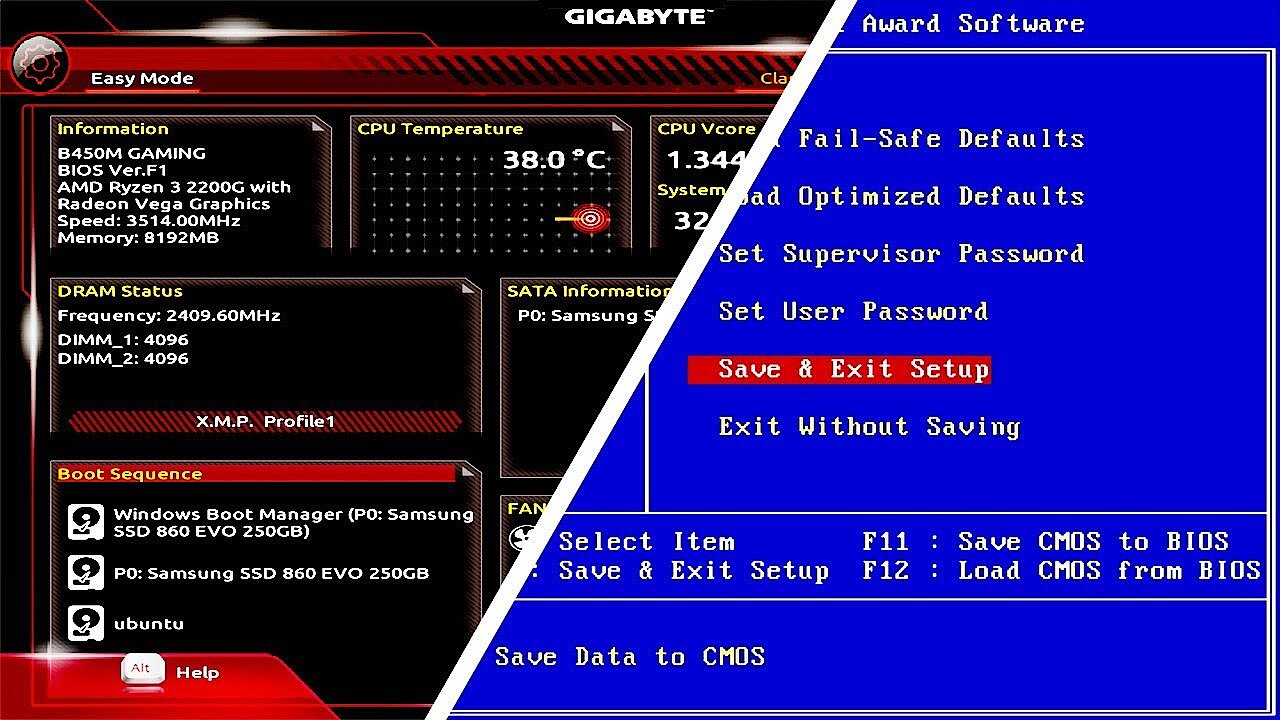 To display this video, third-party cookies are required. You can access and change your cookie settings here.
Here, you will learn how to start UEFI BIOS directly in Windows 10:
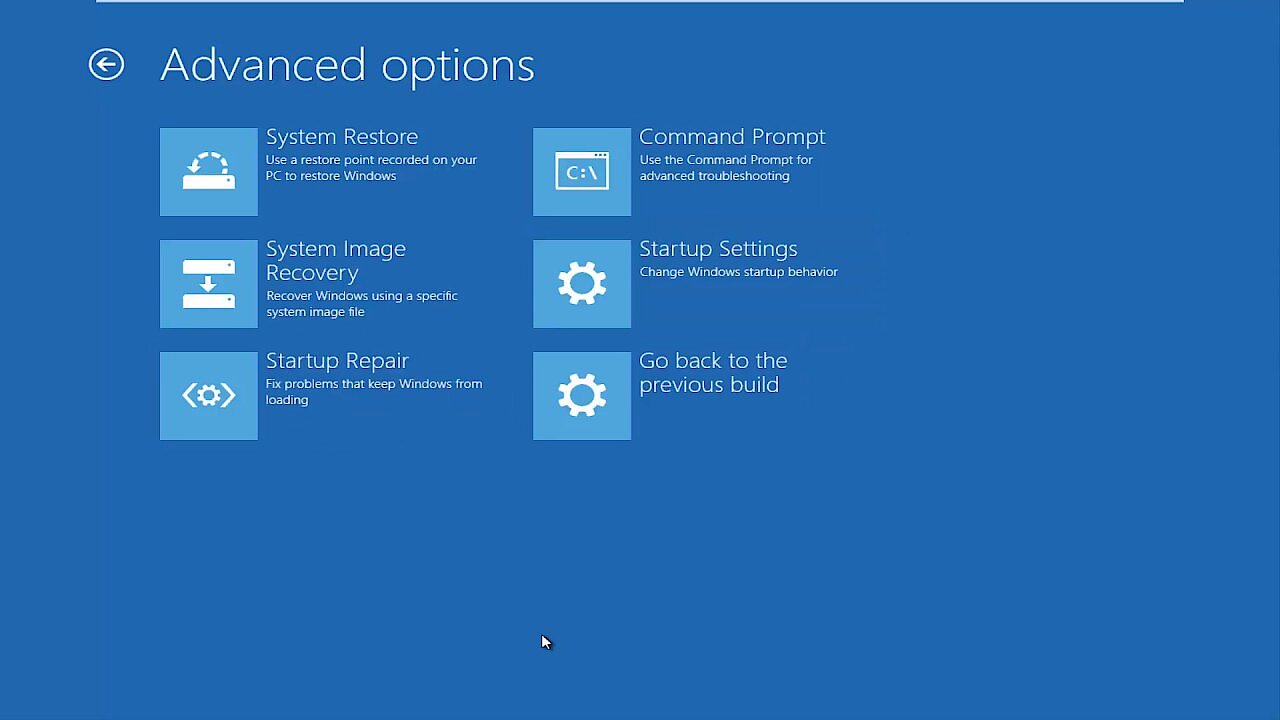 To display this video, third-party cookies are required. You can access and change your cookie settings here.
Reviewer

Christian Heldmaier
Christian Heldmaier is an experienced online marketing and SEO specialist from Karlsruhe. He has been working as an SEO Manager at IONOS since July 2020.