

How to set up Google Authenticator

Google Authenticator is one of the simplest and most convenient tools to protect your Google account against unwanted access by third parties. It generates a code in-app that you enter when logging in to a Google account. We show you how to set up Google Authenticator.
Quick guide to set up Google Authenticator for Android and iPhone
- Download the app from the app store. Open it and scan the QR code to set up a new account.
- On your computer, click ‘2-step verification’ in the Security section of your Google account.
- In the ‘Authenticator App’, click ‘Turn on’ and follow the instructions in the pop-up until you get to the QR code.
- Scan the code with the app on your smartphone and enter the displayed six-digit code in the input field in the pop-up on your computer.
- Confirm the entry.
Quick guide: Enable ‘2-step verification’ in Google
You can only set up the Google Authenticator if you have already set up additional identification on a smartphone and activated the ‘2-step verification’.
Follow these steps to enable 2-step verification:
- Sign into your Google account and navigate to the ‘2-step verification’ section in ‘Security’ (the tick box is automatically set to ‘Off’).
- Slide it to ‘On’ and verify your selection by entering your Google account password.
- Select your cell phone and confirm the selection. You will receive a code via SMS.
- Enter the verification code. You can select whether you wish to receive future verification codes by phone call or SMS.
- Confirm your entry.
What is Google Authenticator and why is it useful?
Google Authenticator is an app provided by Google that lets you protect your Google account from identity theft or other forms of misuse. Over recent years, email and Internet service providers have worked on ways to improve the security of user accounts and their data.
So-called two-factor authentication is now standard - i.e. you no longer log in to your email service or other online accounts using only a password, but require a secondary security factor to log in. This often takes the form of a mobile phone. In many cases two-factor authentication involves receiving a code sent via SMS, which is entered into your online account to prove your identity.
The Google Authenticator app works in a similar manner. Once you have linked your Google account to your smartphone, you can use it to retrieve a six-digit code that you have to enter when logging in to Google (in addition to your chosen password). The app works even if your phone is offline. It is available for Android smartphones and Apple iPhones.
Set up Google Authenticator on your smartphone
Please note that the following instructions assume that you have already enabled ‘2-step verification’ in your Google Account and now wish to add the Google Authenticator app as another way to verify your identity. If you have not yet enabled the feature, please refer to the quick guide above.
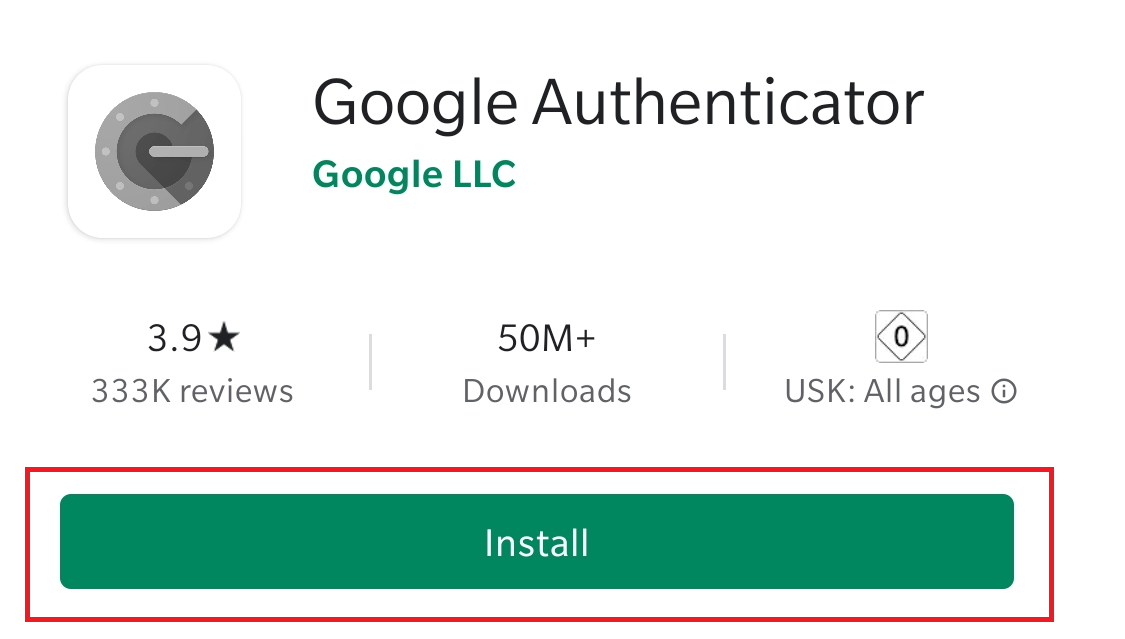
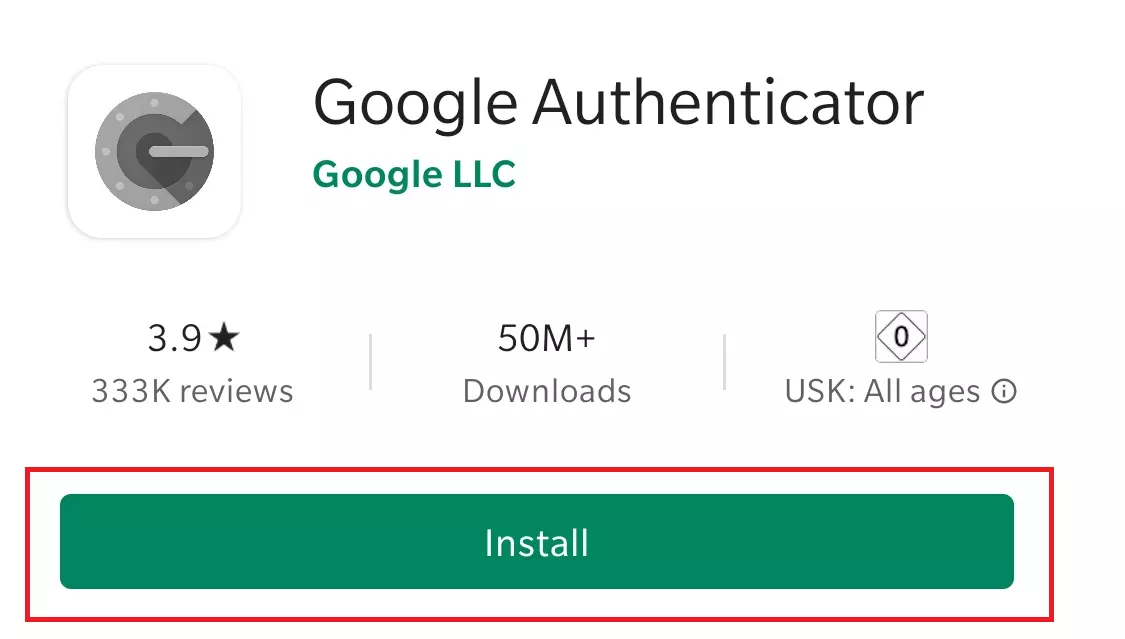
- Download the Google Authenticator app from the Play Store or App Store and click ‘Install’.
- Launch the app and select ‘Scan a QR code’ in the dialogue window. To scan, the app needs access to your smartphone’s camera.
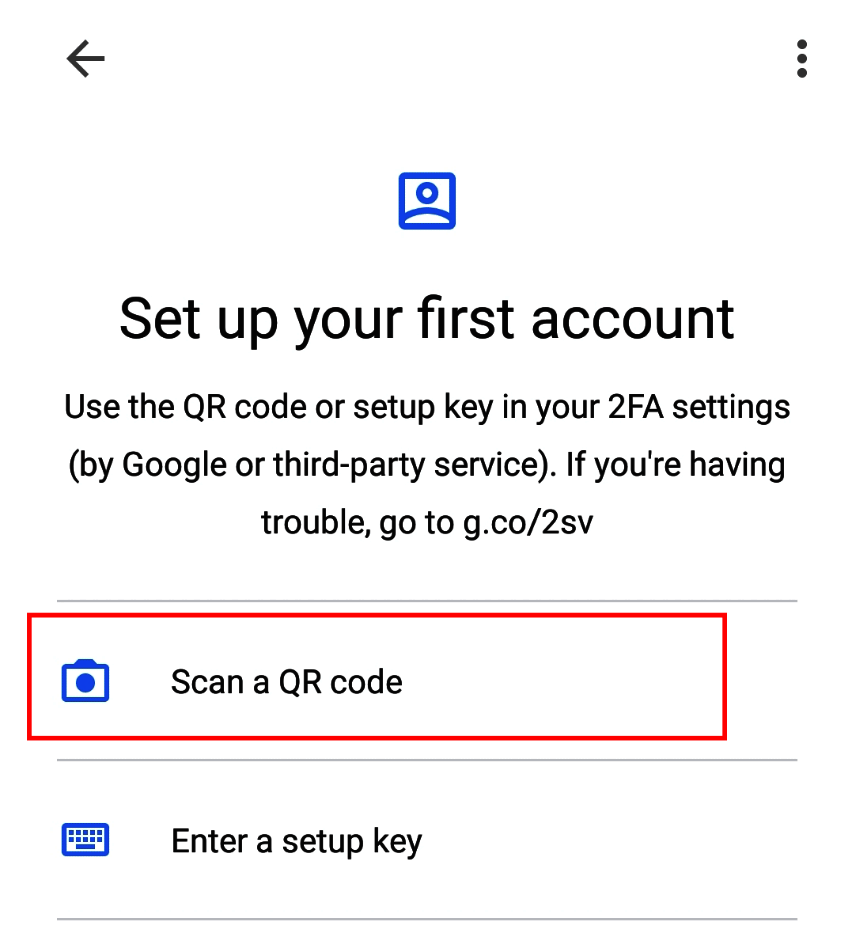
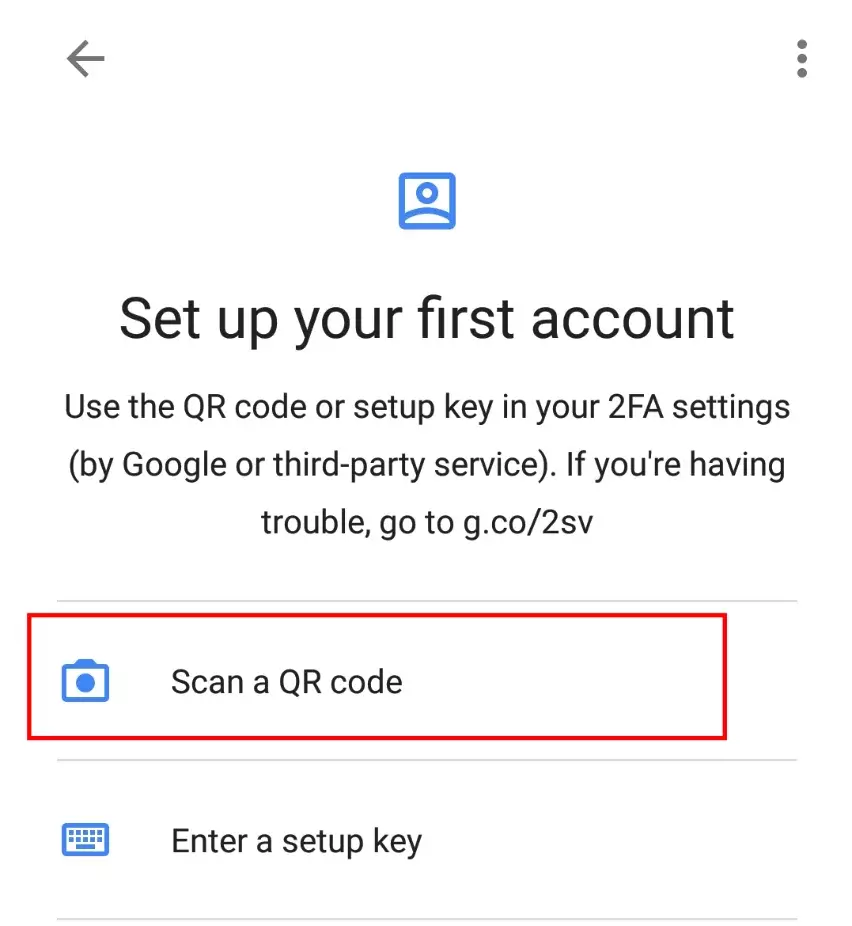
Alternatively, you can enter a setup key that is displayed in your Google account during the setup process.
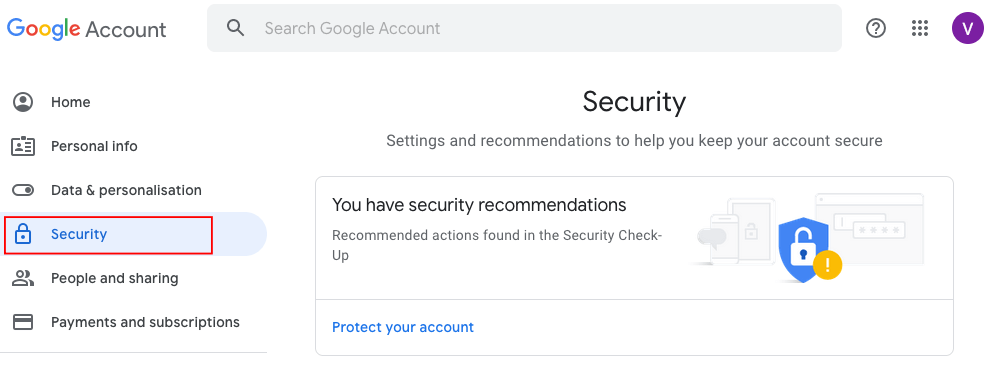
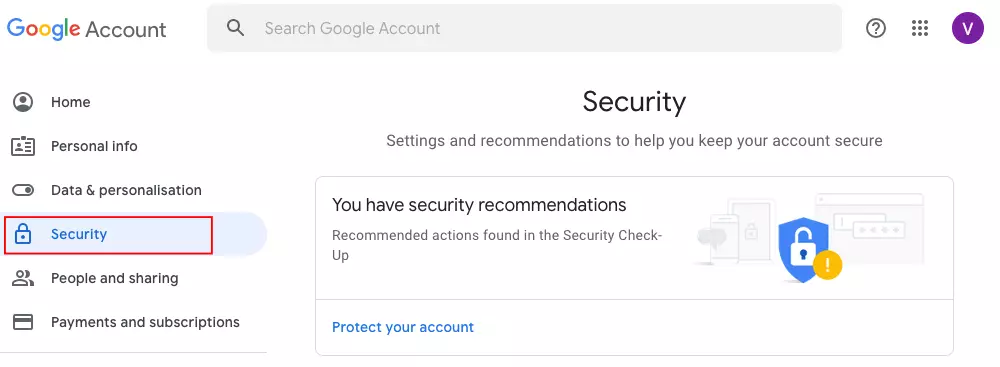
- Log in to your Google account and click on the ‘Security’ settings menu option.
- Scroll down on the right until you see the ‘Signing in to Google’ section and click ‘2-step verification’.
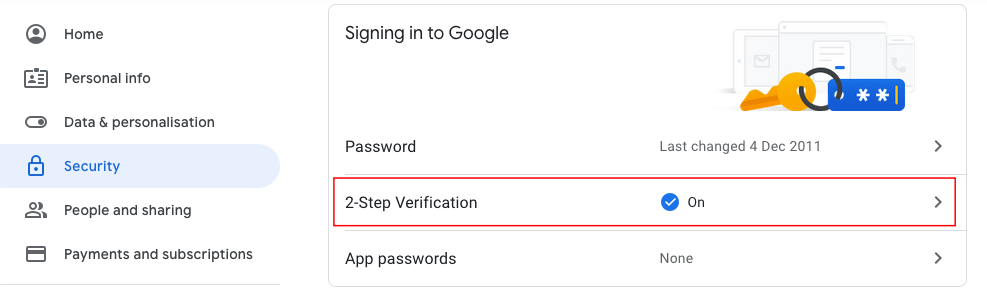
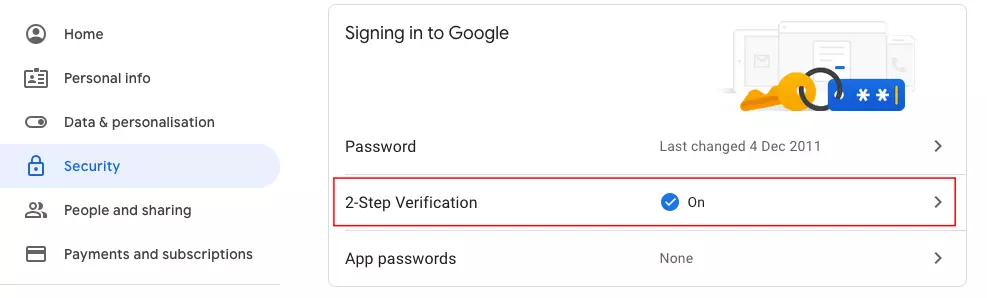
- Your activated identity checks are displayed in the overview.
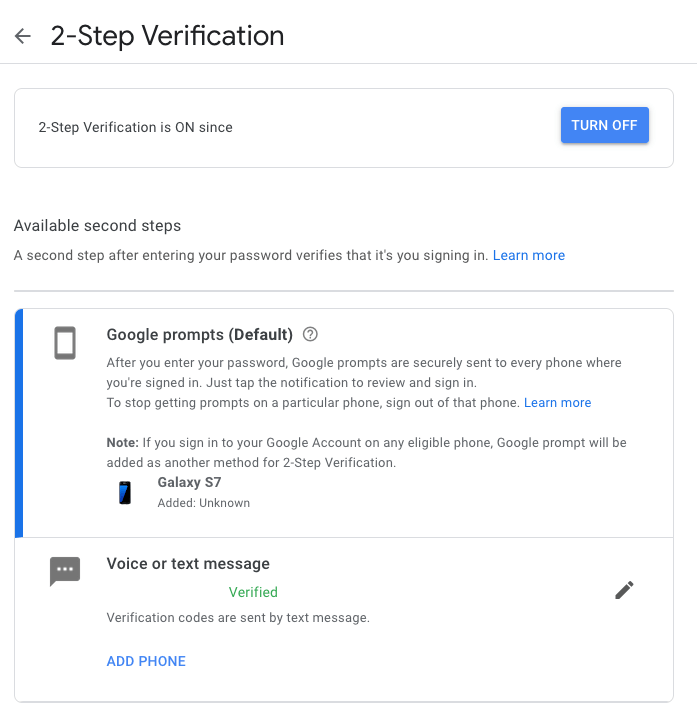
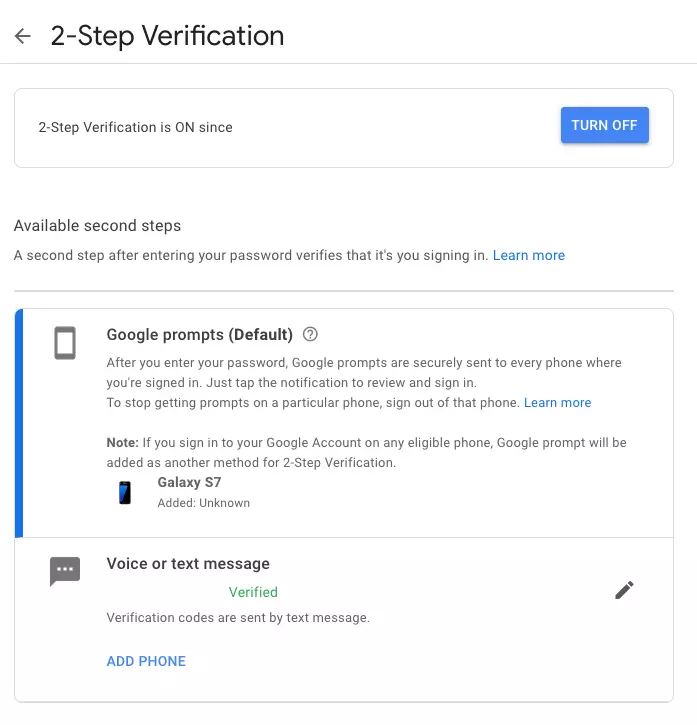
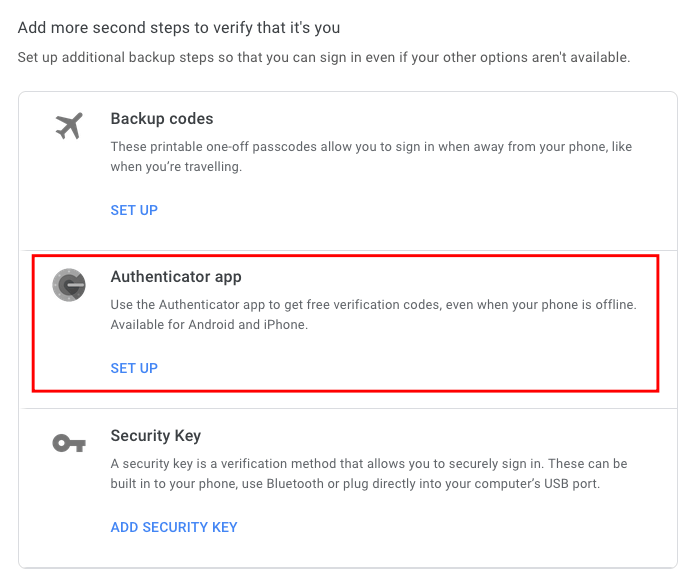
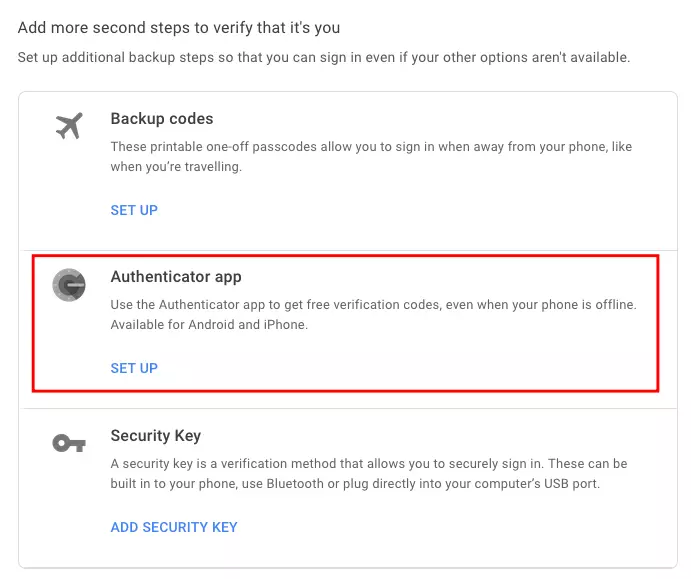
- Scroll down until you see the option to set up additional verification options. Click ‘Set up’ in the ‘Authenticator App’ entry.
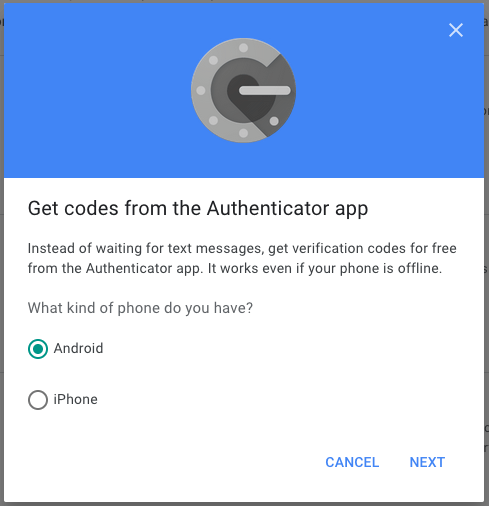
- A pop-up will open. Select your smartphone type - in this case Android - and click ‘Next’.
- Using your smartphone with the Google Authenticator app installed, scan the QR code displayed in the pop-up. Then click ‘Next’ in the pop-up on your computer.
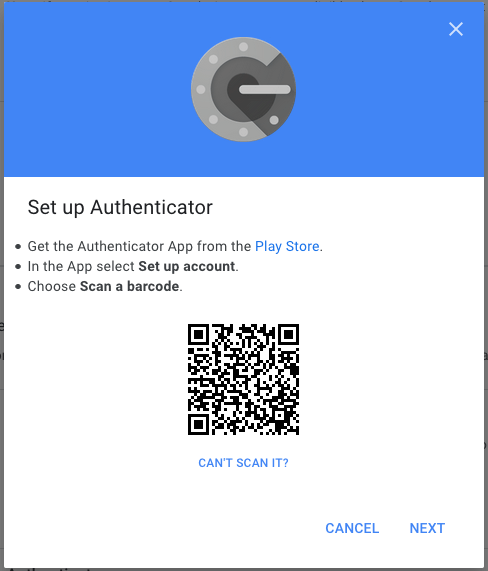
If you’ve selected ‘Enter setup key’ in step 2 instead of ‘Scan a QR code’, please click ‘Can’t scan it?’ here. You’ll receive a key, which you enter in the app alongside your email address to complete the setup process.
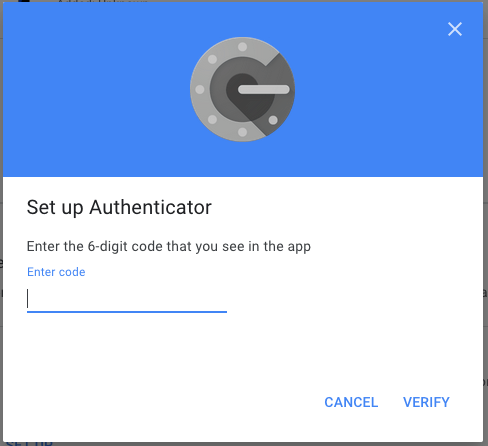
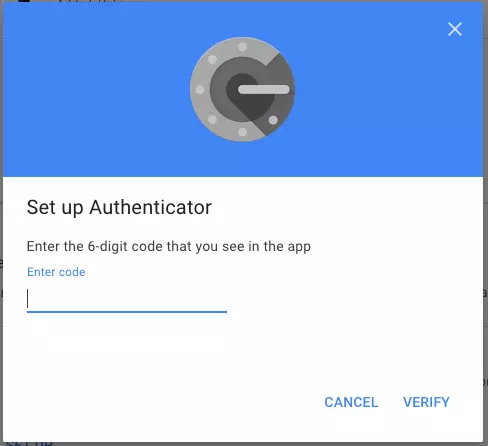
- The app now displays a six-digit code, which you enter in the pop-up. Confirm your entry by clicking on ‘Verify’.
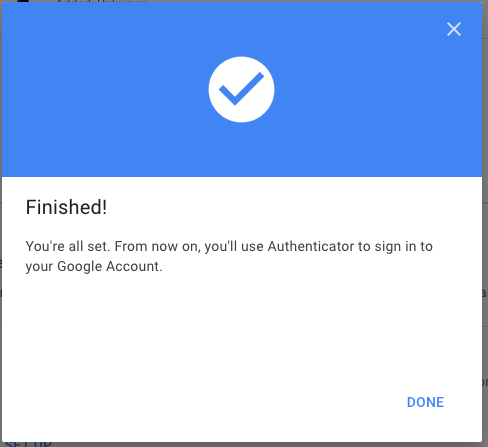
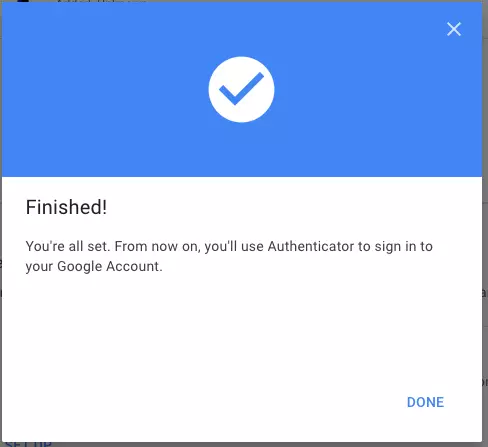
- The setup is concluded.
Once you have set up Authenticator, the app will keep generating new codes at short intervals, which you enter when prompted in the course of logging in to your Google account.
Got a new mobile phone and want to migrate your Google Authenticator? We’ll show you how to do it.
How secure is Google Authenticator?
Generally, two-factor authentication is a significant improvement over simply entering a password. Logging in with the help of the Authenticator app is a secure alternative compared to automated one-off SMS codes. However, much like one-time passcodes (OTP) and time-based one-time passcodes (TOTP) authentication apps have one weakness: they do not prohibit screenshots, which technically could allow unauthorised third parties access by capturing codes when accessing your phone.
That’s a well-established problem and is not unique to Google. Other well-known authentication app makers are well aware too. However, as one of the largest and best-known providers of such authenticator apps, Google continues to work on a solution to fix the issue.