

Archive and compress data using Linux

Behind the phrase “data archiving” is the basic idea of backing up files or entire directories and storing them in a secure location, often in a compressed form. For reasons of data security, archiving was an important factor in server environments at an early stage: Originally server data was stored on tape drives – a backup method which is still used for large data volumes. To make this archiving method as efficient as possible, the packing programme tar (short for tape archiver) was developed for Unix systems in 1979. With the help of tar, files and directories can to this day still be packed into a single data file and then recovered with the user rights still remaining intact – as long as the source and target both support the Unix or Linux data file directories.
For the archiving process to free up additional storage space, .tar-data files are often compressed with the help of different tools, like gzip, bzip2, or lzop. But what are the different compression programmes and formats? And why are they still so important today for systems like Linux tar?
- Automatic backup and easy recovery
- Intuitive scheduling and management
- AI-based threat protection
The most popular compression programmes for Linux
There are a number of free compression tools for Linux distributions that all have one thing in common: they can be operated via command line or terminal. Short commands can quickly compress data files, such as HTML documents, to save storage space and bandwidth when sending via networks or the internet. In addition, there are standard graphic interfaces for these tools, as well as archive managers, which combine several compression programmes – that must be installed as well – into a single visual user interface. Control of the graphic interface obviously requires additional system resources, which is why use of a terminal generally remains the best choice for compression.
The main difference between the individual programmes is the compression rate, which is accompanied by different compression durations. In most cases, however, different modes can also be selected in the tool itself to offer either the best possible storage reduction or the quickest possible compression time. Another feature that differentiates compression software is the output format. Due to the different algorithms used by the various programmes, compressed files have different pack format and require specific programmes to be unpacked.
gzip
gzip (GNU zip) is one of the most used Linux compression methods. The tool especially plays an important role in web development, which is based on the deflate algorithm and was originally developed as a successor to the Unix original rock compress for the GNU platform. Today, the application programmed in C can be used for extracting and packing files not only on Linux, but also on Windows and macOS systems. gzip builds 32,000 bytes (32KB) data blocks, which is why it’s considered obsolete in modern compression programmes.
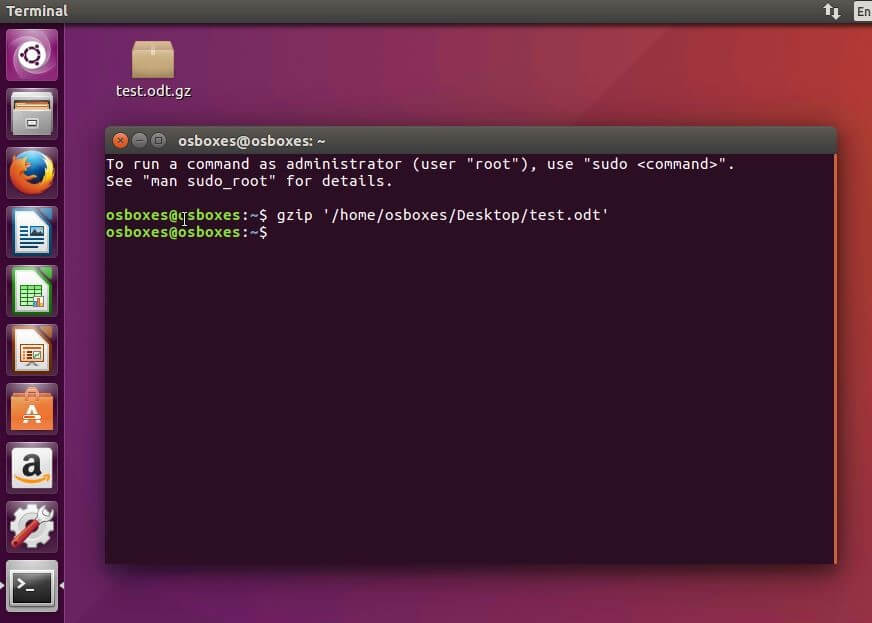
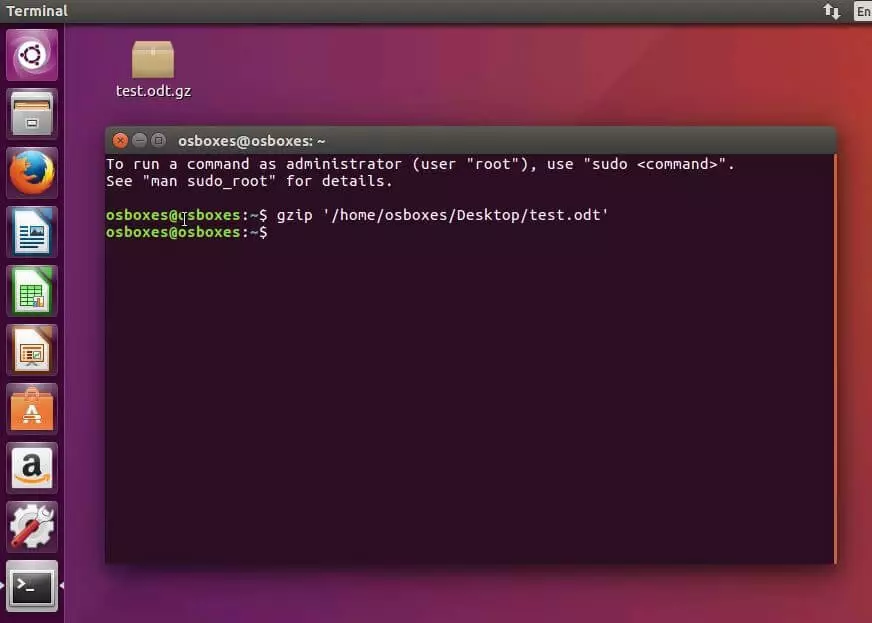
In terms of speed, the free pack programme is still among the top options, which is why common web server software such as Apache, IIS, or NGINX usually implement it in the form of their own modules to answer user queries with compressed data packets in the shortest possible time. Additional information about the functionality and use of the GPL-licensed compression tool can be found in our article on the program.
| Benefits | Drawbacks |
|---|---|
| Fast compression process | Small block size |
| Standard popular web server software | Low compression ratio |
bzip2
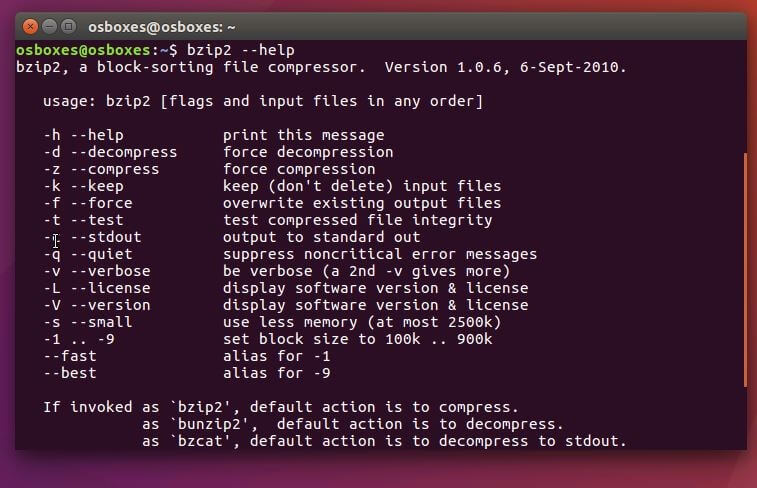
For a loss-free and high-quality compression of files under Linux, bzip2 is almost marketed under a BSD-similar license. The application uses a three-layer compression method: First the Burrows-Wheeler Transformation is used to sort the incoming data into different blocks. These are 900,000 bytes (900KB) each, and then undergo a Move-to-front transformation. Finally, a Huffman coding provides for the actual compression of the data. Files packages with bzip2 are given the formatting .bz2.
 Khakimullin AleksandrShutterstock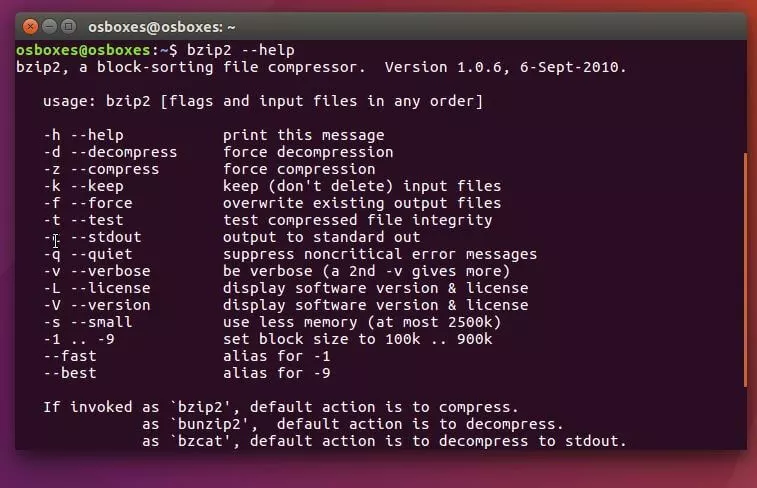
The programme, developed by Julian Seward, trumps other tools by far in terms of compression, but also takes a lot more time to complete the process. One of the biggest advantages is that you can work with partially damaged archives in unpacking bz2. With the help of bzip2recover, you can at least extract and unpack all readable blocks. bzip2 is the official successor of bzip, which worked with an arithmetic code and wasn’t developed further for patent reasons.
| Benefits | Drawbacks |
|---|---|
| Strong compression rate | Very slow |
| Unpacking partially damaged archives possible |
p7zip
p7zip is a portal of the free, LGPL-licensed 7-zip archive programme for POSIX platforms. The portal is the only solution under Linux that fully supports the .7z format. The packing programme is based on the Lempel-Ziv-Markov algorithm (LZMA) developed by Igor Pavlov in 1998, which works with a dictionary method and can, in principle, be regarded as a further development of Deflate (with approximately 50% stronger compression). A created file archive can be split into as many parts as required, with password protection and optional encryption using AES-256 (header).
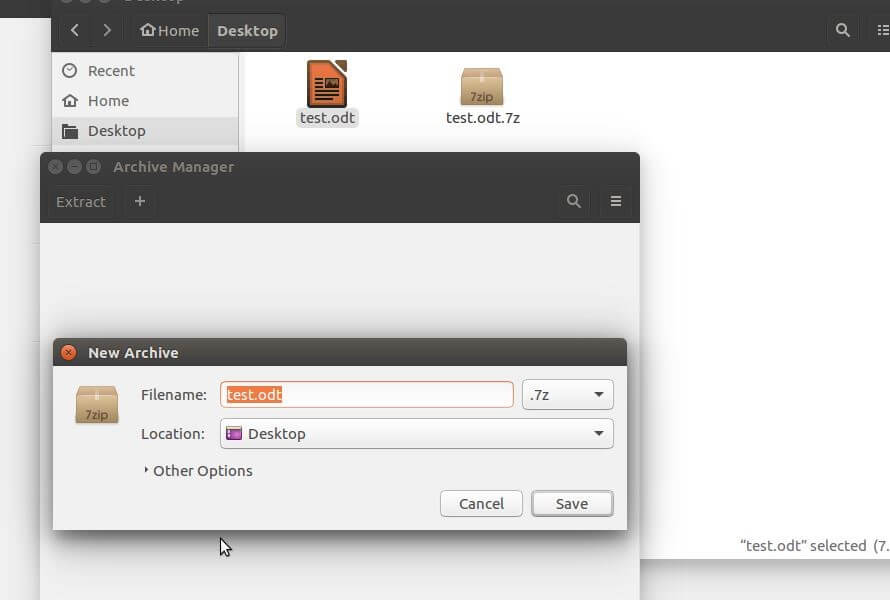
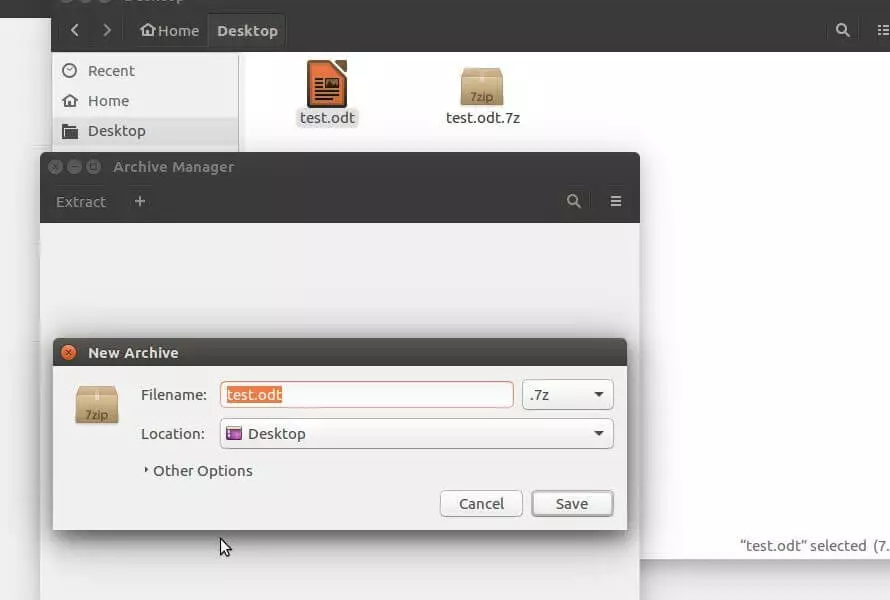
LZMA provides excellent results with its high compression rate, and also performs well in terms of speed. But the archiving tool also places very high demands on system performance. A good processor (at least 2GHz) and sufficient memory (2GB or more) are basic prerequisites, especially for high compression levels. Aside from use via terminal or an archive manager, p7zip-gui also has its own graphic interface for the ported 7-zip application.
| Benefits | Drawbacks |
|---|---|
| Excellent ratio of compression and duration | Very high system requirements |
| Password protection and header encryption possible |
lzop
The compression programme lzop (Lempel-Ziv-Oberhumer-Packer) focuses on the speed of the packing and unpacking processes, just like gzip, and averages even better results than the GNU tool. It’s based on its namesake, the Lempel-Ziv-Oberhumer Algorithm (LZO), which was published in 1996 under the GNU General Public License (GPL). The resource-efficient compression works according to the dictionary method: Repeating strings are replaced by a symbol, which points to the corresponding entry of the same, first-recorded string in the dictionary. The files are processed in blocks of 256,000 bytes (256KB). By default, the original file will remain in the process.
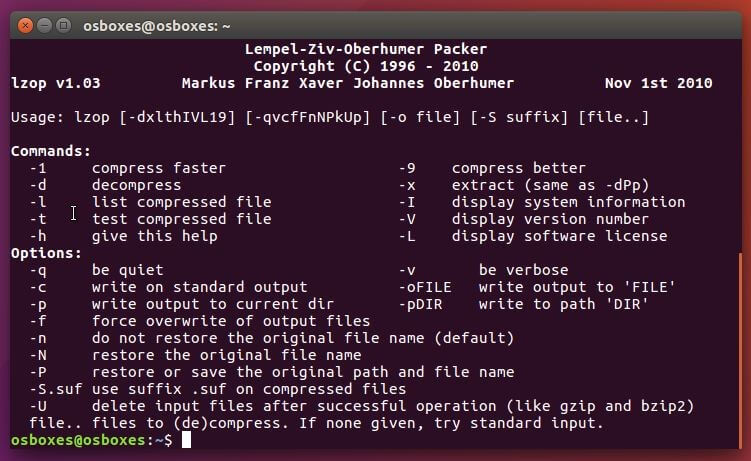
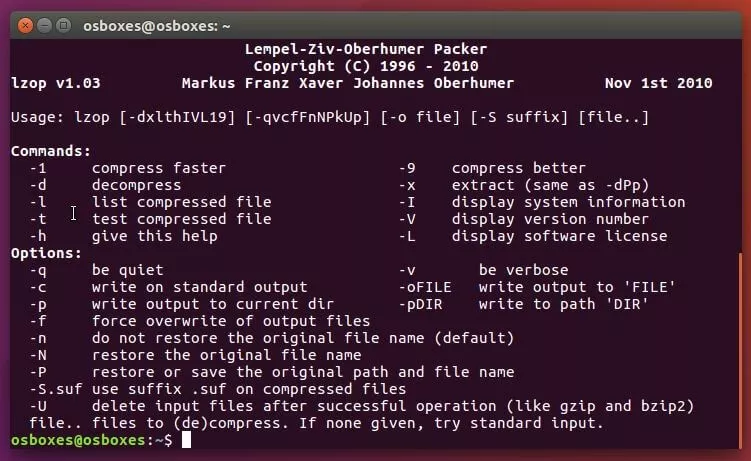
Beside a top-level compression speed and compatibility with gzip, the development of lzop focused on the portability of the software as a top issue. For this reason, versions exist for virtually all platforms, including macOS and Windows. Compressed files contain the format .lzo.
| Benefits | Drawbacks |
|---|---|
| Very quick compression | Compression ratio rather low due to the high speed |
| High portability |
Popular tools and formats: A tabular comparison
| gzip | bzip2 | p7zip | lzop | |
|---|---|---|---|---|
| Operating systems | Cross-platform | Linux/Unix, Windows | Unix-like | Cross-platform |
| License | GNU GPL | BSD-like | GNU LGPL | GNU GPL |
| Compression procedure | Deflate algorithm | Burrows-Wheeler transformation, move-to-front transformation, Huffman coding | LZMA algorithm | LZO algorithm |
| Data format | .gz | .bz2 | .7z | .lzo |
| Encryption | AES-256 | |||
| Compression mode | 1–9 | 1–9 | 0–9 | 1, 3, 7–9 |
| Strengths | Very fast | Very good compression rate | Superb compression rate, compresses file directories | Very fast, compresses file directories |
| Weaknesses | Only compresses single files | Moderate speed, only compresses single files | High system performance demands | Weak compression rate |
The table overview makes it apparent that there is no single indispensable compression tool, but instead demonstrates that the choice of programme depends on the operation scenario. p7zip, for example, has clear advantages, such as the strength of compression rate and the possibility for AES-256 encryption, which is worth quite a lot when security plays a large role. Additionally, p7zip and lzop both allow for the compression of entire file directories, while with gzip and bzip2 only single files can be compressed. On the other hand, p7zip also makes high demands on the system performance, making it less suitable for small-scale compression.
How data compression works with Linux tools
The mentioned packing programmes differ significantly in terms of compression rates and speed. When it comes to the syntax and use of these tools, though, the similarities are noticeable. All programmes can be used without a specific graphic interface or archive manager, via the command line. Beginners can quickly become accustomed to the different parameters and commands. As an example, we’ll show you how to compress files with bzip2 under Linux and then unpack such files in the .bz2 format.
The universal syntax of bzip2 has the following form:
bzip2 Optional file(s)For the standard compression process it’s not necessary to specify options. This is only required if you want to change compression settings, access the overview menu, or unpack a .bz2 file. For example, to pack the text document test.txt, you just need to complete the command
bzip2 test.txtto delete the original file and replace it with the compressed file test.txt.bz2. By placing the documents together, you can also package multiple files with a single command:
bzip2 text.txt test2.txt test3.txtIf you want to decompress a packed document, it’s necessary – as mentioned earlier – to set the corresponding option parameters (-d):
bzip2 –d test.txtHere’s an overview of some other bzip2 command options:
| Command | Description |
|---|---|
| -1 … -9 | Gives the compression rate on a scale of 1 to 9, where 1 is the weakest rate and 9 is the strongest; Default value is 5 |
| -f | Starts the compression, even if a .bz2 file of the same name already exists; in this case, the existing file is overwritten |
| -c | Writes the packed document to the standard output (usually the desktop) |
| -q | Blocks all bzip2 messages |
| -v | Shows additional information, like the compression rate for all processed files |
| -t | Checks the integrity of the selected file |
| -k | If you add this parameter to a compression command, the original file will remain |
| -h | Opens the overview menu |
Reasons for high tar demand
The archiving programme tar has been in operation for over 30 years and has hardly lost any of its value. Partially, this is because the tool allows data to be archived while retaining file definitions. Mainly, though, it’s because it allows for the packing of complete file directories. This makes tar the perfect partner of compressional tools like gzip and bzip2, which only allow for single file data compression.
In the first step, the packing programme compiles all data files in a selected directory into a single archive file without unlinking any of the contained files. In the second step, the files are compressed using one of the specific compression programmes. As a result of this compression, which is either described as progressive, compact, or solid, the archive files are given extended formats, such as .tar.gz (.tgz for short) or .tar.bz2 (.tbz2 for short). The packing programme also allows for the subsequent unpacking of such files (e.g. file type .tar.gz).
Tar archive: How to (un)pack .tar.gz and Co. under Linux
The combination of tar and a compression tool isn’t required, so you can also combine files in an archive that you haven’t previously packaged or don’t want to compress. For example, if you want to bundle the uncompressed test documents test.txt and test2.txt in the same archive named archive.tar, the following command will suffice:
tar –cf archive.tar test.txt test2.txtTo unzip this archive on Linux, replace the –c (create new archive) parameter with –x (extract files from archive). If not only a certain archive component is to be unzipped, then the file(s) can be omitted:
tar –xf archiv.tarAlternatively, if you aim to pack a compressed archive – for example, on the basis of the gzip compression, including the extended formatting .tar.gz – then tar also offers corresponding options. Since the programme has implemented options for compression and decompression with the bzip2, xz, compress, and gzip pack programmes, this is also possible with a single command:
tar –czf archive.tar.gz test.txt test2.txtThe command to unpack .tar.gz differs from the equivalent for uncompressed directories only through the specification of the pack programme parameter:
tar –xzf archive.tar.gzThe parameter –f, which lets you select the respective archive file, must always be in the last place – the following characters are always interpreted as a file.
The most important commands of the archiving application
In addition to the previously listed command options for easy file archiving, there are several additional parameters to specify the pack or unpack process. These include the compression methods already mentioned, options for setting up directories, as well as options for checking and previewing the tar archives:
| Command | Description |
|---|---|
| --help | Access the tar menu |
| -c | Create a new archive |
| -d | Allows you to compare files in the archive and in the file system |
| -f | Writes the selected files to an archive with the specified file name; Reads the data from the archive with the specified file name |
| -j | Compresses archives with bzip2 or unzips same archives |
| -J | Compresses archives with xz or unzips same archives |
| -k | Prevents existing files from being overwritten when they’re extracted from an archive |
| -p | Ensures that access privileges remain during extraction |
| -r | Adds files to a previously created archive |
| -t | Displays the contents of the selected archive |
| -u | Adds only those files to an archive that are younger than their archive version |
| -x | Unzips files from an archive |
| -z | Compresses archive with gzip or unzips same archive |
| -Z | Compresses files with compress or unzips same archive |
| -A | Implements the contents of an archive into another archive |
| -C | Changes to the specified directory to unzip the selected archive |
| -M | Option to create, display, or extra a multi-part archive |
| -W | Checks the archive after the archiving process |
Some options, like adding files to an existing archive (-r), don’t work with compressed archives. These have to be unzipped first.
Examples:
Display the content of an archive
tar –tf archive.tarUpdate contents of an archive (doesn’t include subdirectories!)
tar –uf archive.tar file(s)Expand contents of an archive
tar –rf archive.tar New FileCompare contents of an archive with the file system (run in the archive directory!)
tar –dvf archive.tarFile Roller: the archive manager for GNOME
File Roller is a graphic user interface for various compression tools and packing programmes, which is standard for the operation of command lines. The archive manager is available for the GNOME and Unity desktop environments, and has been distributed under the GNU General Public License since 2001. It allows contents of various archive files to be viewed, as well as for files to be extracted, deleted, or added to them. It is also possible to create new compressed or unchanged files and archives, as well as to convert them to another format. For this purpose, the main window of the software offers various buttons and menus alongside a drag-and-drop function. In addition to tar archive formats like tar.gz, File Roller supports the following formats:
- .7z
- .tar
- .gzip
- .bzip2
- .ar
- .jar
- .cpio
File Roller is preinstalled on some Linux distributions, such as Ubuntu, by default, but can also be installed manually using the respective package manager or from the official homepage. An alternative for the desktop environment KDE is Ark.