Introduction to netstat: what is netstat and how does it work?

netstat provides statistics about all active connections so you can find out which computers or networks a PC is connected to. You can use the network tool for Windows, Linux, and macOS conveniently via the command line.
- Free website protection with SSL Wildcard included
- Free private registration for greater privacy
- Free Domain Connect for easy DNS setup
What is netstat?
Netstat — derived from the words network and statistics — is a program that’s controlled via commands issued in the command line. It delivers basic statistics on all network activities and informs users on which ports and addresses the corresponding connections – TCP and UDP – are running and which ports are open for tasks.
In 1983, netstat was first implemented into the Unix derivative BSD (Berkley Software Distribution), whose version 4.2 supported the first Internet protocol family TCP/IP. netstat has been integrated into Linux since its debut in 1991 and has been present in Windows since the release of version 3.11 (1993), which could also communicate via TCP/IP with the help of extensions. While the parameters of netstat commands (as well as their outputs) differ from system to system, when it comes to their functions, the various implementations are very similar.
Essentially, netstat is a command line program and for this reason doesn’t feature a graphical user interface. Programs like TCPView, which was developed by the Microsoft division Windows Sysinternals, makes it possible for statistics to be displayed graphically.
Why it makes sense to use netstat
Knowing about the incoming and outgoing connections of your computer or server gives you a big advantage in the fight against disproportionate traffic and malicious software. These connections are established via the respective network address, which indicates, among other things, which port was opened in advance for data exchange.
The big problem with these open ports is the fact that they offer third parties the opportunity to sneak malware into your system. Moreover, there is a possibility that a Trojan that is already in your system may install a so-called backdoor and open a corresponding port in the process. For this reason, you should regularly check the ports opened by your system. netstat is excellent for this.
Thanks to the detailed statistics, you can also get information about the packets transferred since the last system start and any errors that occurred. Also, the routing table, which gives information about the data packets’ journey through the network, can be displayed with the help of netstat.
For a meaningful result, all other programs such as your Internet browser should be closed before using netstat, since they often connect to computers that have unknown IP addresses.
How does netstat work?
In Windows operating systems, you can use the netstat services via the command line (cmd.exe). So, in Windows you need the command prompt, which you can start at any time via “Run” by pressing the key combination [Windows key] + [R] and entering ‘cmd’. In macOS and Linux, launch the Terminal to use the network tool.
The syntax of netstat’s commands varies from system to system. However, it basically has the following pattern:
netstat [-a] [-b] [-e] [-f] [-n] [-o] [-p Protocol] [-r] [-s] [-t] [-x] [-y] [Interval]Typical for the listing of the parameters is a preceding hyphen (-), which you only have to put in front of the first link when combining several options:
netstat [-OPTION1] [-OPTION2] [-OPTION3] …If you only use the hyphen with the first parameter, you don’t have to put spaces between the single netstat options!
netstat commands using Windows as an example
| [OPTION] | Command | Description |
| netstat | Standard listing of all active connections | |
| -a | netstat -a | Displays all active ports |
| -e | netstat -e | Shows statistics about your network connection (received and sent data packets, etc.) |
| -i | netstat -i | Brings up the netstat overview menu |
| -n | netstat -n | Numerical display of addresses and port numbers |
| -p protocol | netstat -p TCP | Displays the connections for the specified protocol, in this case TCP (also possible: UDP, TCPv6, or UDPv6) |
| -q | netstat -q | Lists all connections, all listening TCP ports, and all open TCP ports that are not listening |
| -r | netstat -r | Displays the IP routing table |
| -s | netstat -s | Retrieves statistics about the important network protocols such as TCP, IP, or UDP |
The table lists only some of the available commands for using netstat in Windows. See our detailed article on netstat commands for a complete listing — for Linux and macOS, among others.
Examples for the use of netstat
In order to make the use of the listed netstat commands for Windows easier to understand, we will show you some example commands (Windows):
List of all connections for the IPv4 protocol
If you don’t want to retrieve all active connections, but only all active IPv4 connections, you can do this using the netstat command:
netstat -p IPAccessing statistics using the ICMPv6 protocol
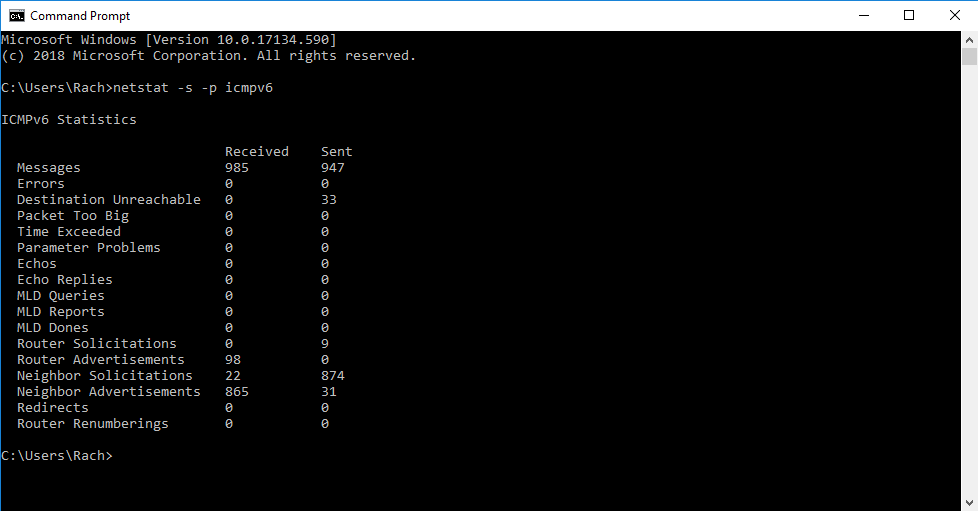
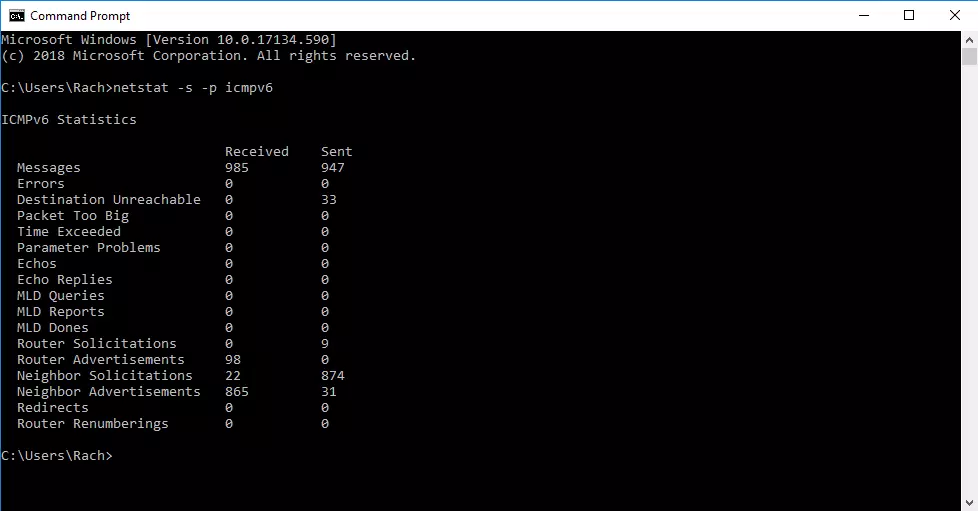
If you only want to obtain statistics on the ICMPv6 protocol, enter the following command in the command line:
netstat -s -p icmpv6The output will then look something like this:
Display of all open ports and active connections (numeric and process ID included)
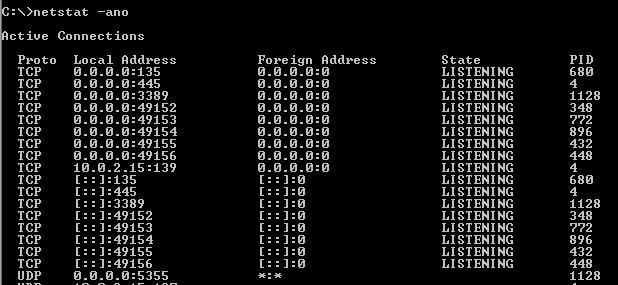
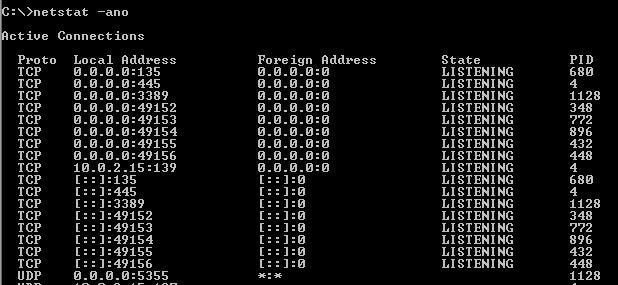
One of the most popular netstat commands is undoubtedly to query all open ports and active connections (including process ID) in numeric form:
netstat -ano