

nslookup: Here’s how the useful DNS check works

As the central directory service for network addresses, the domain name system (DNS) plays an important role in the success of the Internet and World Wide Web. The web of globally distributed DNS servicers (also called name servers) does the important work of ensuring that the names of the different network participants and applications, such as example.org, are converted into numeric and machine-readable IP addresses (and vice versa). In this way, it guarantees that the correct computer or desired website is always reached via the corresponding IP, even if you are unaware of it.
In some situations (when there are issues with the name resolution, for example), it is helpful to look behind the scenes and research the IP address linked to a domain name, or the domain name linked to an IP address. A useful tool for this is the program nslookup, which Windows, macOS, and Linux all feature as a standard installation.
- Faster domain resolution to keep you online longer
- Added protection against outages and downtime
- UK-based name servers
- No domain transfer needed
What is nslookup?
nslookup is a simple but very practical command-line tool, which is principally used to find the IP address that corresponds to a host, or the domain name that corresponds to an IP address (a process called “Reverse DNS Lookup”). nslookup allows itself to be used in the command-line of the operating system in question; Windows users start the service via the command prompt, and Unix users via the terminal window. Additionally, there are now a number of services that make it possible to use nslookup online.
The name nslookup stands for “name server look up.”
nslookup retrieves the relevant address information directly from the DNS cache of name servers, a process which can be achieved through two different modes that the user can choose from. In the noninteractive mode, the tool inspects the resource records (which is what the address entries in the DNS cache are called) that are stored in the local name server, in a standard way. This mode is especially well suited for simple queries, for which a single domain entry needs to be looked up. When you want to use a different DNS server for the research and complete more complex search processes, you need the interactive mode, in which the command-line program needs to be started separately at first.
Unlike the wide range of other command-line programs from Windows/DOS, nslookup has the case-sensitive parameter “-q”. In other words, a parameter in which capitalisation or lack thereof are relevant.
What can nslookup be used for?
There are different scenarios in which the use of nslookup is appropriate. In this way, the command-line program is an especially crucial tool when resolving DNS issues. First and foremost, a data query helps find the cause of the problem at hand. For example, those who use Windows and experience an issue with the active directory can use nslookup to quickly and easily check whether all involved servers are converted in the domain name system as planned. Generally, this program shows its strengths when various subdomains are involved – not only when it is simply a matter of checking them, but also when there are connection problems.
Another typical scenario is the search for optimal mail servers SMTP, POP, IMAP) for a desired domain. In this case, nslookup determines the servers in question on the basis of the MX-Records (mail exchanger) that belong to the domain of the e-mail provider. These entries contain the IP addresses and names of the provider servers, which subsequently only need to be specified during the configuration of the mail clients to perfect the routing of the electronic mail service.
Here’s how nslookup functions in Linux, Windows, and macOS
To use nslookup on Mac, Windows, or Linux computers, the first step is to open the command-line of the operating system in question. After that, there are two previously introduced modes to mobilise the DNS tool for your purposes:
- Interactive mode: start nslookup with the command of the same name and subsequently add the parameters separately
- Noninteractive mode: directly enter the nslookup command as well as the desired parameters
The most appropriate approach depends on your available know-how. If you are familiar with the necessary parameters, there is nothing stopping you from carrying out the desired DNS server query in a single step (as long as the DNS server doesn’t need to be switched). Beginners who first need to get to know the service can ease the transition by starting nslookup and then learning about syntax and parameters step by step. Retrieving available options with the “help” command is possible and very helpful in the interactive mode.
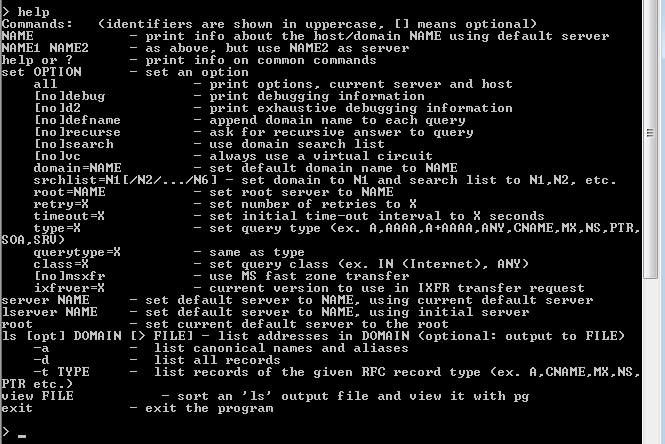
To close nslookup after the query, simply give the “exit” command, or close the command-line. Alternatively, the [CTRL] + [C] key combination does the trick.
nslookup: Examples of how to use the query tool
If you have begun by starting nslookup in a single step, the command-line will wait for the entry of further commands. Now, users have the opportunity to complete queries with the standard setup or to determine individualised options. For the former method, simply enter the domain name for which you want to find out the IP address (or vice versa) into the command-line and confirm your choice by pressing the enter key. nslookup, for example, presents the following result in the search for the address to the example.org domain:


In this case, a “non-authoritative answer” notification is given, as the local DNS server was unable to answer the query itself, and instead had to contact one or more other name servers. The content of the nslookup results are the IPv4 (four-figure) and IPv6 addresses (longer, divided with colons) of the example domain.
For individually configured nslookup queries in the interactive mode, see the following two examples.
Retrieving specific addresses out of the resource records
nslookup is fundamentally set up for the query of IPv4 and IPv6 addresses. However, as previously mentioned, the command-line tool can retrieve other address types of a domain through its method of accessing the DNS entries. To this end, the user must next set the desired type, before they can enter the domain name into the command-line. The syntax of the corresponding nslookup commands looks like this:
set type= <RESOURCE RECORD TYPE>The “resource record type” corresponds to the desired type of query, some of the options for which are included in the following chart:
| nslookup parameter values | Type of query |
|---|---|
| A | IPv4 address |
| AAAA | IPv6 address |
| MX | Domain name mailserver (mail exchanger) |
| NS | Domain name name server |
| PTR | “Pointer” entry (pinpoints the host name that corresponds to an IP address) |
| SOA | “Start-of-Authority” entry (details about the administration of the DNS zone) |


Switch DNS servers for accurate results
It is standard procedure for nslookup to contact the local DNS server, which is usually predetermined by the router, or rather the Internet provider. But using it for the query can occasionally result in inaccurate results, for example, because the server being searched for is not listed in the cache of the local name server. Luckily, the command-line tool provides the option to choose the DNS server you want to use for the query yourself. If you choose the server that is connected to the corresponding domain, you even receive authoritative answers. This firstly involves finding the name server or name servers in question, by setting the “NS” query type and then entering the domain name to be shown the DNS entry:
set type=NS
    example.org
In this nslookup example, the tool offers up two possible name servers (“a.iana-servers.net” and “b.iana-servers.net”), as the following screenshot shows:


One of the two presented name servers must next be designated as the standard server, so that future queries are completed through it. The corresponding command is composed of the “server” parameter and the name of the desired server. Accordingly, these two commands are possible for the nslookup example in question:
server a.iana-servers.netserver b.iana-servers.netThe last step requires the user to change the query type, which is still set to a name server search, to the desired address query, such as “A” for the domain, “MX” for the mail server IP check, or “ANY” for an overall check (used here):
set type=ANYIf you once again enter example.org to start the query, nslookup provides extensive DNS data for the example domain, for which the name server that has been designated as standard server (here, a.iana-servers.net) is the data source:
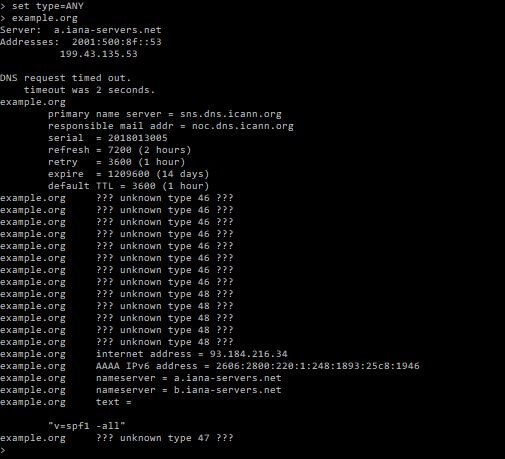
The authoritative and accurate answer received this time around shows, among other things, the previously mentioned name servers and the primary name server, from which the DNS data was retrieved.
DNS server query in a browser with nslookup online tools
Conducting DNS server queries with nslookup doesn’t necessarily require the tool to be run on your own system. The web features various applications that provide these resources. In this case, the IP address (or rather, domain name) then occurs on a different computer – guided by your own browser. Two nslookup examples of such web applications are ping.eu and centralops.net.
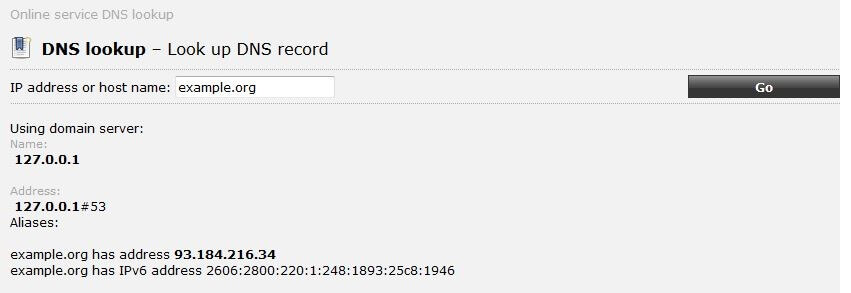
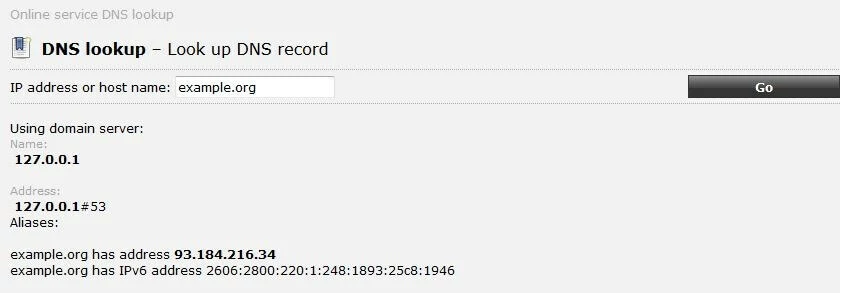
ping.eu limits itself to the basic function of nslookup. After entering an IP address or a host name, the tool offers up the corresponding counterpart:
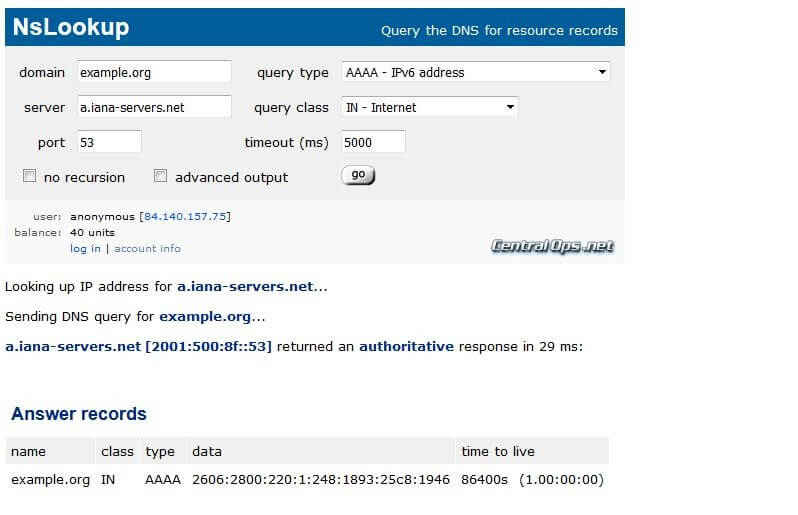
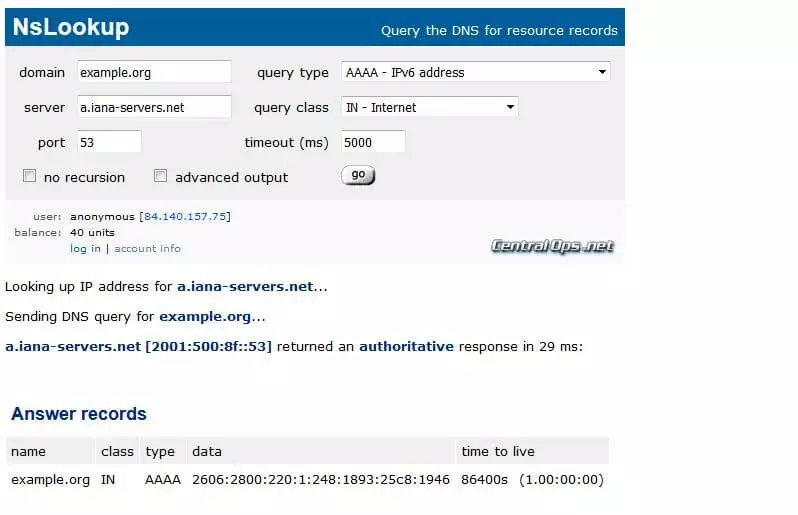
In the tool provided by centralops.net, nslookup lets itself be used in interactive mode online as well. This way, users can enter the name server of their choice instead of using the provider’s standard DNS driver, switch the port, or determine the query type. It is also possible to receive authoritative answers in this process, just like in the previous nslookup example.
ping.eu as well as centralops.net offer additional network tools, such as Traceroute or WHOIS.