

Telnet

Telnet can be used to access other computers or network services. To do this, however, you must first enable the protocol in the Windows features.
- Free website protection with SSL Wildcard included
- Free private registration for greater privacy
- Free Domain Connect for easy DNS setup
What is Telnet?
Telnet is a client-server protocol based on character-orientated data exchange over TCP connections. Telnet allows remote control of computers via text-based input and output. For this purpose, a client-server connection is established by default via the TCP protocol and the TCP port 23, where the remotely controlled device acts as a server and waits for commands.
The Telnet client — the controlling entity in this procedure, also known as remote access or remote login — can be installed on a special device as well as on an ordinary computer. However, depending on the terminal device, the presentation of the transmitted data information differs.
The protocol of the TCP/IP protocol family can also be used to control applications that do not have any graphical user interface.
As early as 1969, during the time ARPANET was worked on for nine months, the development of Telnet (Teletype Network) was basically finished. However, it was not until 1973 that the protocol, which allows access to remote computers, received its final specification in RFC 495 (Request for Comments). As an official standard of the Internet Engineering Task Force (IETF), it was implemented by most platforms. Core protocol and basic working methods and extensions are described in the more recent RFC 854 and RFC 855 standards.
How and where is Telnet used?
Telnet is always required when you need to connect to another computer or network component. Everything takes place via the text-based command line. In the past, this was especially helpful for sharing the services of mainframe computers. But even today, Telnet is still used to manage networks, use applications, and share databases, albeit less and less frequently.
Access to databases
Over many years, Telnet also played a crucial role for institutions that work with large databases. For example, in libraries, the protocol was an elementary building block of online catalogues published in the 1980s, which are better known as OPAC (Online Public Access Catalog). Initially, these digital publication databases were still accessible in the libraries’ local networks via terminals. As the Internet started becoming more and more successful, it was also possible to access them via locally usable web interfaces, whose communication means was supported by the Telnet protocol in many cases.
Interaction with programs on application servers
Another deployment scenario, for which Telnet clients were typical, was the access to text-based programs on an application server. For example, the Free Internet Chess Server can still be used today via Telnet connections. Using text input, you can select from the available opponents and also move your pieces around the board. Meanwhile, graphical interfaces such as the Jin Applet or Javaboard, which enable playing pieces to be moved with the mouse, have replaced the text-based input.
Administration of networks and servers
Telnet has always been a practical protocol for network and server administrators. The ability to remotely manage devices on the network is ideal for administration tasks, especially because the protocol is supported by almost all devices. It can also be used to check the availability of certain ports or to detect errors on e-mail servers (SMTP, port 25) by sending an e-mail directly from the server. The Telnet solution is an effective method for configuring servers e.g. a web server: changes to the directory structure, the file access rights, or the password, can be implemented quickly and easily.
- KVM based dev servers for developers
- Scalable to enterprise cloud level
- Pay-as-you-go, per-minute billing
The advantages and disadvantages of the Telnet protocol
Since Telnet connections are practically standard TCP connections, the client can be employed to use or test other services that rely on TCP as a transport protocol. For example, with a simple request, you can check the functionality of an HTTP server or (as mentioned earlier) the status of an email server.
This versatility is enhanced by the fact that the connection protocol can be used across platforms. There are only a few devices that do not support the official IETF standard. Whether or not the client and server computers rely on the same operating system is also irrelevant. A further advantage of Telnet is that it allows unrestricted access to a controlled system’s resources if permission has been given.
However, Telnet has a high security risk: both the connection setup and the data transfer are not encrypted when using the Telnet protocol. All information you send can therefore be intercepted by third parties in plain text, including the login information required for remote access. This means that hackers won’t have much trouble taking over the system. A secure alternative to Telnet is Secure Shell (SSH).
An overview of the advantages and disadvantages:
| Advantages | Disadvantages |
| ✓ Telnet client is versatile | ✗ Unencrypted data exchange |
| ✓ Can be used cross-platform | ✗ Full access makes it easier for hackers |
| ✓ Unlimited access to target resources | ✗ Only few servers can be reached via Telnet |
Enable Telnet
The client must first be enabled on Microsoft operating systems from Windows Vista onwards. We explain step by step how to activate Telnet on Windows 10 and Windows 11.
If you want to get started right after enabling Telnet, we recommend checking out our overview of Telnet commands.
Enable Telnet on Windows 10
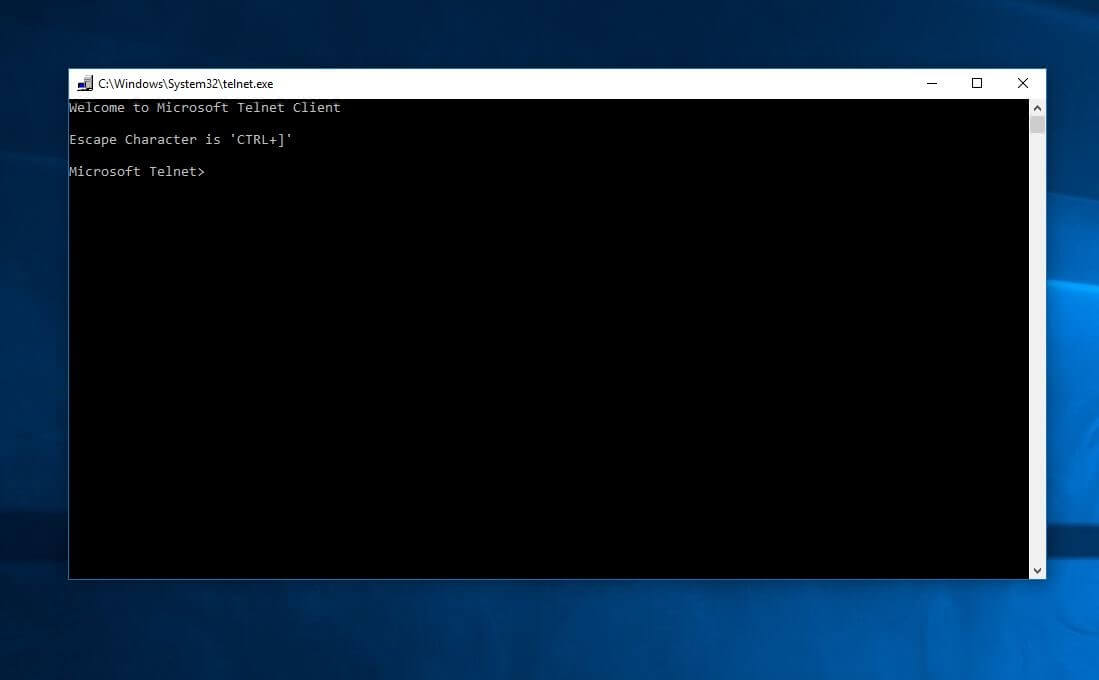
Like its predecessors, Windows 10 has the remote program by default, but it’s disabled. You can enable it via the Windows features; for operation, you then only need to open the command prompt.
- The first step is to open the overview of installed programs and features. For this purpose, access the system control via the start menu or press the [Windows key] + [X] on your keyboard. Next, select ‘Programs and Features’.
- Via ‘Optional features’ and ‘More Windows features’ you reach the settings of the Windows features.
- You can activate Telnet by placing a tick in the corresponding box and confirming your selection by clicking ‘OK’.
- After a short loading process, you will receive a message that Telnet has been successfully enabled and is ready for use.
- Now open the command prompt, for example, via Windows Search.
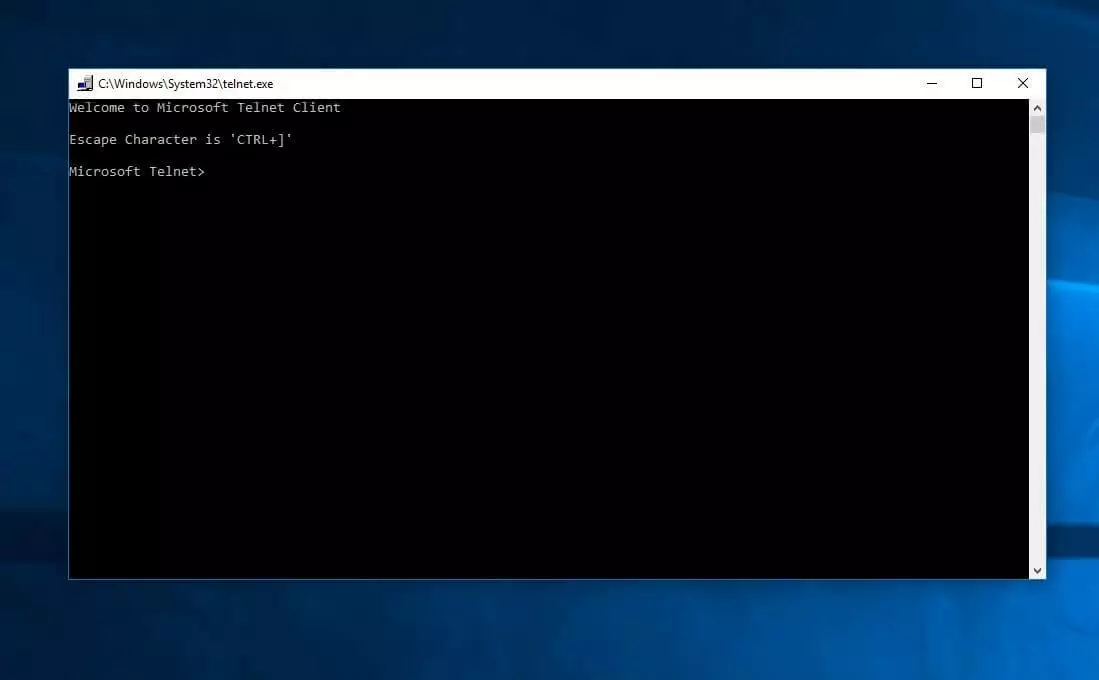
- Start the service by entering ‘telnet’ in the command line.
Enable Telnet on Windows 11
You can also enable Telnet in Windows 11 with just a few clicks:
- Open the Windows settings, either via the Start menu or the search function.
- Then switch to the ‘Apps’ tab and select the ‘Optional features’ menu item.
- Now scroll down to the item ‘More Windows features’.
- In the new window, scroll down to ‘Telnet client’, tick the box and confirm with ‘OK’.
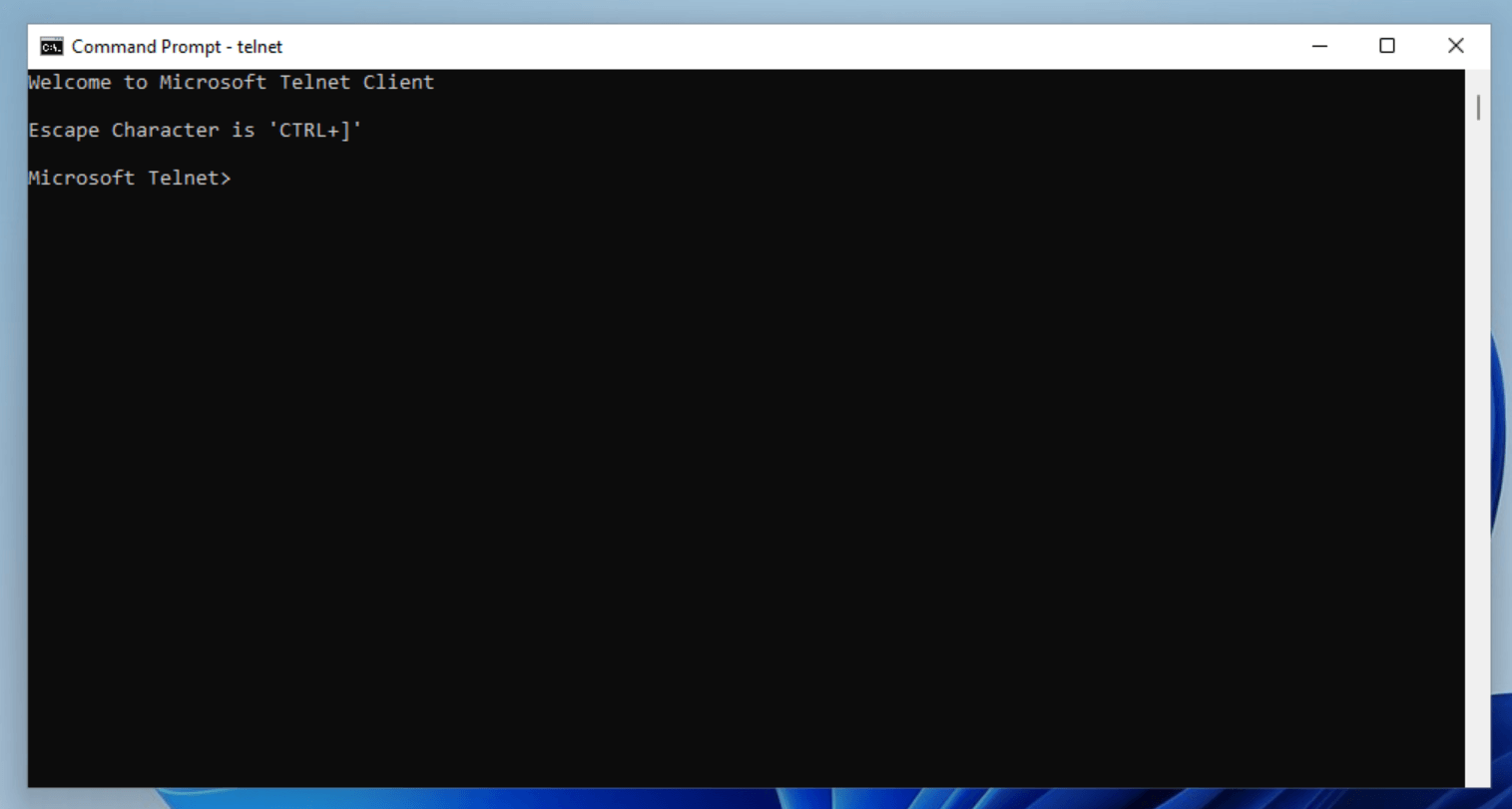
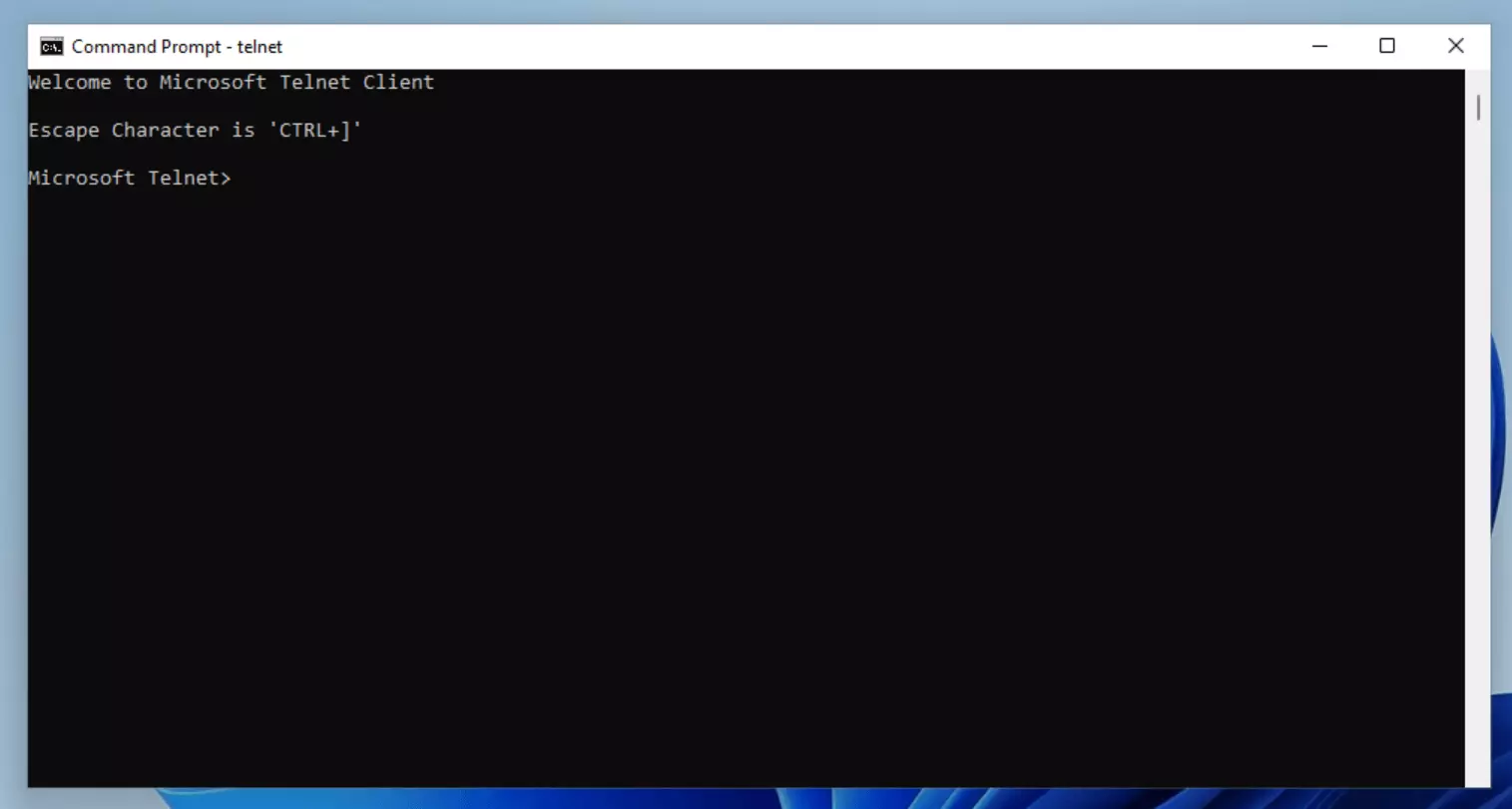
- Now open the command prompt and start the protocol with the command ‘telnet’.
When it comes to remote connections, the Telnet protocol has been top of the list for a long time thanks to being practical and simple to operate. However, growing demands regarding the security of managed and transmitted data have made the protocol unsuitable and unacceptable for many scenarios. Remote connections on the Internet today are mainly based on the encrypted SSH protocol (Secure Shell), which is a much safer protocol thanks to its public-key authentication. However, Telnet is still a suitable solution for devices with limited operating systems that do not enable SSH server operation. A popular client software that simplifies remote access based on both protocols is PuTTy.
- Loading 3x faster for happier customers
- Rock-solid 99.99% uptime and advanced protection
- Only at IONOS: up to 500 GB included