

What is iCloud Drive? Application and setup explained
With the iCloud Drive application, you can optimise the use of Apple iCloud regardless of location, file format and device.
What is iCloud Drive? An overview
iCloud Drive is a storage application available for almost every device that allows you to optimise the use of Apple’s iCloud service.
- Available for iOS, macOS and Windows devices
- Allows the upload of all common file formats
- 5 GB storage free of charge, upgrade possible for a fee
IONOS offers its own secure online storage with HiDrive.
What is iCloud Drive? In detail
Since 2011, Apple has offered its own solution for backing up photos, videos, and other data through the online storage service iCloud. Alongside this, iCloud Drive was launched and has been continuously improved. While iCloud primarily serves as online storage, iCloud Drive is an app designed to simplify automatic backup on Mac, other Apple devices, and even Windows devices, as well as streamline the saving, editing, and sharing of various file formats. You have access to the amount of storage you’ve subscribed to, with 5 gigabytes always available for free.
How does iCloud Drive work?
You use your Apple account (formerly Apple ID) to log in to iCloud Drive and save files or access existing data in iCloud. You can sign in with one account on multiple devices. Apple applications such as Keynotes and Numbers in particular are compatible with iCloud Drive. This means that you can open, edit and save files directly in iCloud Drive. Changes made to a file are synchronised directly on all devices. This makes it possible to work across devices, even with several people. Share specific folders and files and create links so that people without iCloud Drive can also access them.
Work more efficiently in a team! With Microsoft 365 Business and Google Workspace from IONOS, you get comprehensive solutions that allow you to work flexibly in a network anywhere and on any device.
The functionality and operation of iCloud Drive is similar in many ways to other popular cloud solutions. You can find out which providers are available and how the various solutions differ in our detailed cloud storage comparison.
Storage size and pricing for iCloud Drive
The iCloud Drive application is available to you at no cost. You receive 5 GB of storage space in iCloud for free. Additional space can be purchased for a monthly fee:
- 50 GB storage space for €0.99 (around £0.80)
- 200 GB storage space for €2.99 (around £2.50)
- 2 TB storage space for €9.99 (around £8)
- 6 TB storage space for €29.99 (around £25)
- 12 TB storage space for €59.99 (around £50)
You can find out what else this paid upgrade, which Apple offers under the name iCloud+, has to offer in our Digital Guide. We have also compiled a detailed description of the possibilities of iCloud for you.
How to set up iCloud Drive
iCloud Drive is available for iOS 13, macOS Catalina but also Windows devices. For the latter, Apple recommends at least Windows 10 as the operating system. iCloud Drive often also runs on older versions of all operating systems, but usually only with limited functions. The paid iCloud+ version requires at least iOS 10 or macOS Sierra, but Apple recommends using modern operating systems to ensure the full range of functions.
iCloud Drive for Apple devices
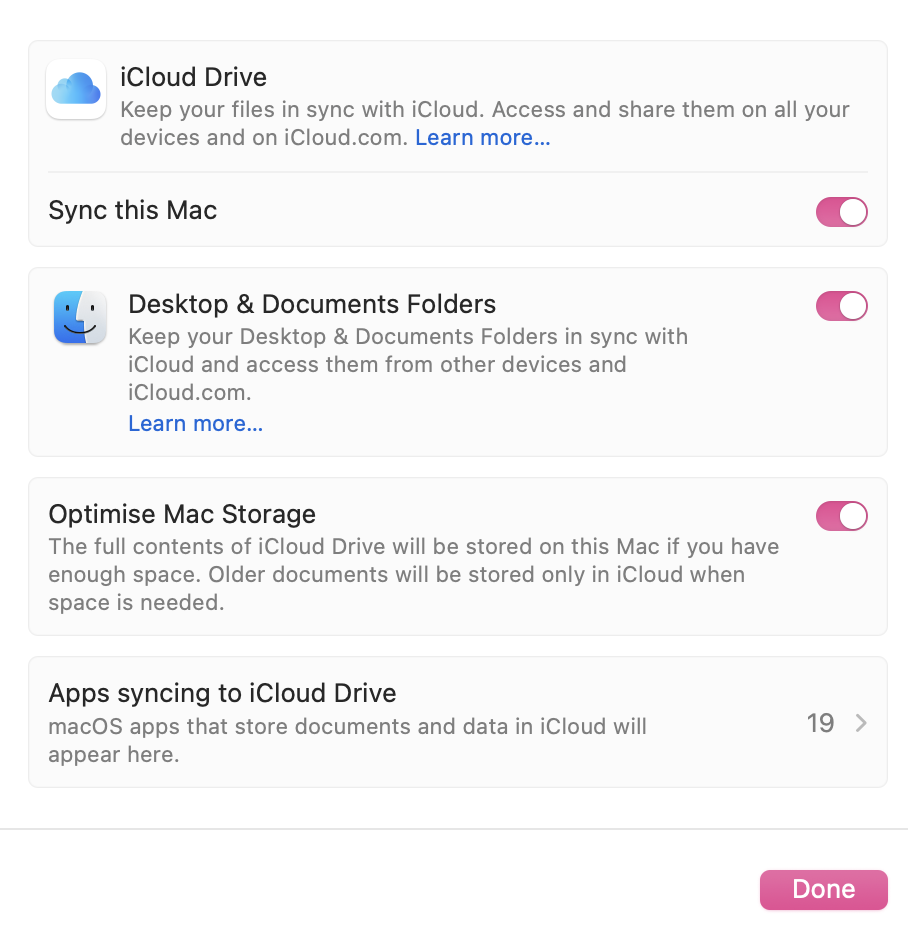
iCloud Drive is installed directly on Apple devices – you can ensure it’s always up to date by installing regular system updates. When you log in to an Apple device for the first time, you’ll be asked for your Apple account. In the next step, you specify which content is automatically saved to the cloud via iCloud Drive. You can make subsequent changes via System Preferences and your Apple account.
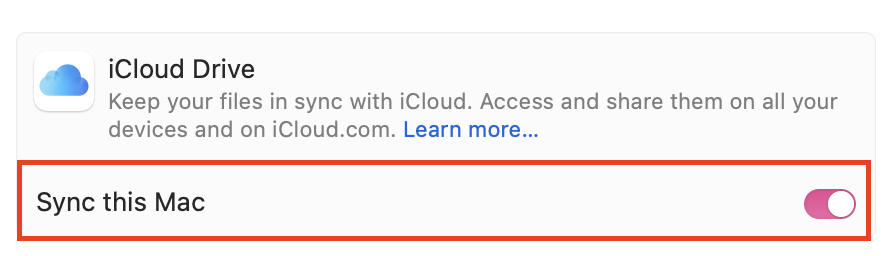
On your iPhone, you can access the folder structure via the ‘Files’ app – there you’ll find the ‘iCloud Drive’ section. On your iPad and Mac, select ‘Go’ > ‘iCloud Drive’ in the taskbar at the top.
iCloud Drive for Windows
On Windows devices, you can use the iCloud Drive web client. To do so, log in to icloud.com with your Apple account. You can then manage all folders and files in the cloud in your browser. Alternatively, you can download the ‘iCloud for Windows’ application from the Microsoft Store and log in with your Apple account credentials to use the service.
- Store, share and edit data easily
- ISO-certified European data centres
- Highly secure and GDPR compliant