

Quotation templates: best tips and examples

Non-binding written offers aim to demonstrate the value and terms of your service to potential customers. A clear and professional presentation is key. Free quote templates include all essential elements, so you only need to add your company details, offer conditions, and the recipient’s contact information.
- Free WordPress with .co.uk
- Free website protection with one Wildcard SSL
- Free Domain Connect for easy DNS setup
What are quotation templates?
Quote templates are pre-designed documents that provide the basic structure and essential components of a pricing estimate. When a customer requests a price for a product or service, the provider typically responds with a quotation outlining the expected costs, although it is not necessarily legally binding. In the UK, whether a quotation is binding or non-binding depends on the wording and terms included.
Generally, a quotation is an estimate rather than a firm commitment. However, if it clearly defines pricing, terms, and acceptance conditions—and the recipient accepts it without modification—it may form a legally enforceable agreement. To avoid unintended obligations, businesses often specify whether a quotation is binding or non-binding. Including a disclaimer such as: ‘This quotation is for informational purposes only and does not constitute a binding contract until a formal agreement is signed by both parties’. can help clarify the intent. Given the volume of inquiries many businesses receive, using quotation templates is a common practice. These templates provide a structured format with placeholders for essential details, which can be easily customised. Quotation templates are typically available as Word or Excel documents, but they also exist for other office suites.
In theory, a response that includes a price proposal for the requested service can also be given verbally, over the phone, or via email. However, the safest approach is to provide a written offer, including a copy for your own records. This ensures that both parties have a tangible reference in case of any disputes during the business transaction.
What goes into a good quote template?
When creating your first quote, the challenge is including all relevant details while keeping it clear and professional. A well-structured layout helps ensure your quote is easy to read and understand. At the same time, it’s essential to cover all key points to demonstrate credibility and avoid misunderstandings.
While quotes are typically not legally binding in the UK, inaccurate or incomplete information can still lead to disputes. To minimise risk, make sure your quote clearly states pricing, terms, and whether it is binding or non-binding.
A well-structured template for quotations in Word or Excel should be tailored to the occasion and include the following key components:
- Complete company name and contact details
- Recipient’s contact details
- Date of the quotation
- Description, quantity, and price of goods or services
- Possible discounts
- Expiration date (valid until)
- Terms and conditions
- Applicable taxes
- Payment terms
- Delivery charges
- Conditions of delivery
- Time frame for delivery
- Legal disclaimers (if necessary)
There are also some elements that may be useful or necessary in certain industries. One key component is the acceptance period, which defines the timeframe between the creation of the quotation and its expiration date.
If the quotation is subject to specific conditions, these should also be clearly stated in the document.
To make it easier for the recipient to get in touch, it is helpful to include additional contact details such as a phone number, email address, or website. Listing a direct contact person or the individual responsible for preparing the quotation is also common practice.
- Write perfect emails with optional AI features
- Includes domain, spam filter and email forwarding
- Best of all, it's ad-free
How to create a quote using a template
You can save time by using templates to create your quotes. Regardless of which template you choose, there are a few important steps to follow. It’s easy to overlook placeholders or forget to replace example text so it’s important to be extra careful.
Take your time and first review the structure and key components of the selected quote template before filling it out.
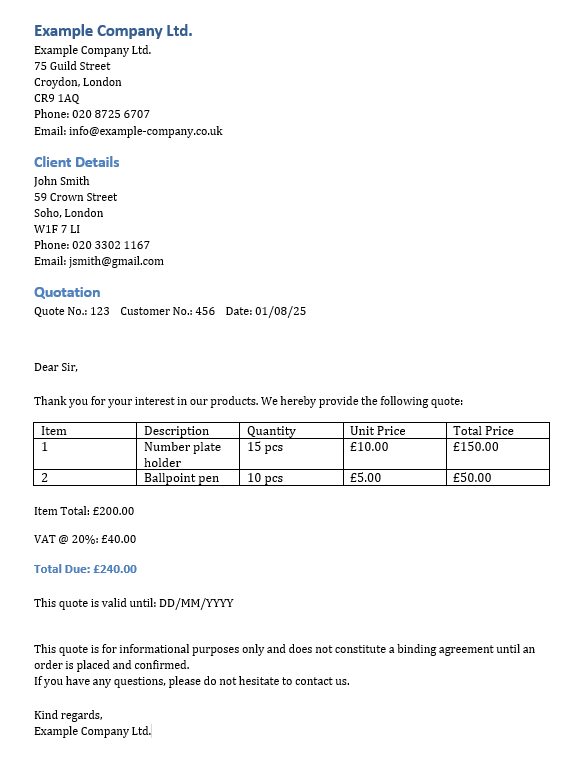
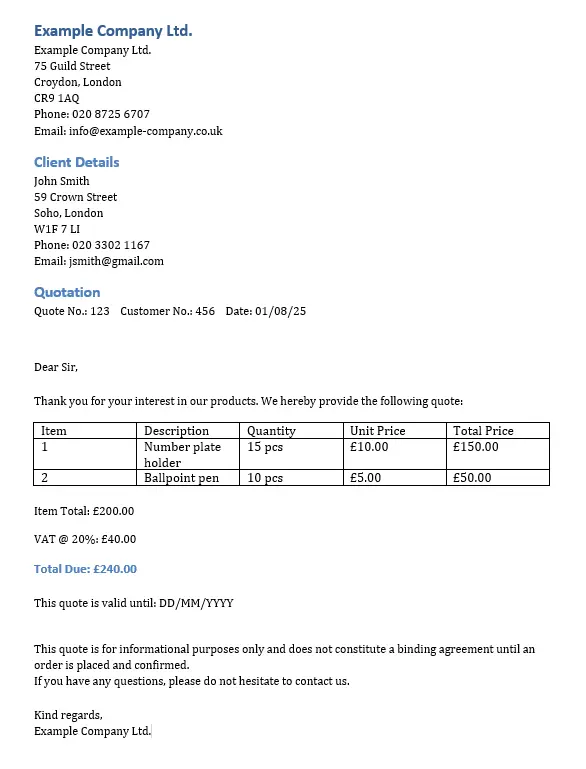
To show how to use a template properly, we’ll now walk through an example using a template for a quote.
Free download
After downloading, open the selected template like any other Word or Excel document by double-clicking it. The following guide will walk you through the necessary adjustments to personalise the quote template and create a customised document for your client.
- Enter the company address in the top left-hand corner, and enter the recipient’s information underneath.
- The area in the top left can also be used for any additional information you want to give, such as a phone number or email address, so that potential customers can get in touch with you more easily.
- The subject is located on the right. It should immediately convey to the reader what the document is about. Instead of the standard Quotation as written here, you can customise it by adding a date (Quote from 05/04/2025) or referencing the product or service being offered (Our Quote for Your Flight from London to Paris).
- Underneath is where details about the quote are included. This is information such as the quote number, customer number, and the date.
- Underneath the details is where you have room to contact the recipient directly and to thank them for their interest in your products or services.
- Enter the details of your quote in the table provided by simply filling out the columns for ‘description’, ‘quantity’, ‘unit’, ‘price per unit’, ‘VAT %’, ‘VAT’ and ‘total’. You can also expand the table by adding more columns or rows if you wish.
- After you’ve listed all the products or services, this is where you include the amount, first without VAT and then with VAT added.
- The following text line can be used to provide the recipient with additional information about the quote, such as the acceptance period, special discounts, or early payment discounts.
- The lower section of the quote template is intended for the footer text. Here, you should include your full company details one last time—optionally including your phone number, email address, or website. Banking details can also be included.
- Once you have made all the necessary changes, you can save the quote template and print the finished quotation. If you want to send the quotation by email, simply select the PDF format.
Please note the legal disclaimer for this article.