

Firefox screenshots made easy

You can take a Firefox screenshot effortlessly with Mozilla’s built-in screenshot feature. Our step-by-step guide explains how to take screenshots of a page, screen or selected areas using the tool or shortcut.
- Free website protection with SSL Wildcard included
- Free private registration for greater privacy
- Free Domain Connect for easy DNS setup
Quick reference guide: taking screenshots in Firefox
- Right-click on the page in question or use the shortcut [Ctrl] + [Shift] + [S].
- Select the screenshot area with the selection tool.
- You can also click 'Save full page' or 'Save visible.'
Screenshots in Mozilla Firefox with an integrated tool
Screenshots, can be used to illustrate processes, document technical problems on a PC, or share communications. Until now, Firefox users had to use special add-on screenshot tools or the Windows and Mac screenshot functions. Those days are over. The Firefox browser has had an integrated screenshot tool since the release of Firefox 56. For those of you who miss the screenshot icon after it was removed from the search bar with the release of Firefox 88, don’t worry: the feature still exists. Just follow our instructions on how to use it.
Right-click Firefox Screenshot
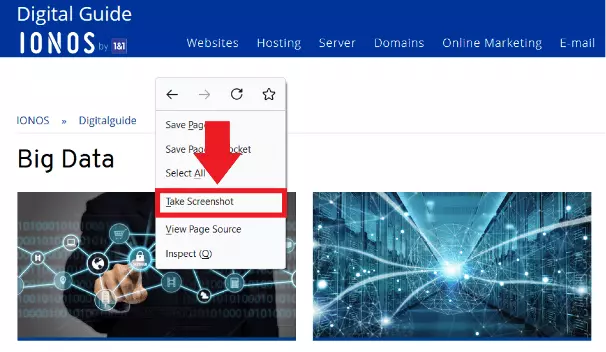
Step 1: Go to the page that you want to screenshot in Firefox. Right-click on an empty part of the page. A pop-up menu will open, and you can select 'Take Screenshot'.
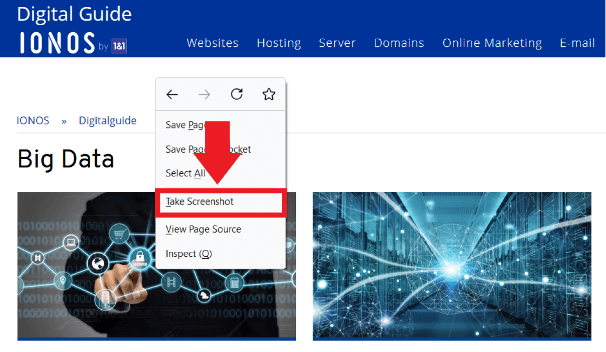
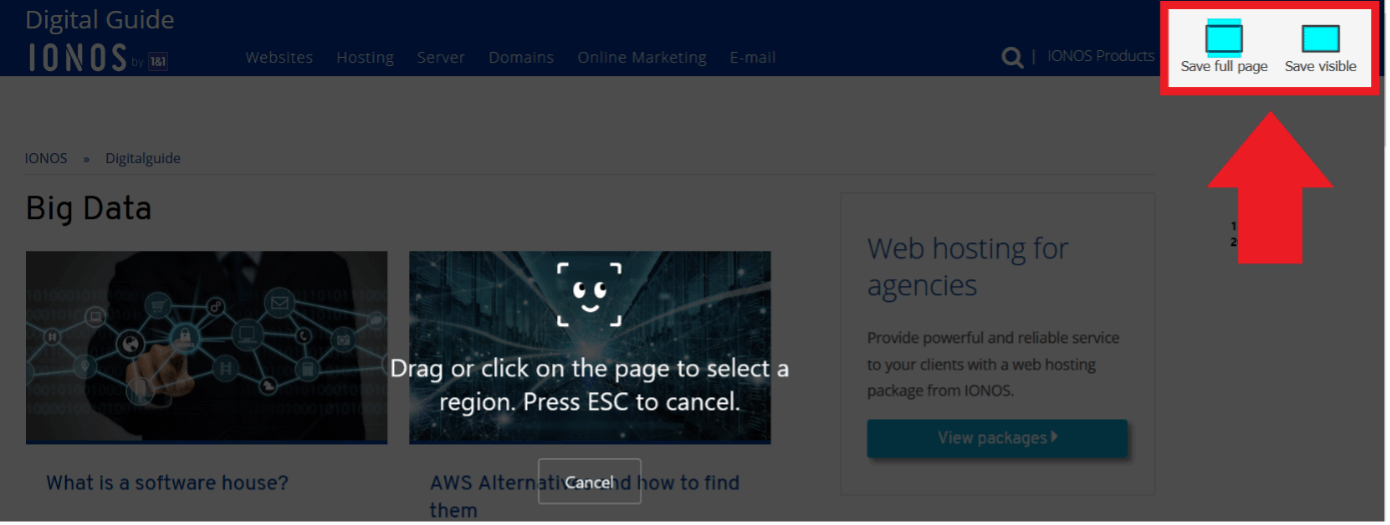
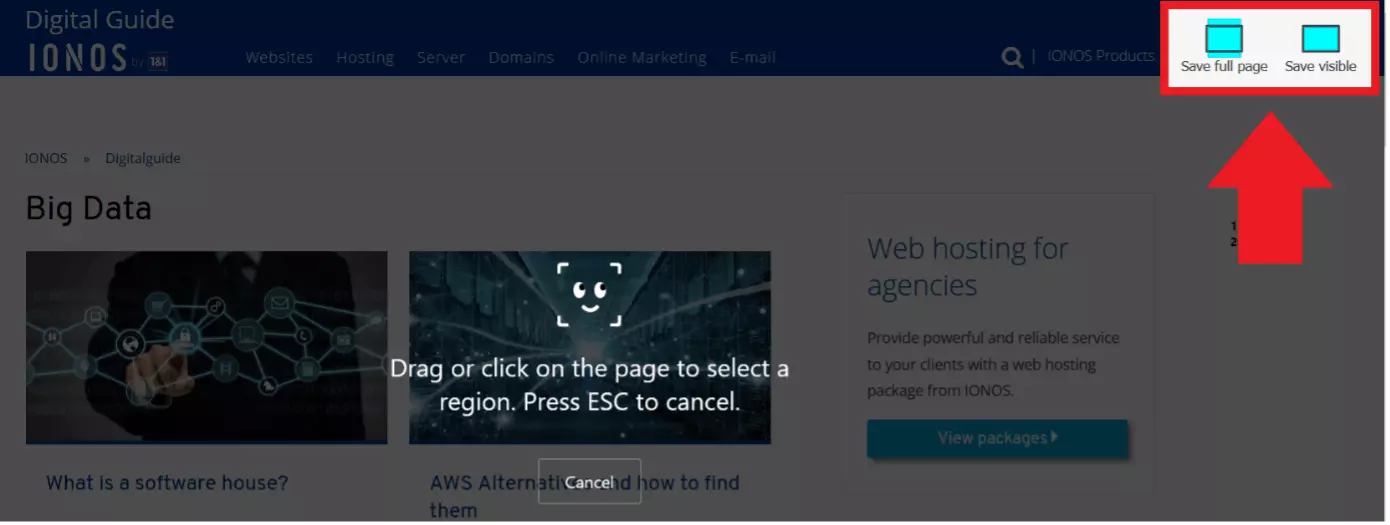
Step 2: The screenshot button with the selection tool will now open. Use the selection frame to choose the desired screenshot area, individual elements, or the entire screen for the screenshot. To do this, drag the frame around the elements you want to include in the screenshot.
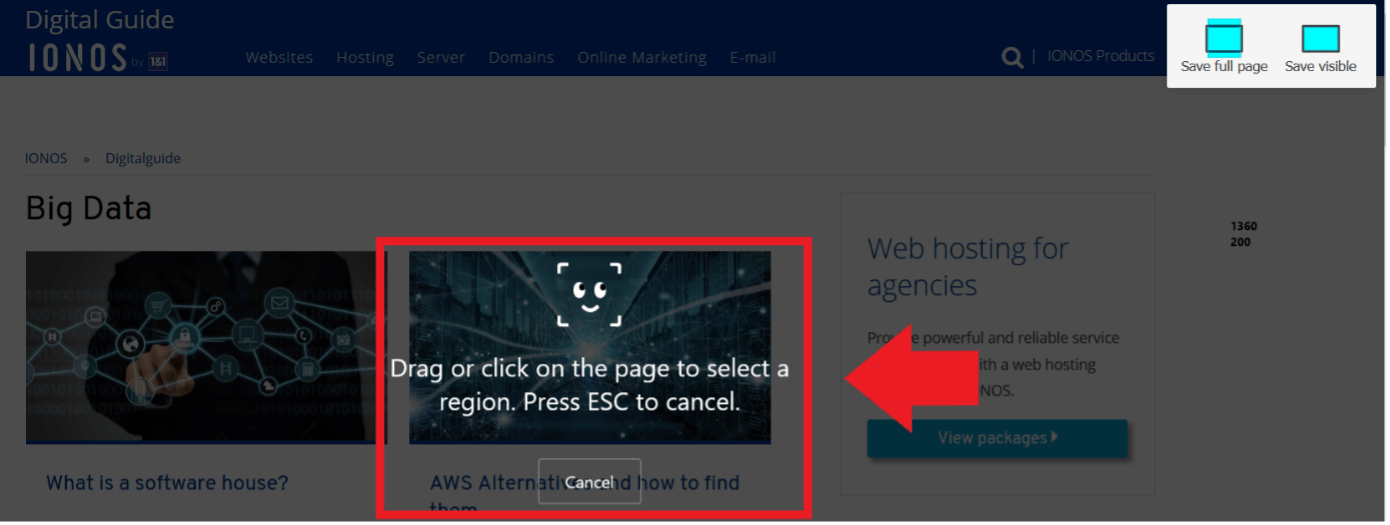
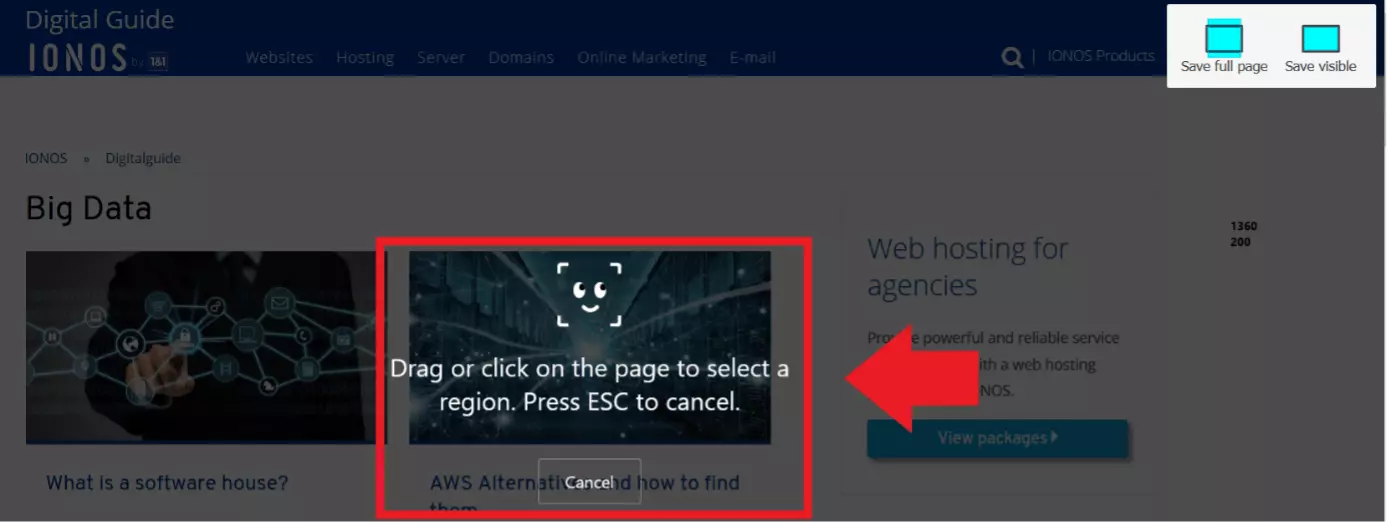
Step 3: Depending on your needs, you can click 'Save visible' if you need only the visible area of the website, or 'Save full page' if you want to take a Firefox full page screenshot, including the parts that are not visible.
- Store, share and edit data easily
- ISO-certified European data centres
- Highly secure and GDPR compliant
Firefox Screenshot with a shortcut
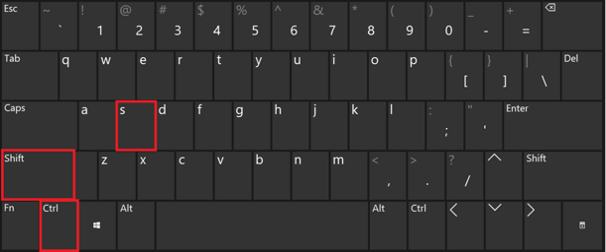
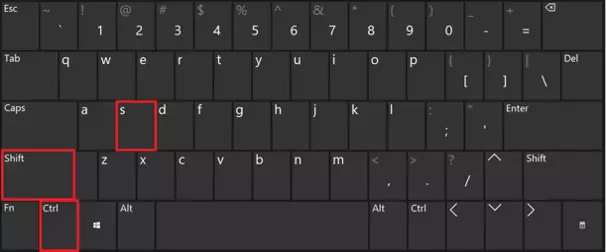
Step 1: In Firefox, open the page or tab you want to take a screenshot of. Use the keyboard shortcut [Ctrl] + [Shift] + [S] in Windows.
Step 2: The Firefox button and the selection tool for screenshots will open. Follow the instructions above to take a screenshot.
Add screenshot button to toolbar
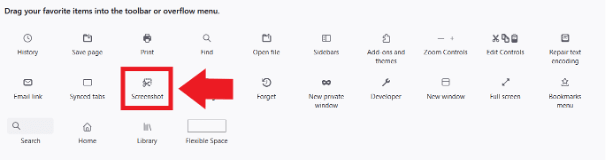
Those who missed the screenshot icon in the search bar since the update to Firefox 88 can simply put it back in their browser toolbar. Click the menu button icon in the upper right corner. Choose 'More tools' and 'Customize toolbar...'. In the tab that pops up, select the screenshot icon with the scissors and drag it to the browser toolbar, e.g., next to the search bar. Click 'Done' to confirm. Now you can use the button for screenshots in the future.
- Write perfect emails with optional AI features
- Includes domain, spam filter and email forwarding
- Best of all, it's ad-free