

How to set the Homepage in Google Chrome

If you want to change the start page on Google Chrome and match it to your own interests and needs, you can do so via ‘Settings’. Simply follow our step-by-step instructions
Quick guide: set your Chrome homepage
With Windows
- In Chrome, go to ‘Settings’.
- Select ‘On startup’ from the left menu bar.
- Select one of three options for your Chrome homepage.
With Android
- In the Chrome app, go to ‘Settings’.
- Go to the ‘Homepage’ tab.
- Set your Chrome homepage of choice.
Set your Chrome homepage: with Windows
There are two ways to set the homepage of Google Chrome on Windows: via ‘Settings’ and via the ‘Home button’ in the toolbar. This is how you proceed:
Via Settings
Step 1: Start your Chrome browser and go to the three-dot symbol in the top-right, then select ‘Settings’.
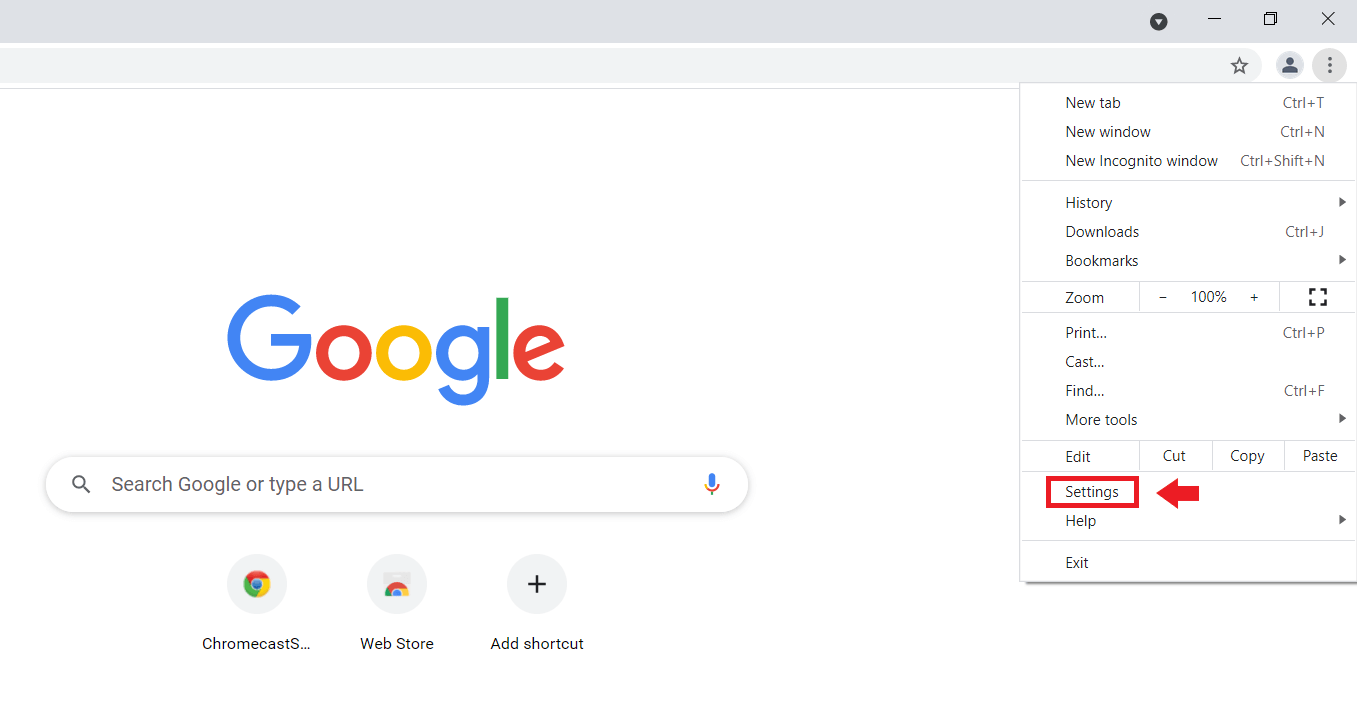
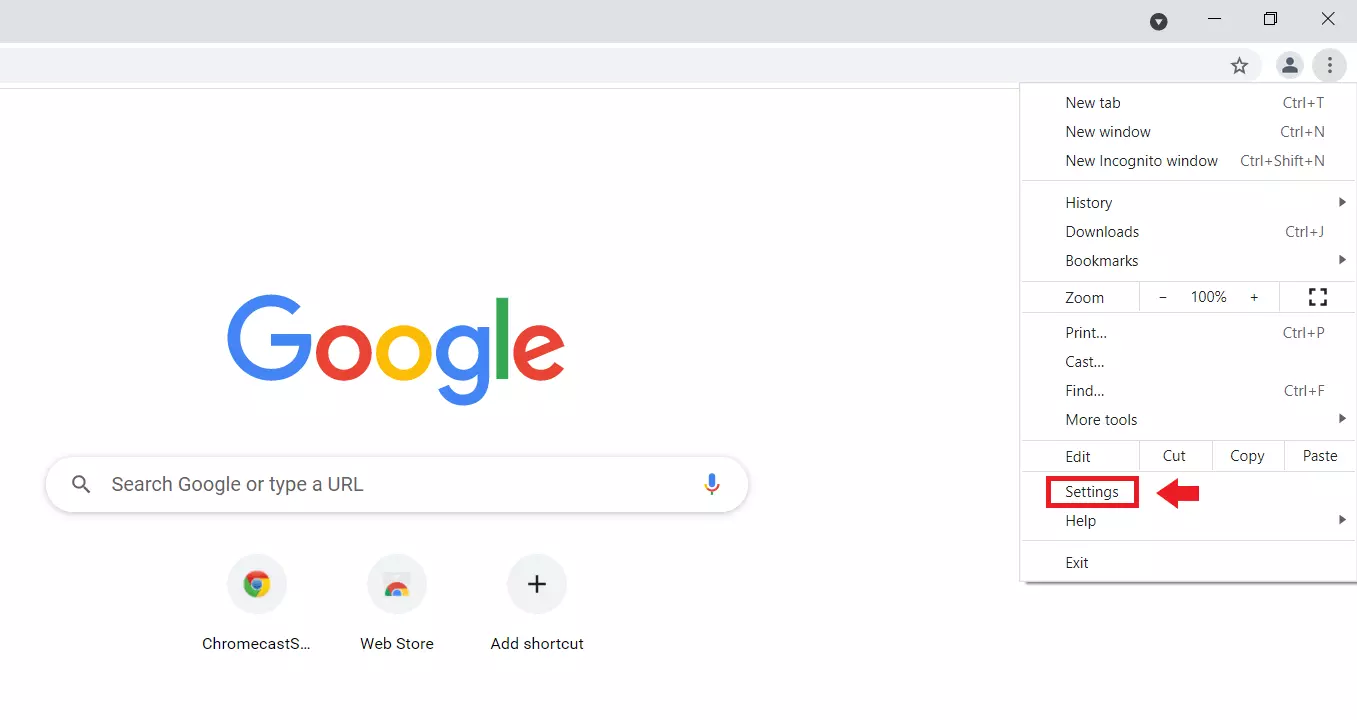
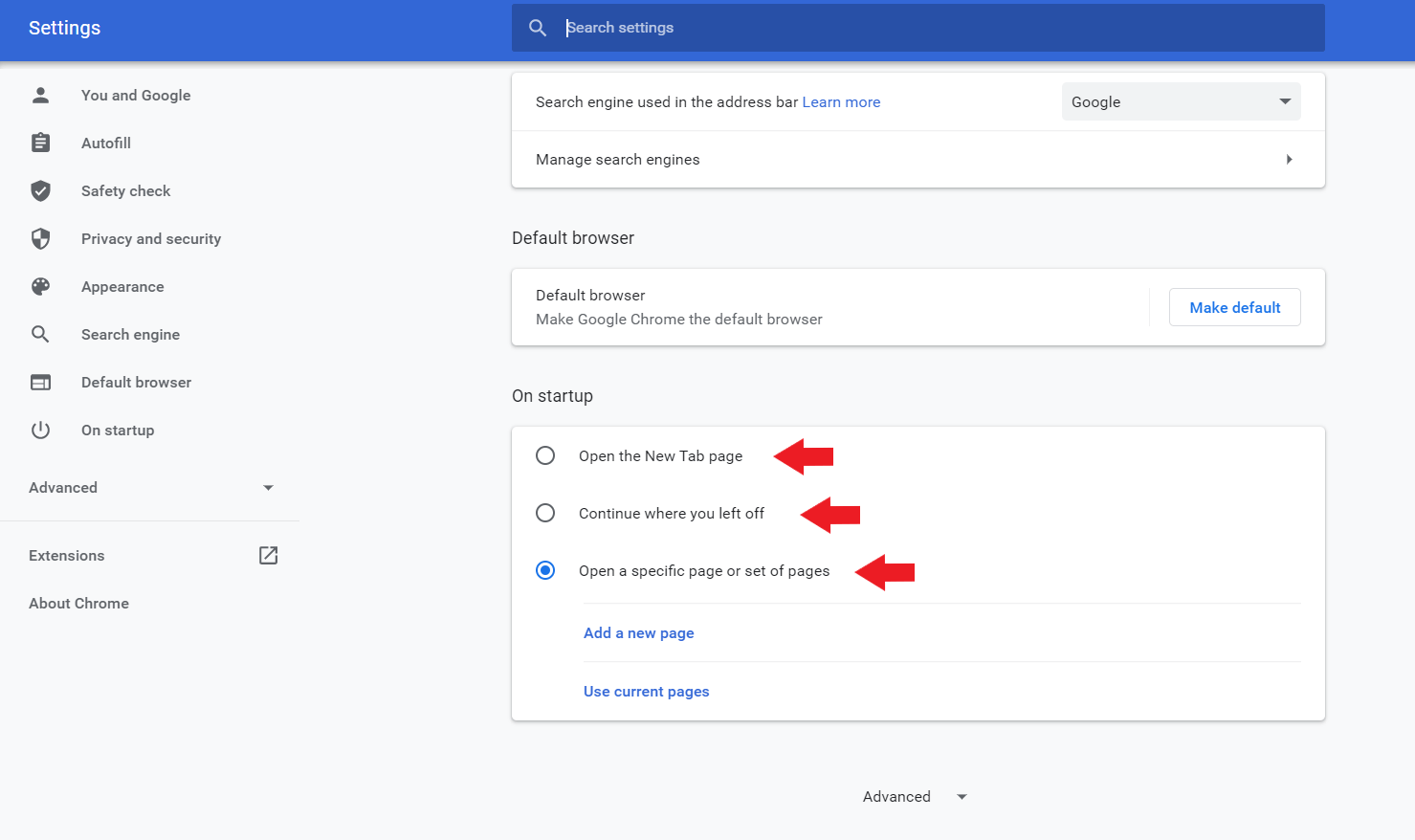
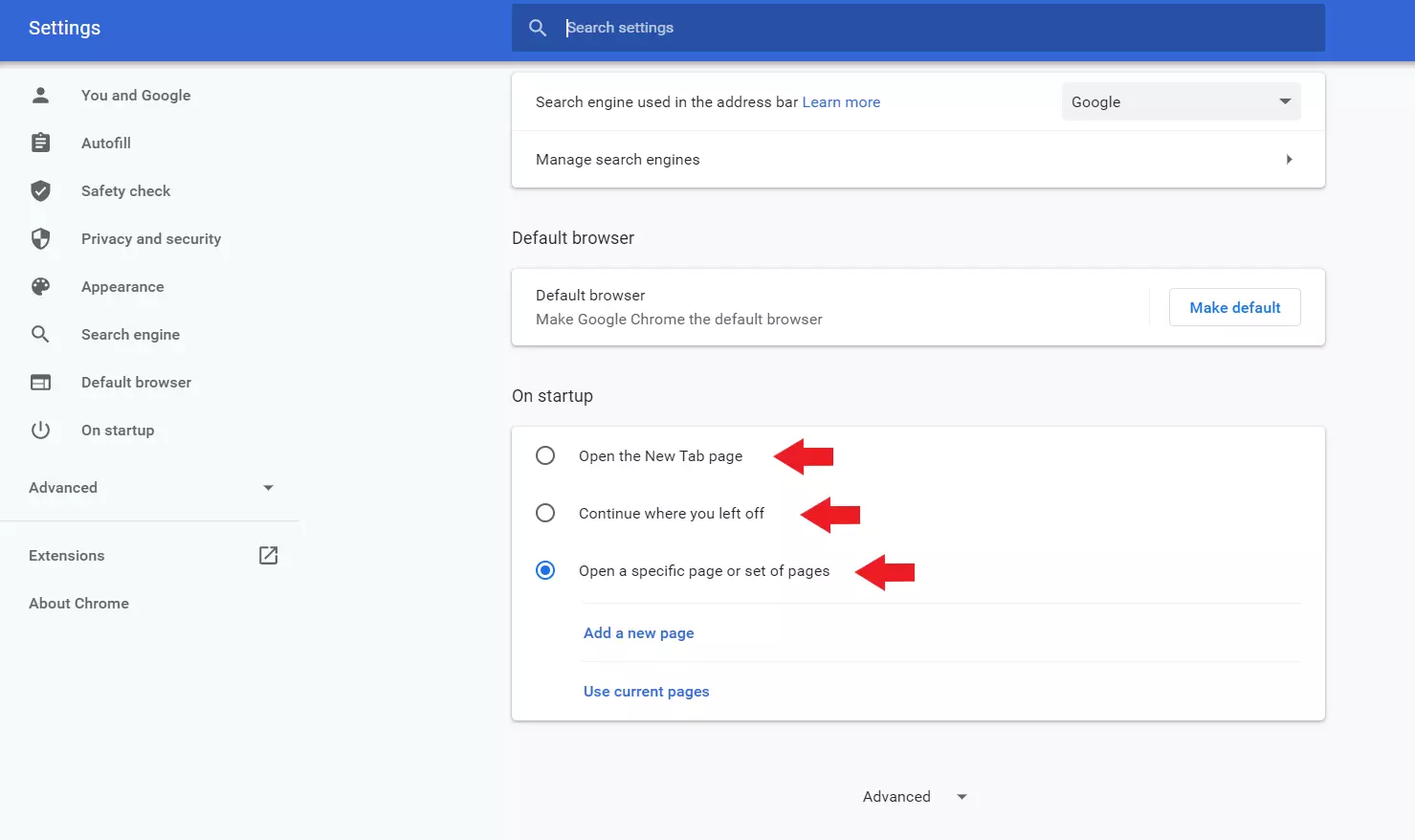
Step 2: In the Settings menu, go down to the field that says ‘On startup’. Here you have the option to set the Chrome homepage that should be displayed at the start.
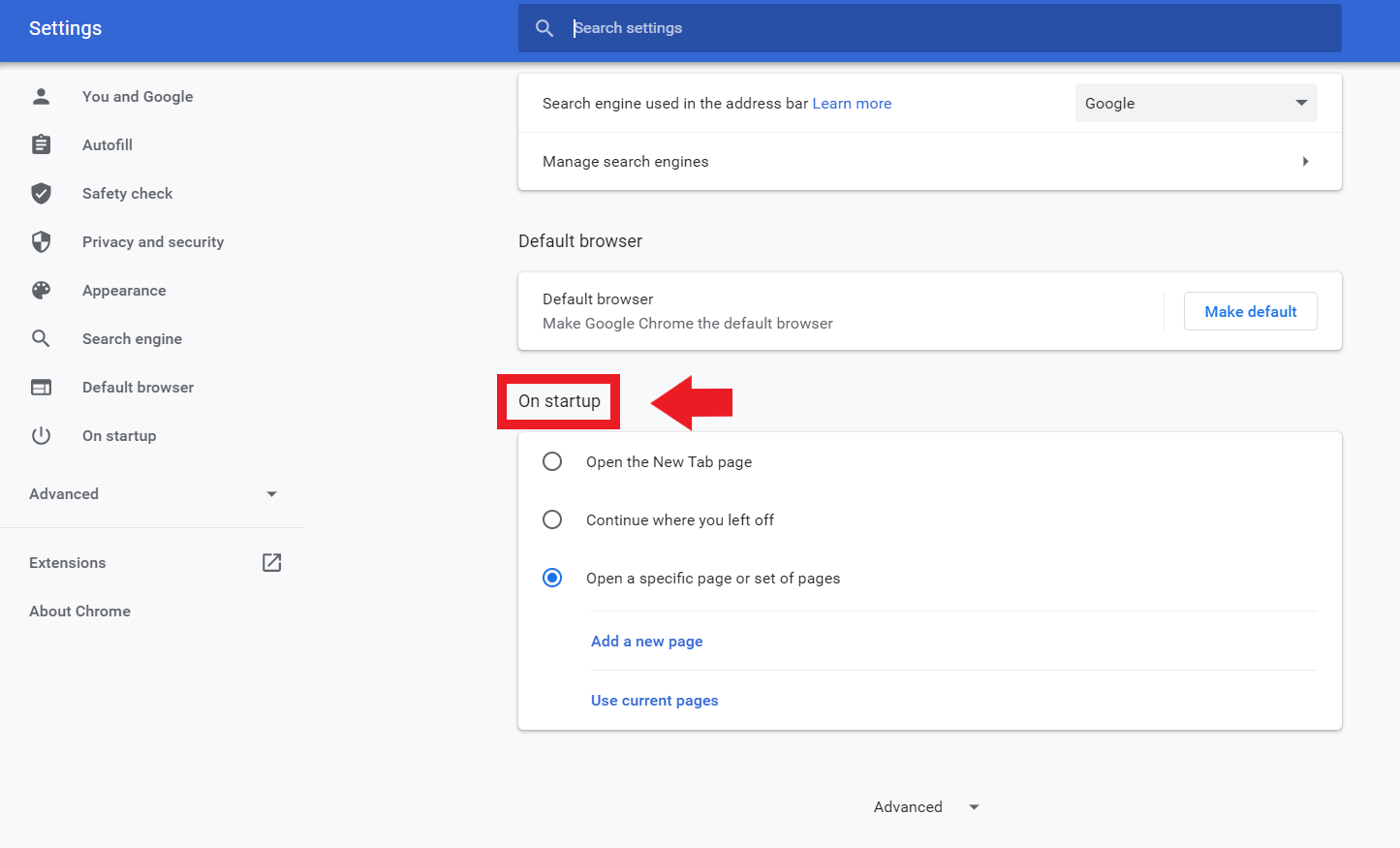
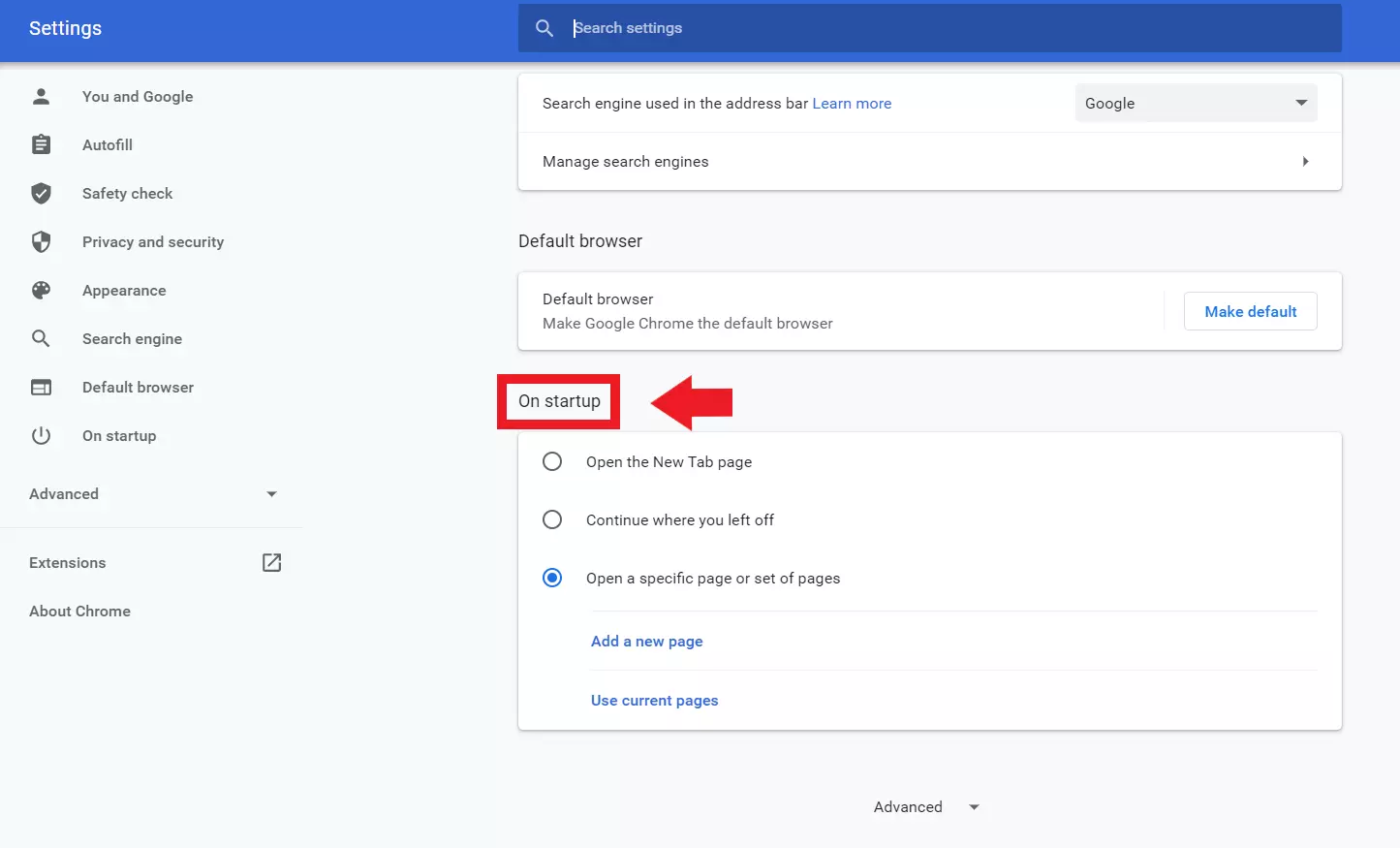
Step 3: The following options are available to change your Chrome homepage:
- Open the New Tab page: Chrome opens an empty tab with Google search as the homepage.
- Continue where you left off: Chrome displays web pages on the homepage that you had opened recently.
- Open a specific page or set of pages: You specify a URL that you want to set as your Chrome homepage.
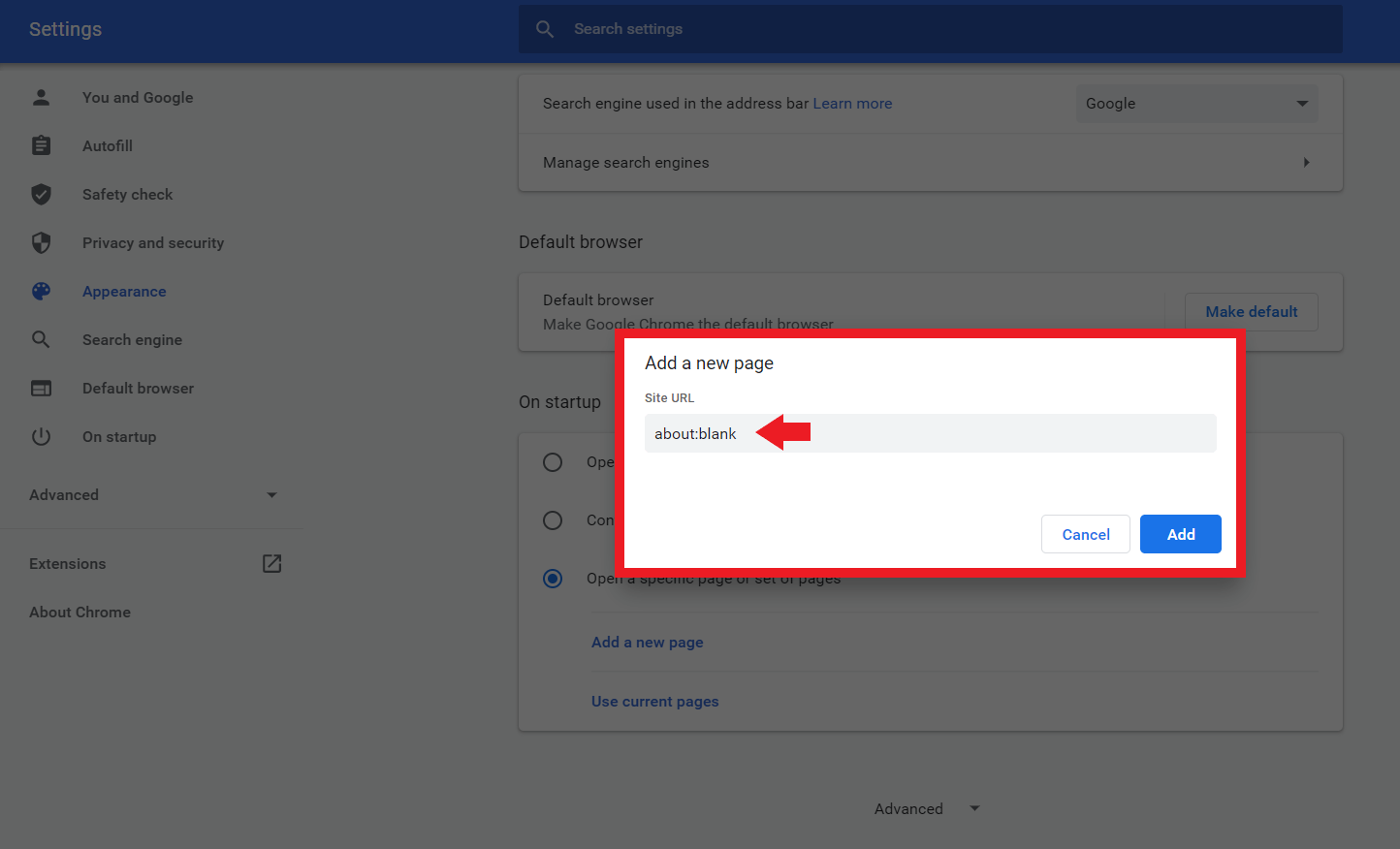
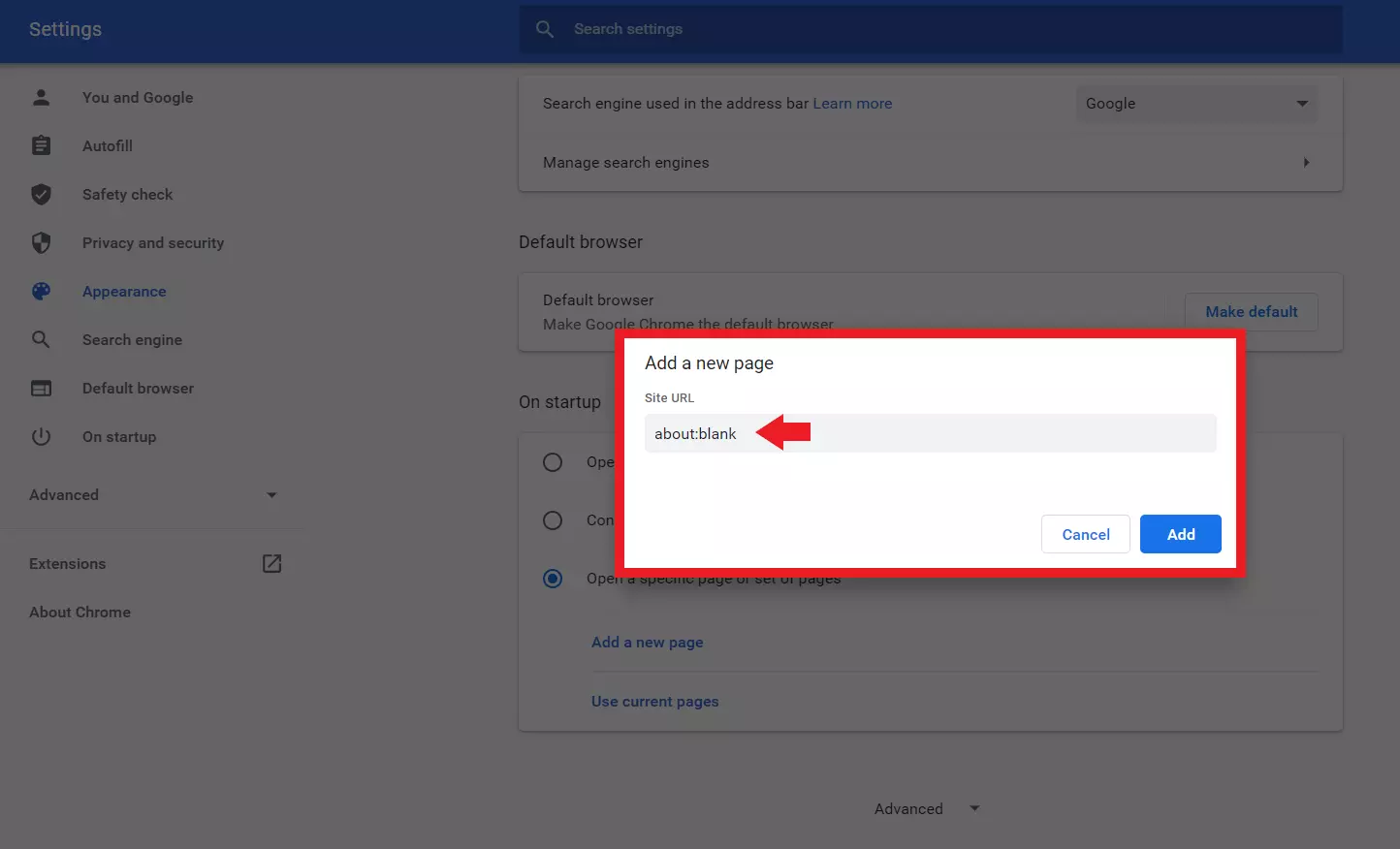
Step 4: If you want a blank page as your Chrome homepage, enter the command ‘about:blank’ under ‘Open a specific page or set of pages’. You will now get a blank page without the Google search bar.
Via symbols
If you not only want the homepage to be displayed when you open the browser, but also want to return to the homepage at any time, then you can add the home button to the toolbar. To do this, follow the steps below:
Step 1: Open the Chrome browser, go to the three-dot icon and then select ‘Settings’.
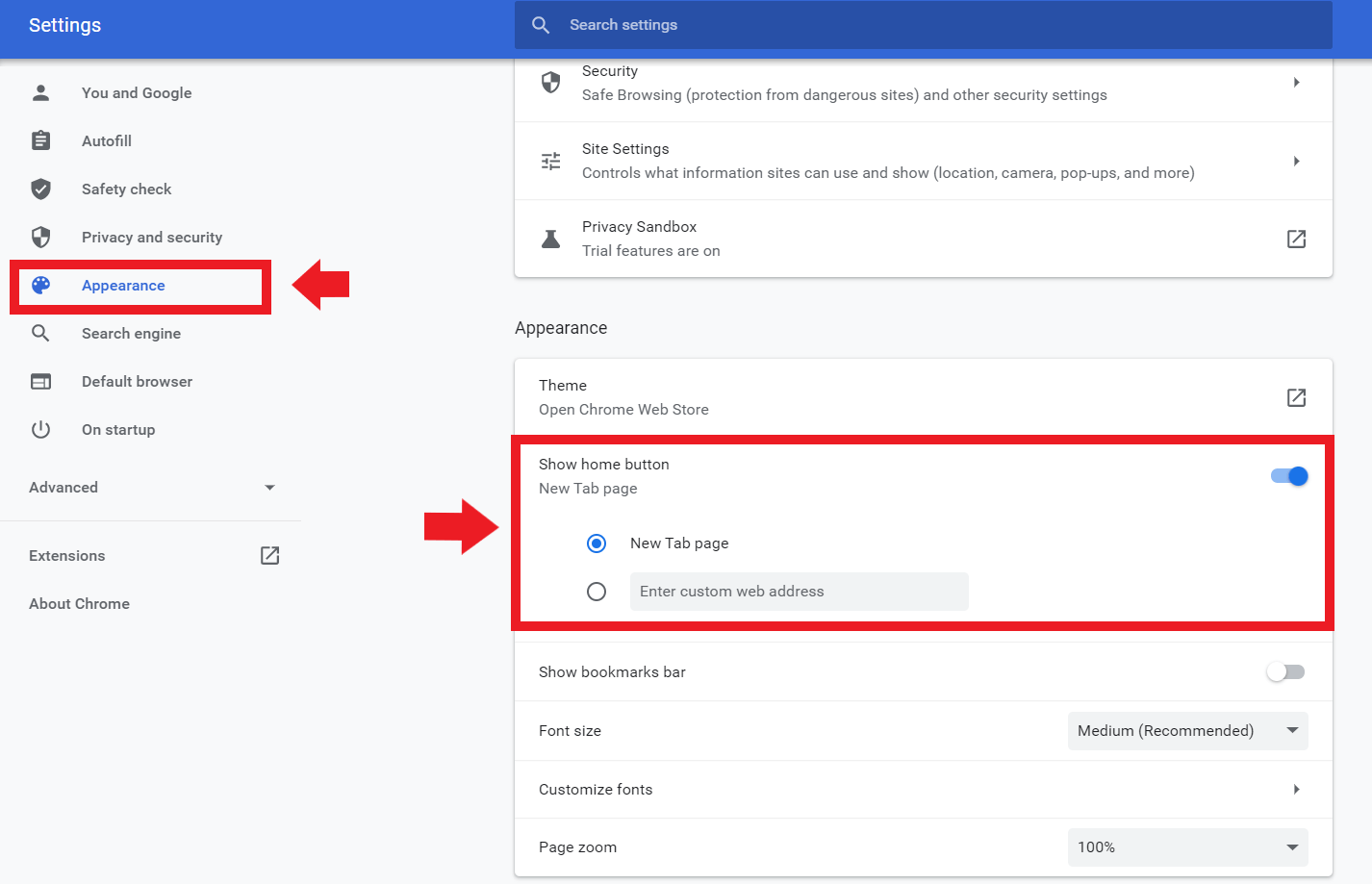
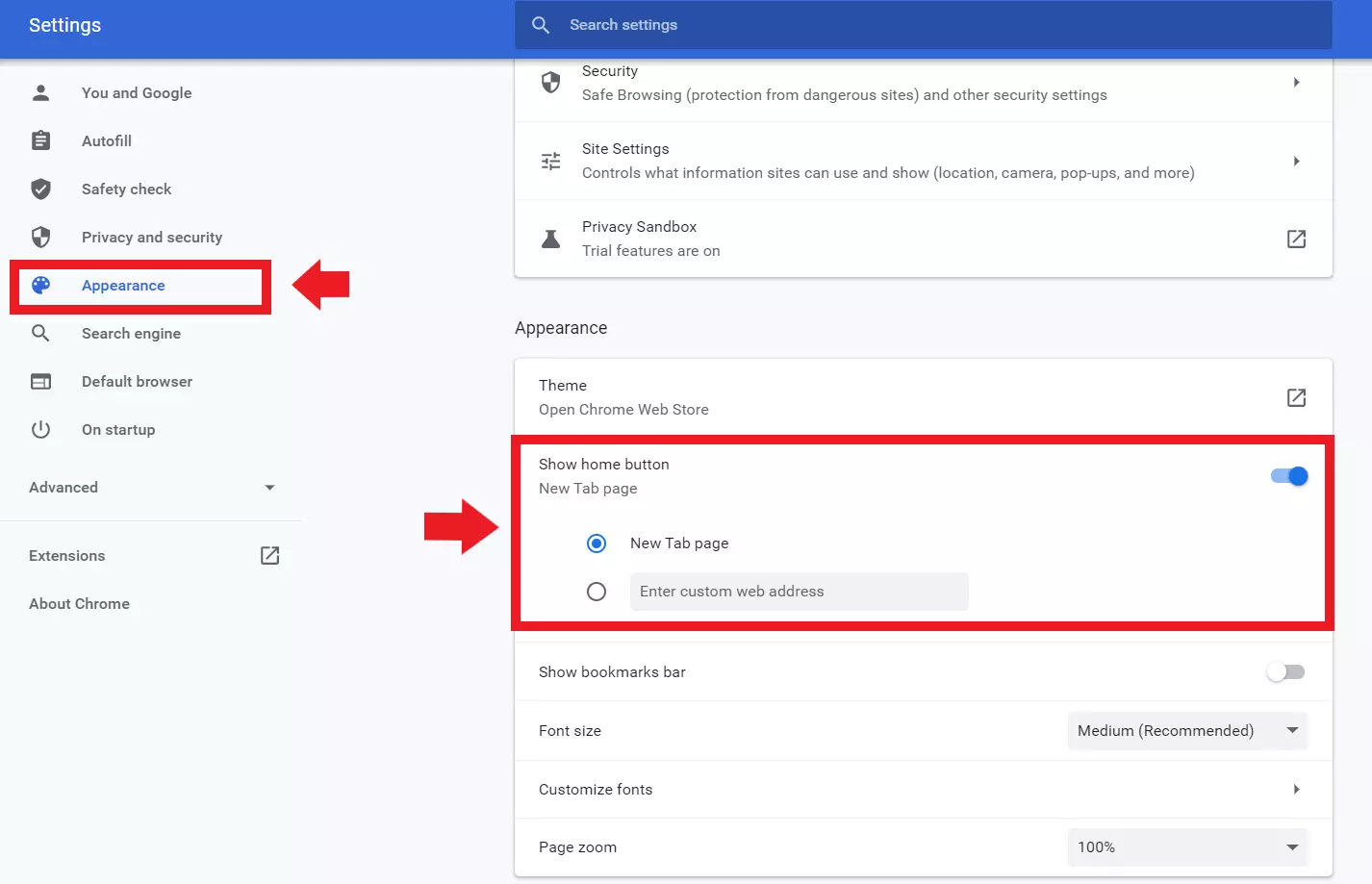
Step 2: In the settings menu, go to ‘Appearance’ on the left. Under ‘Show home button’, activate the switch and specify whether you want a new tab or a specific URL as your homepage with the home button.
If the competition between Chrome vs. Firefox has led you to choose Firefox, then you also have the option to set your Firefox homepage via your settings.
Set your Chrome homepage: with Android
As one of the most popular web browsers worldwide, Google Chrome is also regularly used on Android devices. If you want to set your homepage in Chrome on Android, follow the steps below:
Step 1: Open the Chrome app, go to the three-dot icon and open ‘Settings’.
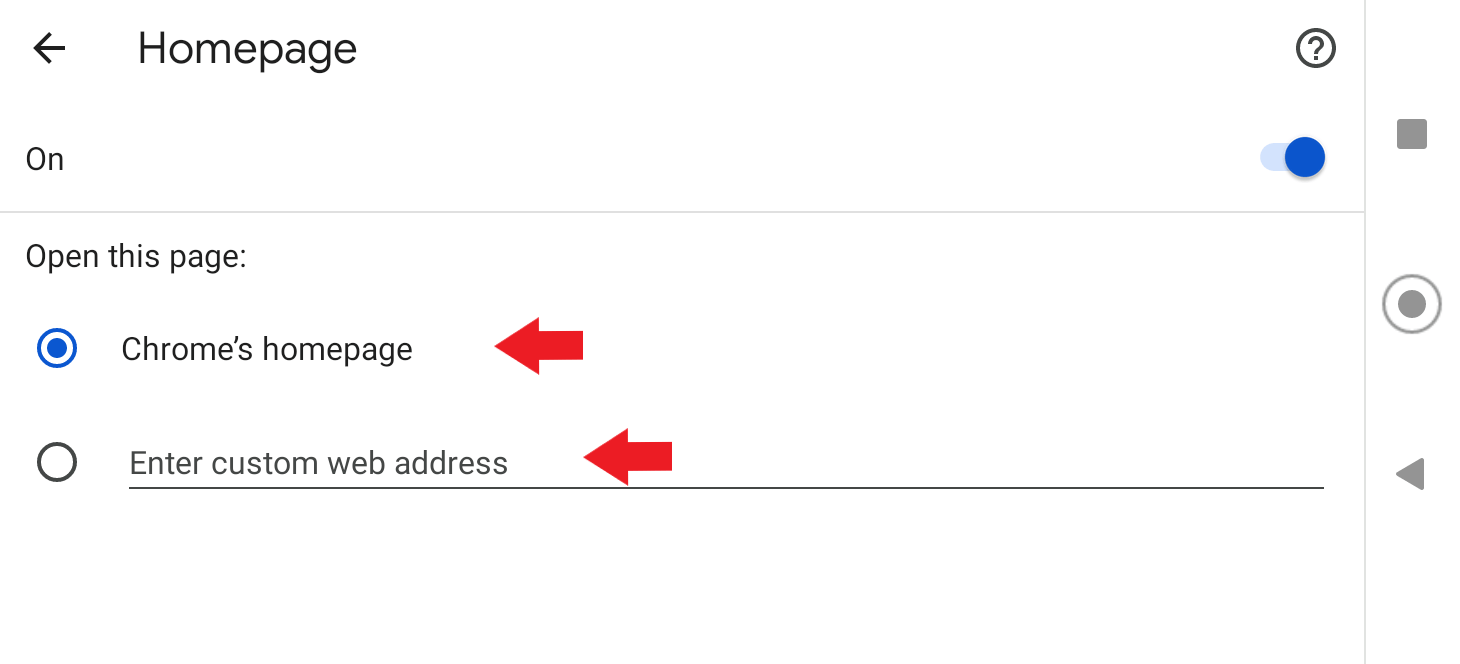
Step 2: Go to ‘Homepage’ under ‘Advanced’ in the settings menu.
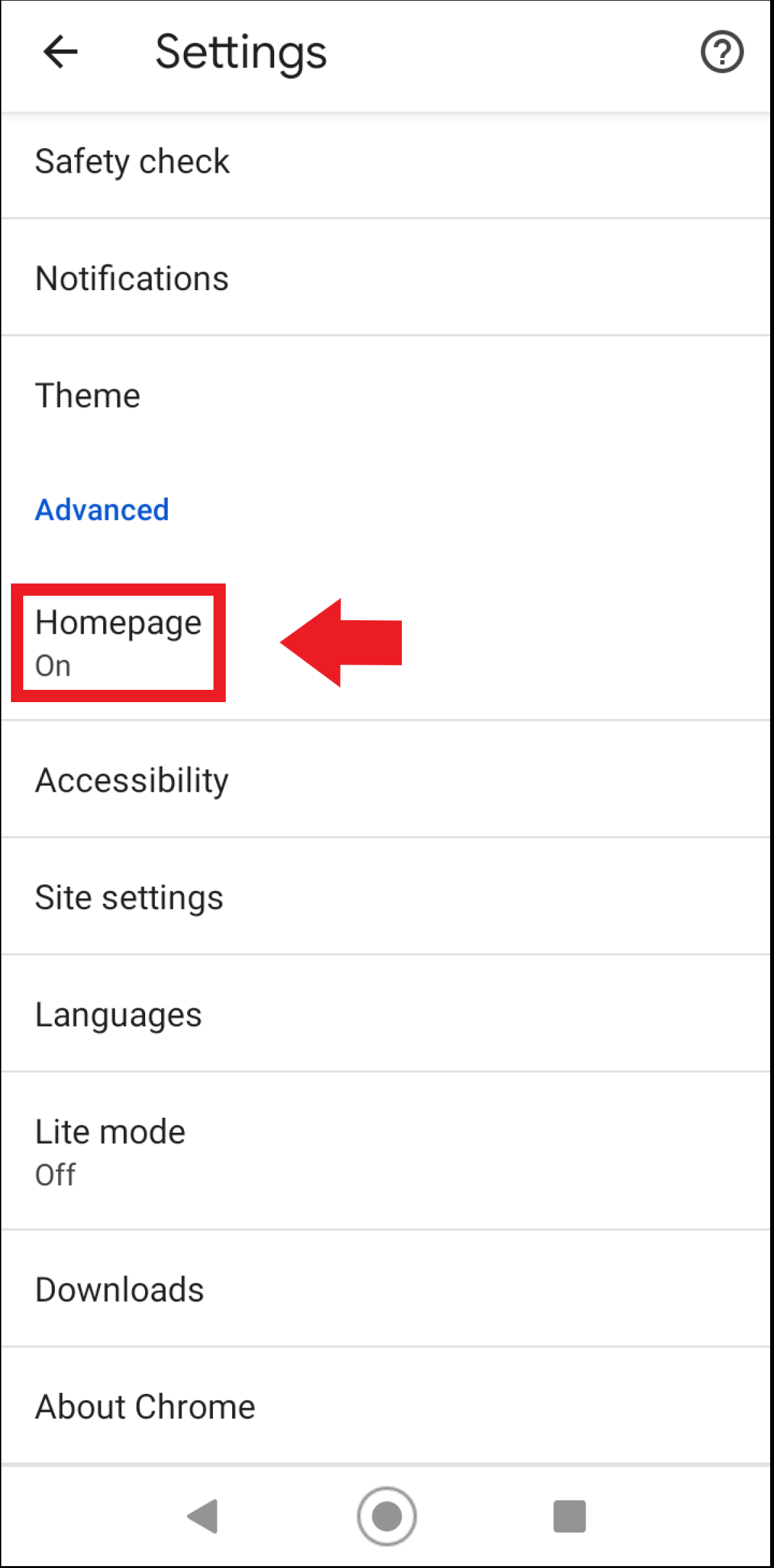
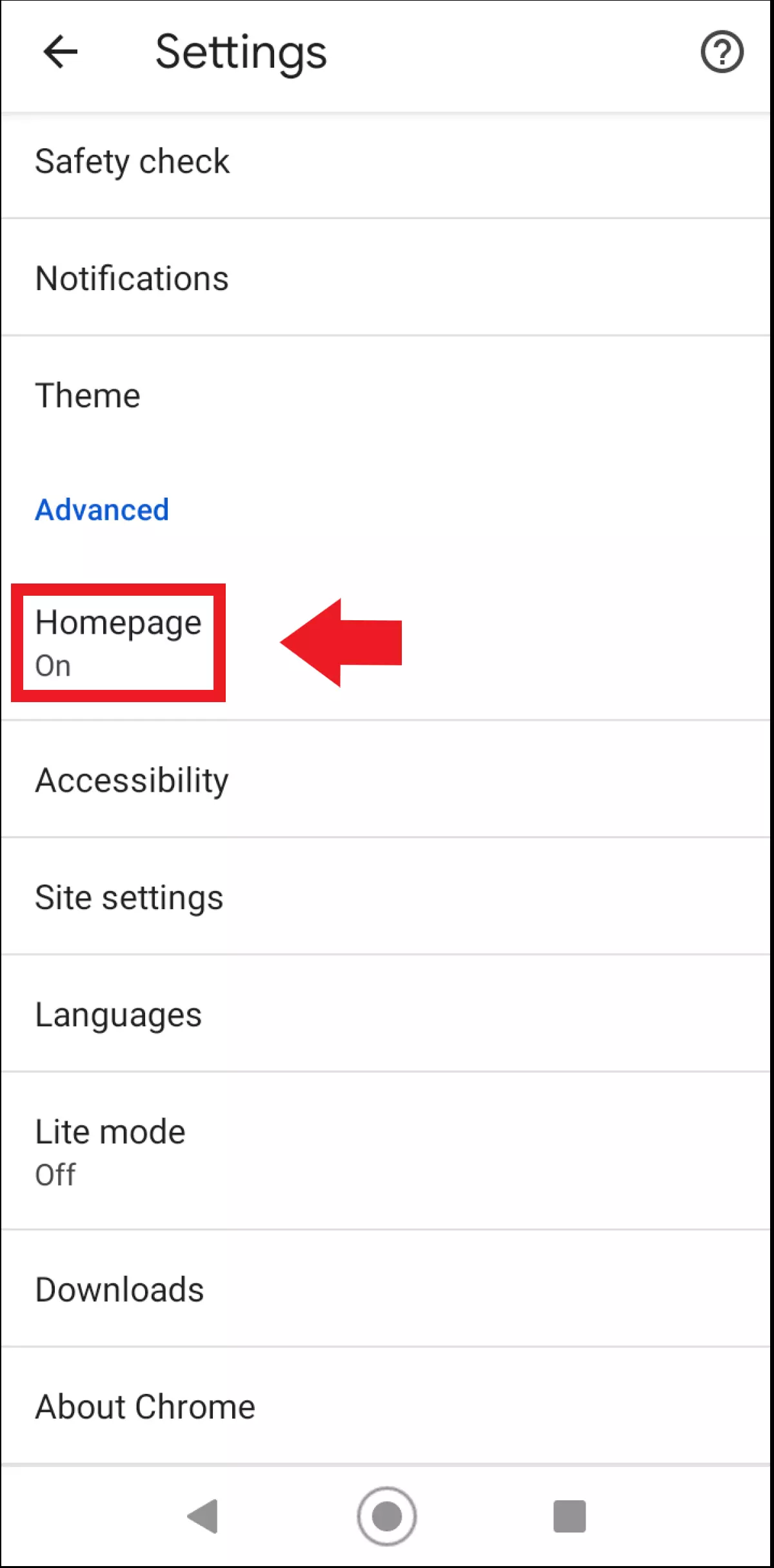
Step 3: Set a preset or custom homepage for your Chrome browser on Android here.
Reviewer

Julia Hertler
With over 18 years of experience in content marketing, Julia Hertler has deep expertise in digital communications. For the past 10 years, she has specialised in the areas of domains and hosting at the IONOS Digital Guide, making complex technical topics easy to understand.