

How to enable JavaScript in Chrome

An important feature of modern web applications are interactive elements that are implemented via client-side scripts. The best-known scripting language is JavaScript, which is supported by all common browsers. Here you will find detailed instructions on how to enable or disable JavaScript in Chrome.
- Free website protection with SSL Wildcard included
- Free private registration for greater privacy
- Free Domain Connect for easy DNS setup
How to enable JavaScript in Chrome step by step
To activate or deactivate JavaScript in Chrome, all you need are the browser settings. However, since many modern websites rely on the scripting language, it is also enabled by default in Google’s browser. If you change this setting, many websites may end up no longer functioning properly. However, it is possible to reverse changes to the setting at any time. If you want to enable or disable JavaScript manually, follow these steps:
- First open Google Chrome on your computer as you normally would.
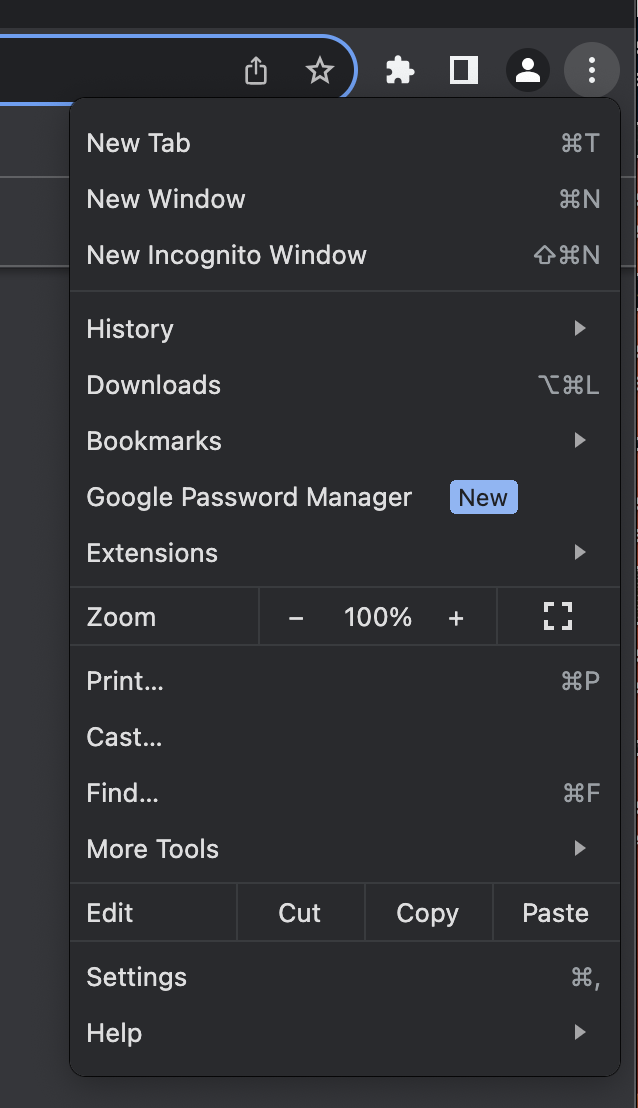
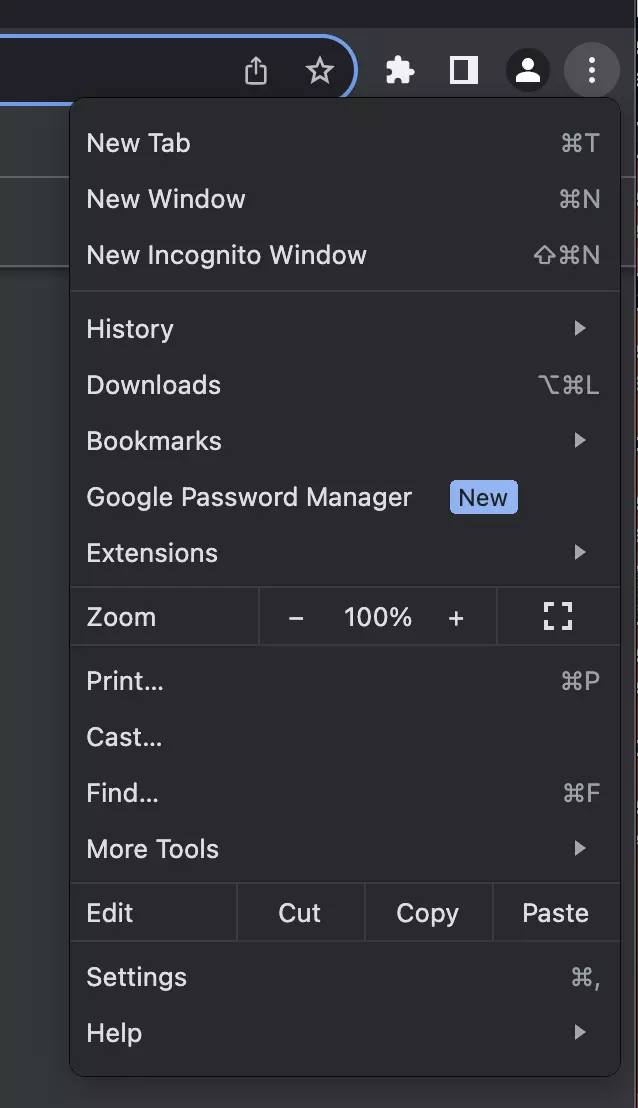
- In the top right corner, you will find an icon with three dots on top of each other. Click on it.
- A drop-down menu will now open. Relatively far down you will find the option Settings. Click on it.
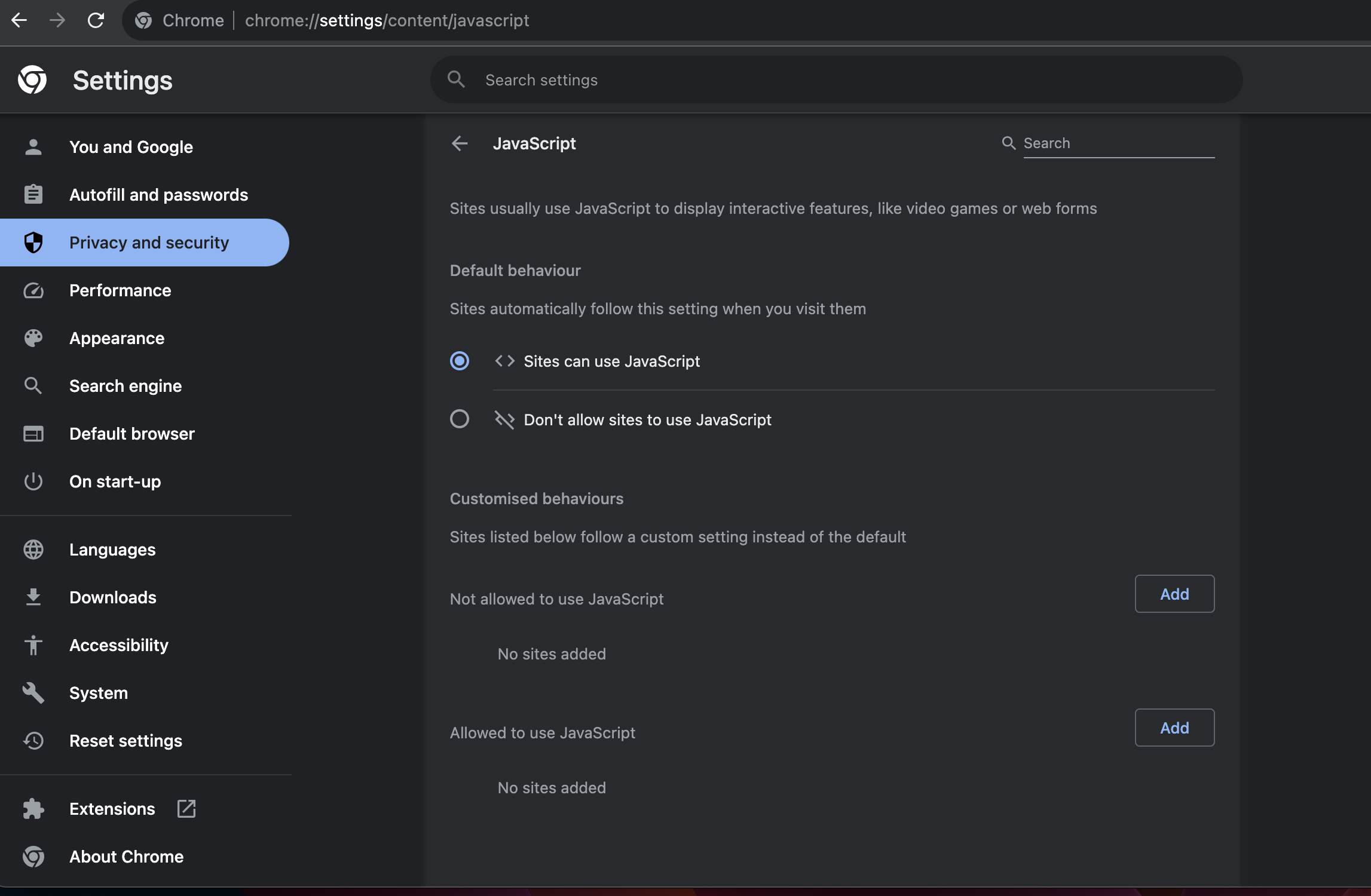
- Look for Privacy and security in the list on the left and select it.
- You will now find various options on the right-hand side. Select Website settings.
- Under Content, click on JavaScript.
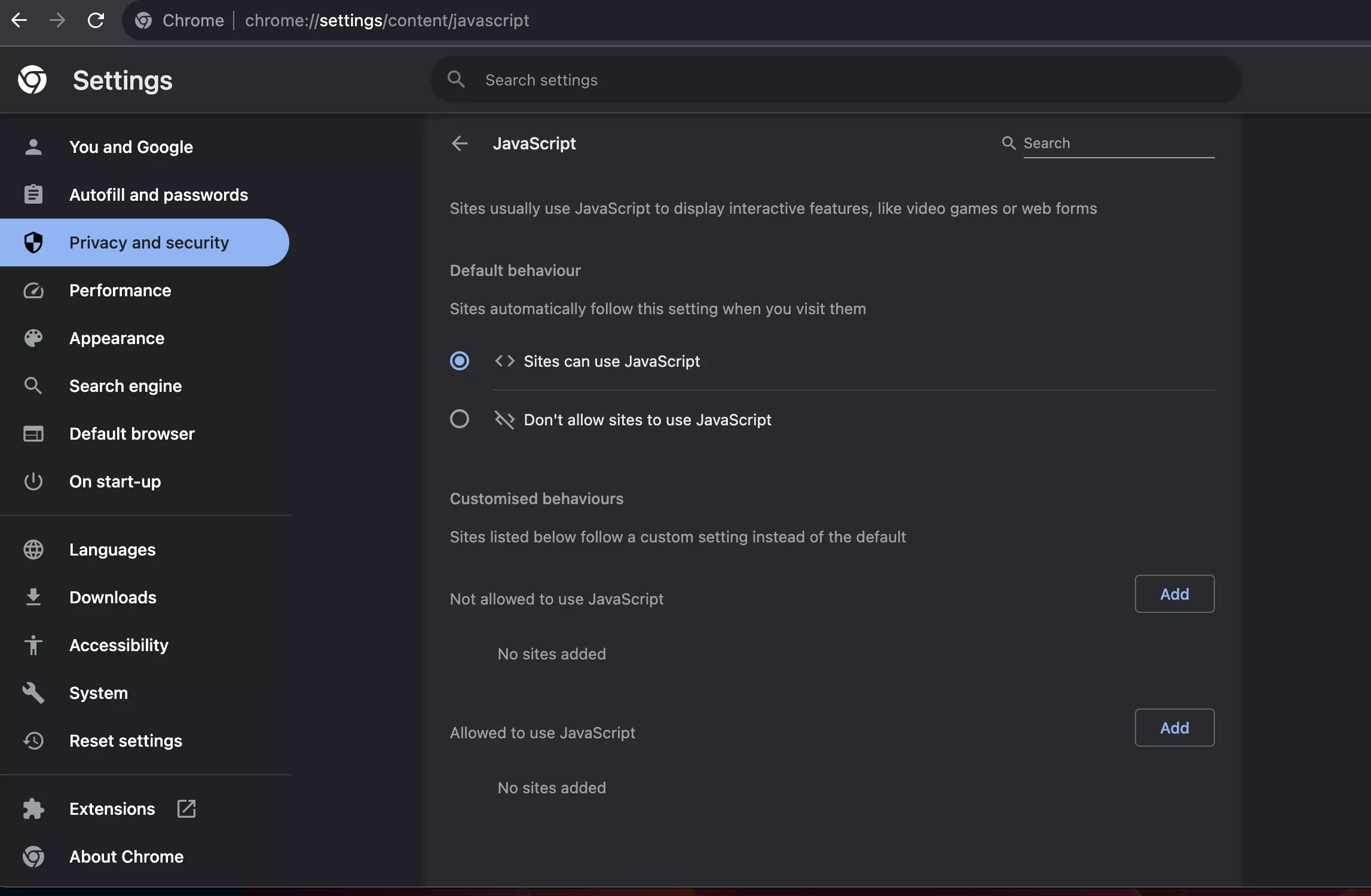
- There you will find the option Sites can use JavaScript. If you want to enable JavaScript, click the circle so that a blue dot appears. To disable it, remove the dot.
- Finally, restart the browser. The setting will now be applied.
How to enable JavaScript in other browsers
All popular browsers have JavaScript enabled by default. However, it is always possible to change this setting manually. The steps required to do this are usually similar in nature, but there are some small differences. Almost all applications have an option for data protection and security and allow you to enable or disable it with a simple click and a restart. Only Mozilla Firefox requires you to open a hidden configuration menu. In our Digital Guide, you will find clear step-by-step instructions for enabling JavaScript in various browsers:
- Enable JavaScript in Firefox
- Enable JavaScript in Microsoft Edge
- Enable JavaScript in Safari
- Enable JavaScript in Internet Explorer
In our Digital Guide, you can also find numerous other articles about Google Chrome. For example, we explain how to activate dark mode in Chrome, how Chrome compares to Firefox and how to take screenshots in Chrome.