

How to enable JavaScript in Safari

You can enable JavaScript on your iPhone or on macOS in your browser settings. You also have the option to turn off the scripting language. Keep in mind though that many websites won’t be displayed correctly if JavaScript is disabled.
Ask, create and research with the European alternative to ChatGPT. Robust security and unlimited chats give you peace of mind.
Step-by-step instructions on how to enable JavaScript in Safari
For many macOS und iPhone users, Safari is their browser of choice. Apple’s web browser supports JavaScript and has the scripting language enabled by default. If, for any reason, the language has been turned off or you want to (temporarily) turn it off, you have the possibility to manually disable or enable JavaScript in the Safari settings. Below are the steps you need to follow:
- Open Safari on your computer or phone.
- At the top of the screen in the menu bar, you will find the option Safari to the right of the Apple symbol. Click on it to open the drop-down menu.
- Select Settings….
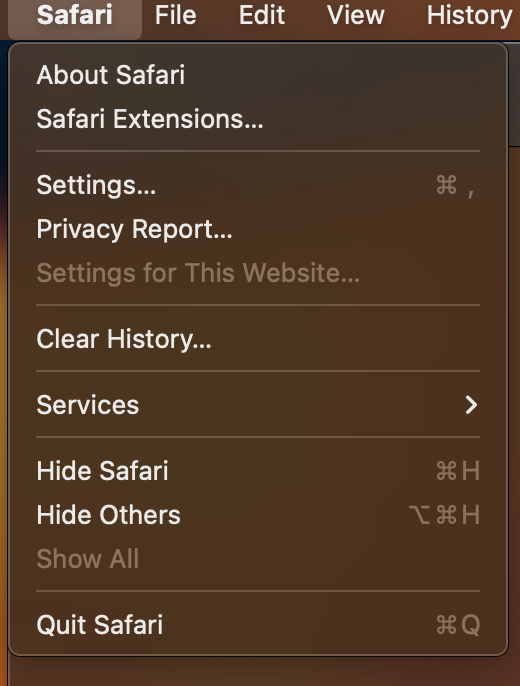
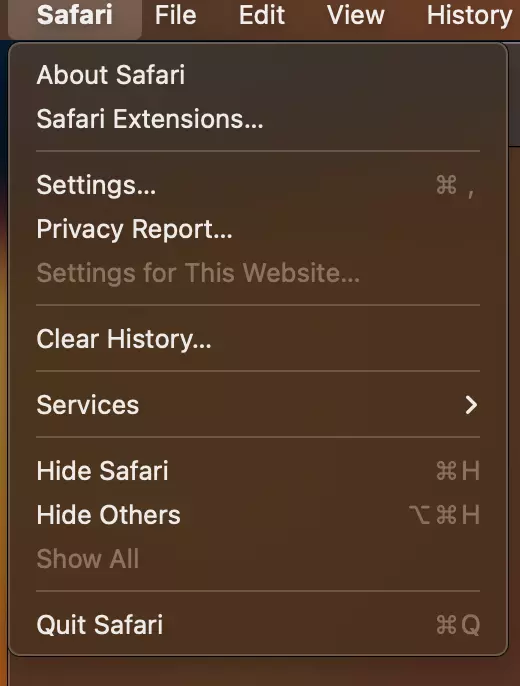
- When you click on Settings…, a new window will open. Click on the tab labelled Security.
- Under this tab, you’ll find the option Web content: Enable JavaScript. If a tick is in the box, the scripting language is already enabled. If there isn’t a tick, JavaScript has been disabled.
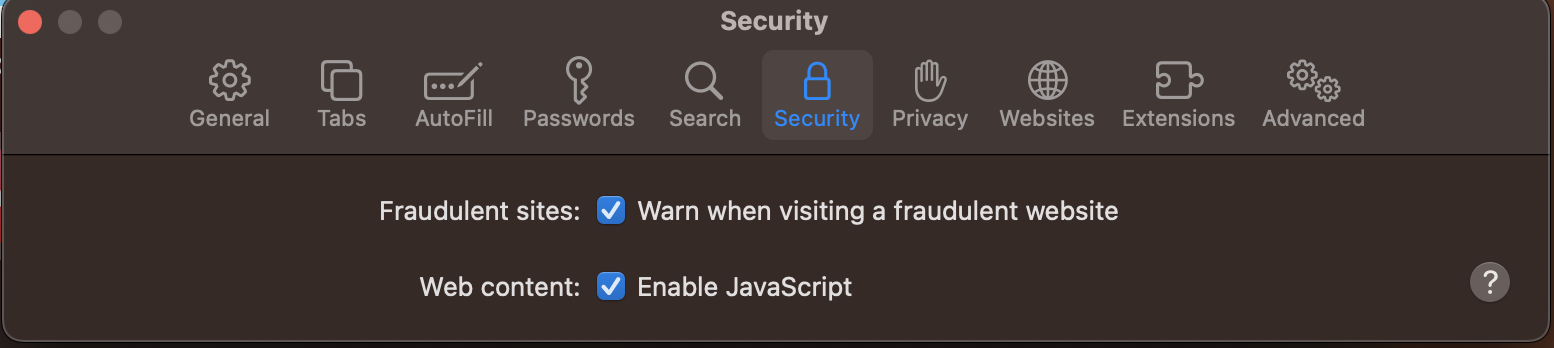
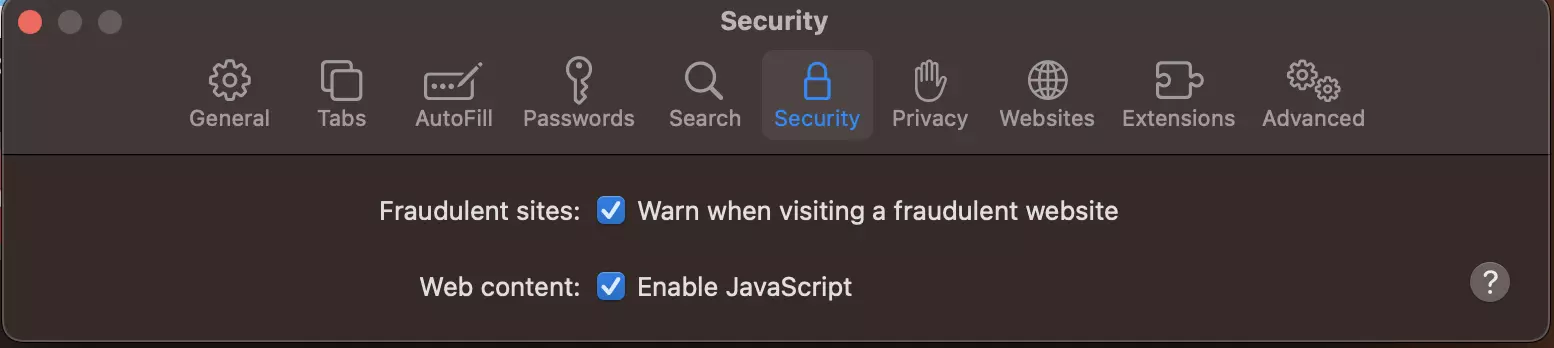
- Close the pop-up window and restart the browser. The changes you made to the settings will now be applied.
The steps for enabling JavaScript for Safari on your iPhone are similar to the ones above. Here’s what you need to do:
- Open the settings on your smartphone and select Safari.
- At the bottom of the menu, you will find the option Advanced. Tap on it.
- Under Advanced, there is a section for JavaScript. Tap the toggle switch to enable or disable the scripting language. If the language is enabled, there will be a green background and the toggle button will be on the right. If you turn off JavaScript, the button will be on the left and the background will be grey.
Is JavaScript important for Safari?
JavaScript is a browser-side scripting language that is used by countless websites. The language is often necessary, especially when integrating and displaying dynamic content. Because the language is needed to display such content, it is enabled by default by all major browsers. If you decide to manually disable JavaScript, it may result in lots of websites being displayed incorrectly. Turning off the language can affect content such as videos, ads, dialog boxes or timelines that automatically update.
If you are using another browser and want to disable or enable JavaScript, you can find instructions on how to do so in our Digital Guide:
- Enable JavaScript in Microsoft Edge
- Enable JavaScript in Internet Explorer
- Enable JavaScript in Firefox
If you want to learn more about Safari, you can also find articles on topics related to the Apple browser. You can, for example, learn how to export Safari bookmarks.
Reviewer

Julia Hertler
With over 18 years of experience in content marketing, Julia Hertler has deep expertise in digital communications. For the past 10 years, she has specialised in the areas of domains and hosting at the IONOS Digital Guide, making complex technical topics easy to understand.