

How to install GitHub Desktop

GitHub is a popular version control tool for software development. The base version is a simple command line tool. It lets you access your Git repository and collaborate alongside other developers. GitHub Desktop is a graphic user interface (GUI) that can be easily installed on your system. This step-by-step guide covers how to install GitHub on Windows 64-bit systems and launch it for the first time.
GitHub system requirements
Before you install GitHub Desktop, make sure that you select a version that’s compatible with your operating system! GitHub Desktop is compatible with Windows 10 64-bit or later.
Don’t feel bad if you’re using a 32-bit system though. You may not be able to install GitHub Desktop, but there are some great GitHub alternatives out there. Some 32-bit OS users even prefer them to the official client!
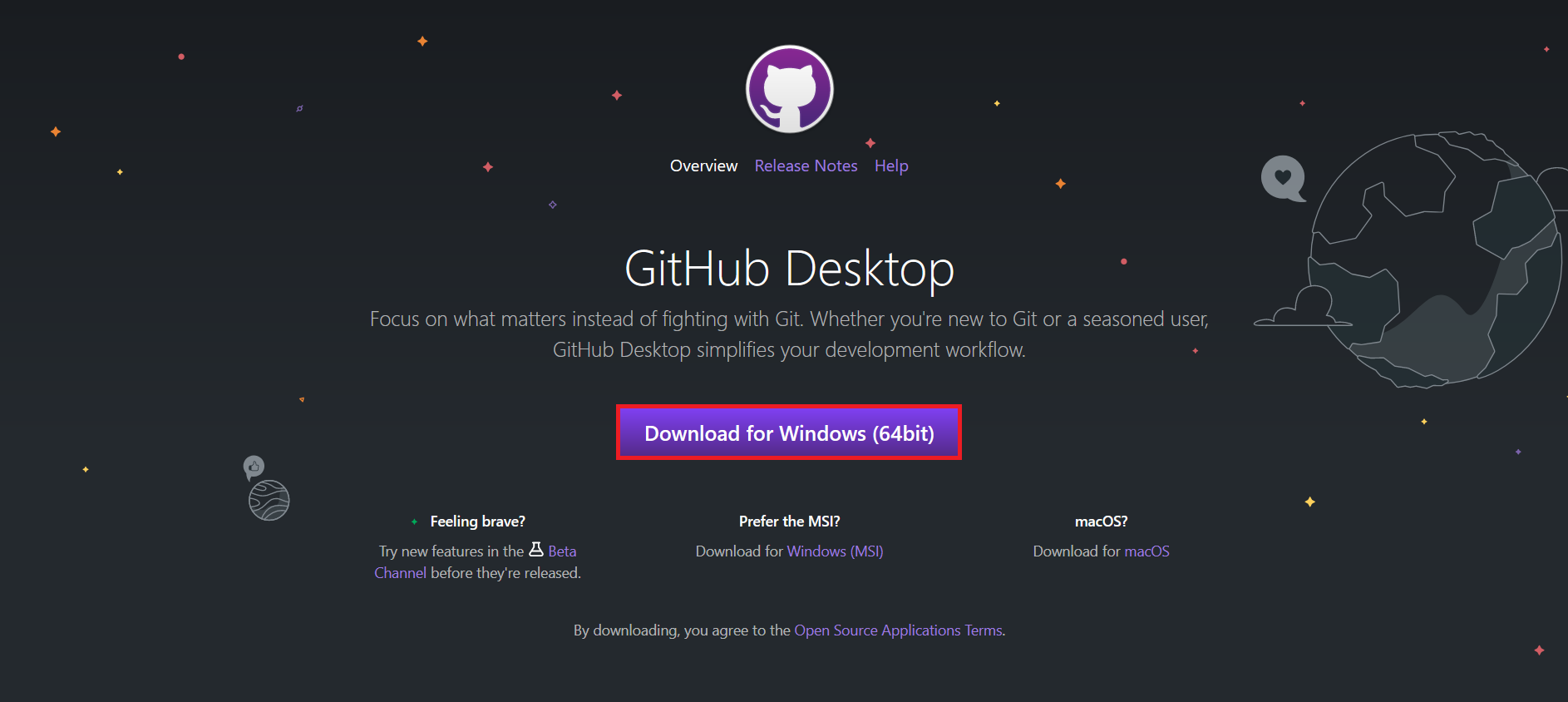
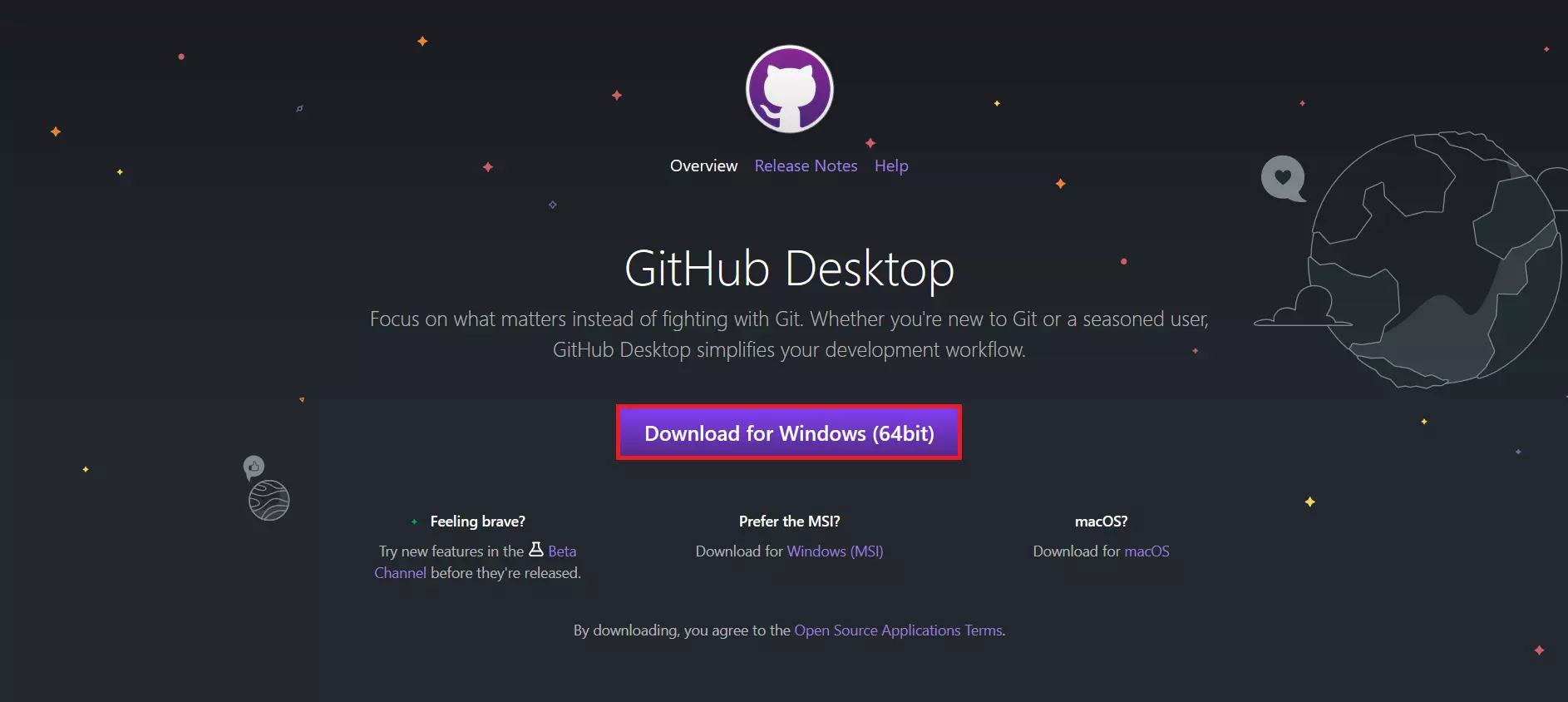
The easiest way to install GitHub Desktop is to access the official GitHub download page. The main option is to download for Windows (64-bit), which is the one you should select. The smaller links below include options for macOS, networked installation for businesses (an MSI file), and downloading the experimental beta version.
Or if you prefer to use the command line to install GitHub, we’ve put together a Git tutorial that includes installation options.
Step-by-step guide to installing GitHub
Here’s how to install GitHub Desktop on a 64-bit computer running Windows 10 or later.
Step 1: Download GitHub Desktop
Launch a web browser. Click on this link to visit the official GitHub Desktop download page. As mentioned above, click ‘Download for Windows (64bit)’ to download the right version of GitHub Desktop.
Step 2: Install GitHub Desktop
To install GitHub, either click on the EXE file in the browser’s download bar or navigate to your downloads folder (unless you changed your browser settings to download files to a different location) and double click the file.
If Windows asks for Admin permissions to install the app, grant them. When the installation is finished, GitHub Desktop automatically launches.


How to get started with GitHub Desktop
After logging into GitHub Desktop (or creating a new account), enter your access data and click ‘Authorize desktop’ to allow GitHub Desktop to sync. This will let you access your existing repositories.
Log in once more and click ‘Finish’. The GitHub Desktop user interface will open.
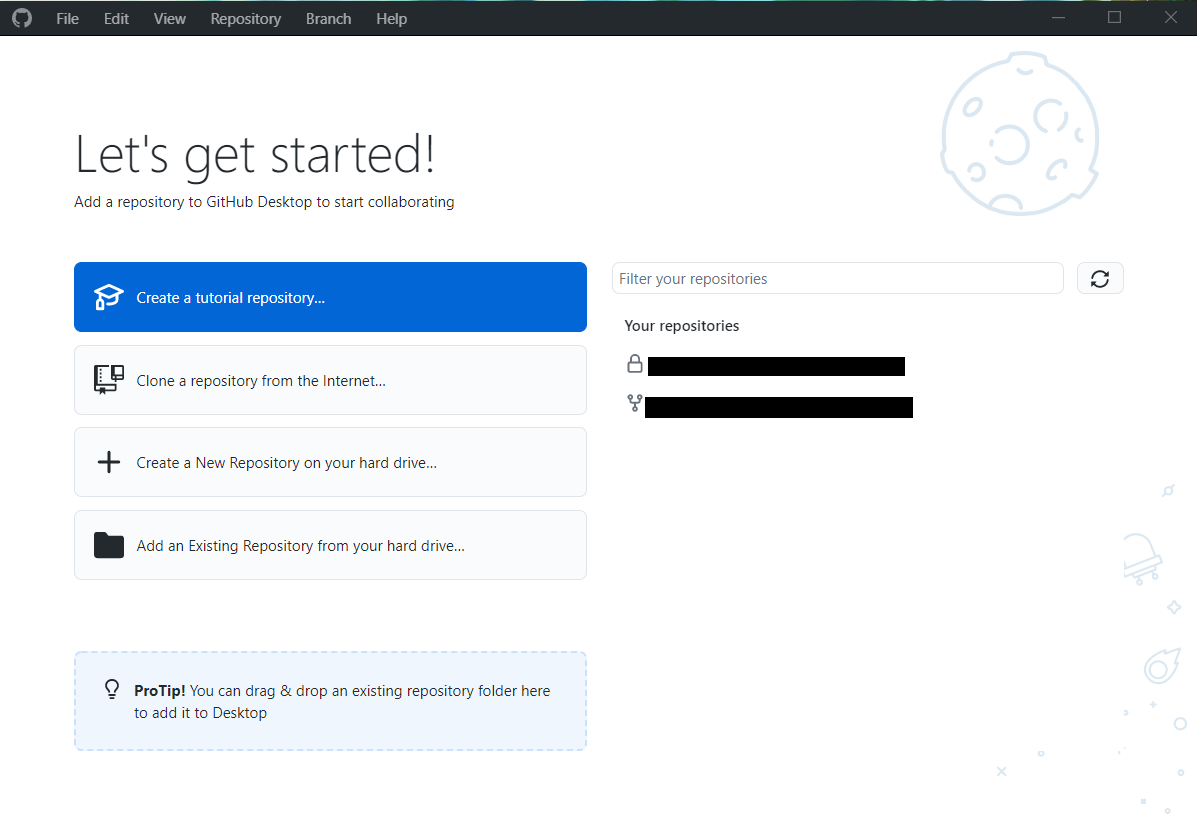
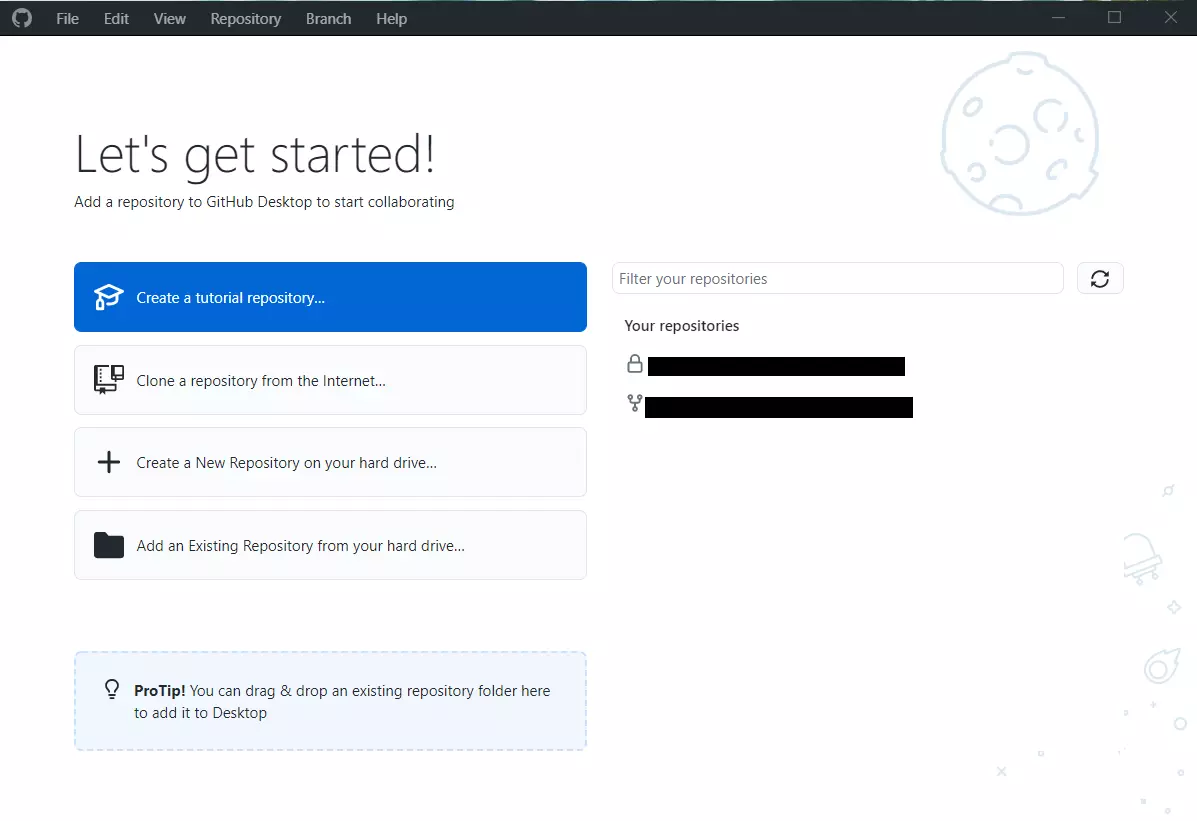
Now you can create new repositories, clone existing ones, or add a local repository from your hard drive. It’s that simple!
Reviewer

Julia Hertler
With over 18 years of experience in content marketing, Julia Hertler has deep expertise in digital communications. For the past 10 years, she has specialised in the areas of domains and hosting at the IONOS Digital Guide, making complex technical topics easy to understand.