

Spring Boot Tutorial

Since its release in 1995, Java has been one of the most popular and widely used programming languages. This object-orientated language really shines when it comes to developing complex business applications (both online and offline). Built on the Java Runtime Environment (JRE), these applications set themselves apart by being platform independent, which makes them available to a particularly wide audience.
Over the past few decades, many frameworks have been developed to simplify working with Java, which provide the user with a ready-to-use basic framework for the Java program being developed. One of the most well-known is the open-source framework Spring, released in 2003, which greatly reduces the complexity of the standard Java specification (“J2EE” or “Java Platform”) as well as the software component Enterprise JavaBeans (“EJB”). With the release of Spring Boot further simplifying the configuration of new Spring projects, this framework has proven to be an excellent and user-friendly option for anyone who does not want to start from scratch when developing a new Java application.
In this Spring Boot tutorial, you will learn what its requirements are, as well as how to get started with this modular framework and Spring Boot.
What is Spring Boot?
Released in 2012, Spring Boot is the Java Spring Framework’s convention-over-configuration solution that reduces the complexity of configuring new Spring projects. Spring Boot does this by defining a basic configuration including rules for use of the framework and all relevant third-party libraries, which allows you to get started on new projects with minimal fuss. This greatly simplifies the creation of stand-alone, production-grade, Spring-based applications, which is why most new Spring applications are also based on Spring Boot.
Spring Boot’s features include:
- the ability to directly embed web server/container applications such as Apache Tomcat or Jetty with no need to deploy WAR files (Web Application Archive);
- simplified Maven configuration due to “starter” POMs (Project Object Models);
- automatic configuration of Spring whenever possible, and;
- the provision of non-functional features such as metrics and externalised configuration.
Through Spring Boot, the development company Pivotal Software has given the framework – which was released in 2005 – a modern, future-orientated touch. This extension benefits from the Spring Framework’s basic technology which has been developed over many years and incorporated into Spring Boot. For more information on the open-source framework (Apache License 2.0), please read our in-depth article about this popular basic Java framework.
Spring Boot Tutorial: Requirements, installation, and getting started
Since adding Spring Boot to Spring, Pivotal Software’s software has been considered one of the best solutions for developing microservices in Java. Due to the 20 or so modules in the basic framework which can be combined as needed, Spring Boot is also useful for a variety of other situations in which it can neither be specifically defined as a framework for web applications nor as a standard solution for desktop apps.
Before we go into more detail in the following Spring Boot tutorial about configuring and creating new projects or the initial Spring Boot structure, let us first take a look at the technical requirements and setup for the necessary project components.
What are Spring Boot’s system requirements?
Spring Boot revolves around Java, so the Java Runtime Environment (Java Platform) is the main software component needed to get the framework up and running. Since you are not only running the application but also using it for development with Java, you will need version 8 (or 1.8) or higher of the Java Development Kit (JDK). In addition to the runtime environment, this kit contains useful tools for programming and testing Java applications. It is available for Linux, Windows, and macOS, so you can use any operating system.
Naturally, Spring Boot also requires you to have the current version of the Spring Framework installed on your system.
You can use either Maven (3.3 or higher) or Gradle (4.4 or higher) as a build tool.
If you want to use the option to integrate a web server that runs your Java application on a servlet, you have three options: Apache Tomcat (9.0 or higher), Jetty (9.4 or higher), or Undertow (2.0 or higher).
How to create your first Spring Boot project
You can use Spring Boot just like any standard Java library by including the appropriate JAR (Java Archive) or WAR files (Web Application Archive) in the classpath. Java uses this path to search for executable files in the file system. There are two ways to create archive files for Spring Boot:
- You can install and use Maven or Gradle to create the project framework, including the required dependencies, on your own.
- You can access the Spring Initializr web service, use it to create your Spring Boot setup, and then download it as a finished project template.
What sets the latter solution apart is that you can create JAR files through a user-friendly web interface which greatly simplifies the process. Since the Initializr also uses Maven or Gradle to generate files, the result is no different from the manual route. For this Java Spring Boot tutorial, we have therefore decided to use the web assistant that can be accessed at start.spring.io.
If you choose to use Spring Initializr, you will need to have Java and either Maven or Gradle installed to work on your Spring Boot application.
Once you have opened Spring Initializr, you can define your preferred properties for your first Spring Boot application in the following order: First, define the build system by selecting either “Maven Project” or “Gradle Project”. On the second line, you can choose between using standard Java or another language in the Java family such as Kotlin or Groovy. Further down, you can define the version of Spring Boot, the project’s metadata (including the version of Java) as well as all relevant dependencies (such as databases, security features, web interfaces, and cloud services). Finally, click on “Generate Project” to create the project files.
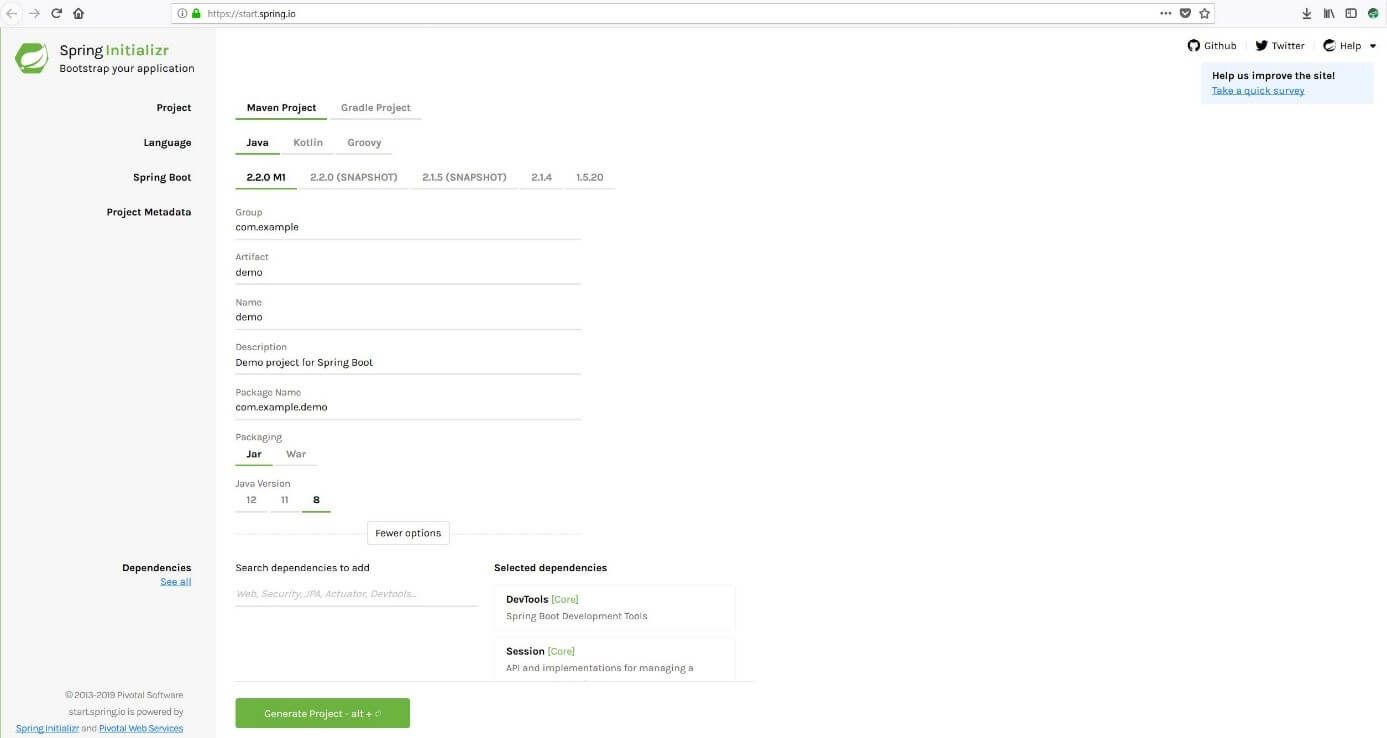
If you want to create your Spring Boot project on your own with Maven or Gradle, you can refer to the installation instructions found in the official online manuals.
Running an assembled Spring Boot project
Spring Initializr allows you to download the generated project files in a ZIP archive file which will need to be unpacked afterward. In the unpacked folder, you will find the respective configuration file, among other things. This is the build.gradle file if you selected Gradle for build management or pom.xml if you selected Maven. If you selected Maven (which also fits our steps for the Spring Boot tutorial), the content of the configuration file will look something like this:
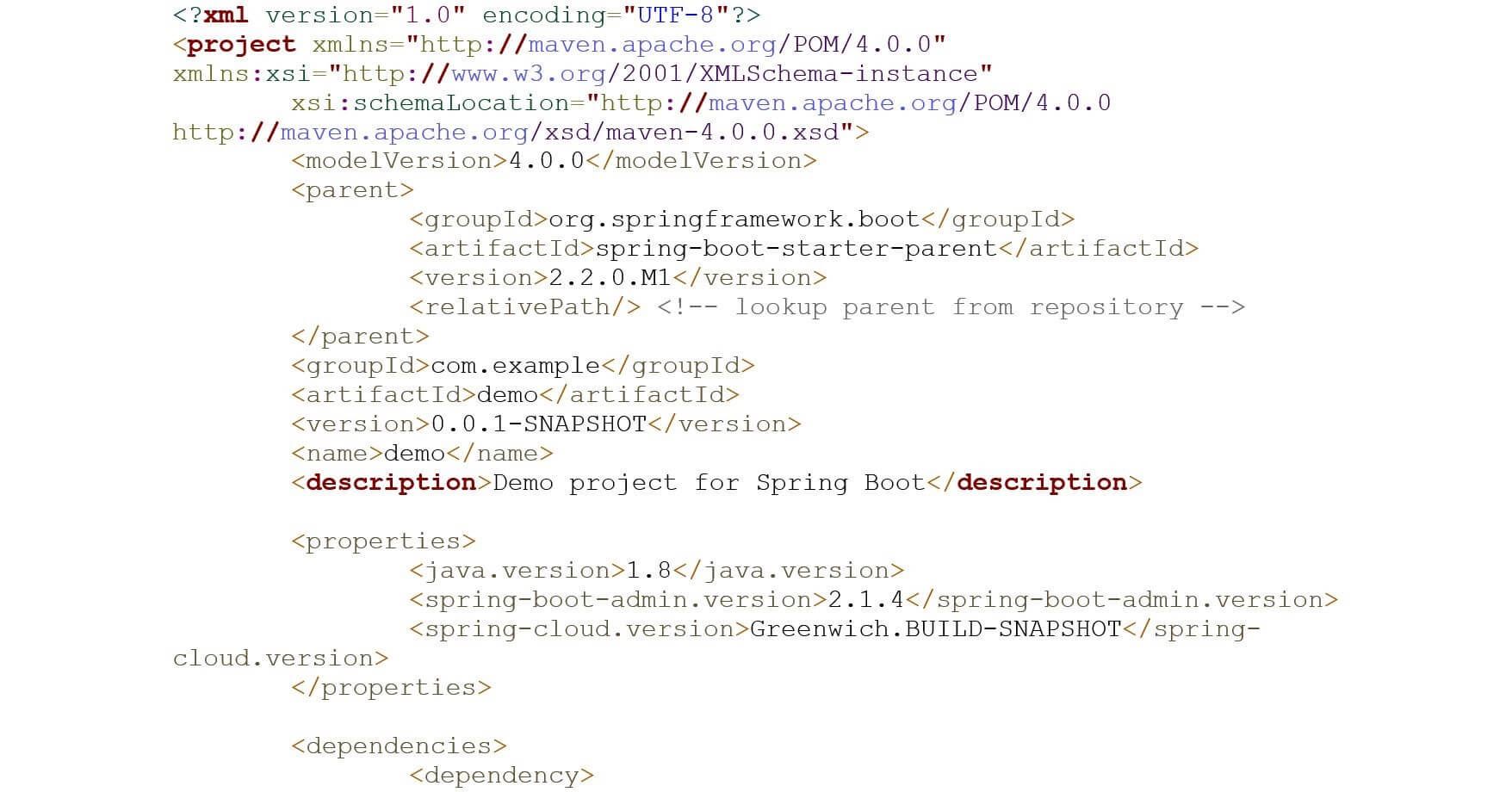
Using the appropriate build software, you can create an executable Spring Boot application from these archive files. If you are using Maven, you can do this by opening the terminal or command prompt window and running the following command in the target folder (i.e. the folder for your Spring Boot files):
mvn clean install

For Gradle projects, use the following command:
gradle clean buildIn either case, you should receive the message “BUILD SUCCESS” once the command has been fully processed and the archive files have been successfully created. The executable file is stored in the folder “target” (for Maven) or under “build/libs” (for Gradle). In our example, the JAR file is named “demo-0.0.1-SNAPSHOT.jar”:
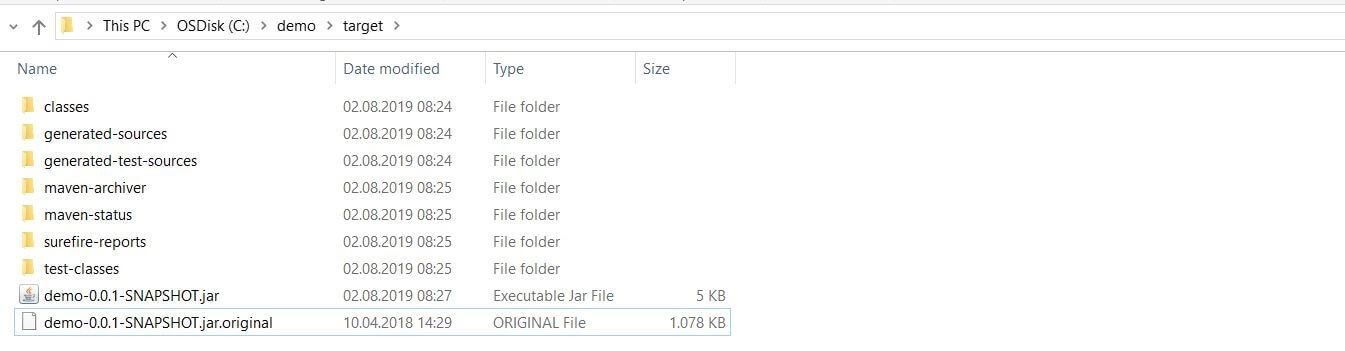
You can run it using Java by typing the following command:
java -jar demo-0.0.1-SNAPSHOT.jar

The name of the JAR file, italicised in the code example, should be replaced if it differs from the one mentioned here. You can now see whether the Spring Boot application was launched successfully by looking at the output displayed in the command line. If you have integrated one of the previously mentioned web servers such as Tomcat, it will also be launched. You can access it with any browser by using the following address:
http://localhost:8080Connecting Spring Boot to the database and data source
Spring Boot provides world-class support for creating and integrating data sources into any SQL or NoSQL database. There is no need to write any additional code to create a new data source. All you need to do is add the necessary dependencies and configuration details. You can do this by using the standard database interface JDBC (Java Database Connectivity). This requires you to first create a starter entry in the configuration file if you did not add the dependency when you initially created the project with Spring Initializr (the same applies to adding any additional dependencies).
To do so, Maven users need to add the following lines of code to the pom.xml file:
<dependency>
    <groupId>org.springframework.boot</groupId>
    <artifactId>spring-boot-starter-jdbc</artifactId>
</dependency>
Gradle users, on the other hand, need to add this code to the build.gradle file:
compile('org.springframework.boot:spring-boot-starter-jdbc')You can open the respective configuration file with any standard code editor. It is important to note that the file needs to be saved in its original XML or Gradle format after the changes have been made.
Next, you add the dependency for the required database management system to your build configuration file. In this Spring Boot tutorial, we connect our application to a MySQL database that we want to use for our application and have installed beforehand.
For Maven projects, the pom.xml file will need the following entry to this end:
<dependency>
    <groupId>mysql</groupId>
    <artifactId>mysql-connector-java</artifactId>
</dependency>
For Gradle projects, you will have to add the following lines of code to connect to the MySQL database:
compile('mysql:mysql-connector-java')Then, you need to add some properties in the “application” properties file. This file can be found under the path \src\main\resources in the Spring Boot project directory. Open this text file and add the following configuration code:
spring.datasource.driverClassName = com.mysql.jdbc.Driver
spring.datasource.url = jdbc:mysql://localhost:3306/PRODUCTSERVICE?autoreconnect = true
spring.datasource.username = root
spring.datasource.password = root
spring.datasource.tomcat.testOnBorrow = true
spring.datasource.tomcat.testWhileIdle = true
spring.datasource.tomcat.timeBetweenEvictionRunsMillis = 60000
spring.datasource.tomcat.minEvictableIdleTimeMillis = 30000
spring.datasource.tomcat.validationQuery = SELECT 1
spring.datasource.tomcat.max-active = 15
spring.datasource.tomcat.max-idle = 10
spring.datasource.tomcat.max-wait = 8000
Now you can use MySQL as you normally would to create a database which includes the required data tables, if you have not already done so. Beginners can find more information about how to use relational database management systems in our comprehensive MySQL tutorial.
Generating an SSL/TLS certificate and activating HTTPS
When you create a Spring Boot application, it will use the unsecured HTTP protocol and TCP port 8080 by default to connect to its web server. To change the default to the secure HTTPS and TCP port 443, you will need an SSL/TLS certificate as well as the appropriate properties in the “application” properties file.
You can obtain the certificate from a certification authority or by creating a self-signed certificate using the Java Runtime Environment. To create a certificate, you can use the Management Utility Key Tool. This is a command line tool that allows you to easily create PKCS12 keystore files (containing an X.509 certificate and a private key) for servers such as Tomcat, Exchange, IIS, and others. For example, if you were to use a Tomcat server, you would need to enter the following command into the command prompt window or terminal to generate the keystore file for your Spring Boot application:
keytool -genkeypair -alias tomcat -storetype PKCS12 -keyalg RSA -keysize 2048 -keystore keystore.p12 -validity 3650For certificate authentication, you then add a unique password and provide some personal information about yourself, your company, and your location.
If you are unsure what your country code is, you can look it up on the website ISO 3166 codes.
The keystore file is then automatically stored in the directory in which you executed the command (which is your own user directory in this Spring Boot tutorial). Copy and paste the keystore file into your Spring Boot application’s directory and add the following lines of code to the “application” properties file that was needed for database integration:
server.port = 443
server.ssl.key-store = C:/demo/keystore.p12
server.ssl.key-store-password = springboot
server.ssl.key-store-type = PKCS12
server.ssl.key-alias = tomcat
Lastly, use the following command to create a new executable JAR file that connects as configured via HTTPS to Tomcat:
mvn -Dmaven.test.skip=true -DskipTests=true clean installSimplifying Spring Boot app debugging using Spring Cloud Sleuth and Zipkin
Conducting regular tests is crucial in software development. This is the only way to catch and correct all programming errors. However, analysing log files is typically very complicated, often making the debugging process quite labourious, especially with microservices. This is why we shall conclude this Spring Boot tutorial by setting up the tracing systems Spring Cloud Sleuth and Zipkin to fully monitor the Spring Boot application.
Using these two tracing applications, you can easily track all requests through a pre-configured REST controller as well as timing information.
Step 1: Add Spring Cloud Sleuth to your project
First, integrate the Sleuth module into your Spring Boot application by adding the dependency in the build configuration file. If you are using Maven, add the following code to the pom.xml file:
<dependency>
    <groupId>org.springframework.cloud</groupId>
    <artifactId>spring-cloud-starter-sleuth</artifactId>
    <version>${spring-cloud-sleuth.version}</version>
    <type>pom</type>
    <scope>import</scope>
</dependency>
If it is a Gradle project, add the following lines of code to the configuration file:
compile('org.springframework.cloud:spring-cloud-starter-sleuth')Step 2: Integrate the Sleuth logs into the REST controller’s class file
Your Spring Boot application’s REST controller must now be configured to process Sleuth logs as required. To do so, add the configuration text to the controller’s .class file – the package name (spring-boot-tutorial in this example) corresponds to the domain of the <groupId> in the pom.xml file:
package spring-boot-tutorial.sleuth;
import java.util.logging.Level;
import java.util.logging.Logger;
import org.springframework.boot.SpringApplication;
import org.springframework.boot.autoconfigure.SpringBootApplication;
import org.springframework.web.bind.annotation.RequestMapping;
import org.springframework.web.bind.annotation.RestController;
@SpringBootApplication
@RestController
public class SleuthappApplication {
    private static final Logger LOG = Logger.getLogger(SleuthappApplication.class.getName());
    public static void main(String[] args) {
        SpringApplication.run(SleuthappApplication.class, args);
    }
    @RequestMapping("/")
    public String index() {
        LOG.log(Level.INFO, "Index API is calling");
        return "Sleuth: Spring-Boot-Tutorial-Test!";
    }
}
Step 3: Add the Spring application’s name to the properties
To ensure that the name of the Spring Boot application is displayed correctly in Zipkin, you should enter the name in the “application” properties file. If you are going to save the configuration to the Spring Cloud Configuration Server, you should also enter it in the “bootstrap” properties file:
spring.application.name = Spring-Boot-Tutorial-AppStep 4: Add Zipkin to your project
The open-source software Zipkin helps to monitor and manage the Sleuth logs, providing a user interface and a server component. Both are added to the dependencies of the respective build configuration file. Maven users need to add the following code to the pom.xml file:
<dependency>
    <groupId>io.zipkin.java</groupId>
    <artifactId>zipkin-server</artifactId>
</dependency>
<dependency>
    <groupId>io.zipkin.java</groupId>
    <artifactId>zipkin-autoconfigure-ui</artifactId>
<scope>runtime</scope>
</dependency>
If it is a Gradle project, the new lines of code will look like this:
compile('io.zipkin.java:zipkin-autoconfigure-ui')
compile('io.zipkin.java:zipkin-server')
Step 5: Enable the application to act as a Zipkin server
The next step is to ensure that your Spring Boot project can act as a Zipkin server. To do this, create a file named zipkin.properties and add the following lines of code to it:
spring.application.name=zipkin
server.port=9411
logging.level.org.springframework.web=debug
Then, activate the server component in the project’s Java file:
package spring-boot-tutorial.zipkin;
import org.springframework.boot.SpringApplication;
import org.springframework.boot.autoconfigure.SpringBootApplication;
import zipkin.server.EnableZipkinServer;
@SpringBootApplication
@EnableZipkinServer
public class ZipkinappApplication {
    public static void main(String[] args) {
        SpringApplication.run(ZipkinappApplication.class, args);
    }
}
If you create the executable JAR file as you normally would and then run the application, the Zipkin server can be accessed using the address http://localhost:9411/zipkin.
Step 6: Add a Spring Cloud Zipkin dependency
Add one last dependency to the build configuration file to connect Sleuth and Zipkin:
Maven:
<dependency>
    <groupId>org.springframework.cloud</groupId>
    <artifactId>spring-cloud-sleuth-zipkin</artifactId>
</dependency>Gradle:
compile('org.springframework.cloud:spring-cloud-sleuth-zipkin')Step 7: Configure the Sleuth logs to export to the Zipkin server
Add the AlwaysSampler object (Bean) to your Spring Boot application’s Java file to enable Sleuth logs to be automatically exported to the Zipkin server:
@Bean
public AlwaysSampler defaultSampler() {
    return new AlwaysSampler();
}
Step 8: Enter the base URL for the Zipkin server in the application properties
In this last step, enter the base URL for the Zipkin server in the application properties by once again opening your Spring Boot project’s properties file and adding the following code:
spring.zipkin.baseUrl = http://localhost:9411/zipkin/