

How to turn on push notifications

Push notifications are useful to stay up to date with apps and websites. Notifications alert users to incoming chat messages or updated data from a weather app, for example. We’ll show you how to enable push notifications on smartphone apps and browsers.
A quick guide on how to turn on push notifications
In a browser
- Search for ‘notifications’ or ‘push notifications’ in the browser settings
- Add the websites allowed to send push notifications
In Android apps
- Click ‘Apps’ in Settings
- Select the desired app and manage notifications
In iOS apps
- Tap the ‘Notifications’ menu item in Settings
- Select desired app and manage notifications
What are push notifications?
A push message is used, alongside an audio signal or vibration, to alert a user to an app update. This can take the form of a simple text alert such as ‘New message from XYZ’ or include more complex information, for example ‘Your train is delayed by 20 minutes’.
Why are push notifications useful?
Push notifications are a bit like a news ticker alerting users to in-app or website news. These messages are prominently displayed in a designated area on a smartphone or PC, on the lock screen, for example.
Once you activate push messages, you’ll be kept up to date on traffic reports, weather data, grocery offers, etc. App providers use push messages for a wide variety of purposes.
However, too many incoming push messages can have the opposite effect and quickly result in information overload. You can resolve this by checking which apps are enabled for push notifications and turn off push notifications you don’t wish to receive.
Got a website but still looking for the right hosting solution? IONOS offers Web hosting solutions to suit your needs. Try them now!
How to turn on push notifications in a browser
When you visit a website for the first time using a browser such as Chrome or Firefox, a pop-up window usually appears requesting to send push notifications. This is particularly common among news websites. This is made possible, among other things, by enabling cookies in the browser.
You can agree to push notifications via a simple click which gives a page permission to send updates via push notification. You can manage web pages you wish to receive push notifications for manually.
- Launch the browser Settings, such as Chrome, Firefox or Edge.
- In Chrome, for example, select the menu item ‘Privacy and security’.
- Launch ‘Site Settings’.
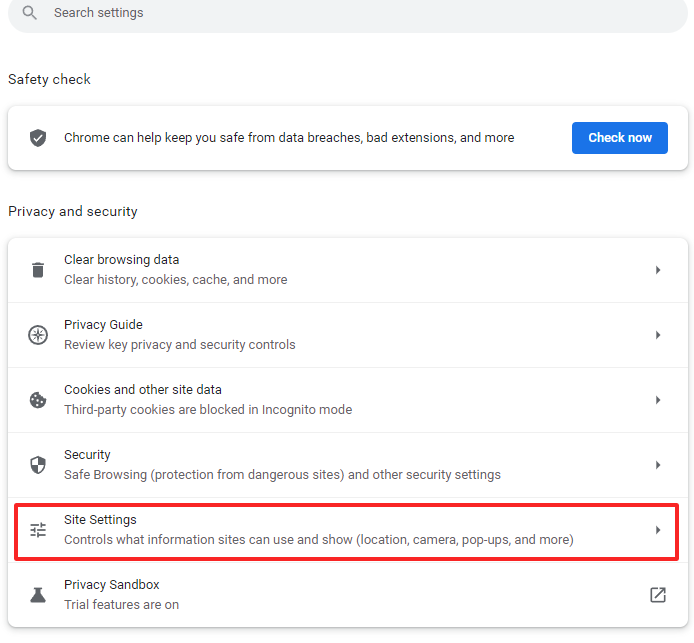
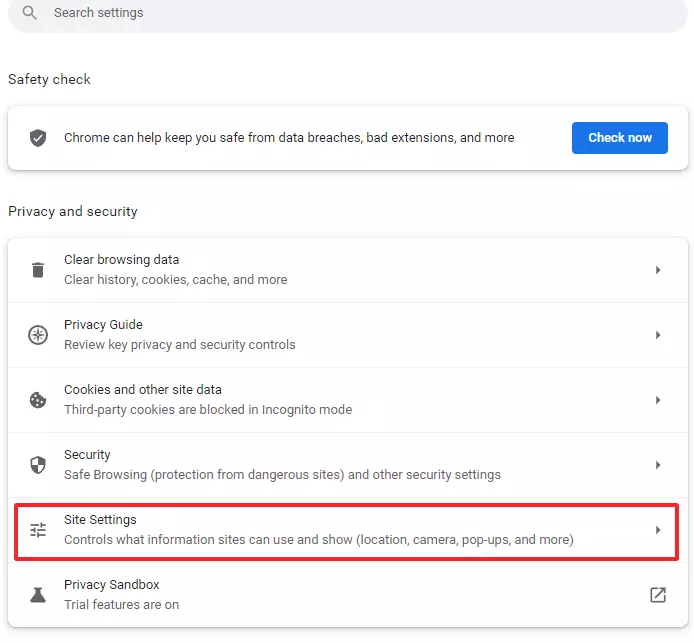
- You can manage all notifications via the corresponding subitem and activate push notifications from here.
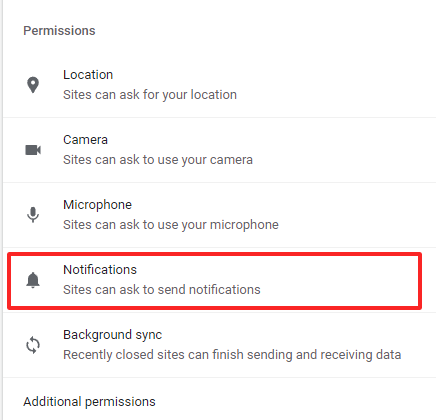
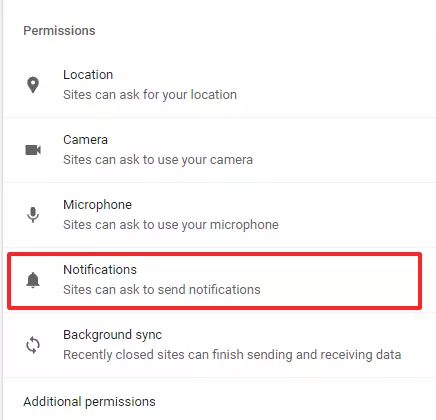
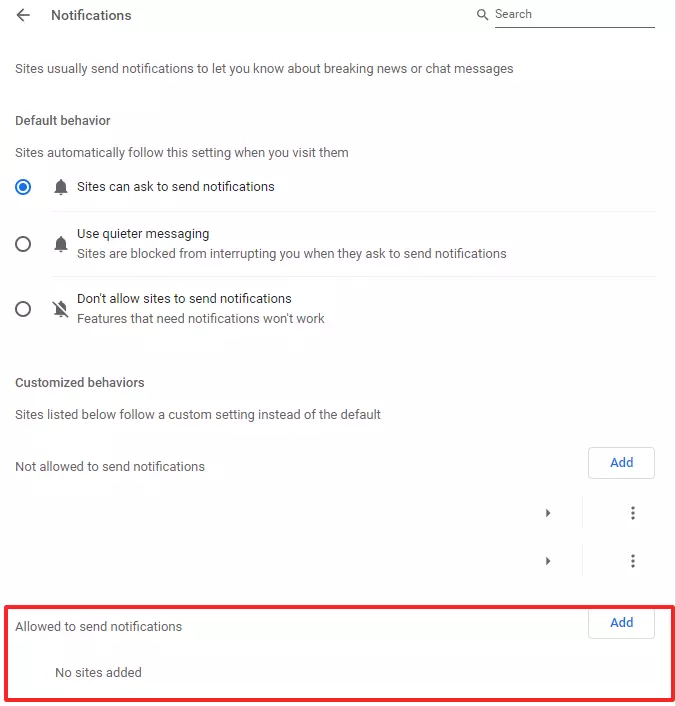
- Websites must be added to the notification list by including them in ‘Sites can ask to send notifications’ using the appropriate URL.
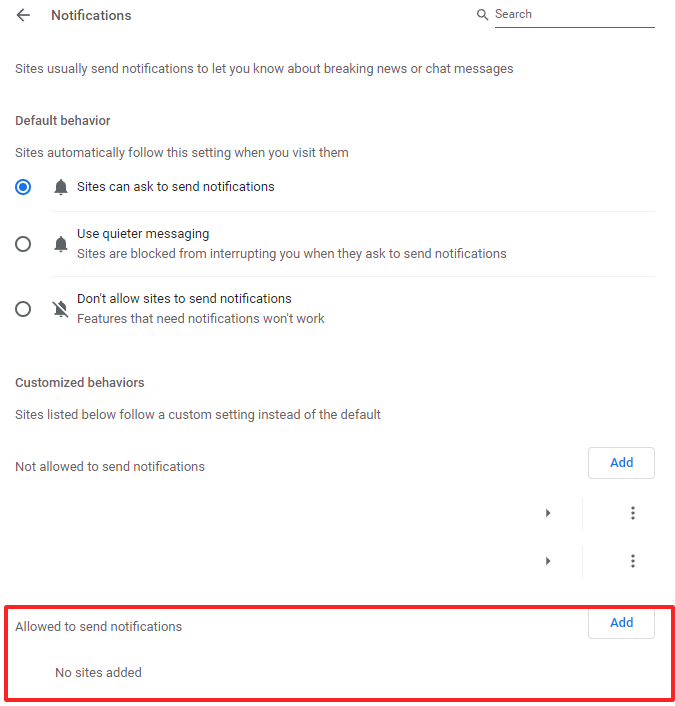
To receive push messages, you must enable JavaScript. You can enable JavaScript from the browser’s website settings.
How to enable push notifications in apps
How to enable push notifications on Android
You can just as easily display push notifications for the apps you use on Android. Here’s how:
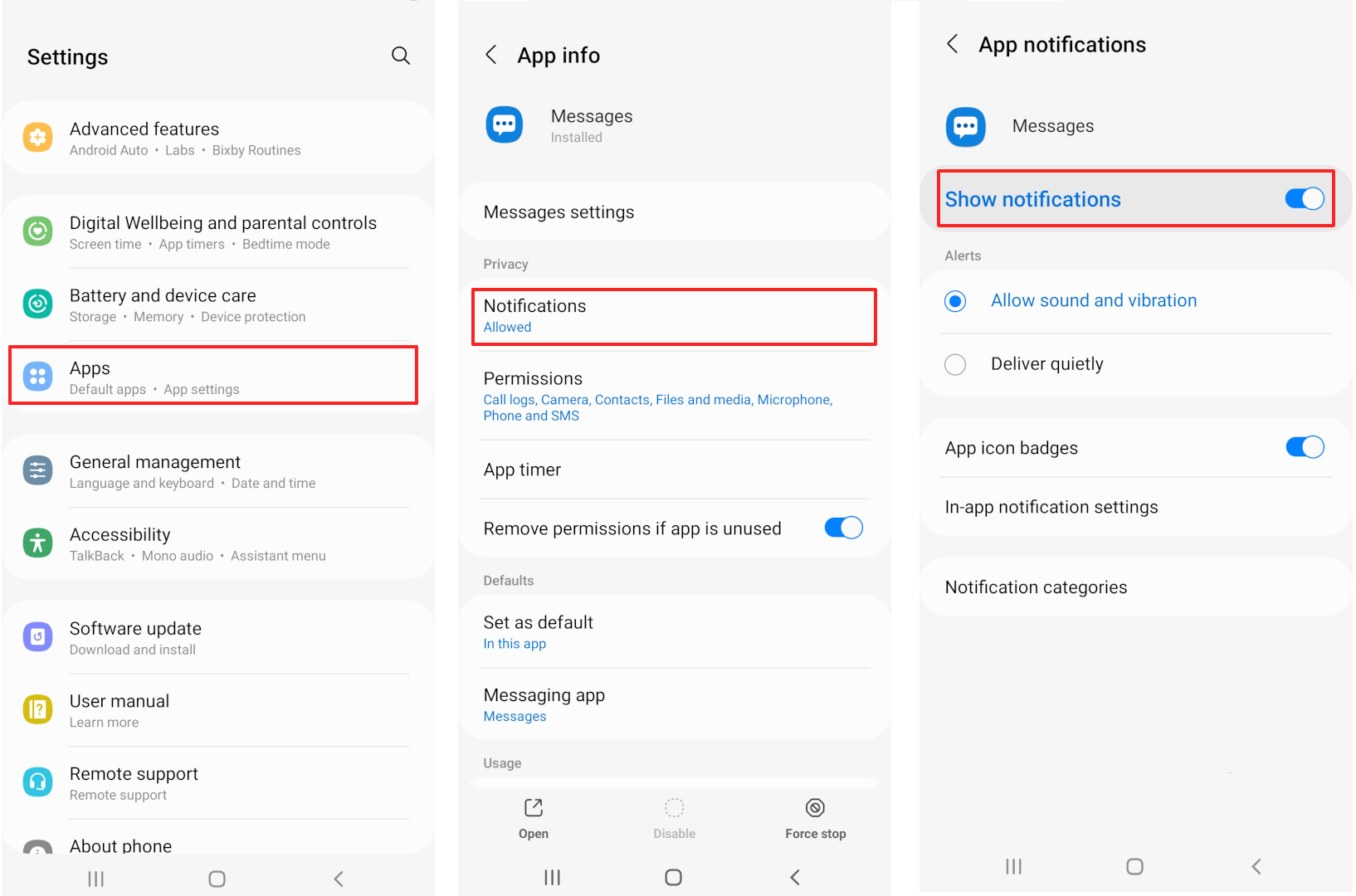
- Launch Settings on your smartphone.
- Select the ‘Apps’ menu.
- From the list of apps, open the app you want to activate push notifications for.
- Navigate to the app’s settings.
- Select ‘Notifications’ in the app settings.
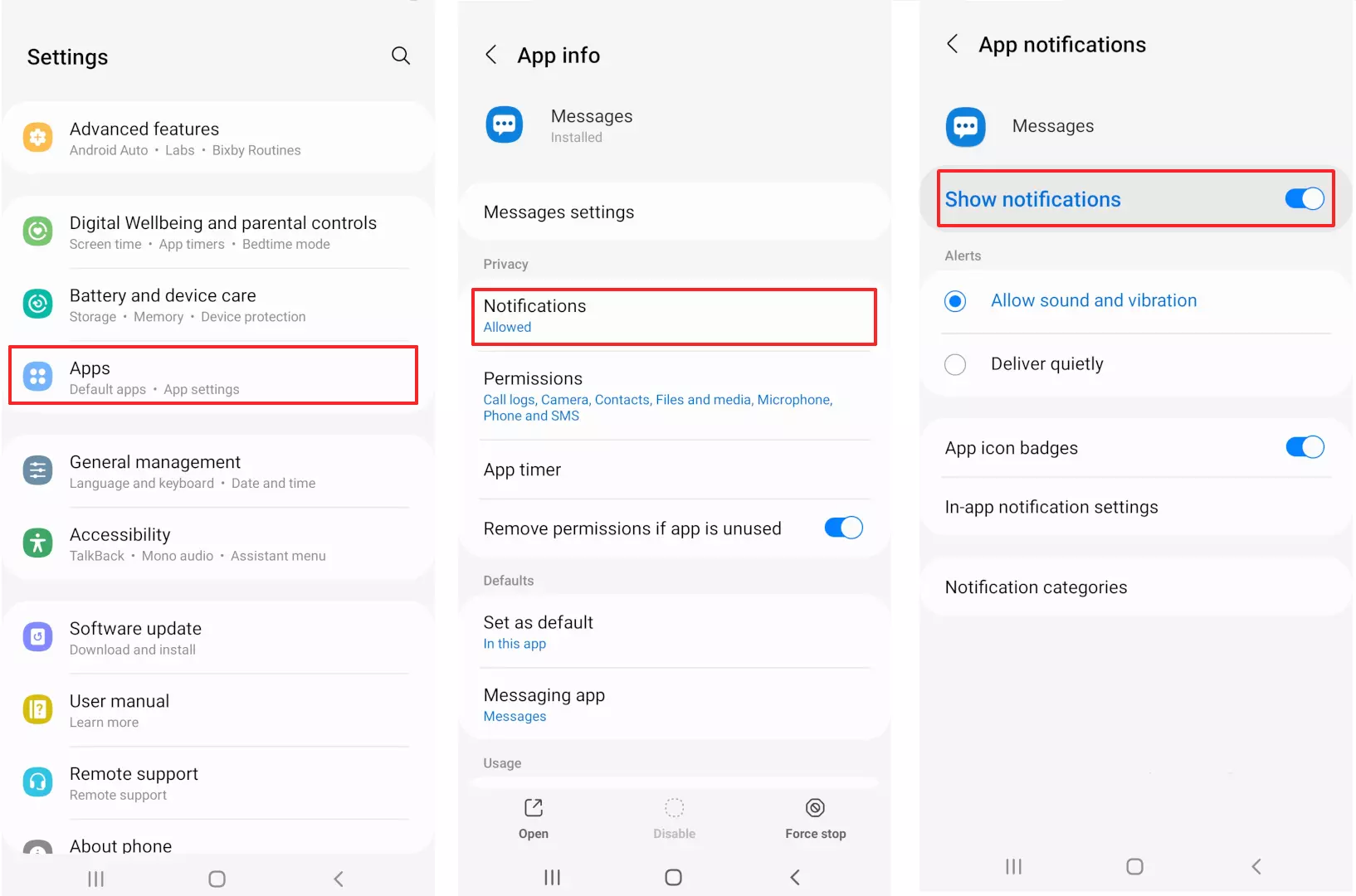
- At the top, you’ll find a slider to activate push notifications. The slider must be moved to the right.
- In the ‘Notification categories’ you can activate different types of notifications.
How to enable push notifications on iPhone
Notifications from individual apps are easily activated on iPhones. Here’s how to proceed:
- Launch your iPhone settings.
- Select ‘Notifications’.
- In ‘Notifications’, search for the app you want to enable push messages for.
- In the ‘Notification settings’ of the app, you can activate push notifications by moving the slider to ‘Allow Notifications’ (right).
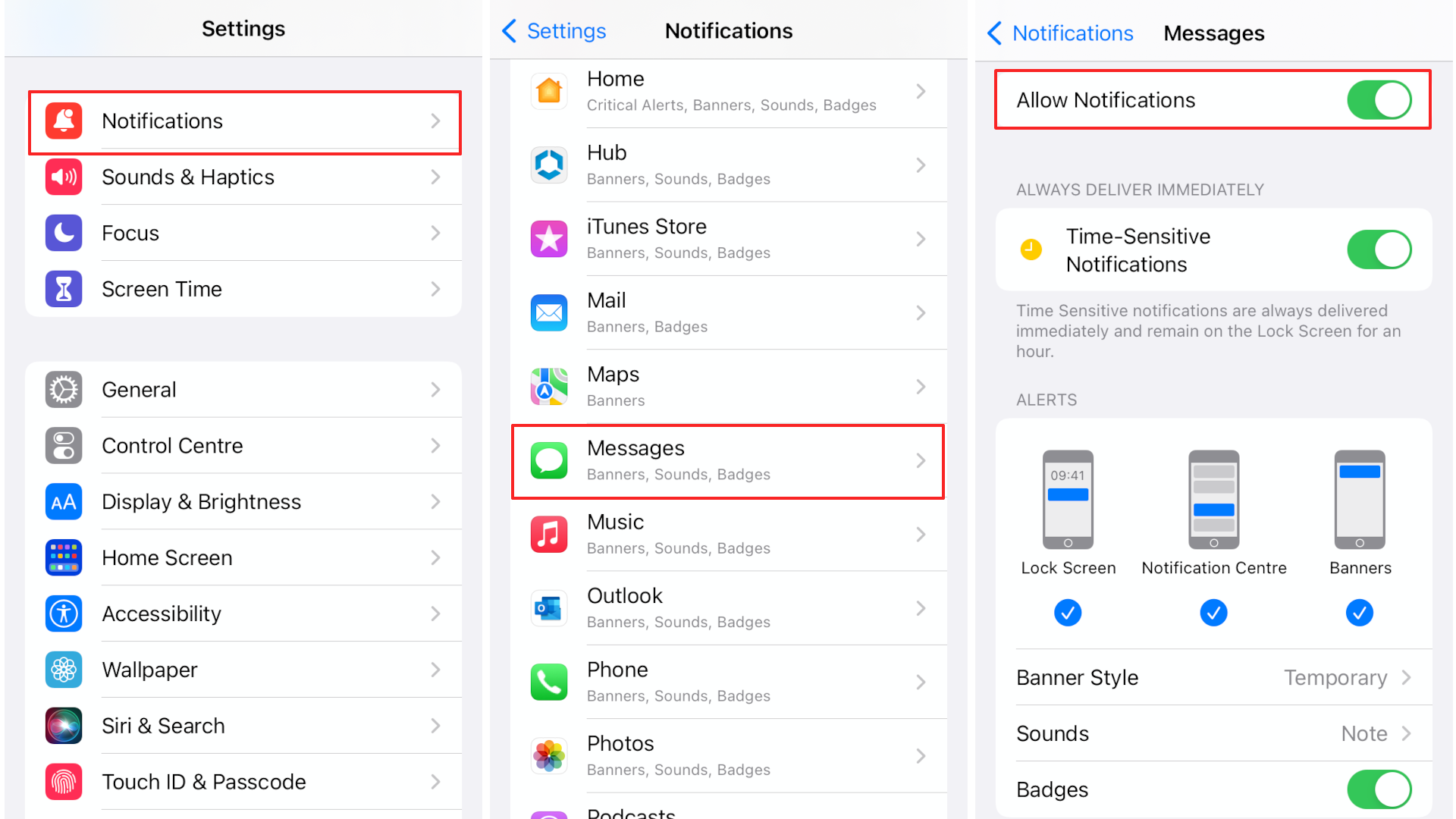
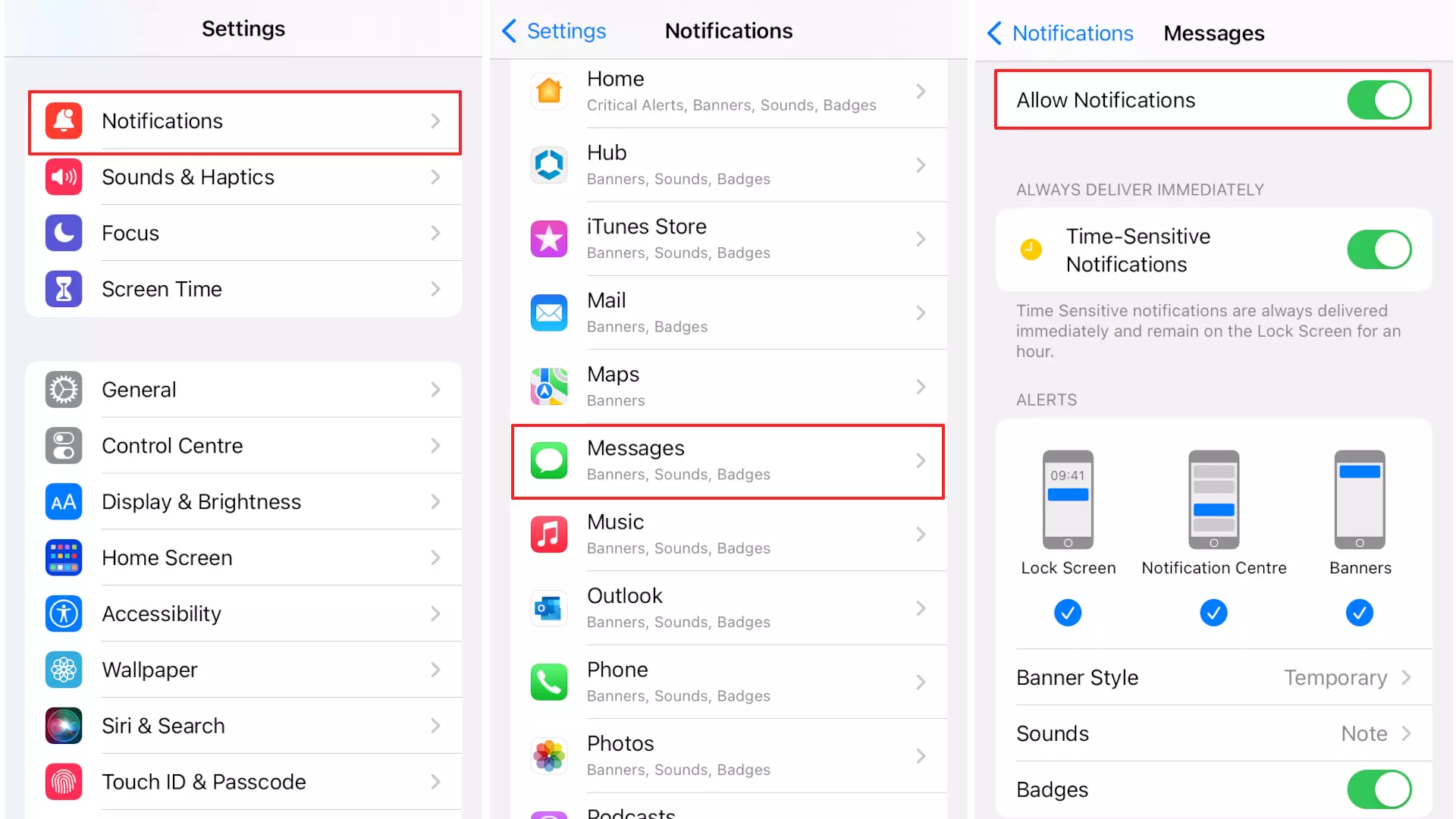
Via the ‘Notification settings’ menu of the respective app, you can specify different display styles and locations. For example, you can specify that an app should always be displayed on the home screen.
Data protection and privacy
In some cases, apps access private user data to send push notifications, such as the location of a smartphone or a browser’s cookie settings. Your stored data is simultaneously processed by the respective provider. eCommerce data protection regulations are, however, governed by respective laws. Online retailers should therefore ensure that they’re aware of the regulations and implement them accordingly.
To protect your privacy, pay attention to permissions given to an app or website and, if necessary, periodically delete stored browser cookies. You can take additional security precautions, especially when browsing on a PC, by installing add-ons for more privacy.
Design your website with MyWebsite Now from IONOS with professional hosting, domain and many more features. For businesses we recommend the package that includes royalty-free photos, SEO and privacy notification templates.