

Office programs: A comparison of the best office software

Everyday office life presents all those involved with various challenges. Whether it be task organisation, planning appointments and deadlines, or the figuring out internal and external communication: Without the right tools you will quickly feel lost, which is why office software for PCs, smartphones, etc. is an indispensable part of modern office life. However, the range of office software on offer today is so diverse that it is difficult to find the right office programs for your needs. We’ll show you the most important categories of available office software so you can decide for yourself what you’ll need.
Office programs: The best all-rounders for everyone
When searching for the right software, companies often face the problem regarding which office programs are actually needed for a smooth business process. Especially for this purpose, so-called office suites (also called office programs or software) offer a collection of elementary applications that simplify everyday office life. Usually, these suites contain word processing programs, spreadsheets, presentation tools, database management systems, and communication tools. The classic market leading software is Microsoft Office, which has been on the market offered by Microsoft since 1989, but for which there are now fee-based and free alternatives.
Microsoft Office
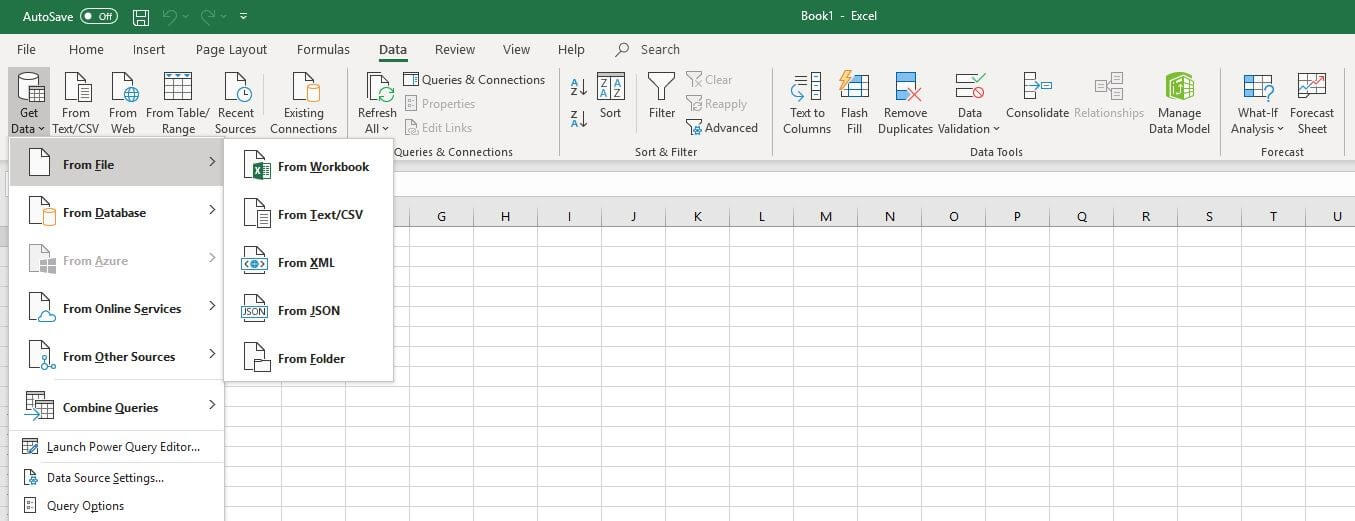
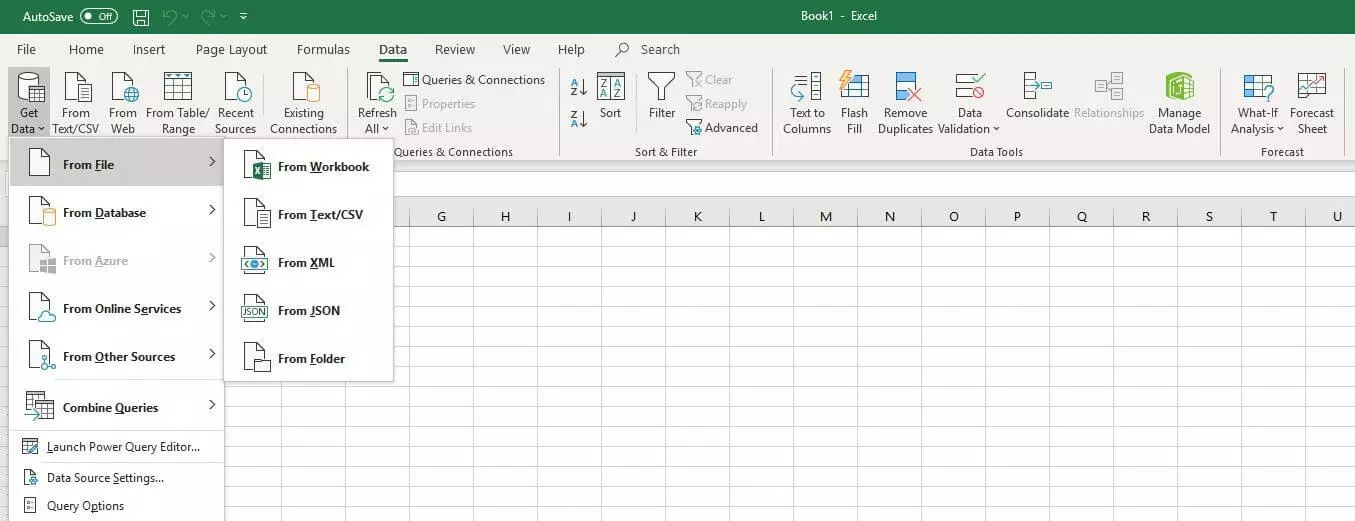
The world-known office software suite Microsoft Office is not only the first choice for many Windows users - thanks to versions for macOS, iOS, and Android as well as a slimmed-down web variant for all common browsers, the collection is also in demand far away from the in-house operating system. Microsoft has set standards with Office programs such as Word (word processing), Excel (spreadsheet), PowerPoint (presentations), or Outlook, whereby the individual tools are characterised both by the simple user guidance and by their large range of functions. The use of the current edition, which is distributed under the name “Office 365,” requires the conclusion of a monthly subscription or the one-time purchase of a license (only available with the “Office Home & Student” package).
LibreOffice
The open source program LibreOffice shows that office software does not necessarily have to cost a lot of money. Although the office software contained in LibreOffice can be used free of charge, it is in no way inferior to Microsoft Office programs. The text editor Writer or the drawing program Draw are similar to Microsoft’s not only in terms of their operation, but also their functionality, making them a popular choice. Since the LibreOffice programs also support many Microsoft formats such as .docx or .xlsx, collaboration with users of the Microsoft suite is also possible without any problems.
Google Workspace
Since 2016, the search engine Google has also been offering an office package: Google Workspace. It differs from the other softwares in that it is exclusively cloud-based. The various tools for the joint document editing and task scheduling and appointment management are not installed on a PC or mobile device, but can be easily started and used without installation with the browser of your choice. You only need an active internet connection to synchronise the documents, but the majority of office programs included in Google Workspace also have an offline mode. As with Microsoft Office, a monthly subscription is required to use Google Workspace.
 To display this video, third-party cookies are required. You can access and change your cookie settings here.
 E-mail programs: The heart of office communication
Even if half a century after its invention it is already considered outdated, the e-mail shouldn’t be forgotten as a daily part of office life. An estimated 196 billion mails are sent worldwide every day, about half of which are professional messages. An e-mail program with which you can receive, send, and archive e-mails should therefore not be missing on any working device – especially since these clients in most cases also function as Personal Information Managers (PIMs) by enabling the administration of appointments, contacts, tasks, and notes.
Microsoft Outlook
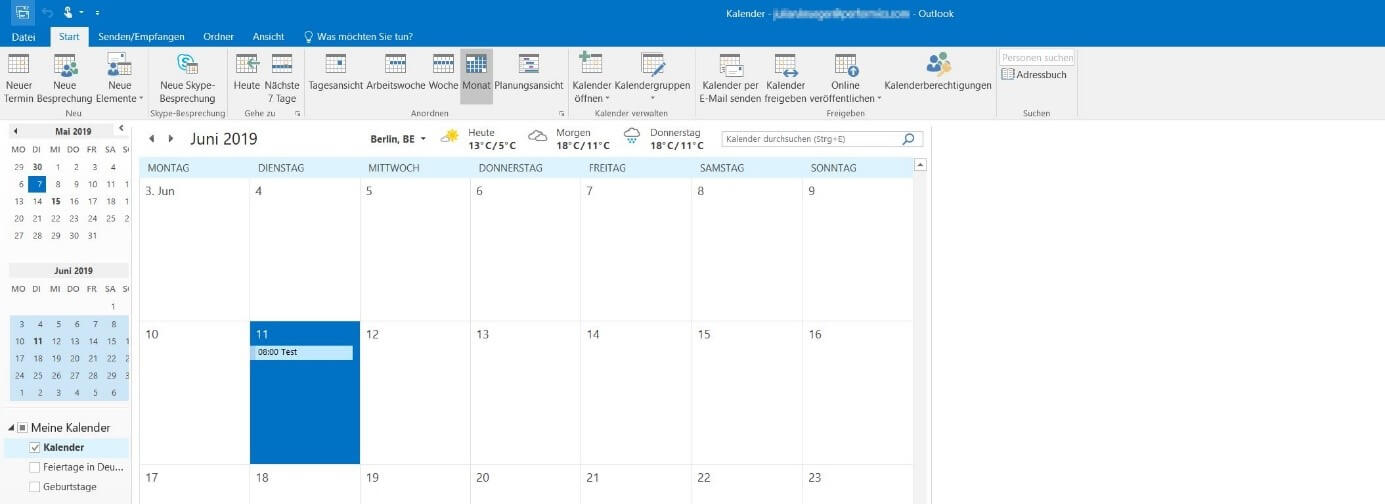
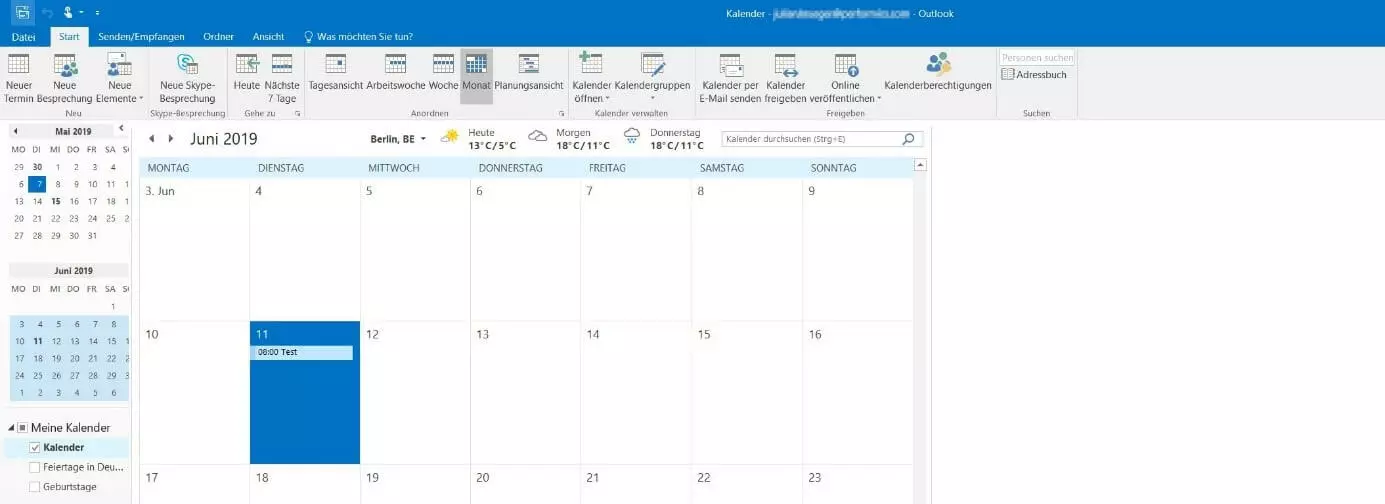
Outlook is the official e-mail client of Microsoft Office and therefore the default choice for many users when it comes to sending electronic messages. The Office program can be installed after purchase or after getting a MS Office subscription, either on your system of choice or in a browser. Apps for iOS and Android users are also available. The client has an integrated calendar that can be used, for example, to create and coordinate schedules or book conference rooms.
Thunderbird
If you're looking for free office software, you'll also find it in the e-mail client category: The open source program Thunderbird developed by the Mozilla Foundation is one of the best Outlook alternatives and is completely free of charge. By default, the client is limited to e-mail only, but can be extended with add-ons for various functions. For example, you can add a calendar with the “Lightning” add-on to manage upcoming tasks and appointments directly in Thunderbird. Also popular and very useful is the ReminderFox extension, which lets you view and manage lists of reminders and tasks.
Windows Mail
The Windows operating system also offers a free office program for e-mail management. The application, which has the simple name “mail,” first appeared in the Windows Vista edition and is also available in the current Windows 10 version. The tool comes standard with an inbox, calendar, and contact management. In addition, you can add the “Microsoft To-Do” task scheduler to the client via the Microsoft Store. When you link Windows Mail to a Microsoft Exchange account, you also get access to security features such as the ability to encrypt your messages.
Calendar software: Office software for keeping track of your schedule
Keeping appointments and deadlines is one of the most important virtues in everyday office life. Relationships with business partners suffer quickly if you do not show the necessary professionalism in this respect. And even within your own company, adherence to deadlines plays a fundamental role in achieving the goals you have set yourself. So don't hesitate to use calendar software or schedulers to plan your daily routine optimally and not to miss any of your appointments. Such special programs offer a much larger range of functions than the integrated calendar solutions of e-mail clients, for example.
Rainlendar
With the calendar application Rainlendar you can keep an eye on all important events and tasks. For this purpose, the tool presents corresponding lists directly on your desktop so that you can view them at any time. The graphical style of these lists, which are unlimited in number, can be customized using different skins. Rainlendar is available for Windows, macOS, and Linux, and stores all data in the standardised iCalendar format (RFC 2445). So you can easily export your appointments and tasks to another program. The office scheduling program is available either as a free Lite version or as a paid Pro version. The latter gives you the possibility to integrate other calendars like the Google calendar.
OneCalendar
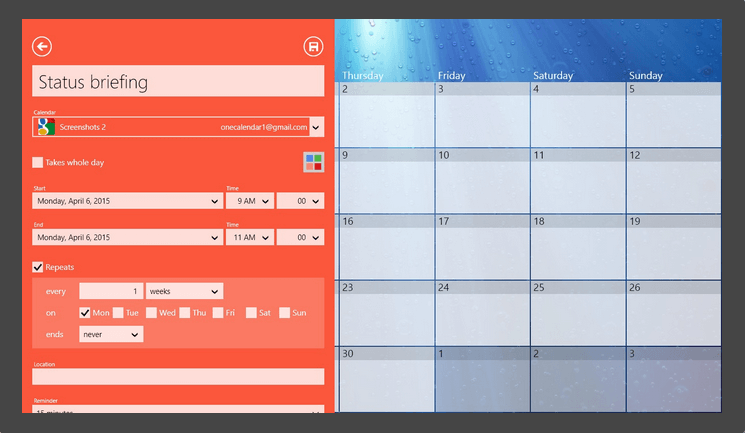
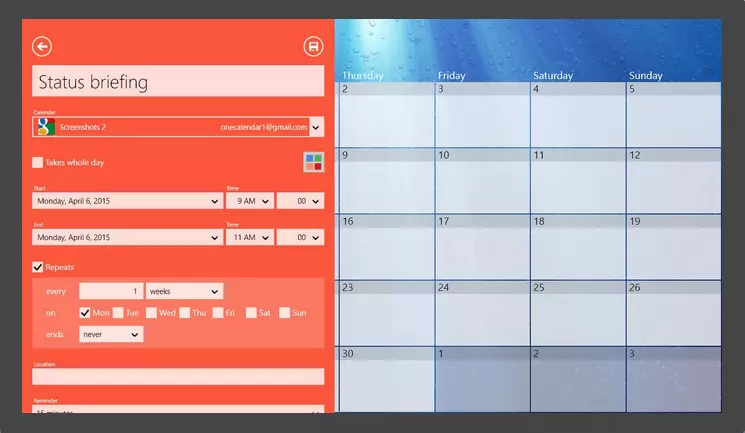
It is often unavoidable to have to resort to lots of different calendar apps. Code Spark's office software OneCalendar provides a simple and practical solution to uniting all your schedules. Their app for Windows, Android, and iOS allows you to import calendars from various services. These services include the following:
- Outlook
- Google Calendar
- Exchange
- iCloud
- WebCal
- CalDAV
OneCalendar is free of charge. For a small fee you can optionally upgrade the Office program to OneCalendar Premium at any time and activate further features, such as immediate synchronisation or a personalisation function.
EssentialPIM
Far more than a simple calendar is the office program developed by Astonsoft Ltd. EssentialPIM. The software for Windows, iOS, and Android shines with various other features for the organisation of everyday work, which is why it can be classified as a Personal Information Manager (PIM). You can also enter tasks and create notes, manage contacts, and even integrate e-mail accounts. In addition, a password manager is integrated in the office software. EssentialPIM can be upgraded to the paid Pro Edition to get access to a huge synchronisation package (e.g. Google, iCloud, Outlook, CalDAV, and CardDAV), strong encryption methods, or a notepad function for the desktop.
To-do lists: The efficient way to plan tasks
The to-do list is an indispensable utensil for everyday office life, which should also be well known from private life. Such a list of outstanding tasks facilitates the self-organisation or the work in the team considerably, and forms the crucial basis for successful time management. The individual items in the list can be specifically assigned to specific people and ticked off as soon as they have been completed – if new tasks arise, simply add them. Instead of keeping your to-do list on a sheet of paper or on a flipchart, you can also do this on your PC or mobile device thanks to the appropriate office software.
Evernote
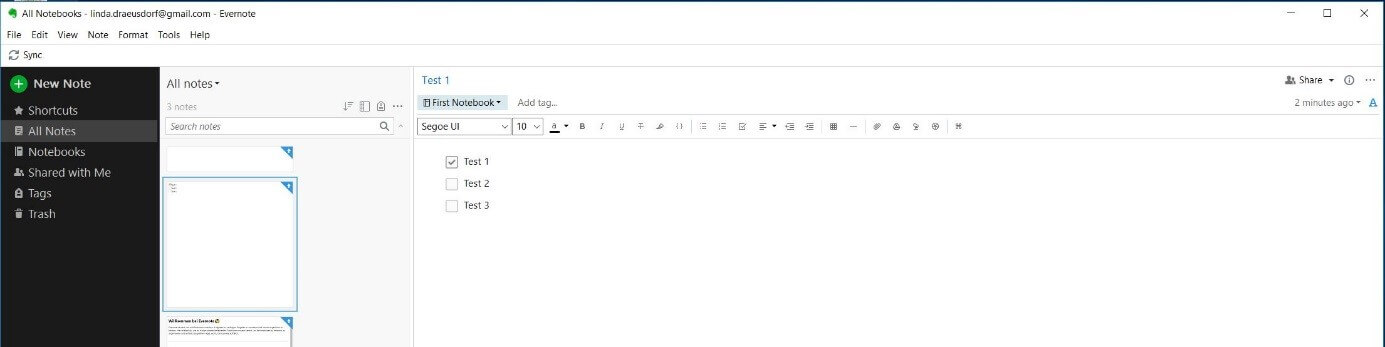
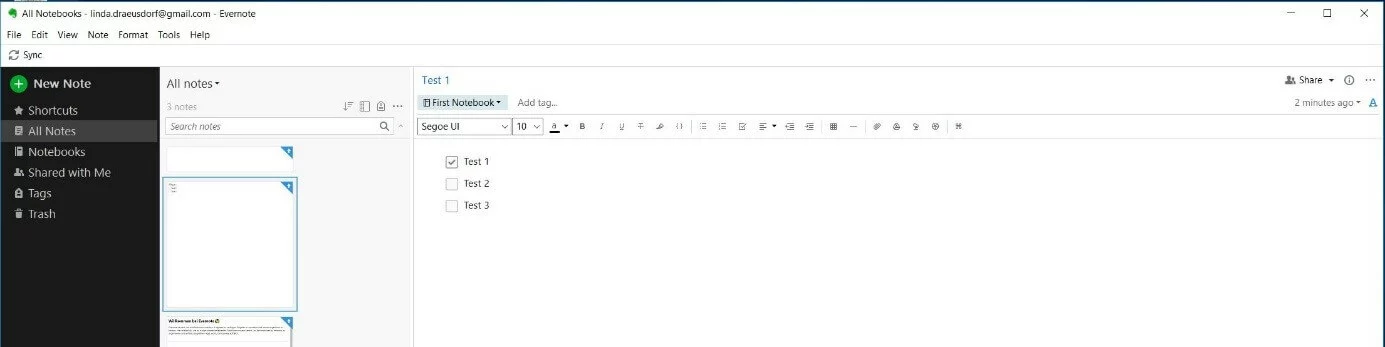
One of the best-known office programs for task management is the web service Evernote set up in 2008. Alternatively, you can use the browser or the app for your device (Windows, macOS, iOS, Android) to type notes into the application, scan handwritten notes, create to-do lists, or add photos, images, recordings, etc. to organise your thoughts and make team interaction as easy as possible. The latter, however, is only reserved for users of the paid version Evernote Business, which among other things increases the monthly upload limit to 20 GB and allows offline access with mobile apps. In the free Basic Edition, this is only possible with the desktop application.
ToDoList
The Office program ToDoList is one of the oldest to-do list tools. The free software for Windows does not require any installation – you simply download the executable program file and start the task scheduler by double-clicking it. ToDoList presents upcoming tasks in a clear tree structure, where you can create as many subtasks and comments as you like for each task, which can be folded in or out for better clarity. You can also define the following settings for each task:
- Priority
- Time spent
- Deadline
- Status
- Person responsible
- Category
In addition, you can store links in ToDoList to resources that are needed for a task or a task branch. To do this, simply enter the network or internet address.