

Resetting WordPress: Methods and tips

WordPress is the world’s most widely used content management system (CMS). Using WordPress makes building a website much easier. From a vast selection of plugins and themes, you can put together the desired functionality and the right look. Within five minutes you can have your own site online.
Despite its apparent simplicity, it is easy to get bogged down when creating a WordPress site. Then the site stops loading properly or just doesn’t work at all. When you’ve had enough, you’ll want to reset the WordPress site and just start over from scratch. What options are there for resetting WordPress and when does it make sense to do so?
- Free website protection with SSL Wildcard included
- Free private registration for greater privacy
- Free Domain Connect for easy DNS setup
Why reset a WordPress site?
WordPress is a flexible Content Management System (CMS). Because the software is so flexible, it’s possible to create completely different sites and apps based on the CMS. Whether it’s a single page scroller, an online shop or a social network, you can find suitable plugins for almost any undertaking. However, the flexibility of WordPress is both a blessing and a curse. If you’re a layman getting entangled in the thicket of mutually incompatible plugins, you might wish for a reset button.
Even as part of the regular administration of a WordPress site, it is sometimes useful to be able to reset at least part of a WordPress site. Most of the time, the need arises when major changes are to be made to the site. There are some common scenarios where it is recommended to reset WordPress. These include moving a WordPress domain to a new host provider (migration), creating a new design (redesign) or relaunching the site under the existing domain (relaunch).
There are also certain circumstances that require a WordPress site to be reset, for example, if the site has been hacked or stops loading after an update (restore/recovery). Sometimes it is also useful to reset parts of WordPress as part of a 'spring clean'. Periodically removing idle legacy files increases site security and can lead to improved WordPress performance.
| Reset WordPress page by | Meaning |
|---|---|
| Migration | Moving a site to a new host |
| Redesign | Creating a new design |
| Relaunch | Restarting the site under the existing domain or a new domain |
| Restore/recovery | Site was hacked or corrupted |
| Clean-up | Removing unused contaminated sites |
| Reset | Completely resetting WordPress |
Resetting is most useful in the context of development and test workflows. Ideally, you’d work on a staging site or local dev site. This way you don’t have to worry about any damage the site might sustain.
Here we are exclusively discussing how to reset a normal WordPress site. In case of a multisite, the process is more complex.
What happens when you reset WordPress?
What do we actually mean when we talk about resetting WordPress? It can actually mean several things. WordPress is made up of four fundamental components:
- WordPress core files and data
- WordPress configuration data
- WordPress database
- WordPress site data in wp-content files
If you want to reset WordPress, you have to be clear about what exactly you want to achieve. Do you want to remove only the content, or do you want to reset the settings or the WordPress theme to its initial state? Has the site been hacked or moved? Depending on the scenario, different components of the site must be reset.
It’s important to understand that the components are interlocked. If you delete only the database for example, plugins, themes, and uploaded files (uploads) will remain. However, due to the loss of the database, the uploads will no longer show up in the WordPress media library. You will then no longer be able to delete them from WordPress. In this case, it would be appropriate to reset the WordPress uploads folder.
Resetting WordPress core
'WordPress core' refers to the folders and files that make up WordPress 'at its core'. These are created during the installation of WordPress and changed during updates if necessary. The WordPress developers at iThemes contribute a plausible definition:
'WordPress core is a way of referring to all the 'foundational' files that are required for WordPress to work. WordPress core is what you download from WordPress.org in the form of a zip file.' – Source: https://ithemes.com/blog/wordpress-core-explained/
Let’s look at the names of important WordPress core files and folders in the WordPress root directory as an example. As a user, don’t touch these folders and files, otherwise you can easily corrupt your WordPress installation:
- index.php
- wp-login.php
- wp-admin/
- wp-includes/
- etc.
If the WordPress core has been corrupted, a reset can be useful. WordPress core corruption is usually caused by improper user access or introduced malware. If the WordPress core was changed by a hacker, it is better to rebuild the site completely from a backup. This guarantees that the malware is eliminated.
Resetting WordPress configuration data
WordPress configuration files are a handful of files located in the root directory of the WordPress installation. These store special configuration settings outside the database. The following WordPress configuration files are found in most WordPress installations:
| Configuration data | Description | Changes | Risik of damage |
| wp-config.php | Sets basic configuration settings; created during installation and links the WordPress installation to the WordPress database | Changes to this file are unusual. | Page no longer loads: 'White Screen of Death' 'Error establishing a database connection' |
| .htaccess | Controls the Apache web server; defines WordPress redirects and sets access to directories from the web; can be used to create basic password protection of a site; popular for protecting staging sites from access by regular users. | Plugins write in .htaccess, e.g., for security settings, SEO, or caching. | Page no longer loads: 'White Screen of Death', '500 Internal Server Error'; loss of SEO potential due to corrupted redirects; release of confidential page areas |
| robots.txt | Tells search engines to index only certain areas of the site; used to hide staging sites from search engines | SEO plugins write this file. | Loss of SEO potential; indexing of confidential page areas |
Modifications to WordPress configuration files quickly cause damage to the site. This damage is often immediate; the site stops loading properly. However, subtle damage can also occur that only becomes noticeable after a long time, for example, when the Google ranking of the site drops dramatically.
If there is any damage to the WordPress configuration files, it is highly recommended to restore them from a backup. If you try to trace the damage and repair it manually, you may make it even worse. In such cases, it is possible to reset a corrupted WordPress configuration file to its initial state. However, all page-specific settings will be lost.
Resetting the WordPress database
The WordPress database contains most of the site’s content and configuration settings. These are stored in individual database tables. Two basic types of tables are used:
- WordPress core tables, including:
- wp_posts
- wp_options
- wp_users
- wp_comments
- Tables from plugins and themes
- What these are called exactly depends on the respective plugin or theme.
If you remove parts of the database, this may affect WordPress like a reset. It should be noted that there are two ways to reset the WordPress database:
- Delete database entries (DELETE * FROM <table>)
- Delete database tables (DROP TABLE <table>)
It is essential to create a database backup ('Database Dump') before modifying the WordPress database. Usually, a database dump results in a compressed text file with SQL statement. To reset the WordPress database to a previous state, the Database Dump is imported. In this process, the SQL statements contained are executed sequentially and the data is reconstituted.
There is a pitfall when restoring the WordPress database after reset: If only individual entries were removed during the reset, the database dump must have been exported with DROP TABLE IF EXISTS entries. Otherwise, the restore will fail.
Resetting the WordPress site data
Unlike WordPress core, site data is changeable over time. The site data includes all folders and files in the wp-content folder. Let’s take a look at the most important folders and their relative paths:
- Site data: wp-content/
- Installed plugins: plugins/
- Installed themes: themes/
- Uploaded data: uploads/
Each plugin and theme is in its own folder. If you delete one of these folders, the respective theme or plugin will be removed. If necessary, however, tables and entries should remain in the WordPress database. If you remove the complete wp-content folder, you reset the WordPress site data. You can then start from scratch installing plugins and themes.
- Stress-free, no matter your skill level with easy AI tools
- Full customisation with themes and plugins
- Hassle-free updates and less admin
What are the methods of resetting WordPress?
There are three basic ways to reset a WordPress site. We’ll discuss these in detail as we go along:
- Reset WordPress page manually
- Reset WordPress site using plugins
- Reset WordPress page using WP-CLI
Resetting a WordPress site brings destructive changes to the WordPress installation and content. If you have valuable content on the site, it is essential to create a WordPress backup. It often makes more sense to create a new, clean WordPress installation than to clean up an existing version. This is especially true if the existing version has been hacked. Malicious code can survive cleanup attempts well hidden in a WordPress installation.
Reset WordPress page manually
Many WordPress reset guides found on the web recommend a manual approach with a series of individual steps. Work on the server or the backend of the hosting environment, deleted targeted files and folders and change configuration settings of the WordPress installation as well as the hosting environment. Adjust DNS settings, create a new database or delete tables in the existing database. If necessary, you can make use of special scripts.
In most cases, doing it manually is not the optimal way to reset a WordPress site. Most of the time it is easier to create a new, clean WordPress installation. This is because a WordPress site should ideally be indistinguishable from a freshly installed WordPress after a complete reset.
The manual approach is the most powerful and allows you to reset parts of WordPress with surgical precision – provided you have the right know-how. If you lack the necessary knowledge and experience, it is easy to crash your site. Therefore, it is essential to create a backup before starting work. Even better would be to work on a WordPress staging site. Let’s look at a few scenarios where the manual approach comes into play.
Relaunch with existing domain and fresh WordPress
Let’s imagine we have an existing WordPress site under the domain www.example.com. Now we want to start from scratch with a fresh WordPress. Of course, we want to keep the existing domain and the associated search engine authority. A commonly shown approach is to reset the existing WordPress site and then rebuild it under the existing domain. However, this approach is based on an error in thinking.
Remember, a completely reset version should ideally be indistinguishable from a freshly installed WordPress. Therefore, it is better to install WordPress fresh and then direct the existing domain to the new installation. To do that, adjust DNS settings in the hosting backend or domain registrar to associate the domain with the server’s IP address. Then adjust the WordPress site URL and replace all instances in the database with the new URL.
It is often practical to leave the old site in place when relaunching. This way, you can still view content and settings later and transfer them if needed. A good approach is to host the existing site under a subdomain like old.example.com after the relaunch. Similarly, before the relaunch, build the new site under a subdomain like dev.example.com. At the time of the relaunch, swap the two sites:
| Site | Domain before relaunch | Domain after relaunch |
|---|---|---|
| Existing site | www.example.com | old.example.com |
| New site | dev.example.com | www.example.com |
If you choose this approach, it is essential to create a robots.txt file in the root directory of the old site to hide it from search engines. Otherwise, the duplicate content problem remains, which can have negative consequences for the ranking of the new and old site. In the old site’s robots.txt file, make the following entry:
User-agent: *
Disallow: /Register your desired domain at a low price with IONOS.
Reset WordPress theme when redesigning the site
If you use a commercial or free theme for the design of a WordPress site, you should ideally create a child theme when you build the site. All changes to the theme will then apply to the child theme. Once this approach has been taken, it will be easy to develop a new design in the future.
For the redesign, simply create a new child theme and test it on a staging site until you are satisfied with the result. Then copy the finished child theme into the existing WordPress installation. If you now activate the child theme, you start over with a fresh theme.
But what if no child theme was created? In this case, all changes were made directly to the theme. How to reset the WordPress theme then depends on the theme.
Reset WordPress site completely
This method is most often found on the web when looking for instructions to reset a WordPress site. This involves manually removing the components of the WordPress site that are variable over time but leaving some (in theory) unchangeable components in place. The site is effectively 'gutted' in order to fill it with new content afterwards.
We will show this procedure here for the sake of completeness. The process is no less time-consuming than completely reinstalling WordPress. However, since some WordPress components survive the reset, there is a risk that components from the old installation will cause problems later. Let’s take a look at the process:
- Create a complete backup of the existing site.
Backup WordPress database and WordPress directory!
2. Create new database and save access data of the new database.
Create the new database in the hosting backend or use the mysql command on the command line.
It is often recommended to delete the existing database at this point. This is actually unnecessary. It is often better to hold onto the data a little longer. Remove the old database only when you are sure that everything is working.
3. Empty all content in the wp-content/ folder.
At this point, it is often recommended to delete the wp-content folder completely. On the Linux command line, the following command does this, as long as you are in the WordPress root directory:
rm -rf wp-content/It is more practical to rename or move the folder:
mv wp-content/ _wp-content/
mv wp-content/ ~/quarantine/_wp-content/
WordPress is then no longer able to find the folder and creates a new, empty wp-content folder. At the same time, the original content remains in the _wp-content folder. So, you can still access them to view files and transfer them if necessary.
4. Reinstall WordPress
To do this, bring up the WordPress address in the browser and add the following suffix: /wp-admin/install.php
Enter the access data of the new database and continue the installation process.
Reset WordPress site using plugins
The manual process of resetting a WordPress site is laborious and prone to error. It is better to limit potential influence. If there are only a few, well-defined paths, it’s harder to make mistakes. WordPress reset plugins do just that. We present 'WP Reset' plugin in detail here.
For most users, WP Reset is the easiest and most direct way to reset a WordPress site. The plugin has an intuitive web interface and offers a good level of functionality. The plugin conveniently allows you to create a snapshot of the WordPress database. This is how you can undo a reset. Beware: The snapshot contains only the database; files are not backed up! So, you still have to make a complete backup beforehand.
Automatically secure your data with MyDefender by IONOS – including protection against malware and easy recovery.
WP Reset allows you to reset a WordPress site to its initial state. Conveniently, the plugin allows you to retain important values after the reset. This includes the name of the site and the site URL, as well as the admin user and password. Let’s take a look at a few examples of how to use the plugin below.
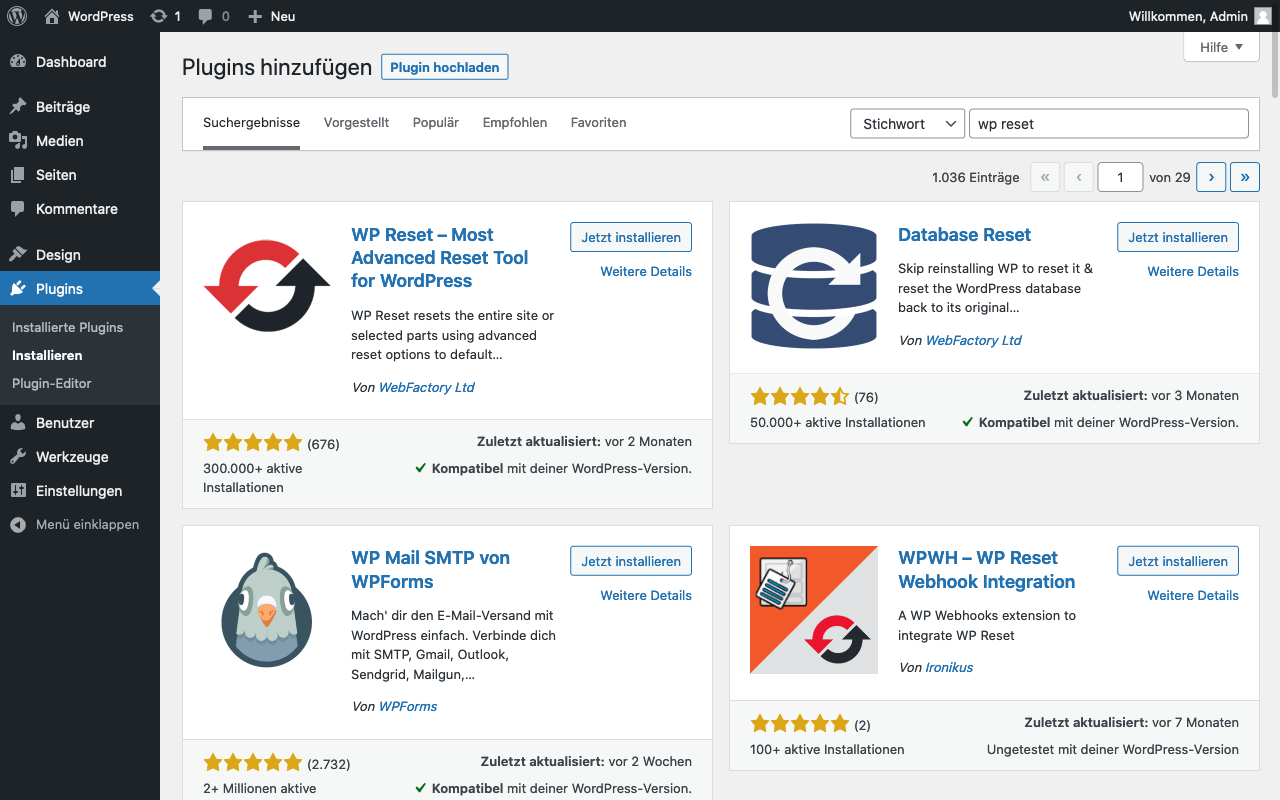
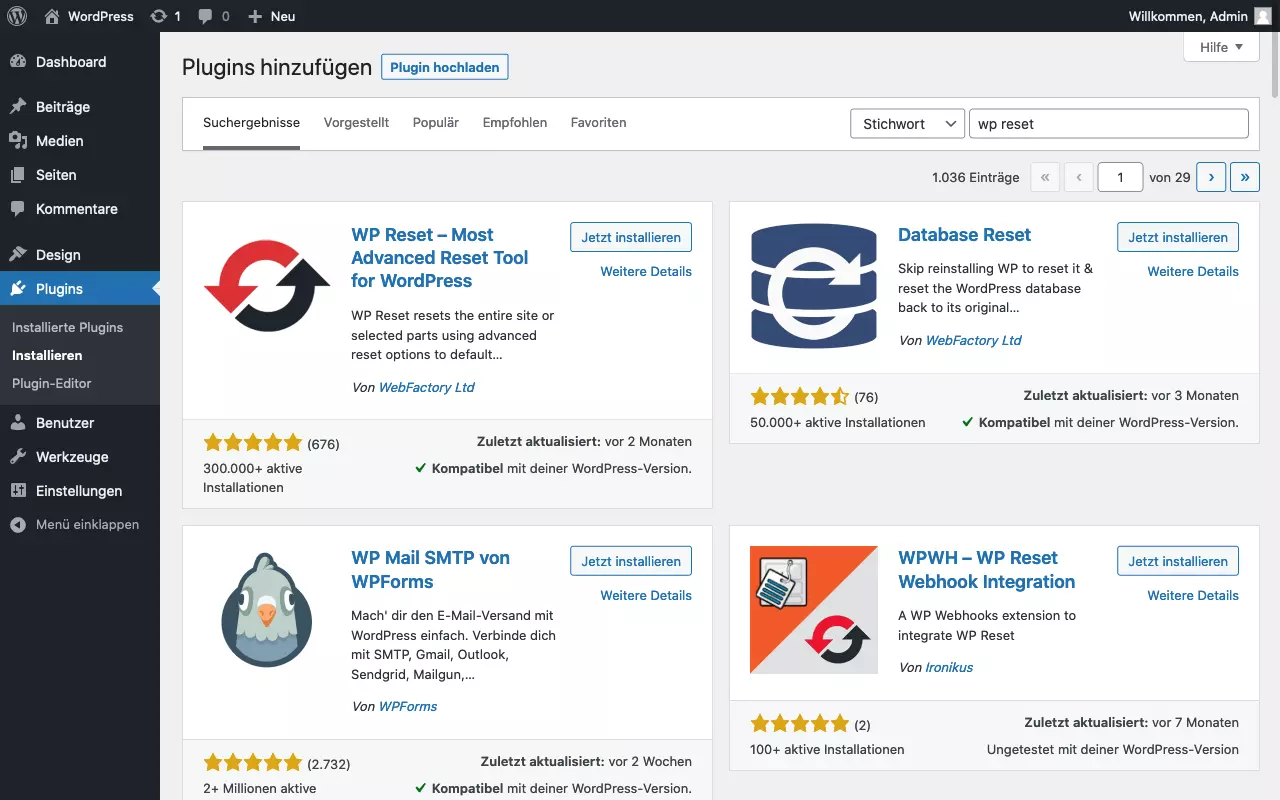
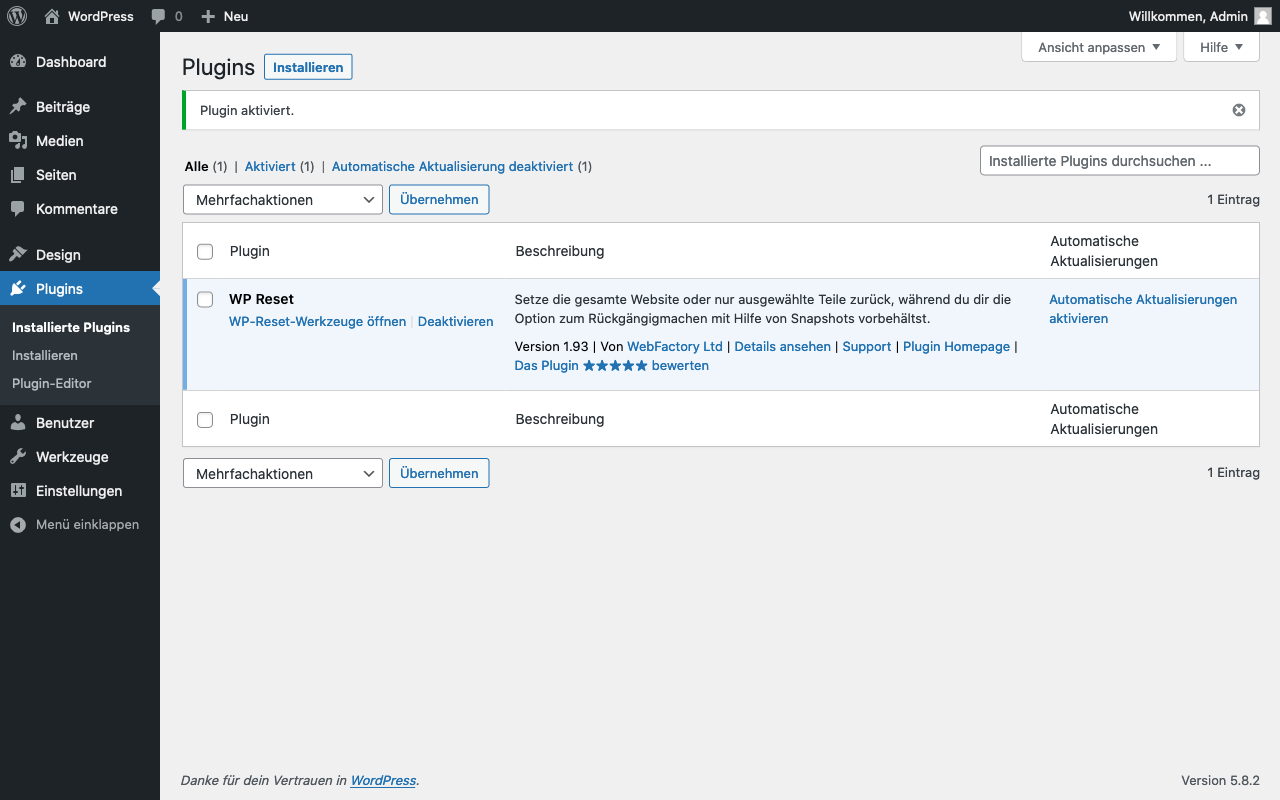
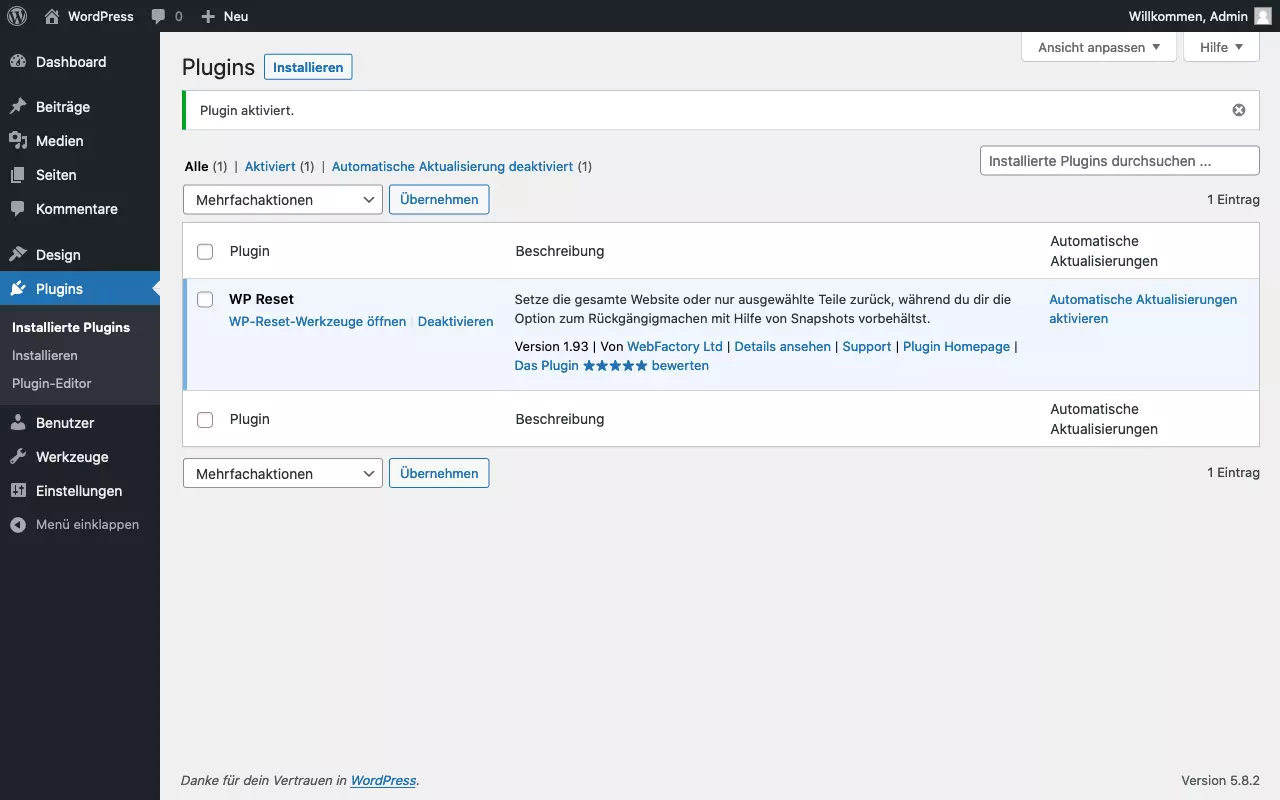
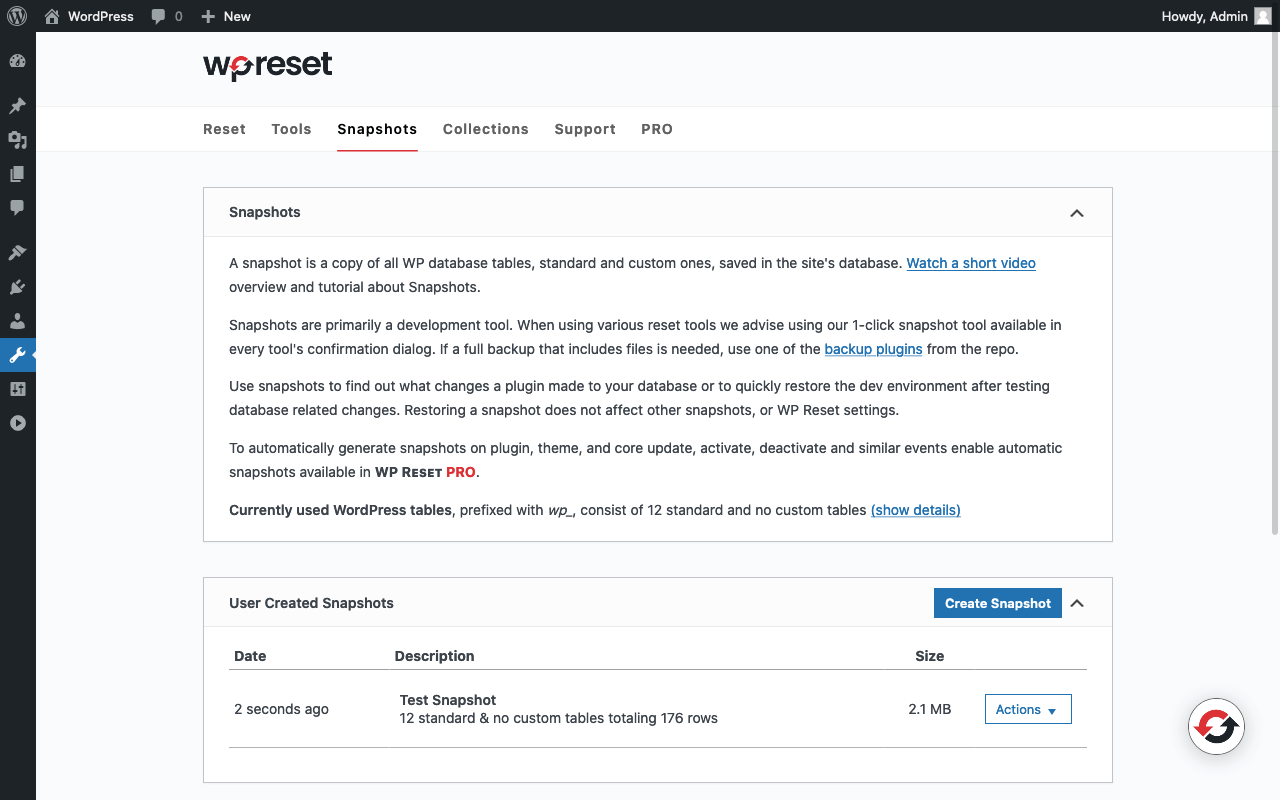
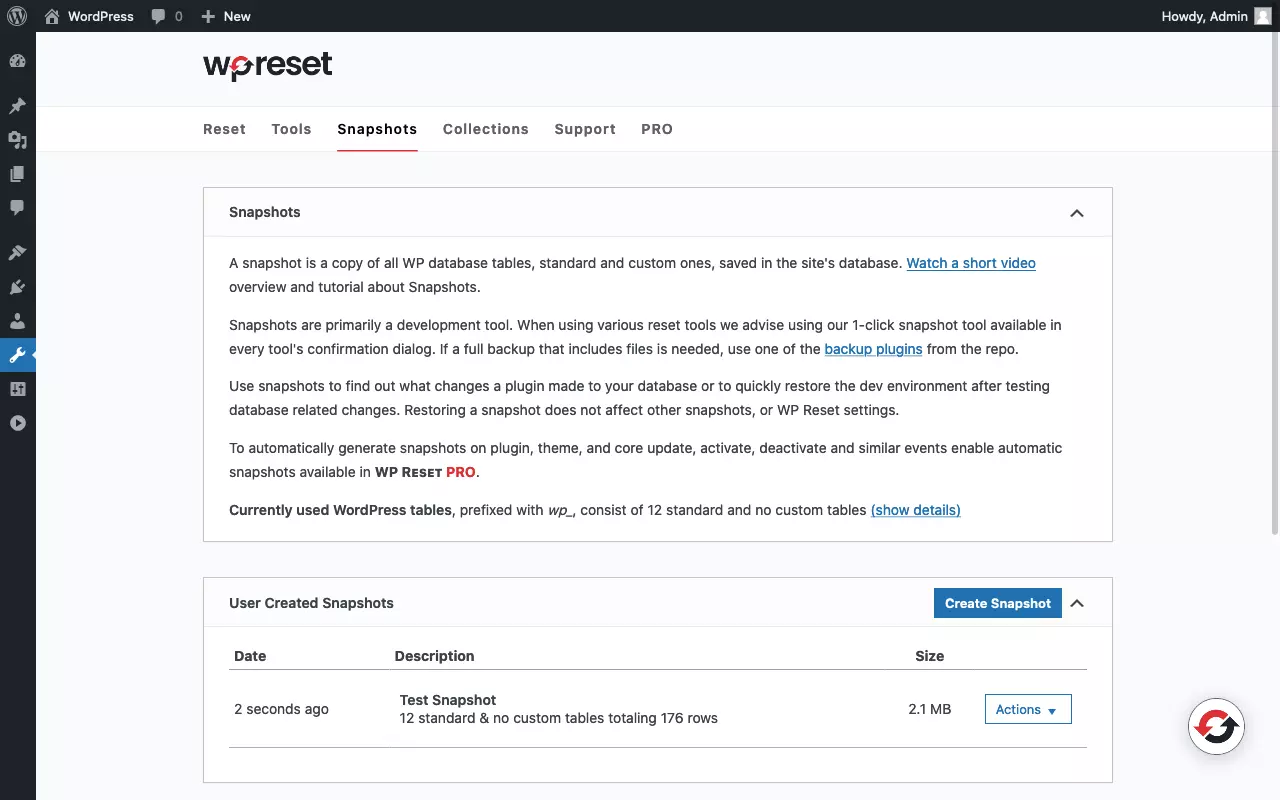
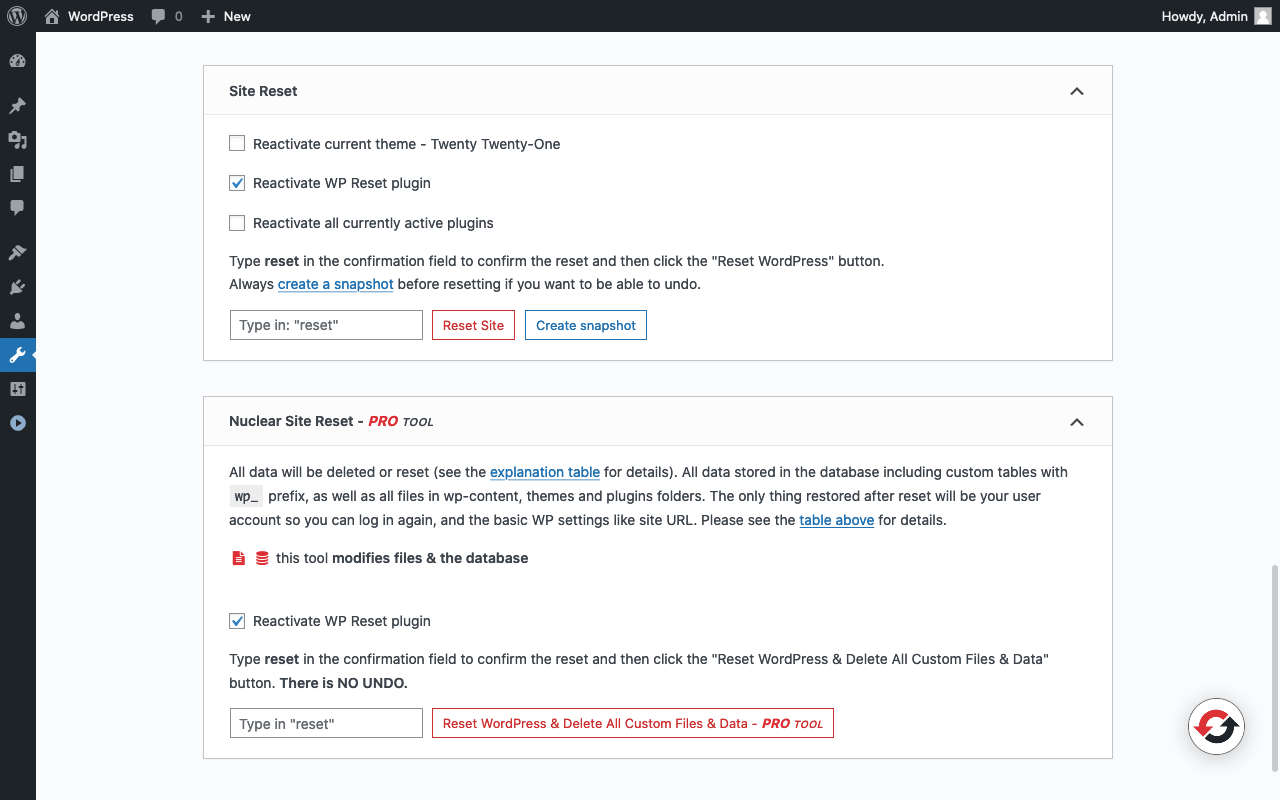
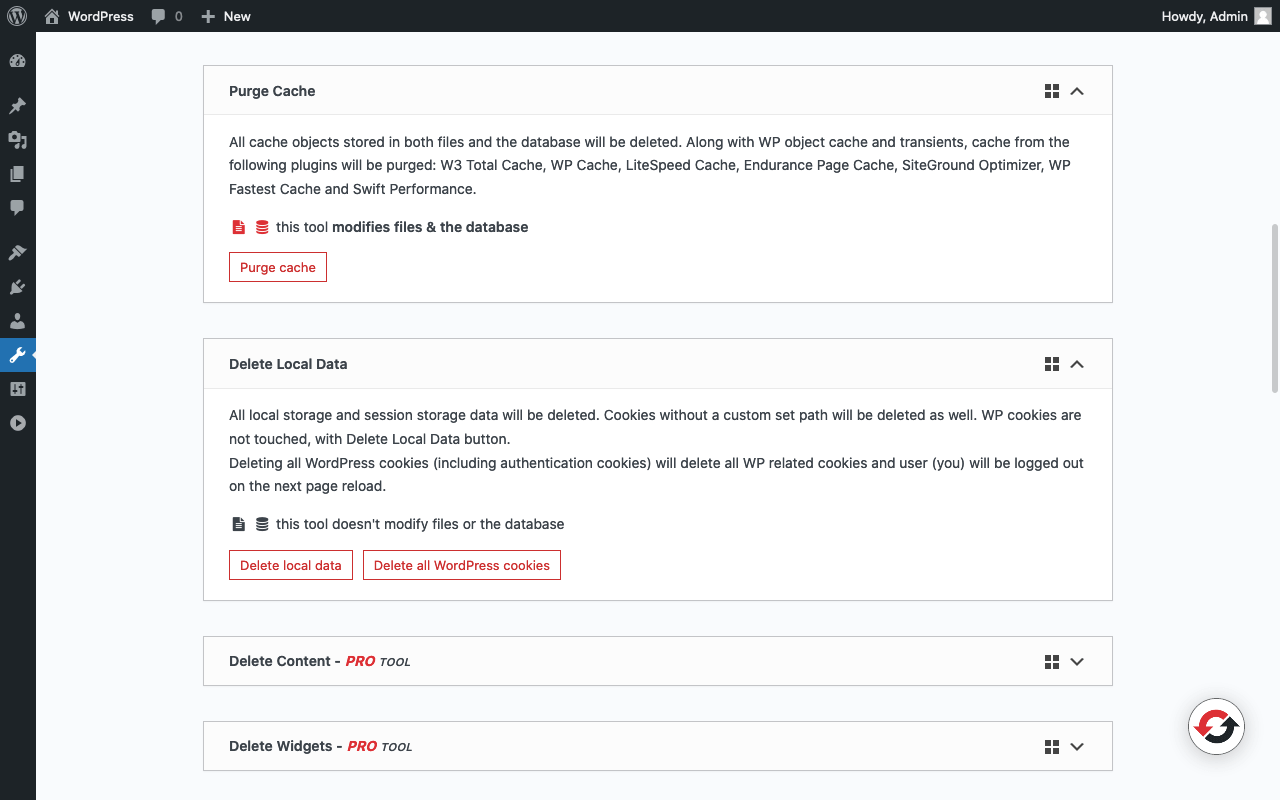
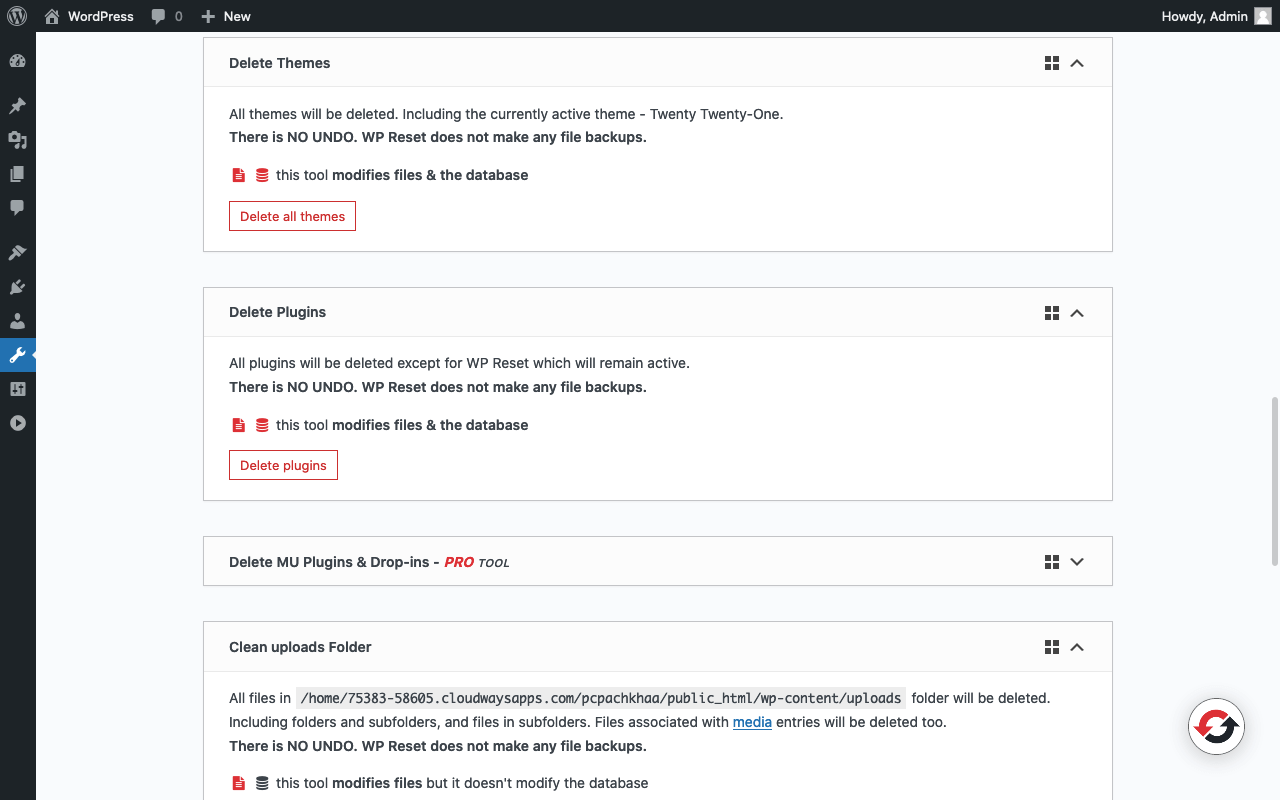
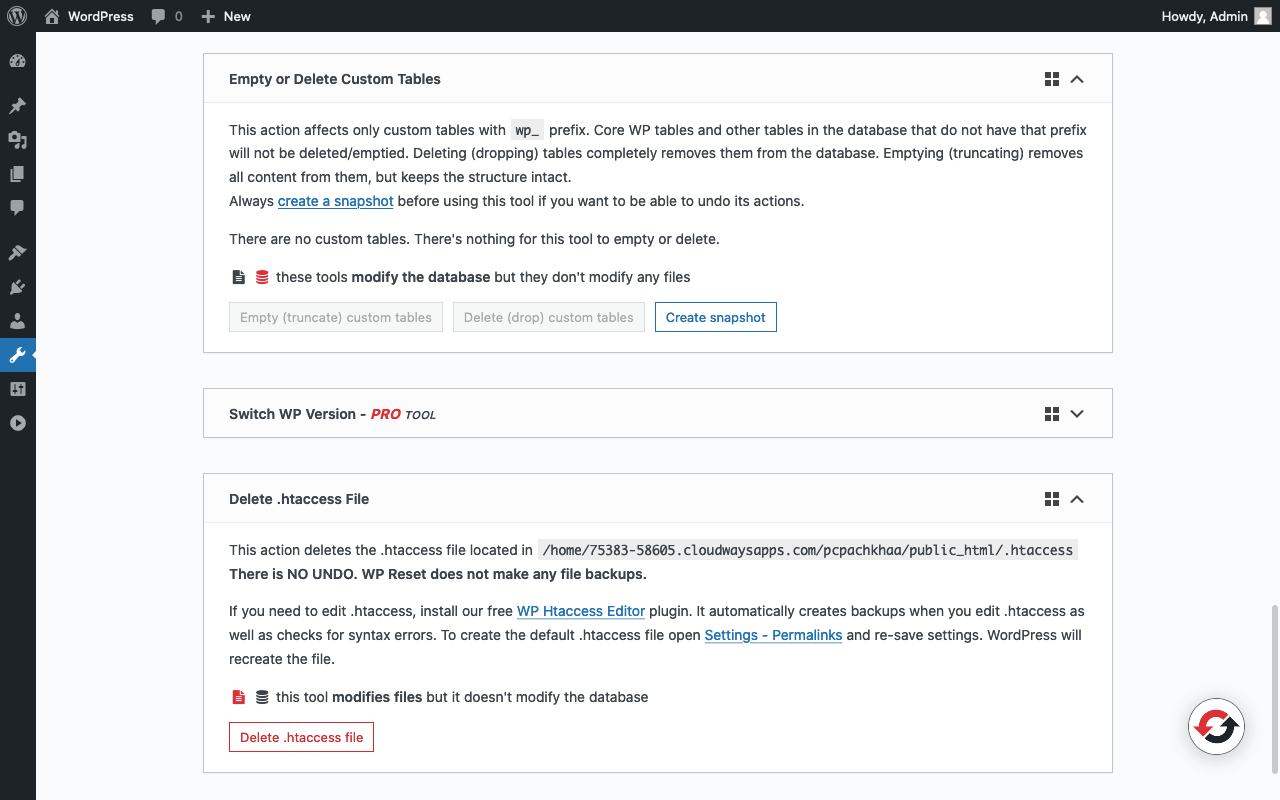
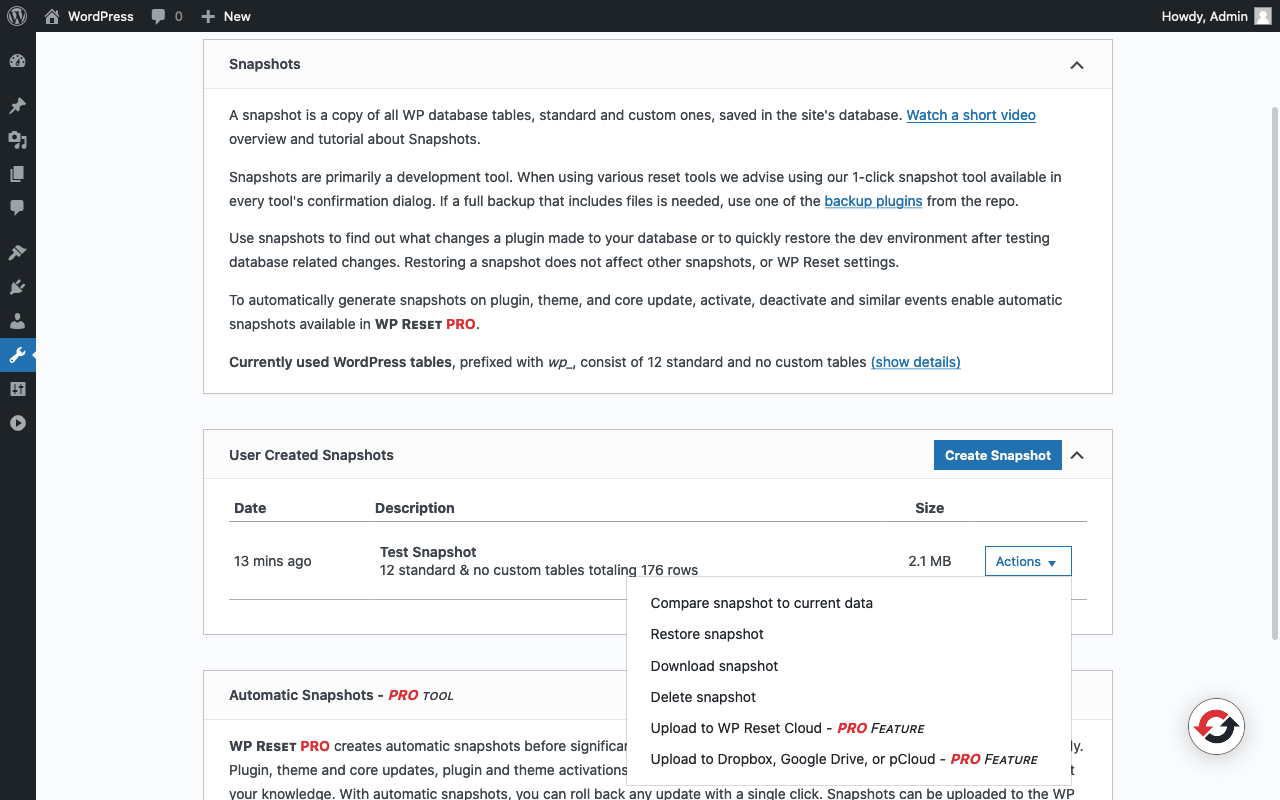
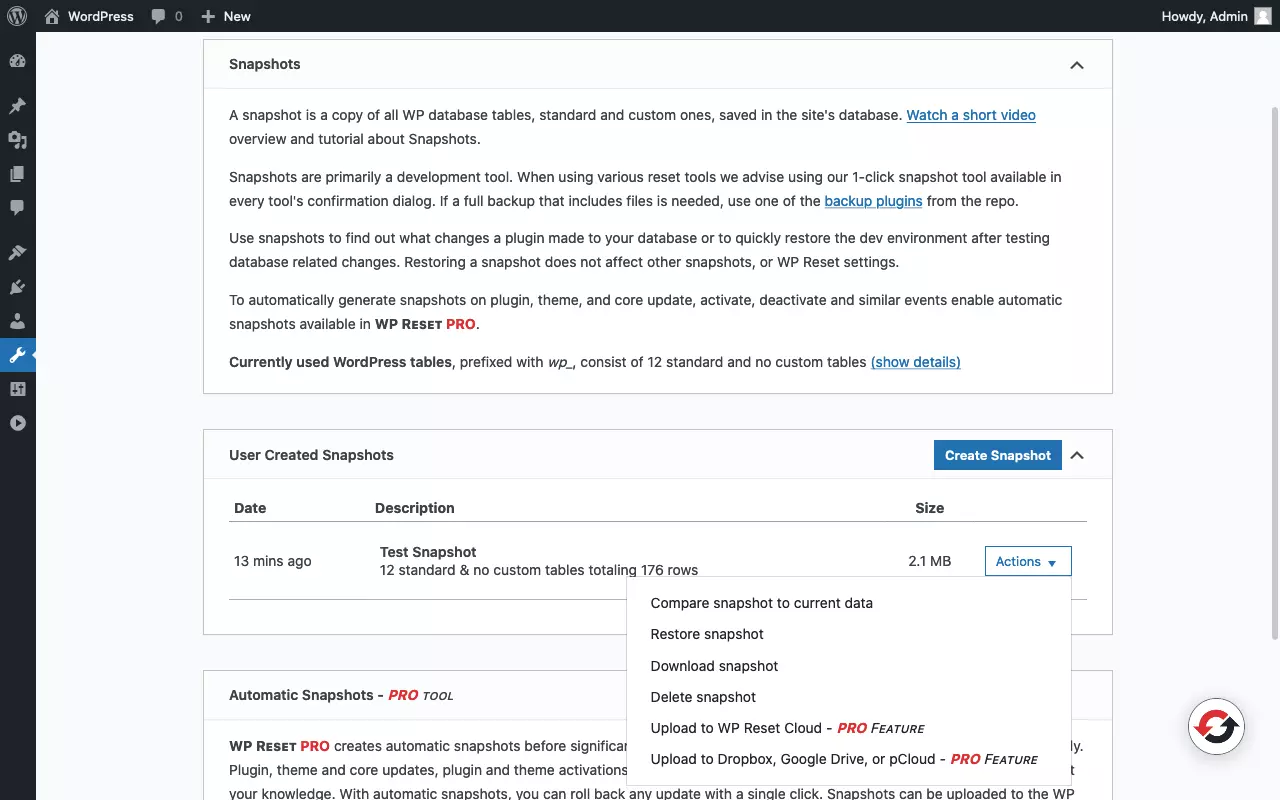
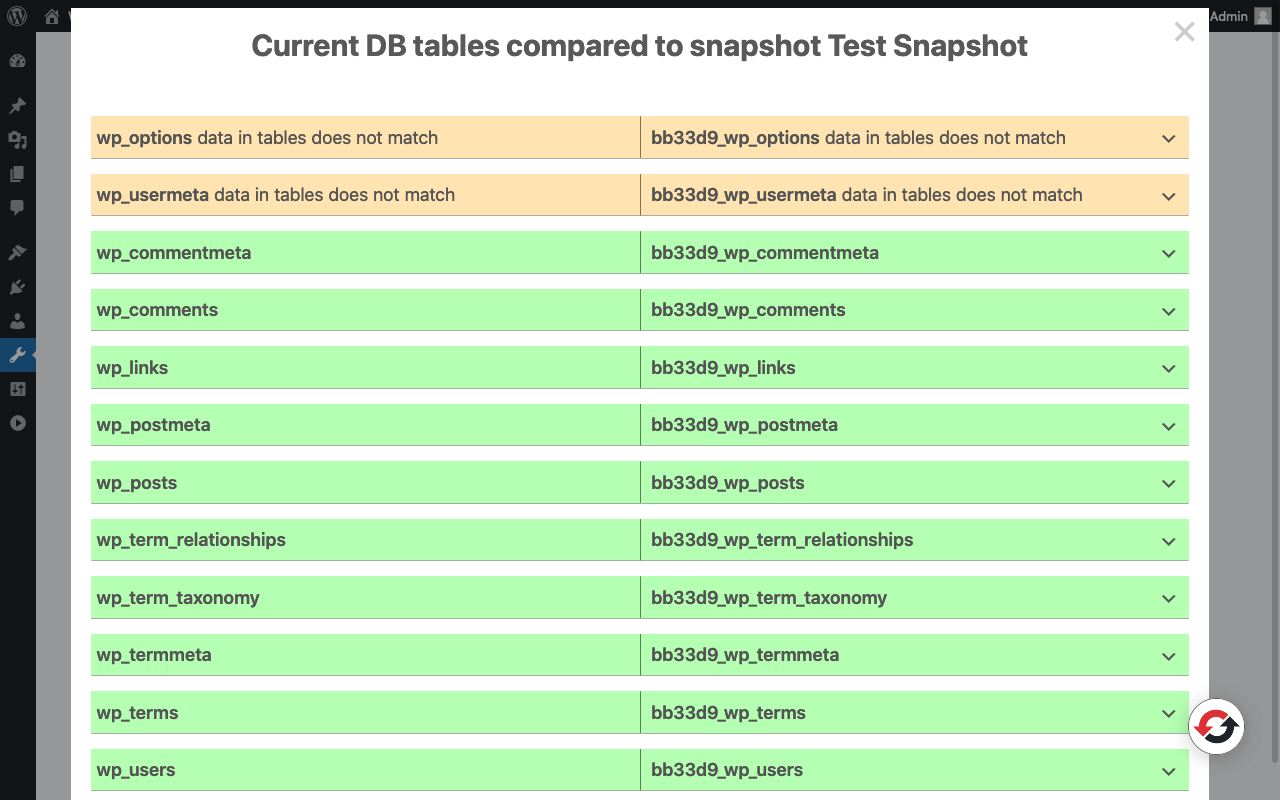
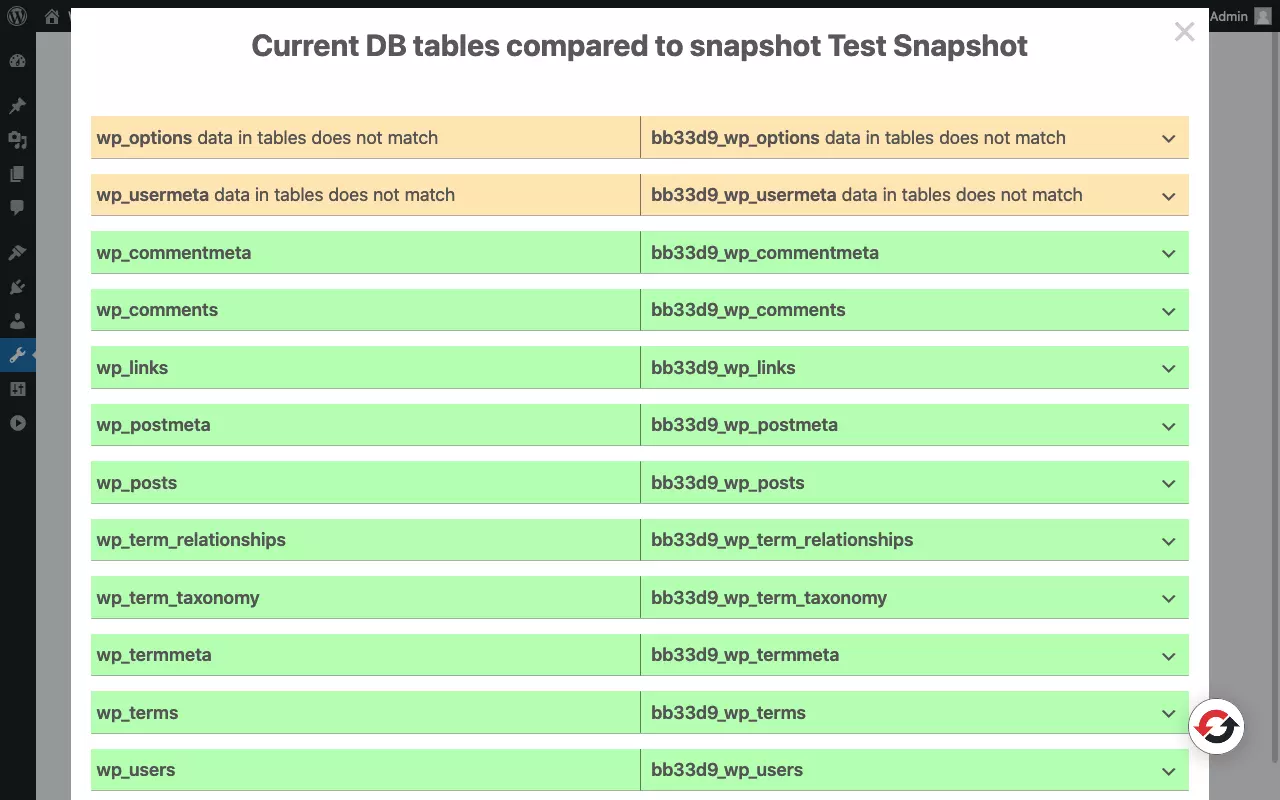
There are other plugins with similar functionality. However, most of them only allow you to reset the database. In isolation, this is not very useful, since most of the time operations on the WordPress files are also necessary.
Reset WordPress page with WP-CLI
The 'WordPress Command Line Interface' WP-CLI is a good tool for WordPress admins. You can control WordPress from the command line with it. The software combines operations on file system and database under one consistent interface. This can be used to reset a WordPress site with WP-CLI, among other things.
Command line tools are useful because they allow you to standardize work steps. Using the command line makes processes reproducible and allows them to be encapsulated as scripts. Using WP-CLI is quicker and less risky than doing it manually.
Using WP-CLI requires SSH access to the server running WordPress. A solid approach to working with WP-CLI is to first try out each step on a staging site. You can execute commands and document them in a text file. If the result is successful, the tested commands will be executed in the correct order on the live site.
In Hosting for WordPress plans from IONOS, WP-CLI and SSH access are already included.
Let’s consider some useful WP CLI commands that help to reset a WordPress site:
| WP CLI commands | Outcome |
|---|---|
| wp site empty | Deletes posts, comments, categories, and keywords; especially useful directly after installation before starting the actual work |
| wp site empty --uploads | Like site empty command; removes additional uploads folder |
| wp config create --dbname=<dbname> --dbuser=<dbuser> | Creates a new wp-config.php file; enters the database access data |
| wp core download --force | Download WordPress core files fresh; overwrites existing files in the process |
| wp core download --force --skip-content | Like wp core download --force; does not install default plugins and themes in the process |
| wp core install --url=<url> --title=<site-title> --admin_user=<username> --admin_email=<email> | Complete WordPress installation: creates database tables and set the required entries |
| wp db export <file> | Exports WordPress database and writes to file |
| wp db export <file> --add-drop-table | Like wp db export <file>; inserts DROP TABLE IF EXISTS |
| wp db export - /gzip > ~/wordpress_backup.gz | Exports WordPress database and writes to compressed file |
| wp db tables | Display the tables contained in the WordPress database |
| wp db clean | Deletes all tables with the WordPress database prefix from the database |
| wp db drop | Deletes the entire WordPress database |
| wp db reset | Deletes the WordPress database and recreates it afterwards |
| wp option update siteurl <url> | Resets the site URL |
| wp search-replace <old-url> <new-url> | Replaces all instances of the old site URL in the database with the new site URL. |
What is the best method for resetting WordPress?
Using a plugin is easiest but it requires a working WordPress. Plugins could stop working, for example, if the database is unresponsive, the WordPress core has been corrupted, or there is a server error. In addition, the use of a plugin allows for less detailed potential influence than the other two methods.
Using WP-CLI offers a good compromise between power and user-friendliness. However, to use WP-CLI, the software must be present on the server. You also need SSH access to the server. WP-CLI may also refuse service in some circumstances. This happens, for example, in the case of a version conflict between the WordPress installation and the installed WP-CLI or if PHP fails completely on the server.
The manual method is powerful and always works as long as you have access to the server or the resources located on it. Besides SSH, access can be made via (S)FTP, cPanel, and phpMyAdmin. As powerful as the manual method is, it also requires the greatest skill. If you lack the necessary knowledge, you can quickly cause a lot of damage.
To summarise, we will assess the three approaches as follows:
| Reset WordPress | User-friendly | Powerful | Reliable | Low risk |
|---|---|---|---|---|
| Manual | + | +++ | +++ | + |
| Using a plugin | +++ | + | + | ++ |
| With WP-CLI | ++ | ++ | ++ | +++ |
If you want to completely reset WordPress, it is usually better to restart with a fresh WordPress installation. If only certain parts of a WordPress site are to be reset, non-professionals are best off using a plugin. For experienced admins, WP-CLI is the gold standard for WordPress administration. The tool offers multiple possibilities to reset components of a WordPress installation as part of development workflows. In any case: Be sure to create a backup before resetting WordPress!