

WordPress table of contents: how to add one

A WordPress table of contents is recommended for pages with longer content and subchapters as it creates a better page structure. This way you will not only improve the user experience, but also your SEO, as search engines will be able to categorise and rank your page better. To create a table of contents, you can use both handy WordPress plugins and the somewhat more elaborate list block with jump links.
Ask, create and research with the European alternative to ChatGPT. Robust security and unlimited chats give you peace of mind.
The advantages of a WordPress table of contents
When using the open source software WordPress to create a WordPress site, or a WordPress blog, a table of contents helps site visitors find their way around, get a quick overview of the topics offered, and quickly understand the layout of the site.
The same goes for search engines, which use crawlers and web scraping to find, collect, and categorise web content. With a table of contents, search engines are able to read and rank your pages better. This way you ensure effective search engine optimisation and better ranking in the SERPs (Search Engine Result Pages). Google may even add jump links directly to your topics if you use a table of contents. This increases your visibility even more.
As well as a suitable WordPress theme and a table of contents being an important part of a responsive WordPress site, a suitable domain is also important. With IONOS you can register a domain that fits your ideas exactly and offers Wildcard SSL, a domain lock, and a 2GB email inbox.
WordPress plugins to create for a table of contents
There is a WordPress plugin for practically every need. When wondering how to add tables of contents on WordPress sites, there are numerous free plugins available that improve the design, structure, and your WordPress SEO.
The best plugins for a WordPress table of contents:
| Plugin (free) | Characteristics |
| Easy Table of Contents | Widely used, multiple settings (post type, auto insert, placement), widget function as sticky sidebar |
| Table of Contents Plus | Very popular plugin (large community), based on Wikipedia, settings for design, positioning, expand/collapse, and sitemap for all posts |
| LuckyWP Table of Contents | Compatible with Gutenberg editor, SEO friendly, can insert automatically or manually, widget for sidebar plus smooth scrolling function |
| Heroic Table of Contents | Default settings for tables of contents and integration/editing as block in Gutenberg editor (direct editing of subheadings) |
Get the most out of WordPress. Our guide articles contain all the important information on WordPress topics such as WordPress theme elements, WordPress blog themes, activating WordPress theme and plugin editor, setting up WordPress staging, making WordPress faster, and creating a WordPress backup.

Plugins for a WordPress table of contents in detail
The basic function of table of contents plugins is usually similar. Page headings and subheadings are written down, marked with jump links, and linked in the table of contents. Depending on the plugin, additional features are added such as a sticky sidebar that allows the table of contents to move down the page as the reader scrolls, an expand and collapse function, individual editing options and, in some cases, support for the Gutenberg editor. Note, however, that you can’t install plugins if you have the free WordPress.com package.
Easy Table of Contents
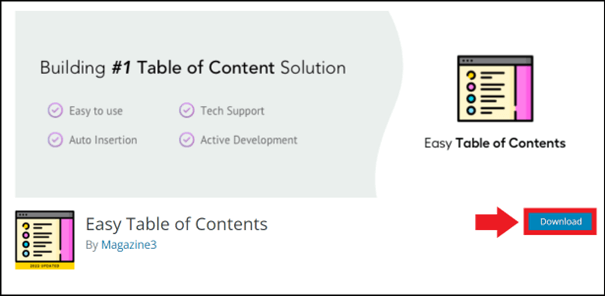
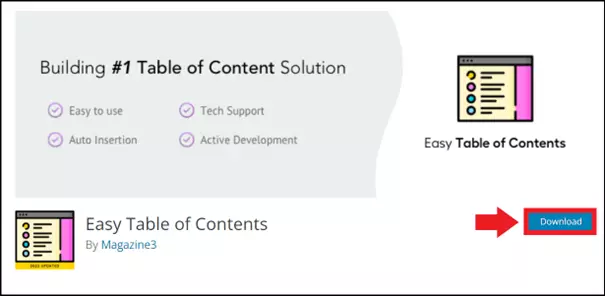
With just a few clicks, you can create an automatic table of contents from the existing headings with the Easy Table of Contents plugin. In fact, Easy Table of Contents is considered to be a further development of the ‘Table of Contents Plus’ plugin, which we present below. In comparison, ETC is known for its easy operation as well as a practical widget function that enables you to integrate the table into the sidebar. This way, the table of contents is always in view.
Other features: You determine which post types are included in the table of contents, use the support of the ‘Rank Math’ tool for keywords ranking, SEO analyses, and Google Trends. You also determine whether tables of contents are created for all posts via ‘Auto Insert’ or manually and how subheadings (H1, H2, etc.) should be structured and designed.
| Advantages | Disadvantages |
| ✓ Practical ‘Auto Insert’ function | ✗ No option for minimum word count for displaying table of contents |
| ✓ Support for Rank Math (SEO optimiszation) | ✗ When the table moves down the page as the user scrolls, this can sometimes lead to display problems |
| ✓ Individual, intuitive operation with versatile setting and design options, e.g. for post type, heading structure, and format | ✗ Support isn’t optimal when problems arise |
Table of Contents Plus
Table of Contents Plus is one of the most popular plugins for a WordPress table of contents and is also the basis of the ‘Easy Table of Contents’ plugin. It impresses with its easy operation and flexible settings for the design, the structure, the placement, and the composition of the table. The table can also be visibly integrated in the sidebar and the user experience can be optimised through smooth scrolling. Optionally, you can choose whether the table of contents is displayed in an expanded way as default or if the reader should expand it. Particularly clear: TOC+ can be used to generate an additional sitemap that shows all subpages and posts.


| Advantages | Disadvantages |
| ✓ Best-known plugin with many individual setting options | ✗ Long subheadings cannot be shortened in the table |
| ✓ Expand and collapse function for the table of contents | ✗ Automatic activation means that no individual articles can be hidden |
| ✓ WordPress shortcodes can be used for custom settings | ✗ Relatively long intervals between updates |
- Stress-free, no matter your skill level with easy AI tools
- Full customisation with themes and plugins
- Hassle-free updates and less admin
LuckyWP Table of Contents
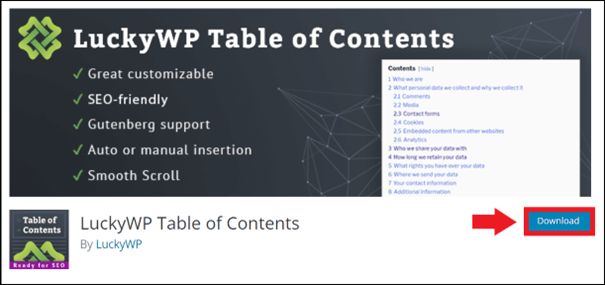
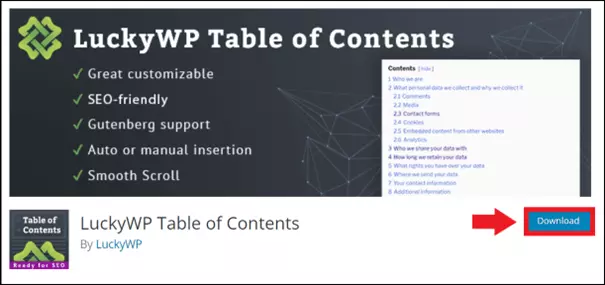
LuckyWP Table of Contents plugin is simple to use and offers many individual configurations to display and structure headings in the directory as needed in font size and style, colour, and design. It includes an auto-insert feature and search engine optimisation for Google Snippets as well. Directories can be displayed hierarchically or linearly, optionally expand and collapse, offer smooth scrolling, and are compatible with many WordPress themes, plugins, and page builders. Gutenberg support is also particularly handy.
| Advantages | Disadvantages |
| ✓ Very easy operation with many user-friendly configurations | No significant disadvantages |
| ✓ Automatic or manual insertion | |
| ✓ Compatibility with Elementor, Rank Math, WP Rocket, Beaver Builder, and WPBakery, among others |
Heroic Table of Contents
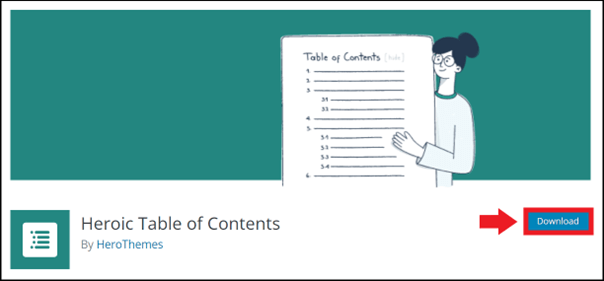
Heroic Table of Contents offers the most important standard features regarding individual configuration, structuring, design, and positioning. These include four different styles for tables of contents, hiding of subheadings, optional expanding and collapsing, and Gutenberg support. This means that the table can be integrated as a block directly in the Gutenberg editor, where it can be previewed for subheadings and directly edited or renamed without having to make changes in the text.
| Advantages | Disadvantages |
| ✓ Simple operation with the most important standard functions | ✗ Problems with jump links in tables of contents that should be split over several pages |
| ✓ Practical Gutenberg editor support and compatibility | ✗ No option for sticky bar to scroll along the table |
| ✓ Headings can be renamed in the table of contents without changing the original heading |
Do you value secure and reliable service? Then why not use powerful Hosting for WordPress from IONOS, which offers you three free domains, SSL certificates, a helpful website wizard, and freely configurable WP installations. Managed WordPress is also available as an option.
How to add table of content in WordPress: without a plugin
If you prefer not to use a plugin, you can create an automatic table of contents manually in the Gutenberg editor using a list block and jump links. A downside to this option is that you miss out on the ease of use and bundled features that many plugins offer. There are two ways you can create a table of contents this way: via the settings or by making changes in the source code using the Gutenberg editor.
To do this, proceed as follows:
Via the settings
Step 1: Select the heading that you want to add a jump link to. Go to ‘Settings’ and select ‘Block’ > ‘Advanced’. Here, in the HTML anchor field, enter the appropriate word as the jump link or anchor ID. The word becomes the jump link that links to a section or post.
Step 2: Now select the relevant heading in the table of contents. To do this, enter ‘#’ in the text field and then the corresponding anchor ID. With this method you can easily create a manual table of contents for WordPress pages.
With the Gutenberg editor
Step 1: To set an HTML anchor directly in the source code using the Gutenberg editor, select the respective heading block in Gutenberg. Go to the three-dot icon in the toolbar and click on ‘Edit as HTML’.
Step 2: Insert the anchor ID before the selected heading using the following code:
<h2 id="your-anchor-id">The headline to be linked to</h2>Conclusion: A table of contents enhances your WordPress site
If you offer longer pieces of content on your WordPress site or blog, you should definitely use a table of contents. With this you improve not only the design, look, and clarity of your page, but also the user experience. Page visitors can get a quicker overview and jump to the parts they are interested in without having to read the entire text. In addition, you comply with the algorithm of search engines that read and rank pages. With a table of contents, search engines are able to categorise your page better and rank it higher. With better SERP visibility, you can increase the click-through rate.
Reviewer

Julia Hertler
With over 18 years of experience in content marketing, Julia Hertler has deep expertise in digital communications. For the past 10 years, she has specialised in the areas of domains and hosting at the IONOS Digital Guide, making complex technical topics easy to understand.