

How to work with the WooCommerce REST API

You can use the WooCommerce REST API to remotely access the admin area of your WooCommerce store. Basic operations like ‘Read’ and ‘Create’ are managed using HTTP requests. The WooCommerce API can be activated in the backend.
What is a REST API?
REST APIs are used to define which of a systems resources can be managed using REST (Representational State Transfers). APIs are a great solution for enabling simple and efficient communication between client and server in web-based systems.
Each resource is assigned modifiable parameters that describe the resource. REST architectures are realised using HTTP protocols, which allow each resource to be addressed using a unique URI (Uniform Resource Identifier). The parameters are attached as URL parameters and the resources are controlled using standard HTTP methods like GET, POST, PUT, and DELETE.
What is the WooCommerce REST API used for?
The most important characteristic of the WooCommerce REST API is its universality. Its design allows WooCommerce stores to easily interact with other websites and services. This interactivity is useful not only for developers but for all WooCommerce users. Here are some of the other advantages of using the WooCommerce REST API:
- Cross-platform access: The REST API allows you to use third-party apps to access your WooCommerce dashboard.
- Smooth integration of business logic: Business-specific software and hardware such as wearables and IoT tracking devices can be easily integrated into your project using the WooCommerce API.
- Optimised data synchronisation: Companies that want to sync data between their WooCommerce store and other platforms and channels can do that using the WooCommerce REST API.
- Independence from WooCommerce backend: Once you’ve activated the universal WooCommerce API, you’ll no longer be bound to the WooCommerce/WordPress backend. You can integrate and use an admin area of your choosing.
- Easy integration of third-party data: You can use the WooCommerce REST API to access any app-based third-party data.
- Connection with mobile apps: If you want to connect your WooCommerce store with a mobile app, you’ll be able to do this with the WooCommerce API.
Looking for the right hardware environment for your online store? WooCommerce hosting by IONOS provides a safe and reliable foundation for your store, at an affordable price.
How to use the WooCommerce REST API step by step
If you want to use the WooCommerce API to interact with other web apps and services, you’ll first need to activate it by generating an API key. You’ll also need to install a client for REST access. Below we take you through this process step-by-step.
Step 1: Generating a WooCommerce REST API key
The first step in setting up the WooCommerce REST API is generating an API key. The key works as a kind of access control and is used by WooCommerce to authenticate REST requests.
Take the following steps to generate a key:
- Log into the WooCommerce/WordPress backend.
- Click on ‘WooCommerce’ in the menu on the left of the screen.
- Click on ‘Settings’.
- Navigate to the ‘Advanced’ tab.
- Click on the sub-item ‘REST API’.
- Click ‘Add key’.
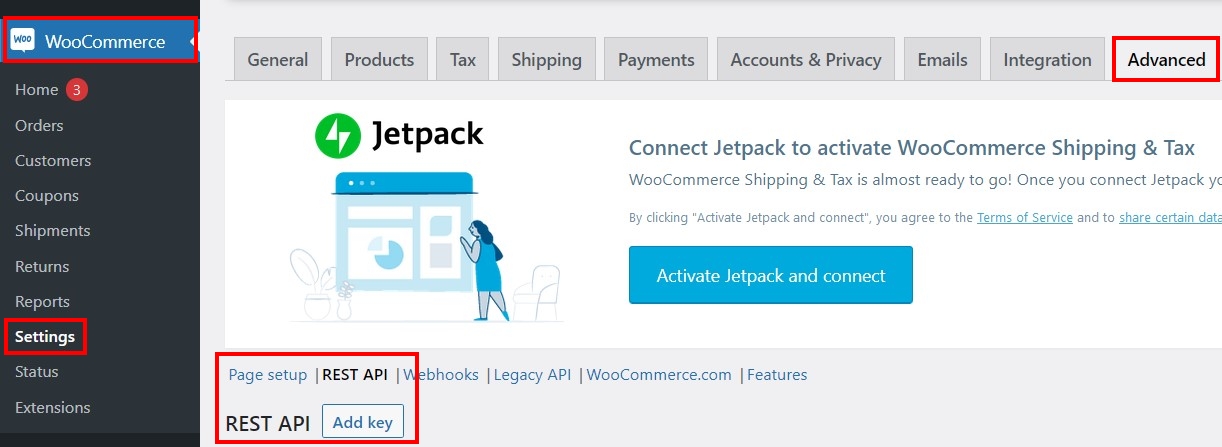
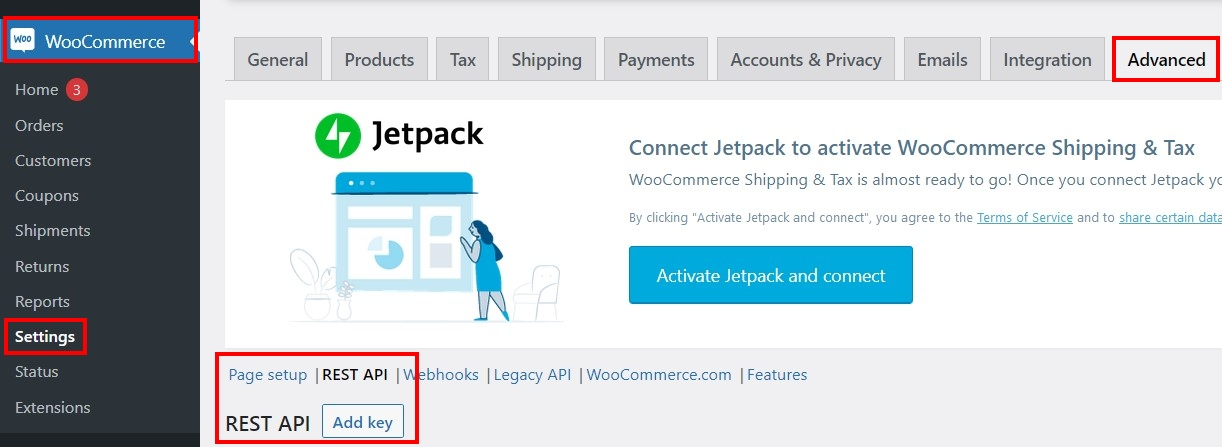
You’ll need to fill out three fields. Under ‘Description’, add a name for the key that will allow you to easily identify it. For ‘User’, select the WooCommerce user that you want to generate a key for. And finally, under ‘Permissions’, select whether the user should have Read, Write, or Read/Write access.
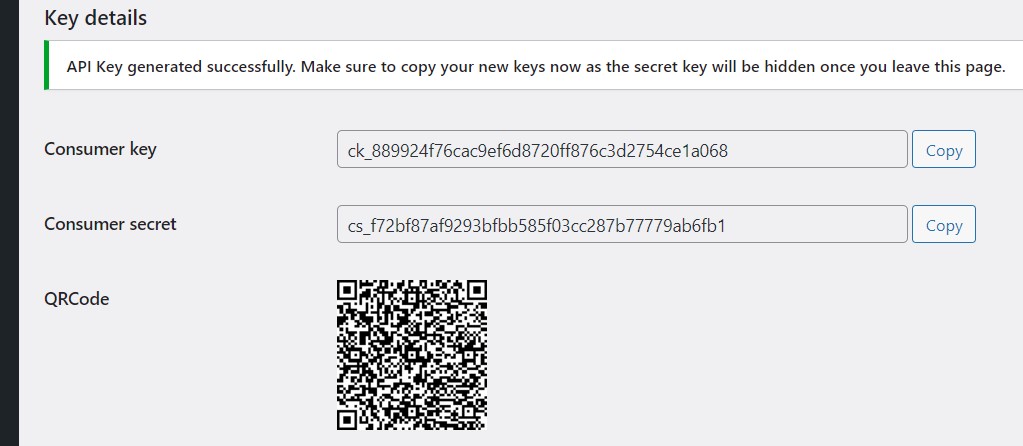
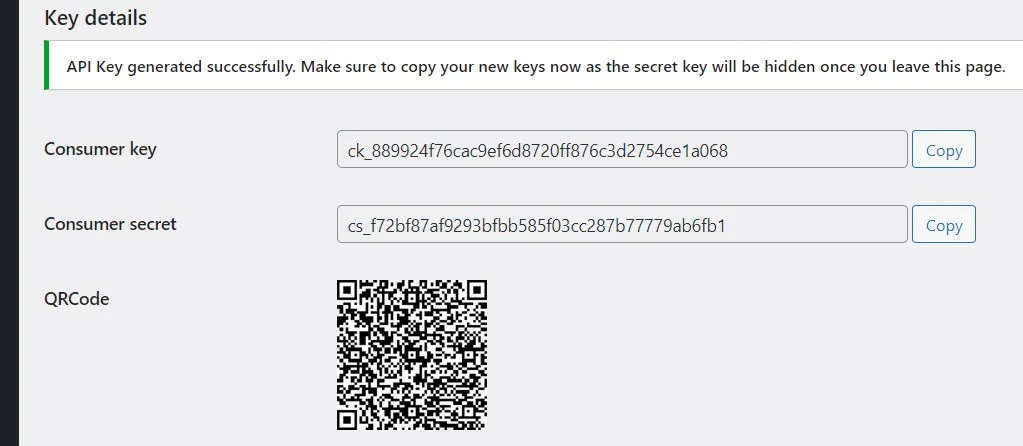
When you click ‘Generate API Key’, WooCommerce will create two alphanumeric strings (the consumer key and consumer secret) and a QR code. Copy the two keys and save them in a document. You’ll need them later in order to access a REST client in the WooCommerce API.
Step 2: Download API client
Once you’ve generated a key, you can send your requests to the WooCommerce interface. To do this, you’ll need an API client to send requests and display responses.
Two popular clients for REST access are Insomnia and Postman. Both tools are available as desktop apps for Windows, MacOS, and Linux. Postman is also available as a web app and is the client we’ll use in this tutorial.
To install and set up Postman, follow these steps:
- Go to Postman’s download page and download the version of the client for your operating system.
- Double click the setup file to execute it.
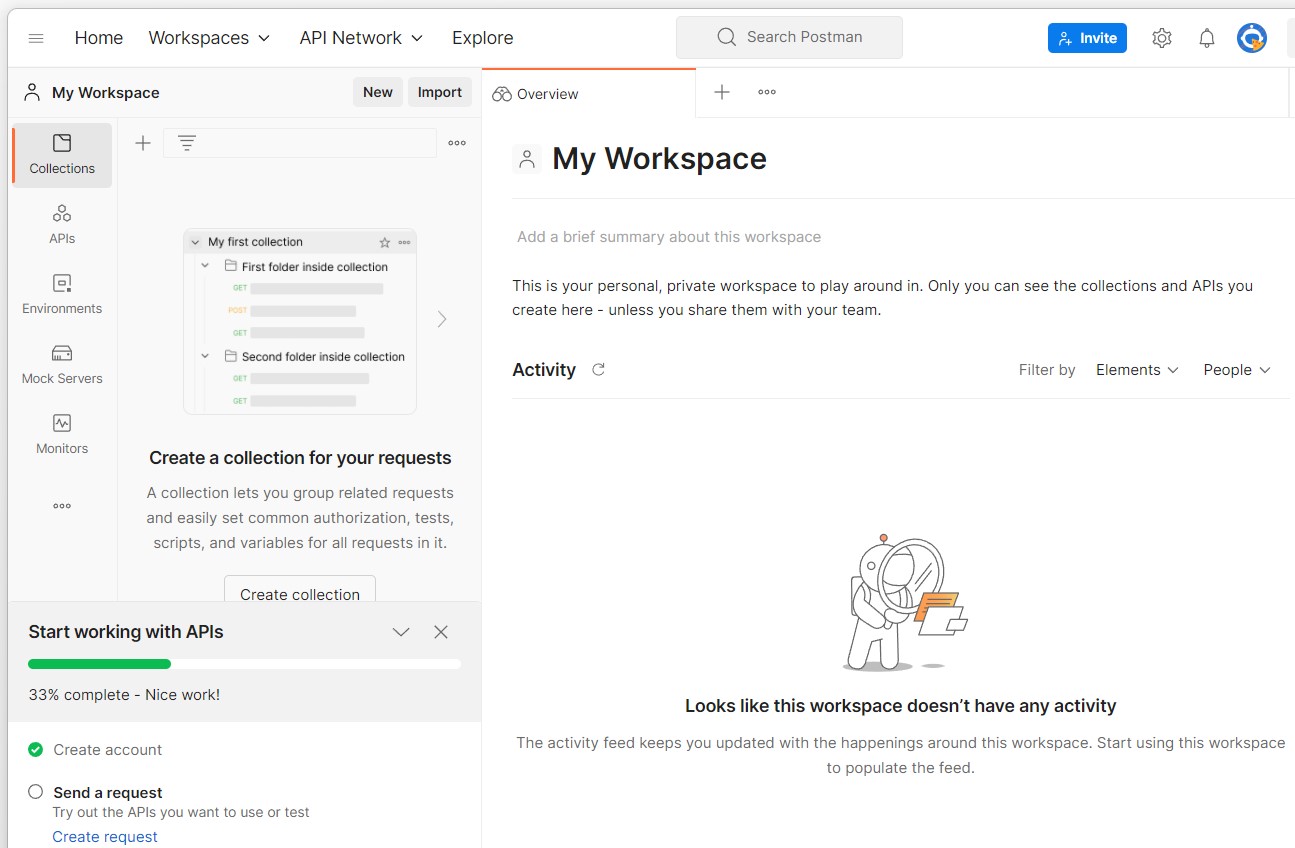
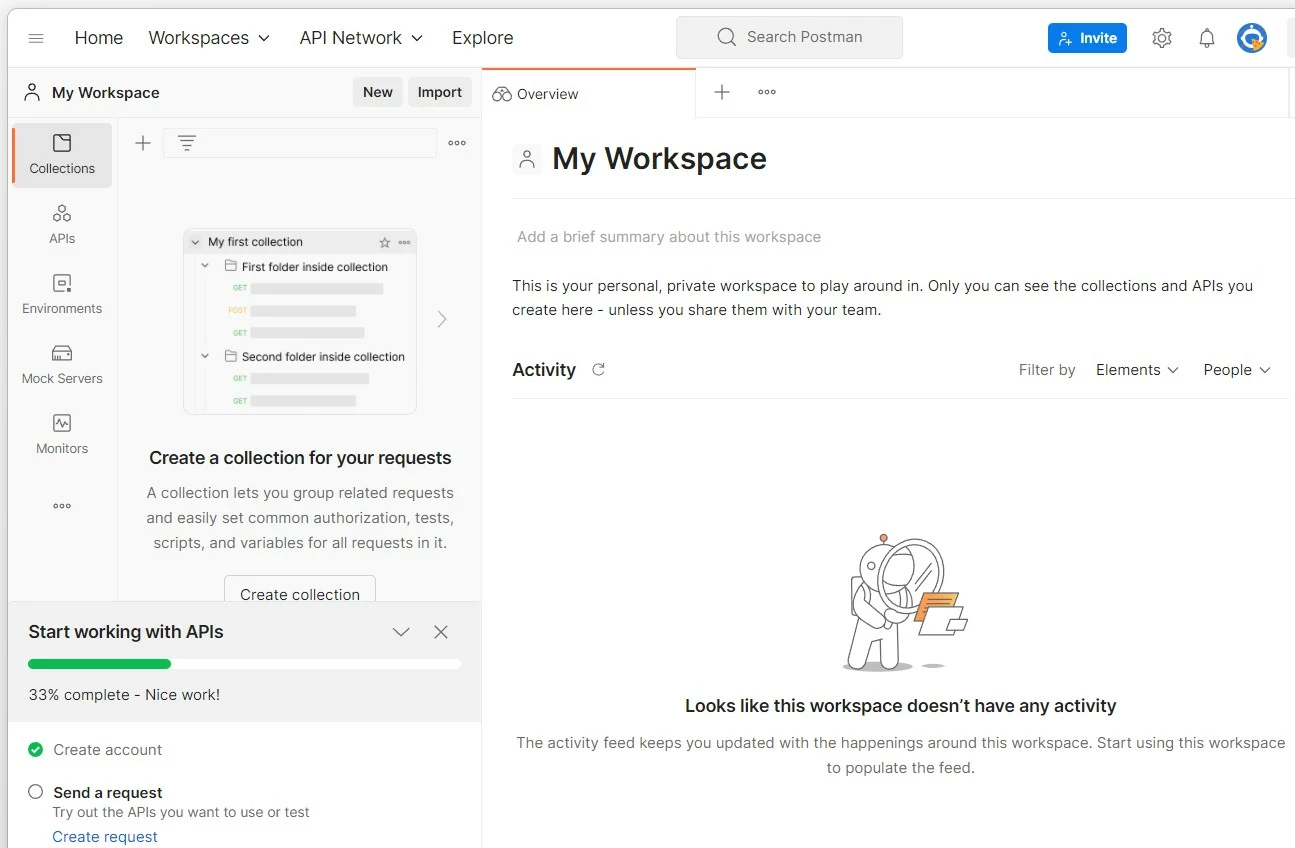
- Create a Postman account. Enter your email address, choose a username, and set a password. Alternatively, you can register with a Google account.
- Fill out the rest of the form and, if relevant, send invite links to your colleagues.
Still working on the right name for your WooCommerce project? Register your domain with IONOS and get a free SSL/TSL certificate and domain lock for your WooCommerce store!
Step 3: Create WooCommerce API request
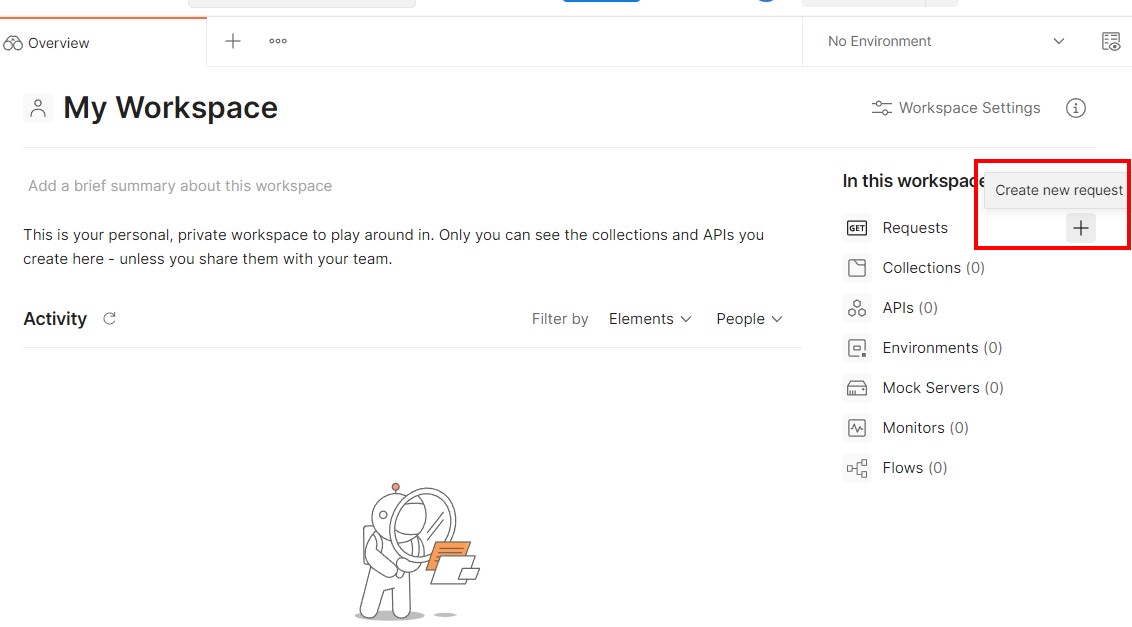
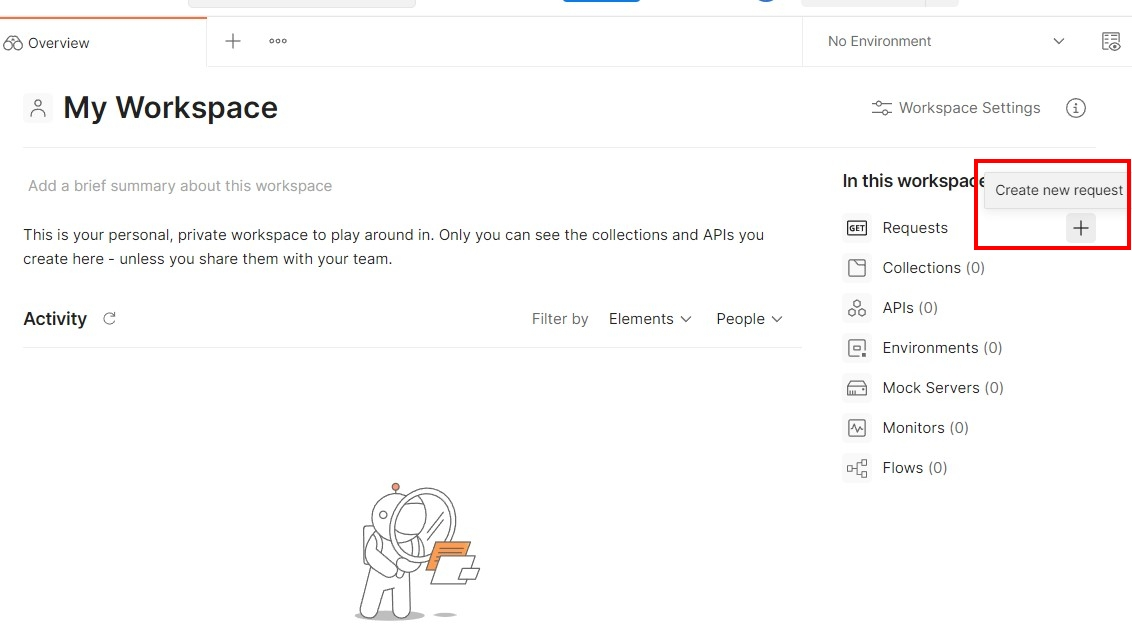
After you’ve set up Postman, you can test your access to the REST API by sending your first request. To do this, open your workspace and click on ‘Create new request’.
As a first test, we’ll send a GET request to query data. This kind of request is set as the default in Postman, so simply leave the dropdown menu as is. In the address line, enter the address shown below. Substitute ‘woocommerce-domain.xyz’ with the URL of your WooCommerce store.
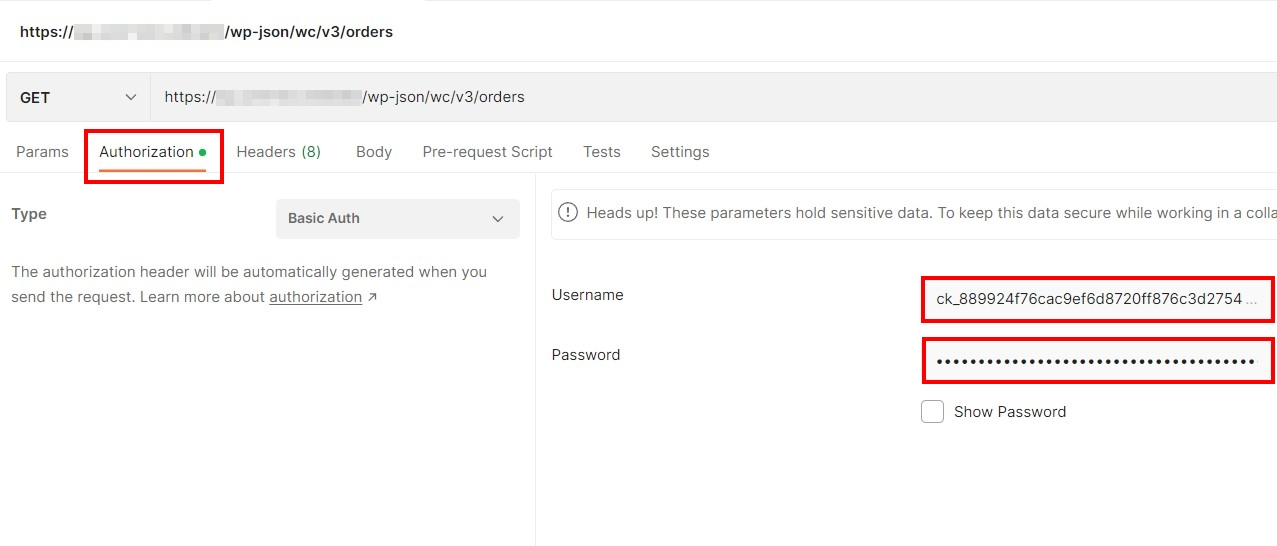
https://woocommerce-domain.xyz/wp-json/wc/v3/ordersThen add your authentication data. How you do this will depend on whether you’re using HTTP or HTTPS (recommended) for REST access. Go to the ‘Authorization’ tab and under ‘Type’ select ‘OAuth 1.0’ for HTTP or ‘Basic Auth’ for HTTPS. Then enter the consumer key and consumer secret codes from above. If you’re using ‘Basic Auth’, use the key for ‘Username’ and the secret for ‘Password’.
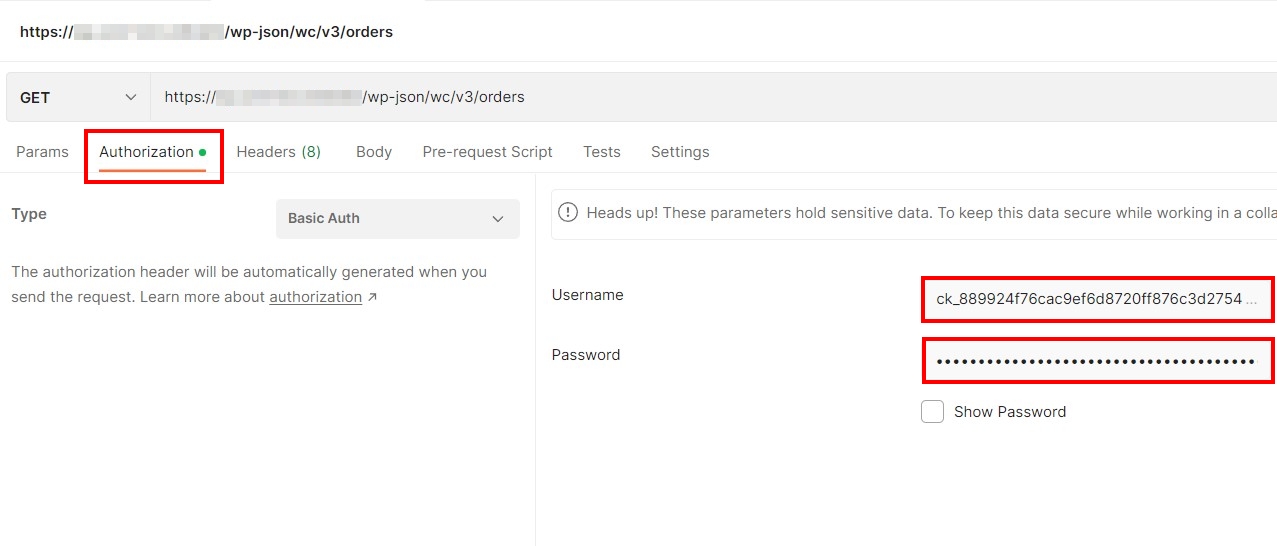
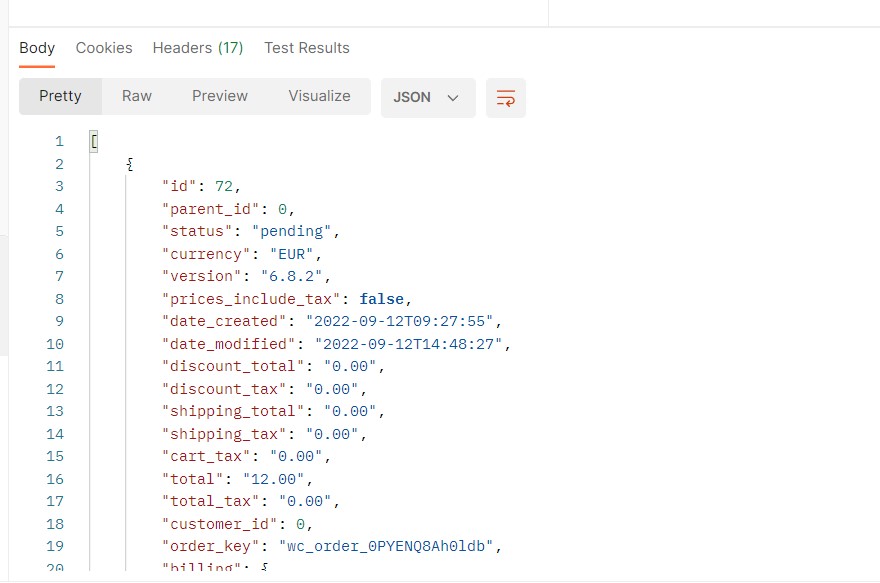
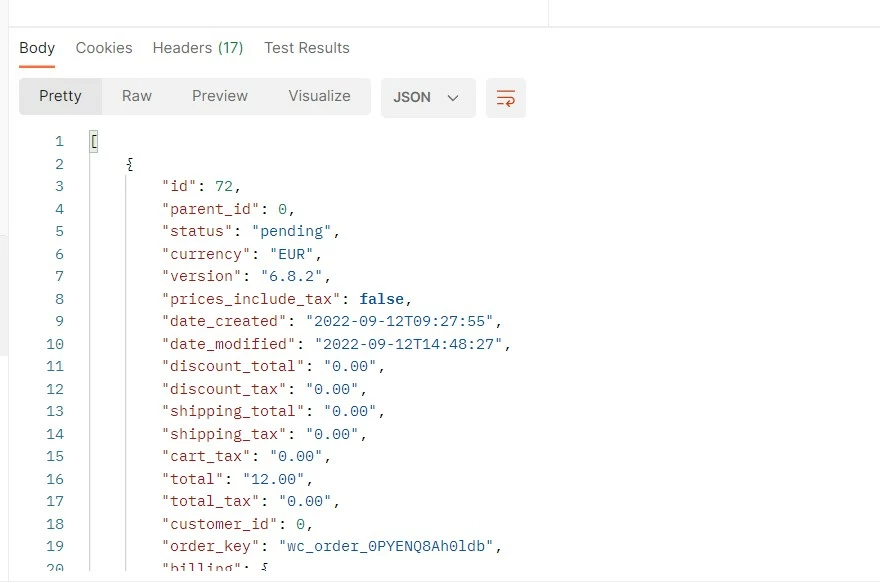
Once you’ve entered that information, click ‘Send’ to start the request. In the example above, you’re requesting all current orders. Postman will display the response in the pane below. You can choose from JSON, XML, HTML, or Text formats.
In the IONOS Digital Guide, you can read about a number of topics surrounding WordPress and WooCommerce: