

ERR_SSL_PROTOCOL_ERROR: how to fix the Chrome bug

Chrome is one of the best and most popular browsers worldwide for various reasons. The Google application does not only have the reputation of being especially fast, but also very secure. If you create an account, you can use automatic synchronisation from any device to access all settings at the same time, set favorites, and even access open tabs. In addition, design templates, apps, and extensions can be used to tailor the look and functionality perfectly to your own needs – regardless of whether a Windows, Linux, or macOS operating system is used.
But even Google's miracle weapon – like any other software – is not completely problem and error free. More frequently seen error messages include the error code ‘ERR_SSL_PROTOCOL_ERROR’, which informs the browser user that there was a failed secure connection to the contacted server. What exactly is this SSL connection error and how can the ERR_SSL_PROTOCOL_ERROR be fixed?
What lies behind the SSL connection error?
The times when the web was simply used as an information platform are a thing of the past. Today, PC and mobile device browsers are being used more frequently to make money transfers, play games, buy products, store files in the cloud, or interact with other users. The fact that more and more personal and sensitive information is being transferred means that it’s becoming easier for criminals. Customer data, company internals, and other private data are especially favoured by thieves nowadays, which is why SSL and TLS have become an absolute must. The security protocol, which is based on the standard Web protocol HTTP, guarantees secure connections via certificate exchange. It also ensures that the data streams are transmitted in encrypted form. If an SSL-protected website is accessed with the Google browser and the secure connection does not work, the ‘ERR_SSL_PROTOCOL_ERROR’ message will appear. This is how Chrome informs the user that there is a problem preventing the necessary certificate exchange.
 To display this video, third-party cookies are required. You can access and change your cookie settings here.
 Possible causes for ERR_SSL_PROTOCOL_ERROR
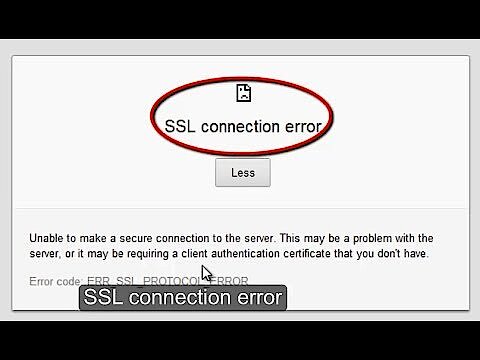
If Chrome displays the error message when calling up an HTTPS address, the browser provides the following, very general explanation for why the connection setup has failed:
‘Unable to make a secure connection to the server. This may be a problem with the server, or it may be requiring a client authentication certificate that you don't have.’
Much of the information cannot be inferred from this description, as it simply states that the problem exists either on the server side or on the client side (browser side). The former is often due to the fact that the contacted site is SSL/TLS certified, but the certificate hasn’t been renewed in time and has expired. In addition, a wide variety of technical problems can also be responsible for the exchange of certificates not working.
If you suspect a server error is behind an ERR_SSL_PROTOCOL_ERROR message, it may make sense to come back to the website later. If the problem persists, you should contact the responsible webmaster.
If the ERR_SSL_PROTOCOL_ERROR has to do with the user's browser, this can be due to many reasons. Contrary to what appears to be the case in the above description, it is quite possible that the client has the authentication certificate and the server simply cannot find it. The most common, well-known reasons include the following:
- the system date or time is not correct
- the website or IP address is blocked by a firewall or an antivirus program
- SSL/TLS connections are blocked by a firewall or antivirus program
- the HOSTS file is corrupted
- the SSL or browser cache contains outdated certificate versions
- Chrome extensions are causing the error message
- QUIC protocol is blocking the connection setup
Fixing the ERR_SSL_PROTOCOL_ERROR – how it works
The list of possible causes for the ERR_SSL_PROTOCOL_ERROR message shows that there is no general solution. Instead, there are several options that you can try to solve the SSL connection problem on your own. First of all, you can try a "trick", which always proves to be an effective means of dealing with various web errors: restarting your router. It is not uncommon for connection problems to disappear when the device reconnects to the Internet. If the message still appears in the Chrome browser, you can try these solutions:
Solution 1: check the system date/time
Since incorrect system dates and times can cause the SSL/TLS connection to fail, you should take a look at the system clock when the ‘ERR_SSL_PROTOCOL_ERROR’ message appears in your Chrome browser window. If there is a significant difference between what’s shown and the actual time or if the wrong date has been set, the browser is often unable to load SSL connections correctly. Make sure that the date and time are correct and adjust them if necessary. By default, you can do this directly from the taskbar – alternatively, you can find the right menu under ‘Date and time’ in the Control Panel.


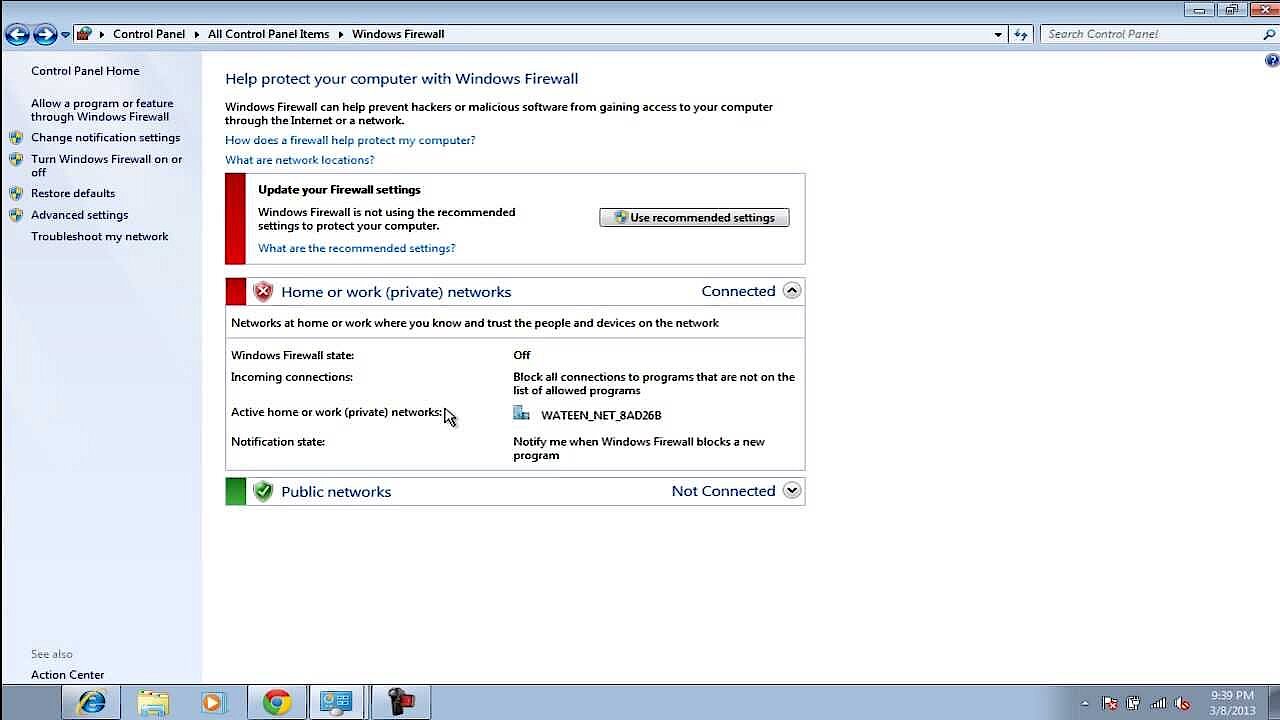
Solution 2: temporarily disable antivirus and firewall programs
Software (to protect against malware) and a firewall are mandatory for every user who plans to connect their device to the Internet. However, since security tools like these work with various algorithms and rules, they can prevent access to certain websites even if they don’t pose a security risk. For example, it is possible that the IP address or domain address has been classified as a security risk and that’s why it’s being blocked. Chrome also displays the ERR_SSL_PROTOCOL_ERROR message if SSL connections are generally blocked by a tool.
You can easily test whether the security programs you are using are triggering the error message by temporarily disabling them and revisiting the website in question. If the connection setup now works without problems, you know that you have to make changes in the settings of the programs and remove the IP address from the blacklist.
 To display this video, third-party cookies are required. You can access and change your cookie settings here.
 Solution 3: delete SSL cache and browser cache
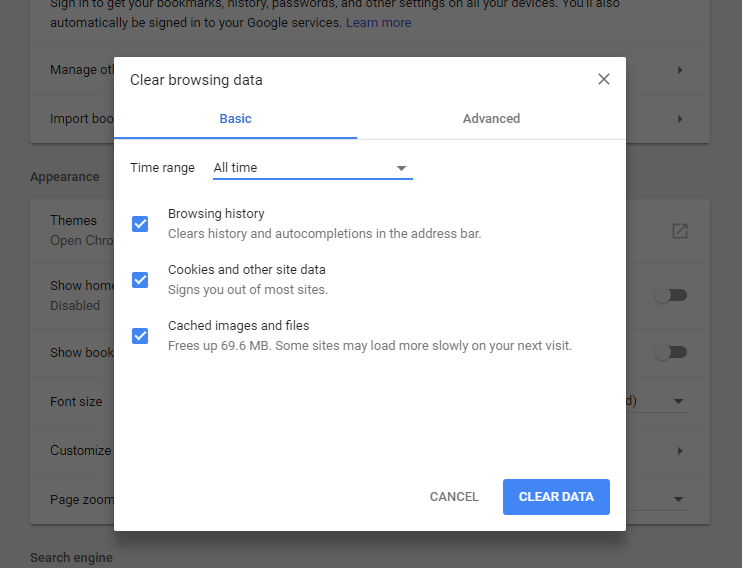
In some cases, cached information in the SSL cache (SSL status) or browser cache may also be responsible for the ERR_SSL_PROTOCOL_ERROR message in Chrome. If this is the case, all you have to do is clear the cache to rectify the error.
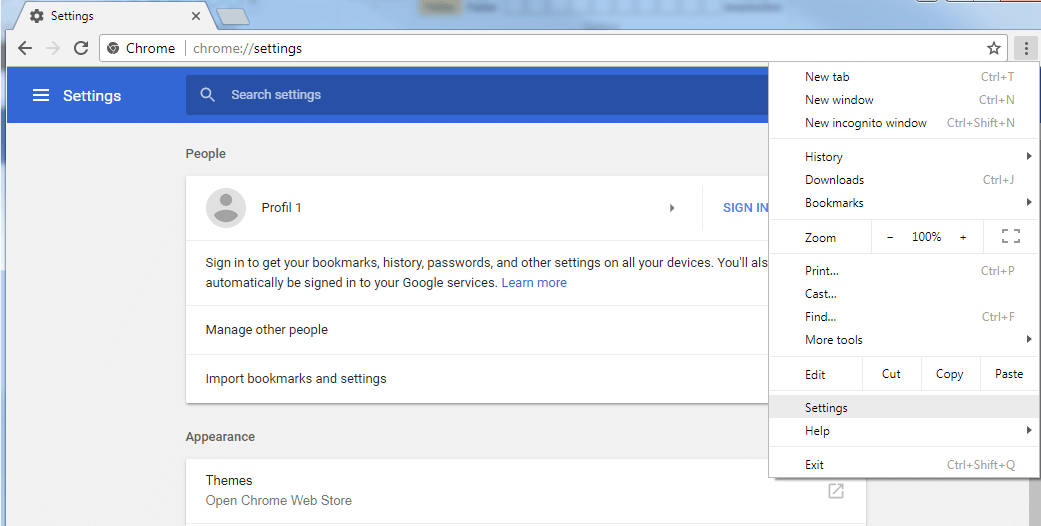
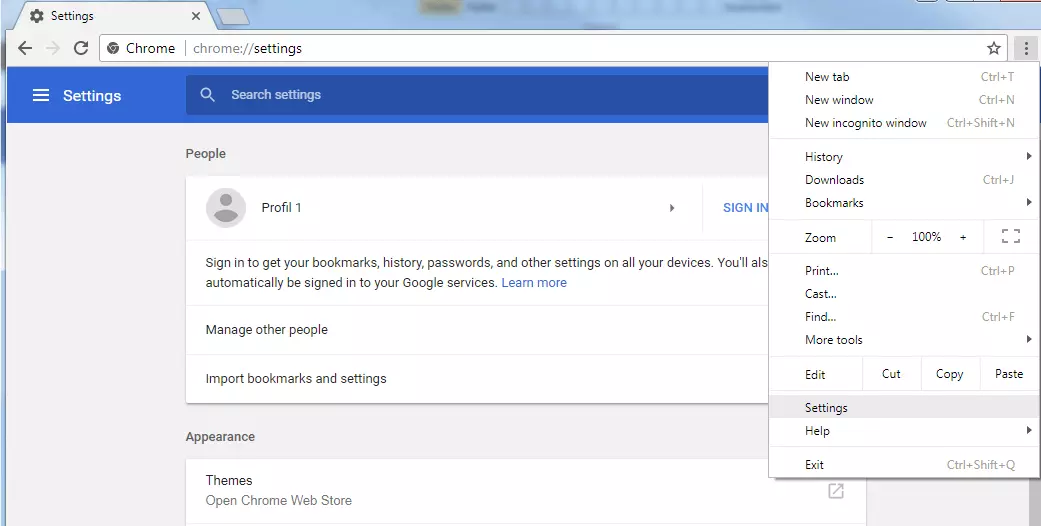
In Chrome, simply open the settings menu by clicking on the three dots in the top right-hand corner and choose the 'Settings' option from the drop-down menu.
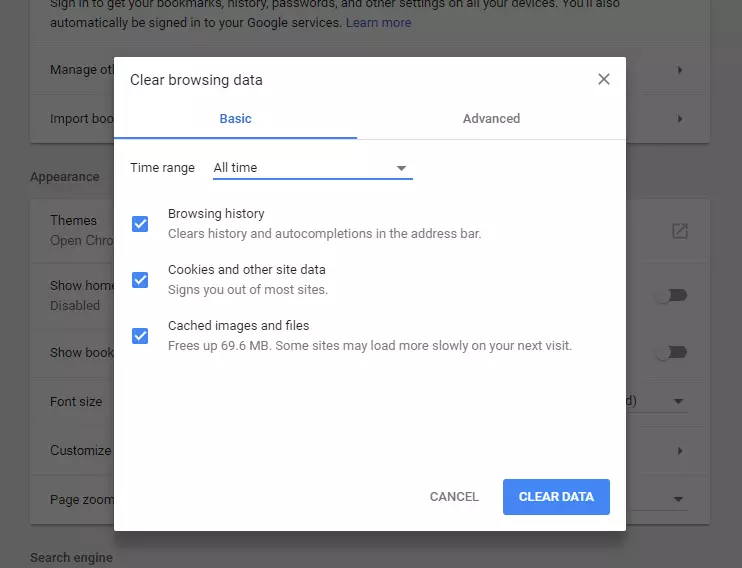
Click the 'Advanced' button to access the 'Privacy and security' options. There you will find what you’re looking for – 'Clear browsing data', which you can use to delete the Chrome cache.
You can also access the cache delete menu in an even quicker way by entering the following address as the URL: chrome://settings/clearBrowserData.
The SSL cache is managed by the operating system itself, which is why it cannot be deleted using Chrome. You will find the corresponding function in the network and internet setting, which can be accessed in Windows via the control panel.
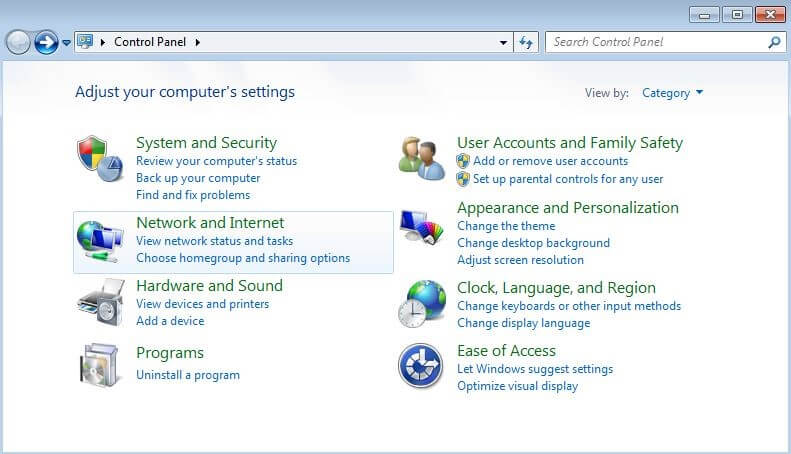
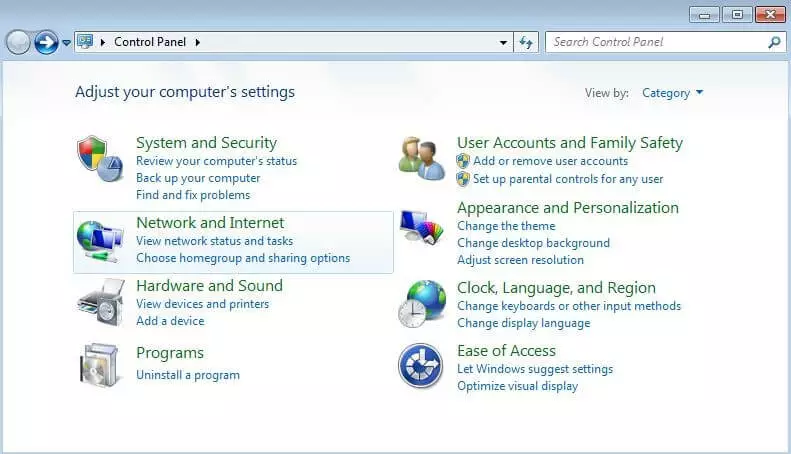
In 'Network and Internet', you will find 'Internet Properties', which you should select. Then click the 'Content' tab, then click 'Clear SSL state'.
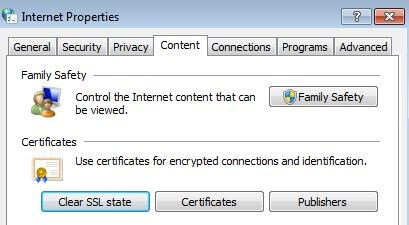
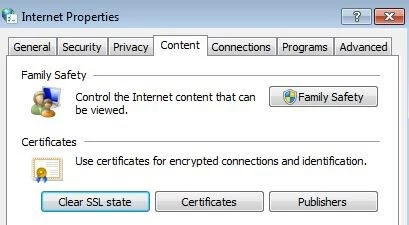
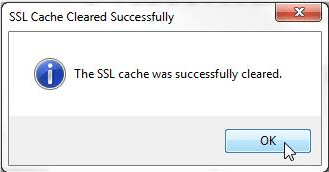
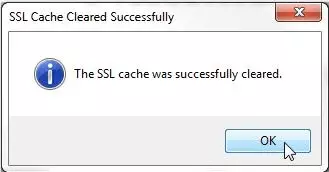
You receive a status report when the cache has been deleted and you can then check whether the ERR_SSL_PROTOCOL_ERROR problem has been solved by emptying the cache then accessing the site again using Chrome.
Solution 4: deactivate Chrome extensions
Just like every internet browser, Google Chrome can be extended with plugins, which add additional features, games, or new designs to the user interface. However, with each additional extension, you run the risk of impairing the browser’s functionality and causing error messages such as ERR_SSL_PROTOCOL_ERROR. If the previous solutions haven’t been successful, it might be worthwhile to deactivate the extensions until you want to use them again. If the SSL connection is then able to be successfully established, you know it was the extension that was blocking it. By reactivating the extensions step by step (including doing the connection test), you can easily identify what was responsible.
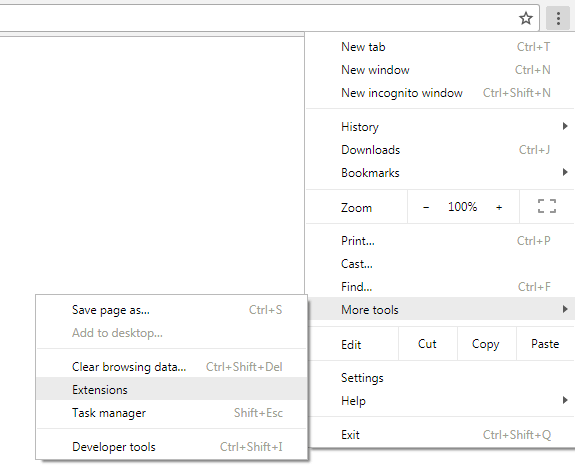
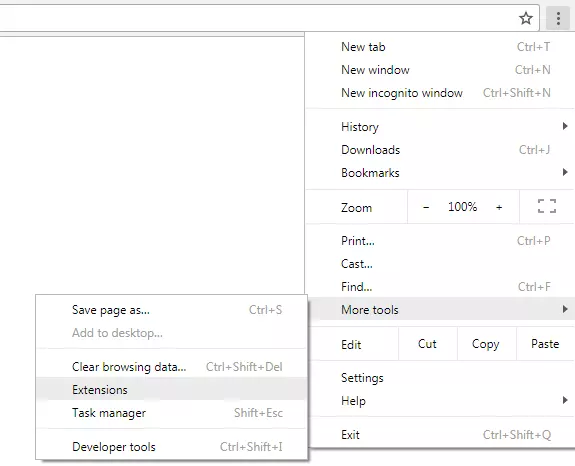
To access the extensions, click on the three dots next to the browser’s search bar, just like when you’re deleting the Chrome cache. From the drop-down menu, select 'More tools', then 'Extensions'.
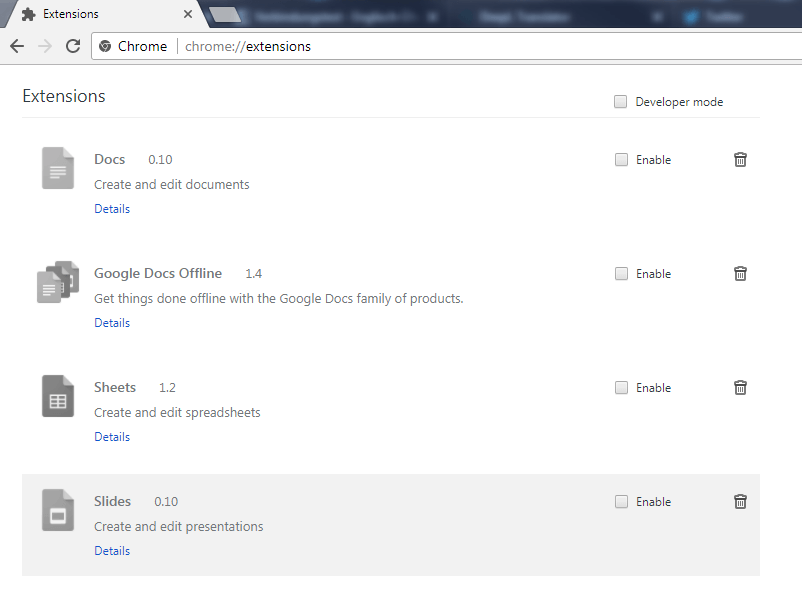
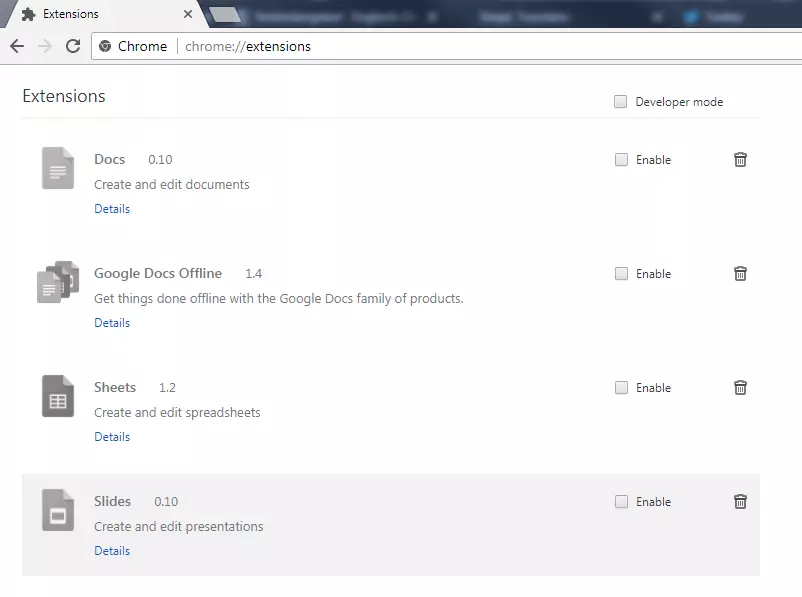
You can also enter chrome://extensions/ into the search bar to go directly to the extensions.
Deactivate the activated extensions one after the other by unchecking all the checked boxes, then restart Chrome and check if ERR_SSL_PROTOCOL_ERROR continues to occur when you try to access the target website.
Solution 5: switch off the QUIC protocol
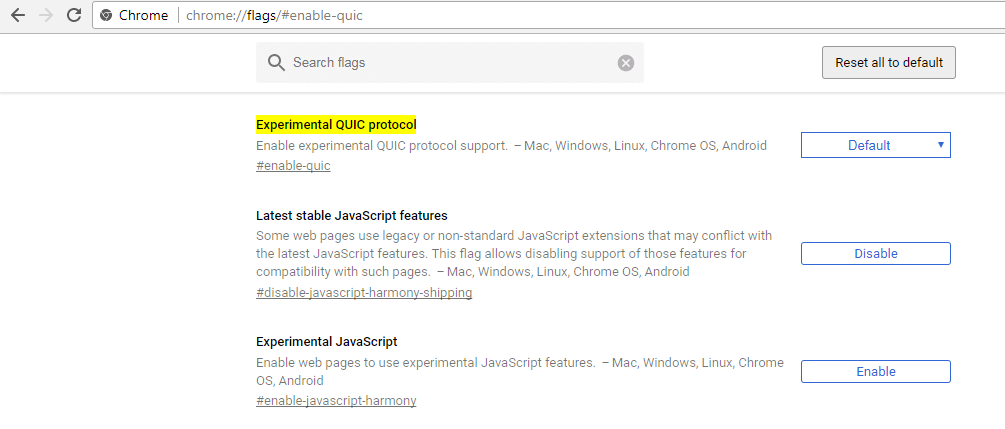
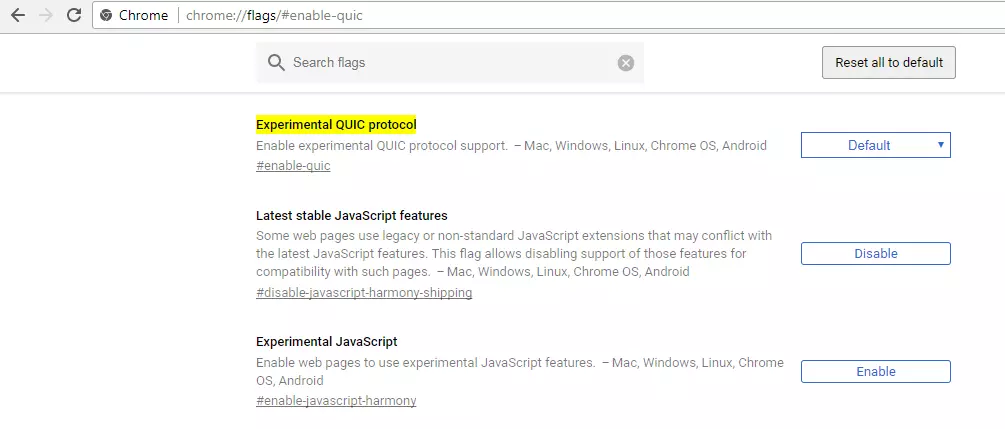
Google Chrome was one of the first browsers to implement QUIC. The future-oriented protocol is intended to provide extra speed when setting up a connection, among other things. Officially still in the test phase, it is already activated by default as an 'experimental protocol' in various services offered by the large corporation such as the Google browser, which means it could be a possible cause for the ERR_SSL_PROTOCOL_ERROR. It is sometimes enough to simply deactivate QUIC to solve the problem. To do this, first enter the following address in the search bar: chrome://flags/#enable-quic In the Chrome flag menu, all features are listed that have not yet been officially implemented in the browser. Here you will see 'Default' chosen, which means that QUIC is active. To switch the protocol off, select the 'Disabled' option and restart Chrome.
Solution 6: delete or reset hosts file to its default setting
Before the Domain Name System (for name resolution on the internet) was introduced and established, a system based on local text files was used, which had to be maintained manually. This file named 'hosts' still exists today in common operating systems, but is usually only used for assigning addresses in local networks.
It is, however, possible for malicious programs to modify the hosts file so that you are redirected to the wrong websites or so that error messages such as ERR_SSL_PROTOCOL_ERROR appear. However, by deleting the file or restoring the default settings (if you have made your own network configurations), you can quickly fix this problem. With Windows, it works like this:
- Open the 'Run' program by pressing the Windows key and [R] at the same time.
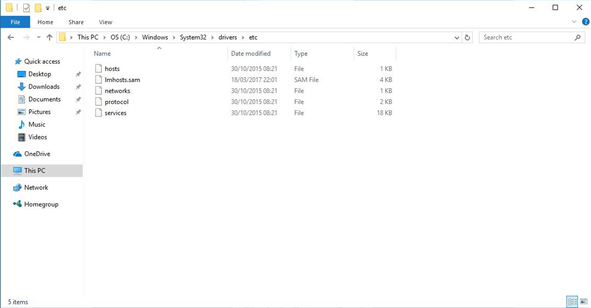
- In the new window, specify the directory in which the hosts file is located by inserting the following line (if Windows is not installed on C:, you must use the appropriate drive letter):
C:\Windows\System32\drivers\etc
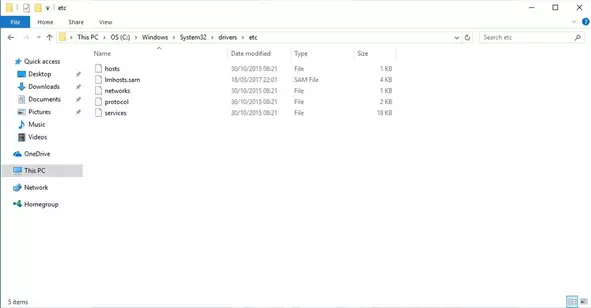
- Once you’ve confirmed the entry by clicking on 'OK', you will get to the destination folder where you can select and delete or edit the hosts file.
Users of other systems can proceed in the same way (access directory, then delete the file), but the directory path varies from system to system: macOS, Unix, Linux, and Android users can find the hosts file in /etc/hosts. iOS stores the file in the /private/etc/hosts directory.