

How to use the Excel TEXT function to convert numbers into text

If you want to use numbers or dates in a text in Excel, sometimes a simple cell reference is not enough because the number or date is not displayed in the text format that you need. In these cases, the Excel TEXT function comes in handy. It allows you to convert any data (e.g. numbers, dates, etc.) into text and format it as you wish.
- Up to 50 GB Exchange email account
- Outlook Web App and collaboration tools
- Expert support & setup service
The following instructions apply to Microsoft 365 and Excel versions 2021, 2019 and 2016.
What is the Excel TEXT() function?
The TEXT() function is written as follows:
=TEXT(Value,format_text)The Excel TEXT function requires two parameters:
Value: enter the data to be displayed as text, either as a direct entry or as a reference to the cell containing the data.Format_text: tell Excel how you want to format the number.
If you don’t need special formatting, you can simply enter a hashtag as part of the text format code, as shown in the following example:
=TEXT(88;"#")The hashtag (‘#’) is one of three placeholder characters that you can use to write format codes. We’ll go over these codes in more detail below.
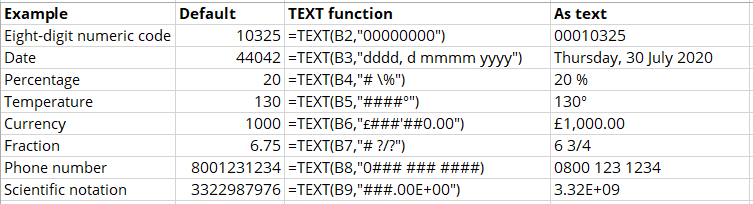
In cells, text is aligned to the left, while numbers are aligned to the right.
What are Excel Text format codes?
The Excel TEXT() function requires a format code. There are three different placeholders available for this purpose. Each represents one digit of the numerical value:
| Placeholder | Function |
|---|---|
| # | Optional digit: ignored if the number contains fewer digits than the number of placeholder characters. |
| 0 | Zero placeholder: if no digit is available for this position, Excel will write a zero. |
| ? | Space placeholder: only works with fractional numbers. Excel fills missing digits with spaces so that fractional numbers can be aligned with the decimal point or the fraction bar. |
You use these placeholders in combination with certain text characters. For example, you can display numbers with leading zeros, individual thousands separators, telephone numbers or units of measurement:
| Use case | Numerical value | Format code | Text displayed |
|---|---|---|---|
| Fixed number of digits | 123 | “000000” | 000123 |
| Thousands separators | 21350 | “##’###” | 21’350 |
| Telephone number | 8001234567 | “0### ### ####” | 0800 123 4567 |
| Unit of measurement (e.g. degree) | 90 | “#°” | 90° |
However, you can only use certain text characters directly in the format codes:
| Characters | Description |
|---|---|
| + - | Plus, minus |
| () {} | Brackets and curly brackets |
| $ € | Currency symbols |
| . , : ! | Punctuation: period, comma, colon, exclamation mark |
| ^ ’ ~ | Caret, apostrophe, tilde |
| Space | |
| / | Forward slash |
| = | Equals sign |
In the next section, you can find out how to insert text into a format code.
With IONOS HiDrive cloud storage, you can store, edit and share your Office documents centrally and securely. Whether privately or professionally, you can work flexibly from any device with the HiDrive app and other interfaces. Your data is optimally protected in IONOS state-of-the-art data centres.
How to add text to numbers
If you want to insert text characters that Excel doesn’t recognise, you have to enter a backslash (\) before the text character. This backslash – referred to as an ‘escape character’ – tells Excel to treat the following character as plain text and not as a symbol.
For example, if you want to add the word ‘meter’ after the number ‘100’ so that Excel outputs ‘100 meter’, you can do so with the following code:
=TEXT(100;"# \m\e\t\er")You can also get Excel to write a number as a percentage without multiplying it by 100. For example, if you want to format the number 33 as ‘33%’, you can use the following code.
=TEXT(33;"###\%")If you find the use of escape characters too cumbersome, there are two alternatives:
- Direct formatting: you can format the numerical value directly. In the Format Cells – Custom dialog box, you can integrate any text without using the escape character. In this dialog box, you can also find other format codes that cannot be used in the TEXT() function.
- Concatenating text: you can concatenate text to add additional text. To do so, you need to use the ‘&’ symbol. For example, if you want Excel to display ‘100 meter’, you would use the following code:
=TEXT(100;"#") & "meter"What special control characters are there for format codes?
In addition to placeholders, there are a number of other control characters available for formatting text:
| Function | Control characters | Effect |
|---|---|---|
| Write as a fraction | / | If you insert a forward slash, Excel will convert the number to a fraction. You can also define the denominator that Excel should use to convert the number. For example, the number 40 could be written as ‘200/5’. |
| Format as a percentage | % | Multiplies a number by 100 and adds a percentage sign after it. For example, the number 0.6 becomes ‘60%’. |
| Conditional formatting | [>=1000] | In square brackets, you can specify a condition that must be met for Excel to apply the formatting. If the condition is not met, Excel converts the number as if you had only entered the format code ‘#’. |
You can force Excel to treat cell entries as text by writing an apostrophe (’) as the first character. The apostrophe itself will not be visible in the cell.
Which functions can be combined with Excel TEXT?
You can add more Excel functions to the TEXT() function or replace it partially with the following functions:
| Function | Description | Example |
|---|---|---|
| =DOLLAR() | Writes a number using the currency format | =DOLLAR(40) outputs ‘$40.00’ |
| =FIXED() | Writes the number using a fixed number of decimal places | =FIXED(12.34,4) outputs ‘12.3400’ |
| =TRIM() | Deletes spaces before/after the text | =TRIM(“33”) outputs ‘33’ |
| =UPPER () | Capitalises all letters in the text | =UPPER(“excel”) outputs ‘EXCEL’ |
| =PROPER() | Capitalises the first letter and leaves the rest in lowercase letters | =PROPER(“excel”) outputs ‘Excel’ |
| =ROUND() | Rounds a number to a fixed number of decimal places | =ROUND(12.445,1) results in ‘12.4’ |
In addition to the functions mentioned above, Excel also offers numerous helpful functions that make working with the popular program much easier. In the following articles, we take a look at other functions in Excel and provide examples for how to use them.
| Function | Application |
|---|---|
| Excel WORKDAY | Determine the number of working days in a specified period of time. |
| Excel XMATCH | Finds an element in a row or column and returns the relative position. |
| Excel OR | Compares a Boolean OR. |
| Excel SEARCH | Searches for a specific string in a specified search range. |
- Up to 50 GB Exchange email account
- Outlook Web App and collaboration tools
- Expert support & setup service