

PowerPoint Presenter view: here’s how to present properly

PowerPoint has become an important tool as part of the modern office environment. The Microsoft software now supports a wide variety of presentations worldwide. But it can be useful for more than showing one slide after another. PowerPoint’s presentation mode includes the option to select Presenter view which provides the presenter with additional information during a speech. Find out all about Presenter view and how to use it in this article.
What is the PowerPoint presentation mode?
The PowerPoint Presenter view is an expanded view to make giving presentations easier. The view allows orators to see their own notes and a preview of the next slide. This additional information is only visible to the presenter but not the audience. This makes it easier to give talks and allows you to focus on what’s important.
PowerPoint is part of the Microsoft Office Suite and one of the most used presentation tools globally. IONOS provides exclusive deals for Microsoft 365, including regular software updates and individual support and tips through the IONOS Support team.
Here’s how to set up Presenter view
The PowerPoint Presenter view can be activated via the “Slide Show” tab, by ticking the “Use Presenter View” box.
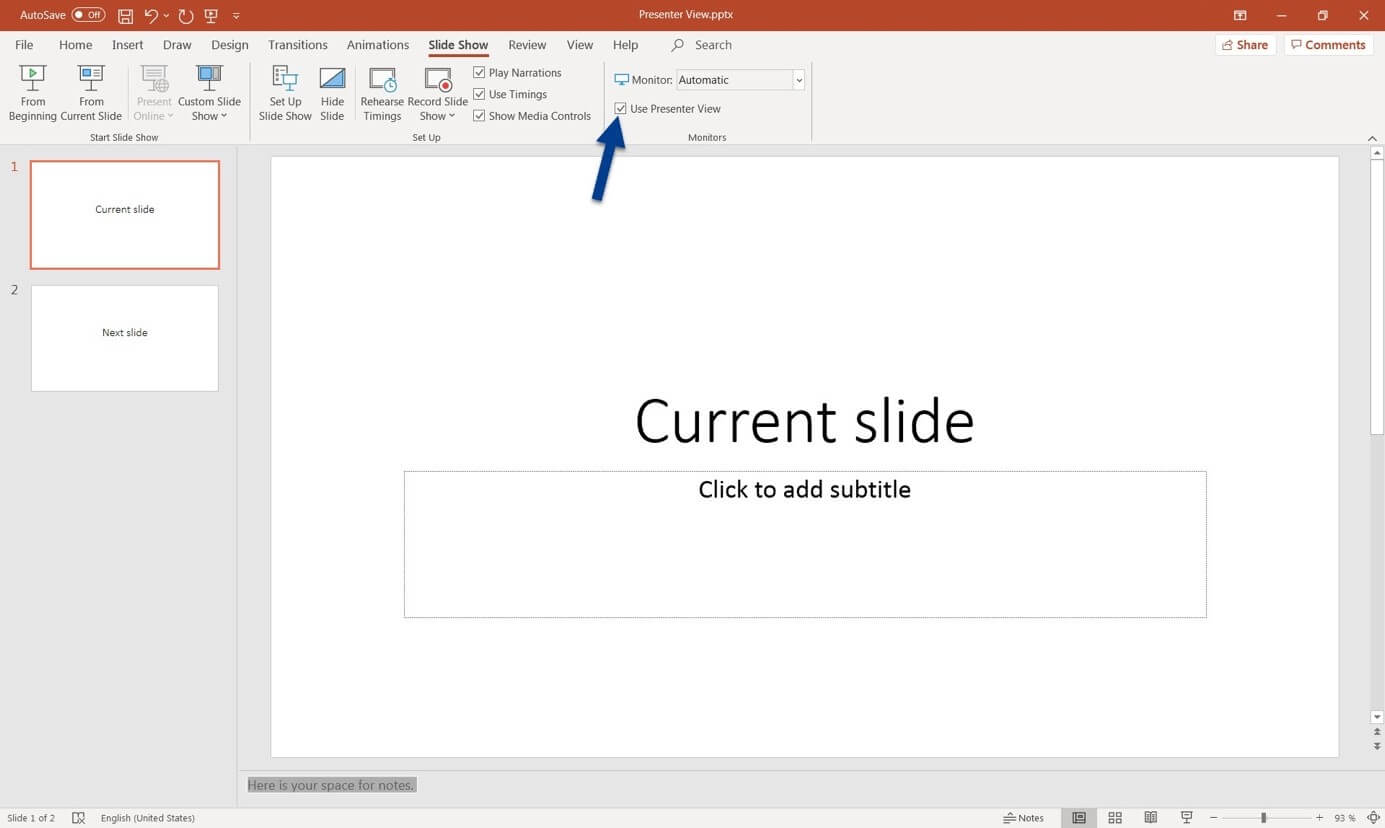
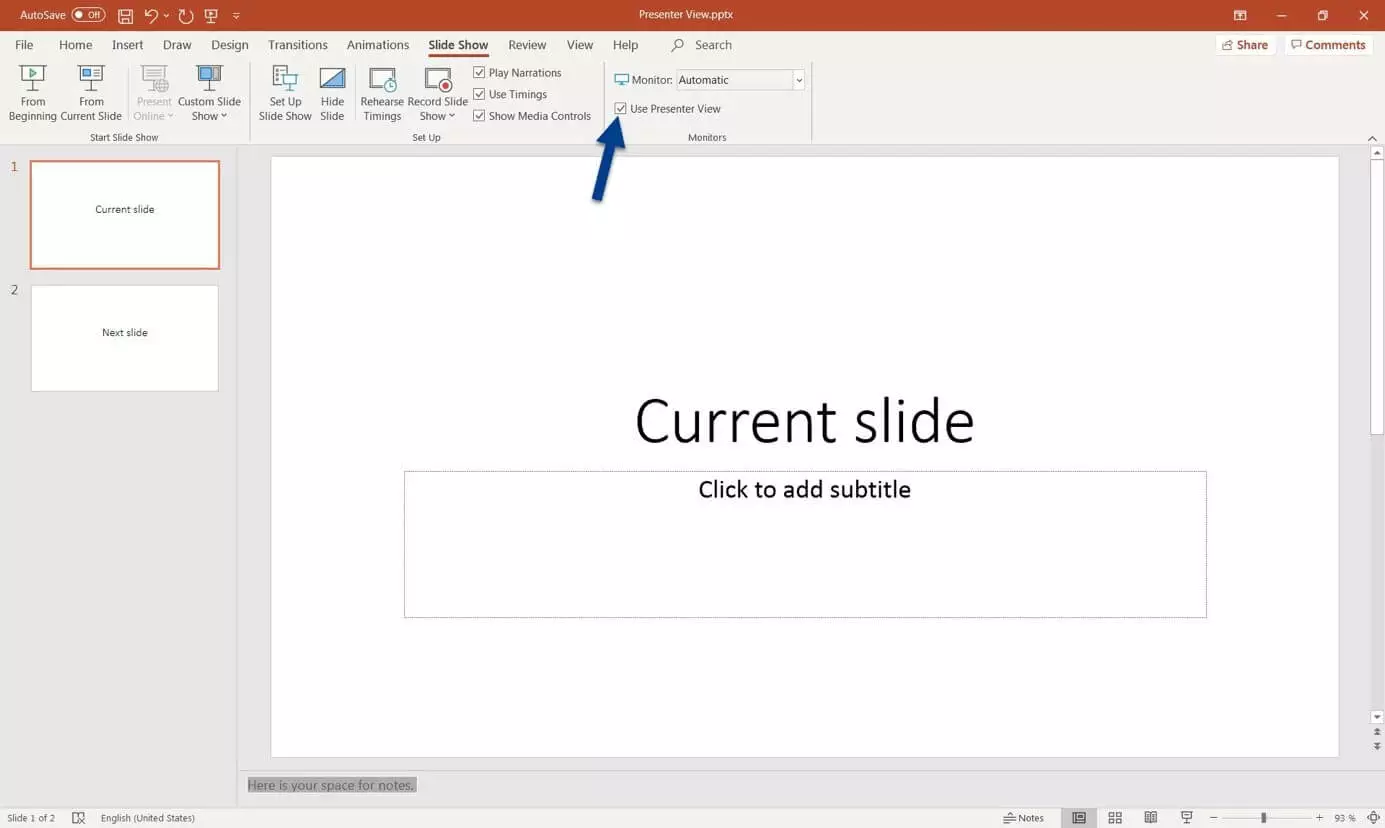
To use PowerPoint in Presenter view, you will need a second monitor. During official presentations this may take the form of a beamer or a second screen. The following steps ensure that the screen is being detected by your computer:
- Switch on the second monitor.
- Connect the second monitor via HDMI or another cable to your computer.
- Switch on your computer.
- Log in and launch PowerPoint.
- By pressing the Windows key + P you will gain access to the monitor control settings. Select “Expand.” On Mac devices, launch System Preferences, click on “Displays,” select the relevant monitor, and drag it into place as main or side display.
- Activate PowerPoint Presenter view.
- Within Presenter view, click on the display settings option and select “Swap Displays” for the audience to view the presentation.
- Up to 50 GB Exchange email account
- Outlook Web App and collaboration tools
- Expert support & setup service
Elements of Presenter view
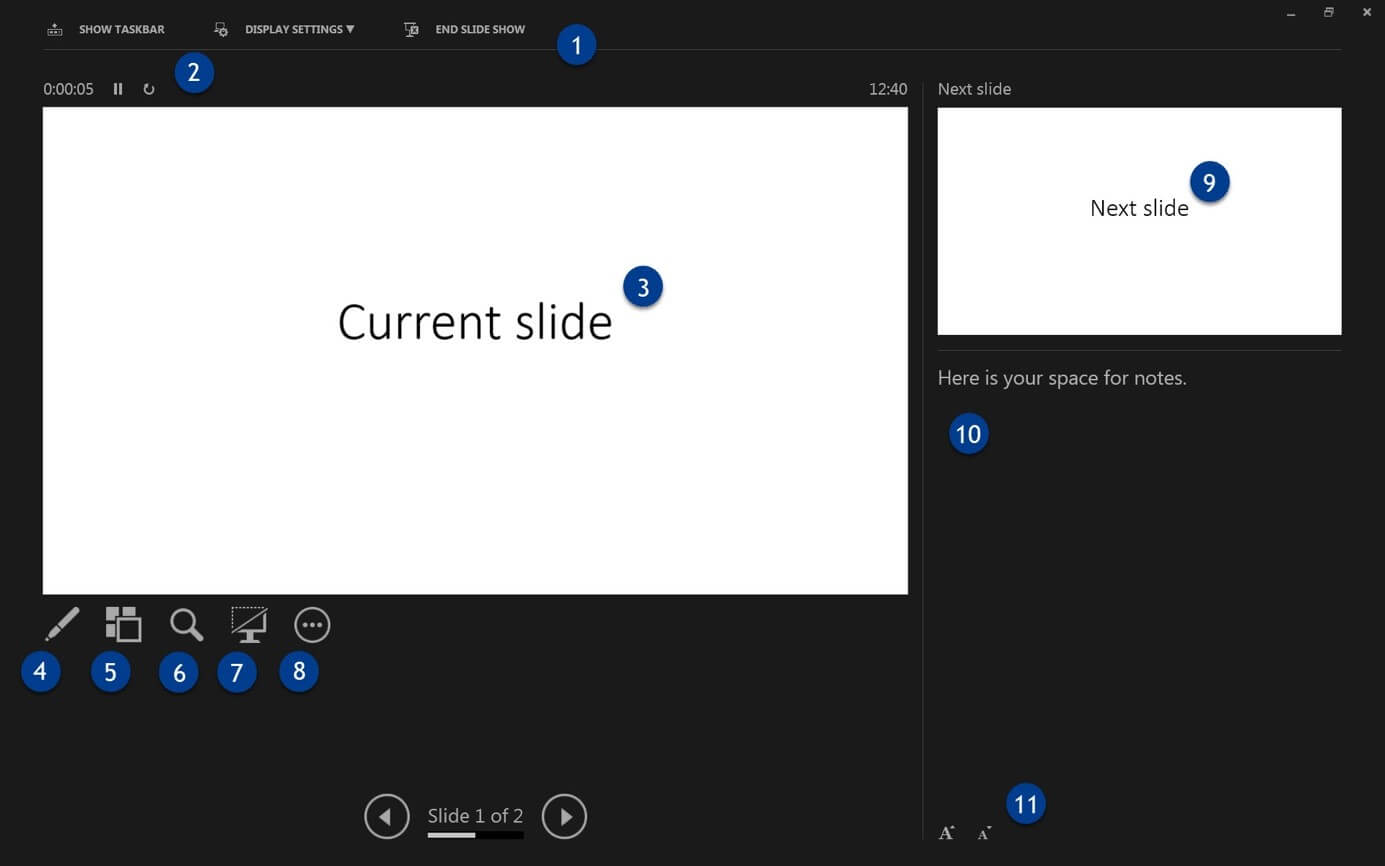
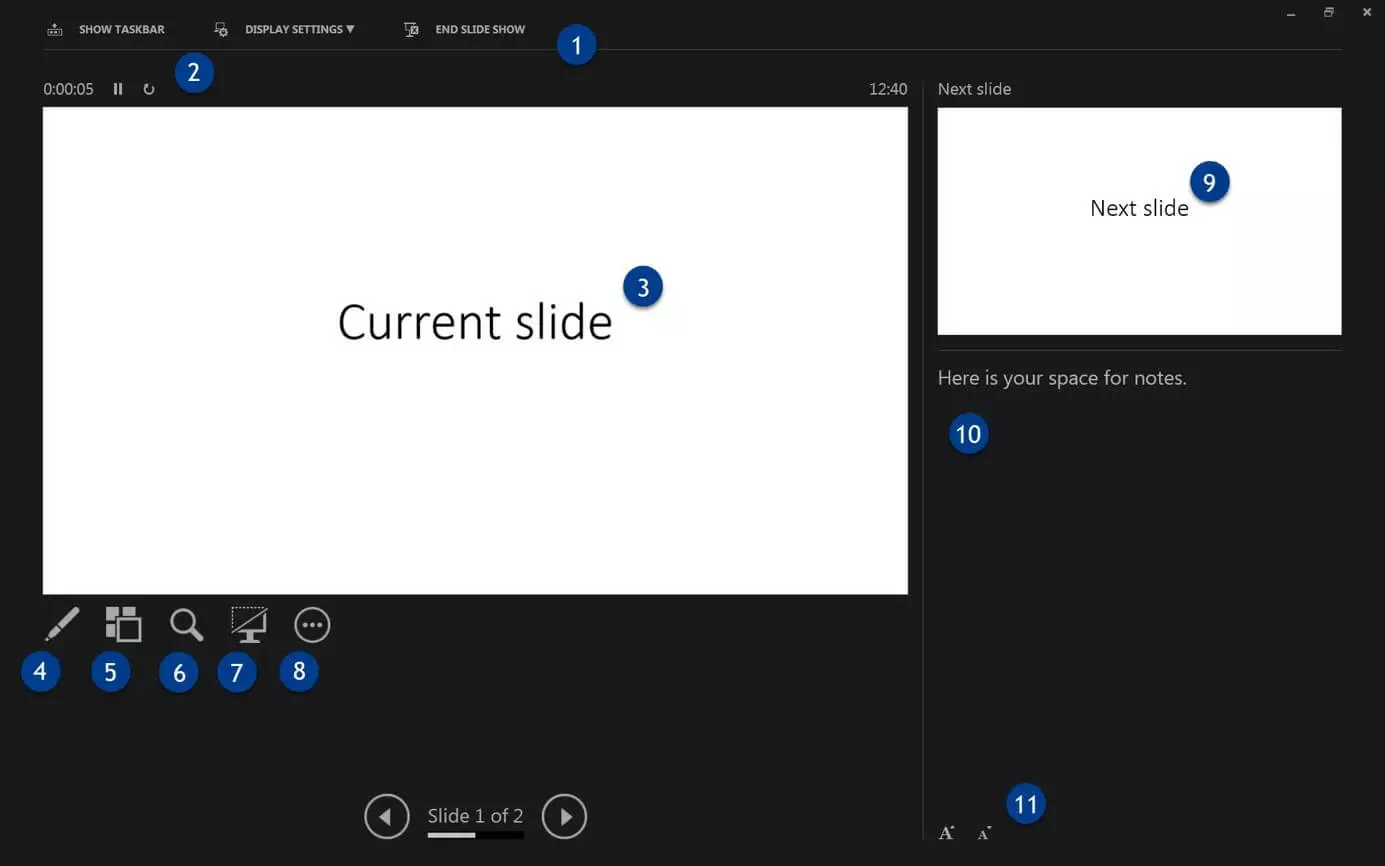
Presenter view is structured as follows:
- Menu: The menu pane includes the option to “Show taskbar,” “Display settings,” and “End slide show.” Showing the taskbar can be useful if you need to swap between applications during a presentation.
- Timer & time: The timer shows you how long you have been presenting for. It can be paused and reset. The clock is shown on the right side of the window.
- Current slide: View the currently shown slide here.
- Mark pointer & slides: The pointer lets you point at elements in a slide. You can also mark slides in this way.
- Show all slides: This function allows you to view all sorted slides to jump to the right one quickly.
- Magnify: Use the magnifier to enlarge parts of a slide.
- Black-out screen: This button lets you pause a projection on the second monitor, which is blacked out as a consequence.
- Other options: You can set additional options such as “white screen” (an alternative to the black screen).
- Next slide: In this field, you can view the next slide.
- PowerPoint Notes: PowerPoint provides the option to add individual notes to each slide which help you with your presentation.
- Font: Change the font size of your notes.
Using PowerPoint Presenter view correctly
Your presentation depends on your preparation. The day before a presentation, you should ensure that the technologies you’re using are working correctly. Always bring along your PowerPoint presentation on a USB stick as a backup.
Save your presentation as a .ppsx file for enhanced compatibility. This ensures that the presentation is automatically launched in presentation mode. For enhanced security, save your presentation as a .pdf file. That is how you can ensure that the layout remains the same and you have guaranteed access to all of your slides. However, effects will be no longer viewable and the audience will see the full slide.
Be careful that you can locate a file quickly and clean up your USB stick and desktop. Sometimes you may need to locate a file during a presentation or need to restart PowerPoint. If you do not blackout or deactivate your screen during this, the audience will get a full view of your PC dashboard.
Other great tools for setting up a presentation include PowerPoint Outline view and PowerPoint table of contents.