What is Google Meet?

Conferences and meetings are increasingly shifting from in-person to online, and successful video conferencing is crucial for every enterprise. Online meeting platforms have become an absolute necessity in these times of working from home and global networking. At the same time, video conferencing tools must be intuitive to use and easy to access. Google Meet is precisely that.
In 2013, Google introduced Google Hangouts, the video conferencing and instant messaging service for chats, voice calls and exchanging messages with friends. The tech giant finally added a video conferencing feature when it launched Google Meet in 2017. Meet started out as an app for up to 30 participants and now allows you to schedule, hold and record virtual meetings with up to 100 participants (150 with Google Workspace Essentials and 250 with Google Workspace Enterprise) without downloading special software.
Meet can also be combined with other Google services, from Google Calendar to Gmail to Google Docs. Features vary depending on whether you use the free version, available since May, or the more complex version as part of a Google Workspace subscription.
- Write perfect emails with optional AI features
- Includes domain, spam filter and email forwarding
- Best of all, it's ad-free
Requirements for using Google Meet
Whether you’re the meeting organizer or a participant, you can start a video conference in a few simple steps by going to the Google Meet page or downloading a free app. All you need is a Google account. The main limitation of the basic version compared to the Google Workspace subscription version is that meetings are limited to 60 minutes.
Further requirements for using Google Meet:
Supported operating systems
- Apple macOS
- Microsoft Windows
- Chrome OS
- Ubuntu and other Debian-based Linux distributions
- Android (5.0 or higher)
- iOS (12.0 or higher)
Supported web browsers
- Google Chrome
- Mozilla Firefox
- Microsoft Edge
- Apple Safari
Additional hardware and network requirements
- Broadband Internet connection
- Integrated webcam or external USB camera
- 2nd generation Intel i3/i5/i7 processor or equivalent AMD 2.2 GHz processor
Key features of the Google Meet app
If you want to give presentations and participate in meetings, Google Meet is a great solution. We’ll present the most important features so that you can get started with Meet right away.
Joining a meeting
When you receive an invite, click ‘Join a meeting’ at the top right of the web page and enter the code or link from the invite, or join the meeting directly from the link in the invite. If you want to start a meeting yourself, click ‘Start a meeting’ and then log in with your e-mail address. Once your microphone and camera have been enabled, you’re ready to begin.
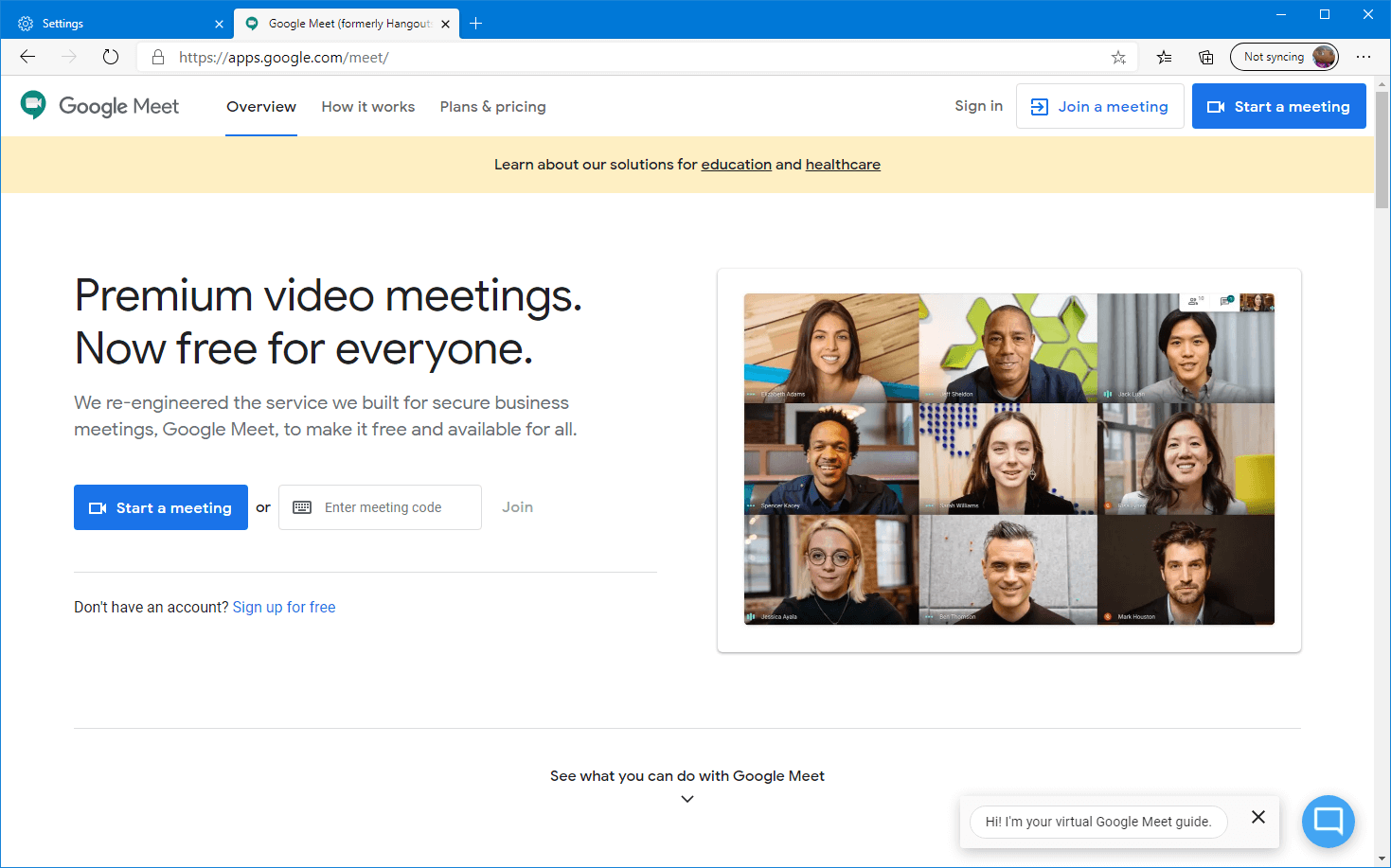
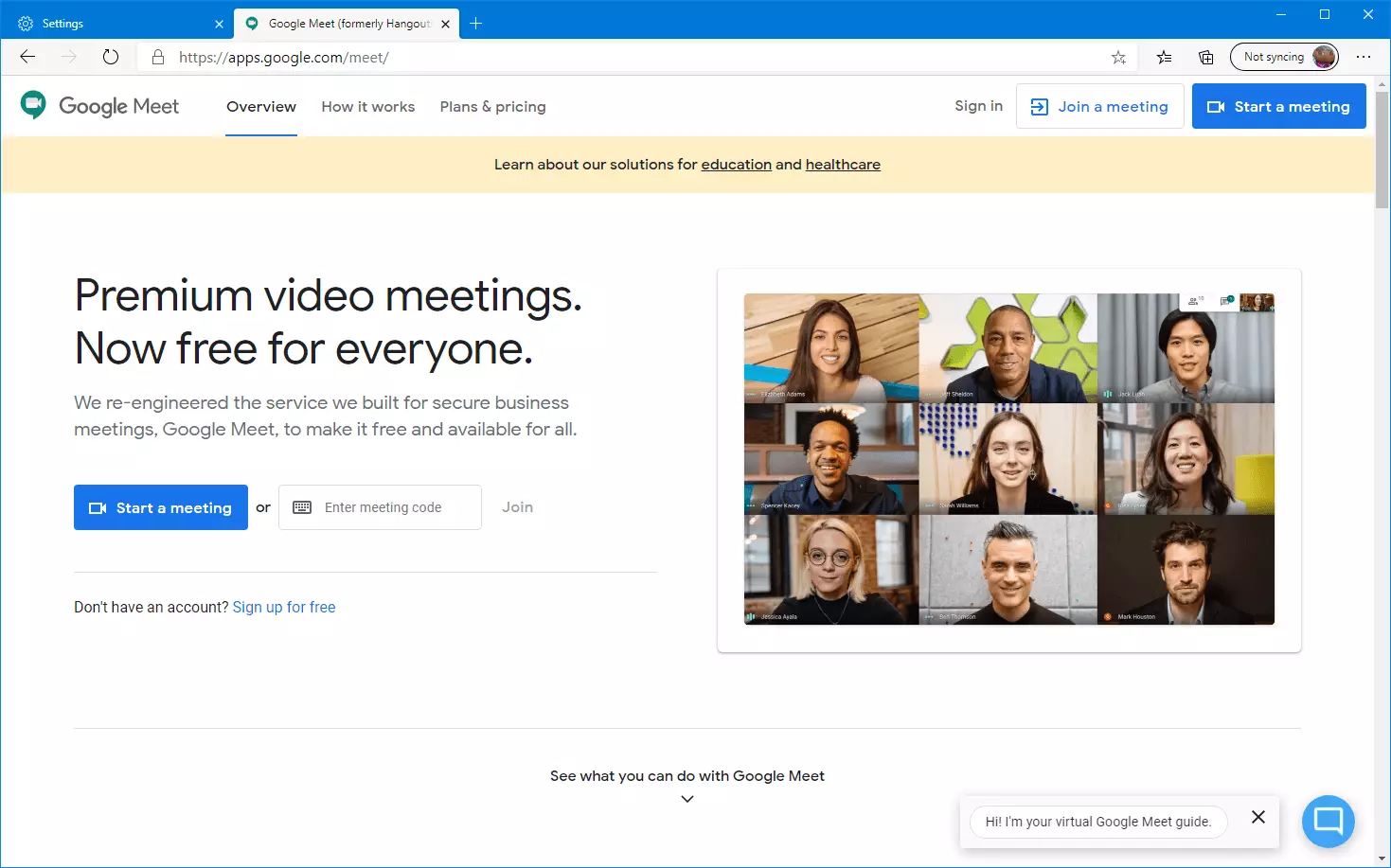
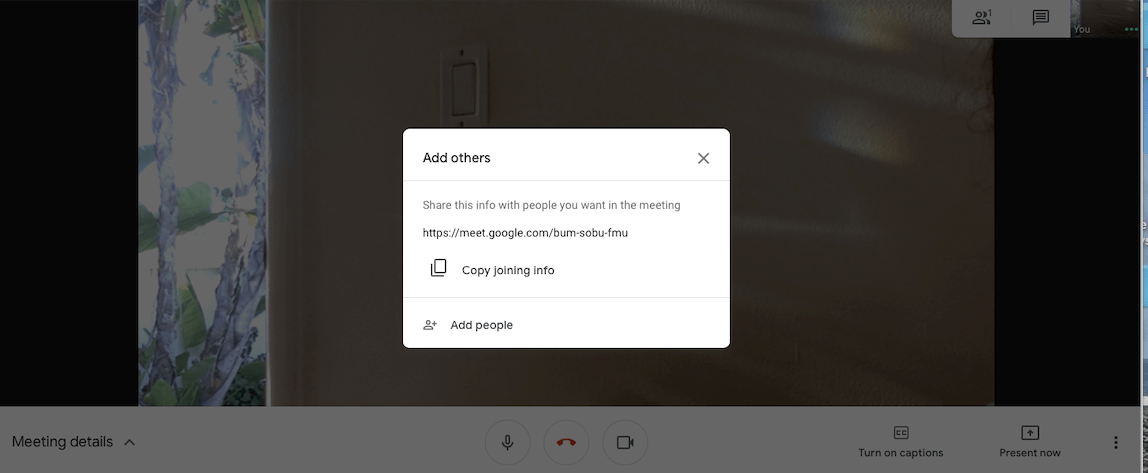
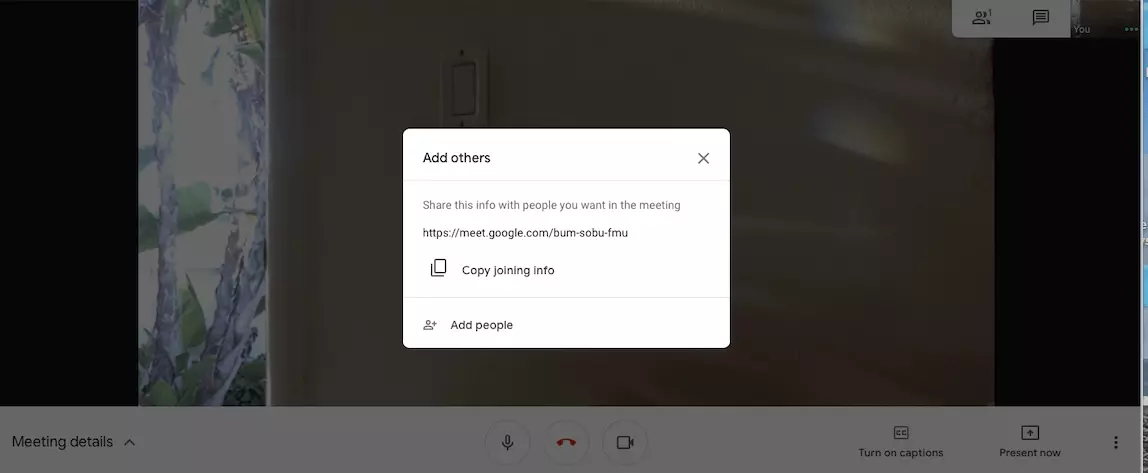
Once the meeting starts, click ‘Join now’. If you want to add other participants, you have two options:
- Choose Copy joining info, in which case you’ll receive a link that you can text or e-mail to the person
- Choose Add people
With the second option, you can access your Google Account contacts to select participants. When you click ‘Send invite’, the person receives an e-mail invite to the meeting in progress.
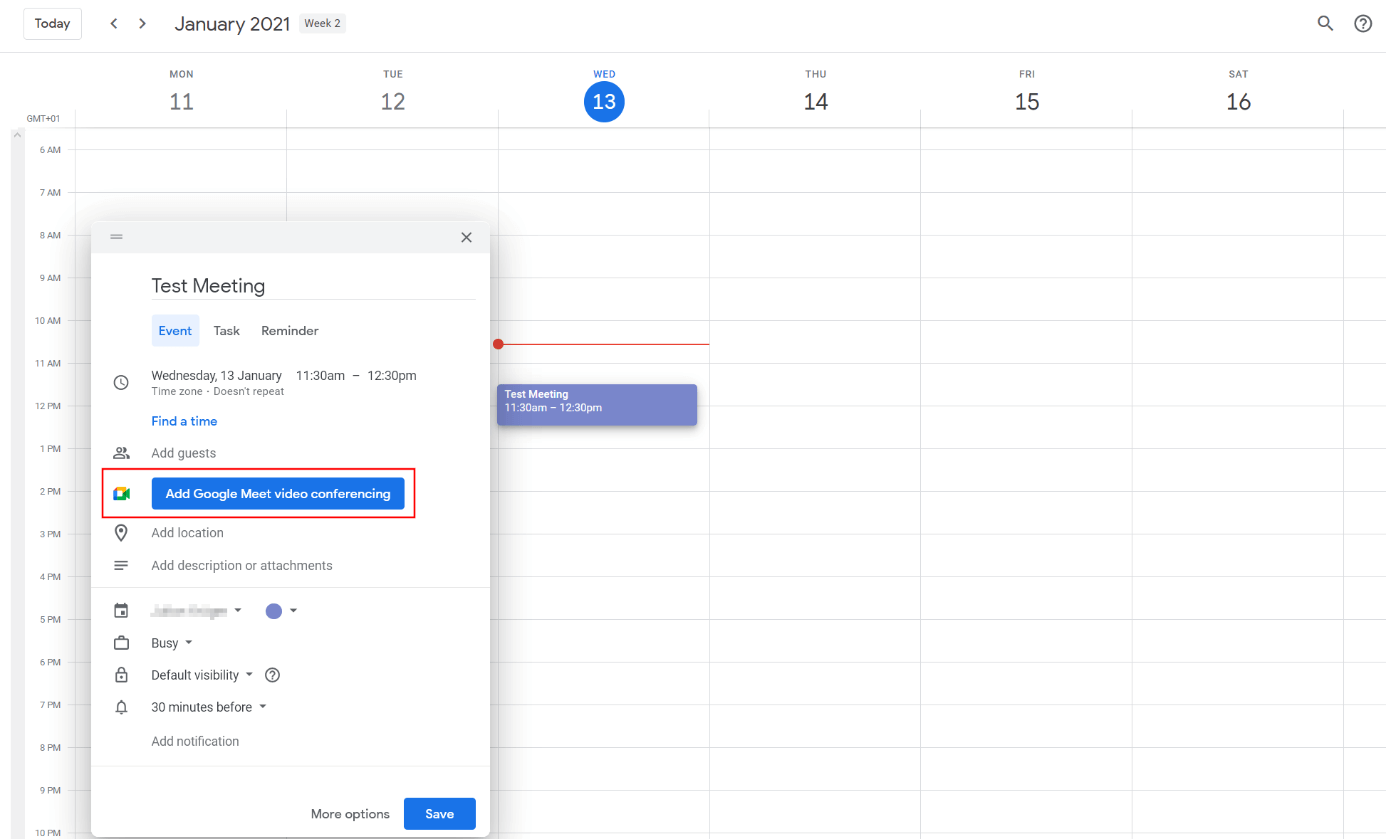
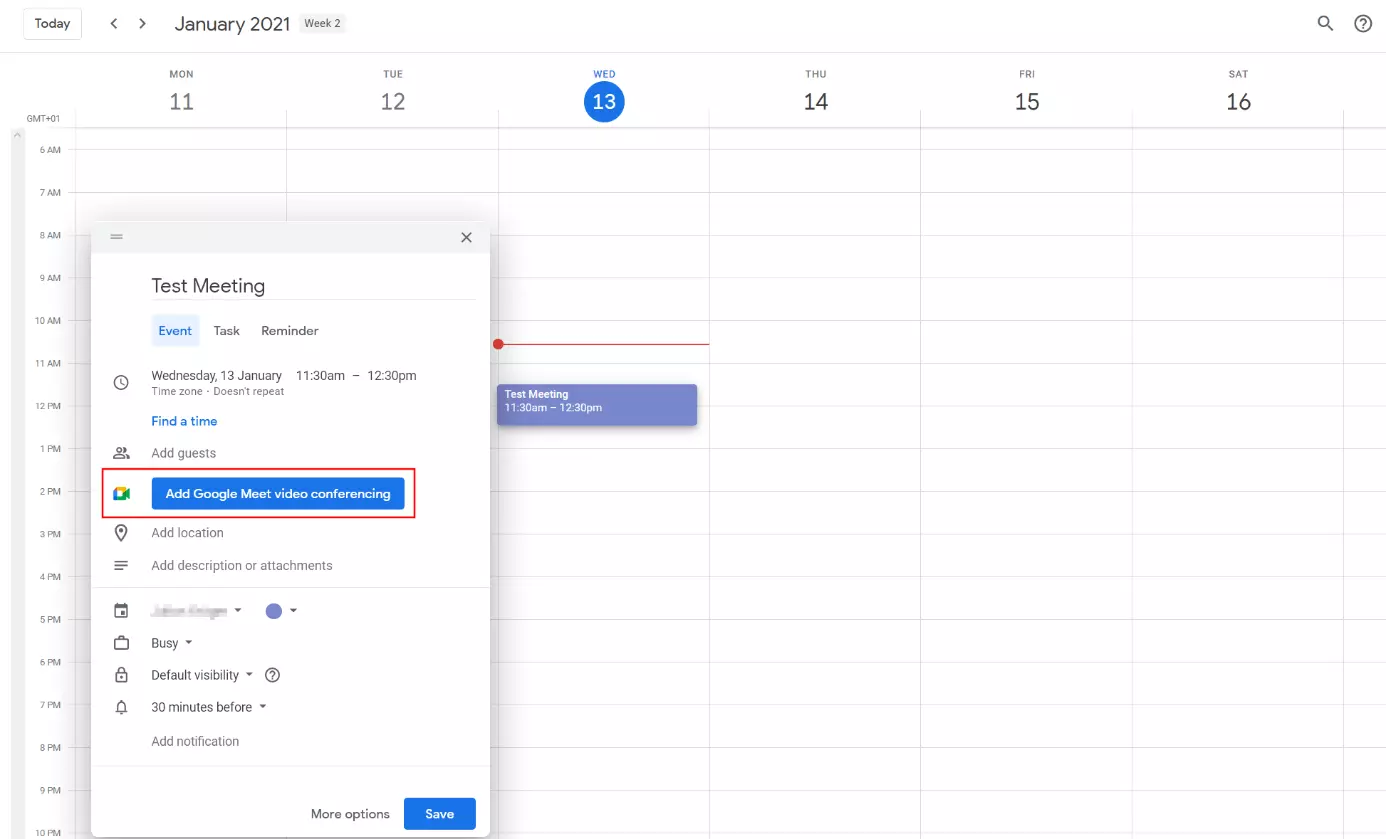
You need a Google Workspace subscription if you want to schedule a future meeting directly in Google Meet. However, if you use the free version, you can do this from Google Calendar. Simply enter the date, name and time in the calendar and select ‘Add Google Meet video conferencing’. Then invite participants by sending a link.
Presentation and chat feature
As a meeting host, you can click ‘Present now’ to share your screen during a meeting. This feature allows you to share presentations, videos and more with attendees without the need for prior setup. At the bottom left, you’ll see a link to the meeting, which you can copy and share. If attachments have been added in Google Calendar, you can access them here. As the meeting host, you can use the video and audio preview to see how you will look on the webcam during the meeting.
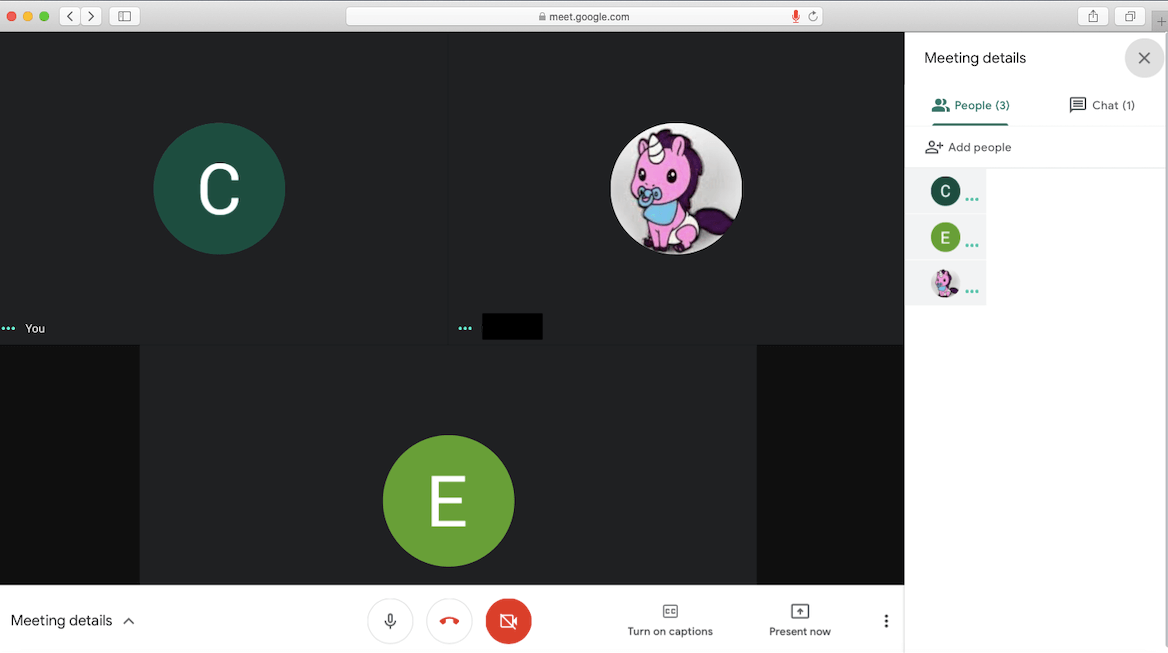
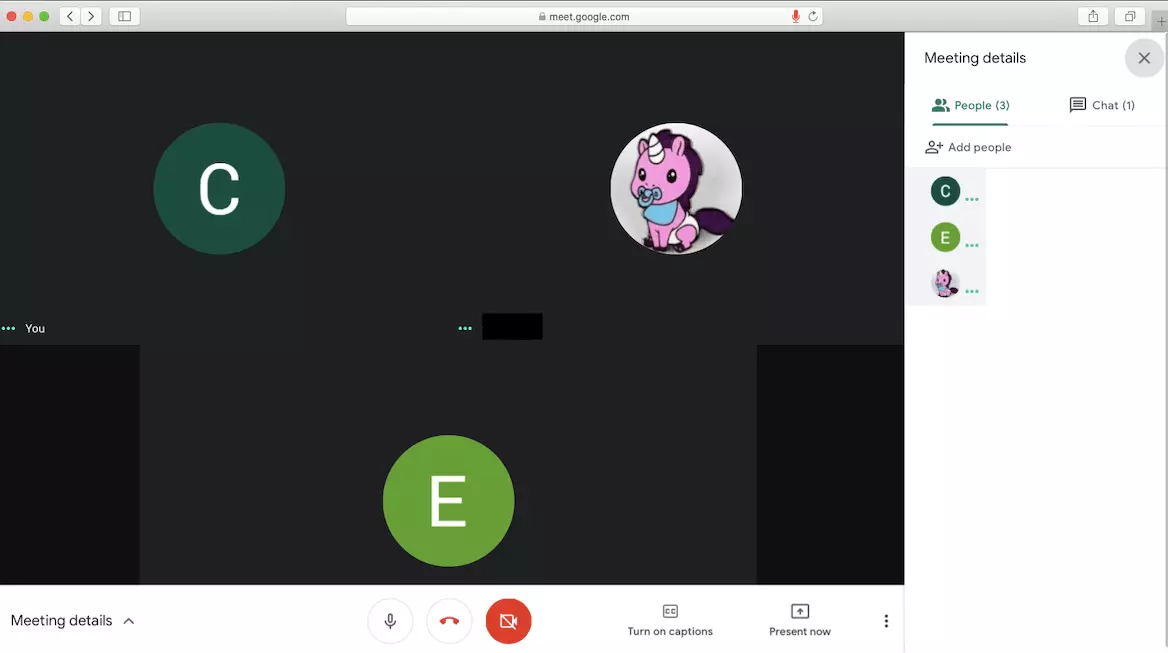
You can also get a preview of the attendees who have already joined. Layouts and screen settings are adjustable. Active content and attendees are automatically displayed, creating a dynamic meeting atmosphere. A chat feature is also available, and you also have the option of turning on captioning to display auto generated subtitles.
The captioning feature is currently only available for a limited number of languages (German, English, French and Spanish, among others).
Integration of Google Meet with Google Workspace
What else does Google Workspace offer Google Meet users in addition to simple setup and the features described above? With all versions, there is no limit to the number of video meetings, but the maximum number of participants differs (100, 150 or 250). The biggest advantage is compatibility with all tools in Google Workspace: You can access your Contacts, automatically send invites from Gmail and save meeting recordings and files to Google Drive. Plus, you have direct access to all documents, videos and presentations from your computer or smartphone. The subscription versions come with additional features that we’ll present below.
IONOS offers an all-in-one Google Workspace package so you can manage all your Google apps online with one centralized platform and easily use Gmail with your domain.
Meeting limitations
The advanced features of Google Meet include a maximum video meeting length of 300 hours, UK and international dial-in numbers for joining by phone and the option of saving meeting recordings to Google Drive. For international companies or companies with a global customer base, this is an excellent way to enable video conferencing for team members or customers who cannot attend and to provide constant access to information. Companies with Google Workspace can provide live streaming for up to 100,000 viewers. This means the service can be used for global conferences and large-scale events.
Optimal sound quality is also ensured: When noise cancellation is enabled, the app’s powerful AI automatically filters out background noise – an absolute must for any professional meeting. Google Meet can use AI to adjust the video feed to poor lighting conditions and optimize video quality. For video meetings organized through a personal Google account, only the creator of the meeting can mute or remove other participants. With the subscription versions, participants can mute other participants to reduce feedback or background noise. All you have to do is select the participant’s name on the ‘People’ tab and click ‘Mute’.


Security
Security is crucial for all online activities, and Google excels in this area. All Google Workspace security modules are enabled by default and Google has developed safeguards to prevent unwanted guests. Participants need a personalized invite to join a video meeting appointment, and the ID for each meeting isn’t activated until 15 minutes before the meeting starts. One thing that makes Google Meet so simple and easy to use: The platform is browser-based with no plug-ins or third-party tools, minimizing potential security risks. Google Workspace also supports two-factor authentication, and all calls in Google Meet are protected by native encryption.
Google Meet: Free version vs. Google Workspace version
| Google Meet: Free version | Google Meet: Google Workspace Essentials | Google Meet: Google Workspace Enterprise | |
|---|---|---|---|
| Maximum length | 1 hour | 300 hours | 300 hours |
| Maximum number of participants | 100 | 150 | 250 |
| Number of video meetings | Unlimited | Unlimited | Unlimited |
| Join from a browser | ✓ | ✓ | ✓ |
| Invite external participants | ✓ | ✓ | ✓ |
| Native mobile apps | ✓ | ✓ | ✓ |
| Captions | ✓ | ✓ | ✓ |
| Screen sharing | ✓ | ✓ | ✓ |
| Adjustable layouts | ✓ | ✓ | ✓ |
| Dial-in numbers for joining by phone | ✗ | ✓ | ✓ |
| Live streaming | ✗ | ✗ | 100,000 viewers |
| Meeting recordings saved to Google Drive | ✗ | ✓ | ✓ |
| Intelligent noise cancellation | ✗ | ✗ | ✓ |
| Customer support | Online help and community forums | 24/7 online support and community forums | 24/7 online support and community forums |
Google Meet is a video conferencing platform that small businesses and large corporations can use for all their online meeting needs. Google Meet’s integration with other Google apps is a definite advantage. New features are already being planned and continuous technological improvements are expected.
Discover the features and advantages of Google Chat and Google Hangouts.
- Store, share and edit data easily
- ISO-certified European data centres
- Highly secure and GDPR compliant
Reviewer

Jeanna Raffa
With over 18 years of experience in online marketing, Jeanna Raffa possesses extensive expertise in digital marketing. Since 2020, her focus has been on providing practical information regarding email, office, and cloud storage solutions.