

Google Discover – How to use it for SEO purposes

If you’ve ever used the Google search engine on your tablet or smartphone, you know that there’s usually a list of reports with big images, often from news sites, directly under the search bar. These Google Discover reports are called ‘cards’. If you tap on one, you’ll be taken to a website that contains the corresponding information.
Here, we’ll tell you about the differences and similarities between the standard Google Search and Google Discover, which websites Google Discover’s search engine optimisation is helpful for, what you have to particularly pay attention to when doing SEO in this way, and the special role that pictures play in this regard.
- Free WordPress with .co.uk
- Free website protection with one Wildcard SSL
- Free Domain Connect for easy DNS setup
What is Google Discover?
Google Discover is a Google service that shows tablet or smartphone users up-to-date news. These are displayed underneath the search bar, and each contains a large picture, a headline, and a teaser or description.
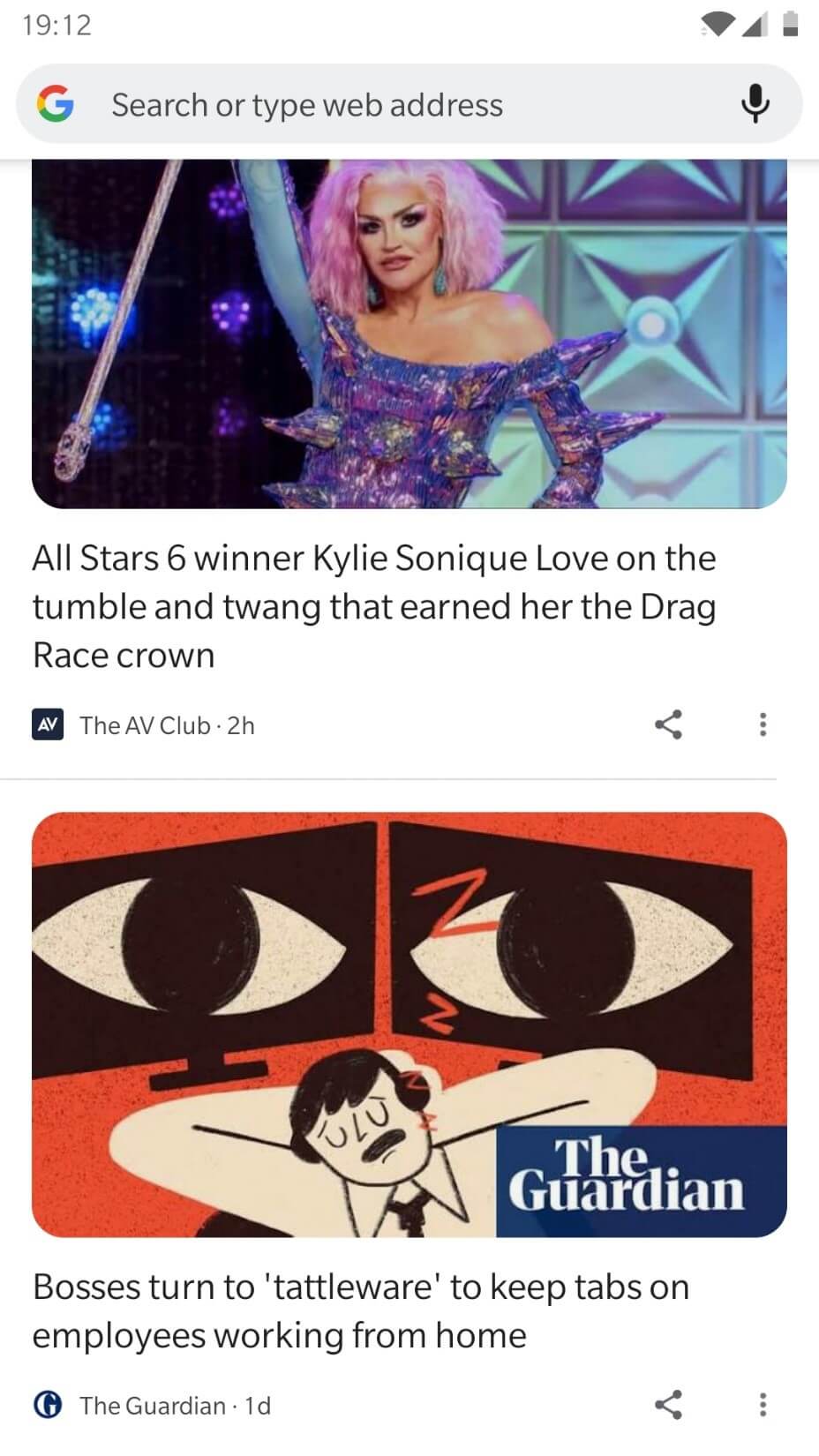
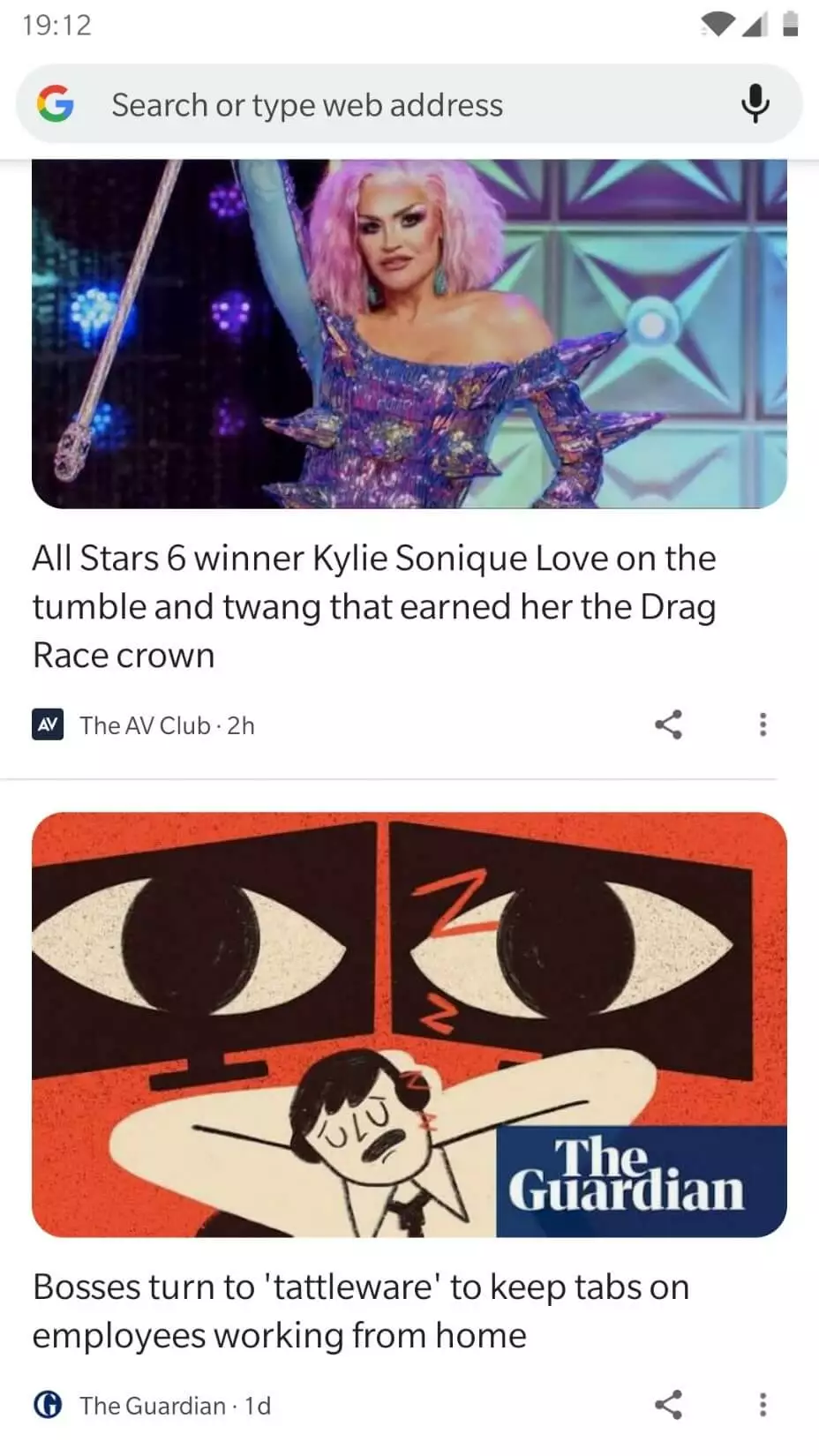
Google Discover is a new development for the old Google news feed. Now, content from all websites can be taken into account, instead of just news outlets. Originally, Google Discover worked only on Android devices, but it can now also be used on Apple iOS devices.
Google Discover can be turned on and off easily on smartphones and tablets. With Android, simply open the Google app, go to ‘More’ and then ‘Settings’. Under ‘General’, you can find toggles that let you turn Google Discover on or off.
Google Discover compared to standard Google Search: Just what is the difference?
The standard Google Search feature and Google Discover complement each other but are different concepts based on the same techniques. Theoretically, Google Discover can call on content from all websites that are indexed by the Google search engine. For both Google Search and Google Discover, the benefit for the user takes priority; users should always be shown content that is more useful to them.
While a user has to manually enter one or several search terms to launch a Google Search, Google Discover actually works the opposite way round – Google actively suggests content that the user might find interesting. On a basic level, Discover works just the same as other news feeds, such as those in social media. The difference here is that the Google algorithm decides what content is more relevant, meaning that active input from users is no longer necessarily required.
If you go into ‘Settings’ and then ‘Interests’ in your Google app on your Android device, you can choose to add or block personal interests. By doing this, you help Google Discover select content for you that matches your interests more closely. To be able to do this, you must have activated ‘Web & App Activity’ in your Google account. This allows your activities on websites and in apps to be saved to your Google account.
The biggest question when it comes to Google Discover is as to what criteria Google uses to show what content to which users. As Google keeps its algorithms and the number, type, and weighting of its various parameters secret and is also constantly updating them, no general right answer can be given for this question. The fact is that Google, when determining user interest for Discover, uses in particular data from Search, location and voluntary information provided by users.
For a closer look into how Google and Google Search have developed since their humble beginnings, check out our article ‘The evolution of Google Search results’.
SEO for Google Discover – What websites is this useful for?
Google Discover doesn’t take content from any old website. In fact, its selection criteria are actually quite strict: first and foremost, Discover targets very big websites with lots of separate pages that contain sophisticated expectations in terms of specialised knowledge, competency, and reliability. In this regard, Google created its SEO guidelines in 2018 with the acronym E-A-T (expertise, authoritativeness, trustworthiness), and these guidelines are used for both the Discover feature and standard Google searches. In practice, Google Discover shows content from news sites, magazines, or specialised journals quite frequently, as Google assumes that such organisations are widely trusted by users.
The question that owners of smaller websites have to ask themselves is: is it even worth the effort to try to optimise a website for Google Discover? In many cases, the answer is no. If, for example, you have a small, static website with just a few subpages where new, valuable content is not published every couple of days, you really don’t need to worry about Google Discover at the moment, or even actively look into it at all. In this case, it will simply be enough to do your regular SEO homework and stay abreast of the basics of search engine optimisation. For basic information on key terms in SEO, have a look through our SEO glossary.
The IONOS ranking coach analyses your website to show you ways to optimise it, giving you a step-by-step guide to make your website the best it can be.
SEO measures for Google Discover
What owners of Google websites advise in terms of Discover can be divided into several fields with general tips on search engine optimisation. However, there is one exception: the importance of images. What this means is that Google Discover, unlike standard Google Search, is an excellent way to monitor the competition and to use this as a basis to develop appropriate SEO measures.
Developing SEO-friendly images for Google Discover
User acceptance of Google Discover is primarily based on helpful images. It can easily be seen that images take up a lot of space on Discover cards. Text without a corresponding image has practically no chance of being considered. However, planning a good picture to go with interesting text alone is not enough: Google specifically recommends large images with a dimension of at least 1,200 pixels. Furthermore, the setting max-image-preview:large must be activated on the relevant site or AMPs must be used.
To activate the max-image-preview:large setting, you need to open up the code of your website and make a small change in the head section of the site. The max-image-preview:large setting, as shown here, must be added as a ‘robots meta tag’ in the relevant head section:
<!DOCTYPE html>
    <html><head>
    <meta name="robots" content= "max-image-preview:large"/>
    (…)
    </head>
    <body>(…)</body>
    </html>
If a max-image-preview tag is already in the head section, simply add the setting ‘large’. You can do this by replacing the original setting, e.g., ‘standard’ or ‘non’, with the tag ‘large’:
<meta name="robots" content= "max-image-preview:standard"/>is replaced with:
<meta name="robots" content= "max-image-preview:large"/>With the max-image-preview:large setting, the Google bots that visit the site know the maximum size that an image can be displayed as a Google preview. This isn’t just a requirement for Google Discover, but is actually important for all other types of Google search results, including the regular text search, image search, and Google Assistant.
As well as the technical aspects, you should also take into account high image quality and use interesting and relevant images. For example, Google will not use website logos as pictures in Discover cards. Also in terms of Google Discover, it is important to plan for images with SEO-friendly alt text (alt attributes). It is also helpful to give the images file names that are related to the text. For more information on this, read our article on image SEO.
- Intuitive website builder with AI assistance
- Create captivating images and texts in seconds
- Domain, SSL and email included
General SEO measures
The other SEO measures that Google recommends for Google Discover are generally more or less the same as the general search engine optimisation guidelines drawn up by Google. In terms of Discover in particular, Google recommends relevant headlines and representative page titles, provided that this is not clickbait. The text and content should be modern, tell an interesting story, and give unique impressions.
Google also does not appreciate being ‘tricked’ in terms of Discover, and will sometimes particularly heavily punish attempts to show misleading or exaggerated previews for content. Furthermore, it is discouraged to capture user attention via provocation, outrage, or ‘morbid curiosity’.
For Discover, Google specifically states the importance of information on authors and sources. Trust is earned from both users and Google if the name of the person behind the content and their information sources are published in as clear and transparent a way as possible. The inclusion of contact details (email address, phone number, address) also increases user trust and is seen positively. What is also important here is that all the information is correct, as incorrect, contradictory, or missing information can be counterproductive. This also includes third-party websites, such as directories that list your contact details.
Google Discover is particularly good for analysing the competition. Once you set the corresponding interests in the settings (see above), you can constantly keep an eye on your competitors and analyse what content from similar websites is seen as successful. By doing this, you can get more strategies on how to create your content in such a way that Google will pick it up. In this way, you can successively optimise your website and its content for Google Discover.
For detailed information on SEO for Discover, Google itself has written articles on ‘Google Discover and your website’ as well as Discover content policies.
Tracking success with Google Search Console
Google Search Console (GSC) is an important online tool to make your website SEO friendly. Website managers who see the value in SEO are generally already registered with Google Search Console.
Among its services, GSC offers performance reports for standard Google searches, Google news, and, as of recently, also for Google Discover. However, performance reports for Discover will only be shown in the Google Search Console if your website has reached a minimum number of specific ‘Discover impressions’ over the last 16 months. This basically means the number of users who had a specific Discover card shown to them. Only one impression is ever counted per session. As well as the impressions, the Google Discover performance report shows you the metrics ‘Clicks’ and ‘CTR’ (click through rate, click rate, or clicks per impression).
A click is counted as a user clicking on the relevant Discover card and visiting the website from which the corresponding content was displayed. If the user simply shares the card, this is not counted as a click. The metric CTR tells you how often on average users have to see a card until they click on it and open the content. For example, a click rate of two percent means that, out of 100 users who were shown a specific card, two of them actually clicked on it and visited the website.
In its performance report for Discover, Google itself gives more information about how these metrics are presented and evaluated in the Google Search Console. It is important to continuously track SEO measures for their success if your goal is to constantly be improving your content for Google Discover.
If you are interested in Google Discover as a way to get more traffic to your website with more in-depth SEO measures, the Google Knowledge Graph might also interest you.
- Improve your Google ranking without paying an agency
- Reply to reviews and generate social media posts faster
- No SEO or online marketing skills needed
Reviewer

Melissa Senn
Melissa Senn has been with IONOS since 2016 and focuses on website, e-commerce, social media, and AI in the Digital Guide. As a digital strategist, she uses her extensive SEO and GEO experience to transform complex technological trends into practical content.