

How to create a YouTube channel

Creating your YouTube channel is a matter of a few clicks, but the end result offers enormous advantages, especially from a marketing perspective. Creative videos and enticing content have the potential to reach millions of viewers. Unique YouTube channels appeal to fans and like-minded people, customers, and business partners. Whether for personal or business use, if you’re already thinking of creating a YouTube channel, don’t hesitate. Setting up your YouTube channel is easy as 1-2-3 with our step-by-step instructions.
Ask, create and research with the European alternative to ChatGPT. Robust security and unlimited chats give you peace of mind.
Quick guide: Create your own YouTube channel
- Sign up for a Google account if you don’t already have one.
- Sign in to YouTube with your Google account.
- Click on your profile icon in the upper right corner and select ‘Create a channel’.
- Select an appropriate name for your YouTube channel.
- Finish the setup by clicking on ‘Create a channel’.
- You’ll be automatically redirected to your new YouTube channel, which you can customise as desired.
Combine your YouTube channel with a professional email address from IONOS – ad-free, including your desired domain, individual support, and reliable protection.
Creating a YouTube channel: step by step
It doesn’t take much to set up your YouTube channel. Since the video platform is owned by Google, all you require is a Google account. Once logged in, you can create your own channel in just a few steps.
Step 1: Create a YouTube account
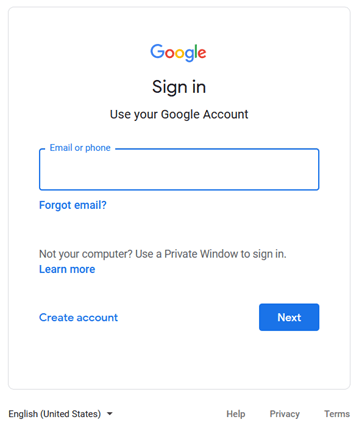
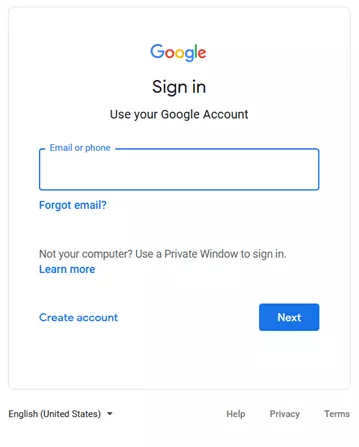
While you can view unlimited YouTube videos without a Google or YouTube account, you must register for a YouTube account to upload your own videos. The first step is to sign up for a Google account if you don’t already have one. Once you have a Google account, you can log into the video platform and make your YouTube channel.
Step 2: Log in to YouTube
Go to the YouTube website. Click ‘Sign In’ and then log in with your Google credentials.


Step 3: Create a channel
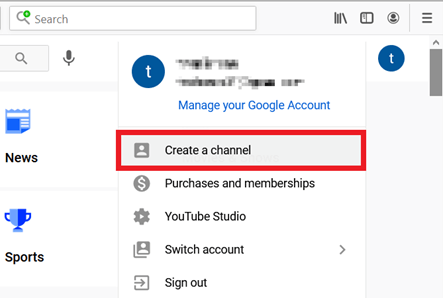
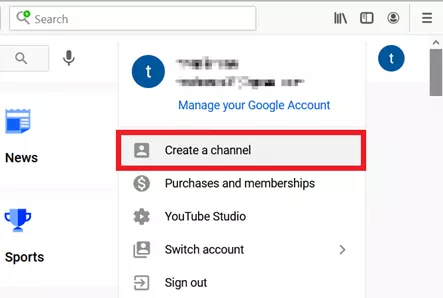
Now click on your profile icon at the top right and select ‘Create a channel’.
Step 4: Set YouTube channel name
Set the name of your YouTube channel. You can select your Google account name for the channel or choose a custom name. If you plan on using your YouTube channel privately or for personal use only, your Google account name will suffice. If you want to use your channel for commercial purpose, a custom name is recommended. This is suitable for a brand or company channel, for example.
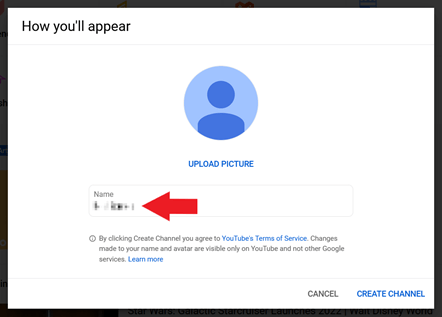
Give your channel a distinctive name right from the start – a name that’s unique, recognisable, and optimised in terms of YouTube SEO. Don’t worry – you can adjust names and settings at any time later on.
Step 5: Create a YouTube channel
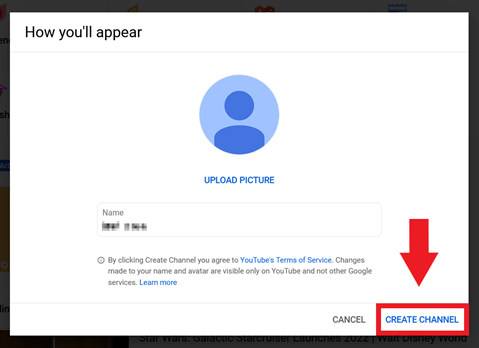
Once you’ve chosen the name, click on ‘Create Channel’ to create your YouTube channel.
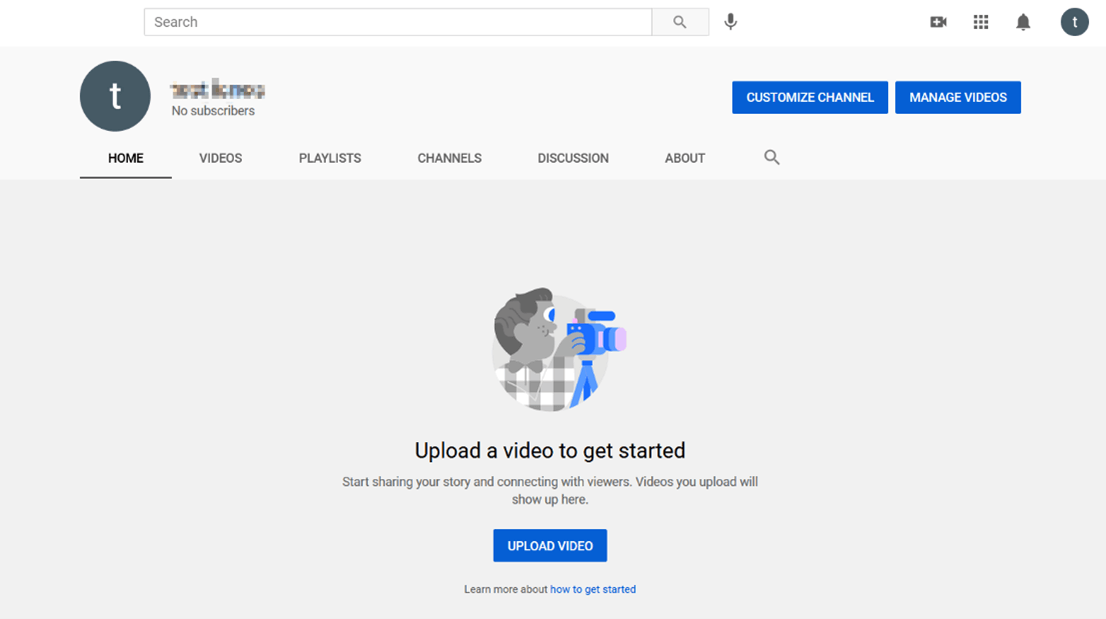
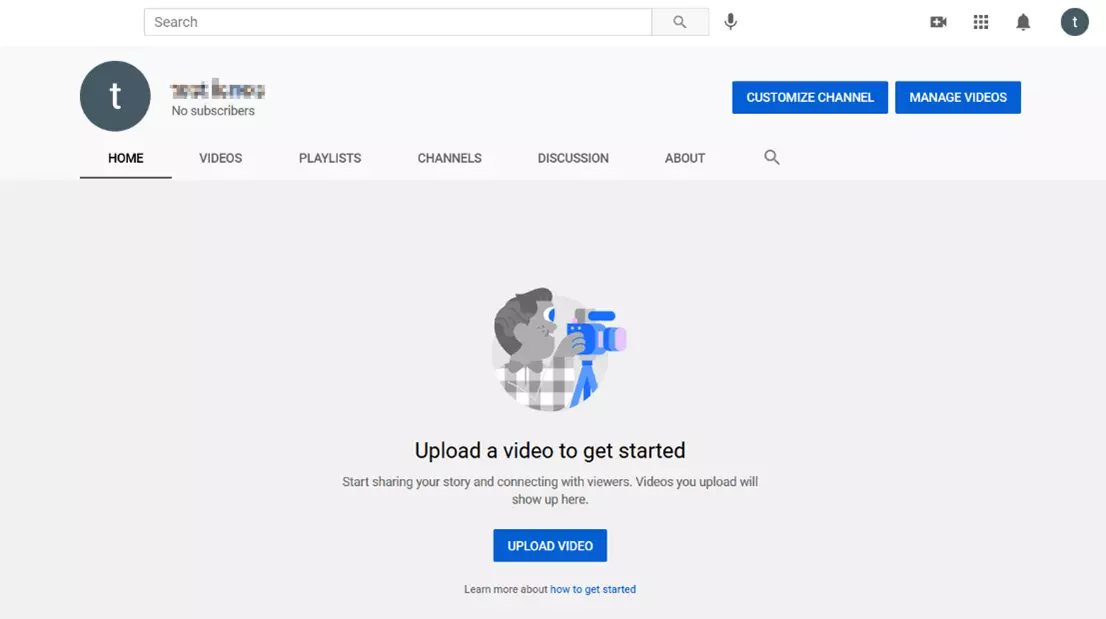
Step 6: Your YouTube channel
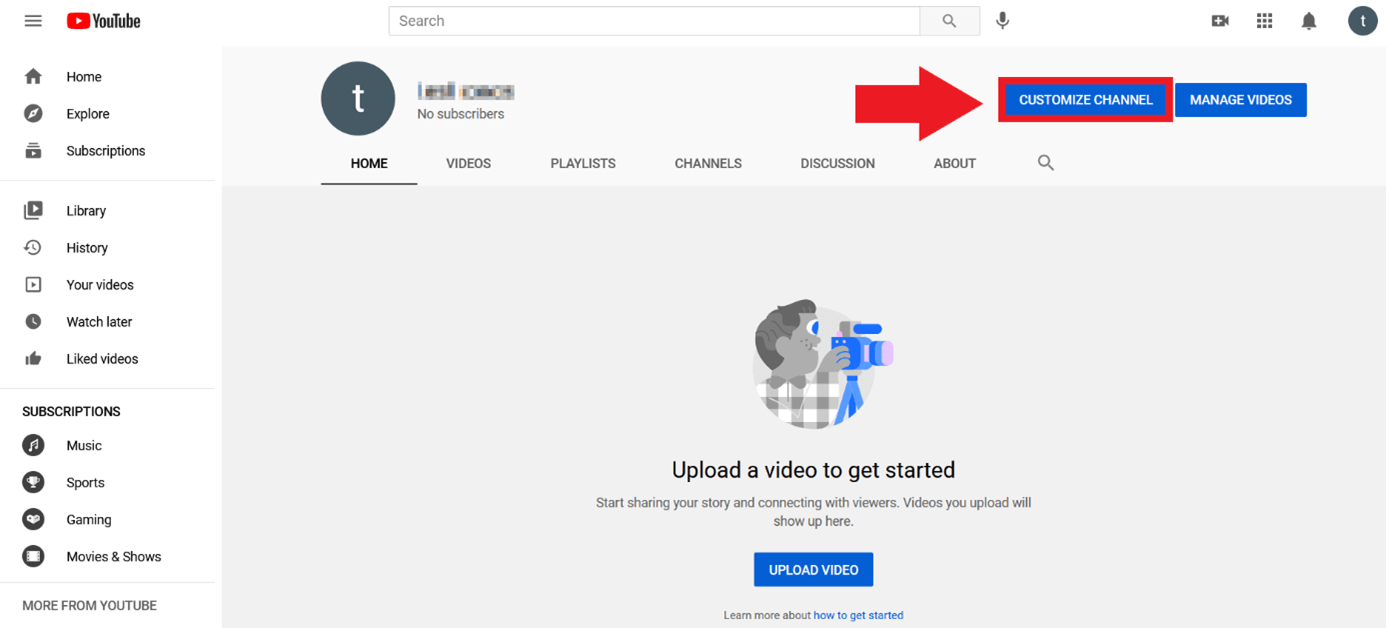
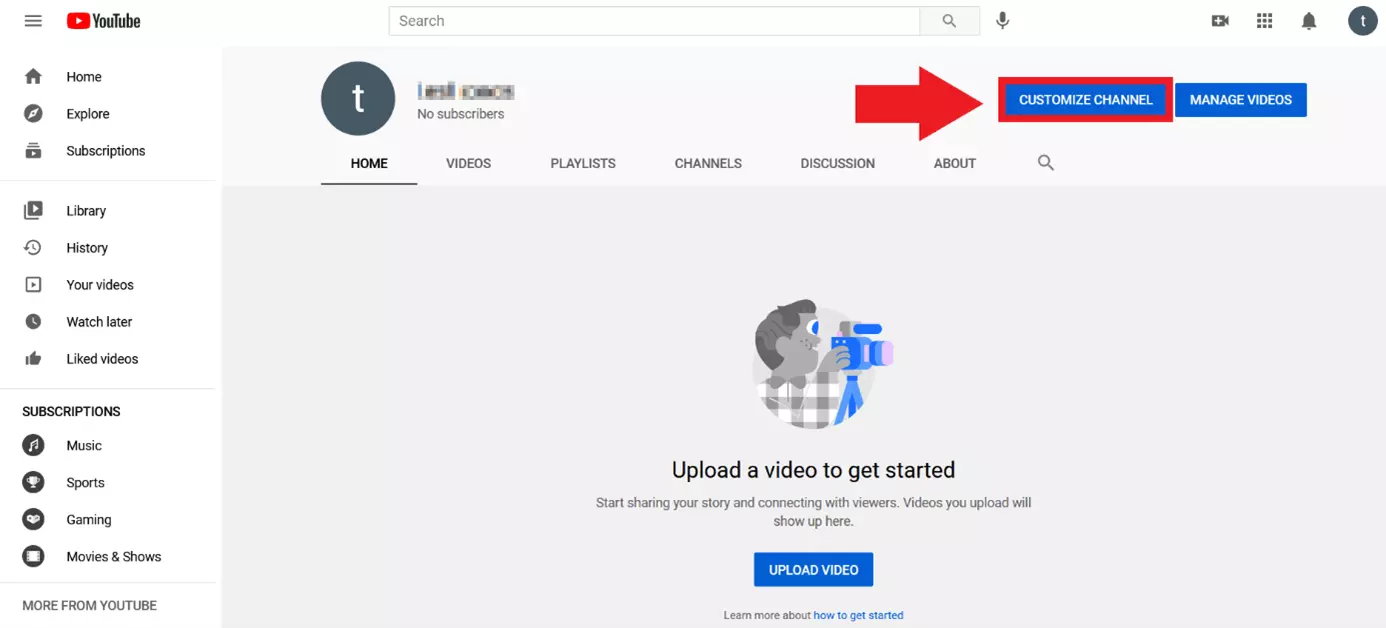
You will then be automatically redirected to your new channel. You can customise it by clicking on ‘Customize Channel’. Alternatively, you can upload clips by clicking on ‘Upload Video’ or edit existing video material via ‘Manage Videos’.
Create your own website with IONOS today. Benefit from a professional web presence and connect your domain to your YouTube channel!
How to create additional YouTube channels
Want to create multiple channels to manage different brands or topics? No problem!
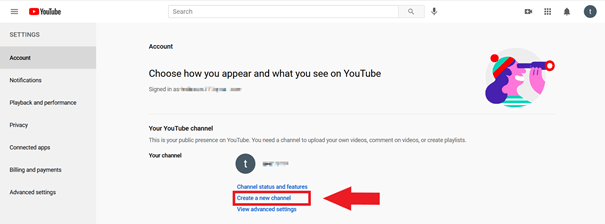
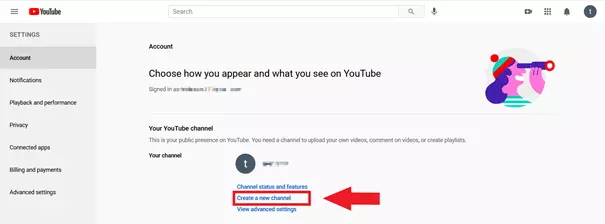
To create an additional channel, click on ‘Settings’ (gear icon) in the left sidebar at the very bottom.
Select ‘Create a new channel’ to set up one or more additional channels.
In some accounts, the alternative ‘Add or manage channels’ button will be visible at this point. Click it to add more channels to your profile.
Register your personal domain with IONOS and get your free email address and access to customer support.
Set up a YouTube channel: unique layouts for greater success
Creating your YouTube channel is the first step, but you’re just getting started. For a distinctive, attractive channel design that fits your company, brand, or personality, it’s important to design an individual, consistent look. To do this, it’s worth peering behind the ‘Customize Channel’ option.
Give your channel a distinctive look in the ‘Layout’, ‘Branding’, and ‘Basic info’ sections and customise your personal settings.
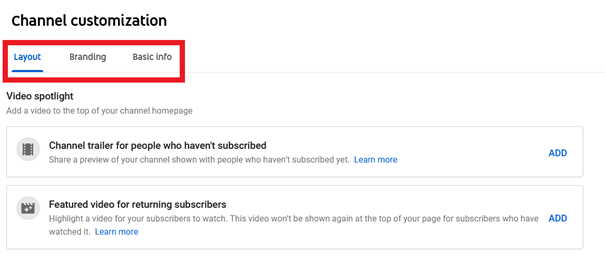
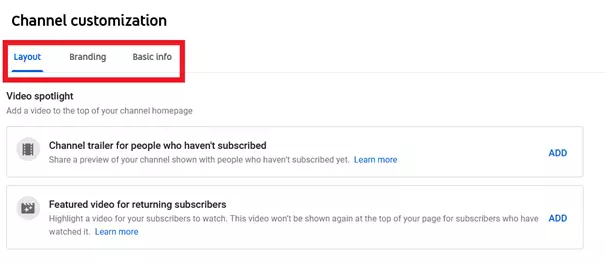
Keep the following design aspects in mind when setting up your YouTube channel:
- Coherent channel image (banner): The channel image, also called channel banner, sits at the top of your channel page. It’s the first thing users see and should offer a sense of your channel. Coherent colours, consistent fonts, and a format optimised for conversions are especially important. Try to include your brand or company name in the banner and stick to a consistent design.
- Appealing channel icon: The channel icon is your channel’s profile image and usually the first touchpoint between users and your channel. Optimise the image in terms of size and format for a more distinctive design.
- Clear channel description: The description sums up what your channel stands for and what users can expect. It’s best to add an engaging, relevant description to define your channel as clearly as possible.
YouTube is not the only video platform you can use for content and marketing purposes. Platforms like Twitch, Dailymotion, Vimeo, and TikTok are interesting YouTube alternatives that are worth taking a look at.
Why you should set up a YouTube channel
The numbers speak for themselves. Every month, YouTube records almost 2 billion registered users – a trend that’s rising. In the third quarter of 2020, YouTube had roughly a 80 percent penetration rate in the UK, surpassing Facebook, WhatsApp, Instagram, and Twitter by number of active users. Companies, artists, and influencers have long recognised YouTube’s market potential.
A personal channel lets you publish content for free to potentially reach a huge audience. Moreover, you can monetise your content on YouTube, extend the reach of your brand identity, and engage new audiences through exceptional advertising campaigns.
- Write perfect emails with optional AI features
- Includes domain, spam filter and email forwarding
- Best of all, it's ad-free
Reviewer

Melissa Senn
Melissa Senn has been with IONOS since 2016 and focuses on website, e-commerce, social media, and AI in the Digital Guide. As a digital strategist, she uses her extensive SEO and GEO experience to transform complex technological trends into practical content.