

How to delete a Twitter account step by step

X, formerly Twitter, connects millions of people globally, but if you’re looking to step away from the platform, deleting your Twitter account is a quick and straightforward process that takes just a few steps.
What is the difference between deactivating and deleting a Twitter account?
If you have previously thought about deleting your account and started to take the necessary steps, you might have seen that there is also the option to deactivate the account. This is by no means an alternative option to deleting your account, but rather the preliminary step you have to take so that your profile can be properly deleted. During the deactivation process, your display name, your @ username, and your public profile will no longer be visible to others. After 30 days, everything (including all other data such as tweets, photos, etc.) will be permanently deleted.
This option differs from permanently deleting your account, since you are able to reactivate your deactivated account within 30 days. All account information and content, which has been published on your timeline, will be visible again and available to everyone.
- Set it up effortlessly and start saving files straight away
- Your data is available anywhere and on all devices
- 100% GDPR compliant in European data centres
How to optionally archive tweets, images, etc.
If you’ve decided to retire your Twitter career, you can initiate the deletion process yourself. You don’t need to make an official request or directly contact the microblogging service support team. Before you start, however, you should ask yourself whether you want to archive everything you’ve done for sentimental reasons. This means that, at a later date, you will be able to view all photos, texts, and tweets that you published from your account. The short message service doesn’t save backups on its own servers, giving you total control over the locally stored memories, since you can choose the device they should be saved on.
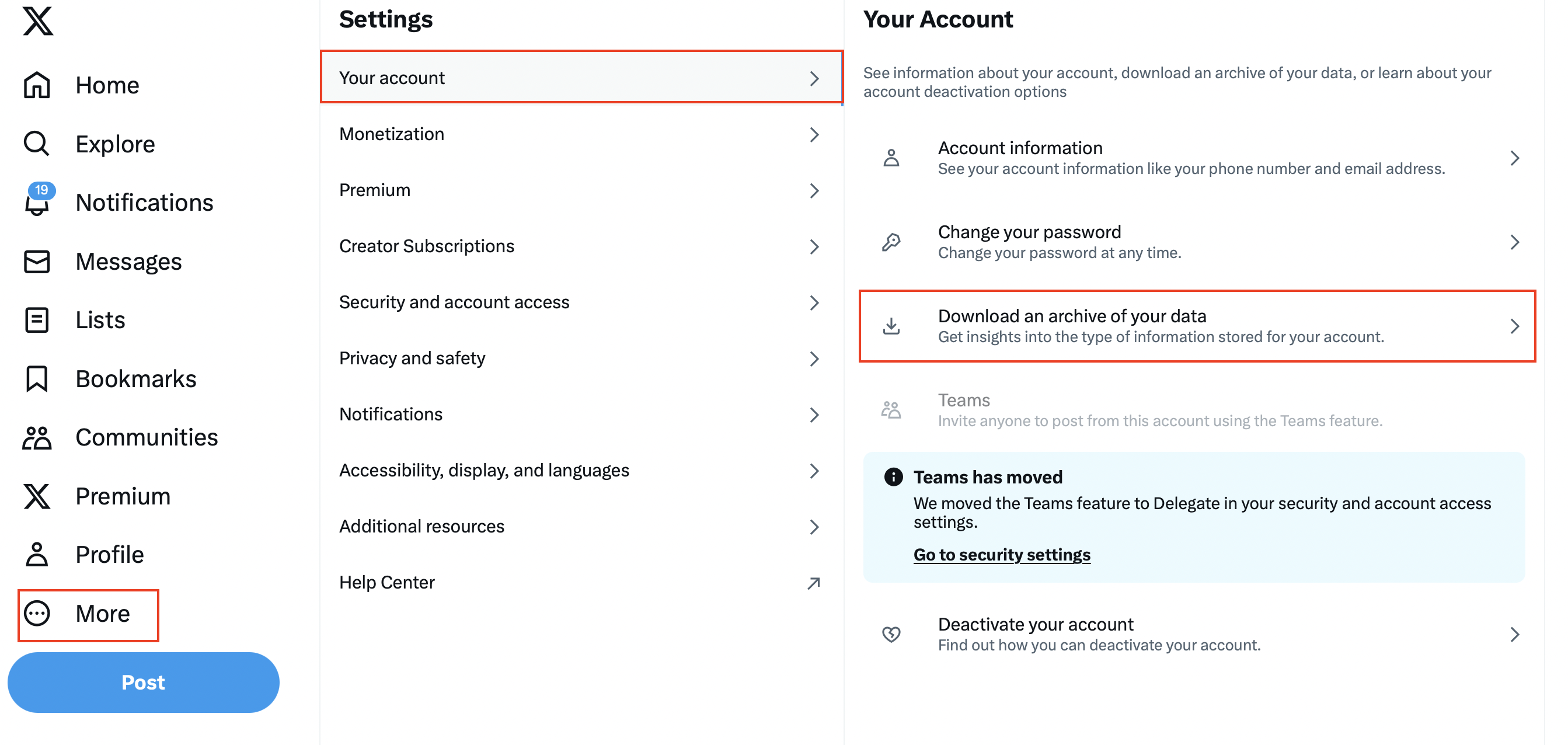
If you’re interested in archiving your data, you can request it by accessing your profile settings and selecting the option under ‘Your account’ -> ‘Download an archive of your data’. You will be prompted to enter your password. Afterwards, you’ll receive a verification code via email or SMS, which you’ll need to confirm your identity. Once verified, you can easily download your data.
How do I delete my Twitter account? Step by step
If you have already saved your data locally or are not interested in archiving it at all, you can delete your Twitter profile whenever you’re ready. Like the ‘tweet archive’ request described above, this works via the profile settings. However, you need to access the platform’s website on a desktop computer since it’s not possible to delete your account using the iOS and Android mobile app, however you can deactivate it this way.
Step 1: Go to the Twitter website and log in
Go to the Twitter website using the web browser of your choice. Enter the login information for the Twitter account that you want to delete. If you’ve forgotten your password, you can click on ‘Forgot password?’. Then you must enter your email address, telephone number, or username connected to this account. Twitter will then email you all the information you need to reset your password.
Step 2: Open the ‘Settings and privacy’ menu
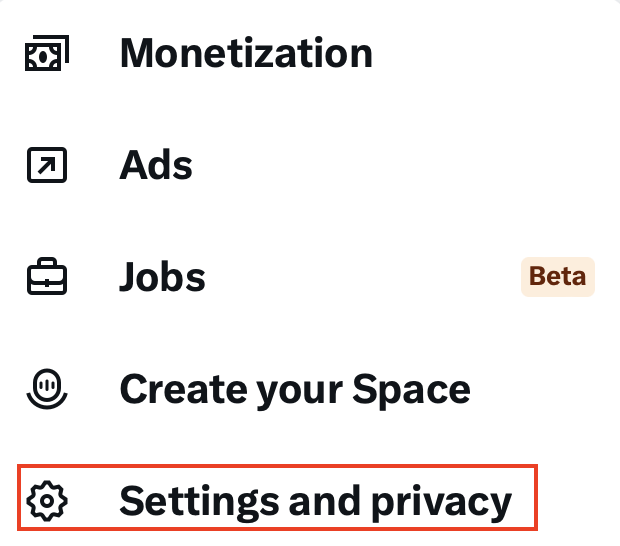
Now, click on ‘More’ in the left-hand menu bar and select ‘Settings and privacy’ from the menu that appears.
Step 3: Deactivate your Twitter account
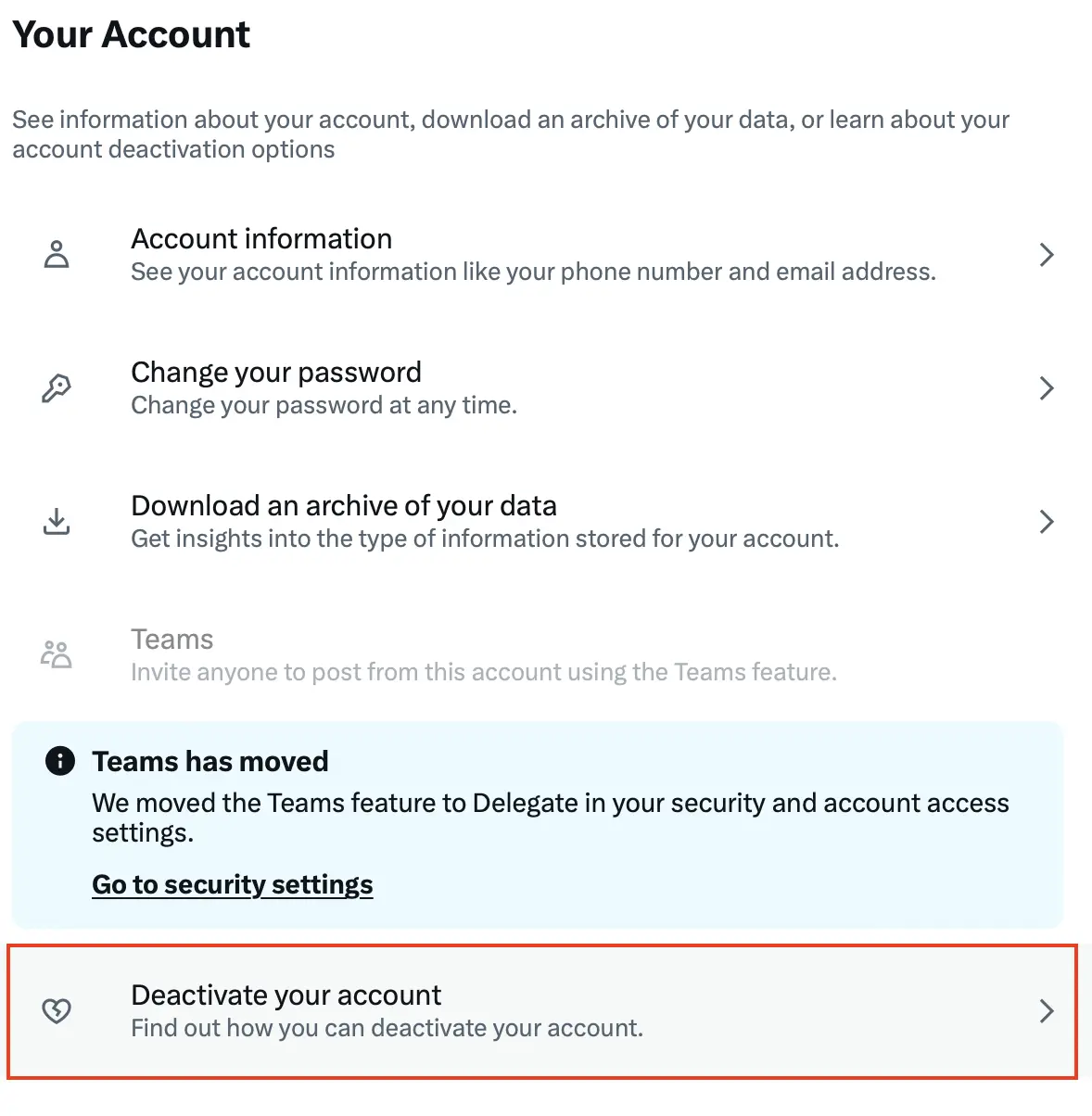
You will automatically be taken to the account menu, where you can not only set your username or language and request the information that is to be archived, but can also deactivate your account. Scroll all the way to the bottom of the page to find the ‘Deactivate your account’ button.
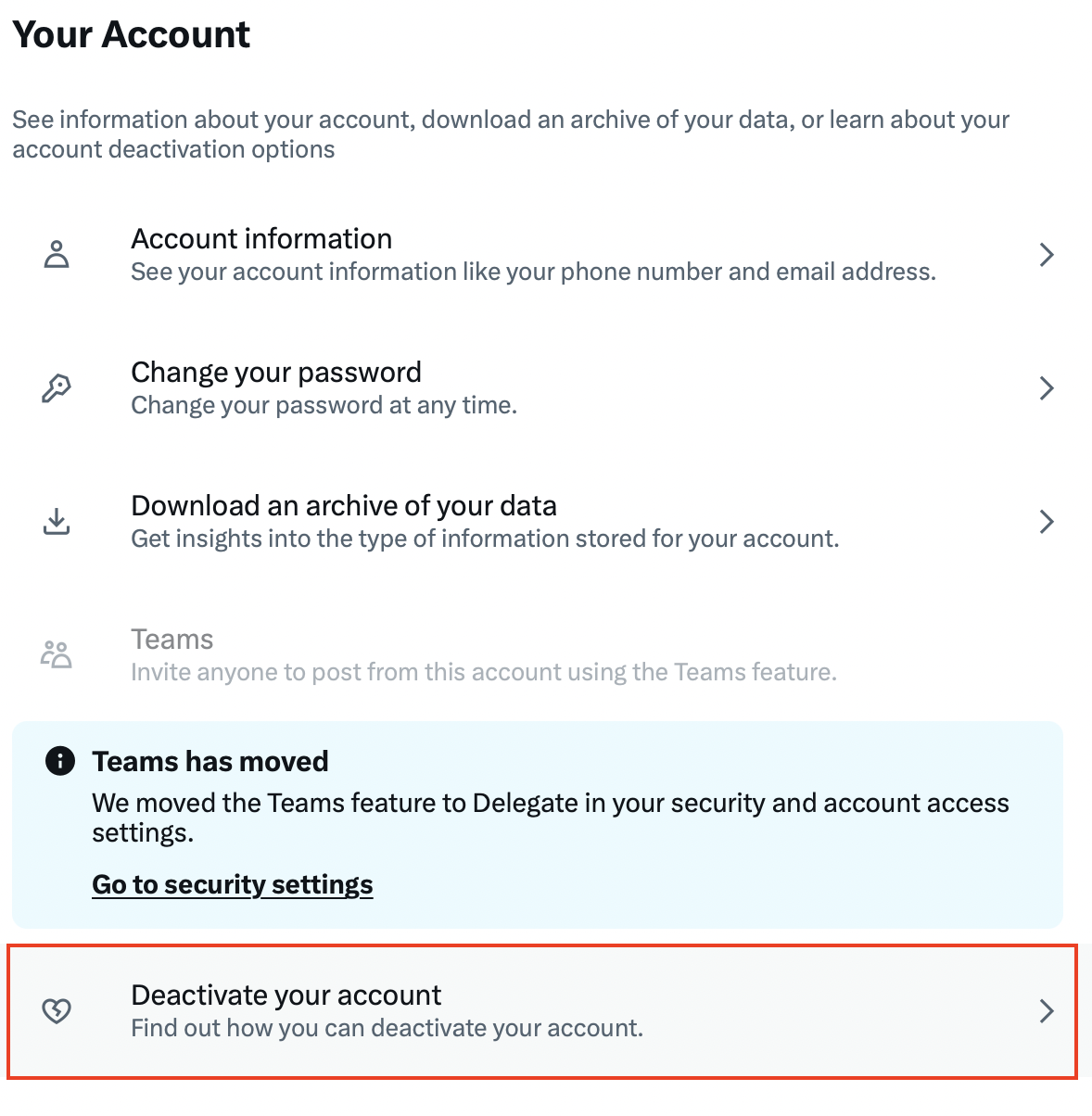
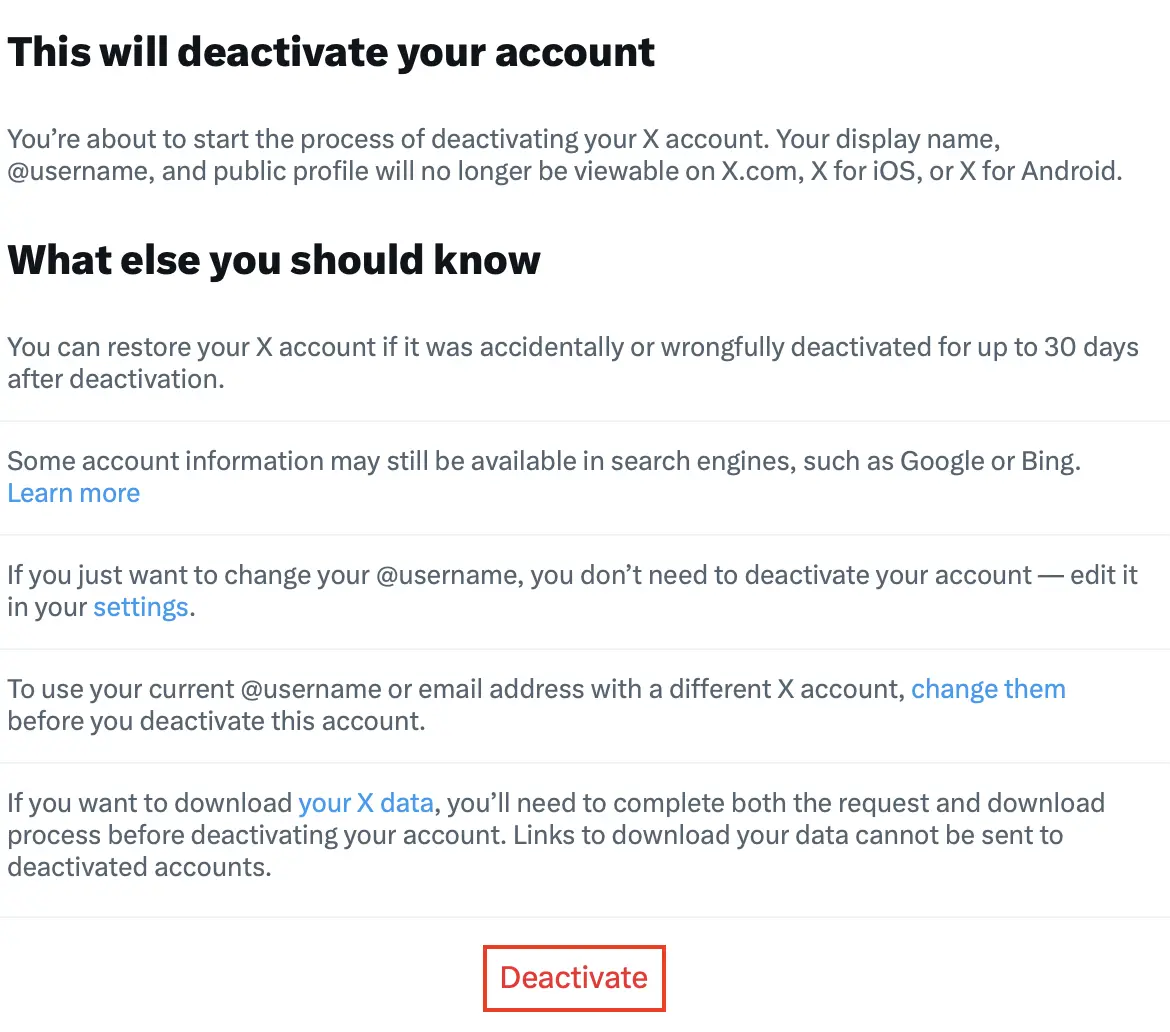
After clicking this button, the microblogging service will inform you of the consequences of deactivating your account. Select ‘Deactivate’ once more to confirm you want to begin the deletion process.
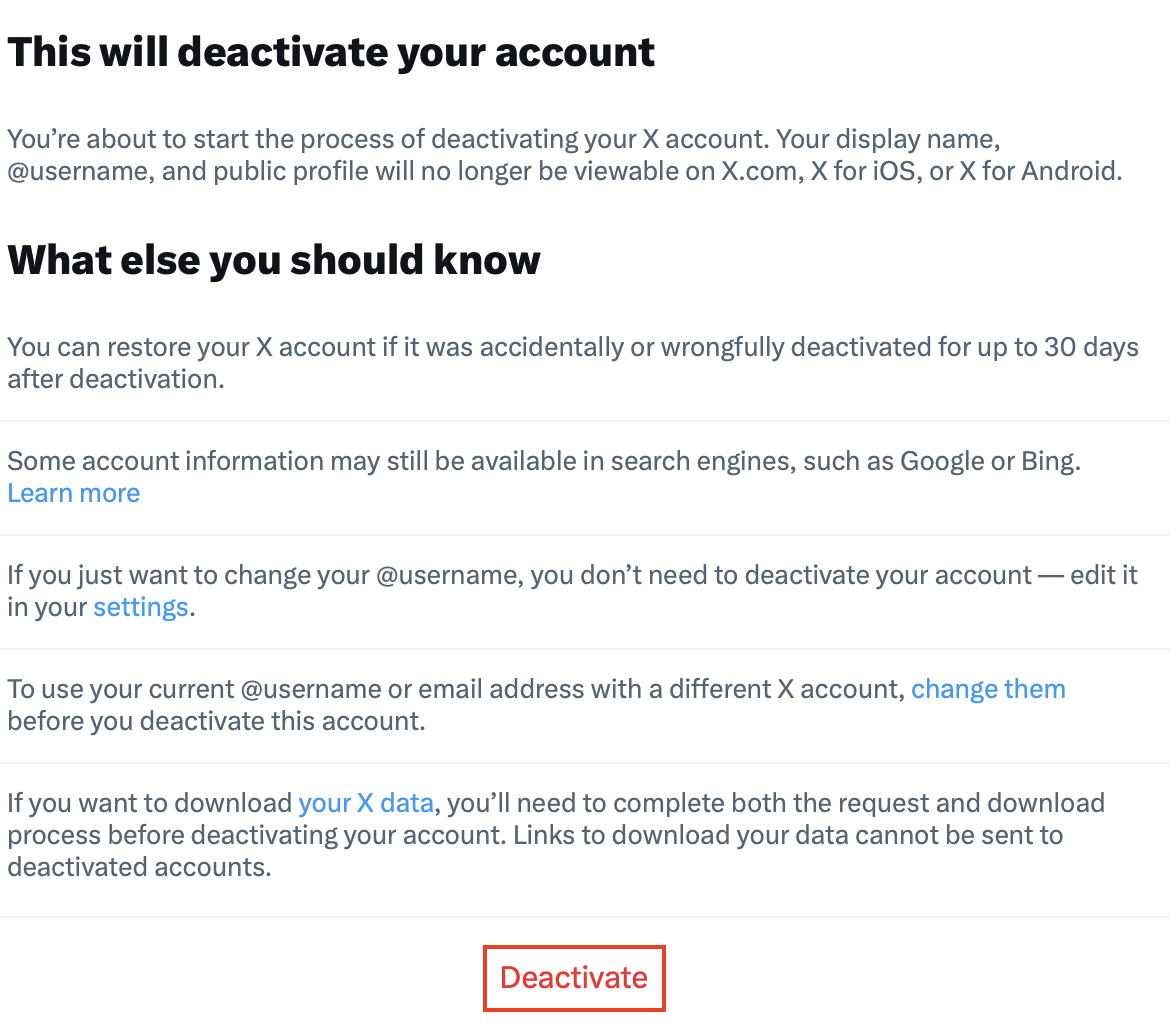
You will be asked to enter your Twitter password one last time before your account is officially deactivated. As long as you don’t log in to the platform with this account in the meantime, it will be permanently deleted (as well as all user data) after the 30-day deactivation status has expired.
Instead of deleting your entire Twitter account, you can simply delete all tweets and followers as well as all personal information (including profile photo) and activate the ‘Protect your Tweets’ option. After just a few days, users won’t be able to find relevant information about you. This way you can keep the option open to reactivate your account as needed – regardless of your length of absence.
- Write perfect emails with optional AI features
- Includes domain, spam filter and email forwarding
- Best of all, it's ad-free
Reviewers

Melissa Senn
Melissa Senn has been with IONOS since 2016 and focuses on website, e-commerce, social media, and AI in the Digital Guide. As a digital strategist, she uses her extensive SEO and GEO experience to transform complex technological trends into practical content.

Jeanna Raffa
With over 18 years of experience in online marketing, Jeanna Raffa possesses extensive expertise in digital marketing. Since 2020, her focus has been on providing practical information regarding email, office, and cloud storage solutions.