

How to create screenshots in Linux
Unlike Windows or macOS, creating screenshots in Linux works differently depending on the Linux version. In some Linux versions, you can do this by pressing [Print] or [PrtSc], optionally in combination with the [Shift] or [Alt] key. The start menu of some Linux versions also contains a screenshot function. Alternatively, you can use tools like GIMP or Shutter. Here you will learn how the different methods work.
The best method for screenshots depends on the Linux version
One of the reasons why it’s not always that easy to take a screenshot in Linux is that not every version of the operating system has a corresponding function. However, there are professional tools for this case, which you can read more about below. Most of the versions, however, offer the possibility to create a screenshot in Linux even without additional tools. Especially for sporadic use, the simple keyboard shortcut is the most practical option.
Maximum flexibility paired with safety! With Linux Hosting from IONOS, you not only have the free choice from no less than four pricing packages, but also benefit from Wildcard SSL and DDoS Protection. We have the right offer for your purposes!
Create screenshots in Linux with the [Print] key
The crucial key to take screenshots in Linux is the [Print] key. This is - depending on your keyboard - labelled with the word ‘Print’, ‘Print Screen’ or ‘PrtSc’. You will find it on a conventional keyboard in the upper row, next to the [F12] key. The [Print] key is important for any kind of screenshot in Linux. You now have several options:
- [PrtSc]: If you just press the [Print] key, you will take a screenshot of your entire screen in Linux. Depending on the setting and version, you will then either be prompted to select a destination folder to save the image to, or the screenshot will automatically end up in the images folder.
- [PrtSc] + [Shift]: If you press the [Print] key and the [Shift] key at the same time, you can specify yourself which section of your screen should be photographed. By dragging and clicking, you mark the corresponding area. The Linux screenshot is then saved in the images folder.
- [PrtSc] + [Alt]: If you combine the [PrtSc] and [Alt] keys, Linux will take a screenshot of the currently active window. This image is also saved directly to the images folder.
Create screenshots in Linux via the start menu
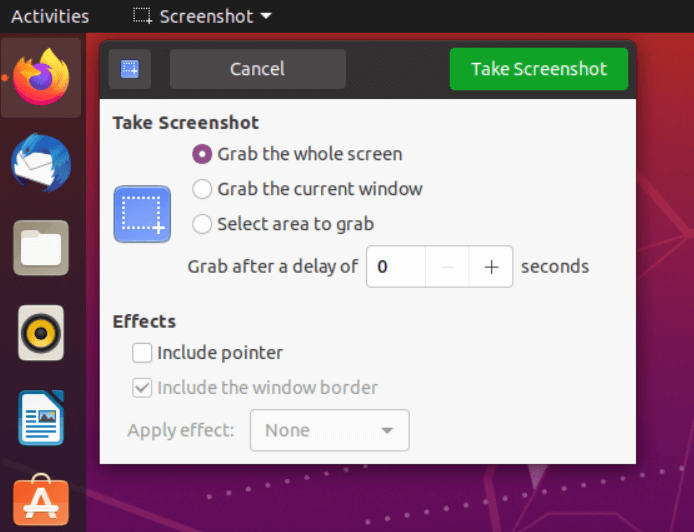
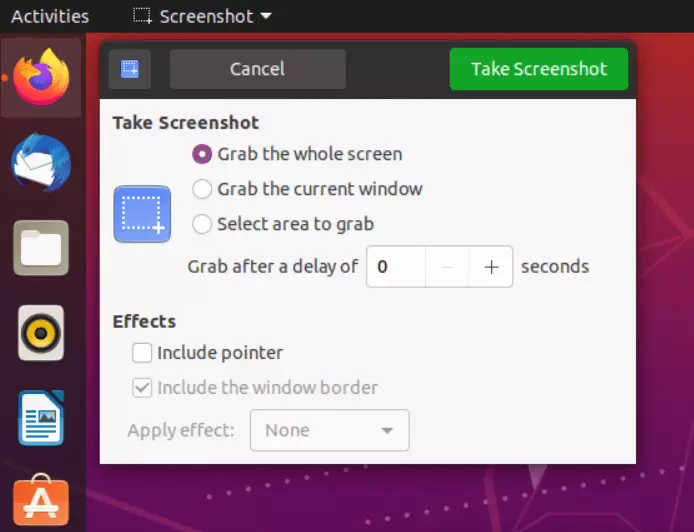
The second method of taking a screenshot in Linux is also very simple and already provided for in many versions of the operating system. To do this, search for the word ‘Screenshot’ in the Start menu. Now you can choose from several options. A picture of the whole screen, a specific area, or a window are possible. You can also set a delay if necessary and decide whether the cursor should remain in the image and whether it should be given a frame.
GIMP: A practical and free tool
Should you have a few more requirements for your screenshots in Linux, a slightly more professional screenshot tool is recommended. GIMP is a free program that is also pre-installed in some versions of Linux. Alternatively, the program is available in the Software Center. After installation, proceed as follows:
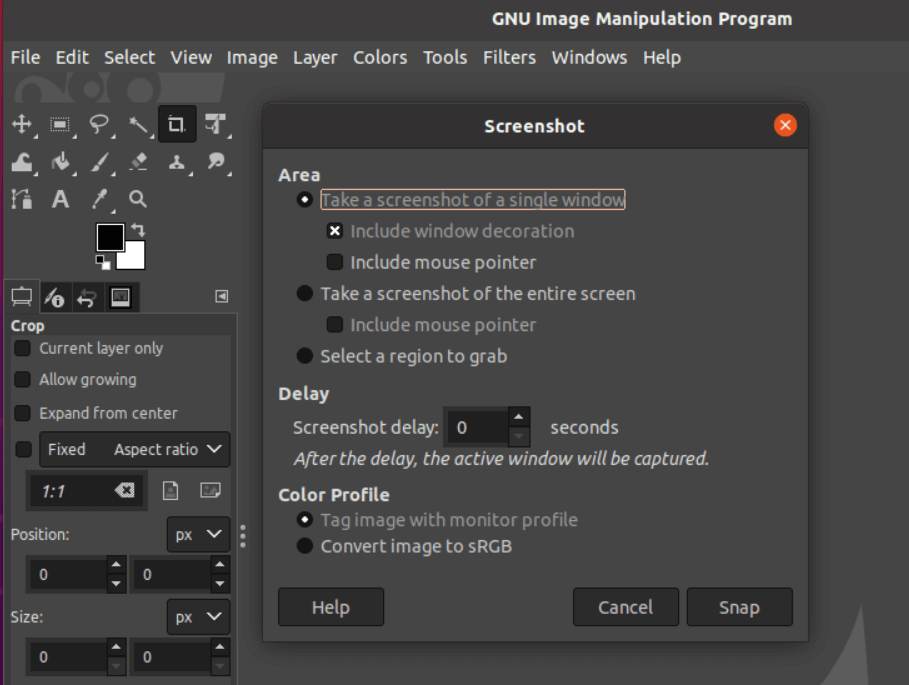
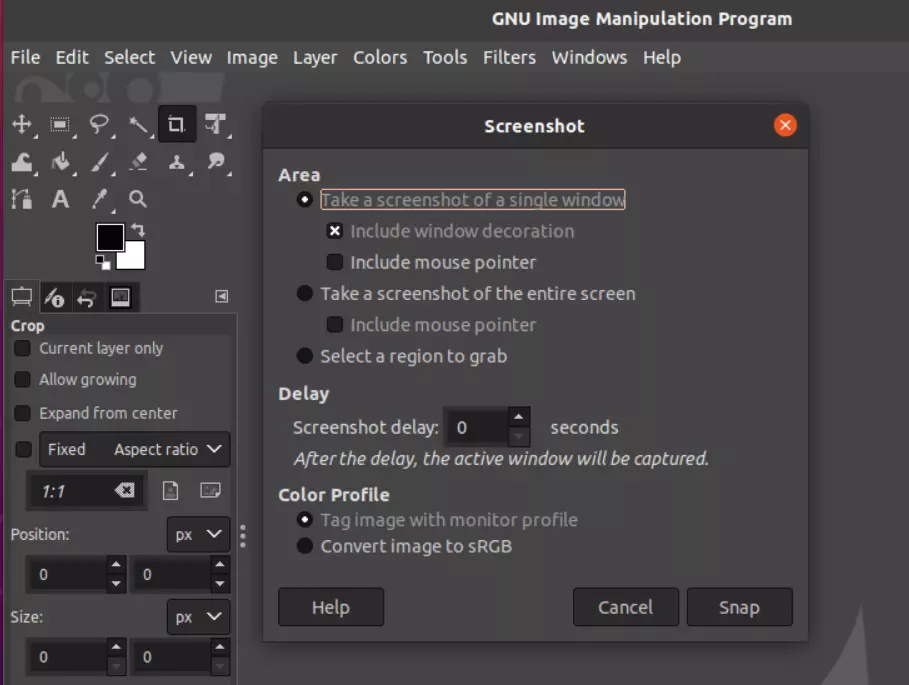
- First click on ‘File’, then on ‘Create’ and ‘Screenshot...’.
- Now select what kind of screenshot you want to take in Linux. The choices are: an image of the entire screen, a single window, or a selected area.
- If necessary, now set a delay to arrange the image first in peace.
- Now press ‘Snap’. Then the Linux screenshot will be created.
Shutter: The professional alternative
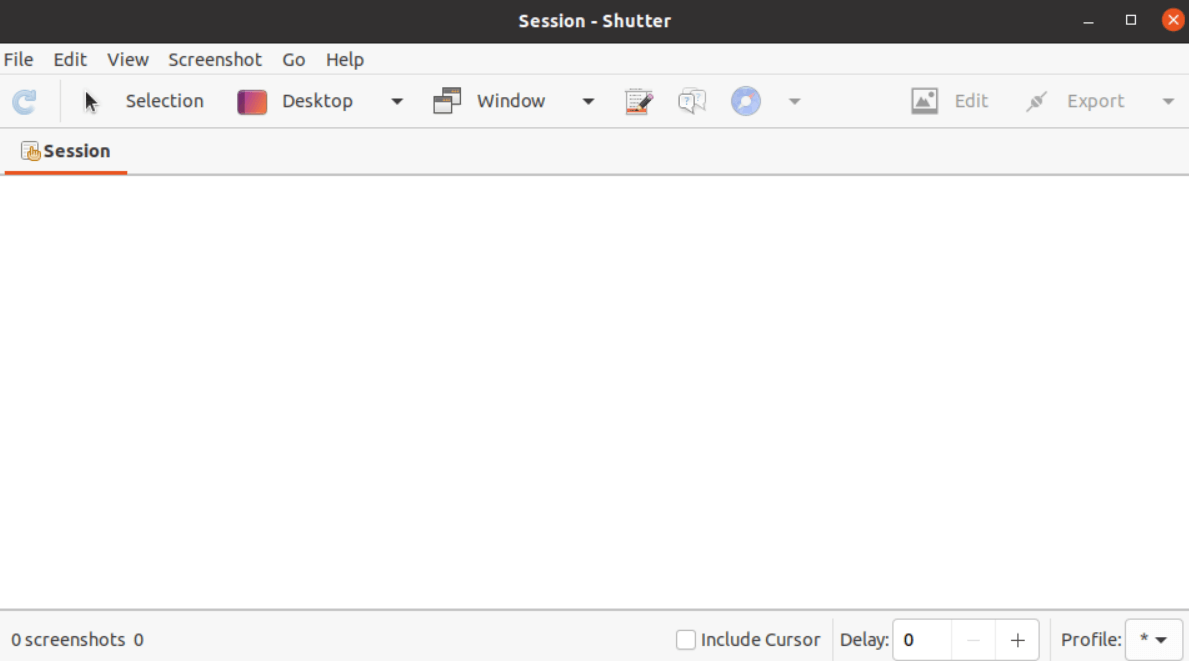
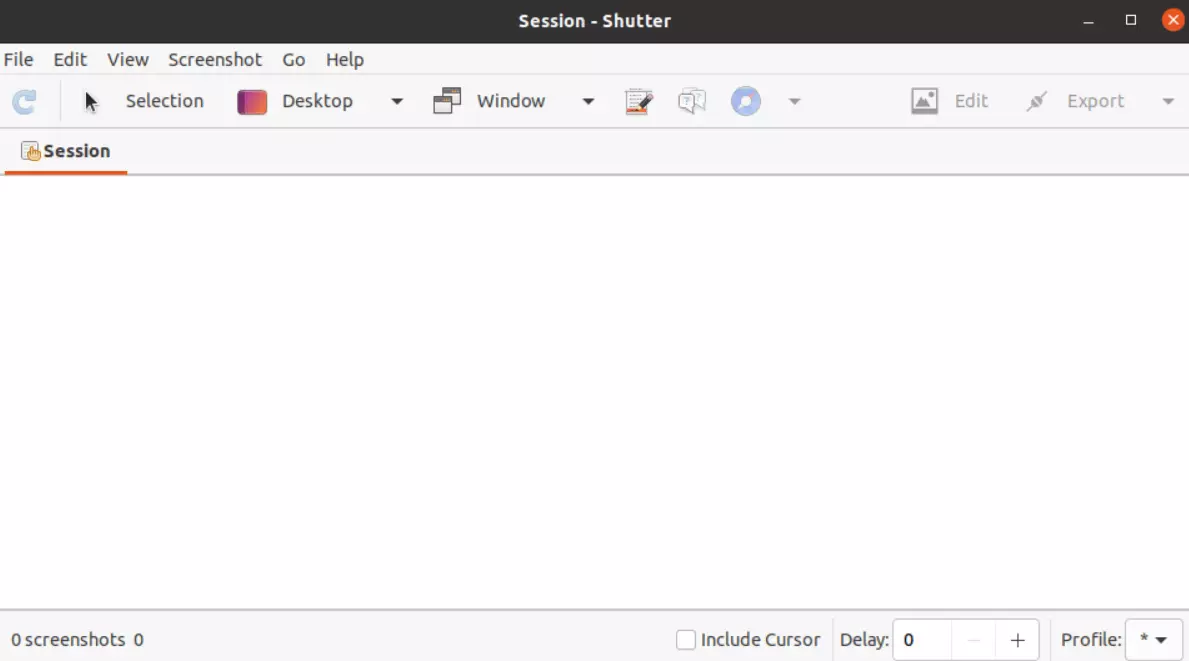
Another popular method to take screenshots in Linux is Shutter. You install the program from the Software Center as well. Shutter offers you more options. Basically, you take the screenshot in Linux in the same way as with the previous methods. However, after that you have the option to add shadows or watermarks, add comments to the image or make changes through an editor. This is useful if you want to use the screenshots in Linux for professional purposes.
Conclusion: In Linux, screenshots can be made quickly and easily
In Linux, screenshots are supported as well. If you only need them sporadically or for personal purposes, the pre-installed options are absolutely sufficient. In a professional context, programs like Shutter offer you useful additional functions that make your everyday work easier.
Do you also use other operating systems? Learn how to create screenshots on Windows 10 and screenshots on Windows 11 or how screenshot creation on Mac works.